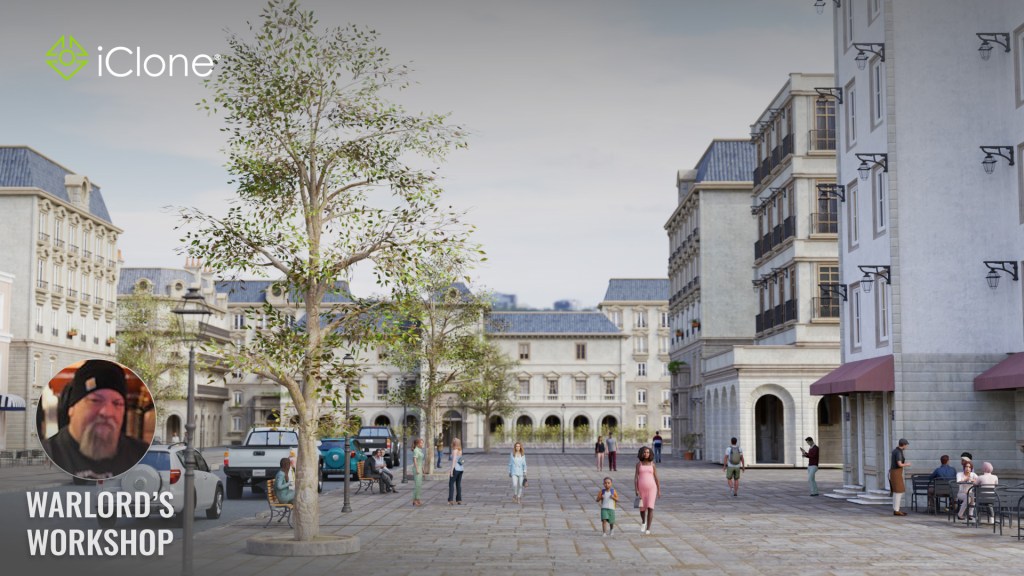
Generative building creation comes in many forms including extrusion-based, agent-based, and procedural. More complex generative applications like CityEngine can create an entire town or city but can be extremely complex to learn if you are unfamiliar with procedural generation.
iClone’s BuildingGen plugin is the opposite of complex with Reallusion’s typical “easy to use” approach as you only need to keep up with a few things. We can learn its basics with primitives as used in the tutorial below, or the supplied building pack and the new French Style pack.
There are a couple of things you must pay attention to, or you will get, what seems to be, very chaotic results when the plugin is simply doing what it was instructed to do.
One errant dropdown menu choice or checkbox in the plugin concerning Levels or Type can produce unexpected results. Understanding why this happens can open the door to using your own or other building kits. As long as the kits provide separate walls, floors, and a few other necessary components that the plugin needs, BuildingGen can use them to create custom buildings.
While this plugin has a slight learning curve, it is not a complicated tool; all one has to do is wrap their head around exactly what they are telling the plugin to do.
If, for example, you add the short trim wall to the top level and forget to uncheck the default first level checkbox you get a combination of the regular wall and short trim wall on the first and top floors creating what looks like a jumbled-up mess but was in fact what you told the plugin to do by failing to uncheck the proper checkboxes.

Learning the Basics
I thought the easiest way to learn the plugin was to create a new BuildingGen package using the props that came with the plugin or the French-style pack. Using these, instead of a custom or third-party building kit would help me to understand what is happening and why it happened. This is because I would be working with props that I know are sized right and will work with the plugin. If you get unexpected results with these props, then you know you have an error.
While this did help me to learn the plugin, it was still a bit confusing with the actual windows, doors, and other props getting in the way of a clear view and now I needed to learn how to import props of differing sizes. I decided to create a building package (simple template) out of primitives that come with iClone.
One of the most important things I discovered was it does not matter how precise building pieces are in dimensions as you can alter the scale on any axis to make it a 2-, 3-,4- or whatever meter package. By this I mean does the floor take up 2 X 2 grid squares or 3X3, 4X4? We get to determine that by resizing the components to whatever size meets our needs for that particular building package or we can just go with the native sizing. All the plug-in needs to run without error is a floor and wall prop so this is where we will start in the tutorial. After this, we will add the other components.
The tutorial shows each step for the wall, floor, door, window, and Pillar. Some of you will pick it up quickly after watching the first floors and walls packaged and won’t need to watch the entire video but each component is covered for those that want to see it all come together. Once you’ve built your first successful package you apply the same principles to custom kits.
NOTE: I start with the floor. Scale it first as in the video tutorial. It serves as the visual guide for the sizing of the remaining walls, doors, windows, and pillars. Most building kit components will not need to be rescaled, but they still can be if you need to. This makes the plugin very flexible in terms of importing our own custom-made props that might not be exact in dimensions.
NOTE: In Kai’s tutorial on external assets, he talks about having to center an object and reset its transform so it will be at the world center with a proper pivot. This is necessary because many building kits have assets spaced out across the workspace which sets their pivot points to the center of the entire project, not each prop within the kit. In my template example, we are building the props at the world center so there is no need to reset the transform as required in Kai’s tutorial.
Toon Castle
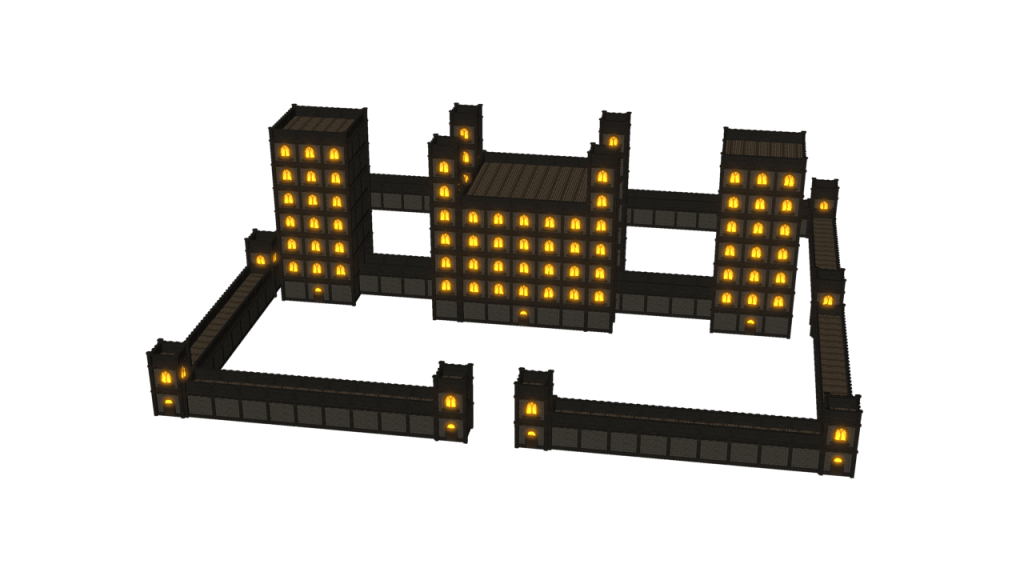
This was a fun project. It came from Sketchfab and not all the parts are used but it does have the necessary doors, windows, and pillars the plug-in needs for a basic building package. I made a floor 4 X 4 grid squares out of primitive and gave it a wood plank texture for the floor.
This tutorial demonstrates how to import the usable parts of the building kit, create a custom BuildingGen package from those parts, and then make a castle with buildings, towers, and walkways surrounded by castle walls within minutes.
Think Outside the Box
There are a lot of building kits out there, but you won’t be able to use all of the components in them like oddly shaped walls or roofs. However, you can use the regular walls, doors, windows, and pillars so look for those items in particular when searching for kits. If there are windows and doors but no walls, then grab the texture(s) from the building and create your walls out of primitives using the textures from the kit.
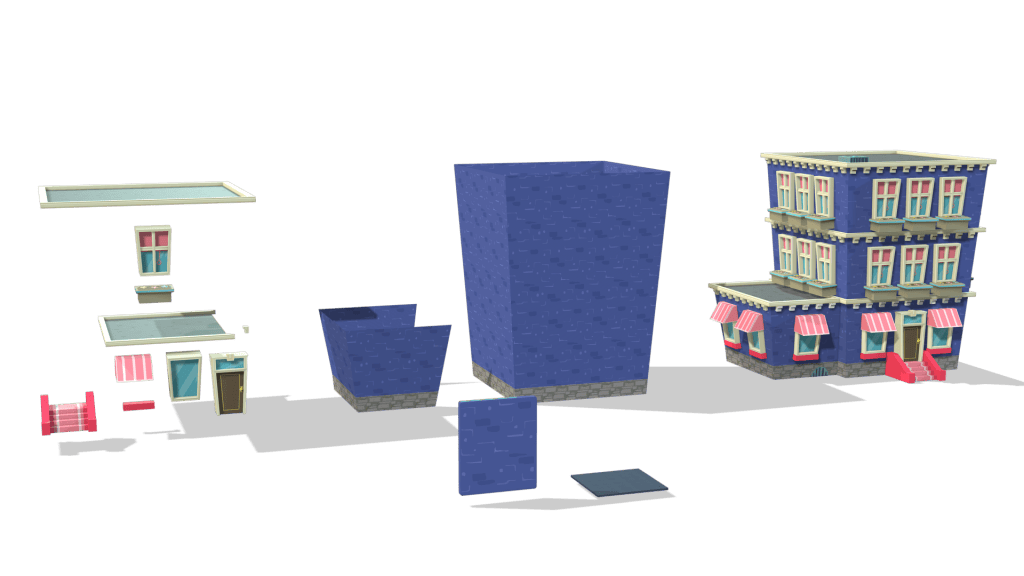
The Toon House from Sketchfab is a good example of using parts from a kit and making your own for the parts that may be missing due to the way the model is created. In this case, there was no separate wall or floor. The walls were two different, irregular meshes versus a wall.
To remedy this, I created a wall and then used the eyedropper tool in materials to grab the texture from the irregular walls and transfer it to my newly made wall component. All I had to do was scale it which is easy using the window and other props as size guides. I repeated the same process for the floor prop. This method is detailed in the template tutorial.
The image below shows the various parts of the Toon House and the irregular walls. In front is the wall and floor I made to work with the other kit components to be able to make toon houses.
French Style Atrium Building
As I wrote earlier my first try at learning the BuildingGen plugin used props from the French Style pack to create a conservatory/atrium-style building like a fine arts center. I was looking for an elegant style with old-school vibes and large windows but not just plain windows. The AT windows in the pack made it work. I also had to correct the texture on the window glass when making the package so it would be transparent with some reflection mapping. This only had to be done on one window to change all of them.
In my testing example below, I used the custom BuildingGen package to create the major structures then built out the connecting walkway and used roof props for a different roof. I later learned I could have used the plugin to create the walkways as I did for the castle walls in the Toon Castle tutorial.
CAUTION: The video below has audio.
Below is the final package for the Atrium building for those that have the French Style pack and want to re-create the basic building package.

The secret to BuildingGen is… there is no secret.
Just pay close attention to the checkboxes and dropdown menu selections for each item. If you get an erratic result, go back to your packager and make sure the affected level doesn’t have conflicting or multiple props. The drop-down menu Type and Level Checkboxes can create a great custom-building package or a nightmare of conflicting parts with just a couple of errant checkboxes.
Quick Tip
You can make an interior hallway with BuildingGen using a two-sided wall or a wall turned 180 degrees to face the interior instead of the exterior.

I hope these tutorials can get you jumpstarted on creating custom BuildingGen packages along with Kai’s great tutorials over at Reallusion Courses.
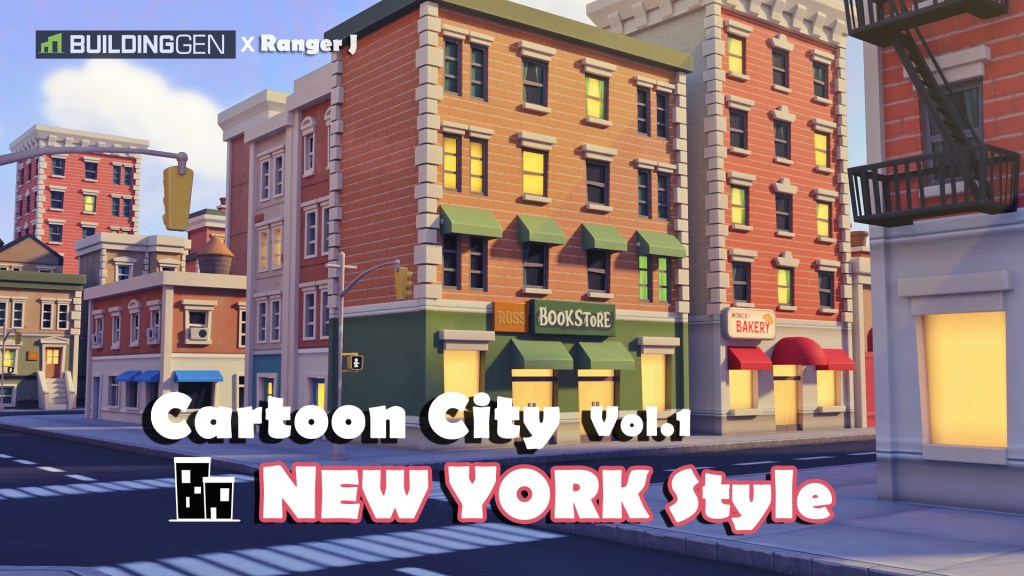
A BuildingGen pack by Ranger J – Cartoon City – New York Style. Inspired by New York City architecture.
From the Product Page:
This product contains tons of props, and buildings with different structures can be quickly produced using the building gen plug-in. In addition, I have prebuilt the assembled buildings and even prepared the streets and scenes, so even people without a plug-in can enjoy the fun of this pack.

MD McCallum – WarLord
Digital Artist MD “Mike” McCallum, aka WarLord, is a longtime iClone user. Having authored free tutorials for iClone in its early years and selected to write the iClone Beginners Guide from Packt Publishing in 2011, he was fortunate enough to meet and exchange tricks and tips with users from all over the world and loves to share this information with other users. He has authored hundreds of articles on iClone and digital art in general while reviewing some of the most popular software and hardware in the world. He has been published in many of the leading 3D online and print magazines while staying true to his biggest passion, 3D animation. For more information click here.