As I have said many times, there are many things a new user needs to grasp, and iClone has always excelled at reducing the learning curve of professional-level techniques. This includes Facial Tracking that utilizes a camera of your choice (in my case, a webcam) and the new AccuFACE 2 standalone application to bring superior facial reactions and animations to iClone without the fuss. And… no messy calibration either in the new version!
To top that off, Reallusion introduces Expression Curves to smooth things out if you are ready to tackle curves, but you do not have to use it as it’s just an enhancement of an already powerful tool. So, if the word “curves” means nothing to you right now in terms of animation, then don’t worry about it. When you get more experience under your belt, you’ll learn to use curves then.
And if that isn’t enough… AccuFACE 2 also works with video clips in addition to live camera capture, which opens up a new library of resources for facial animation and puts it right at our fingertips! We don’t have to be a pro to animate like a pro with AccuFACE 2.
New AI Model
AccuFACE 2 comes with new powerful AI to guide and manage the tracking and capture of expressions for use with any Character Creator (CC) actor, but it is specifically trained for CC5 HD characters to get optimal results.
From the Reallusion website:
- AccuFACE 2 features a newly trained AI model designed for accurate facial tracking and enhanced stability, specifically optimized for CC5 HD characters. With GPU acceleration support, AccuFACE 2 enables real-time, full-frame facial capture for faithfully reproducing nuanced lip movements and dynamic facial expressions.
- Realistic speech animation depends on high-fidelity lip tracking and comprehensive lip morphs. Powered by an optimized mouth tracker, AccuFACE 2 captures every subtle lip movement to deliver accurate, natural-looking speech animation across languages and a wide range of performance styles.
- Master facial motion capture to translate everything from powerful outbursts to subtle micro-expressions. Whether crafting realistic or stylized assets, achieve exceptional realism and believable performances without compromise.
Expression Curves: Fine-Tuning Acting Styles & Follow-Through
The brand-new Expression Curves system in AccuFACE 2 gives animators granular creative control over every performance without requiring tedious manual keyframing. Starting with a variety of built-in curve presets, you can adjust curve intensities across different facial regions to enhance speech articulation, amplify emotional drama, or tailor movement to specific stylized acting styles. Furthermore, custom curves allow you to link driver and driven morphs—connecting multiple facial expressions together with realistic timing, secondary motion, and follow-through that go far beyond standard 1:1 facial tracking.
Full Body Capture with a Single Video Source
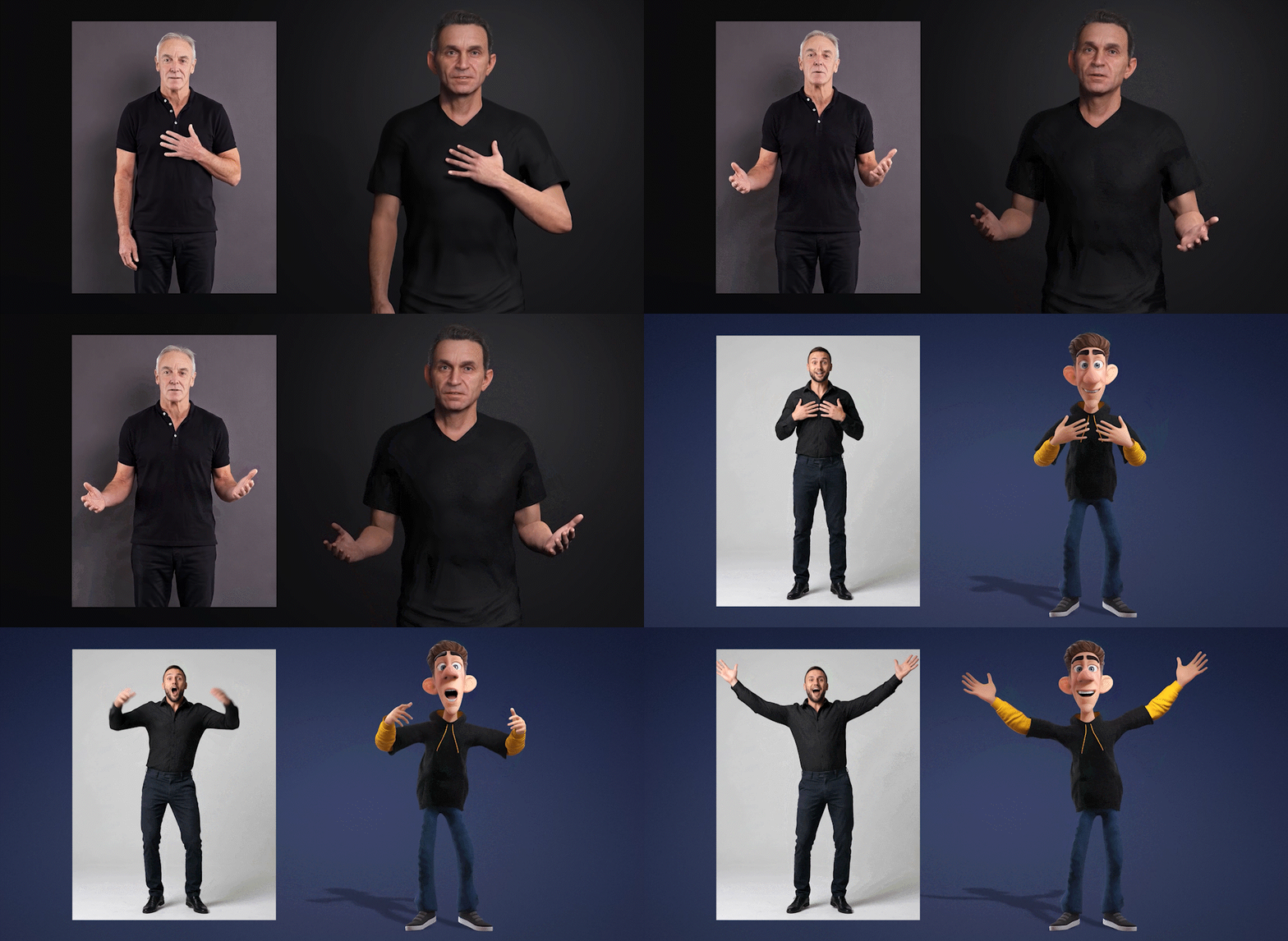
Because AccuFACE 2 is now capable of tracking smaller facial regions down to 120 × 120 pixels, you can use full-body video footage to drive both your facial and body motion capture simultaneously. By using AccuFACE 2 for the face alongside Video Mocap for the body on the exact same video file, you eliminate the need for two separate capture sessions.
From the website:
“Its advanced tracking technology is built to handle motion blur and accurately reconstruct facial performances from head regions as small as 120 × 120 pixels, delivering reliable results even in challenging recording conditions.”
Additional Controls
Strength Balance gives you control to increase or decrease the movement of specific face regions. The Smooth Filter helps smooth out performance when dealing with extreme tracking angles, excessive hair, or uneven lighting and shadowing.
Installing AccuFACE 2
Open the Reallusion Hub and download AccuFACE 2. This is a standalone program that runs in combination with iClone and Motion LIVE (located in the iClone plugin menu).
Note: While Character Creator 5 (CC5) characters are fully optimized for AccuFACE 2, Motion LIVE and AccuFACE 2 are used directly within iClone.
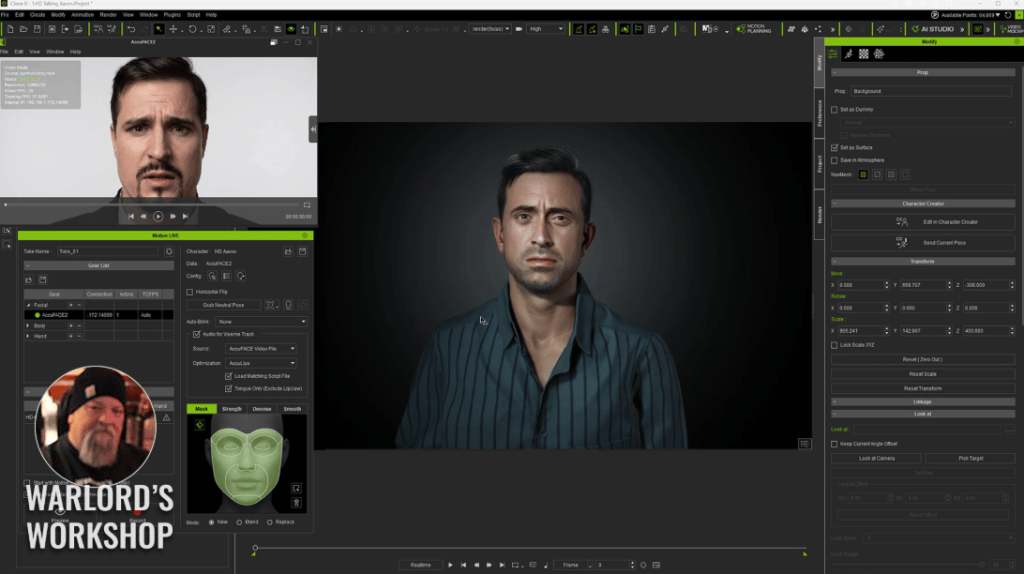
To summarize: you will start iClone, launch AccuFACE 2, and then open Motion LIVE from the iClone plugin menu. From there, select AccuFACE 2 and your character (which can be a CC5 character imported into iClone).
iClone to AccuFACE 2 via Motion LIVE
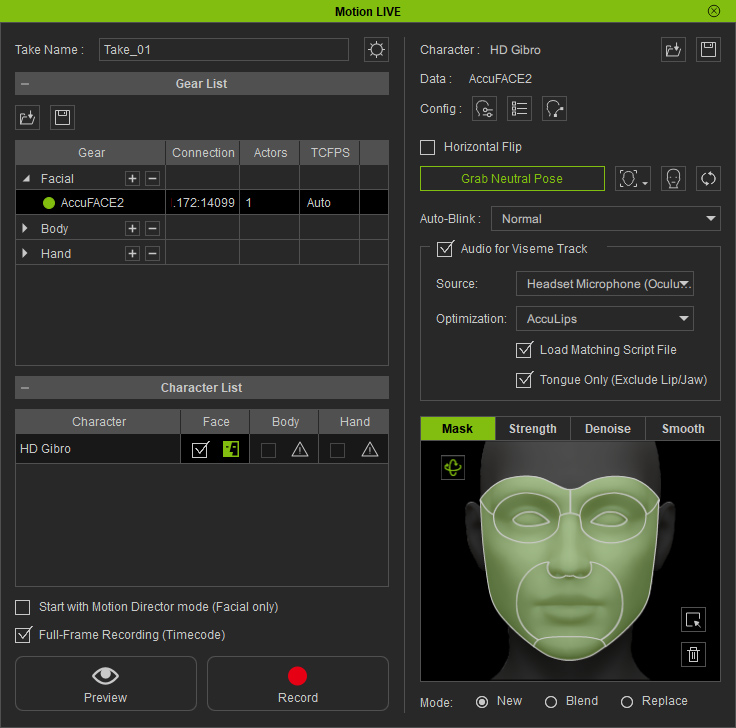
Getting AccuFACE 2 running is simple, but requires that iClone, Motion LIVE (in the Plugin Menu), and the AccuFACE 2 application be running and linked up.
- Launch iClone and AccuFACE 2.
- Open the Motion LIVE panel from the iClone Plugin menu.
- Click the circle/radio button next to AccuFACE 2 to enable it.
- Near the bottom of the Motion LIVE panel in the Character List, find the Face column under your character. Click the drop-down triangle and select AccuFACE 2.
This links AccuFACE 2 directly to your character in iClone.
Older Webcams and Frame Rates
I was originally using a 2017 Logitech C922 webcam, which worked well enough for video conferencing but was showing its age. For AccuFACE 2 to work smoothly, you need a high frame rate. The C922 was only getting around 5 to 6 fps, causing AccuFACE 2 to lag terribly or freeze. I discovered the camera had an automatic low-light feature that dropped the frame rate to 15 fps in low light, leaving almost no overhead.
Setting up bright lighting helped get it to 30 fps, but required uncomfortable brightness directly in my face. Upgrading to an Elgato Facecam MK.2 bumped the frame rate to 58–60 fps, smoothing out the tracking completely.
USB 3.0 or Higher
Connecting via a USB 3.0 or higher port ensures a fast, steady stream of data. Look for blue port connectors on your desktop or laptop. Powered USB 3.0 hubs with individual power switches also work without bandwidth loss.
Live Capture – Quick Start
AccuFACE 2 simplifies capture and calibration by replacing multi-step calibration with a single Neutral Pose button. Make sure your room is brightly lit to prevent deep shadows, which are the main cause of tracking jitter.
Using Video Clips
Using video files is even easier than live capture because it requires no camera.
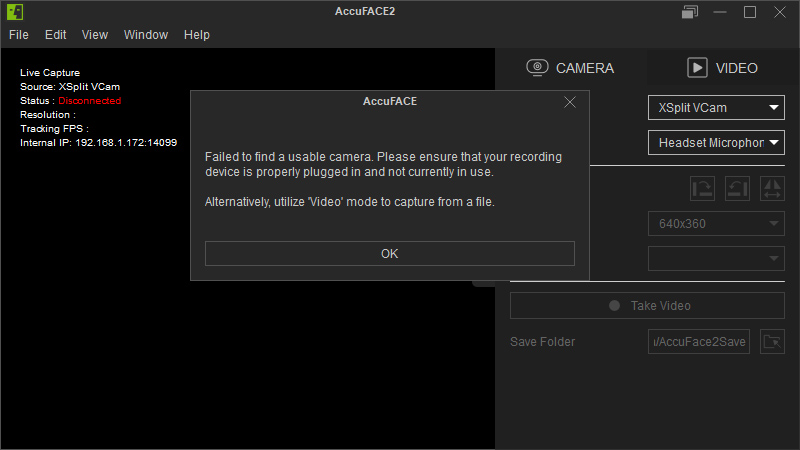
When you launch AccuFACE 2 with your camera unplugged or off, acknowledge the “No camera found” notice, switch to the Video tab, and load your video clip. AccuFACE 2 processes the footage quickly and allows you to test multiple clips on the same character in just a few minutes.
The video below will show you how I used the video feature and loaded two different videos from different characters to demonstrate its versatility. I load the initial clip, let it process, which is very quick, then test it. After this I test a second clip on the same character all done is under a couple of minutes.
The videos transfer facial and head movements but again I need to reiterate that a brightly lit room can reduce the jitters and shakes along with the provided tools like noise and movement reduction. Experimentation is highly encouraged in this area.
Below you find a quick start on using videos with accuFACE 2:
Essential Tips for Best Results
- Lighting: Bright, indirect lighting prevents tracking noise caused by facial shadows.
- Scene Optimization: Hide hair, secondary characters, or heavy props in iClone while capturing to reduce software load.
- Camera Settings: Disable auto-low-light options in your webcam software so it doesn’t drop to 15 fps before sending data to AccuFACE 2.
Summary
AccuFACE 2 provides a user-friendly setup backed by powerful AI that does the heavy lifting behind the scenes. With short setup times, support for both live webcams and video files, and smooth integration with CC5 characters in iClone via Motion LIVE, it delivers professional facial motion capture for animators at any skill level.

MD McCallum – WarLord
Digital Artist MD “Mike” McCallum, aka WarLord, is a longtime iClone user. Having authored free tutorials for iClone in its early years and selected to write the iClone Beginners Guide from Packt Publishing in 2011, he was fortunate enough to meet and exchange tricks and tips with users from all over the world and loves to share this information with other users. He has authored hundreds of articles on iClone and digital art in general while reviewing some of the most popular software and hardware in the world. He has been published in many of the leading 3D online and print magazines while staying true to his biggest passion, 3D animation. For more information click here.
Related Links