This Christmas, like many that came before, will be the first Christmas for many new iClone/Character Creator users to make special something for the holiday season. Whether it be for family and friends, a business, or the web in general Reallusion and Character Creator 4 have made it easy to create characters like an animated snowman, or rather I should say a snowman you can animate, to spread some Christmas cheer and extend your skills at the same time.
The best part is we will use primitives that come with CC4 to create the snowman. What we will be doing specifically:
- Drag, drop, rescale, and place primitives, balls (spheres), and cylinders to create a simple snowman.
- Merge the various props into one prop.
- Use AccuRig to rig the snowman for animation (and mask out bones we don’t need).
- Test the Snowman character in iClone.
GETTING STARTED
This exercise is a great starting point for new animators and an easy, quick solution for seasoned pros. AccuRig can take a mesh that is similar to human form and give it humanoid movement. It can be anthropomorphic animals or any group of props that AccuRig can read and skin as a character. This also opens up iClone’s entire motion library for easy animation.
As shown below, drag and drop the prop, primitive Ball_000, found in Props-> 3D Blocks, then duplicate the ball and move it on the upward axis till it is in the approximate range of the torso. With the newly created torso still selected duplicate it, and bring it up to the area of the head while rescaling it down to the size of the head you need.

Now search for a cylinder in the same 3D Blocks folder. In this case, I used Cylinder_004. Rotate it to 90 degrees and place it where you think the arms would be.

PLEASE NOTE: There is a video tutorial at the end of this overview.
MERGING THE PROPS
Now we are ready to Merge all the primitives into one object. This is done to prepare the mesh to work with AccuRig.

If you are concerned about no face at this point, there is simply no reason to include those added props to the skinning process as they will function as accessories that are attached. It’s just a simple process of adding more balls (spheres) textured black for eyes and mouth while adding a cone of your choice for the nose with the appropriate color texturing.
USING ACCURIG TO BRING IT TO LIFE
Now comes the easy part… using AccuRig to turn our pile of props in a snowman character we can animate. While we are in AccuRig we will also use masking to turn off the bones from the waist down since this snowman doesn’t have legs.
With the newly merged mesh selected press the AccuRig button to take us into rigging. We’ll move around some of the markers but that is a simple enough task to complete.
Once in AccuRig press the “Create Guides” button and let it do its magic.

After arranging the guides accordingly, we set the Number of Fingers to zero since our snowman has no fingers. You could add two more fingers with scaled cylinders and skin as three fingered but we’re keeping this simple for the purpose of this tutorial.
Click Generate Skeleton to continue.

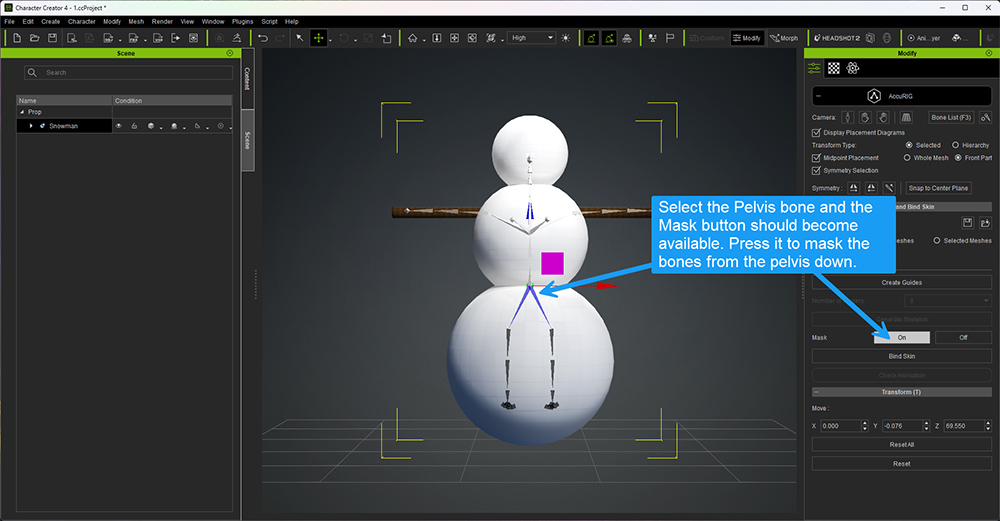
Once the skeleton appears, select the Pelvis bone and it should turn blue when selected. Next, turn the Mask by clicking the On button in the mask section. This will mask out the pelvis and the bones below it, so they do not twist or distort the bottom of the snowman when motions are applied.
This is a very powerful and useful feature of AccuRig making it possible to skin many different types of characters that may not have the standard number of limbs or lost a limb.
Click the Bind Skin button and the skinning process will begin. It may take a while to work on some models but generally, it skins it in less than a minute in my experience. Once it’s finished you will see a multi-colored skeleton indicating the skinning process is complete. From here you close AccuRig and the newly skinned snowman character will be in the Character Creator 4 workspace.
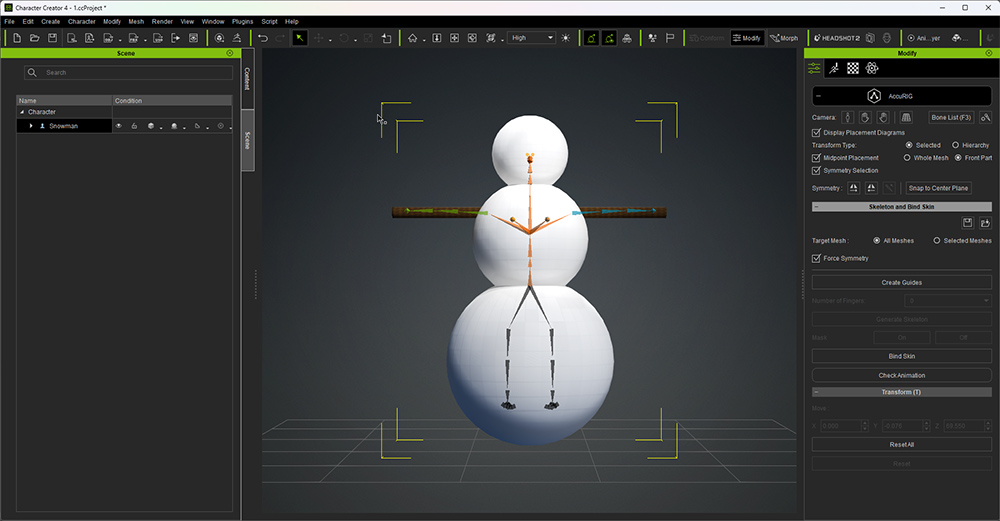
Below you will see the snowman character after transfer to iClone. As referenced in the image you can see where the arm and shoulder bend away from each other with little deformation to the body. This is due to placement of the marker on the upper arm and another marker straddling the edge of the body mesh and arm.
A QUICK CHECK IN ICLONE

What you see above is the snowman mesh using the same Ball (sphere) primitives we used for the body parts, scaled down and textured black for the eyes and mouth. I then duplicated one of the eyes and scaled it down to use for the mouth. From here I duplicated and placed the stones in a smiling mouth but it could be a neutral or frowning mouth just as easily.
In fact, you could animate the mouth by creating a neutral or frown with the mouth primitives then moving down the timeline and arranging the mouth primitives into a smile. While that is beyond the scope of this tutorial it is not that difficult. Experimentation is highly encouraged.
The nose is a cone primitive scaled to long and narrow. The top hat is three cylinders scaled to the various shapes of the brim, hat, and headband.
WHAT COULD GO WRONG
There is a possibility that the skinning might miss a few vertices in the back of the bottom sphere as that is a long way from the bone. This did happen to me at least once during testing.

If this happens you may have to go into Skin Weights and adjust the CC Base Hip with the smooth tool. While this isn’t the best way, it’s the easiest for beginners until you grasp more of what skinning is.

You can also just hide this portion of the snowman from the camera view when any deformation occurs. This is due to the mapping of the CC Base Hip and is another area that I highly recommend you save a copy and experiment with correcting this error should it happen to you.

While our snowman isn’t a sophisticated character by any means, it is a great starting point if you have no idea what Character Creator 4 can do outside of human characters. For a school project, it can be pencils for arms and legs, an eraser for the body, and so forth. Want a rock golem? Find some rock props and put them into a humanoid, bipedal shape so AccuRig can skin it for you.
Just keep in mind that your characters are NOT limited to the base meshes you find in Character Creator. You are only limited by the objects you have on hand and your imagination.
Merry Christmas!!!

MD McCallum – WarLord
Digital Artist MD “Mike” McCallum, aka WarLord, is a longtime iClone user. Having authored free tutorials for iClone in its early years and selected to write the iClone Beginners Guide from Packt Publishing in 2011, he was fortunate enough to meet and exchange tricks and tips with users from all over the world and loves to share this information with other users. He has authored hundreds of articles on iClone and digital art in general while reviewing some of the most popular software and hardware in the world. He has been published in many of the leading 3D online and print magazines while staying true to his biggest passion, 3D animation. For more information click here.