

The new Crowd Sim tool in iClone 8.4 has some powerful features and can create a crowd in minutes or less but it is not the only timesaving, scene-enhancing tool that was recently released. I must admit to also putting this particular tool on the back burner until I could get more comfortable with the new features.
That was a mistake.
I had no idea just how much time custom ActorGroups can save while dragging, dropping, and randomizing them into a scene. The best part is, being custom groups, they fit your needs and over time we can create a library of custom Actor Groups for different situations like sporting events, concerts, street scenes, block parties, and military actions.
My first dive into Actor Groups was to watch Kai’s short and info-packed tutorial, Crowd Sim: Customizing Actor Groups, on creating custom groups. This video packs a lot of information into less than six minutes and covers how to create all three types of Actor Groups.
OPTIMIZE & DECIMATE CC4
When I first created a base, I was impressed with the process but wondered what I would do with it until I understood it is just what it says… a base. It’s a starting point that can be used to create Presets that can hold multiple bases (via a drop-down menu) in one preset. Since this is an item I intend to use many times in a scene I need to create variations of my soldier character.

I used my infantry soldier from the Marketplace to create three Levels of Detail for use in crowd generation. The base soldier, stripped of equipment like harness, backpack and front pouches came in at just under 60K. I created five variations of the original 60K character that differed in face, height, weight, and ethnicity to give me more variation so the soldiers wouldn’t be the same size and have the same appearance.
I left the battle rifle attached to the character and sent it all through the OPTIMIZE AND DECIMATE menu choosing the 7K LOD 1 and 800 KB LOD 2 for the tests. This gives me the option of using the standard character up close to the camera, LOD 1 at the mid-range and LOD 2 in the distance. The battle rifle was optimized along with the characters.
CAUTION: THE BELOW EMBEDDED VIDEO HAS AUDIO
CREATING THE BASE
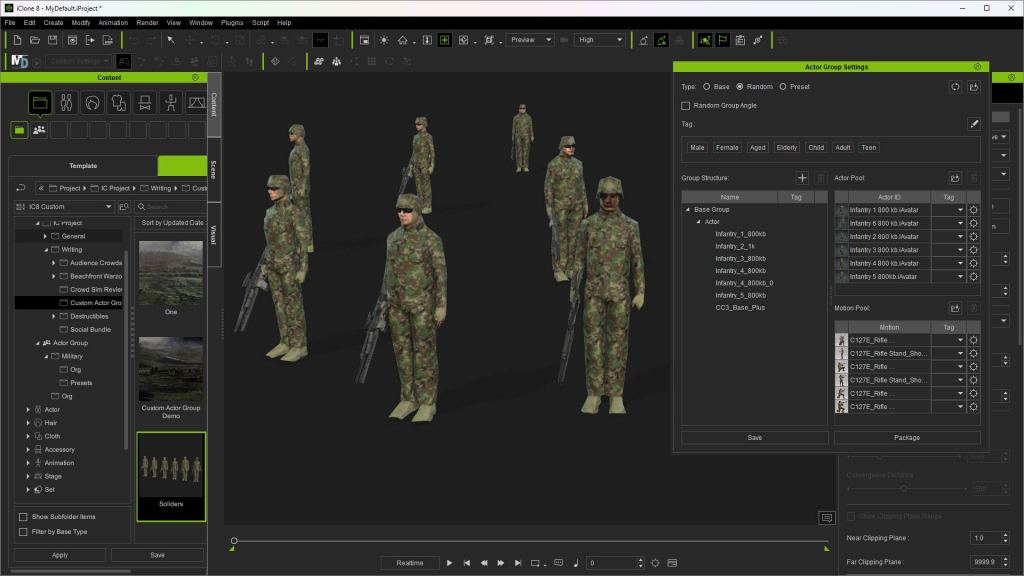
The actual process of creating a base is very simple. Under the CREATE menu, you will find the CREATE ACTOR GROUP down at the bottom. Select this to open the Actor Group Settings popup which is the interface to create or reopen a Base, Random, or Preset actor group. Under the BASE selection, this popup automatically populates with the actors, motions, and props you drag into the workspace.
TIP: Make sure the Actor Group Settings popup is open or you will find yourself creating a scene instead of an Actor Group and will have to start over.
I’m embarrassed to say that I created a group or two, or at least thought I was when I wasn’t because I had not opened the Actor Group Settings to record the group. After this little hiccup, I was creating gun crews, gun pits, and groups of soldiers.
All of them were saved as bases and then used in the creation of military genre Presets. The same can be done for sci-fi, fantasy, contemporary, and others that can, over time, build a huge library of drop-in crowds with control over their randomization.

NOTE: The video tutorial at the end of the article goes into detail about creating base, random, and preset genre-based groups.

PRESET
This is where custom Actor Groups really show off their muscle. We can select previously created Actor Group Bases, including multiple bases as mentioned earlier, to deploy and randomize these custom groups. In my example, I have various Random groups and Base groups like a crewed Howitzer emplacement with security and manned sandbag barriers.
All that is required is to drop the preset into the workspace, select what you are deploying from the drop-down menu that pops up, and watch the magic happen. Below you will see the pop-up Actor Group Settings that create the Preset actor group by including the groups along with a pool of actors.

RANDOM
Great for random groupings of characters and props. The popup menu utilizes an Actor Pool and a Motion Pool to draw from when randomizing while deploying. The Group Structure is where you drag in characters and props.
Save the random group. It’s not all that flashy at this point because you must deploy the random group to the workspace before you see how it allows you to randomize items like characters and motions. When you deploy the actor group, iClone will provide a pop-up dialog for options.
TUTORIAL
I have provided the following tutorial that goes into much more detail about how to create each group and how to modify existing groups to have variations for additional base actor groups. This can all be done very quickly too. Once you get all your base groups created it goes even faster. What you see in the tutorial is far from all the things you can do with Actor Groups so don’t limit using them to things like standing, talking crowds.
CLOSING
In closing, I can say that I have only scratched the surface of what we will be able to do with custom actor groups. I vastly underestimated them when I first viewed Kai’s tutorial, but it didn’t take me long to realize the powerful option of being able to include props in the mix, and accessories through the Character Creator 4 Optimize and Decimate tool.
With volume and NavMesh crowds, walkway crowds, and actor groups we can make crowds for almost any situation, and we can save the crowds and the actor groups for future use.
While I’ve used a military example in this article, the same can be done for science fiction, sports, and other purposes. If it’s winter you can create skaters and a frozen pond, or in summer a youth sports league team item like a baseball dugout with players and coaches.
It will be very interesting in the future to see what the talented iClone user base will do with Actor Groups and other new tools like the Crowd Sim and Distribute Props tool.
If you haven’t looked into customizing Actor Groups, then you are missing out on a versatile and time-saving tool that provides the needed assets large or small scale for your next masterpiece.
REALLUSION COURSES

MD McCallum – WarLord
Digital Artist MD “Mike” McCallum, aka WarLord, is a longtime iClone user. Having authored free tutorials for iClone in its early years and selected to write the iClone Beginners Guide from Packt Publishing in 2011, he was fortunate enough to meet and exchange tricks and tips with users from all over the world and loves to share this information with other users. He has authored hundreds of articles on iClone and digital art in general while reviewing some of the most popular software and hardware in the world. He has been published in many of the leading 3D online and print magazines while staying true to his biggest passion, 3D animation. For more information click here.

6 comments
These are some of the best tutorials for iClone. Thank you for posting this!
-JC
Thank you for your comment. I appreciate your support!
how do I subscribe to this Magazine? – I want to get every article
We do not have a subscription mechanism for the magazine. Only the newsletter. Sorry for the delay in answering Mark, Reallusion was closed for the lunar New Year. Thanks so much for your continued support! https://www.reallusion.com/about/newsletter_subscribe.html
Usually I do not read article on blogs, however I would like to say that this write-up very compelled me to take a look at and do it! Your writing style has been amazed me. Thank you, very nice article.
My brother suggested I might like this website. He was totally right. This post actually made my day. You cann’t imagine just how much time I had spent for this information! Thanks!