Dom Fred – Director / Producer / Editor / 3D Animator
Dom Fred – 3D Maya Animator
Dom Fred, a veteran in the television advertising industry, has continually pushed the boundaries of animation and production using cutting-edge tools. His mastery of Autodesk Maya, combined with two decades of experience, has earned him acclaim in commercials, music videos, and documentaries worldwide.
At the helm of DOM ANIMATION STUDIO, Fred specializes in integrating 3D characters with real environments, leveraging special effects (SFX) to create dynamic martial arts and acrobatic action sequences.
In his latest project, The Soldier, Fred demonstrates how iClone enhances his animation process.
A New Era of Production with iClone
In The Soldier, Fred’s primary objective was to establish a robust workflow that blends technical precision with creative storytelling. By adopting tools such as iClone, Unreal Engine, and Character Creator, he navigates seamlessly between software, enabling innovative production techniques.
“In The Soldier, the goal was to set up a solid workflow with technical mastery, both for the preview of each scene and its execution. With new production methods, tools like iClone and Character Creator allow us to design detailed characters and refine scenes with greater efficiency.”
Dom Fred – Director / Producer / Editor / 3D Animator
Highlighting Realistic Action
The action sequences in The Soldier are a testament to Fred’s expertise in choreographing martial arts and acrobatics. He treats these scenes as if they were live-action productions, carefully orchestrating every movement and angle.
“Here, we have several action scenes where I wanted to highlight all the techniques and production methods involved in shooting a real live-action scene,” Fred notes. This approach bridges the gap between animation and reality, delivering visually compelling results that resonate with audiences.
Fine-Tuning Shots with iClone
Once the fight sequences are complete, Fred transitions to iClone to finalize the visual narrative. This stage is critical for defining camera shots and angles, ensuring the scenes align with his creative vision.
“After completing the fight scenes, I send the animations to iClone to define the camera shots. This step allows me to achieve the real feeling I want to convey on screen,” Fred elaborates.
iClone’s user-friendly interface and real-time preview capabilities enable precise adjustments, saving time and enhancing the production’s overall quality.
Redefining Animation with Innovative Tools
Fred’s adoption of iClone and its companion tools exemplifies the potential of modern animation technologies. By incorporating these tools into his workflow, he achieves a level of realism and efficiency that traditional methods often cannot match.
His work on The Soldier not only showcases the technical and creative possibilities of tools like iClone but also inspires other animators to explore new horizons in storytelling.
Dom Fred’s dedication to advancing animation techniques reflects his passion for blending art with technology. As he continues to innovate, projects like The Soldier serve as benchmarks for what’s possible in the ever-evolving world of 3D animation.
Have you ever been looking for a specific content item for an animation project, but you just can’t find it? The right character or background, or maybe a unique prop? And you’ve spent hours scouring the 2D Marketplace but you just can’t find what you’re looking for.
With the new Keyword Search and Deep Search tools, you can now find the right item for your project instantly right here in Cartoon Animator. And who knows, maybe you’ll even be inspired by a few items you didn’t even think of!
Let’s go to the AI SMART Search page to learn more about these two amazing tools.
Difference between Deep Search and Smart Search
The new KEYWORD SEARCH tools allow you to simply type in a product name, keywords, descriptions, authors, or search through related items of what you’re looking for.
Thenew DEEP SEARCH tools bring intuitive search functions with category-based filtering. You can type using natural description in any language and even drag in thumbnail images for visual recognition to get matching results straight away, without ever having to leave Cartoon Animator.
Making a project using AI Smart Search
The best way to demonstrate how practical and how much fun the new AI SMART SEARCH tools are, is to create an actual scene, and see how it can help us find all the elements we want to use. Lets say I want to set up a scene of a backyard barbecue, complete with background, actors, props and some animated effects. Lets see how we can use any of the SMART SEARCH tools to find everything we need.
Set up a scene
The first thing we’re going to need is the actual background scene of a backyard, where we can host our barbecue. Starting with DEEP SEARCH we can type in the word Backyard and see what results that gives us.
This search will give results of all different backyards created by a variety of developers. One thing to take into consideration is that you will get much better results if you use natural language prompts and include more descriptive adjectives to specify the content you are looking for. For example: instead of just typing Backyard, use more descriptive language like “ Summer House Backyard” or “Fenced Area backyard”.
The DEEP SEARCH has bought up a selection of Packs related to backyards. Under the Pack tab there are many different results for backyards, meaning you don’t have to dig through hundreds of different unrelated packs to find what you need for your project.
DEEP SEARCH provides only the results that are relevant to your search, saving you valuable time. You also have the option to search by Item, which will bring up individual items for your search. The great thing here is that you are going to get results from all the Cartoon Animator developers, meaning you might stumble across a hidden gem or two.
In the Item Search window, you can see the backyard scene which is available in the Marketplace. To take a closer look you can toggle your view to be Extra Large Thumbnails. Right-click the thumbnail and select View Product Page to be taken to the Marketplace page where you can purchase the pack. You can also filter where you get my content from, including the Content Store, Marketplace and ActorCore.
The product page provides all relevant information about this pack, the price and who the developer is so you can follow their work. Once the pack is purchased, it will install automatically to your Content Manager, ready to use.
This DEEP SEARCH has suggested some other packs as well, created by multiple content developers, which may give inspiration and suggest other items which can be used.
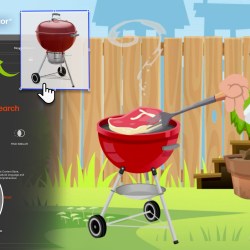
Since this scene is going to be a backyard barbecue, we will need a barbecue. Under the Search Item tab, you could just type in a keyword BBQ for a selection of content items based on that text prompt.
However, should you require a specific style of barbecue, a quick Google search returns a variety of options, and for this example we will choose the red kettle barbecue.
Simply drag and drop a photo directly from your browser and then DEEP SEARCH will track down content that best matches the image. If searching items in the Marketplace or Content Store, you can drag an drop images directly into the Smart Search UI. You can also exclude image searches you don’t need. Now that we have the barbecue, double-click the thumbnail to view the product page.
As well as being able to search by keywords and images, If you particularly like an author, you now can start to try KEYWORD SEARCH to search by Author. So if you have a favourite content developer you follow, you can type in their name and find their content fast.
The backyard scene and barbecue used in this example were created by the developer Garry Pye, and if we want the look of the rest of our scene elements to match, we can include his name into the search to find other content packs and items created by the same developer and give our scene a consistent look.
Sometimes you can successfully mix and match content from different developers, to keep the same style and look consistent, it can be beneficial to stick to one developer.
But for this example, let’s first look for some content created by other developers. A search for the developer Parramon brings up a variety of content, including a tree that we want to add to our scene. By double clicking on the item it will automatically download to your Content Manager. Some content will offer a trial version, so you can test it out in your project by just dragging it into your project. Use of trial content will result in a watermark being overlaid on your project until you either purchase the content or remove the trial content.
Using the DEEP SEARCH tool we now have our backyard scene set up. And SMART SEARCH makes it so easy to find everything we need to build great projects. For now, let’s remove the trial content in order to retain a consistent look in our art style.
Add a character
It’s time to add a character to our scene. Using the name of the developer in the search field so we keep a consistent look, we can type in ‘Cartoon Man’. In the left hand column you can select the actor tab to only get search results of actors. Should the character be from a particular series you remember, you can type that series name in, to focus your search further.
Once you settle on the right character for your scene, double-click him to be taken to the page in the Marketplace or Content Store to make a purchase and download him to Cartoon Animator. But now he’s going to need something to cook on that barbecue. A search for food packs will provide results and you can use Deep Search Similar to find other related items to fit the scene.
A new Prop Search for ‘BBQ Food Meals’ and see what that gives us. Again, being a little more descriptive with the text never hurts!
As the steak cooks on the barbecue, you’ll want to add some animated smoke drifting up from the hotplate. Use KEYWORD SEARCH and the keywords smoke and backyard and you’ll find many different developers packs suggested.
Once you find the right prop, double-click the pack to go to the Marketplace page to see the contents of this pack. You may find a Youtube video to click on and see the animated props in action. Purchase the pack and download it to your Content Manager. Now simply drag and drop the animated smoke prop into Stage Mode and to get your steak cooking away nicely.
There’s one more thing AI SMART SEARCH can help with for this example project. We need to get this guy cooking! And the fastest way to do that is by using a pre-made cooking motion. Don’t forget, if you want to search motions, they are only supported in KEYWORD SEARCH for now. In the KEYWORD SEARCH menu, select the Animation tab and search for ‘Cooking.’ Instantly we get all the results of premade motions for cooking and right there at the start is the perfect animation we can apply to our barbecue chef to finish our animation.
Now you know how to use KEYWORD SEARCH and DEEP SEARCH to find everything you need for your next project. With this new feature, you are going to be able to build any scene you can imagine!
Tips for content developers
If you are a content developer for Cartoon Animator, the new SMART SEARCH function right here in Cartoon Animator offers a great opportunity for users to find your creations. DEEP SEARCH relies on visual recognition, so your thumbnail design is crucial. KEYWORD SEARCH is the only way to find motions, or search by author, and it finds your assets based on names, descriptions and tags, making it essential to have a good product name with clear descriptions containing keywords. Now, potential customers don’t need to know who you are to discover your content! They can text or image search for specific characters, scenes, or props directly in Cartoon Animator, and your content will appear.
To let your assets be easily searched for by SMART SEARCH, please go to the Developer Center, scroll down and check the Smart Search Guidelines for more details on how to optimize their assets for maximum exposure.
Keyword Search and Deep Search are just two great new tools that are going to speed up your productivity and make your animation experience more fun than ever before.
Geoff Hecht is a seasoned 3D and VFX artist based in San Francisco, California. A graduate of the Academy of Art University with a degree in Animation and Visual Effects, Geoff directed a team of 78 on the animated short Metro6, which was featured in nearly 70 international film festivals and nearly ranked among FilmAffinity’s Top 100 Best Animated Shorts of 2020. Building on this success, he is now directing his second animated film, Love is a Championship (LIAC).
LIAC is a short-form animated romantic comedy that creatively parallels sports with dating. The project brings together over 30 artists from six countries and features a cast of 10 actors known from Netflix, Paramount Plus, Amazon Prime, and major films. Under Geoff’s direction, the film humorously likens penalty calls in sports to the awkward missteps of relationships. By mid-2023, LIAC had made significant progress in storyboarding and production development.
Surpassing Traditional Facial Animation
Facial animation has traditionally been a time-intensive hurdle in filmmaking, especially with the challenges of precise lip-syncing. For LIAC, Geoff Hecht turned to Reallusion AccuFACE to streamline the process. This decision proved transformative, as AccuFACE enabled pre-recorded video to drive virtual character performances with a flexible workflow. By separating body and facial animations, the LIAC team achieved significant time and cost savings in production.
In December 2023, Geoff’s team completed a motion capture shoot for body animation, postponing facial animationto February 2024 due to onsite limitations. AccuFace’s support for remote recordings proved invaluable, enabling actors to participate via Zoom when in-person sessions were not an option. By removing the need for restrictive equipment, AccuFace allowed actors to deliver natural performances, enhancing the quality of the final animation.
Efficient Facial Animation Production with Unyielding Quality
Reallusion’s iClone and AccuFace enabled Geoff to mash up the best takes and minimize the need for reshoots for LIAC. Its compatibility with industry-standard tools like Maxon C4D, Maya, Unreal Engine, and Blender ensured seamless integration across the diverse production pipeline that Geoff was already used to. With Redshift rendering and a paint-over workflow, the film took full advantage of AccuFace’s adaptability and efficiency to overcome various technical hurdles.
Revolutionizing Facial Animation for Modern Filmmaking
For Geoff, AccuFace wasn’t just a technical upgrade; it represented a creative breakthrough. By cutting production costs, speeding up workflows, and preserving high-quality standards, AccuFace became a vital tool. As Love is a Championship nears completion, its use of AccuFace underscores how innovative technology can empower creators and transform the way stories are told in animation.
Editing viseme in iClone AccuLips
Additional Information
“Love is a Championship” is a passion project directed by Geoff Hecht. With a team of 30 people, Geoff understands that a systemic approach is essential to manage both the team and production time with efficiency and precision. Since its announcement in November 2023, Geoff and the team have completed the script, the full animatic storyboard, body motion capture, and several animation scenes.
Lead Animator Michael Grassiand the team are proud users of Reallusion Character Creator and iClone. Having released several tutorials online, they invite you to join them on their animated filmmaking journey
Outreach
By subscribing to their creative channel and Patreon, you can gain exclusive access to behind-the-scenes footage that walks you through the tools and methodologies used to bring Love is a Championship to life. For instance, we have worked closely with Noitom and proudly use theirPerception Neuron Body Mocap for entire body movements. We have put these professional voice actors into mocap suits, having them perform real actions from the script and it all paid off. Unlike traditional releases, where the audience must wait until the film’s completion to see the final behind-the-scenes video, Geoff’s team is sharing these insights progressively, leading up to the film’s ultimate release. Geoff refers to this approach as “Before the Scenes”.
Aubrey Trujillo waiting for body mocap It’s a wrap! All the motions from LIAC is captured by the team.