This article is the second chapter in our seven-part Character Creator 5 (CC5) HD GoZ Pipeline Series on the complete workflow from CC5 base creation to ZBrush sculpting, Substance 3D Painter texturing, and finally Marmoset Toolbag rendering.
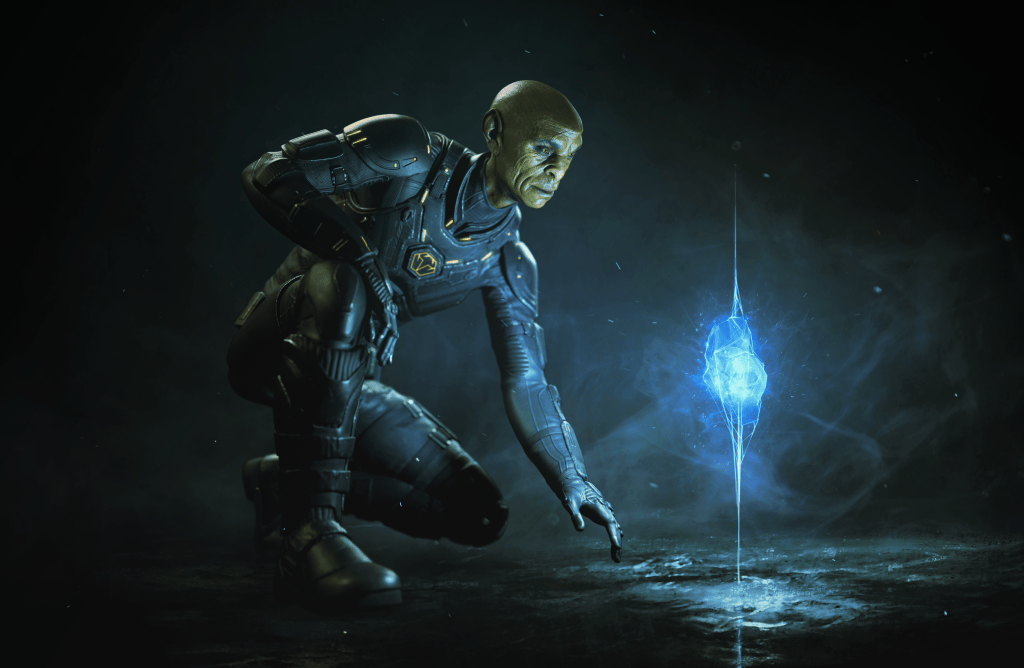
In Part 1, we shaped the character’s foundation using Actor Mixer, click-and-drag morphing, facial tests, and skin editing. For part 2, we move into ZBrush with GoZ / GoZ Plus, sculpting workflows, anatomy adjustments, building the sci-fi suit, and preparing subdivision-ready meshes for Character Creator 5.
Pablo Munoz Gomez
Hello, my name is Pablo Munoz Gomez, and I’m an enthusiastic 3D concept and character artist who is deeply committed to the spread of knowledge. My expertise lies in 3D sculpting, visual development, and engaging in mixed-media projects. I take immense pride in being the creator of Pablander Academy, serving as an outlet for showcasing my work, sharing my workflows, and assisting fellow artists in honing their skills across a wide range of subjects.

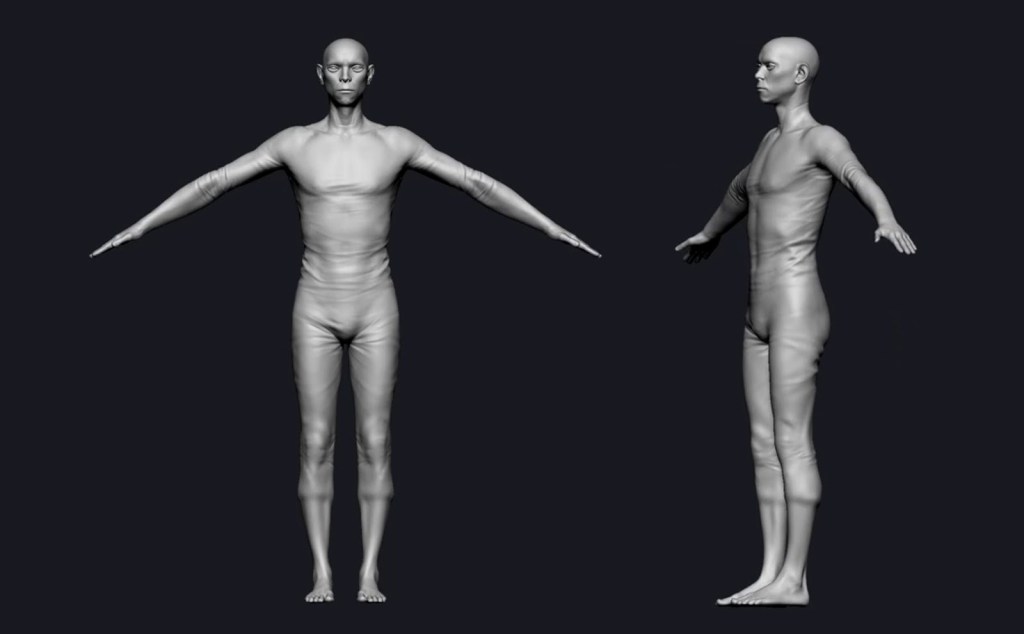
Sculpt the Body and Nano Suit
After importing the CC5 mesh into ZBrush, we store a morph target and bake our sculpting layers. This lets us selectively bring back the transferred normal details only where needed, which is typically around the face. Using the morph brush, we can paint the original microdetails back in while keeping broader changes intact on the rest of the body.
Our goal is to take advantage of the CC5 normal details just for the face, since the body will be covered by the sci-fi suit and doesn’t require any skin detail.
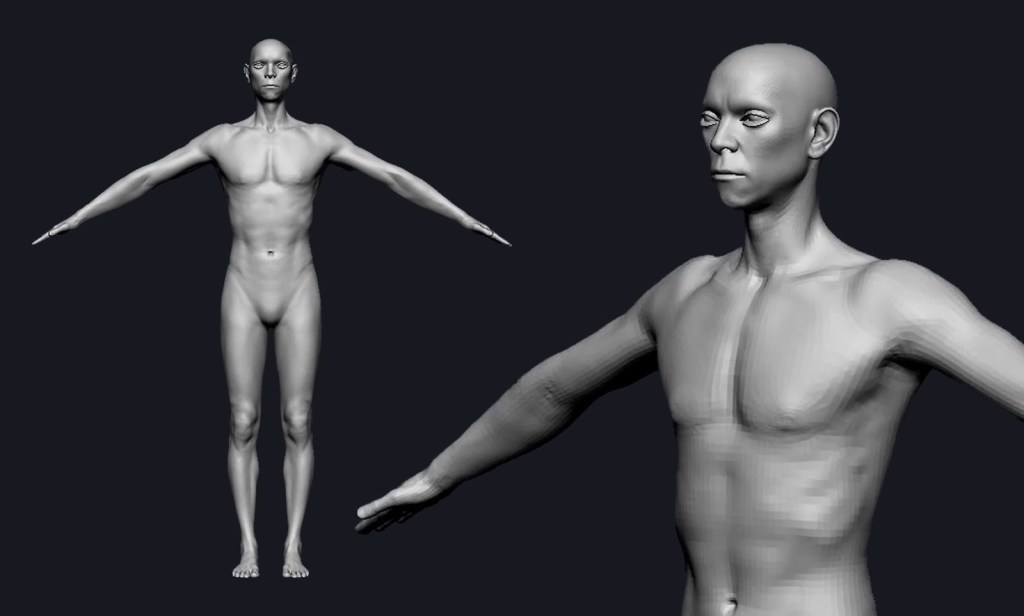
Blocking out the suit: Softening anatomy without losing structure
The suit should feel like a material layer over the body, rather than just painted-on muscle. We began by reducing anatomical definition: smoothing transitions, softening muscle separations, and suggesting seams, like a neck trim, using a few clay buildup strokes. Then, with a standard brush, we indicated the primary wrinkles and the general compression of the suit.
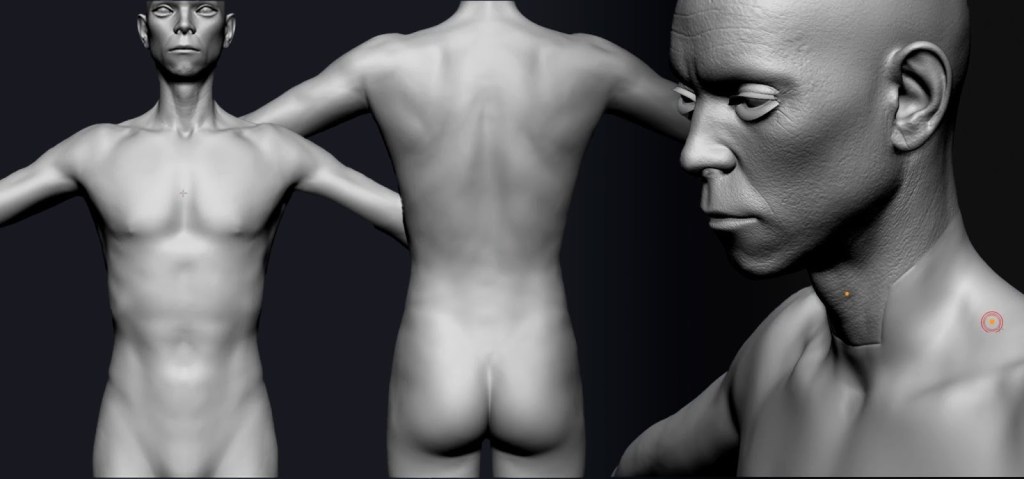
With a 14+ million poly mesh, switch to tools like Smooth Strong for effective smoothing.

Use references and targeted masking
References are essential. For this project, we collected images of wetsuits, surf suits, and dive gear to study where fabric naturally compresses and folds. Later, we can refine the wrinkles based on the character’s pose and how the material stretches or compresses around joints.

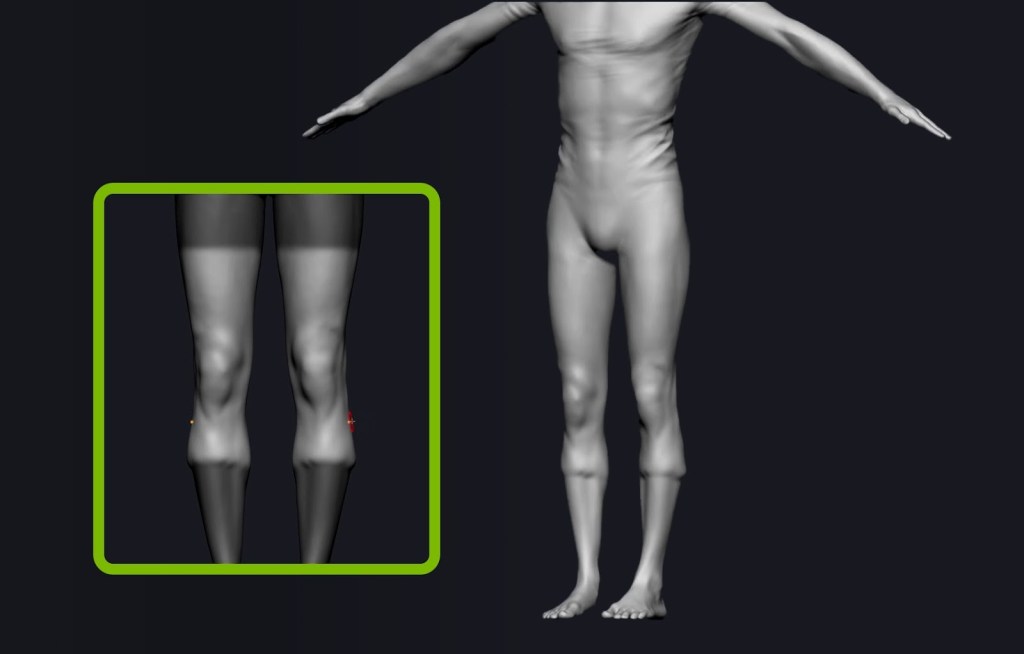
Masking is a quick way to simulate local compression. For example, we masked and inflated the calf areas to suggest the effect of boots. Keep in mind: this stage is just a blockout as precision comes later.
Brushes and tools that speed up believable fabric details
Beyond native ZBrush tools, these brushes accelerate believable material creation:
- Gio Brush – A cleaner, more controlled Dam Standard for seams & micro creases
- Compression Falls – Ideal for quick small wrinkles and fabric compression
- Clean Builder Brush – Adds volume cleanly without clay stacking artifacts
- FormSoft – Vital for shifting mass at high subdivisions without destroying detail
Alternate strokes with Alt to create ridges and fall lines for more organic suit behavior.
When to use Marvelous Designer and how to bring the simulation back
Simulating the suit in Marvelous Designer is a lot of fun and produces a more physically accurate set of folds and material behavior.
Workflow overview:
- Duplicate the base mesh.
- Isolate the suit region.
- ZRemesh to reduce mesh density.
- Export avatar with the suit to Marvelous Designer.
- Use existing UVs as 2D patterns when applicable.
- Adjust shrinkage (warp / weft) to control wrinkle density.
- Export back to ZBrush for cleanup.
- ZRemesh → Project from History → Polish the surface into clean quads.
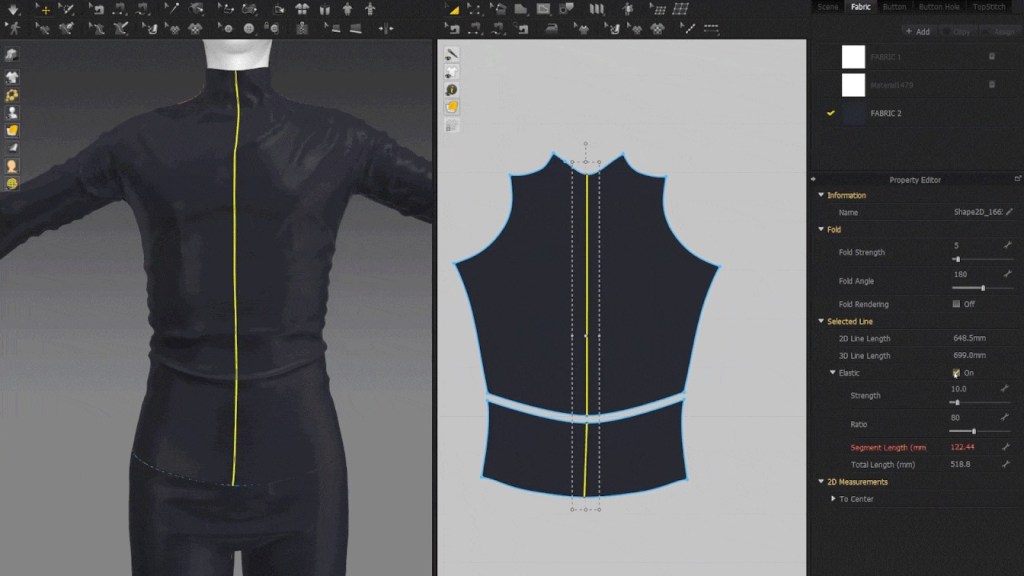
That simulation gives more realistic falls and tension, especially in complicated areas like knees, elbows, and the torso. But here’s the important distinction that unlocks the best results in Character Creator 5 and one of my new favourite features: subdivision levels.
Project the simulated suit onto the base mesh
Character Creator 5 now supports subdivision levels up to 2 on the visible geometry. To fully leverage that and showcase the capability, we can have the suit as part of the main base mesh, not a separate object:
- Project its detail onto the subdivided CC5 base mesh.
- Hide/delete the temporary suit mesh.
- Continue refining directly on the base.
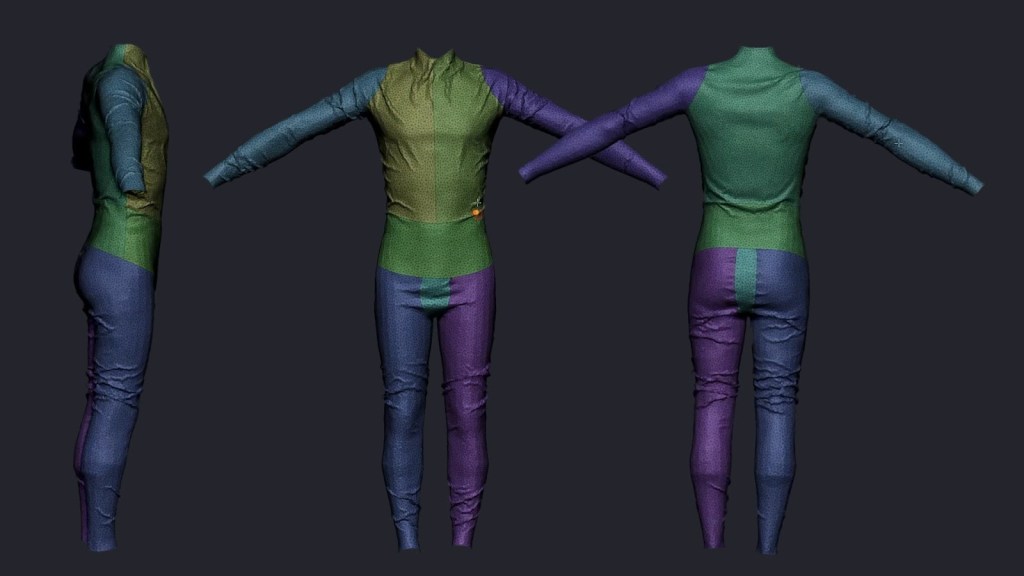
This approach preserves the original CC5 topology and ensures that subdivision data moves cleanly between ZBrush and CC5.
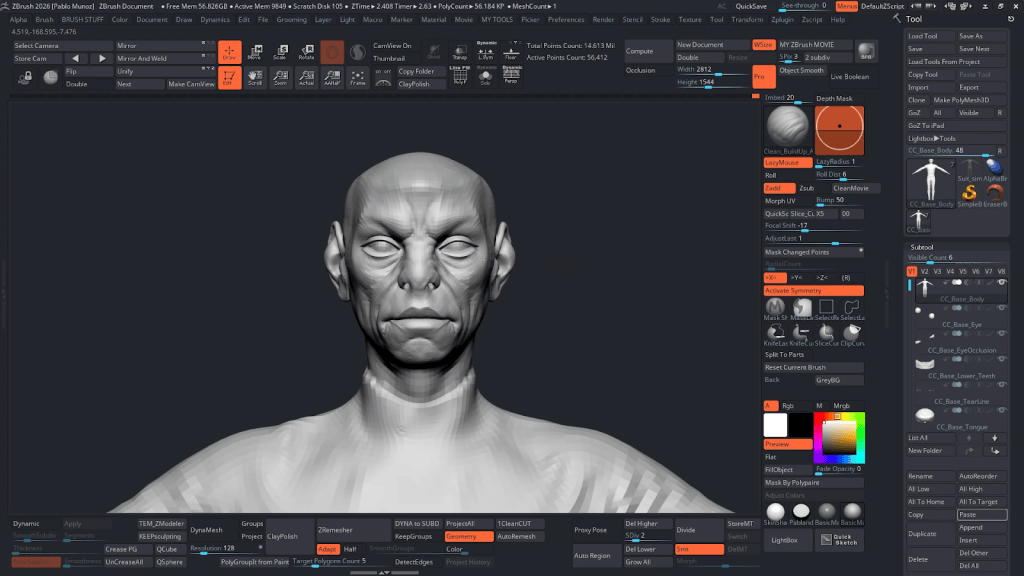
Sculpting the face and pushing toward a slightly alien look
The goal here is to maintain a humanoid silhouette and subtly push proportions to achieve an otherworldly vibe. The CC5 base typically includes clean polygroups, which makes isolating and masking facial features quick and accurate.
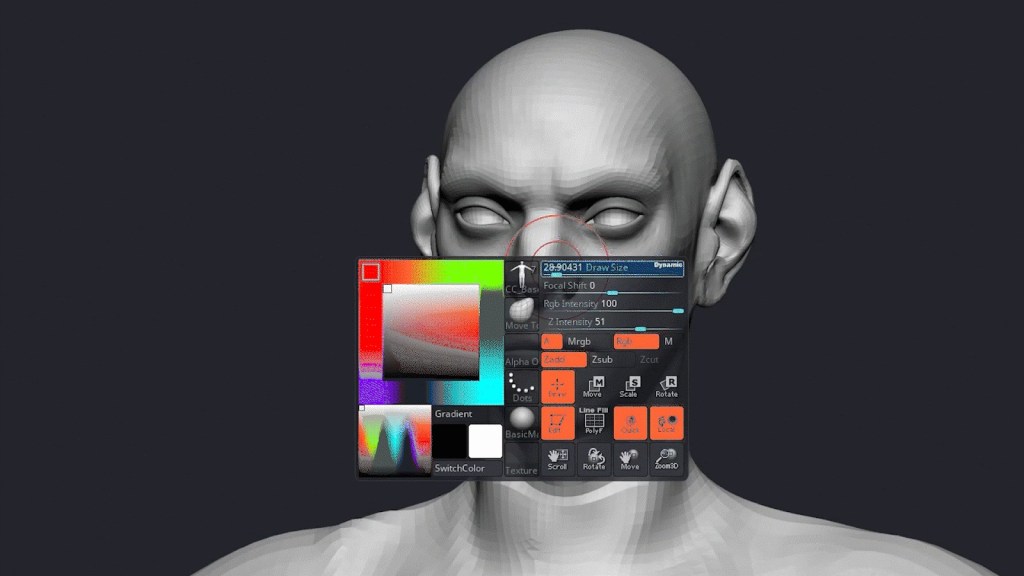
Recommended workflow:
- Start at a low subdivision to define main volumes.
- Move to Clean Build Brush for form shaping.
- Use Dam Standard / Gio Brush for sharper cuts.
- Finish with FormSoft at high subdivisions for proportional adjustments.
This approach preserves CC5’s microdetail layer while introducing an alienesque flair.
Send it back to Character Creator 5: GoZ Plus and subdivision control
The GoZ Plus plugin is essential for automating exports back to CC5 with a single click, provided you configure a few key settings correctly. Since CC5 is now capable of handling higher resolution geometry, I recommend:
- Setting subdivision Level to 2.
- Disabling Polypaint to Diffuse (unless texturing is done).
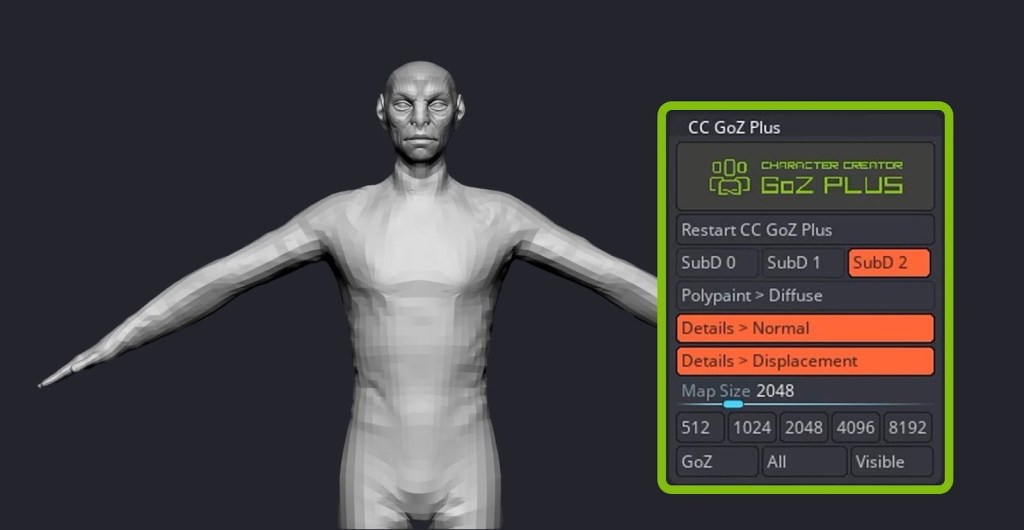
Enable Adjust Bones to Fit Morph if you changed proportions

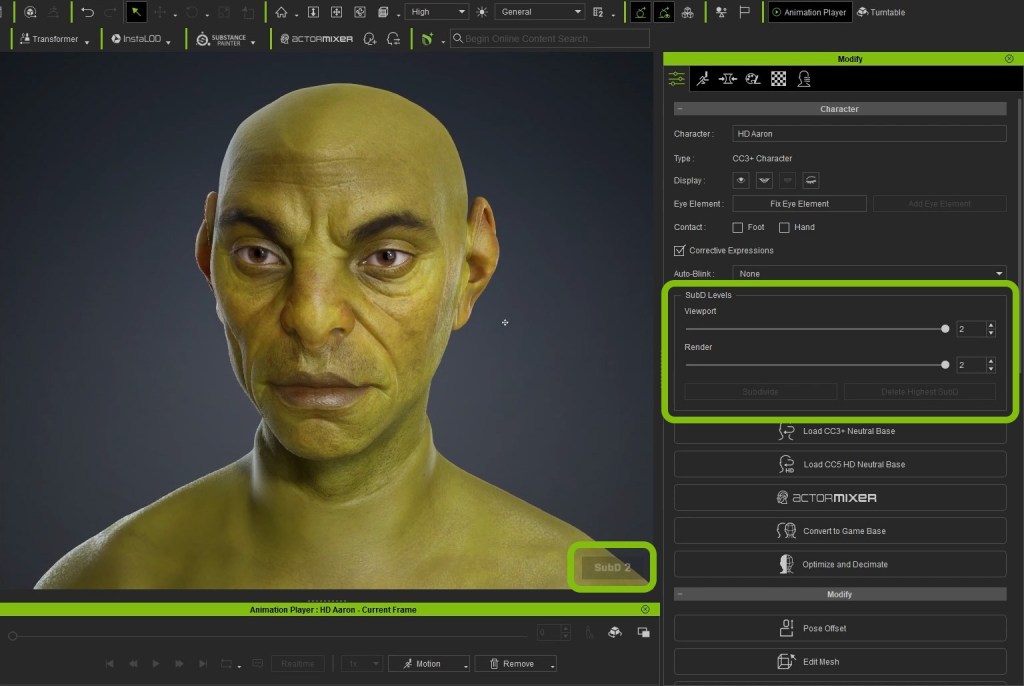
Once updated, the Modify panel in CC5 includes sub‑D level controls for viewport and render. When set to Subdiv 2, you view real geometry at that level, producing much cleaner silhouettes and deformations compared with the old workflow.
Efficiency Tips for This Stage of the Pipeline
To maximize efficiency in this pipeline, I leverage several key features of Character Creator 5. The native subdivision level support is a game-changer, allowing me to view and render real subdivided geometry for superior silhouette fidelity without relying on displacement maps or things like that. The GoZ Plus automation is equally critical, streamlining the round-trip process between ZBrush and CC5.
I also rely on Adjust Bones to Fit Morph to ensure the rig remains functional after significant shape changes. The ability to preserve polygroups and morph targets grants me precise control over facial and accessory isolation during localized edits.

Coming Up in Part 3
In the next chapter, we’ll move deeper into hard-surface creation inside ZBrush. That includes building the chest plate, extracting armor panels, adding thickness, and sculpting modular components like boots. We’ll also explore rapid blockout techniques using Dynamesh, manual retopology with ZSpheres, and how to organize clean polygroups for extrusion workflows. Once the armor set is complete, we’ll prepare all pieces for re-import into Character Creator 5 for rigging, material setup, and texturing preparation.
Related Posts
- CC5 x ZBrush: Create a HD Sci-Fi Vanguard (1/7)- Character Base Creation with ActorMIXER
- CC5 x ZBrush: Create a HD Sci-Fi Vanguard (3/7)- Sculpting Armor & Hard-Surface Assets
- From Concept to Motion-Ready Alien Character: ZBrush and CC5 HD Step-by-step Workflow
- Building a Custom Vampire Character from Scratch with CC5 and Unreal Engine 5.7