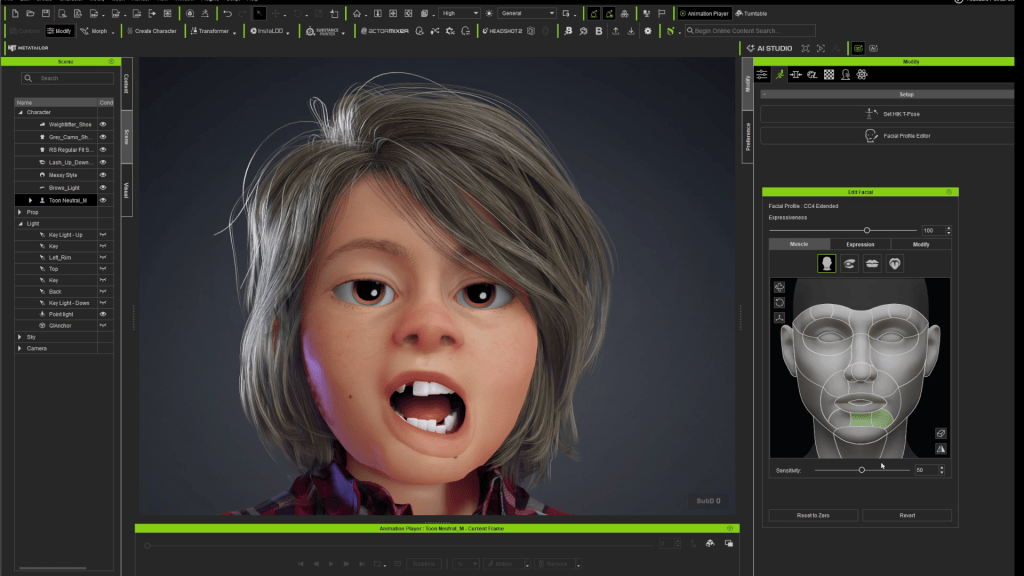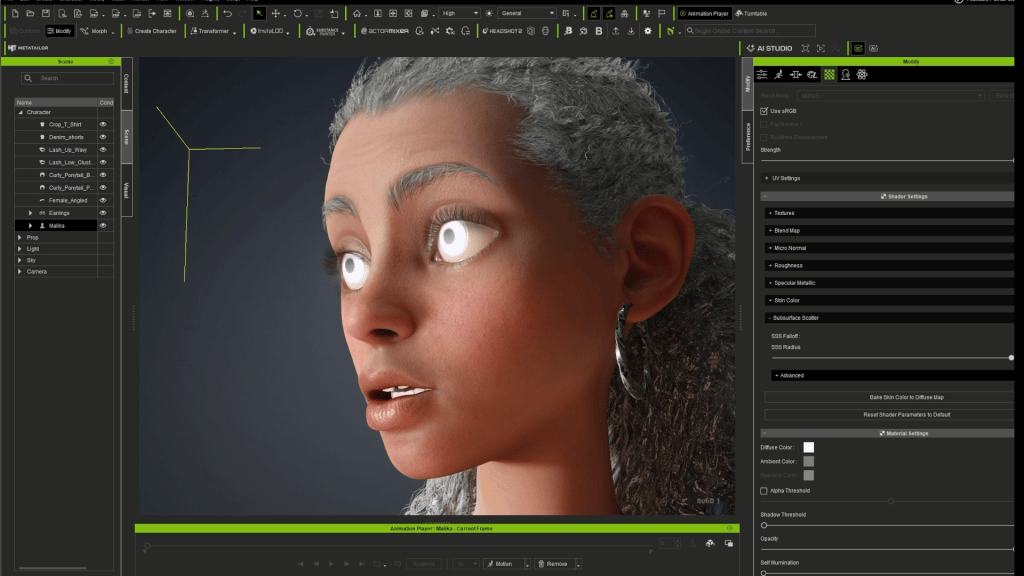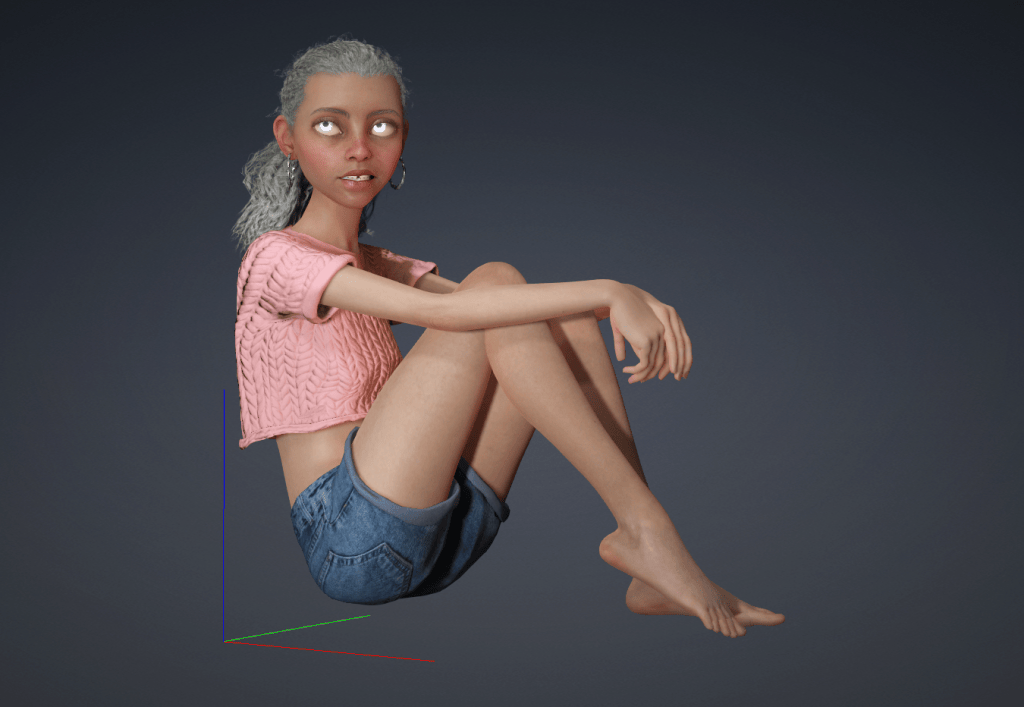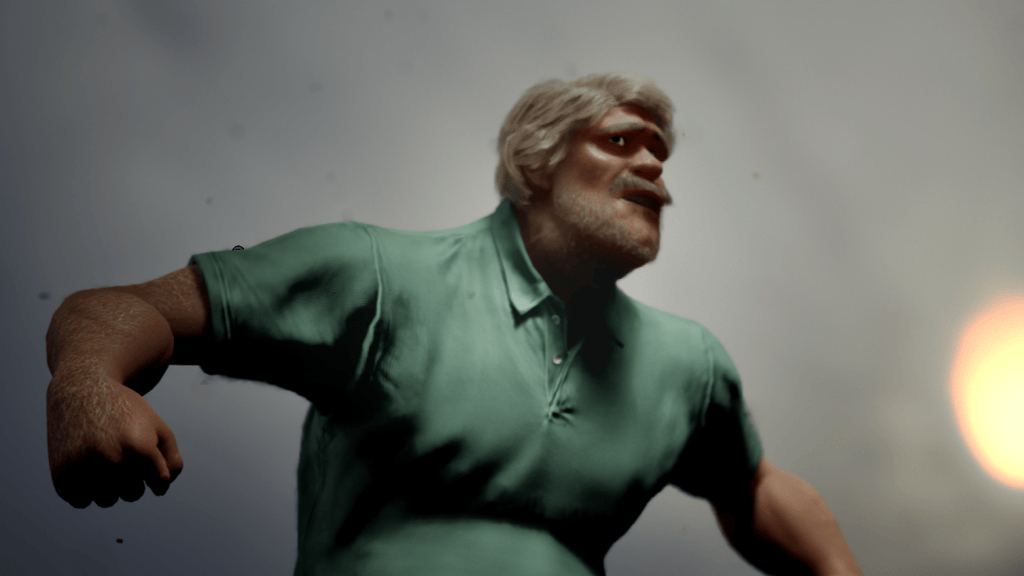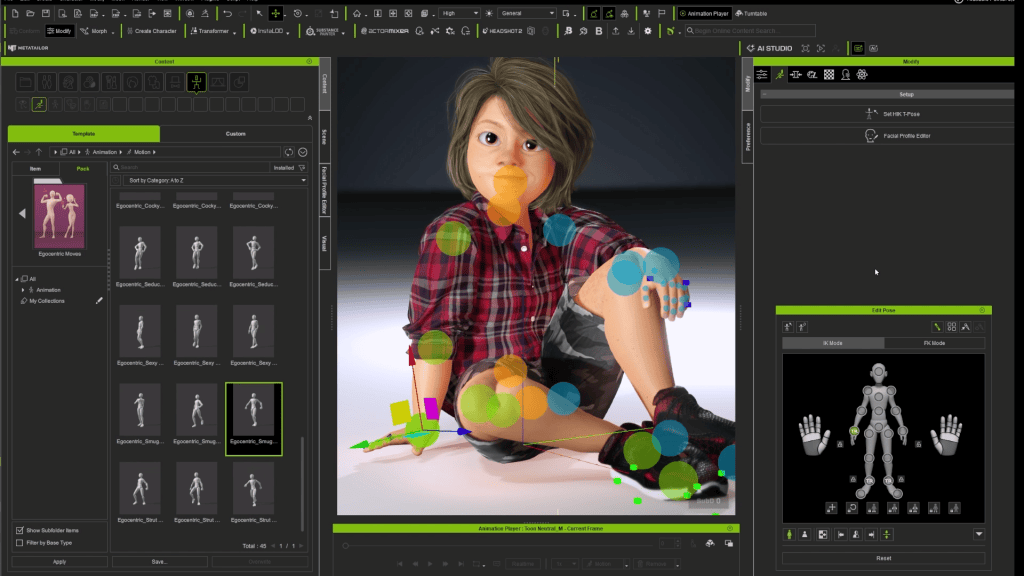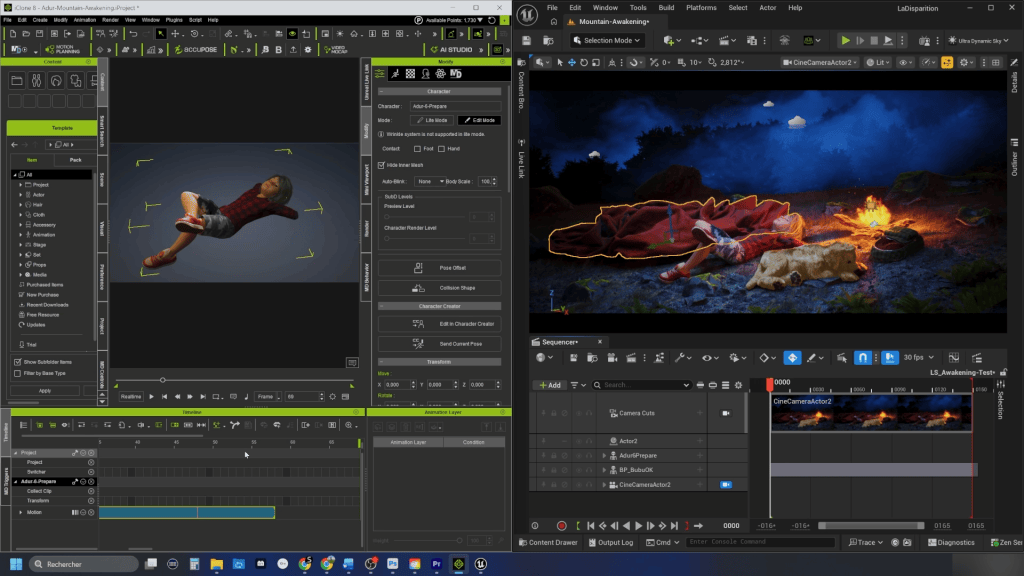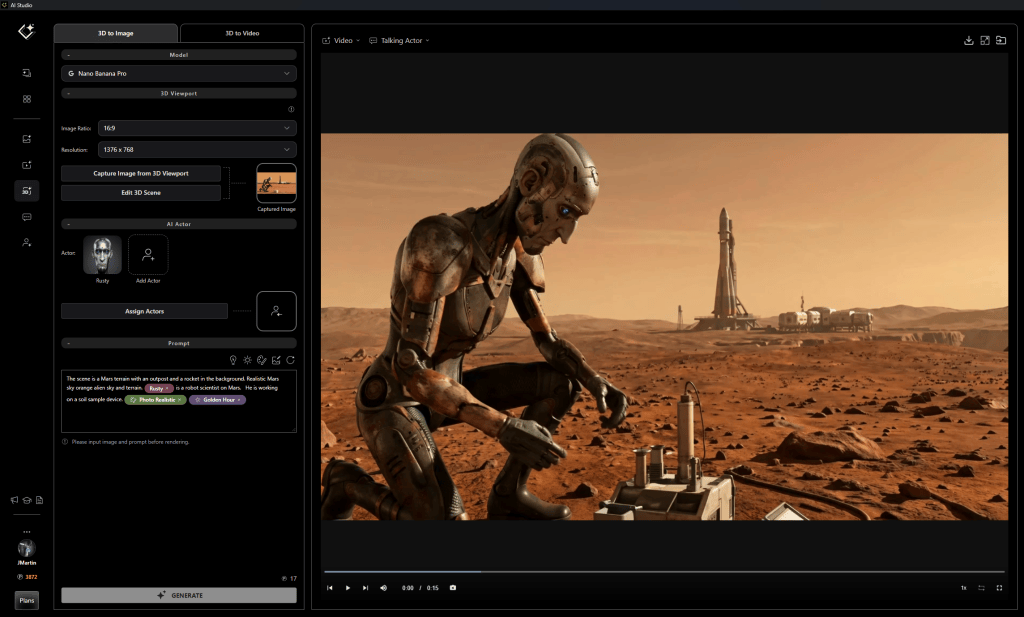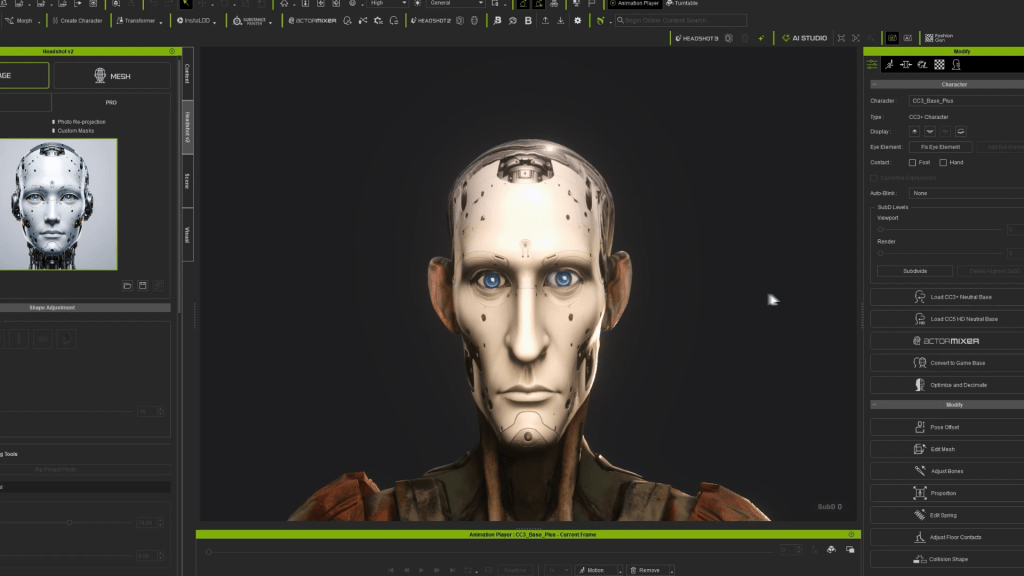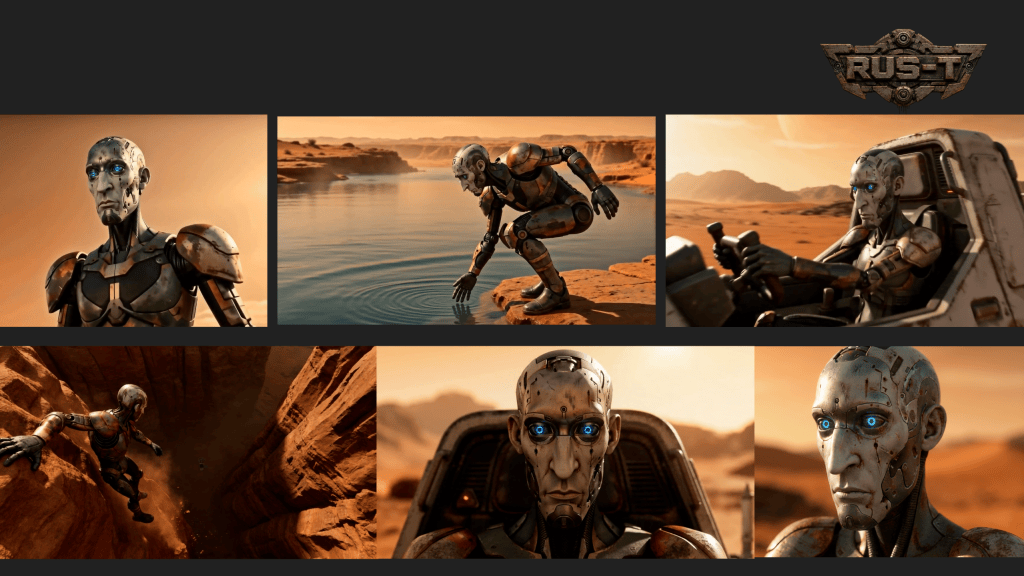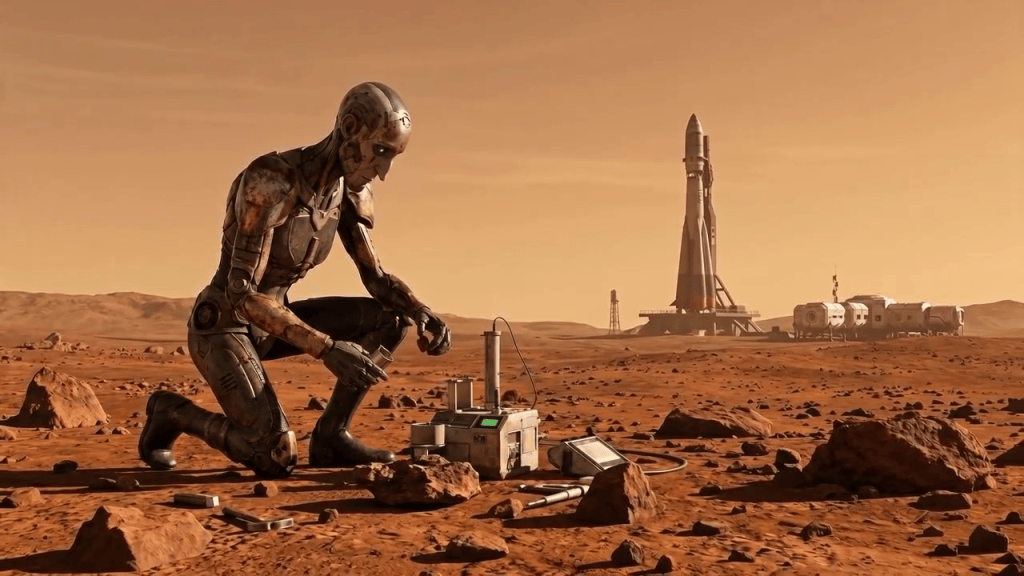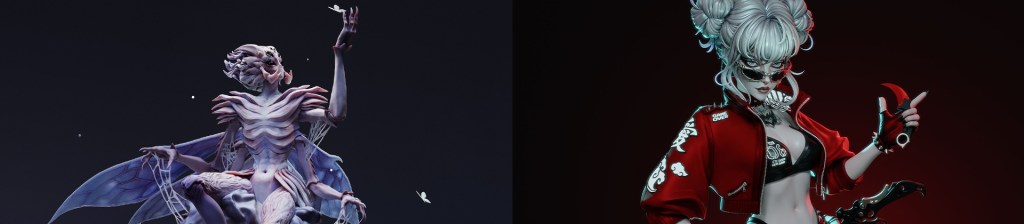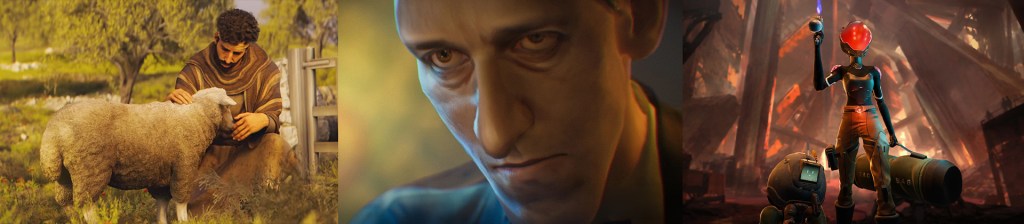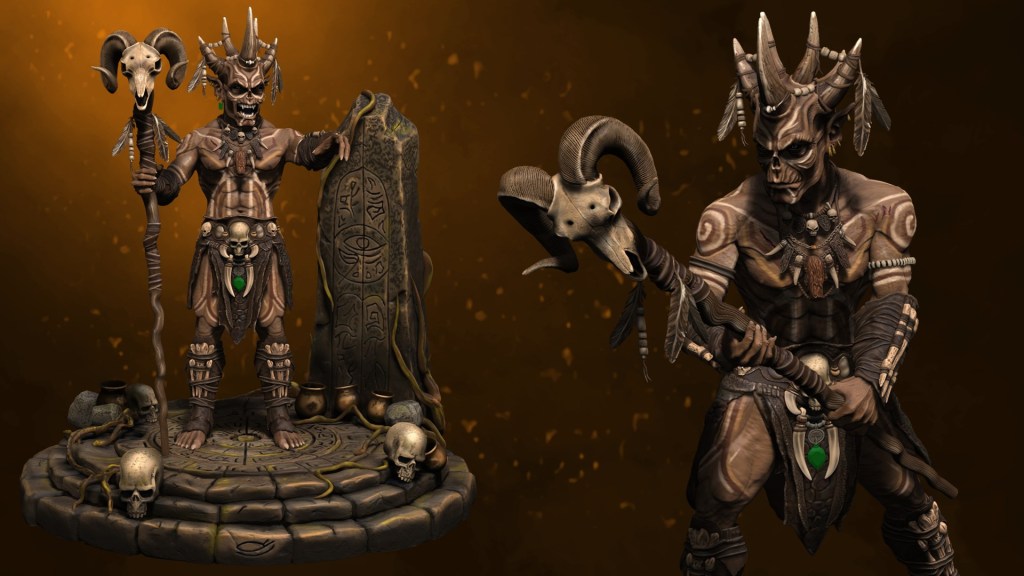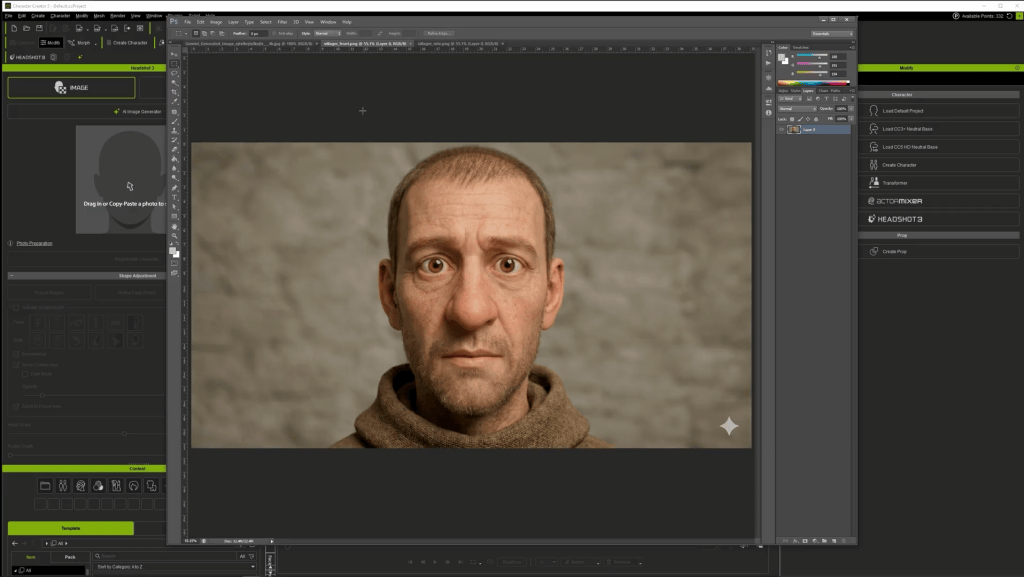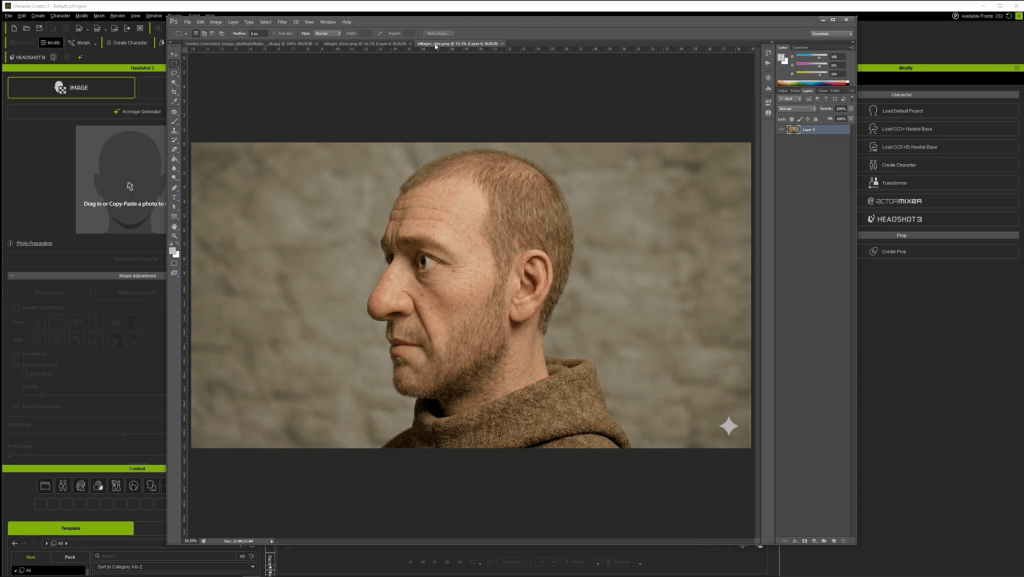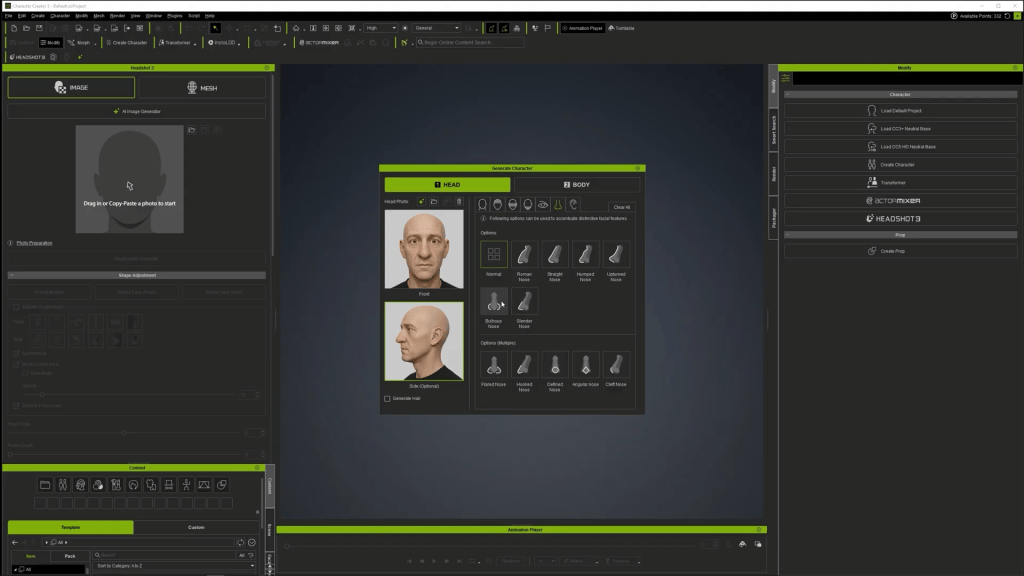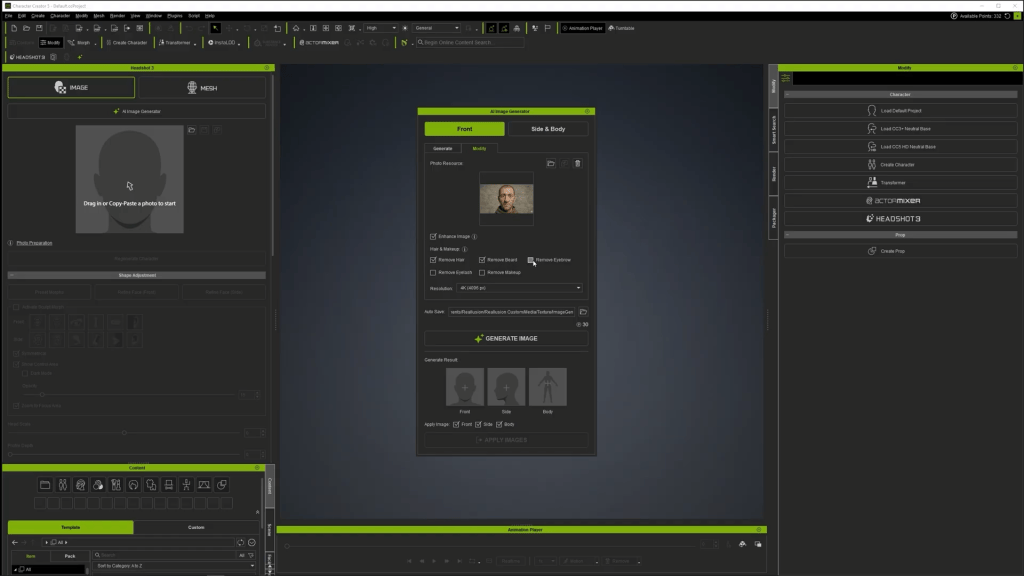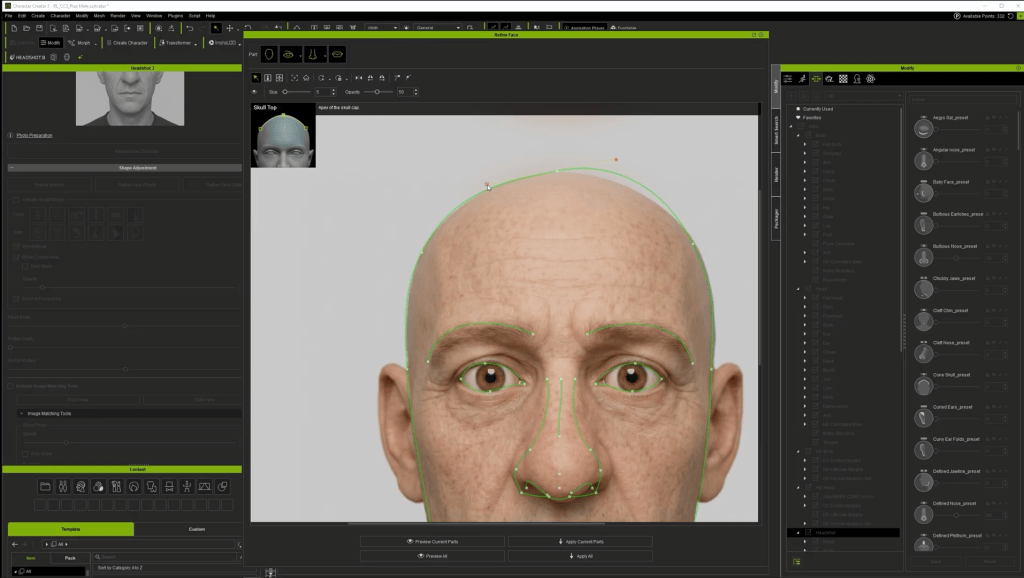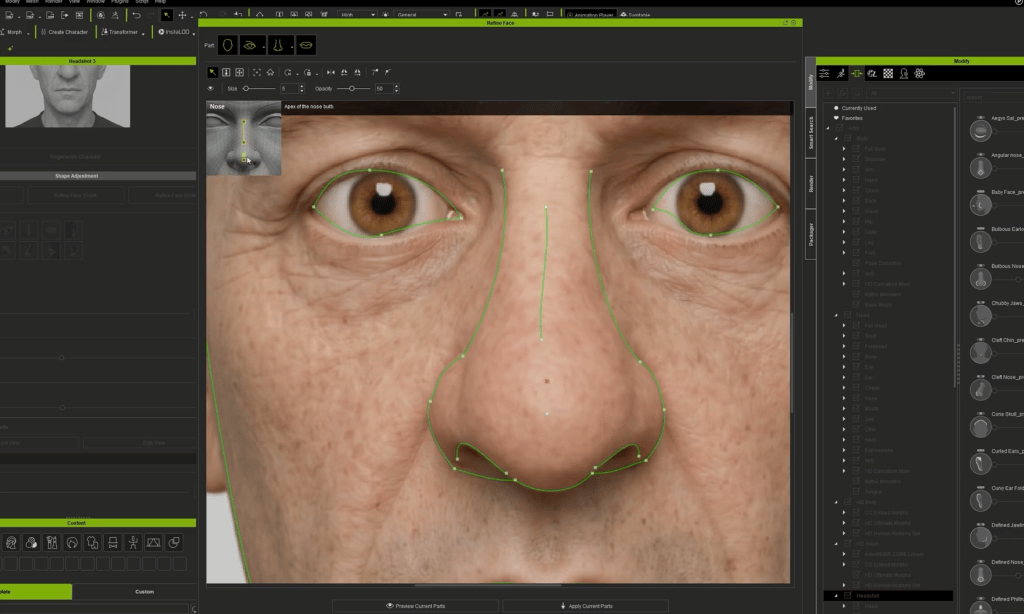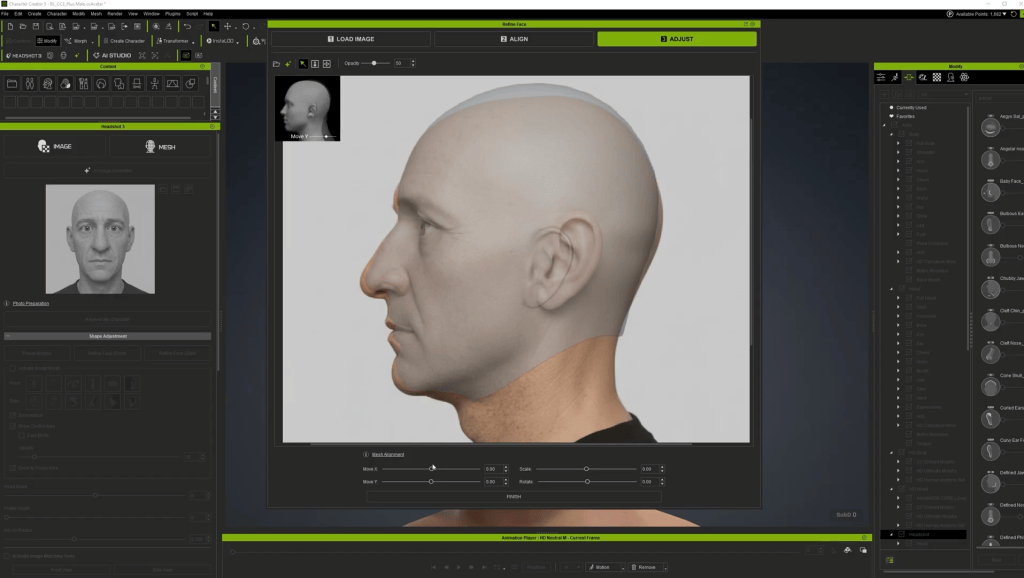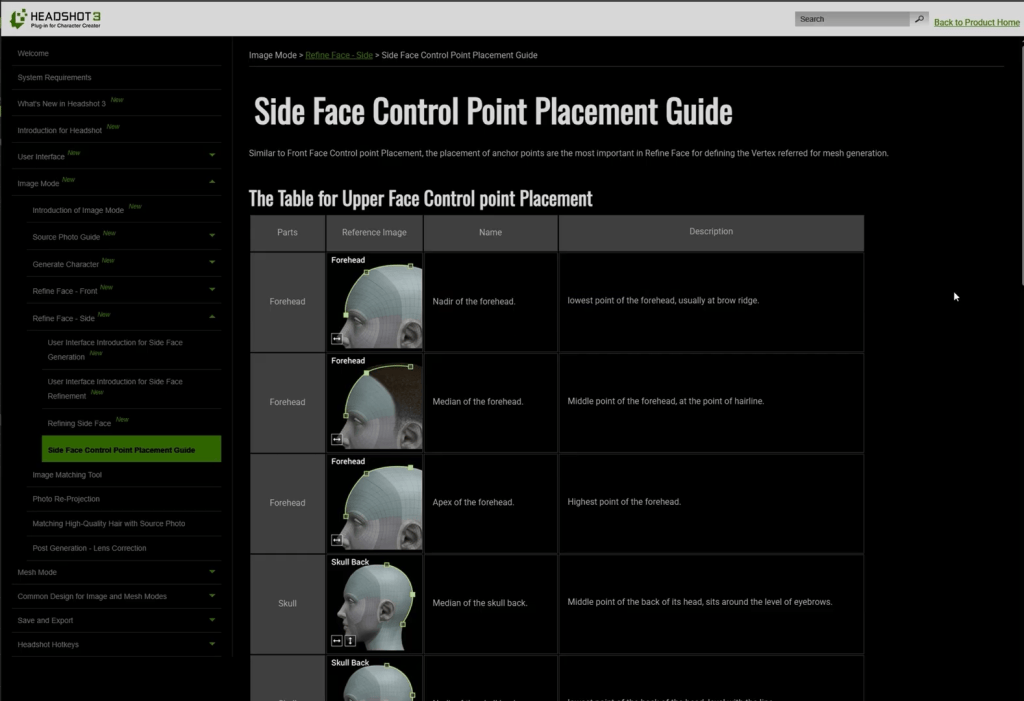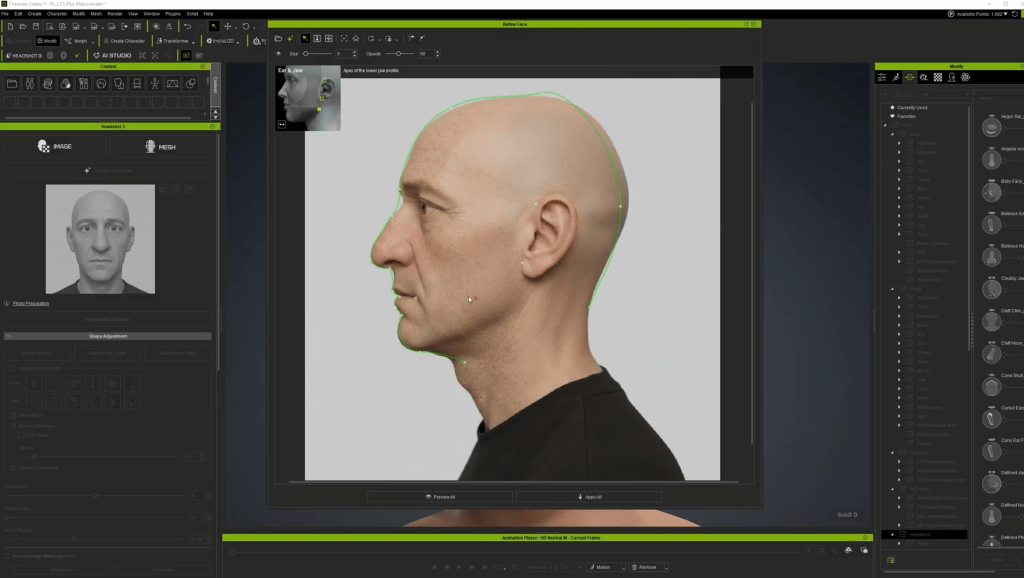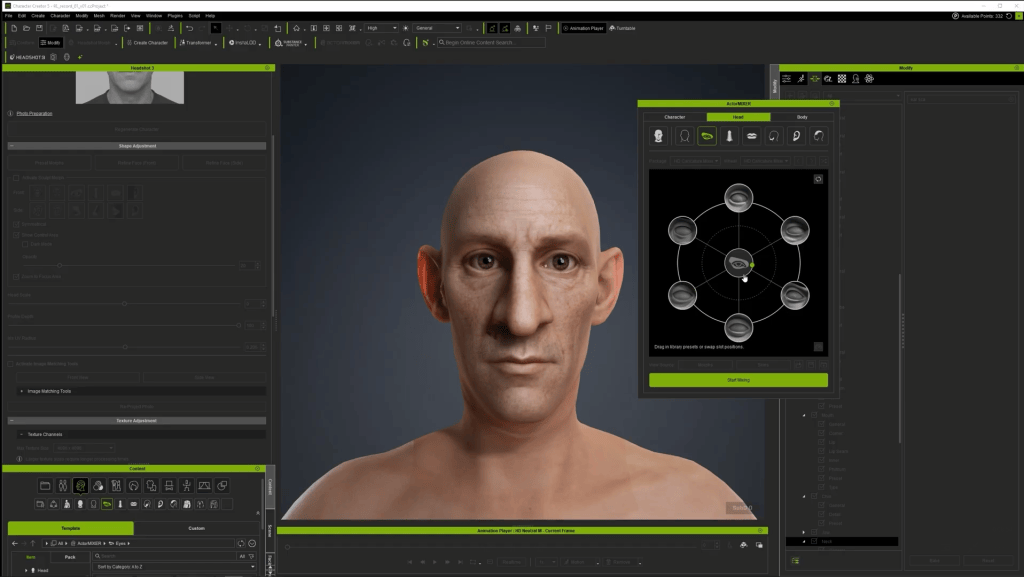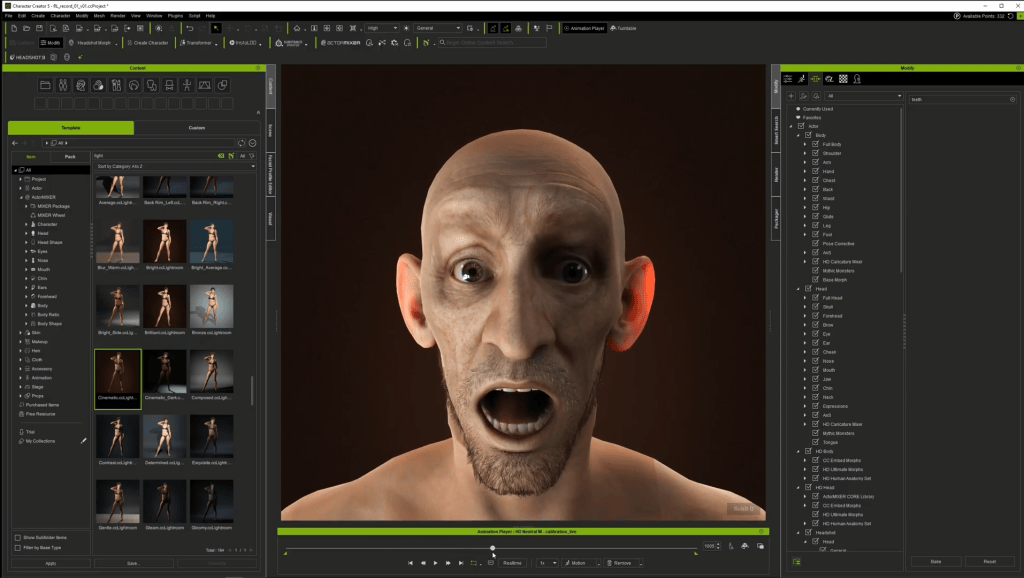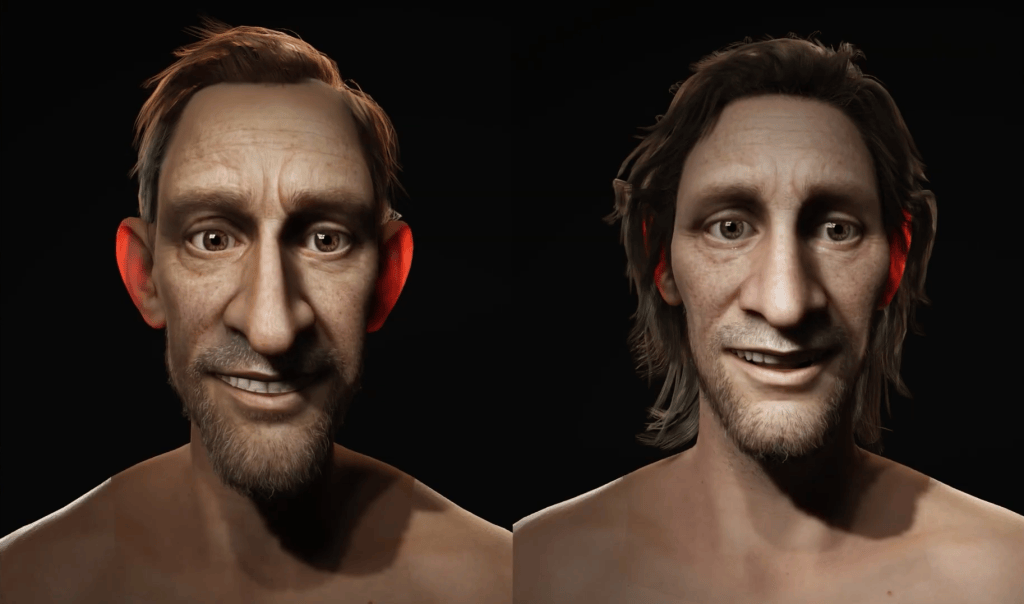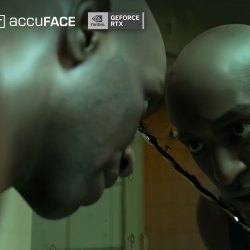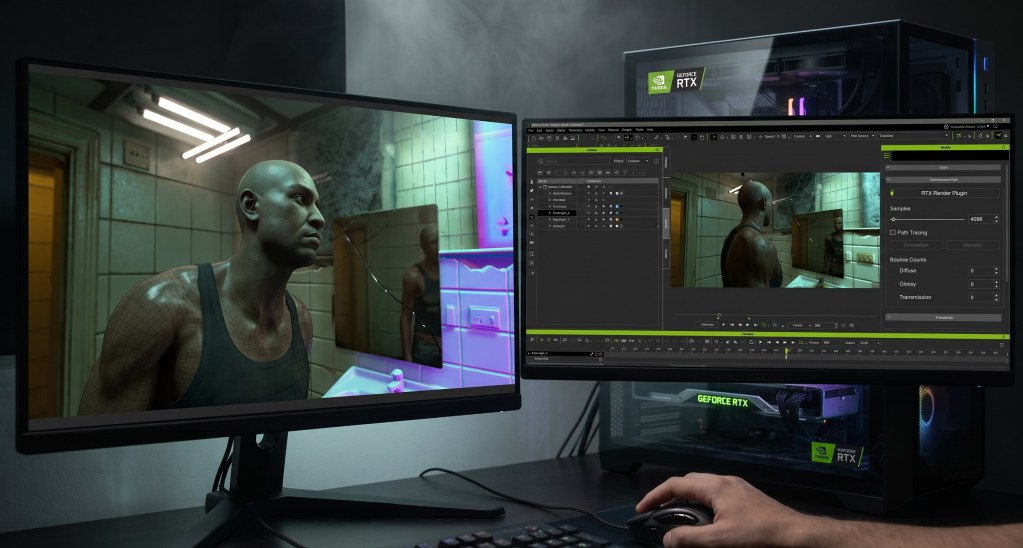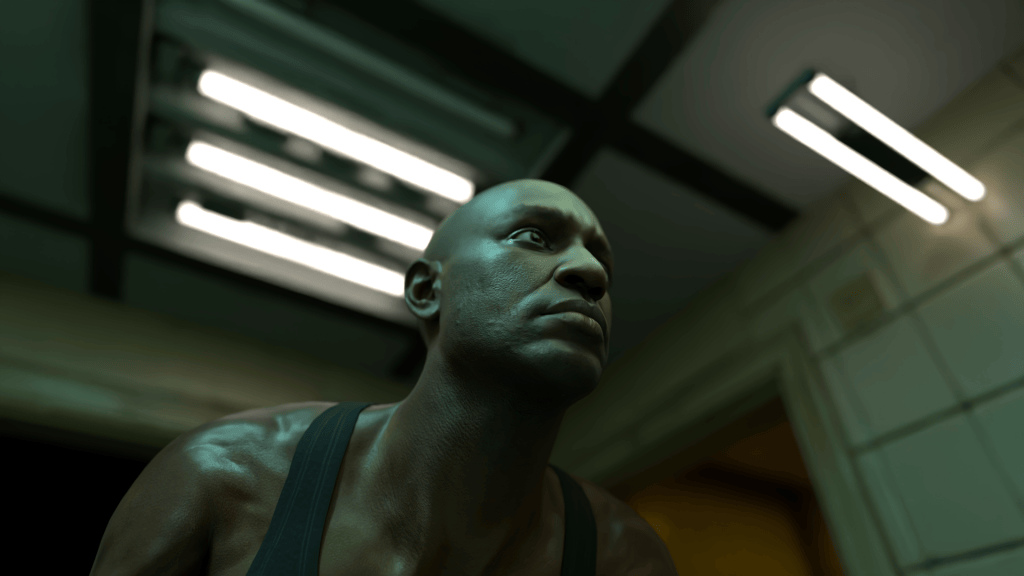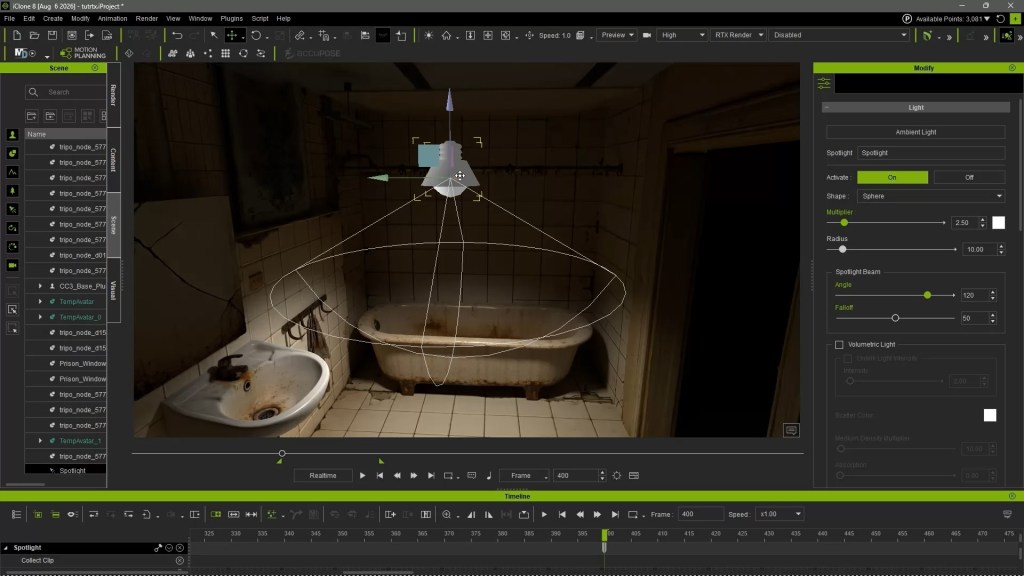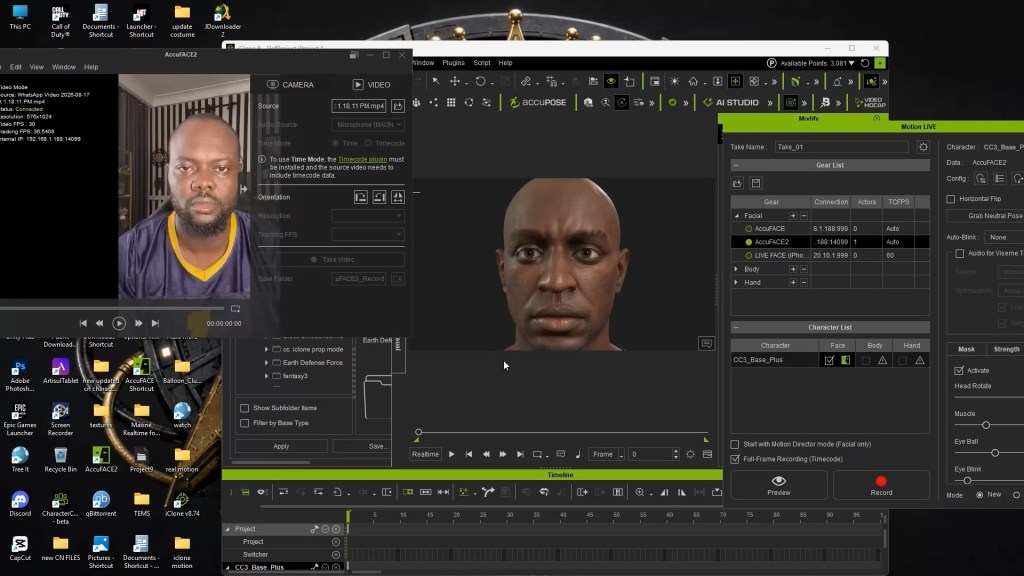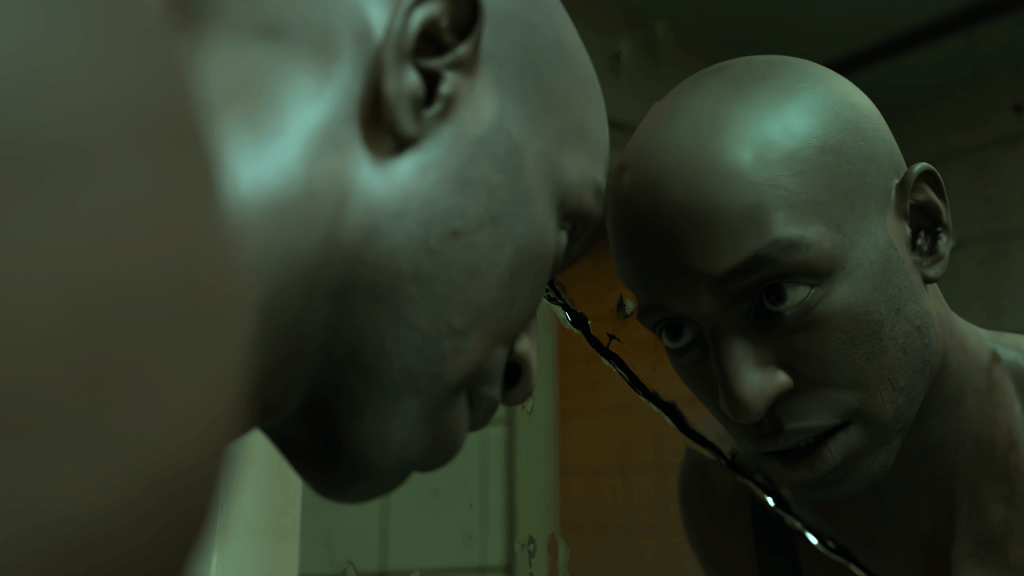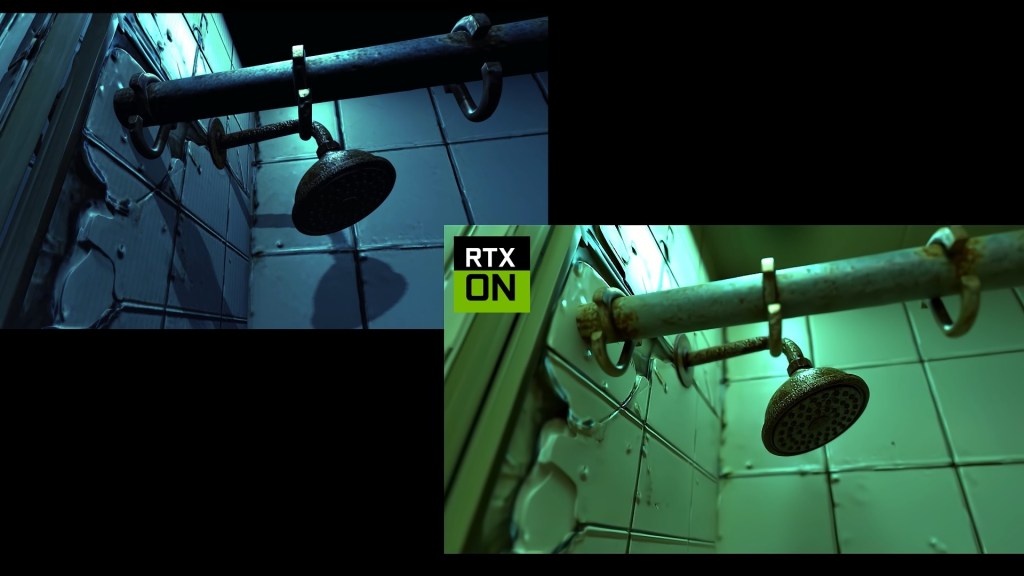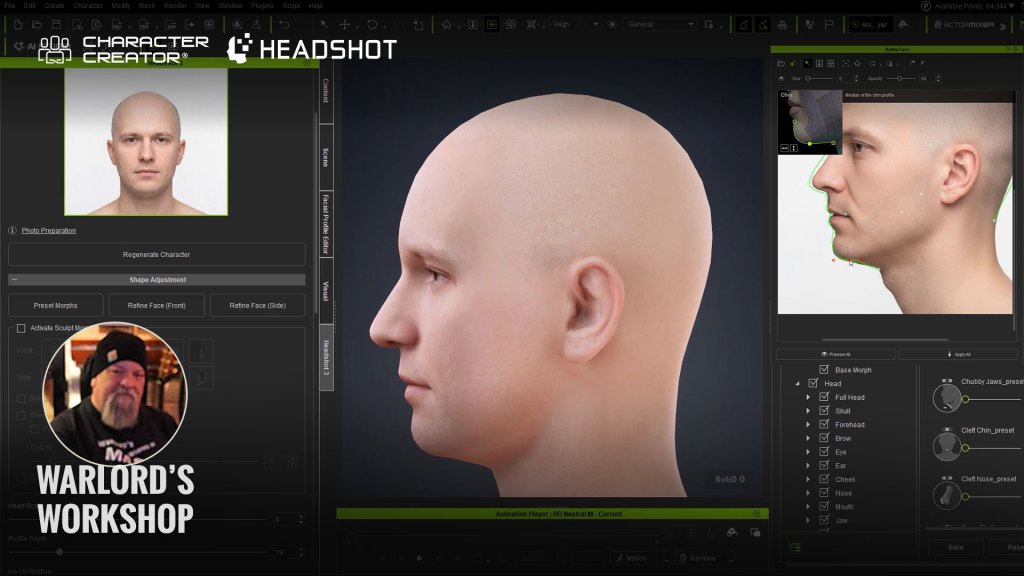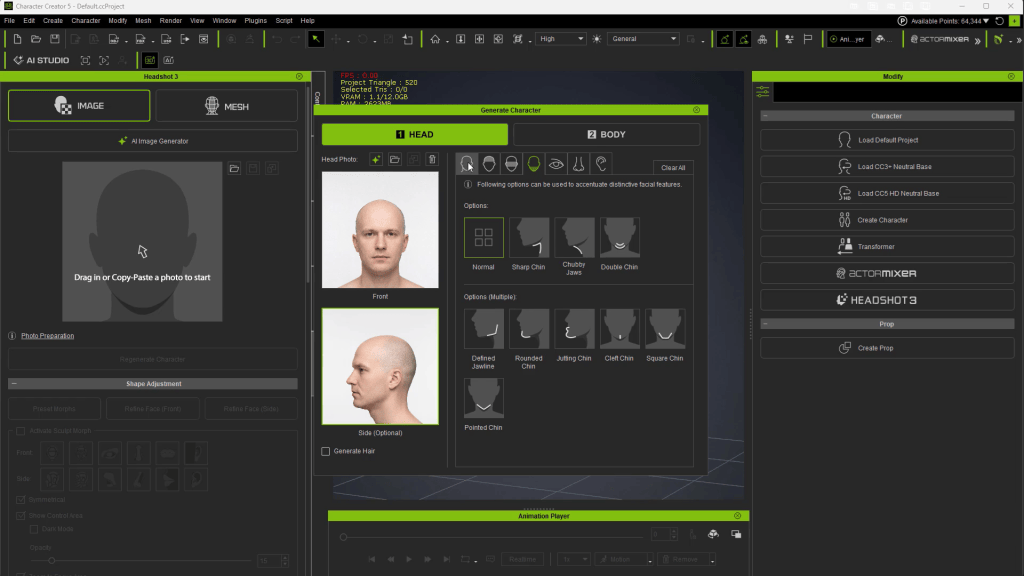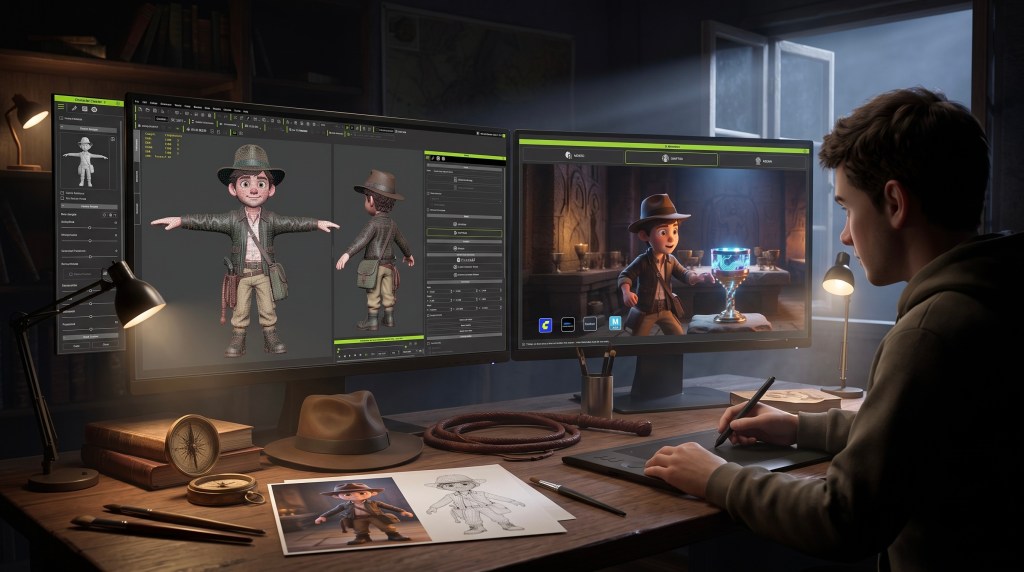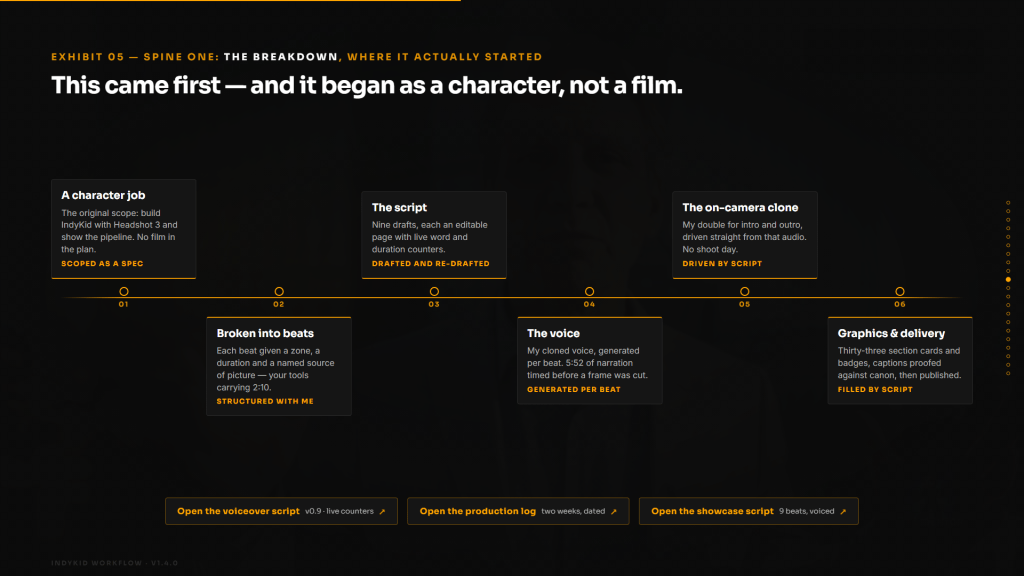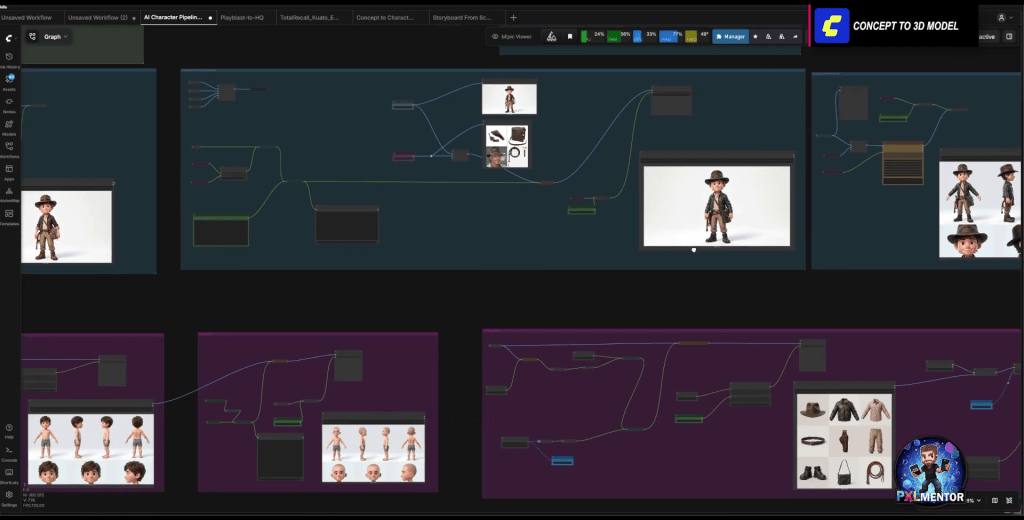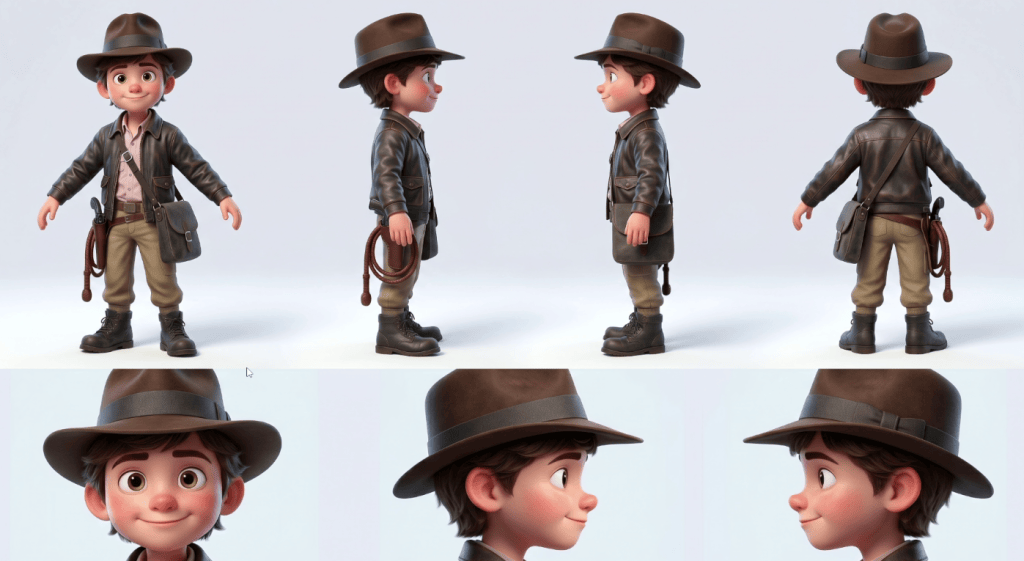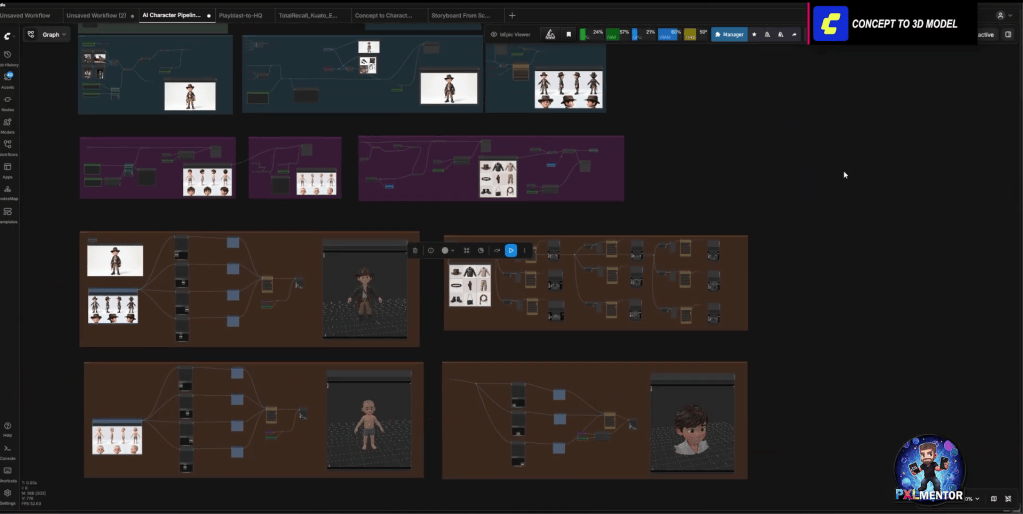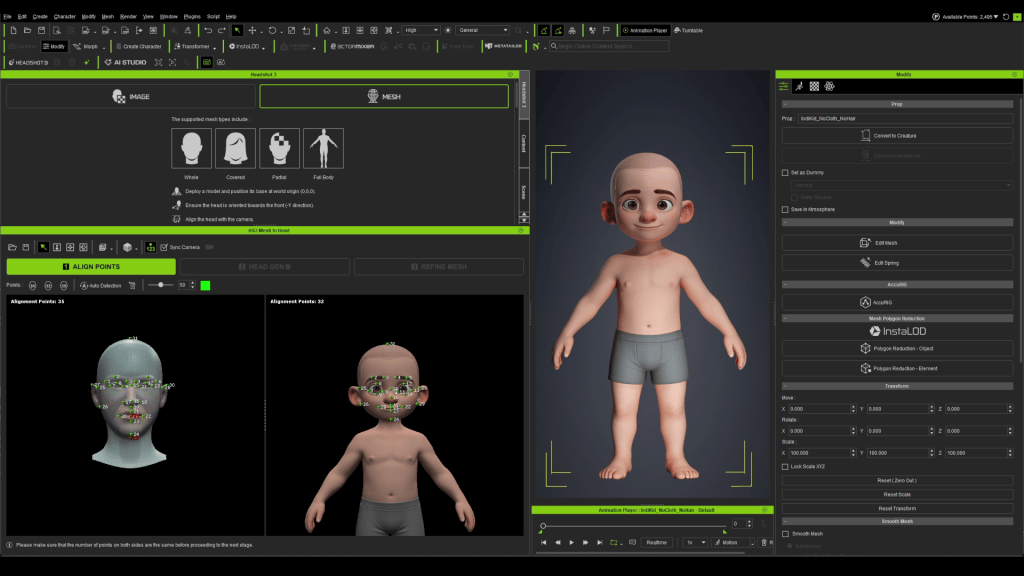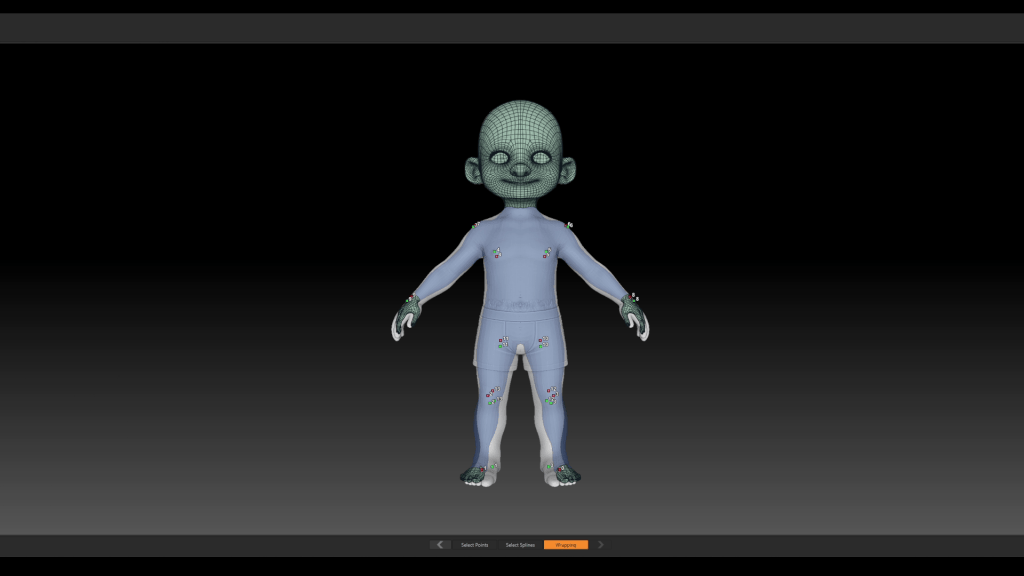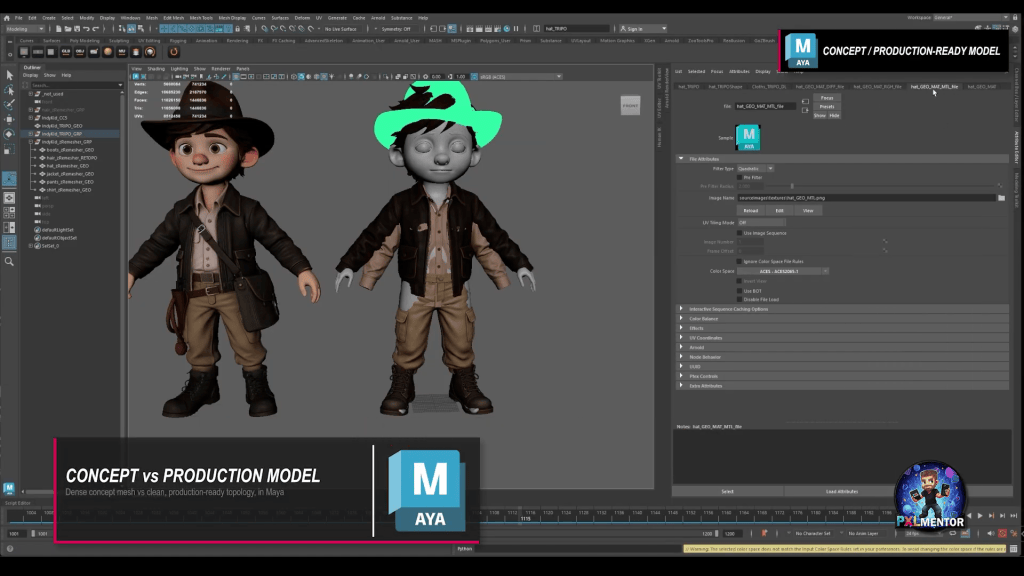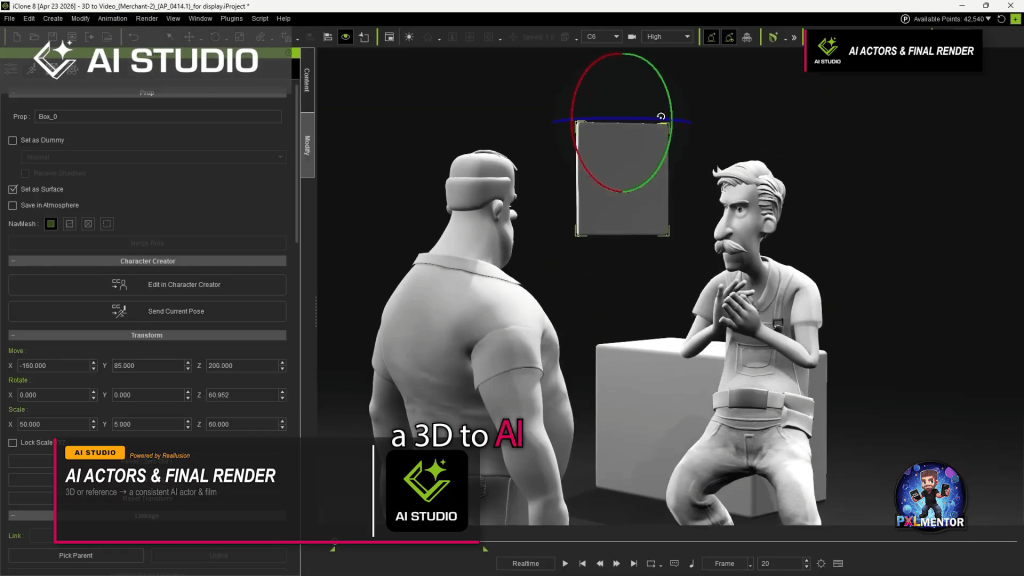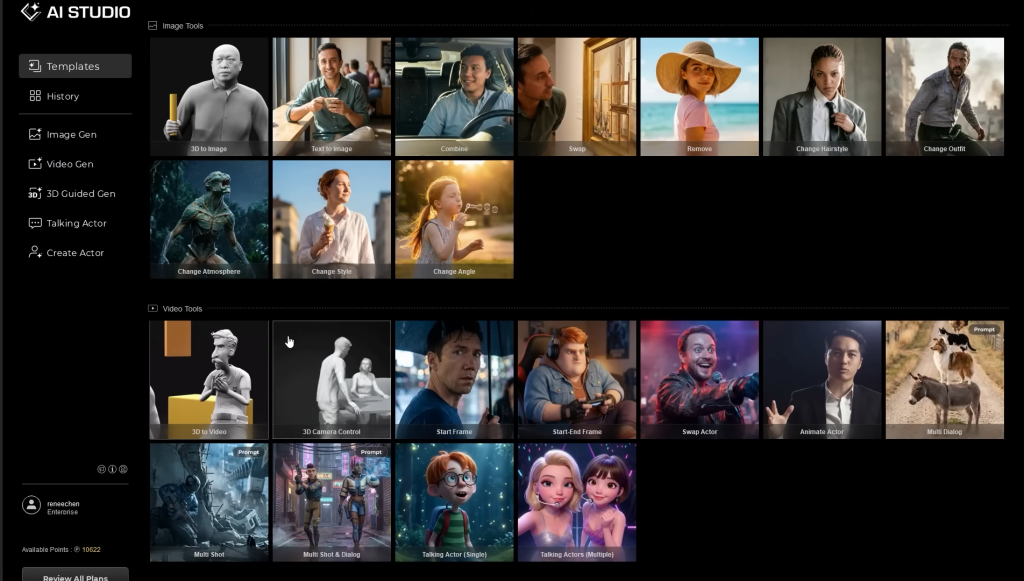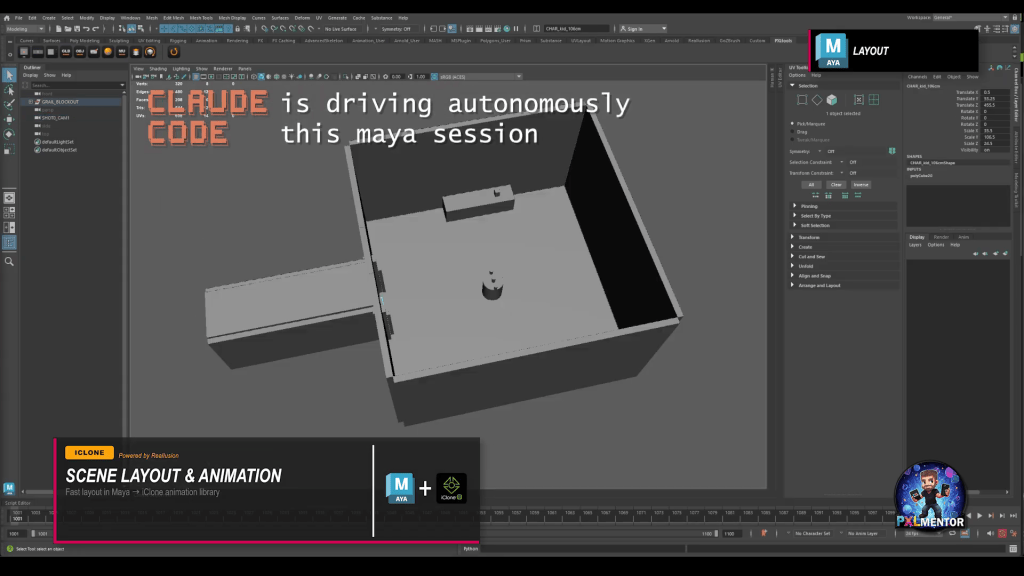
SAN JOSE, CA — April 21, 2026 — Reallusion, the leader in 3D character creation software, announced the release ofHeadshot 3 for Character Creator 5 (CC5), the industry’s most streamlined solution for creating professional-grade digital doubles. Designed to bridge the gap between 2D reference and production-ready 3D characters, this next-generation plugin introduces a suite of powerful features, including proprietary AI image-to-3D reconstruction, spline-based head shaping, and advanced texture generation.
To celebrate the launch, Reallusion is offering an Early Bird special, allowing users to secure Headshot 3 at a significantly discounted rate from now until May 31st, 2026.
The Power of Proprietary AI: High Precision & Worldwide Diversity
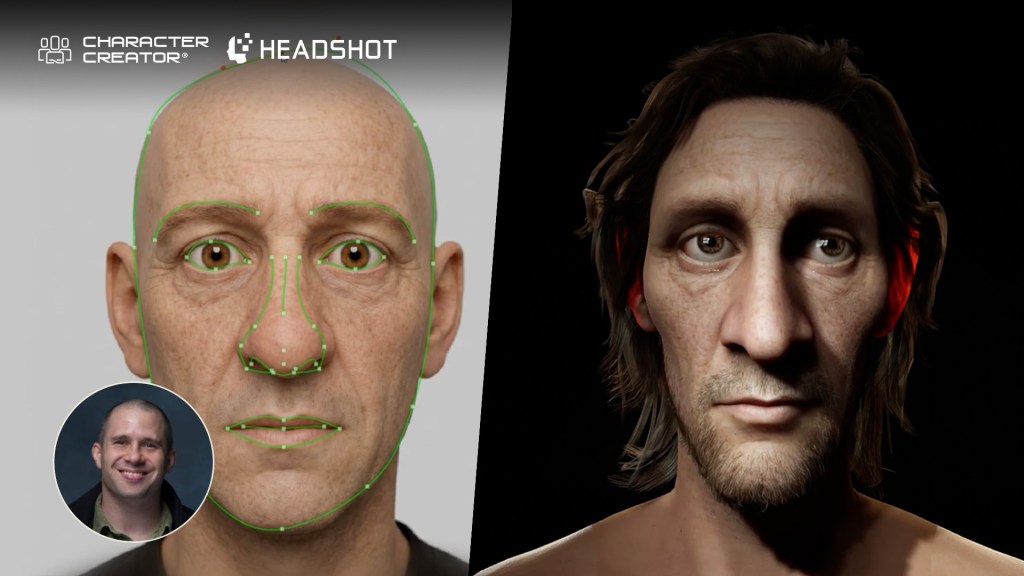
Headshot 3 represents a massive leap in digital identity. Reallusion has developed a proprietary AI model specifically for accurate image-to-3D head reconstruction. Trained on a vast dataset of high-resolution facial scans, this model interprets facial landmarks, depth cues, and subtle anatomical features from 2D images with unprecedented clarity.
Complementing this technology, Facial Feature Presets add essential depth structure and help capture distinctive details that AI may not fully detect from front-facing images alone. This powerful combination of AI reconstruction and precision presets enables highly accurate digital doubles while supporting diverse ethnicities and all age groups, ensuring each digital human faithfully reflects its real-world counterpart.
Revolutionary Prompt-to-Image: Make Every Photo a Perfect Shot
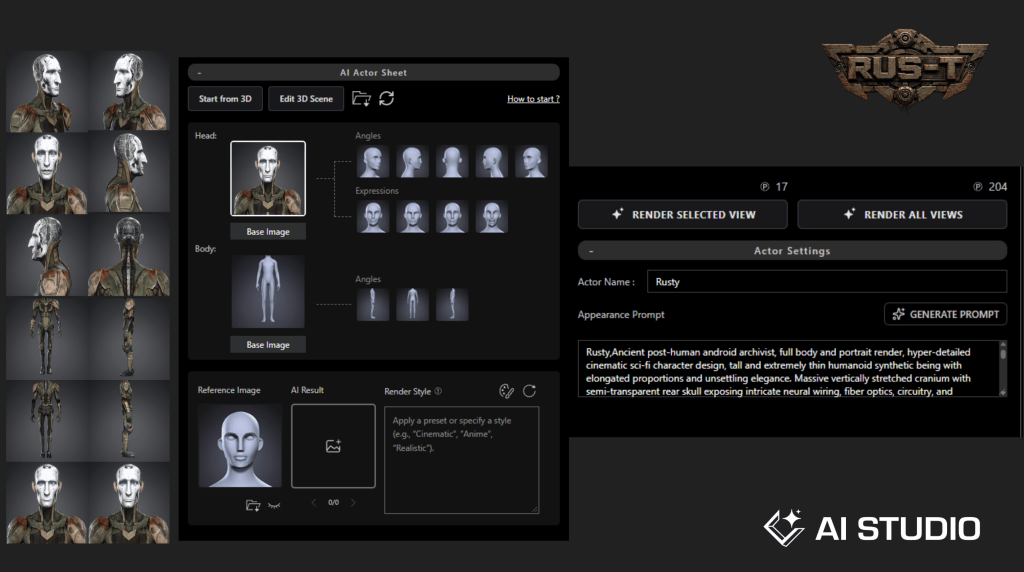
In addition to importing custom photos, Headshot 3 introduces a groundbreaking AI Image Generator powered by Google Nano Banana Pro. This integration enables artists to generate high-quality, front-facing images from simple text prompts or transform their own photos into polished, production-ready results. It also provides precise references for facial profiles and body proportions, ensuring an accurate overall likeness.
The AI further refines your source imagery by automatically adjusting facial expressions to a neutral look, correcting camera angles for a straight-on view, balancing lighting, removing stray hairs, and enhancing resolution up to 4K—providing a flawless foundation for sharper facial texture generation.
Ultimate Shape Refinements & Texture Enhancements
To ensure the digital double matches the subject in physical 3D space, Headshot 3 offers advanced refinement tools that address real-world photography challenges:
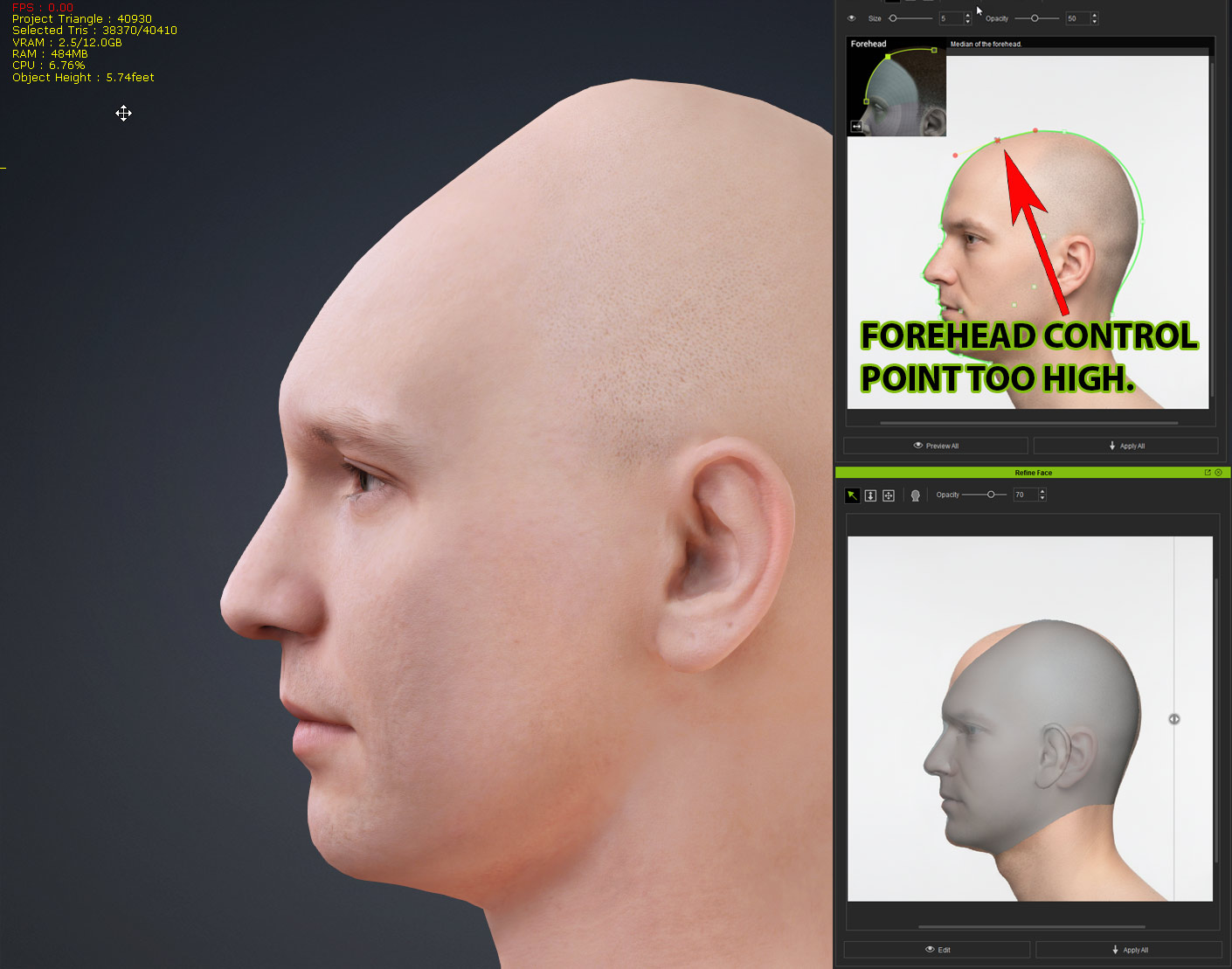
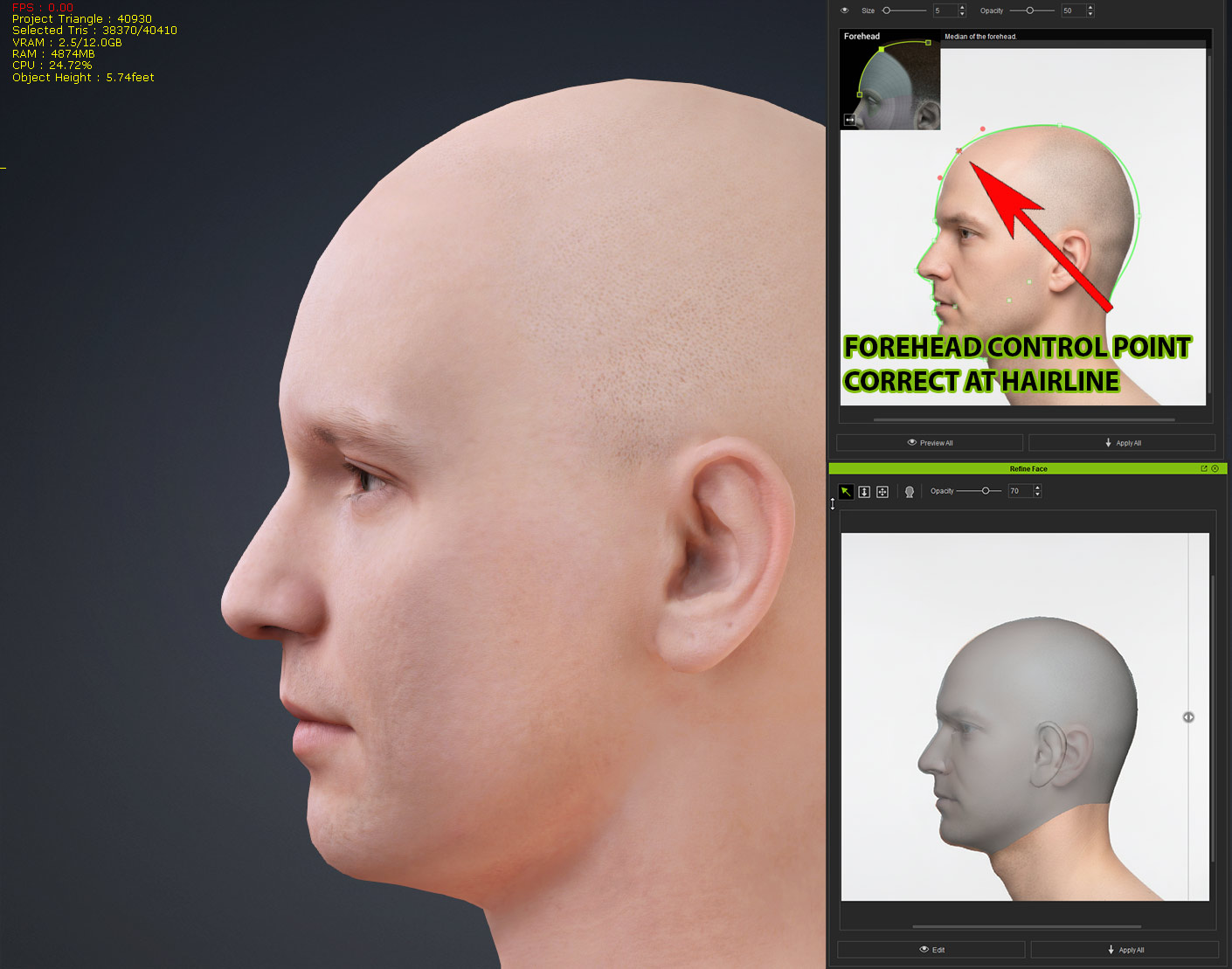
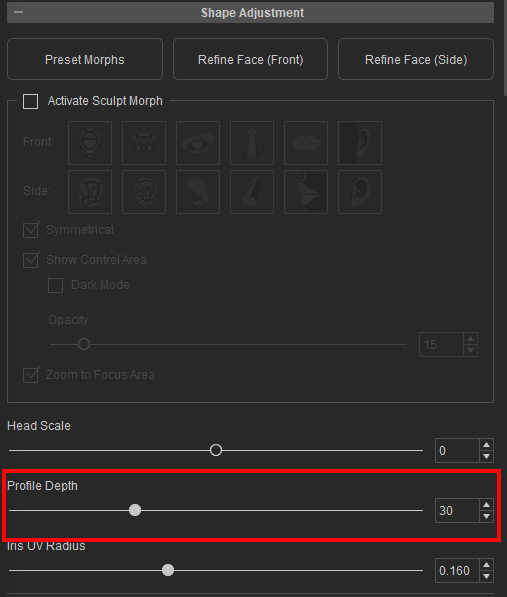
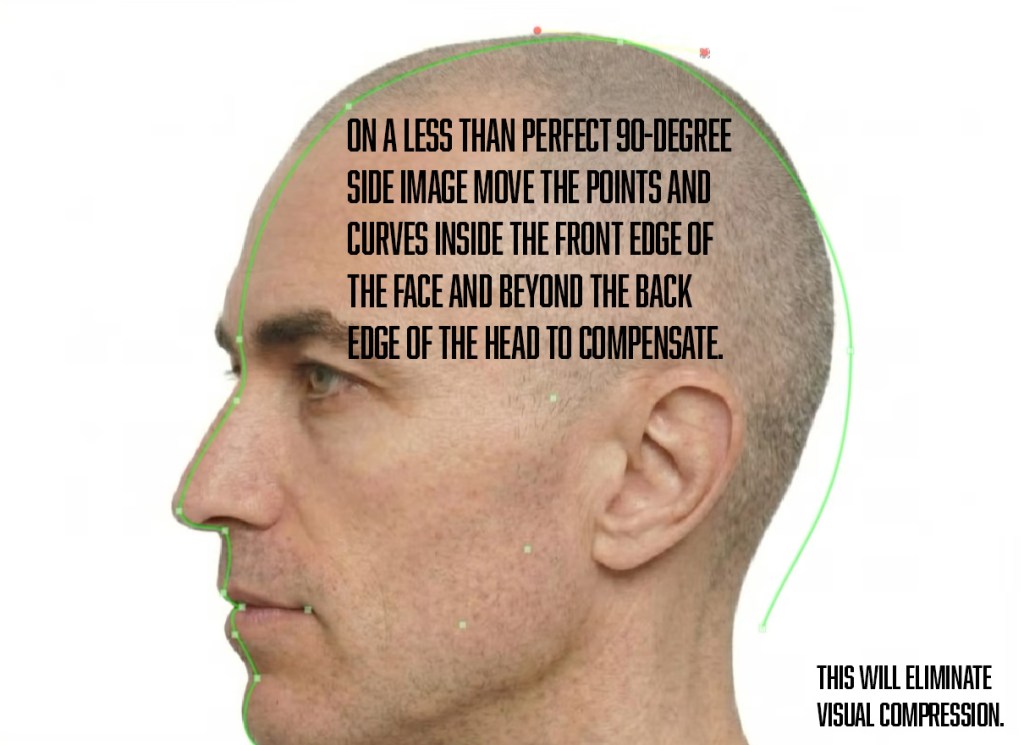
Spline-Based Mesh Shaping: Bezier curves trace facial contours with surgical precision. A key innovation is the fully independent front and side adjustments—planar front morphs never alter the depth of side profiles, and vice-versa. This system is purpose-built for complex anatomy such as double eyelids, deep-set eye sockets, or distinct nasolabial folds, all while maintaining perfect CC topology for optimized animation.
Intuitive 3D Sculpt Morph System: Optimized for Character Creator 5, this system allows artists to hover over a control region and adjust the mesh shape using directional mouse movements. This eliminates the need to manually locate specific sliders, streamlining the sculpting process.
Post-Lens Correction: To bridge the gap between photography and 3D modeling, the new Face Plane Perspective Slider quickly corrects fisheye distortion common in smartphone photos, restoring accurate physical proportions.
Blend Mask Editing: Achieve seamless integration between generated facial textures and the underlying skin base. Using the mask brush or prebuilt templates, artists can easily remove unwanted elements projected from the source photo—such as shadows, hair, eyelashes, scars, or lip lines—resulting in a clean and cohesive head model.
De-lighting & Skin Redness: The de-lighting feature removes uneven shadows to produce clean albedo textures, while the skin redness tool restores a natural, healthy tone by correcting color imbalances.
Primary & Secondary Normal Generation: Artists now have granular control over skin details. The generator extracts two levels of detail: Primary for broader features like muscle definition and deep wrinkles, and Secondary for micro-details such as pores and fine lines.
Complete Character Integration
Headshot 3 goes beyond the head to create a Full-Body Digital Double. By utilizing full-body reference photos, the AI automatically generates a matching body shape to complement the character’s face. Whether the subject is an athlete, or an elderly individual, the tool provides an instant, cohesive character build that is fully rigged and ready for animation within the Character Creator 5 ecosystem.
Ultra Value Bonus — Headshot Morph 1400+
As an exclusive launch incentive, every Headshot 3 purchase includes the Headshot Morph 1400+ Pack ( $99 value) for free. Previously, Headshot Morph 1000+ established itself as the world’s most comprehensive facial morph system, designed to achieve the professional detail of high-end 3D scan models.
Headshot Morph 1400+ builds on this foundation with expanded benefits for Headshot 3, adding CC5 HD workflow support, new preset sliders for more precise facial construction, and enhanced sculpt morphs for a more intuitive and flexible post-adjustment experience.
Early Bird Availability
Headshot 3 is available now as a powerful addition to the Character Creator 5 workflow. Professionals and enthusiasts alike are encouraged to take advantage of the Early Bird Offer, which runs until May 31st, 2026. This limited-time promotion provides the best value for artists looking to integrate high-efficiency digital double creation into their production pipelines.
Creating a Fantasy Character with CC5, ZBrush, and Maya
Darko Mitev – CG Generalist, Art Director
Darko Mitev
My name is Darko Mitev, and I am a CG Generalist with over 15 years of experience in the VFX, Animation, and Game Cinematics industry. Throughout my career, I have had the privilege of collaborating on a variety of exciting projects, pushing the boundaries of visual storytelling and character design.
In this article, I will guide you through my complete process of creating my latest artwork titled “The Life of a Guardian.” This piece represents not just a technical endeavor but also a journey of creativity and inspiration. I will share insights into the tools and techniques I utilized, specifically focusing on Character Creator 5, ZBrush, and Maya.
We will delve into each stage of the creation process, from the initial concept sketches to the final rendering. You will learn how I approach character design, the importance of anatomy and proportion, as well as the thought process behind creating textures and materials that bring my characters to life.
By the end of this article, you will not only have a clearer understanding of my workflow but also practical tips that you can apply in your own artistic endeavors. Whether you are an aspiring artist or a seasoned professional, I hope to inspire you to explore and experiment within the realms of digital art. Let’s embark on this creative journey together!
“Bringing a default character from Character Creator 5 into my Maya workflow allowed me to refine proportions quickly and build on a production-ready topology, giving me the confidence to focus on creativity rather than technical limitations.”
Darko Mitev – CG Generalist, Art Director
Base sculpt and Character Creator HeadShot
I started the project with a very quick and messy exploration of shapes in ZBrush for iPad, allowing my creativity to flow without the constraints of precision. The portability of the iPad made it easy to explore various designs in different environments, from the comfort of my sofa to a local café where inspiration struck. Once I had something that resonated with me and sparked excitement, I transitioned to the desktop to refine the proportions more carefully by bringing in a default character from Character Creator 5 (CC5).
This process was integral, as working on a larger screen enabled me to meticulously adjust finer details that would enrich my overall design. In the later stages, my confidence grew significantly because I knew I was planning to utilize the Headshot 2 plugin in CC5, which promises to streamline and enhance the workflow by wrapping the generic CC5 topology to my sculpt. This integration not only saved time but also ensured that the final result would maintain a high level of quality and coherence, marrying my initial vision with the advanced capabilities of CC5. The entire journey has been a balance of intuition and technical skill, making it both challenging and rewarding.
“Headshot plugin in Character Creator 5 wrapped the CC topology to my sculpt extremely well, saving time while maintaining high-quality results that matched my original artistic vision.”
Darko Mitev – CG Generalist, Art Director
Once in CC5, I launched Headshot 2, and the automatic alignment was actually very accurate because I spent a little bit of time preparing my mesh in ZBrush. I refined the points mostly on the ears and a few on the lower eyelids, and went to the next step.
Once the wrapping was complete, I used the brush system to further refine the placement of the topology on the ears. I must admit I pushed the topology on the ears to the very limits, but with a bit of manual refinement, it ended up working really well.
When I was done with Headshot, I picked the option to attach my custom head to a generic male body, and I had a custom character ready to go. At this point, I picked a grey material for the body because I wanted to focus on the forms, and I fired up the new ActorMIXER in Character Creator 5.
“Using ActorMIXER in Character Creator 5 let me explore multiple body and facial variations in minutes, making it easy to experiment with proportions and quickly evolve the character design.”
Darko Mitev – CG Generalist, Art Director
ActorMIXER + ZBrush Refinement
I spent way too long playing with this new tool, haha. I think I made 4 or 5 completely different versions of my character. I tried short and chubby, tall and skinny, and everything in between. The same goes for the face. I ended up pushing the character a lot more towards a realistic look. My initial concept was kind of stylized with a lot more pushed proportions, but through my exploration phase with ActorMIXER, I settled on a somewhat realistic facial structure.
When I was done, I was happy with how the character was looking overall, but I lost some of the key features on his face. So, I used GOZ Plus to send the character back to ZBrush and refine and resculpt some of the facial features.
With the face adjusted to my liking, I sent the character back to CC5 using the GoZ plugin and started playing around with different skin materials and accessories, like adding hair, swapping different eye colours, etc.
“Using GoZ to move the character between Character Creator 5 and ZBrush made it easy to refine sculpted details and then return to CC5 for materials, accessories, and further adjustments without breaking the workflow.”
Darko Mitev – CG Generalist, Art Director
High Frequency Details
TIP: Make sure you set up the displacement scans in the shader for all the materials and select Displacement in the settings of GoZ Plus; otherwise, the plugin will try to generate the high-frequency details based on the Normal Map, which is less accurate.
For the pore enhancement, I used Texturing XYZ maps to hand-sculpt some more details.
I intentionally sculpted the wrinkles and pores with higher intensity than normal because I knew I would bake all of this as an 8K displacement, and I would have the chance to control the intensity in the shader itself.
Texturing
Since I already had the character in ZBrush with all base textures loaded, I baked it to Polypaint and started to hand-paint some details like the colours of the scar on the chin, some darkening around the eyes, etc.
I also used this chance to paint out a bit of texture stretching on the ear from the original projection. This was a destructive process because the Polypaint was then baked back to a colour map when I sent the character back to CC5, but I wanted to limit the amount of software I use for this project. It was a nice little challenge.
Once back in Character Creator 5, I used the CC5 SkinGen plugin to add more normal map details to the face, as well as some bruises, dirt, and adjust the texture to be less saturated and tinted slightly towards yellow/green.
CC5 Face Tools for Blend Shapes
When the character was done, I used Character Creator’s Face Tools for ZBrush to refine some of the facial shapes and enhance the overall realism of my design. These tools allowed me to focus on minute details that are essential for creating a lifelike appearance. Because of the custom features I sculpted, such as the double-baggy lower eyelids, I had to tweak some of the shapes to work well with my character, ensuring they seamlessly blended with the rest of the facial structure.
“Character Creator’s Face Tools for ZBrush allowed me to refine subtle facial shapes and expressions, giving me the control needed to enhance realism while ensuring the features worked seamlessly with the character’s overall facial structure.”
Darko Mitev – CG Generalist, Art Director
Additionally, I experimented with various textures and colour palettes to give the skin depth and character, while also adjusting the lighting settings within the software to see how different lighting conditions could affect the final look of my model. This meticulous process was not only rewarding but also crucial to bringing my vision to life in a way that resonates with the audience.
Armour and Accessories
I modeled the armour and the sword directly in Maya using poly modeling, paying careful attention to the intricate details that would bring these elements to life.
To ensure that the design was both functional and aesthetically pleasing, I experimented with various shapes and structures, tweaking them until they aligned perfectly with my vision. Some of the fabric was sculpted in ZBrush, where I focused on capturing the natural folds and textures that would typically be found in actual garments.
Afterward, I retopologized the fabric in Maya to maintain a clean mesh while preserving the high-resolution details from the sculpting process, ensuring that every part of the model would render beautifully in the final output.
Maya Auto Setup for Character Creator
“With the Character Creator Auto Setup for Maya, the character imported with a full skeleton, skinning, shaders, and even the facial rig already configured, allowing me to focus immediately on look development and rendering instead of technical setup.”
Darko Mitev – CG Generalist, Art Director
With the Armor done, I imported it into CC5 and did a very basic skinning to the skeleton. I did not spend much time refining it because the Armor was going to receive a full custom rig in Maya, so there was no point in doing the same thing twice.
Once in Maya, I used the free Character Creator Auto Setup for Maya to import the character with full skeleton and skinning data, as well as shaders and even a Facial Rig.
The Maya Auto Setup is also fully equipped with HDRI tools, lighting presets, and a simplified view of all the materials with the most useful parameters exposed to sliders for easy adjustment.
All I had to do was activate the Arnold Subdivision on the geometry of the head and body, and the plugin took care of most of the setup for me. This let me play with the sliders to get the right roughness and saturation levels of the skin and really dial in the look I wanted.
Groom, Render, and Composition
For visualizing the beard and eyebrows initially, I used the card-based system, but once in Maya, I converted that to the XGen Groom system for higher quality. I generated sculpt meshes from the head and grew the hair on them, then wrapped the scalp geometry to the face, which allowed me to use the XGen groom seamlessly with the facial rig as well.
Render Exploration
After all this, the setup was done. I started really having fun with the storytelling. I made a lot of different poses and different expressions to really showcase the character. I wanted to depict the life of a late medieval, early Renaissance fantasy general. That is why I explored situations when he is happy, angry, stoic, intimidating, in the middle of a combat, etc.
The environment was assembled directly in Maya using assets that I already had and some Megascans assets as well. I went back to CC5 and quickly assembled one more character that I dressed in a suit of armor right out of Reallusion’s Content Store.
I imported the second character using the same Auto Setup script, which brought the character in with a full body rig, and that allowed me to reference him multiple times in various poses to create interesting compositions.
Finally, I simulated a quick torchlight FX in Houdini and brought it to Maya as VDB.
Lighting
The lighting for the scenes was fairly straightforward. I used an HDRI light primarily to establish the mood and the main fill light of the scene. I then created a classic three-point light setup. I positioned a key light in a Rembrandt Lighting style in front of the character, added a subtle rim light to separate him from the background, and very faint fill light from the front to fill in some of the darkest shadows.
I then created Per Light AOV, separating the contribution of every light to its own render layer, which allowed me to turn lights on and off in comp, change their colour, etc.
Along with these render passes I included all the other render passes needed to rebuild the Beauty render along with Cryptomatte for easy masking.
Composition
The compositing was very simple for this project. I used Davinci Resolve and Fusion to do the compositing and colour grading.
First, I reassembled the beauty and did basic colour correction by masking certain parts using Cryptomattes. Then I added a few layers of dust and flying debris to help the render feel more dynamic.
Next, I used the velocity pass to add motion blur to the sword because it is in mid swing, and it needed some movement. Lastly, I added the Film Look Creator to finalize the look.
Summary
This concludes my entire workflow for creating this project, which has been an incredible journey filled with learning and creativity. I am very happy with how the final renders turned out, as they truly reflect the vision I had from the beginning. The process taught me valuable lessons about design and execution, and I am looking forward to creating a lot more similar projects like this in the future. Each new venture presents an opportunity to refine my skills further and push the boundaries of my creativity, and I am excited to see where this passion will take me next.
If you want to check more of my work, you can check out my links below.
Character Creator 5 is a professional 3D character creation and animation tool used to build realistic digital humans for games, cinematics, animation, and real-time projects. Artists can quickly generate a detailed character base, customize facial features, clothing, and materials, and export fully rigged characters to tools like Maya, Unreal Engine, and Blender.
How does Character Creator 5 integrate with ZBrush?
Character Creator 5 integrates with ZBrush through the GoZ workflow, allowing artists to send characters directly between the two programs. This enables sculpting high-resolution details such as wrinkles, pores, and facial structures in ZBrush, then returning the model to Character Creator to continue with materials, rigging, and animation preparation.
Can Character Creator 5 characters be used in Maya?
Yes. Characters created in Character Creator 5 can be exported to Autodesk Maya using the Maya Auto Setup plugin for CC. This tool automatically transfers the character with skeleton, skin weights, facial rig, shaders, and materials, making it easy to begin lighting, rendering, or further rigging without complex manual setup.
What is Headshot 2 in Character Creator?
Headshot 2 is a plugin for Character Creator that converts images or custom sculpts into fully rigged 3D heads. It can wrap Character Creator’s production-ready topology onto sculpted meshes, allowing artists to quickly transform concept sculpts into animation-ready characters.
Why do artists use Character Creator for game and cinematic characters?
Artists use Character Creator because it dramatically reduces character production time while maintaining high-quality results. With tools like ActorMIXER, SkinGen, FaceTools, and Headshot, creators can experiment with designs, refine realism, and export fully rigged characters ready for 3D animation, game engines, and cinematic rendering pipelines.
For Blender animators working in advertising, the hardest part of cinematic character work isn’t the final render — it’s everything that has to happen before it. Character creation, rigging, performance capture, lip sync, crowd building, and cloth behavior can eat up weeks before a single lighting decision gets made. And when you’re a solo artist, there’s no team to absorb that load.
This case study looks at how Istanbul-based 3D director Ateş Savaşeri used a hybrid Character Creator to Blender workflow — built on Character Creator 5, iClone, and Blender Auto Setup — to reinterpret the elevator scene from Revolver entirely on his own.
Meet the Artist and the Project
Istanbul-based 3D artist and director Ateş Savaşeri knows that reality intimately. Working primarily in commercial production, he builds films almost entirely on his own — handling character, performance, animation, lighting, and camera as a single unified process.
When Character Creator 5 was announced, Savaşeri was eager to show his collaborators in Turkey what the new feature set made possible for commercial production. His original plan was modest: a short test segment from the elevator scene of Revolver for his showreel.
The first results changed his mind.
“After seeing the initial results, I became very excited and felt it shouldn’t remain just a short test,” he recalls. The project expanded into a complete 3D reinterpretation of the scene — a main character in two visual variations, a hotel lobby crowd, tension-driven close-ups, and a full cinematic final render handled in Blender.
A Hybrid Character Creator to Blender Workflow for Solo Artists
For Blender animators, one of the biggest workflow questions is how to bring high-quality rigged characters and believable performance into Blender without fragmenting the project across disconnected tools. Savaşeri’s answer is a three-stage CC5 to Blender pipeline where each tool does what it does best, and the handoffs stay fluid.
Stage 1 — Character Creation in CC5
Identity, topology, morphs, clothing, hair, and the facial system are built in Character Creator 5.
Stage 2 — Performance in iClone
Body motion via Video Mocap, lip sync via AccuLIPS, facial keys, look-at behaviors, and object interactions are layered in iClone.
Stage 3 — Cinematography in Blender
Environment, lighting, camera, final materials, physics refinements, and the final render are completed in Blender — with the character brought in via Blender Auto Setup and kept connected through Data Link.
What makes this Blender workflow work, Savaşeri emphasizes, is that Blender isn’t just the render stage. It’s where the final creative decisions get made.
Character Creator 5: A Higher-Quality Character Base for Blender
Subdivision That Survives Close-Ups
Savaşeri’s first impression of CC5 wasn’t about aesthetics — it was about control. “Being able to switch between subdivision levels lets me work without overloading the scene, and then push subdivision higher at final render for better output. That meets the expectations of the advertising industry I work in.”
That high-poly character base paid off directly in Blender. When he needed to rebuild the character’s beard using Blender’s particle system — because the original beard produced small shadow artifacts in close-up renders — CC5’s dense topology gave him the surface resolution he needed to recreate it exactly as he wanted. The same structure enabled more precise, smoother weight maps for hair and clothing simulation inside Blender.
Facial Detail That Carries Emotion
In close-ups, CC5’s surface detail changed how the character read on camera. Wrinkles, lines, and subtle facial features kept the character from looking overly smooth or artificial.
The facial details of a character in Character Creator 5
“The way wrinkles around the mouth, nose, and eyes behaved during natural facial movement really strengthened the character’s expressive power.
Those small details moved the character away from feeling mechanical and brought it closer to something alive. Sometimes it’s not the big movements that carry emotion, but the smallest micro-expressions.”
Ateş Savaşeri, 3D artist and director
The HD Eye System
CC5’s improvements around the eye — the eyelid, tearline, occlusion, and gaze behavior — were equally critical. “The eye no longer felt like a detached artificial element. It felt like a living part of the face. In this scene, the eyes were one of the most important areas carrying the character’s emotion.”
Character Creator 5 HD eyes library
ActorMIXER for the Hotel Lobby Crowd
For the hotel lobby, Savaşeri needed a believable crowd without sacrificing a day on each background actor. He turned to ActorMIXER.
“What I liked most was how quickly I could experiment. I was able to generate character variations that felt like they belonged to the same world in a very short time. Whatever number of characters the scene needed, I could build them comfortably. I didn’t have to reduce or simplify the scene because of time or energy.”
Ateş Savaşeri, 3D artist and director
Create crowds fast with Character Creator 5 ActorMIXER function
For commercial production, where scope often shrinks to fit the schedule, that’s the difference between a world that feels populated and one that feels compromised.
iClone: Where the Character Performance Comes Alive
Scene Objects in the Loop
Savaşeri used iClone to move scene objects, not just characters. He brought the elevator walls into iClone to define the character’s movement boundaries accurately and used iClone’s Linkage feature to attach the character’s weapon. The Look At feature handled posture and gaze direction in tension-heavy close-ups.
The Look at function in iClone
“Objects like this shouldn’t behave like simple props — they need to feel like an extension of the performance. This connected system didn’t just give me technical convenience; it opened up a space that directly contributed to the believability of the scene.”
Ateş Savaşeri, 3D artist and director
Video Mocap: From Intention to Motion in Minutes
For character animation, Savaşeri used iClone’s Video Mocap — recording his own body performance on video and transferring it directly to the character.
“With this method, I got around 80–85% of the motion in a very short time. That’s exactly what made it valuable. Instead of starting from scratch, I had a strong base to work on.”
Ateş Savaşeri, 3D artist and director
Animate characters fast with iClone AI Video MocapThe result of using iClone AI Video Mocap
From there, he refined the weak or off-tempo sections in iClone, adjusting weight, timing, and emphasis shot by shot.
Face Puppet + Face Key: Building Facial Expressions in Layers
Savaşeri didn’t build the character’s facial performance with a single tool. He started with Face Puppet, recording short layers of facial expressions and combining them on the Timeline to create the base performance — much the same way Video Mocap gave him a strong starting point for body motion.
iClone face puppet
From there, he went back over that structure with Face Key, refining the intensity of each expression, adjusting transitions, and tuning the small facial details one by one.
“I don’t think of the face as a single unit, but as a relationship between different regions. The mouth may say something while the eyes say something else. The eyebrows may tense slightly, but the mouth may not immediately follow. Sometimes the real emotion emerges in those small timing differences.“
Ateş Savaşeri, 3D artist and director
iClone face key
Blender Auto Setup and Data Link: The Bridge That Doesn’t Break
This is the part of the Character Creator to Blender workflow that matters most for Blender animators — and it’s where Savaşeri is most emphatic.
“Blender Auto Setup and Data Link didn’t function merely as tools for transferring a character from one program to another. They worked more like a connection system that let me move forward without breaking the film into pieces.”
Ateş Savaşeri, 3D artist and director
Arriving in Blender Without Starting Over
When the character crossed from CC5 and iClone into Blender, Savaşeri didn’t feel like he was starting from scratch. Shaders, rig, hair, and clothing came across intact, leaving him free to focus on what Blender does best.
Critically, Blender was where most of the final decisions happened. Lighting, camera, environment, and atmosphere were built there — but so were the final character refinements:
Hair behavior tuned to the needs of each shot
Clothing motion controlled in specific regions
Material transitions refined for realism
Physics responses re-evaluated per scene
Final touches on eyes, skin, beard, and overall facial feel in close-ups
“When the character arrived in Blender, it wasn’t finished — on the contrary, it was just starting to reach its final form. The biggest advantage Blender Auto Setup gave me was preserving the core structure of the character while still leaving room for those final creative and visual decisions.“
Ateş Savaşeri, 3D artist and director
Revisions Without the Pain
The real test of any pipeline is what happens when something changes. In commercial production, that’s constant.
Set up the character and scene in iCloneTransfer to Blender with the Blender Auto Setup Data link functionFinal render in Blender
“If this transfer pipeline hadn’t been so flexible, even small changes would have meant repeated export-import cycles, making the process heavier. But because the programs were connected through Data Link, I could reflect changes across them much more fluidly. What usually exhausts a project isn’t the creative decisions — it’s repeating the same technical steps over and over again.”
Ateş Savaşeri, 3D artist and director
Why a Character Creator to Blender Pipeline Matters for Commercial Production
For Savaşeri, the broader impact of Reallusion tools on advertising work comes down to one principle: keeping the distance between the initial idea and the final result as short as possible.
The other part is what unlocks at the scale of a single artist. “These tools make it possible to achieve, on a smaller scale, what used to require larger teams and heavier production pipelines. It makes not only imagining an idea possible, but actually testing it and pushing it toward completion.”
But Savaşeri is careful about the framing. “These tools don’t magically solve everything on their own. Their real strength is redirecting the artist’s or director’s energy to the right place — away from repetitive technical tasks and toward thinking, experimenting, and shaping the emotional layer of the work. In the end, what reaches the audience isn’t the software. It’s the emotion and narrative you’re able to create with it.”
Looking Ahead
Savaşeri is candid about his own result: “I can’t say I reached my ideal outcome one hundred percent, but that’s mainly about the time I had available for this project.”
He’s now beginning work on a new short film, where he plans to explore more of the toolset he hasn’t yet used. For a solo Blender-based director in commercial production, the validation of this Character Creator to Blender pipeline — and its ability to stay connected from concept to final image — is the foundation on which everything else will build.
“I don’t see these tools simply as tools that increase speed.
They help distribute the production load more intelligently and sustainably.“
Ateş Savaşeri, 3D artist and director
Key Takeaways: Best Practices for a Character Creator to Blender Workflow
For Blender artists considering a CC5 + iClone hybrid pipeline, Savaşeri’s experience on Revolver surfaces a few concrete lessons:
Treat Blender Auto Setup as a bridge, not an export. Characters arriving in Blender should be ready for final creative decisions, not locked in. Hair, cloth, materials, and physics can — and should — be refined on the Blender side.
Let Data Link keep the pipeline alive during revisions. The flexibility matters most when the brief changes.
Use CC5’s subdivision strategically. Work light, render heavy. Lean on the high-poly base for close-up detail work inside Blender.
Start body motion with Video Mocap, finish it by hand. 80–85% in minutes, then refine for weight, timing, and emphasis.
Treat AccuLIPS and Face Key as foundations, not final answers. The believability is in the refinement.
Bring scene objects into iClone, too. Walls, props, and weapons all benefit from being part of the connected pipeline.
ActorMixer is the practical answer to crowds. Don’t shrink the scene to fit the schedule.
FAQs
How do I send a Character Creator character to Blender?
Use the free Blender Auto Setup add-on. It imports CC5 and iClone characters into Blender with shaders, rigs, hair, and clothing intact — so you can continue refining the character natively in Blender without rebuilding materials.
Can I animate a Character Creator character in Blender, or should I use iClone?
Both approaches work. iClone offers faster character animation through Video Mocap, AccuLIPS lip sync, and Face Key facial animation, then transfers the performance into Blender via Data Link. Many solo artists use iClone for performance and reserve Blender for cinematography and final render — exactly the workflow covered in this case study.
How do I get Character Creator and iClone for my Blender project?
Character Creator and iClone are available from the Reallusion website with flexible subscription or perpetual license options. Trial versions are available, and the Blender Auto Setup add-on is free from the official plugin page.
Ateş Savaşeri
Ateş Savaşeri is a 3D artist and director based in Muğla, Turkey, working primarily for the advertising industry. A graduate of Ankara University’s Department of Radio, Television and Cinema, he began his career in Istanbul as a film editor before expanding into cinematography, animation, and directing — an arc that shaped the way he sees production today.
“I don’t think of a scene as simply an image that looks good,” he says. “Character, performance, lighting, camera, editing, and rhythm are different layers of a single narrative.” That conviction is why he gravitates toward hybrid workflows that combine the speed of real-time tools with a more cinematic final image.
Alongside commercial work, Savaşeri continues to write and produce personal projects exploring nature, environmental issues, and the tense bond between people and the systems they live within. He now produces most of his work from a small animation studio he built at home on Turkey’s southern coast, where he remains drawn most of all to the process itself — the path from the first spark of an idea to the final image.
Traditional character pipelines ask students to build every stage from scratch — proportions, topology, rigging, weighting, facial setup — before they ever see their character move. By the time the rig finally works, the deadline is already in sight, and the creative decisions are behind them.
A different approach is emerging inside programs like Think Tank Training Centre, where mentors are guiding students toward hybrid Think Tank character creation workflows that fold Character Creator 5 into established high-end pipelines. Claudia Marcucci and Marco Meier — two Advanced Term students working on very different projects — both used CC5 as the connective tissue between ZBrush, Substance Painter, and Unreal Engine 5. Their results show what the pipeline unlocks at either end of the spectrum: creative acceleration on one side, game-ready precision on the other.
Meet the Artists and Their Projects
Claudia Marcucci is a 3D character artist from Milan, currently studying Character for Games at Think Tank Training Centre. Her path into character work has been deliberate — after training as a 3D generalist in Italy, she took Scott Eaton’s anatomy course to deepen her figure work before joining Think Tank to push further into character specialization.
During her third Advanced Term, she developed Travelling Merchant, encouraged by her term supervisor, Saurabh Jethani, to experiment with Character Creator as part of her pipeline.
“I decided to implement it in my pipeline after seeing how Saurabh’s character was taking life during our recorded lessons by using it, week after week.”
Claudia Marcucci, student at Think Tank Training Centre
Marco Meier approached CC5 from a different angle. From the start, he knew he wanted a fully game-ready character with a complete rig and working cloth simulation — and CC5’s MetaHuman integration gave him a specific reason to rebuild his pipeline around it.
“From the start, I knew I wanted a fully game-ready character with a complete rig, cloth simulation, and with the CC5 update introducing the MetaHuman feature, I saw a great opportunity to integrate the CC workflow to save time and streamline the process.”
Marco Meier, student at Think Tank Training Centre
Both characters converged in Unreal Engine 5, fully rigged and Auto-Setup-ready, despite starting from very different creative briefs.
The Hybrid Think Tank Character Creation Workflow: Why It Matters
For students, the hardest part of character work is rarely the sculpt. It’s the weeks of technical setup that stand between a finished model and a posed, animated shot — and that’s where CC5 is changing the Think Tank character creation workflow.
Stage 1 — Start inside Character Creator 5 or from the Reallusion base
Stage 2 — ZBrush for sculpting, with Character Creator 5 compatibility preserved
Stage 3 — Substance Painter for texturing
Stage 4 — Back into Character Creator 5 for rigging and skin weighting
Stage 5 — Send to Unreal Engine 5 via Auto Setup
Character Creator 5 in Claudia’s Workflow: Acceleration Through Immediate Feedback
Claudia’s use of CC5 is about compressing the distance between sculpture and movement. She wanted to see her character pose, emote, and react well before she was deep into final detail — and the pipeline rewarded that curiosity.
Starting from the Reallusion base — but flipped
Claudia began from the Reallusion Free Fully-rigged 3D Character basemesh, but deliberately chose the opposite gender of her final character. The constraint forced her to exercise anatomy and sculpting without leaning on the initial base.
To protect the pipeline, she applied Reallusion’s topology maps as a texture directly in ZBrush, keeping the loops in the right place even after heavy sculpting. She describes it as essential prep — not a nice-to-have.
GoZ iteration between ZBrush and Character Creator 5
Once the sculpt reached a strong stage, she used GoZ to bring the body into CC5 to check that the rig and deformation actually worked.
“It was really satisfying to see one of my characters taking life.”
Claudia Marcucci, student at Think Tank Training Centre
That early validation is the core of her case for the pipeline. Instead of discovering deformation problems at the end of the project, she caught them while they were still cheap to fix.
Transfer Skin Weight for clothing, directly inside Character Creator 5
After baking high-to-low and texturing everything in Substance Painter, Claudia brought the clothes and props into CC5 to skin them.
“Thanks to the implemented skin weight painting system CC has, I skinned everything directly in it, without having to constantly export and reimport from other softwares.”
Claudia Marcucci, student at Think Tank Training Centre
For the garments, she used Transfer Skin Weight to start from a cloth template and then refined the result by painting manually — a hybrid approach that respects the tool’s automation without surrendering artistic control.
Into UE5 with Auto Setup and AccuRIG animation
With the character rigged, Claudia brought it into Unreal Engine 5 using the Reallusion Auto Setup for UE (All-in-One) plugin. The plugin assigned the skeleton and shaders on import — and crucially, made the character compatible with the MetaHuman Control Rig for both face and body.
She then imported animation from AccuRIG and Character Creator, retargeted it, and combined it with her own keyframed animation directly in UE5’s sequencer.
“CC5 really helped me accelerate the character setup and rigging. Being able to see the character you worked on moving and being able to replicate realistic facial expressions was incredible, even from a really early phase.
As a student character artist, this pipeline helped me accelerate this technical stage and dedicate more time on the character creation stage.”
Claudia Marcucci, student at Think Tank Training Centre
Character Creator 5 in Marco Meier’s Workflow: A Game-Ready, MetaHuman-Rigged Result
Where Claudia’s pipeline is about speed, Marco’s is about control. His goal was specific from the outset — a fully playable character with a working MetaHuman rig and cloth simulation — and CC5 sat at the center of the pipeline that delivered it.
Marco eyeballed proportions from his concept inside CC5, then used GoZ to move into ZBrush for the full sculpt, including armor and ZWrap-driven skin detail. The discipline in his process shows up in how he protected the CC base body throughout:
“The main thing I had to be careful about was not destroying the original topology or any of the accompanying assets, so I could send it back cleanly. Importantly, I also verified that the vertex IDs were preserved so CC5 could still recognize the mesh on import.”
Marco Meier, student at Think Tank Training Centre
Vertex ID preservation is the single most consequential technical step in this kind of workflow — without it, CC5 can’t re-recognize the mesh, and the facial rig breaks. Marco refined topology in Maya against the official CC facial topology guide to keep everything intact, then baked it in Marmoset Toolbag and textured it in Substance Painter.
Back in CC5, he handled weight painting directly, making manual adjustments where the automation fell short — particularly on the hands — and used CC5’s built-in animations to test the rig before finalizing. For cloth simulation, he built a lower-resolution proxy mesh and drove the visible cloth from it inside UE5, keeping high-res detail on the visible asset and physics performance on the driver.
The final character arrived in Unreal Engine 5 with the MetaHuman rig fully wired up via Auto Setup, Substance Painter textures applied, and cloth simulation active — ready to pose or drive as a playable character.
Industry Insight: What This Means for Character Art Education
The Think Tank case highlights a broader shift in how character art is being taught. For a decade, mentorship-heavy programs focused almost entirely on sculpting and texturing craft, leaving rigging and real-time integration as separate specializations. The job market increasingly expects character artists to deliver assets that move — not just models that render well in ZBrush.
Folding CC5 into a Think Tank character creation workflow doesn’t replace the fundamentals. Students still learn anatomy, topology, UVs, and detail sculpting the hard way. What changes is where their time goes in the back half of a project. Instead of spending the final weeks hand-weighting a rig that a tool can generate in minutes, they spend those weeks making the character act — or in Marco’s case, making it genuinely playable in an engine.
That’s a meaningful reallocation of student attention, and it tracks with where games, virtual production, and real-time cinematics have been heading for years.
Look Ahead
Claudia’s reflection captures what the pipeline validated for her as a student:
“As a student character artist, this pipeline helped me accelerate this technical stage and dedicate more time on the character creation stage.”
Claudia Marcucci, student at Think Tank Training Centre
Marco’s outcome — a fully game-ready, MetaHuman-rigged character with working cloth simulation — validates the same philosophy from a different direction: that the technical stages don’t have to consume the entire schedule. For artists entering the industry now, the takeaway is less about one tool and more about a mindset: treat rig, weight, and integration as solvable early, so creativity has room to breathe at the end of the project rather than getting squeezed.
Key Takeaways: Best Practices for a Hybrid Character Pipeline
Apply Reallusion’s topology maps in ZBrush early. Sculpt as freely as you want — just keep the loops where the rig expects them.
Protect vertex IDs through every round trip. CC5’s facial rig relies on them, and losing them is the most avoidable failure in the pipeline.
Use GoZ to validate deformation, not just hand off. The value is catching rig problems while they’re still cheap to fix.
Skin garments with Transfer Skin Weight, then paint manually. Start from a template, refine by hand. External rigging tools are rarely worth the time on student projects.
Build proxy meshes for real-time cloth. High-res garments belong on the visible character; physics belongs on the low-res driver.
Let the Auto Setup plugin close the loop into UE5. Skeleton, shaders, and MetaHuman Control Rig compatibility should arrive configured, not be rebuilt.
About the Artists
Claudia Marcucci is a 3D character artist based in Milan, currently specializing in Character for Games at Think Tank Training Centre. After training as a 3D generalist in Italy, she studied figure work under Scott Eaton before joining Think Tank to deepen her character specialization. Her Advanced Term project Travelling Merchant was developed under the supervision of Saurabh Jethani, and marks her first full integration of CC5 into a sculpting-first pipeline.
Marco Meier is a 3D character artist focused on game-ready production pipelines. His Advanced Term project was built around a specific goal — a fully playable, MetaHuman-rigged character with working cloth simulation — and his workflow reflects a precision-first mindset that treats CC5 as a production anchor rather than a shortcut.
Can I start from a custom sculpt and still use CC5’s facial rig?
Yes, provided you preserve CC5-compatible topology and vertex IDs. Claudia projected Reallusion’s topology maps onto her ZBrush sculpt; Marco refined topology in Maya against the official CC facial topology guide. Either approach keeps the facial rig functional — and both artists verified vertex IDs before reimport.
Does CC5 work with MetaHuman in Unreal Engine 5?
Yes. Using the Auto Setup for UE (All-in-One) plugin, CC5 characters import with the MetaHuman Control Rig applied to both face and body, making them ready to pose or animate in the UE5 sequencer.
How do I get Character Creator 5?
CC5 is available through the Reallusion Software Store. Reallusion offers a free trial, and the Auto Setup plugins for Unreal, Blender, Maya, 3ds Max, and Unity are free downloads.
Can I use CC5 animations directly, or do I need a separate mocap tool?
Both work. Claudia used animations from AccuRIG and CC5 directly, retargeted them to her character in UE5, and combined them with keyframed animation in the sequencer. Marco used CC5’s built-in animations specifically to test and refine his rig before final export.
As relative.berlin, we’re a creative studio focused on developing distinctive animations and immersive experiences. Exploring emerging technologies (especially machine learning and AI) is a core part of how we work, and it continually shapes the way we approach new projects.
By integrating AI into our workflow, we were able to create rich, densely populated environments for VR and scale our creative ambitions in ways that would have been difficult with traditional pipelines alone. In the sections below, we share how we made it happen.
The Project: XR Security Lab
XR Security Lab is developed on behalf of the project Accompanying Research SifoLIFE: Effective and Sustainable in Practice (BeLIFE), which is funded by the Germany’s Federal Ministry of Research, Technology, and Space (BMFTR). For this initiative, we set out to create a VR experience that brings civil security research into a safe, repeatable virtual environment. To achieve this, we built five detailed urban scenarios, each representing complex situations such as extreme weather events or large-scale incidents. These virtual environments can be explored from multiple perspectives, making emergency procedures, response measures, and cause-and-effect relationships far easier to understand.
Business simulation scene from the XR Lab ProjectFive scenes were created for different safety simulation training scenariosThe relative.berlin team behind the XR Lab: Marc-André Müller, Vanessa Lê, Arthur de Liz Sperb
Overcoming the Creative and Technical Challenges
The challenge was both creative and technical: we had to design and build an entire VR experience from the ground up, ensuring it was not only visually compelling but also ran flawlessly on consumer-grade hardware.
Our technical workflow
Building the Cast with Character Creator
Our character pipeline is built entirely around Reallusion’s Character Creator and iClone. Reallusion was kind enough to provide us with software licenses to support the production, and we immediately got to work building our cast in Character Creator 5.
Selecting the LOD level within Character Creator
To populate scenes quickly with a wide variety of background characters, we used the Reallusion Content Store as a starting point, pulling from their extensive library of 3D people scans and clothing. From a single outfit, we utilized Character Creator’s cloth variation tools to seamlessly swap materials, change colors, and add decals, generating a huge variety of looks highly efficiently. For specialized service uniforms, we modeled the garments ourselves to match current real-world specifications, using tools like MetaTailor to ensure a perfect fit on our character models.
For crowd generation, we also used 3D animations and crowd characters from the ActorCore Asset Store. With over 5,000 motions and 1,000 scanned humans, we selected a variety of crowd characters and significantly accelerated our production. Thanks to the intuitive AI Deep Search, which supports keywords, natural language, and even image-based queries, we were able to find what we needed quickly. The low-polygon 3D people are fully rigged for facial, body, and finger animation, and include complete color variations, enabling efficient crowd generation.
Business theme ActorCore actors5000+ ActorCore motions for 3d productions
Automating Logic & AI-Assisted Environments
With iClone 8.7, we utilized the new Motion Planning Plugin to automate character logic. Its node-based graph editor allowed us to create intelligent agents that navigate our scenarios autonomously, making our simulations significantly more realistic and faster to build. Simultaneously, the environment team focused on capturing each city’s unique identity. We used a hybrid approach, combining traditional asset libraries with AI-assisted 3D tools. We experimented with platforms like Hunyuan and Tripo, which allowed us to generate buildings and landscape elements directly from image prompts. This helped us create localized architecture that felt specific to each distinct location.
“With iClone 8.7’s Motion Planning, we automated character logic for our VR project — autonomous, reproducible, fast to build. The same workflow is also useful as a stable motion base for AI video-to-video, keeping multiple camera perspectives coherent in complex scenes.”
Marc-André Müller – CoFounder / Technical Director at relative.berlin
Motion Capture and Dialogue Generation
For character motion, we started with in-house recordings and filmed our own team performing the specific actions we needed. Then, we used iClone Video Mocap to turn that raw footage into usable motion capture data. From there, we brought everything into iClone for retargeting and cleanup. We made quick corrections to fine details, such as shoulder alignment, foot contact, and hand placement.
A side-by-side of the video and the animationUsing the iClone Video Mocap Plugin. Only the selected frame will be generated.
We iterated until the performance was completely ready for the scene. For dialogue, we generated the voice lines with ElevenLabs. We imported the audio directly into iClone and used AccuLIPS to automatically generate lip-sync data. We then did a fast polish pass where needed, which ultimately saved us a massive amount of time in animation.
Use iClone for motion editing and refinement.AccuLIPS in iClone is a great feature for lip sync animation generation.
Unreal Engine Integration and Optimization
Finally, everything came together in Unreal Engine, where we staged and timed our animated characters directly in Sequencer. To keep the VR scenes running smoothly, we focused heavily on performance early in the character pipeline. Before exporting from Character Creator, we used its built-in InstaLOD integration to generate multiple Levels of Detail (LOD) for each character. This crucial step helped us reduce render costs and manage draw calls in complex shots, ensuring the experience stays highly responsive in VR.
The exported animation from iClone is now ready for composition in Unreal Engine
Conclusion
Having a consistent pipeline across the whole production was what kept things moving. It helped us stay organized, iterate quickly, and keep the quality steady from our early tests all the way to the final scenes. That structural foundation meant we could put our energy where it belongs: into the creative aspect of the work. Specifically, by shaping performances, building the world, and refining the user experience instead of getting slowed down by technical overhead, we were able to bring the XR Security Lab to life.
This project is funded by the Federal Ministry of Research, Technology, and Space in Germany
Framework programme of the Federal Government 2024 – 2029 Security is of fundamental importance for freedom, quality of life, and prosperity. With its framework programme “Research for civil security 2024-2029”, the Federal Ministry of Education and Research is investing in tomorrow’s security, and working to ensure that people in Germany enjoy the best protection possible – both in everyday life and in disaster situations. Civil security research is key to improving security in all spheres of life in society without disproportionately limiting people’s freedom.
Character Creator and the Reallusion Content Store played a pivotal role during the process. Character Creator’s cloth variation tools blend well with MetaTailor tools. This workflow blends seamlessly to swap materials, change colors, and add decals on the customized outfit, giving us high efficiency in character customization.
Why is Video Mocap being considered for the animation?
The team has explored both motion-captured suits and AI mocap solutions. After testing, we have found out that we can actually depend on the iClone Video Mocap plugin to get the initial motion, and do some minor motion editing in iClone to get the final animation.
How quickly can we customize a background character?
You can quickly grab a content pack from the Reallusion Content Store and start editing the character from there. For the clothing, in Character Creator, there is a quick way to do it with the MetaTailor Plugin.
Helm Systems: Why Character Creator 5 Matters to Modern Game Developers
Myron Mortakis
When a studio with more than two decades of Unreal Engine expertise calls a tool “a must-have in any game development workflow,” it’s worth paying attention. HELM Systems, led by founder and CEO Myron Mortakis, recently reviewed Character Creator 5 (CC5)—and their verdict was clear: this is the most powerful 3D character animation and creation solution available today.
For studios looking to create their own character with production-ready quality while maintaining efficiency, Character Creator 5 (CC5) represents a major evolution in the character pipeline.
Who Is HELM Systems?
Founded in 2005 in South Florida, HELM Systems began as an independent game development studio and evolved into a full-scale production house specializing in interactive software solutions across multiple industries.
Produced virtual conferences and live concert prototypes
Received an IGF Award nomination
Secured an Epic Games Unreal Dev Grant
Their work has been featured in IGN, PC Gamer, Kotaku, UploadVR, and Aviation International News.
This is not a hobbyist studio testing new tools. HELM Systems operates at a high professional level across gaming, VR/AR/XR, enterprise applications, and simulation. Their production standards are demanding.
Also, we have heard about an Unannounced Dark Fantasy RPG from Helm Systems where they will be using the latest tools from Reallusion. Stay tuned for more.
“Whether you’re a triple a or indie game developer, a virtual production outfit, or a content creator, Character Creator 5 is the most powerful and versatile three d character and avatar creation tool available.”
Myron Mortakis – CEO & founder of HELM Systems
HELM Systems had already integrated Character Creator 4 and iClone 8 into their pipeline. They were satisfied. But according to Myron, Reallusion surpassed their own high bar with Character Creator 5.
For a studio currently developing a photorealistic next-generation project using Unreal Engine 5 and NVIDIA RTX technologies, the requirements are clear:
High-detail cinematic characters
Playable modular meshes
Optimized AI “cannon fodder” characters
Seamless Unreal Engine integration
Efficient iteration workflows
Character Creator 5 delivered across all these categories.
Building a Modern Character Base
A major challenge for studios today is building a flexible, scalable character base that works across cinematic, gameplay, and optimization scenarios.
Character Creator 5 enables developers to:
Start from a highly refined anatomical base
Adjust facial and body structures with precision
Control skinning and weight maps
Manage PBR materials in detail
Prepare assets for engine-ready export
For studios looking to empower a character designer or technical artist, Character Creator 5 removes repetitive technical barriers while preserving full creative control.
Seamless Unreal Engine 5 Integration
For HELM Systems, Unreal Engine 5 is central to production. Therefore, skeletal compatibility and asset transfer reliability are non-negotiable.
Myron highlights that Character Creator 5 is:
Fully compatible with Unreal Engine 5
Skeletally aligned with engine default systems
Easily transferable between applications and engines
Fully compatible with Unreal’s MetaHuman ecosystem
This compatibility allows developers to leverage both Character Creator 5 and Unreal’s MetaHuman tools without rebuilding rigs or reauthoring skeletons.
For small teams, this efficiency is critical. Time saved in technical troubleshooting translates directly into more time for polish and innovation.
“For Unreal Engine developers, skeletal compatibility and seamless asset transfer are non-negotiable. CC5 integrates so cleanly with Unreal Engine 5 that it removes friction from the character pipeline entirely.”
Myron Mortakis – CEO & founder of HELM Systems
Advanced Sculpting with GoZ and ZBrush
A standout feature in HELM Systems’ workflow is CC5’s seamless integration with ZBrush via GoZ.
Using Character Creator 5 ’s powerful face tools, developers can:
Transfer character heads to ZBrush
Fine-tune anatomical skin details
Manually sculpt expression wrinkles
Modify facial micro-details
Seamlessly return assets to Character Creator 5
This eliminates time-consuming export/import loops.
The same workflow applies to full-body sculpting, allowing HELM Systems to use CC5 as a foundational human creator before layering custom sculpted detail in ZBrush.
For developers who demand absolute control over realism, this hybrid workflow offers the best of both worlds: procedural efficiency and handcrafted precision.
Modular Armor, Clothing, and Gear Systems
Modern games require modular systems. Characters need swappable armor sets, clothing variations, and attachable gear.
Character Creator 5 enables:
Sculpt-ready base meshes
Armor built directly onto anatomical foundations
Proper skin weighting
Clean deformation for gameplay
This modular flexibility supports scalable asset creation, especially important in open-world RPG and action adventure projects like HELM’s upcoming titles.
Substance Painter and Material Control
Material fidelity matters more than ever in next-gen rendering pipelines.
Character Creator 5 integrates seamlessly with Substance Painter, allowing:
Advanced texture painting workflows
Easy export and reimport of texture maps
Photoshop adjustments
Full PBR parameter control
Developers can fine-tune:
Normal maps
Roughness values
Metallic properties
Specular intensity
Micro normal scaling
This granular material control ensures cinematic-level detail while maintaining performance budgets.
Built-In Production Tools That Reduce Overhead
While Character Creator 5 integrates with major tools like Unreal Engine, ZBrush, and Substance Painter, it is also fully capable as a standalone solution.
It includes:
Cloth and hair simulation
Wrinkle generation
Collision calculations
Mass conforming
Full anatomical adjustment
Weight map control
For smaller studios without large technical art teams, this built-in functionality reduces pipeline complexity and overhead.
Optimization Tools for Performance-Friendly Assets
One of the most overlooked strengths of Character Creator 5 is its optimization toolkit.
Myron emphasizes that CC5 offers:
Geometry management tools
Skeletal optimization
Material and texture map control
Level of Detail (LOD) flexibility
This allows developers to tailor characters for:
Cinematic close-ups
Mid-range gameplay
Background AI characters
The ability to scale detail dynamically makes CC5 valuable not just for AAA production but also for indie studios working within strict performance constraints.
Expanding the Ecosystem with Plugins and Add-Ons
Character Creator 5 ’s capabilities expand even further with plugins and official add-ons, including:
When combined with iClone 8 for 3D character animation and advanced motion workflows, studios gain a complete end-to-end character pipeline.
This ecosystem-driven flexibility is one of Reallusion’s greatest competitive advantages.
Who Should Use Character Creator 5?
According to Myron, Character Creator 5 is ideal for:
AAA developers
Indie game studios
Virtual production teams
Content creators
Simulation and enterprise developers
Whether you’re building a cinematic dark fantasy RPG or an aerospace visualization platform, Character Creator 5 adapts to your pipeline.
If your goal is to create your own character with high-quality results while maintaining efficiency, this tool belongs in your workflow.
“With Character Creator 5, we maintain full control over every anatomical detail, material parameter, and optimization layer—without sacrificing speed. It allows us to focus on building great games, not fighting technical limitations.”
Myron Mortakis – CEO & founder of HELM Systems
The Business Case for Character Creator 5
Beyond features, Myron approaches tools from a business perspective.
He emphasizes:
Cost-effective production
Milestone reliability
Efficient iteration cycles
High-quality output with smaller teams
In today’s competitive market, studios cannot afford bloated pipelines. Character Creator 5 enables lean teams to deliver visually competitive products.
“Character Creator 5 isn’t just another tool in our pipeline—it’s a must-have. It delivers next-generation character quality while maintaining the efficiency a modern studio demands, regardless of team size.”
Myron Mortakis – CEO & founder of HELM Systems
Conclusion: A Must-Have for Modern Character Pipelines
HELM Systems’ review of Character Creator 5 is not casual praise—it is a production-tested endorsement.
For game studios developing next-generation experiences in Unreal Engine 5, CC5 offers:
Unmatched character customization
Seamless engine integration
Professional sculpting workflows
Advanced material control
Performance optimization tools
Ecosystem-wide compatibility
Whether you’re a seasoned character designer, a technical artist, or a studio head planning your next IP, Character Creator 5 stands as one of the most versatile and powerful tools in the modern 3D animation software landscape.
If you want to future-proof your pipeline and reduce production friction, now is the time to explore CC5.
Hi everyone, we are Rendeo. We are a team of developers who have worked on major titles such as Mafia, Mafia: Definitive Edition, Mafia: The Old Country, Crime Boss, and others. We are currently developing our own game, Battle Sail.
To help us bring the characters of this game to life, we rely on Reallusion software alongside our other tools. Here is a look at how Character Creator and iClone help us build our game’s battle captains and pirates.
Mafia gameplay, copyrights by Hangar 13
The Challenges of Making BattleSail
BattleSail is an action tactical strategy game. The challenging part of the game production is to create and sculpt hundreds of different styles and ethnicities of captains and soldiers into an animatable AAA game character. As the battles progress, the captain will grow older, gain scars and dirtiness, and grow out their hair. Our main hero captain is 100% made with Reallusion’s Character Creator, and this workflow of character customization fits our game purposes perfectly, allowing us to carry out the gameplay during our production.
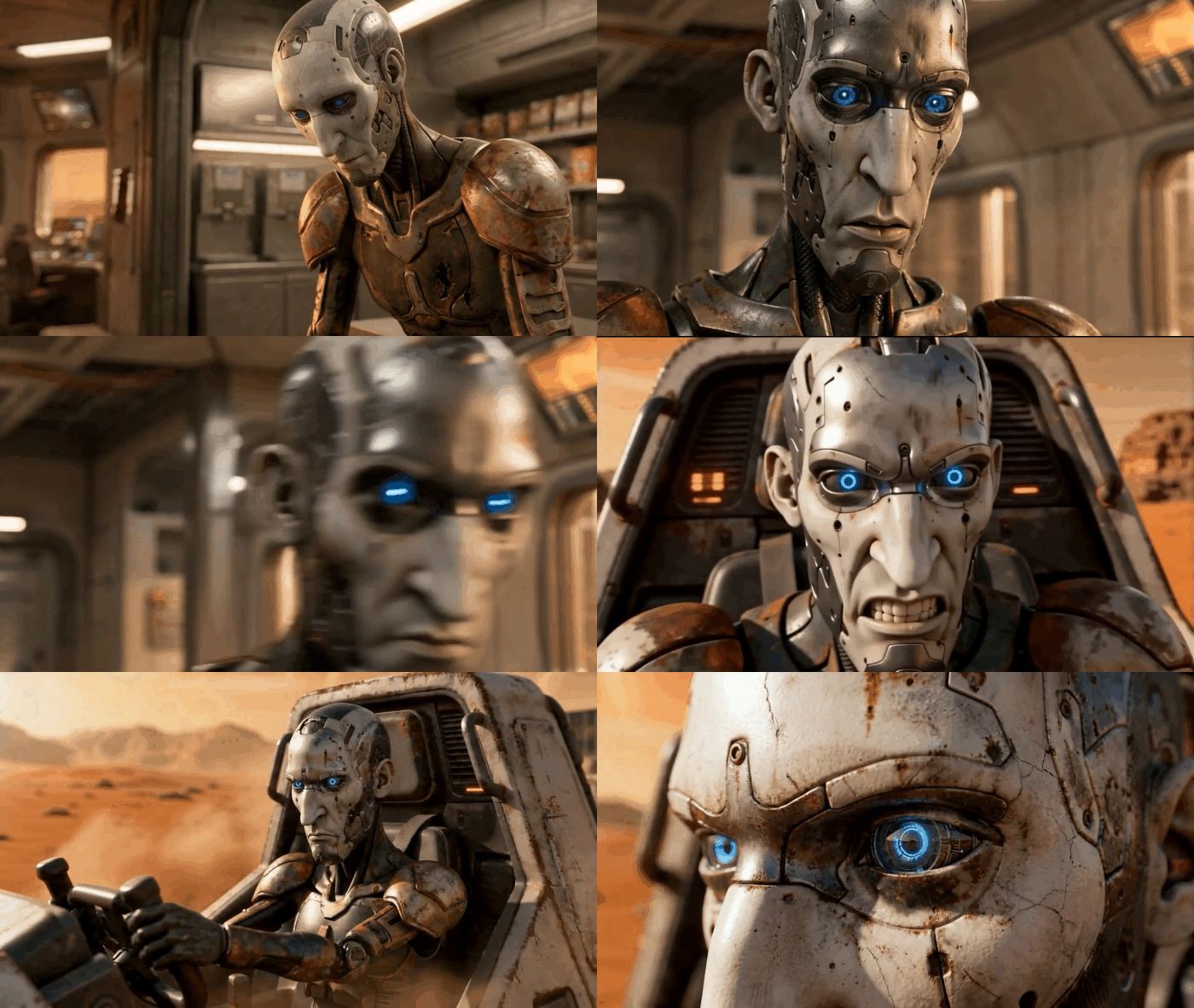
In the game, you play as a captain, commanding a fleet of crew for naval battles. The game also embodies rich cultures to attract players worldwide. We promise that this will also be a multiplayer game, and more captains and main heroes will join the game.
BattleSail, courtesy of RendeoMeet your 15 BattleSail Captains! Powered by Character Creator
ActorMIXER: Ten Times Saved for AAA Game Character Production
In our workflow, we use Character Creator 5 primarily for detailed facial creation. Thanks to its nearly endless options, we can adjust our battle captains down to the smallest detail. We have complete control over everything—from the overall skull shape down to specific features like the lips. We can immediately check these features against the exact animations we need, and even refine details like adding earrings to a captain. After making a change, a single click allows us to instantly preview the character that is fully rigged and skinned with animation.
To set up race and facial archetypes extremely quickly, we utilize the ActorMIXER tool for Character Creator 5. This allows us to set basic shapes on all levels of the face (including head shape, eyes, nose, and mouth) simply by choosing presets and sliding between types. This lets us rapidly prototype the base of a character.
ActorMIXER is a pivotal tool in Rendeo’s character creation workflow.
“In the past, we used to take 12 people in one week to create one AAA game character design. With ActorMIXER Plugin for Character Creator, our AAA game characters production time was saved at least 5 to 10 times.”
Radim Bacik, CEO and Art Director | Rendeo
At any time, we can go back and fine-tune skin details (like adding scars to our pirates) and immediately verify the animation and facial deformation with one click.
BattleSail Gameplay. Get your very first taste as a captain of the seven seas!
Rapid Animation and Lighting in iClone
Our work is also significantly accelerated by iClone’s built-in tools. For instance, Stage Light lets us preview and adjust lighting for our short renders in seconds. When it comes to animation, iClone’s toolset is invaluable. We use Face Puppet to quickly test and prototype animations directly from recorded voice audio.
The built-in Face Puppet feature in iClone for emotive facial animation.
By rapidly converting audio into phonemes, we can generate lip-sync data very efficiently. In a short amount of time, we can refine the speaking animation using various tools to perfectly match our creative vision. The best part is that we do all of this within a single software environment. There is no need to constantly jump between 3D editing software, rigging programs, and animation tools. Everything stays in iClone.
Expression presets in iCloneTimeline editing in iClone
Seamless Unreal Engine Integration
Ultimately, the characters must perform inside the game environment. Rendeo Games chose Reallusion software largely due to its robust and seamless integration with Unreal Engine.
Changing the camera and lights in Unreal Engine
At any point during the character iteration process, we can export a character to Unreal Engine with just one click. Therefore, our developers can drop the pirate or captain directly into a scene to immediately test how the face and materials will look in our BattleSail game.
Because the export process is incredibly simple and clear, the data exported from iClone connects directly into Unreal Engine through Blueprints without any limitations. Once inside Unreal Engine, the team can refine and time their animations quickly, allowing for fast iterations and final polish.
Conclusion
Thanks to Character Creator and iClone, we have managed to completely de-technicalize our character pipeline, adapting it entirely to the needs of our artists and animators. With the boring complex side removed, we can fully focus on creating great content. Characters that used to take us weeks to build can now be created at the required AAA-quality in a fraction of the time.
What’s Next for Rendeo
The game veterans in Rendeo have an ambitious plan to promote the game worldwide. The game is scheduled to release in 2026, and is now looking for publishers in China and the Asia Pacific Market. If you would like to grow your business with Rendeo, please reach out to Radim Bacik, the CEO and Art Director of Rendeo.
How does Character Creator 5 aid in detailed character facial creation for games like BattleSail?
Character Creator 5 enables detailed facial creation with nearly endless options, allowing adjustment of skull shape, specific lip forms, and small details like earrings, with instant animation previews.
What is the role of ActorMIXER in the Rendeo character pipeline?
ActorMIXER rapidly sets up race and facial archetypes through presets and sliding adjustments, allowing Rendeo to quickly prototype base character shapes like head, eyes, nose, and mouth.
How does Rendeo achieve efficient animation and Unreal Engine integration?
Rendeo utilizes iClone 8’s Face Puppet for rapid lip sync from audio, refines animations, and exports characters with one click to Unreal Engine, connecting data via blueprints for seamless iteration.
Do I need a large studio budget to use this workflow?
No. One of the greatest advantages of the Reallusion ecosystem is its accessibility for indie developers, solo content creators, and mid-sized studios. It provides AAA-quality character generation and motion capture integration at a fraction of the cost and time of traditional studio pipelines.
Character Creator 5 is an essential tool for indie game developers creating high-quality, game-ready MMORPG characters.
TrueMotion Studio successfully built a robust character pipeline for their MMORPG RageFall, leveraging Character Creator 5, Unreal Engine, ZBrush, and Substance Painter.
The workflow enables the creation of highly customizable characters with optimized meshes, textures, and universal rigging, directly integrating with leading game engines.
Indie studios can achieve AAA visual fidelity and efficiency in character production without extensive traditional rigging or sculpting overhead.
For indie game developers aiming to create high-impact MMORPGs, generating a diverse cast of characters efficiently and with AAA visual fidelity is a critical challenge. This article details how Character Creator 5, Reallusion’s comprehensive 3D character design software, serves as the cornerstone of a streamlined pipeline that solves these production hurdles, as demonstrated by TrueMotion Studio for their ambitious title, RageFall.
Creating Game-Ready Characters for Unreal Engine with CC5
For modern game studios, the ability to create your own character efficiently—without sacrificing visual quality—is no longer a luxury, but a necessity. As real-time engines like Unreal Engine continue to push fidelity forward, studios need a character designer and human creator who can keep pace. TrueMotion Studio’s debut game, RageFall, demonstrates how a smart, scalable pipeline built around Reallusion Character Creator 5 and Unreal Engine enables ambitious 3D character animation for next-generation games.
TrueMotion Studio: Built by Gamers, for Gamers
TrueMotion Studio is an independent game development team founded by gamers with a shared vision: to create immersive, high-impact experiences that blend deep gameplay, compelling worlds, and modern technology. Rather than chasing trends, the studio focuses on long-term player engagement through meaningful systems, rich lore, and carefully crafted characters.
Their flagship project, RageFall, marks the studio’s first major release. From the outset, TrueMotion knew that characters would play a central role in this MMORPG—not only as avatars for gameplay but also as storytelling tools that anchor players emotionally in a fractured post-apocalyptic world.
To achieve this without ballooning production costs, the team embraced a real-time character pipeline built around Character Creator 5, Unreal Engine, and a flexible ecosystem of industry-standard tools.
RageFall: A Post-Apocalyptic World Shaped by Choice
RageFallis a post-apocalyptic third-person extraction shooter and vehicular combat MMORPG set in a world devastated by a mysterious force known as the Signal. Players join competing factions, fight for survival in hostile zones, and uncover the truth behind humanity’s collapse.
Blending PvE and PvP gameplay, RageFall is designed as a high-risk, high-reward experience where player decisions matter. Characters must feel grounded, believable, and diverse—capable of representing different factions, playstyles, and narrative paths.
This ambition placed heavy demands on the studio’s character pipeline, especially when it came to scalability.
The Challenge: Scaling Characters Without Compromising Quality
Like many indie studios, TrueMotion faced a familiar challenge: how to build high-quality, game-ready characters at scale without relying on massive teams or lengthy manual processes.
Traditional character workflows often involve:
Sculpting from scratch in ZBrush
Manual retopology and UV layout
Custom rigging and facial setup
Repeated export and test cycles in Unreal Engine
While effective, this approach becomes difficult to sustain when a game requires dozens—or hundreds—of character variations.
TrueMotion needed a character base that was production-ready, flexible, and fully compatible with Unreal Engine animation systems.
Why Character Creator 5 Became the Foundation
Reallusion Character Creator 5 (CC5) emerged as a core solution because it solves several problems simultaneously:
Integrates cleanly with Unreal Engine
Provides a production-optimized character base
Delivers consistent topology and skeletal structure
Supports advanced facial systems comparable to MetaHuman Creator
Instead of rebuilding technical foundations for every character, the team could start from a reliable base and focus on creative differentiation.
Designing Characters Faster with CC5
A Smarter Way to Create Your Own Character
Character Creator 5 allows artists to quickly generate characters using guided morphs, sliders, and presets. Starting from a neutral base, TrueMotion artists can adjust proportions, facial structure, and body type with precision—without breaking deformation or animation integrity.
This approach transforms character creation from a technical bottleneck into a creative process.
Rather than spending weeks on setup, artists can iterate rapidly on:
Faction identity
Costume silhouette
Facial personality
Gameplay readability
Facial Systems Comparable to MetaHuman Creator
One of CC5’s most important advantages is its HD facial control system, designed to align with modern real-time facial animation standards.
Character Creator 5 characters use a facial structure and control philosophy that closely mirrors MetaHuman Creator, making them ideal for Unreal Engine pipelines.
This allows:
Clean facial animation blending
Compatibility with facial mocap solutions
Efficient lip sync animation
Expressive dialogue-driven performances
For RageFall, where story and player choice intersect, this level of facial control helps elevate narrative moments without introducing unnecessary complexity.
Clothing, Gear, and Customization
In a post-apocalyptic world, character identity is often expressed through clothing and equipment. CC5 supports layered clothing systems that allow artists to build modular outfits without constant mesh conflicts.
TrueMotion integrates CC5 characters with external tools such as:
ZBrush for high-detail sculpting
Substance Painter for texture realism
3ds Max and Maya for asset refinement
Once assets are finalized, they are easily re-integrated into Character Creator, preserving skin weights and animation compatibility.
From CC5 to Unreal Engine: A Clean, Reliable Pipeline
Unreal Engine-Ready Characters
Character Creator 5 exports characters that are immediately usable in Unreal Engine, with correct scale, skeletons, and material setups. This eliminates much of the trial-and-error often associated with character imports.
For RageFall, this meant:
Faster iteration inside Unreal Engine
Reliable animation playback
Consistent lighting and shading results
By maintaining a predictable pipeline, TrueMotion could focus on gameplay and world-building rather than technical troubleshooting.
Here’s a summary of the character production pipeline elements:
Once characters are in Unreal Engine, animation becomes the next critical step. CC5 characters work seamlessly with Unreal’s animation tools, including control rigs, state machines, and blend spaces.
For rapid testing and previs, the studio also leverages Reallusion’s animation ecosystem, allowing quick validation of movement, combat stances, and gameplay actions before final implementation.
This workflow enables faster feedback loops and better collaboration between artists, designers, and engineers.
Comparing CC5 and MetaHuman Creator in Game Development
While MetaHuman Creator excels at photorealism, CC5 offers distinct advantages for game studios:
More flexible body and proportion control
Faster iteration for large character casts
Easier customization for stylized or hybrid realism
Broader export and pipeline flexibility into UEFN
Character Creator and iClone support skeleton export optimized for both UE4 and UE5, with bind pose presets tailored for MetaHumans and UEFN. This upgrade ensures accurate motion retargeting and responsive real-time game control. Through AutoSetup and LiveLink integration, animations can stream directly from CC and iClone into Unreal Engine, while edits made in Unreal can be seamlessly sent back for a fully bidirectional workflow.
For RageFall’s diverse factions and modular customization goals, CC5 proved to be the more adaptable solution.
Production Efficiency Without Artistic Compromise
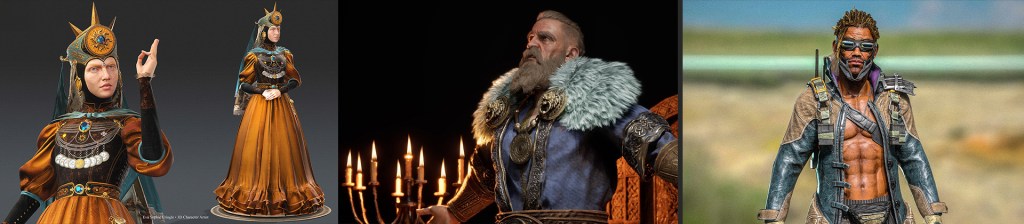
One of the biggest wins for TrueMotion Studio has been efficiency. Characters that once took weeks to fully build can now be produced in days—without sacrificing visual quality or animation reliability.
TrueMotion’s experience with RageFall highlights a key takeaway: powerful character pipelines are no longer exclusive to AAA studios.
By combining:
Character Creator 5
Unreal Engine
Industry-standard DCC tools
Indie teams can achieve production values that rival much larger studios—while retaining creative control.
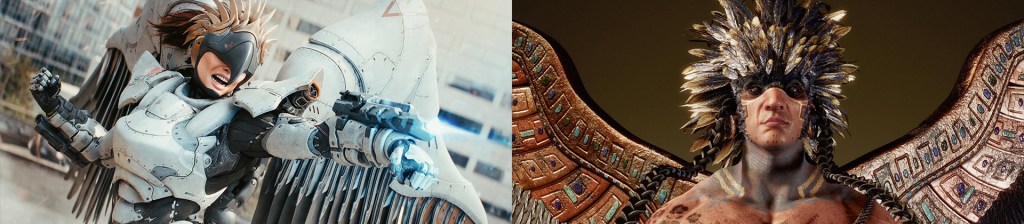
Conclusion: Building the Future of Game Characters
RageFall represents more than a debut title—it’s a case study in how modern 3D animation software empowers smaller studios to dream bigger.
Through the use of Character Creator 5, Unreal Engine, and a streamlined real-time workflow, TrueMotion Studio demonstrates how to create your own character systems that are scalable, expressive, and production-ready.
For game developers looking to accelerate character creation without compromising quality, Reallusion’s ecosystem offers a powerful path forward.
How do I export a rigged character from Character Creator 5 to Unreal Engine?
To export a rigged character, use Character Creator 5’s dedicated Export function, selecting the “Game Base” mesh option and choosing “Unreal” as the target preset. This ensures optimized topology, PBR materials, and a compatible skeleton. For the most streamlined process, install the Character Creator Auto Setup plugin in your Unreal Engine project, which automates material and skeleton configuration upon import.
What is the difference between Character Creator 5 and traditional 3D sculpting software for MMORPG characters?
Character Creator 5 provides a full-body character base with pre-rigged skeletons and adjustable morphs, allowing for rapid character generation and customization without extensive manual rigging. Traditional sculpting software like ZBrush excels at high-detail organic modeling but requires manual retopology, UV mapping, and rigging for game engine compatibility, making it more time-consuming for base character creation.
Can indie studios achieve AAA character quality with Character Creator 5?
Yes, Character Creator 5 enables indie studios to achieve AAA character quality by providing high-fidelity base meshes, advanced material options, and seamless integration with industry-standard sculpting and texturing tools like ZBrush and Substance Painter. This hybrid workflow allows for both rapid production of diverse characters and the artistic freedom to add unique, high-detail elements.
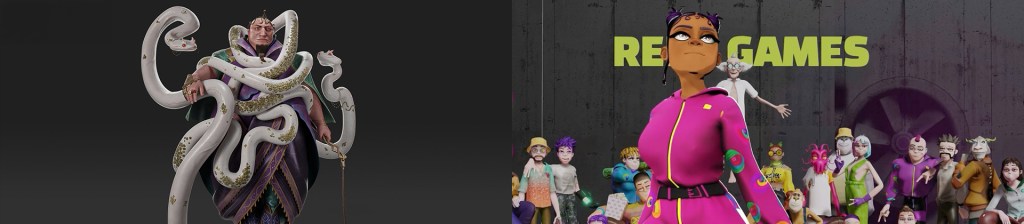
Why does TrueMotion Studio use multiple software like ZBrush and Substance Painter with Character Creator 5?
TrueMotion Studio uses Character Creator 5 for its efficiency in generating rigged character bases, while leveraging ZBrush for high-detail sculpting of unique costume elements and Substance Painter for creating custom PBR textures. This multi-software pipeline maximizes each tool’s strengths, combining Character Creator 5’s speed with the artistic freedom and detailing capabilities of other specialized applications.
The AI MoCap Plugin released by Reallusion for iClone is so simple to use that it almost needs no beginner’s guide, but, as is the case with tech, it can be confusing to get started. We will take a look at the simple process of translating videos into a complete motion capture motion that can be used on any iClone or Character Creator character.

While the plugin appears to be very forgiving of the quality of the video, it never hurts to develop and use best practices, so we employ that habit from the beginning. This doesn’t mean that you shouldn’t try to capture a motion under less than perfect circumstances, it just means to be mindful of what the mocap translation has to work with.
I can remember using video motion capture a long time ago when apps like IPI Soft were released. While it was a bit revolutionary, it did have its drawbacks. A lot of jitters for one thing, and jitter was hard to eliminate either live or in post. Another problem was that it literally translated everything from posture to performance with zero forgiveness. This required preplanning and realizing that you would have to deal with cleanup no matter what.
There was a lot of “noise” back then, and mocap suffered for it. Not so today with AI assisting in the process, so it’s basically just editing.
Stacking Motions
I’m not sure if this is the right term, but what I mean is, do not just limit yourself to one short motion before converting. Stack several motions together with a second or two in between so you can edit the motions by breaking them on the timeline and saving them as separate motions. In my testing, I recorded far more video than needed or allowed, which is 60 seconds of video.
Since it is a video, we can edit that video for total control over what is processed. This makes planning paramount. So, try to get as many motions as possible from each clip conversion.
Here is an excerpt from Google AI Overview for more information:
For the iClone Video Mocap plugin… …the actual motion capture generation is limited to 60 seconds per task, with longer source videos automatically trimmed or requiring you to trim them first to get the best results. Each 60-second segment processed costs points, so maximizing the 60-second window is efficient.
The AI Squared tutorial later in this article shows an example of stacking clips to get the most out of each video for mocap conversion.
A Quick Look at Features
From the Reallusion website:
Capture Challenging Pose Transitions: Track body turns and posture shifts with unwavering stability.
Detect Upper Body and Finger Movement: Produce talking performances with precise hand gestures
Reproduce subtle and delicate performances: Capture nuanced movements and aesthetic details in every action.
Precise Footstep Detection: Maintain accuracy throughout complex and fast-paced foot movements.
Multi-Angle Tracking: Accurate side, back, and rotational tracking.
Handles Minor Camera Shifts: Counteracts camera shakes and unsteady shots.
Works Well with Real World Videos: Handles dim lighting, busy backdrops, and patterned wear.
Multi-actor Interaction: Handle group footage with a single-performer focus with isolated framing and tracking focus.
Turn talking videos into animations: Transform ordinary monologue videos into dynamic full-body animations, or focus on upper-body performance for precise dialogue delivery.
As stated in the last bullet, the plugin works well with real-world videos and lighting, but it never hurts to limit distractions when possible and develop some good practices when you have the time and space to do so.
Lighting and Background
If cameras are involved, then lighting is important. As I said earlier, this is not meant to discourage a quick capture in less-than-ideal lighting, but we do need to provide stable, bright lighting without washing out the video performance if possible. It doesn’t have to be perfect. I used home lighting for my capture tests in this article and had no problems with it.
Again, not an ironclad requirement, but simplifying your background for the captures can’t hurt. It’s less noise for the plugin to work with. I had a set of French doors with solid brown curtains, so I set up in front of them. It was flanked by two table lamps that helped with the lighting and was already empty of objects, being a doorway.
Acting (Practice)
You can always wing it, but like most things in life, it’s better to prepare for it. Decide what you are going to do. Even simple motions need some practice as you might want to even consider overacting some mundane tasks to get enough motion for “acting”. Everyday motion is not necessarily the same as an “acting” everyday motion for dramatic effect. I used primitive props to keep my hands anchored to a certain area and avoid drift.
Recording
Footage, lots of it. This doesn’t mean taking hours of footage, but multiple video takes will result in a bigger pool of video footage to draw motions from, so don’t be stingy with the takes. Get several takes of each motion and pull out the best footage to edit together for the final mocap clip in your favorite video editor. Like most animations, how much effort you put in now will show in the final result. You want the best of the best for your mocap.
Cameras Used
The cameras I tested were the Samsung A54 Phone and an old 1080p Logitech C922 Pro webcam on a phone tripod, and both worked flawlessly. Since one of my work computers is by that doorway, I used the USB webcam so the video would be recorded directly to the desktop. Neither camera is premium, with the phone camera being much newer and more advanced, but a bit more effort to offload.
Bottom line is I could use the cameras I already had… down to the oldest webcam with no problems. This also gave me the bonus of working with equipment I already knew and trusted. The webcam was also an advantage in that its files were much smaller than the Samsung phone recordings, like 50 megs vs 200 megs or more.
Example One: Operating a Console
For this one, I pulled out my music keyboard and stand so I would have a reference for the console, as I didn’t want my hands all over the place. What I had in mind was a good filler motion for wide use while being simple enough for a test. Having a generic console motion was one I could certainly add to my motion library.
I was thinking of sci-fi scenes where busy motions in the background are needed, like a command center or a ship’s bridge. Having a motion that randomly moves a character’s upper body and limbs in relation to a control surface can be used in a lot of situations. My biggest problem was not treating it like a musical keyboard. I didn’t want to play music… I wanted to operate a transporter or security console, so I had to fight the urge to “keyboard” it as an instrument, but it was a solid reference point.
Example Two: Piloting a Plane
This example was possibly the first motion I mocapped with IPI Soft way back when. It was memorable enough that I used the same technique for reference props. Instead of a Christmas Tree stand I used in this capture I used a bathroom plunger in the original version, but the result was a reference point to anchor my arm and hand motions to. The plunger was a bit short, and having just cleaned up from Christmas, the stand of our fake tree worked just fine, so my arm didn’t “drift” all over the cockpit or possibly outside of the cockpit, requiring cleanup.
So, there I was, in the living room on a short stool with one hand around one half of a Christmas tree stand and the other hand ready to flip invisible switches, twist some knobs, or whatever I needed to look like I was doing something. The shot involved quick camera shots from outside the cockpit, so all I needed was motion, and it didn’t have to be complex motion.
Example Three: AI Squared
In this test, I used Midjourney-generated videos from images as the video for the AI mocap conversion video. It’s a very simple process of describing what you want in a prompt to Midjourney, like:
full body shot of a young lady talking to another person off-screen on a white background.
A very basic prompt for a basic motion with good lighting, a clean background, and a black screen pause between the AI-generated clips. Like the other videos, I assembled and edited the clips in Vegas Studio, so only this video needed no trimming as it was less than 60 seconds.
I stacked a long dance motion with a few individual motions, like talking on a phone or speaking to a person off camera, with black screens between them to easily identify the break between motions. This actually had the effect of making one of the motions start off-center as the previous motion ended on the other side of the screen and then started from the far side, creating a jump.
The capture needed some cleanup, but it was minimal positioning that didn’t amount to much.
The Process in Review
This is where I thought I would be putting together a major tutorial, but it turns out that only a few basic steps are needed.
Drag in or load the video clip.
Trim the clip to the desired length.
Generate the motion.
Apply the motion.
It is just that simple to use.
Behind the Scenes – Quickmagic Integration
All of the magic happens behind the scenes, but here is more information from Reallusion.
Workflow: Users can import any video clip, and the Video Mocap Plugin uses QuickMagic’s cloud-based engine to generate editable 3D animation.
Capabilities: The system supports full-body tracking, upper-body gestures, and detailed finger tracking.
Pricing: The service typically operates on a pay-per-use basis via “DA Points” for video processing. $2.50 US per motion as of this writing.
Cleanup Tools: Since AI mocap often has artifacts like foot sliding, the integration allows users to use iClone’s native tools (Foot Contact, Curve Editor) to refine the data instantly.
Summary
This was another one of those assignments that I had no idea how it would go, and it turned out to be a complete no-brainer with practically no learning curve. You follow the four steps mentioned in the conversion process, and the AI takes care of the rest. I have to hand it to QuickMagic and Reallusion for a seamless integration of tools that not only makes sense but is very convenient.
If AI in general weren’t so new to many of us, there wouldn’t even be a need for a “getting started” tutorial, and I don’t think in all these decades I have ever said that about animation software. The environment and lighting are very forgiving, making spontaneous filming of certain motions worry-free, but again, it’s always good to start with “best practices,” so we create a positive habit from the start. Control the shooting environment as much as is practical to maintain continuity of work.
All in all, this was a very positive experience and another boon for beginners to be able to create custom motions with something as simple as a phone camera or webcam, then turn that into a motion!
With AI knocking down hurdles and empowering almost anyone to be a filmmaker or storyteller, the time has never been better to get in on the newest evolution of digital animation and art.
Digital Artist MD “Mike” McCallum, aka WarLord, is a longtime iClone user. Having authored free tutorials for iClone in its early years and selected to write the iClone Beginners Guide from Packt Publishing in 2011, he was fortunate enough to meet and exchange tricks and tips with users from all over the world and loves to share this information with other users. He has authored hundreds of articles on iClone and digital art in general while reviewing some of the most popular software and hardware in the world. He has been published in many of the leading 3D online and print magazines while staying true to his biggest passion, 3D animation. For more information click here.