12 Reasons why Character Creator is the Best 3D Character Maker
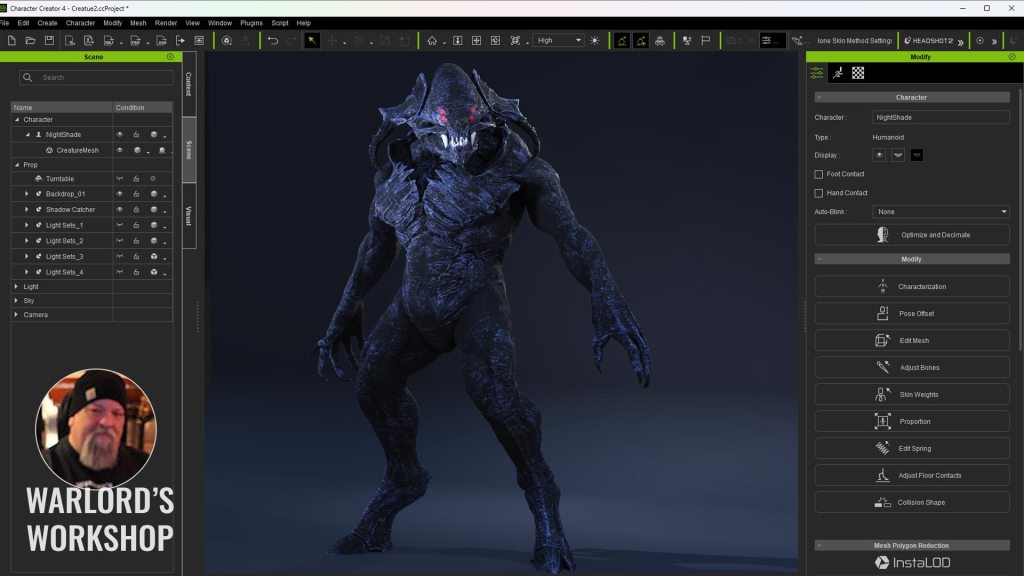
Creating a 3D character used to be and still can be a tedious, difficult, time-consuming effort. Particularly when you must create everything from clothing to accessories, texturing, UV mapping and then there are the bones.
From big bones to little finger and toe digits, they all must be rigged to near perfection to avoid distortion in the character or its movements.
I have always held good character modelers in high esteem as their creations are the most likely to be front and center of any animation or game. It takes skill, boatloads of it, and experience, something we don’t all have the luxury of possessing. By the time we get good enough at all the skills needed… that creative spark might have long died.
If all you want to do is tell a story, then a unique 3D character that will not appear in other people’s productions can be a problem. The good thing is it’s a problem that Character Creator 4 (CC4) can solve. It has the base meshes and performs skinning, as well as other aspects of 3D character creation for use in animation and still image rendering.
Let’s explore the reasons why Character Creator 4 allows you to spend more time to being creative while eliminating the frustration of being hung up in the technical aspects and problems of creating unique 3D characters.
- Ease of use
- Quad topology optimized for morph and animation
- Auto-rigging for any humanoid models
- Create animated characters from facial photos and 3D models
- One mesh transform to all possible character shapes
- Ultra-realistic human skin synthesis
- Custom expression morphs with ease
- Ultra-realistic real-time human rendering
- Robust ZBrush integration (GoZ, Face Tools, Pose Tools)
- Modular asset system & smart gallery
- Professional production pipeline
- Real-time feedback
EASE OF USE
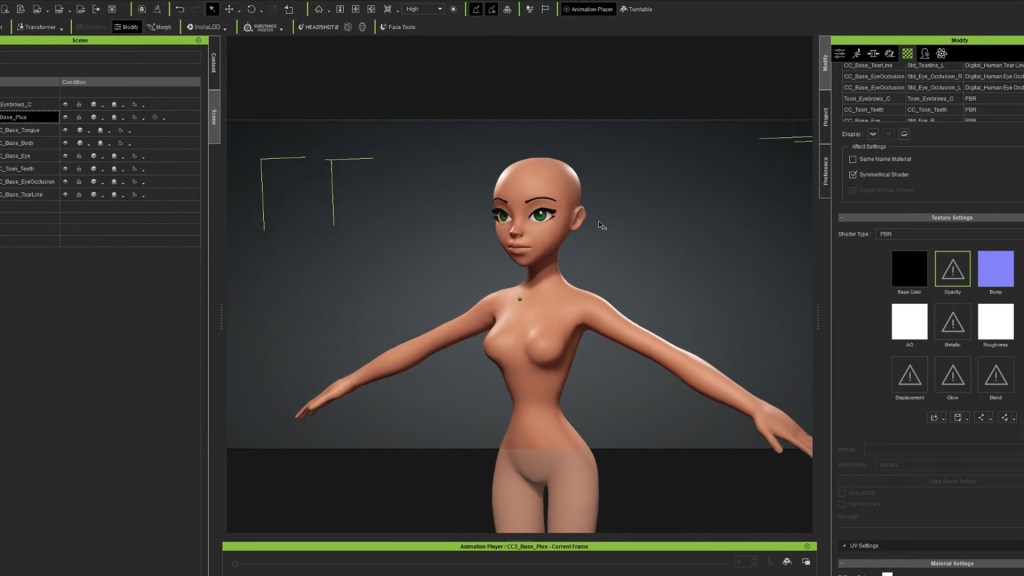
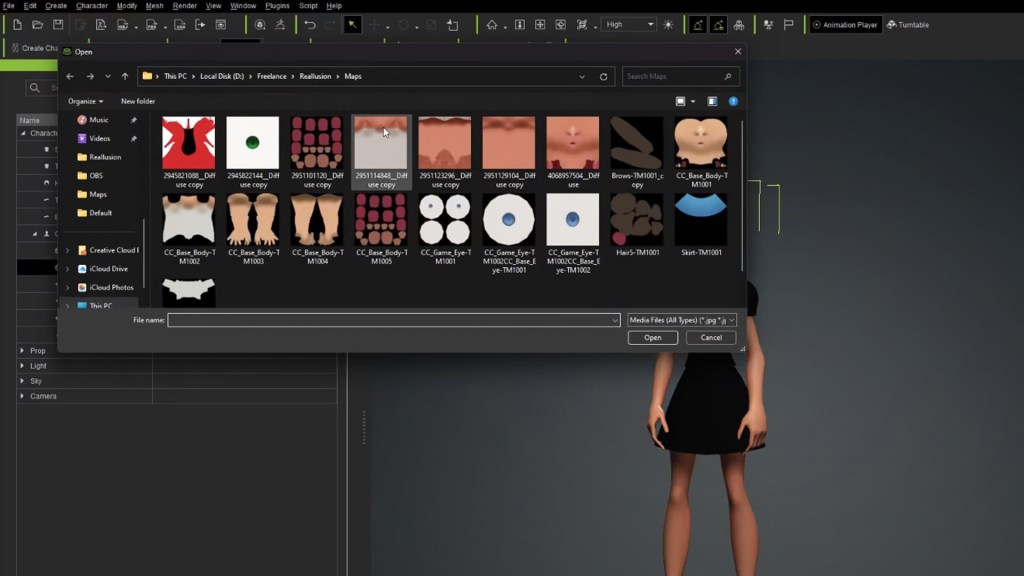
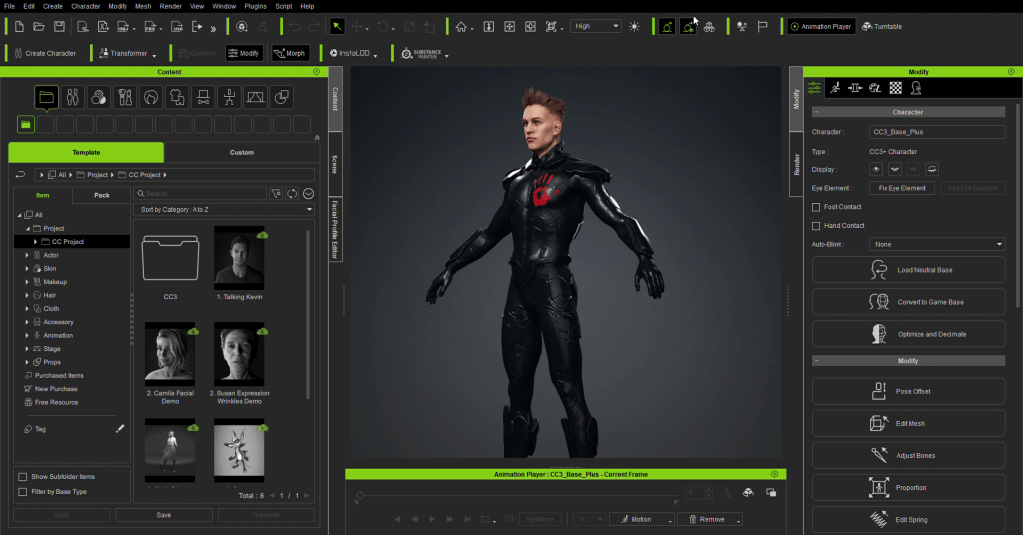
CC4, like its cousin iClone, is a drag-and-drop interface with multiple ways of bringing in 3D assets such as your own character meshes, custom clothing, and accessories including hair and beards. Everything about Character Creator 4, like iClone, revolves around the concept of visual and practical simplicity. You can drag and drop from an Explorer window or from the Content Manager. You can also double-click items in the Content Manager to load them into the workspace. We are given the choice for more flexibility.

While mesh editing is available it is not necessary as CC4 has multitudes of sliders to control the look and form of different body parts. There are sliders for the Body, Head, Actor Parts, and CC Teeth. Each of these sections has subsections of sliders available. One great feature of these sliders is that they are not locked at zero or 100 percent. You can input numbers directly into the input box if you wish to exceed those amounts. Mesh distortion will occur if you push it too far but at least Reallusion gives us the choice to override the slider stops.
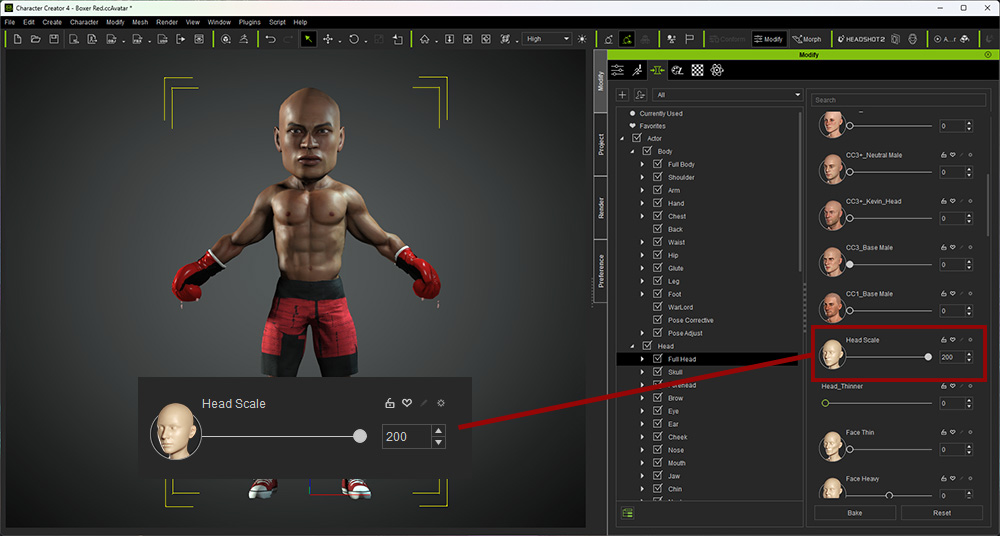
With the sliders, you can add body mass like muscle or make the body thinner, arms longer, legs shorter as well as scale. And keep in mind that you can blend all of these sliders, including Male and Female on the same character for further modification. Even the CC Teeth have a lot of morph sliders including even more if you have the Headshot plugin. You can also make your own custom sliders for more flexibility.
In my experience, the Character Creator 4 sliders are much more complex and functional than any of the other sliders I have used in other applications. For my use, there is no match for the sheer amount of sliders and control that CC4 gives us.
QUAD TOPOLOGY OPTIMIZED FOR MORPH AND ANIMATION
Good, clean topology is a must for any 3D character to perform without vertex or rigging distortions. In the early days triangles (tris) were the only game in town but now the industry practices have changed to a smoother, more quad-based topology. Triangles are still necessary in certain parts of the mesh but the spacing of quads makes for a more workable mesh as the reduced number of triangles leaves fewer edges to collide or collapse on each other during a movement.
Retopology itself became a skill, almost an art form, to smooth base meshes and clean up any unsightly mishmash of vertices. It eventually became a part of most pipelines with allotted time and budgets that could make expenses rise.
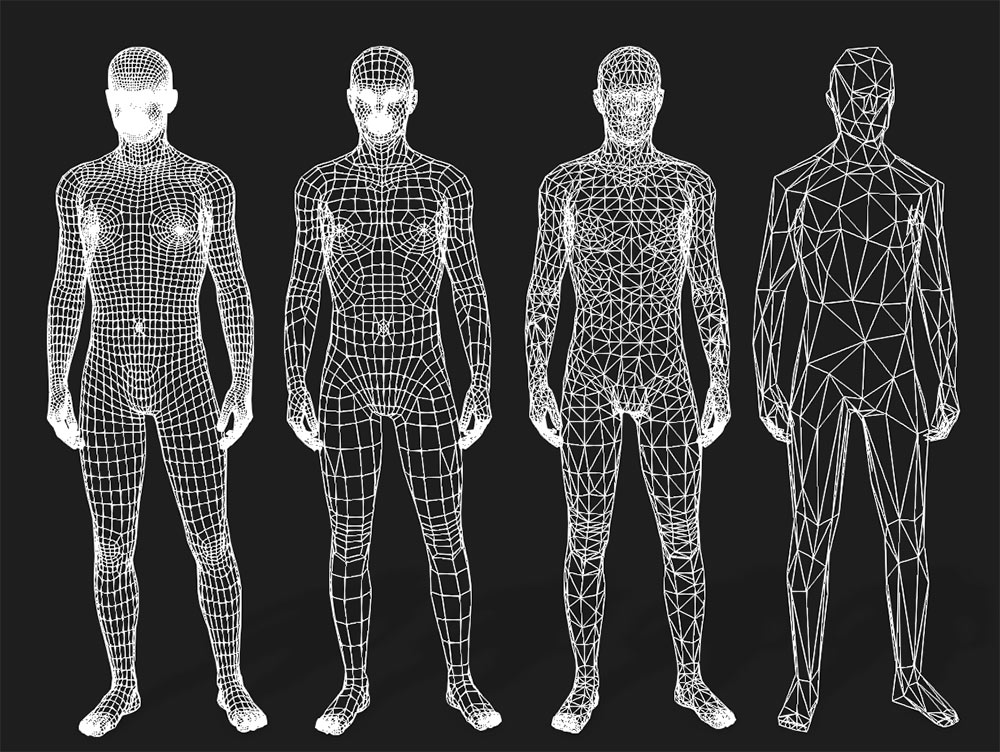
CC4 has taken care of that by providing a smooth, quad-based mesh that can retain flexibility at lower poly counts. Below is an image of the base mesh 35K down to a highly decimated and optimized mesh of 800 tris. You must have good topology in the original mesh for good optimization in decimated meshes.
Learn more: CC3+ Base Model
AUTO-RIGGING FOR ANY HUMANOID 3D MODELS
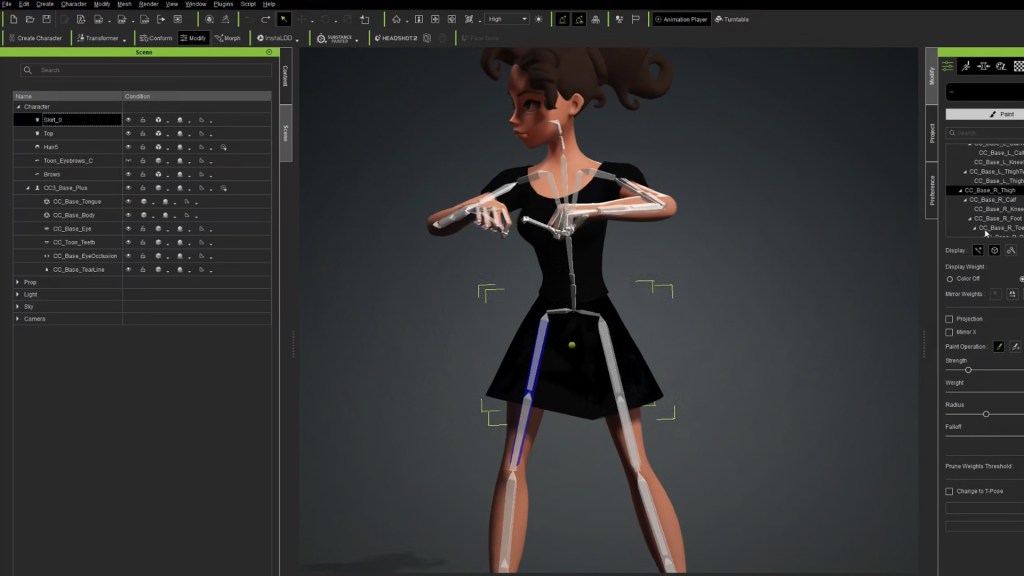
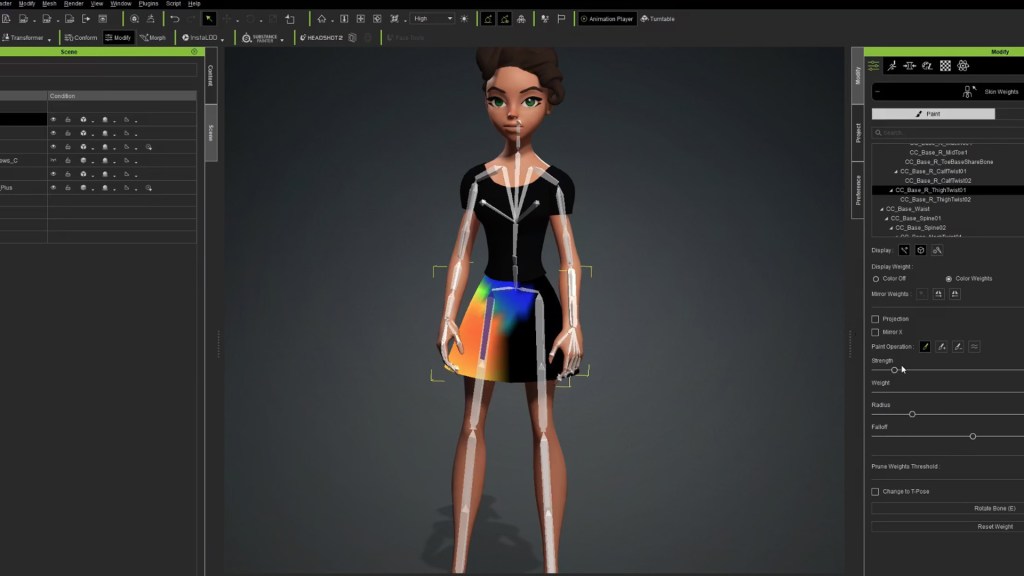
When importing a custom mesh that is already skinned, CC4 gives us the option to use AccuRIG for a new skeleton or to match bones in a characterization process until enough bones become available to create a functional 3D character. If we import a mesh only then AccuRIG will put the bones in based on the initial location of markers placed early in the process.
AccuRIG has a short learning curve. It provides symmetrical placement of markers and bone hierarchy selection to move items like markers one time for each side (arms, legs, hands) or entire rows of fingers (knuckle markers).
It’s a great tool for creating crowd-simulation characters too. Combined with the Optimize and Decimate tool you can create very low poly crowd characters for use as filler or background characters. It can create characters from 17K ActorCore specs to midrange characters around 7K (LOD 1) and distant characters at 800 tris (LOD2) as mentioned earlier. Plus, you have a custom option to create your own optimization settings.
AccuRIG by itself is a major tool that saves time, frustration, and headaches allowing you to concentrate on being creative instead of technical.
Learn more: AccuRIG Advanced

CREATE ANIMATED 3D CHARACTERS FROM FACIAL PHOTOS AND 3D MODELS
Headshot was an extremely powerful image-to-face tool in its debut with features that allowed us to not only use images but also have sculpting tools for fine-tuning if needed. It even provided a hair mesh in the auto version or more direct control in the Pro version depending on which button you pushed as you entered the plug-in. In a world of AI image generators, this plug-in is a great addition to the toolbox.
Headshot 2 has now arrived and allows us to import a head mesh to a fully rigged CC4 body. This includes openings for the eyes, nose, and mouth. It’s a very easy way to anthropomorphize animals to a bipedal character with access to iClone motions, poses, and facial features. It’s also an easy way to create stylized 3D characters.

ONE MESH TRANSFORM TO ALL POSSIBLE 3D CHARACTER SHAPES
Ah morphs… the thing that evens the playing field for all of us mere mortals against those super talented character artists. With the mere movement of a slider, we can alter the details of a 3D character. Use enough sliders and you have created a character unique from the base mesh. Add in your own custom morphs for even more unique 3D characters and create your own custom morph sliders.
Learn more: Morph for Modeling

ULTRA-REALISTIC HUMAN SKIN SYNTHESIS
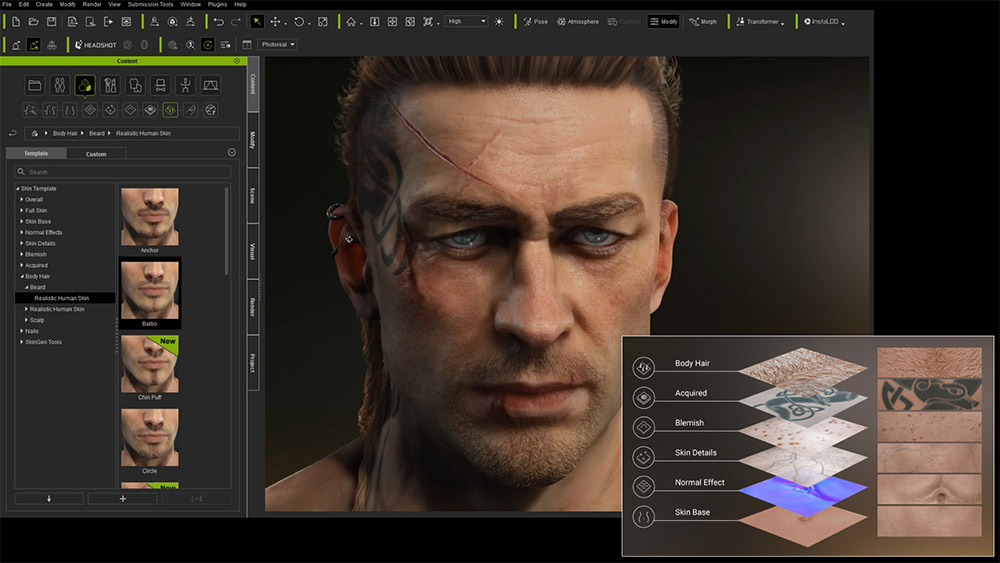
These two features have brought the level of realism to new heights. Using mapping like normal and height, Skin Gen adds a lot of detail from big scars to small skin details without hogging resources or slowing down your device. Unlike mesh-level detail which requires a lot of computing resources, Skin Gen relies on the mapping channels to add a high level of detail that makes your CC4-created characters more lifelike but nimble.
The most recent feature, Dynamic Wrinkles allows your character’s face to use wrinkles in the proper areas with user control for how much or how little. Need a furrowed brow or an intense frown? You’ll get that along with wrinkles that appear and move with the skin in a natural manner. While we have long had the ability to add intense expressions, they did not involve wrinkles that move dynamically with the face until now.
At its basic level, you do not have to do much except enable the wrinkles for the character. While you can do much more including custom wrinkle maps you can still do quite a lot with just basic features.
Learn more: Dynamic Wrinkle System
CUSTOM EXPRESSION MORPHS WITH EASE
Located within the Facial Profile Editor is the Edit Expressions button which activates the panel of morph sliders to enhance a character’s expression. CC4 provides standard and extended facial profiles. The Edit Expressions editor allows the use of individual morph sliders to increase or decrease the amount of expression like lift in the eyebrows.
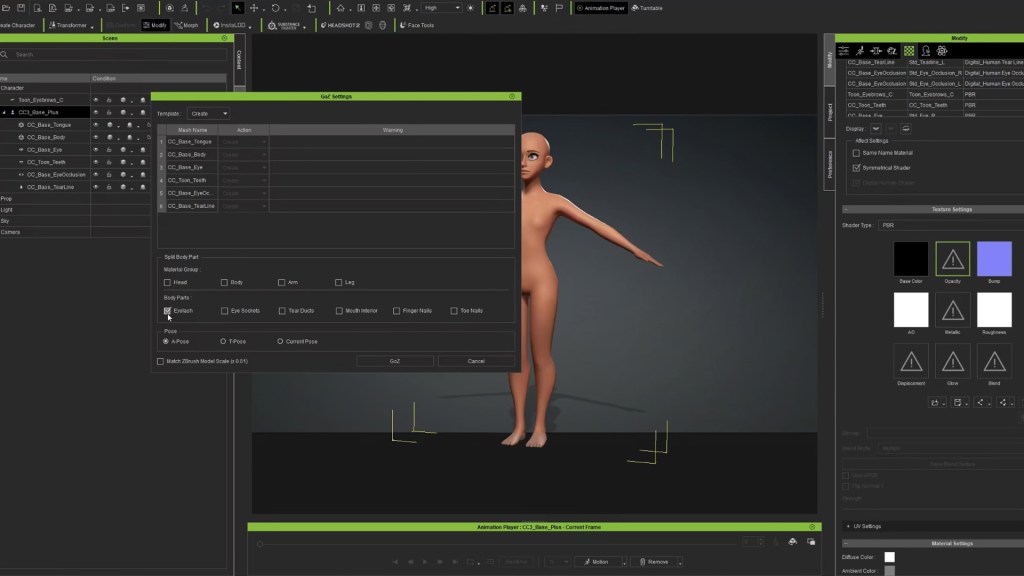
Outside of the morph sliders, there are several expression tools available including Edit Mesh, Open Modify Morph, GoZ (expressions), and the Proportion editor.
Learn more: Facial Expression Morph

ULTRA-REALISTIC REAL-TIME HUMAN RENDERING
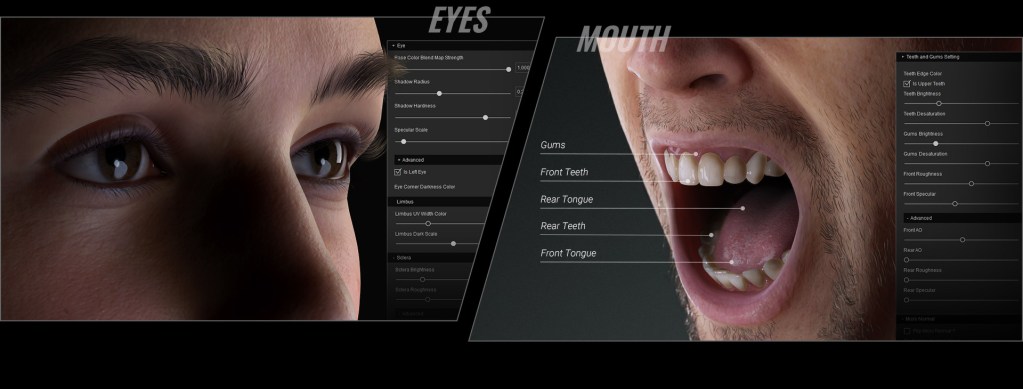
With CC4 you have a choice of Physical Based Rendering (PBR) or Digital Human Shader that can improve the realism of your characters. You can even mix shaders within a character such as the skin being Digital Human Shader while the clothing can be PBR or Traditional shaders or any combination as CC4 gives you versatility.
Learn more: Digital Human Shader
ROBUST ZBRUSH INTEGRATION (GoZ, Face Tools, and Pose Tools)
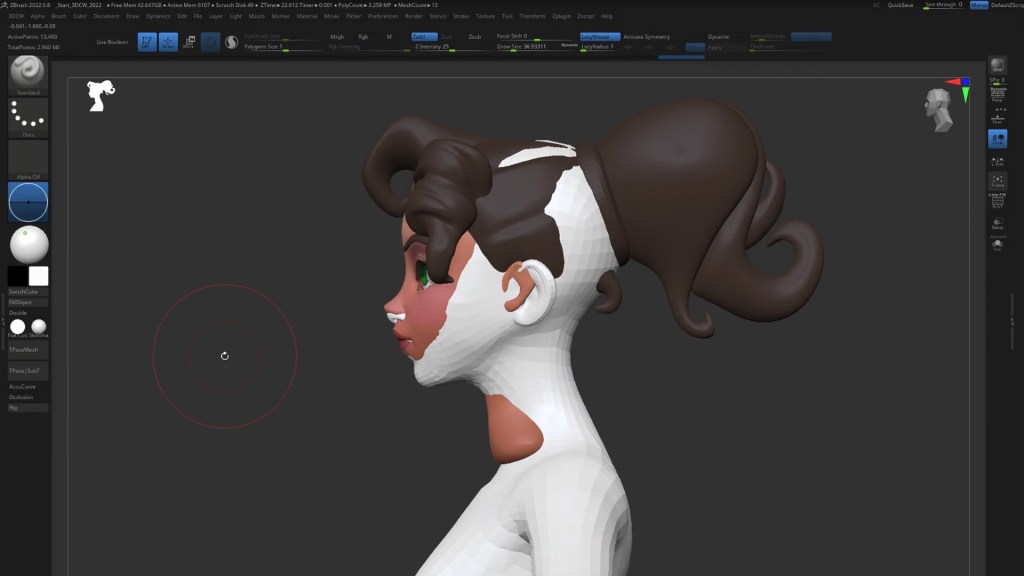
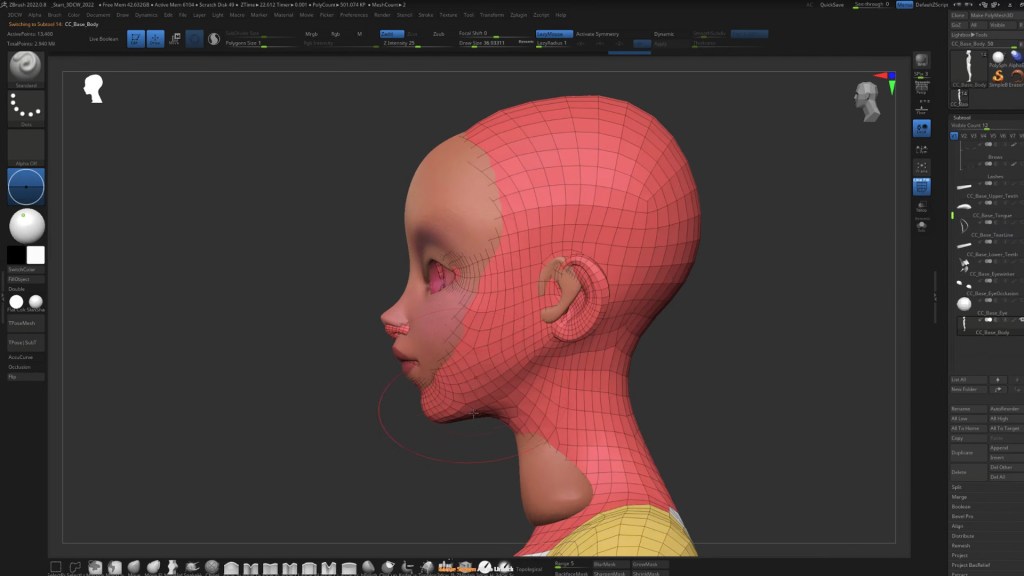
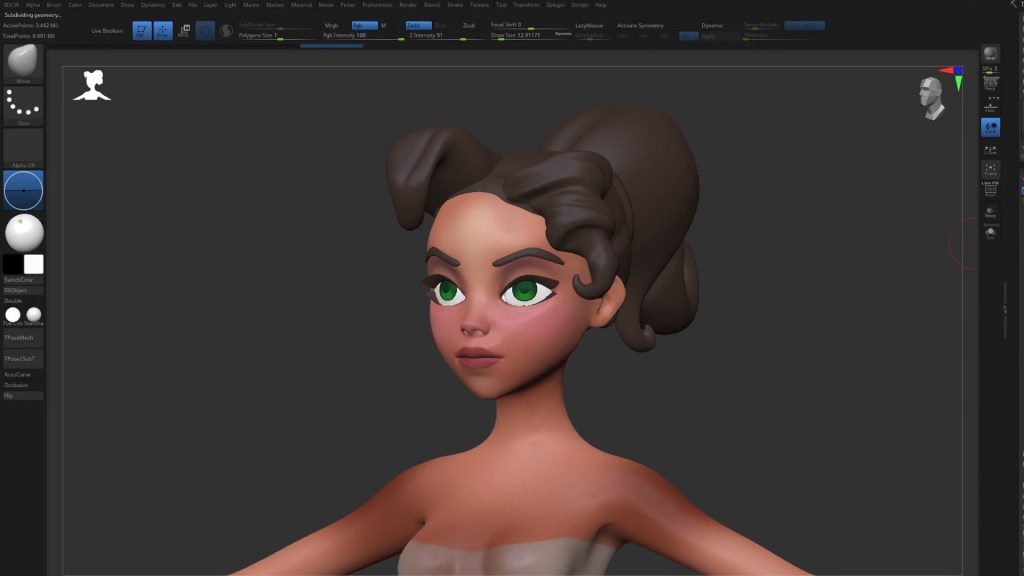
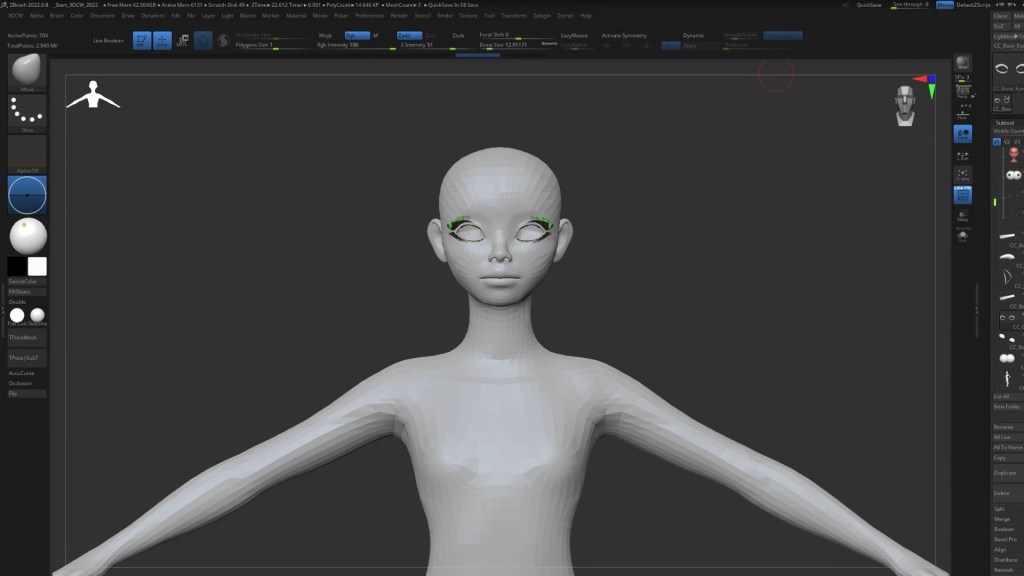
ZBrush is one of the most innovative and powerful mesh creation tools on the planet. For pure creative purposes, this high-powered digital sculpting software ranks at the top and is a must-have tool for many 3D digital artists. ZBrush has industry-leading tools that allow for the creation of complex meshes and the optimization of those meshes to make them practical in a 3D environment.
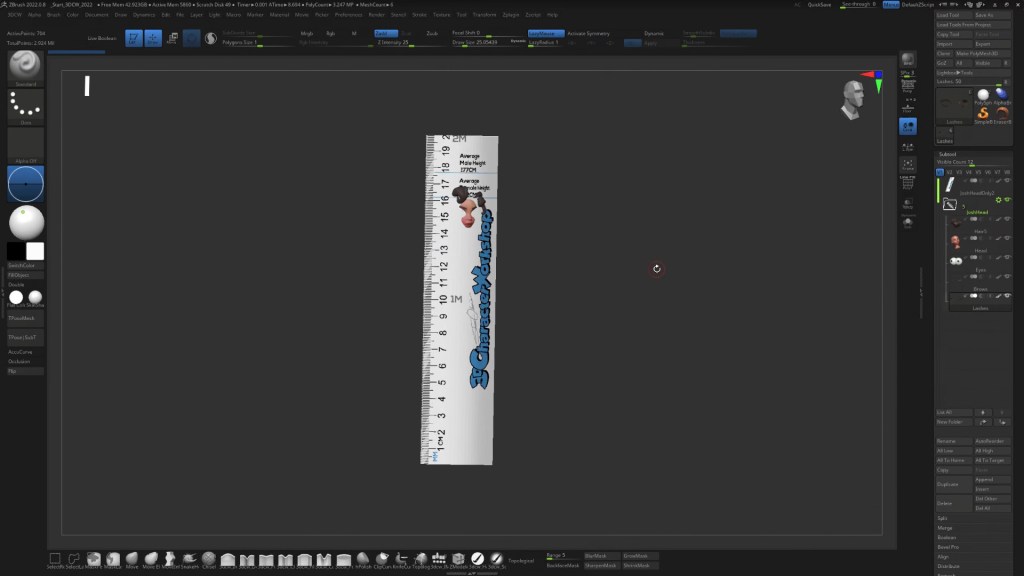
CC4 has been a part of GoZ integration for some time now and it has an even more robust GoZ function for its new Face Tools plug-in. It is very easy to move back and forth between a CC4 character and ZBrush with a lot of included preset morphs to alter the look of your 3D character.
There is also the free ZBrush Pose tools to use CC4 to effortlessly pose your ZBrush character creations.
Learn more: ZBrush Pipeline

MODULAR ASSET SYSTEM & SMART GALLERY
CC4 takes advantage of the same modular asset system in iClone such as hair, clothing, and accessories for your 3D character. These items are interchangeable within the iClone/CC4 pipeline and are available to other CC4 characters.
The Smart Gallery helps you to keep up with all your new characters and stock or purchased assets by providing a visual, searchable database of your 3D assets that work with CC4 or iClone. You can add custom locations for 3D assets stored outside of your CC4 installation too. Of course, you can also just drag and drop any CC4 assets directly into the workspace from an explorer window.
Learn more: Smart Content Management

PROFESSIONAL PRODUCTION PIPELINE
Don’t let the subtitle scare you. While it can turn out professional-level work, you don’t have to be a professional to use it. Nor do you have to be a pro to benefit from its powerful tools and pipeline-friendly direct and indirect export features.
As mentioned earlier CC4 is already tied into the ZBrush pipeline. Its industry-standard FBX, USD, and OBJ exporting allow for easy interaction with other 3D software.
OBJ for modern and legacy applications. USD for hassle-free import into the Nvidia Omniverse pipeline including their machinima tool for high-level rendering. BVH for motion files and the industry-standard FBX for import into just about any 3D application. You can even upload your creations to Sketchfab with little effort.

REALTIME FEEDBACK
Being a close cousin of iClone, CC4 provides realtime visuals as you work. You don’t have to stop and render out a still image or part of a video to see what you are working on. While other applications can provide some level of realtime visualization they are generally in a more muted, simplified manner without revealing the true look of your work. The final render then fills in the blanks but with CC4, like iClone, you get instant visual feedback to guide you through the creation process.
Also, like iClone, with CC4, what you see is what you get. You will see what you are working on as it happens.
SUMMATION
When it comes down to the bottom line, Character Creator 4 offers a wide array of powerful tools to morph, shape, and blend a character that can fit your needs as an animator whether you are a beginner or a pro.

MD McCallum – WarLord
Digital Artist MD “Mike” McCallum, aka WarLord, is a longtime iClone user. Having authored free tutorials for iClone in its early years and selected to write the iClone Beginners Guide from Packt Publishing in 2011, he was fortunate enough to meet and exchange tricks and tips with users from all over the world and loves to share this information with other users. He has authored hundreds of articles on iClone and digital art in general while reviewing some of the most popular software and hardware in the world. He has been published in many of the leading 3D online and print magazines while staying true to his biggest passion, 3D animation. For more information click here.