
Michael Pavlovich
Michael Pavlovich earned a Bachelor’s degree in Computer Animation from RSAD in 2005. Initially, he contributed to the development of environment and character art for popular video games such as Madden and NCAA Football. Later, he relocated to Austin to join Daybreak Games, where he worked on the creation of art assets for DC Universe Online.
Presently, Michael holds the position of Director of Character, Weapon, and Vehicle Art at Certain Affinity. His expertise lies in implementing iterative pipelines for Certain Affinity artists helping develop renowned video game franchises, including Halo, Call of Duty, and DOOM. To stay updated on his latest tutorial projects, you can visit Michael’s YouTube or ArtStation page.
Follow Michael’s ArtStation| Michael’s YouTube Channel
Why Use a 3D Character Base Mesh?
Sculpting an anatomical model from scratch (for example, starting with a sphere and manipulating the geometry into your human base body) is great exercise for learning the proportions, forms, volumes, and anatomical landmarks of the body! Building up these forms takes time, but you’ll eventually get faster at it!
If you’re pressed for time, starting with a 3D character base mesh can be a helpful way to speed things along – while a base mesh won’t necessarily have the perfect proportions or exact forms your unique character requires, it will provide a generic starting point to start from that contains all the general human landmarks in place, that you can quickly modify to get your character dialed in!
In this article, we’ll explore the newly released Character Creator Base Meshes ( CC character base ) from Reallusion, available for free download and use in your projects!
First, we need to download the .zip file:
- Click here to go to the download page.
- Click the “Download Now” button and watch the 1 minute video.
- The file will download automatically to your computer!
- Unzip the contents wherever you’d like, and let’s dig into what we can do!
What’s inside the CC Character Base
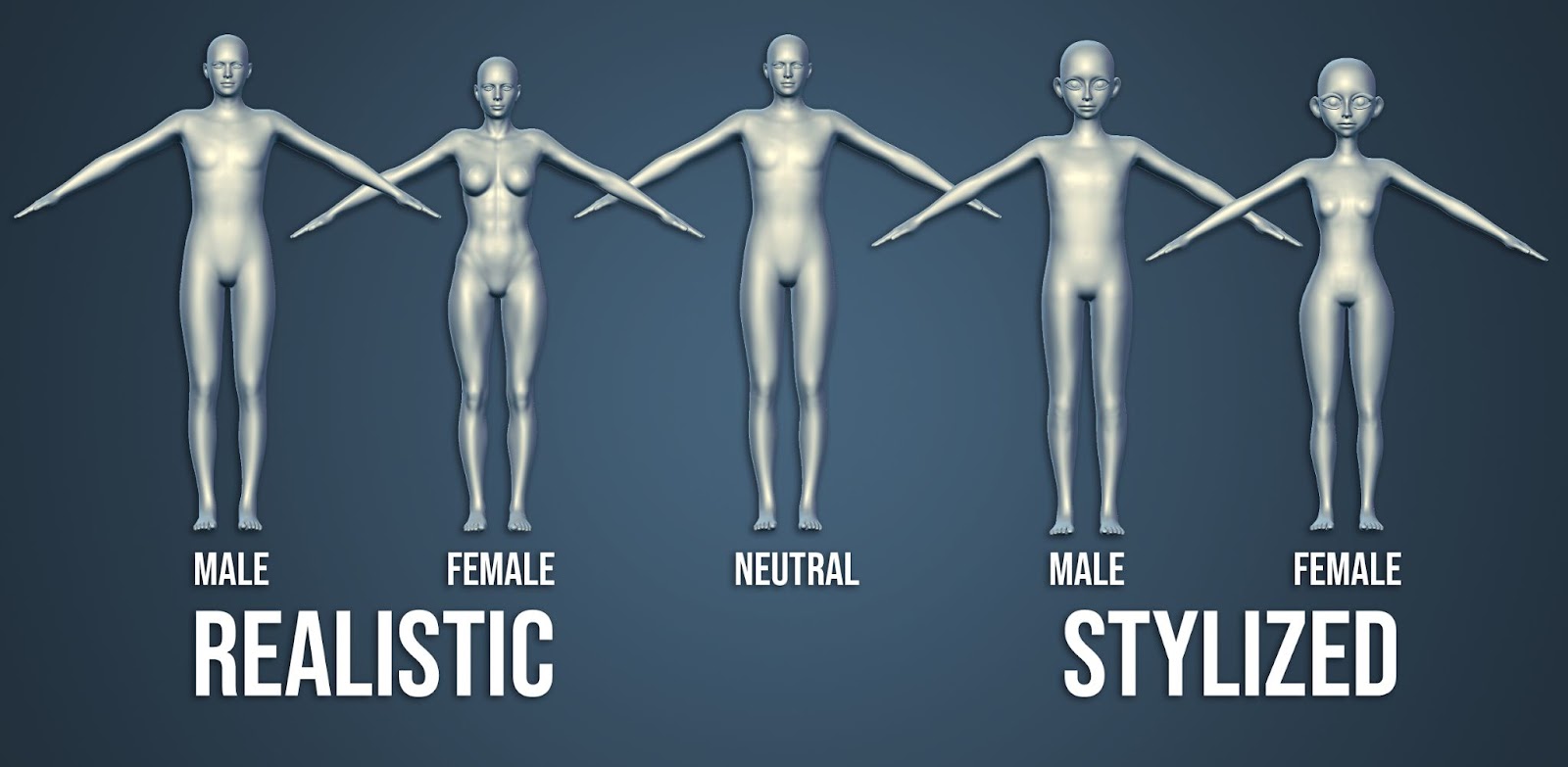
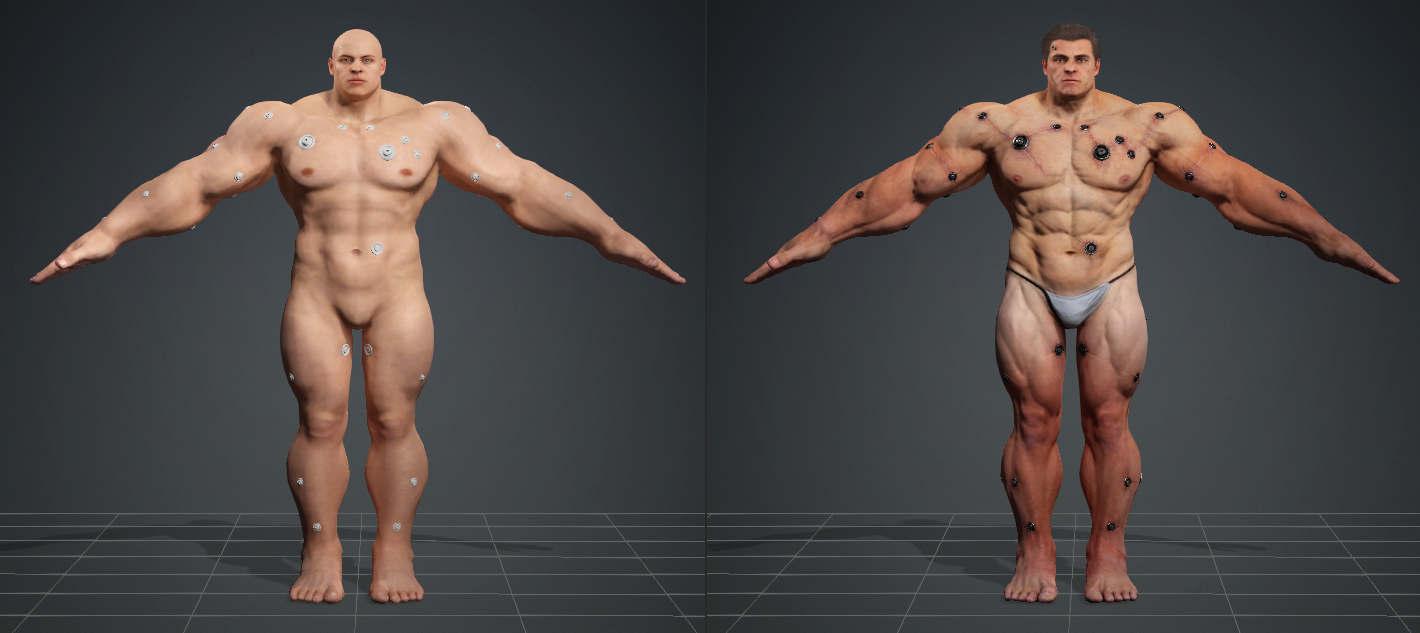
After you unzip the file, you’ll see three file formats which we’ll cover individually later in this article, and five varieties of CC character base meshes: a fully neutral base, a realistic male and female, and a stylized male and female. Pick whichever base model makes the most sense to start with depending on what you’re working on!

Topology and UVs
All the 3D character base meshes have nice, uniform quad surfaces, with edge loops built specifically for animation deformations, morphs, and blendshape creation in mind. In fact, each base has identical UDIM UV maps and vertex order, so you can blend between them seamlessly, and are perfect for production pipelines that require vertex and UV consistency between bases.


Textures
The “Topology Maps” folder contains template utility images that you can apply to your meshes that will help you put your facial landmarks and volumes exactly where you want them based on the mesh topology! Inside each FBX format folder you’ll also have base body textures that you can apply to your models: a realistic color map for the realistic bases, and a stylized color map for the stylized bases!
Why use these CC character base?
Here’s the big reason — as highlighted in our previous article, sculpting a character is just the beginning of the excitement. With these character creator bases, once you’ve finished sculpting a static character, you’re just a few button presses away from complete rigging, weights, facial expression morphs. In other words, a character with a myriad of possibilities for animation, simulation, posing… essentially bringing your character to life. You can use them for anything from an animated scene to a posed 3D print, and everything in between!
So long story short, if I make a character and I don’t feel like bringing it to life, no big deal, it’s still a good, predictable, performant mesh to start sculpting on. HOWEVER, if by the time I’m done sculpting my character and I feel like posing it out, have it run around in a scene, or even controlling the characters face with your own using AccuFACE, I’m literally just a few button pushes away from making that happen (some of those button pushes we’ll cover in this article!).
However, if I start with some other base mesh and then decide I want to make it dance around…making a skeleton, skin weights, creating facial morphs, creating a control rig for all that, applying or creating an animation, and more…it’s going to take wayyyyy more than a few button presses to make that happen. So that’s the big plus to me; If I start with these base meshes, animation, expressions, LIFE is right there at my fingertips, seconds away!


CC character base Overview Demonstration
For each base type there’s also a number of file formats to choose from depending on how you want to work, and what type of software you’ll be using. Here’s a brief overview:
- OBJ file: import this single mesh file into any program that accepts .obj files, and begin moving geometry around to transform your initial base mesh into a unique and interesting character!
- ZTL file: this is a ZTool file that you can Tool > Load Tool into ZBrush, and just like the .obj workflow, begin modifying to your heart’s content. Unlike the .obj file, the .ztl file Like I mentioned earlier, the even distribution and quad geometry makes sculpting on this base fun and predictable, and just like the .obj file, once you’ve refined your characters body, you’re just a few button clicks away from bringing it to life!
- FBX file: this file contains a skeletal rig and facial blendshapes, so in order to utilize these you’ll have to import them into a program that recognizes them. So not ZBrush, but Max, Maya, Modo, Blender, or C4D, etc…import this file and modify the assets as you see fit!

FBX
Before we get to the .obj and .ztl formats, let’s look at the .fbx file first. Again, this format has bones and morphs, and also has body textures assigned from its respective folder location. To take advantage of all this, we’ll need to import this file format into a dcc app that supports skeletons and morph targets — Max, Maya, Modo, Blender, C4D, etc… are all good options!
In this case we’ll use Blender to show off basic .fbx functionality, as well to utilize an auto setup plugin called CC/iC Blender Tools. This plugin will not only import our model and ensure the character material and texture setup is authored properly, but also allow us to create a one-button-click control rig for our characters body and face, utilizing the morphs and skeleton found in the .fbx file. This type of auto setup functionality isn’t only for Blender — there’s an expanding suite of options on the Character Workflow Pipeline page, that will allow you to quickly and easily take your creation from Character Creator to Unreal, ZBrush, Marvelous Designer, Sketchfab, and more!
Blender Auto Setup Installation
In this case we’ll utilize the auto setup plugin for Blender, however there are also auto setup tools for other CG software and game engines which you can find on their Character Workflow Pipeline page. To install the Blender plugin:
- Go to this page, click on Latest, and download the source code .zip file
- In Blender, go to Edit > Preferences > Add Ons > Install, navigate, and select your downloaded .zip file
- Check the box for Characters: CC/iC Tools, and in the sandwich menu choose Save Preferences
- Now when you hit “N” on your keyboard, you’ll see a CC/iC Pipeline tab to the right side of your viewport.
- To check for updates, go back to the AddOn window, click the down arrow for your new plugin, and scroll to the bottom — there is a Check for updates button there.


CC character base Import into Blender Using CC/iC Blender Tools.
Instead of going to File > Import, click on the CC/iC Pipeline tab and click the Import Character button. Your character should import with all the proper materials and textures hooked up.
Note – You can use this same method to import any character exported from Character Creator, complete with hair and clothing as well.

Check out the model’s UV maps in UV Editing mode, and get a look at the textures and materials in Shading mode. In the Shading tab you can see the material structure. You can connect the relevant topology map to get a look at how the sections of the body and head are divided


Skeleton, Blendshapes, and Control Rig
Back in the Layout tab, with your character selected, go to the Data Properties tab to see the character’s expression morphs. Our control rig in the next step will utilize these in various combinations to create incredibly detailed facial animation!
To see our skeleton, select the top character node in your scene, go to the Data tab and open the Viewport Display section. Checking in front will display your character’s skeleton!
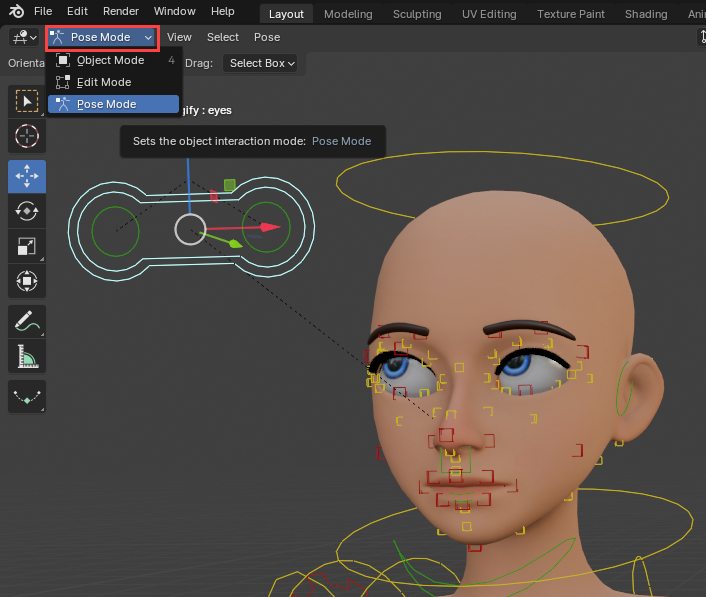
Expand the Rigging & Animation tab in the auto setup plugin panel and click the Rigify button to generate a specialized control rig, complete with a full face rigging! Use the dropdown menu in the upper left corner to switch to Pose Mode, then grab the different control shapes on your rig and move them around to pose your character!
Blender FBX Custom Character Creation and CC Import
Now, as you can see from this Reallusion video, you can modify your character right here in Blender, export through the plugin, and drop the result into Character Creator as a CCAvatar — in fact, there’s an entire repository of Blender resources you can check out that will cover that process in detail, and a lot more! However, I’m not super proficient in Blender, so let’s explore the .obj and .ztl options to make a custom character, then bring it to life using Character Creator.
Workflow Demonstration
OBJ Format
As we mentioned before, in the .obj file format, all body parts are consolidated into a single mesh, making it easy to load and edit in any 3D application that supports .obj format.
Import & Sculpting
Since I’m most comfortable in ZBrush, that’s what I’m going to use to modify this .obj file, but feel free to follow along in your favorite modeling application – all we’re doing is moving around vertices.
First I’ll go to Tool > Import, then navigate to the “OBJ” folder in the “CC Character Base” directory, then choose the bodytype I want to start with (for my case, I searched the “05_Toon Neutral_M” folder). Finally I’ll double-click the “Toon Neutral_M.obj” model to import it.
Again, this file will be a single model without a skeleton or expression morphs. Feel free to move the vertices around, changing the volumes and proportions of your character however you’d like! While you’re doing this, there’s a few guidelines to follow:
- Keep the naming consistent so we can import the finalized model in Character Creator for conversion into a CC3 plus character. This is easy, just don’t change the default name, and if you do, change it back before you export later.
- Do not change the vertex order: no splitting pieces, cutting or extruding faces, etc…
- However, feel free to subdivide your model to sculpt details, which you can bake out as a normal map later! If you do subdivide to create a more detailed sculpt during this process, remember to drop down to the lowest subdivision (SDiv 1 in ZBrush) before exporting


Export
Once you’ve completed your sculpt, return to subdivision level one and use Tool > Export to .obj. Give the exported .obj file a unique name – this will be the one we import into Character Creator in the next steps, if you want to bring your character to life!
Character Creator Import
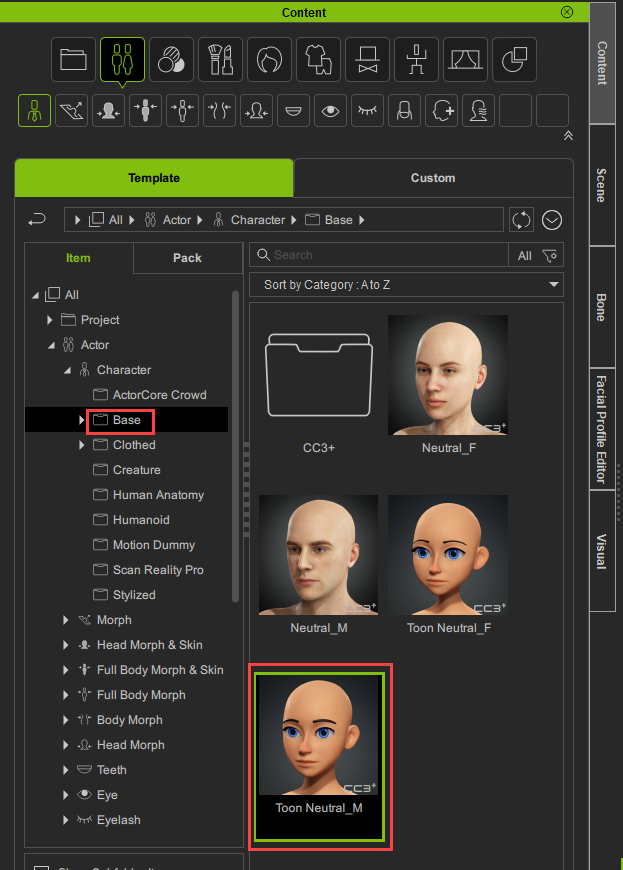
In Character Creator, load in the neutral male toon base, which can be found in the Actor > Character > Base folder in the Content manager. Since we started with the Toon Male, we’ll use that as our base character; if you started with a different body type, use that instead.
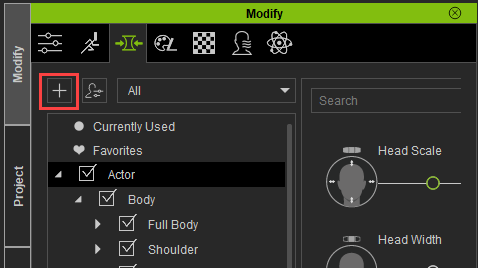
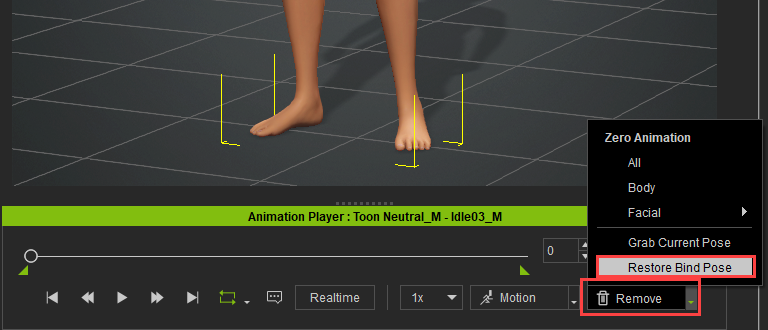
Put your CC model into a bind pose by going to Remove > Restore Bind Pose in the Timeline dropdown menu. Navigate to the Morphs tab, and click the plus button to create a new morph slider.
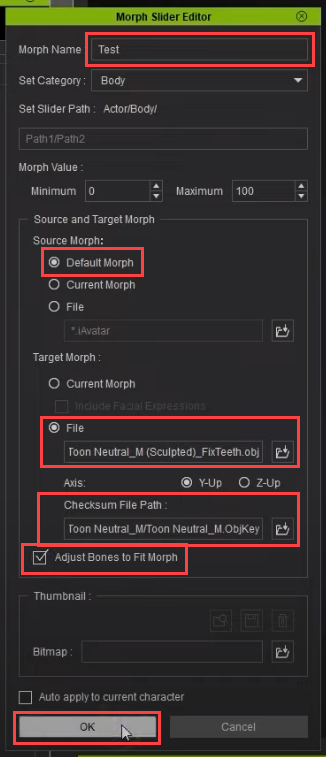
Enter a name for this morph, then load in the obj file you exported earlier in the Target Morph section. Load in the relevant obj key file in the Checksum File Path section, which can be found in the folder of the base type you used. Finally, ensure that you select “Adjust bones to fit morph” to avoid any bone proportion issues, then hit OK.
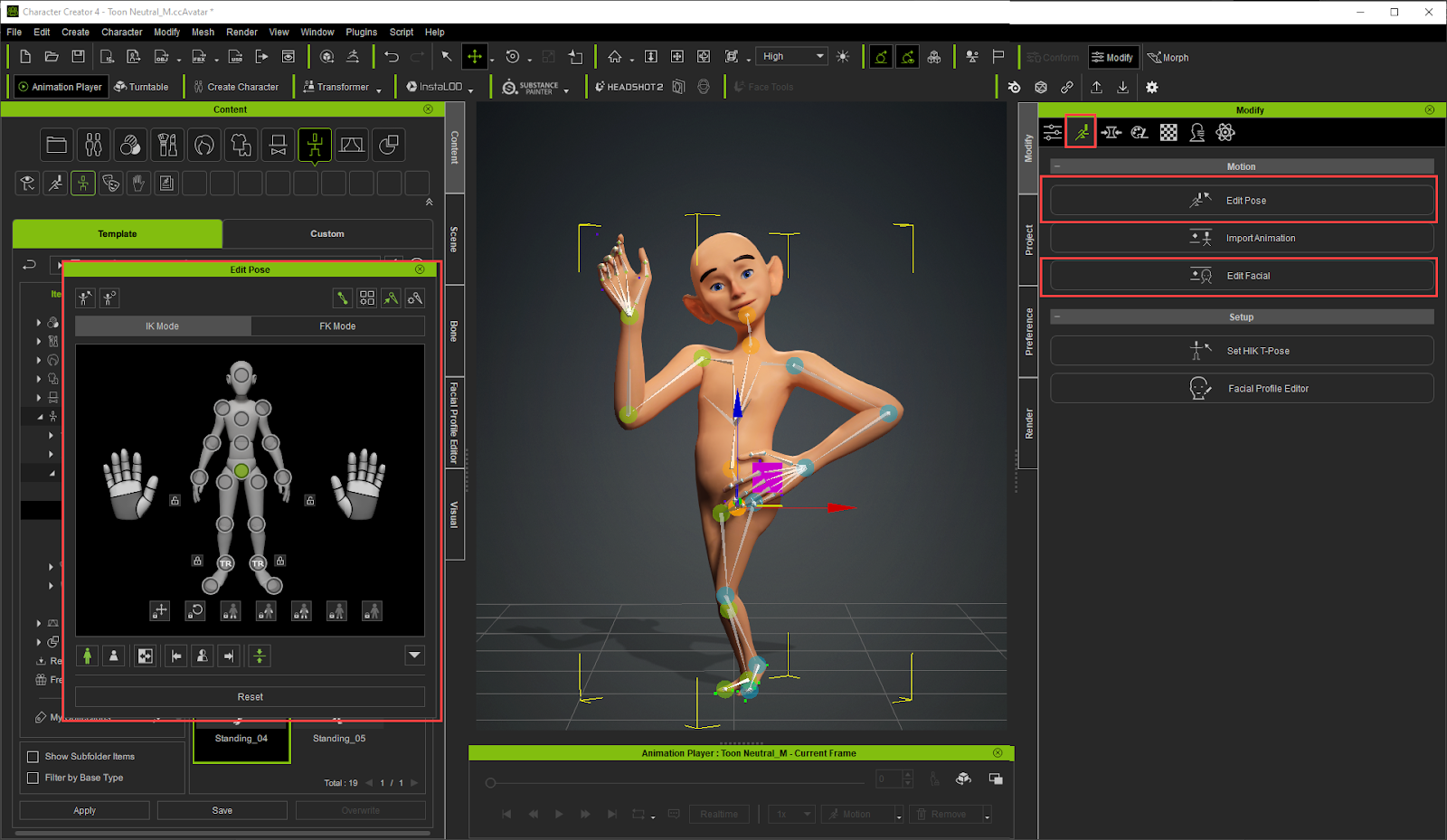
Back in the Morphs tab, zero out the Currently Used morphs, then click on the Actor section. Search for the morph slider name you created, and set it to 100. Your updated model is now fully rigged, with bones proportional to the body scale — a fully functional CC3+ character! Feel free to apply animations from the Content tab, and pose your characters body and face using Edit Pose and Edit Facial found in the Motion tab.


To learn more about the amazing things you can do with this character type, you can check out the other articles we’ve made, that will walk you through making a custom base character, baking your high res details to normal maps, texturing it, creating custom accessories and clothing for it, and finally animating it, and even using your own face to drive your characters face!
ZTL Format
Finally, let’s talk about the .ztl file format… This format is very similar to .obj — there’s no bones or morphs, and all we’ll be doing is moving around the existing geometry to create our unique character. However, by going to Tool > Load Tool, and choosing the .ztl file from the body type you want to start from, you’ll see this file format contains multiple objects (subtools in ZBrush), rather than one single file like the .obj.

Just like the .obj, you don’t want to change the naming of these existing subtools. However, you can add as many custom subtools as you want! Shirts, pants, shoes, swords, create and name these as separate subtools, and we can send them over to Character Creator later, along with our body updates.


Sculpt
Mask, move, and sculpt the subtools to create your own unique character. Your “CC_Base_Body” subtool will already have 5 levels of subdivision on it. I usually start on the lowest subdivision, and work my way up through the subdivisions as I add more and more detail. If you need more detail than subdivision level 5 will allow, go to Tools > Geometry and hit the divide button to get more geometry resolution.
Remember, you’re able to append and create more subtools while in ZBrush, named whatever you like, that will send over to Character Creator along with our body changes. Feel free to use polypainting to add color to your high-res sculpt as well.


Sending to CC
Once the sculpting is finished, open Character Creator and click Load Neutral Base. Once again, ensure that the character is set to a bind pose using Remove > Restore Bind Pose in the Animation Player. Go back into ZBrush and press the Tool > GoZ All button to send all of your ZBrush subtools over to Character Creator.
You’ll see the GoZ Options panel appear in CC. Ensure that all of the original sub tools are set to Update, while the new ones are set to Create Cloth. This will bind your custom objects to your body automatically!
Further Refinement
If you want to continue having fun and refining your character, like baking your high-res detail and polypaint from your body to your CC mesh, check out this article. Fore more information on creating custom clothing and accessories, including adding cloth simulation, check out this article!


Final Thoughts
Thanks for stopping by, and keep an eye out for more articles detailing how you can create cool stuff, then get that cool stuff to move around! Also check out these articles for more information on custom character creation, including how you can transfer old projects that have arbitrary geometry (another base mesh, or even dynamesh concept sculpts), and convert it to Character Creator topology so you can take advantage of all the rigging and animation perks we just covered. And remember there are pipeline tools available to transfer it to any number of applications, from Blender to Unreal, and everything in between!

—————————————————————————————————————————————————————————————————————————
The original article was written by Michael Pavlovich and also featured on 80 Level.