So, you want to be a cartoon animator? Maybe you have a story to tell or need to put together a pilot for pitching your show. Maybe you want to learn what this 2D animation thing is all about and why so many people are excited about it. With the web, there is unlimited potential to get your work out there in front of as many eyeballs as possible and maybe trigger a few opportunities.
The trouble is that the work has to get done, whether it is a one-person operation or a team, the work still has to be planned, animated, and produced. You do the planning and Cartoon Animator 5 will help with the animation and production.
While there are more than nine reasons to use Cartoon Animator, let’s take a look at nine of the most standout reasons to embrace this software for your projects whether you are a seasoned pro or too new to animation to even know what to look for.
1. Facial Animation & Lip Sync
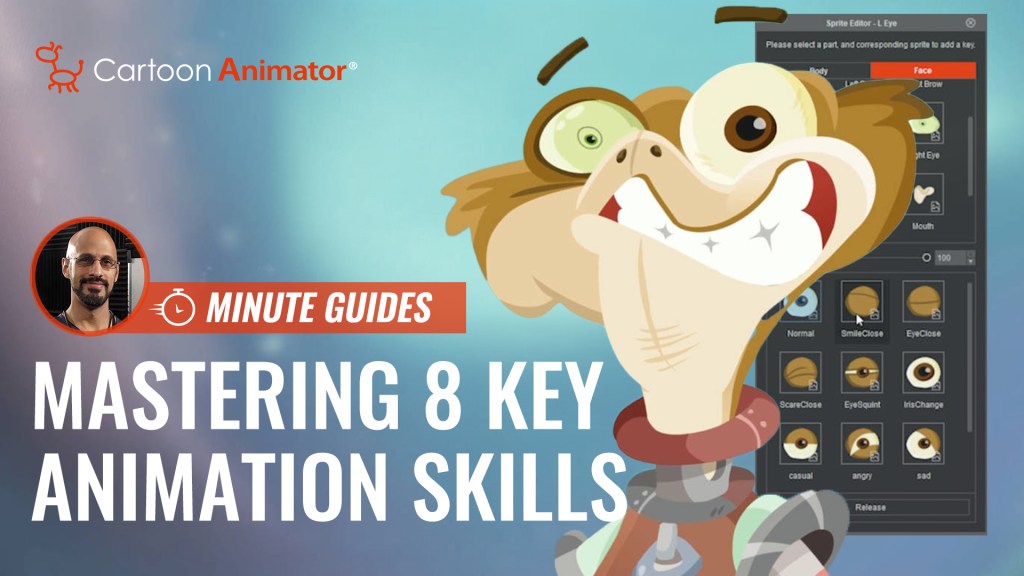
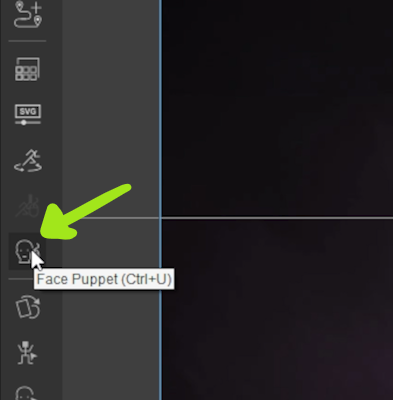
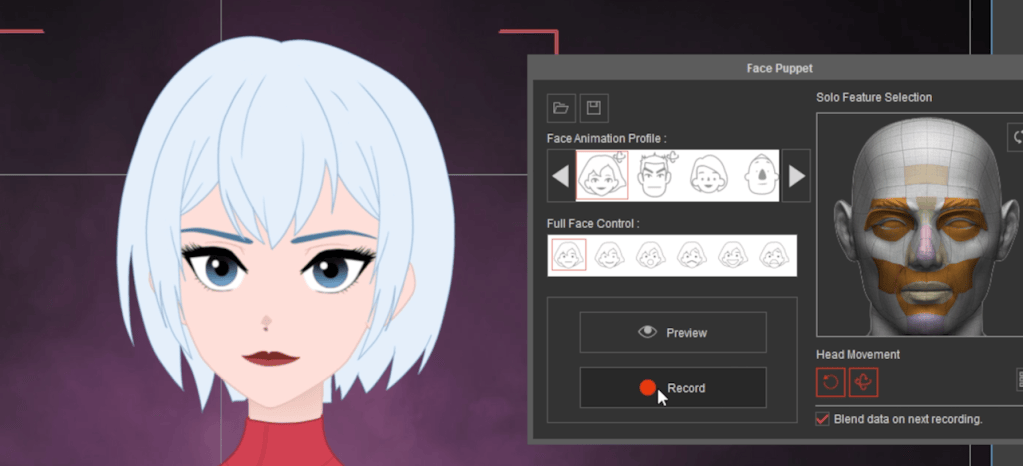
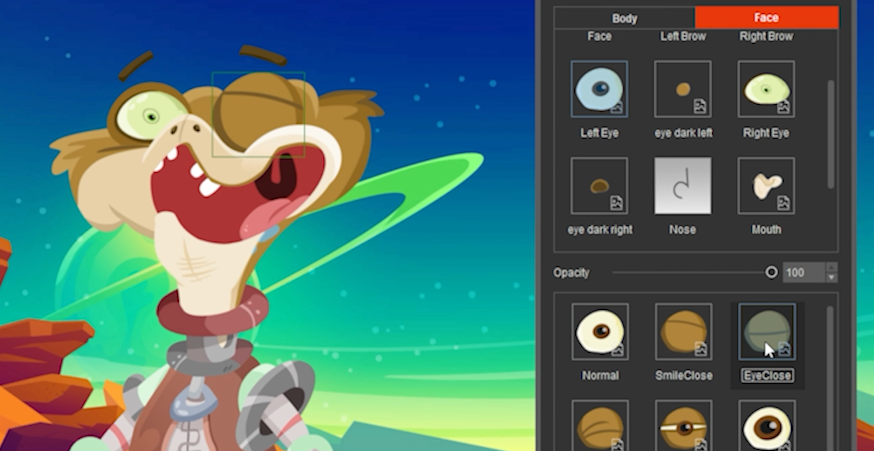
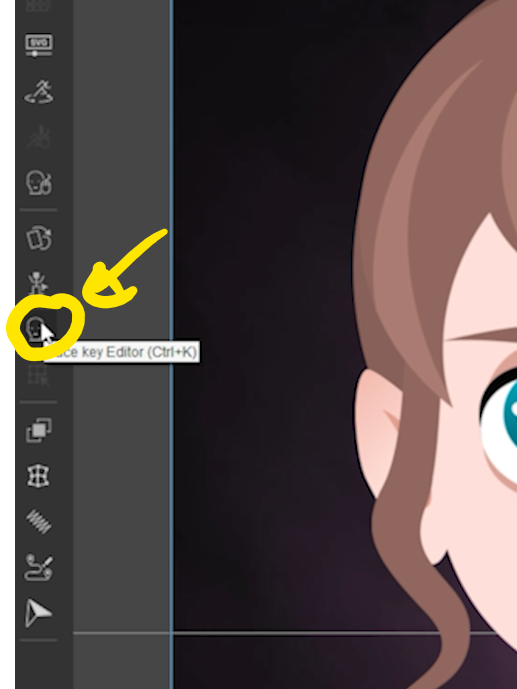
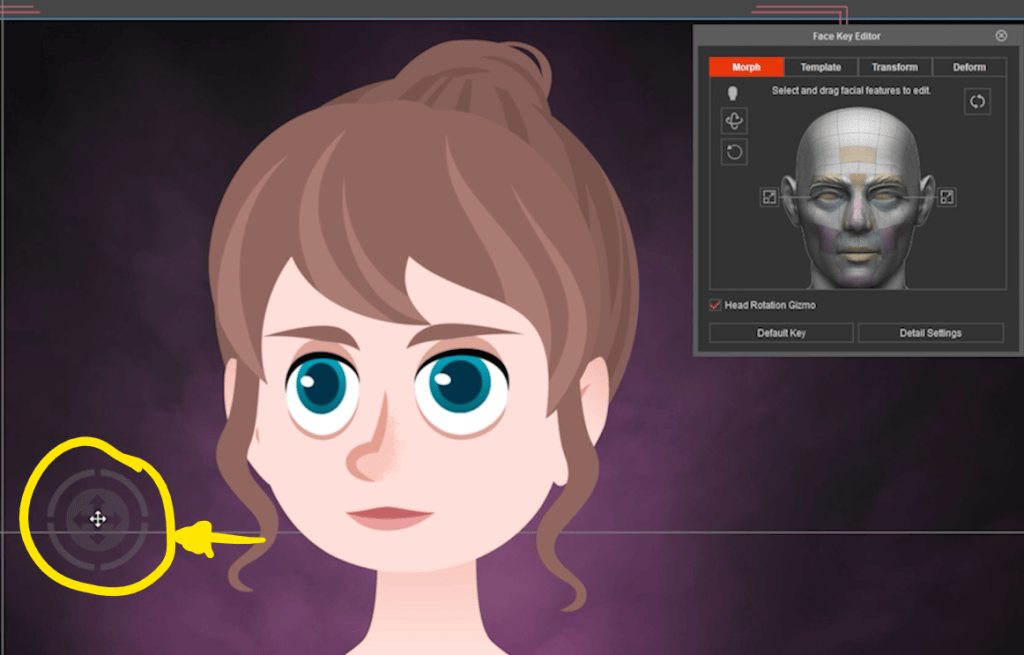
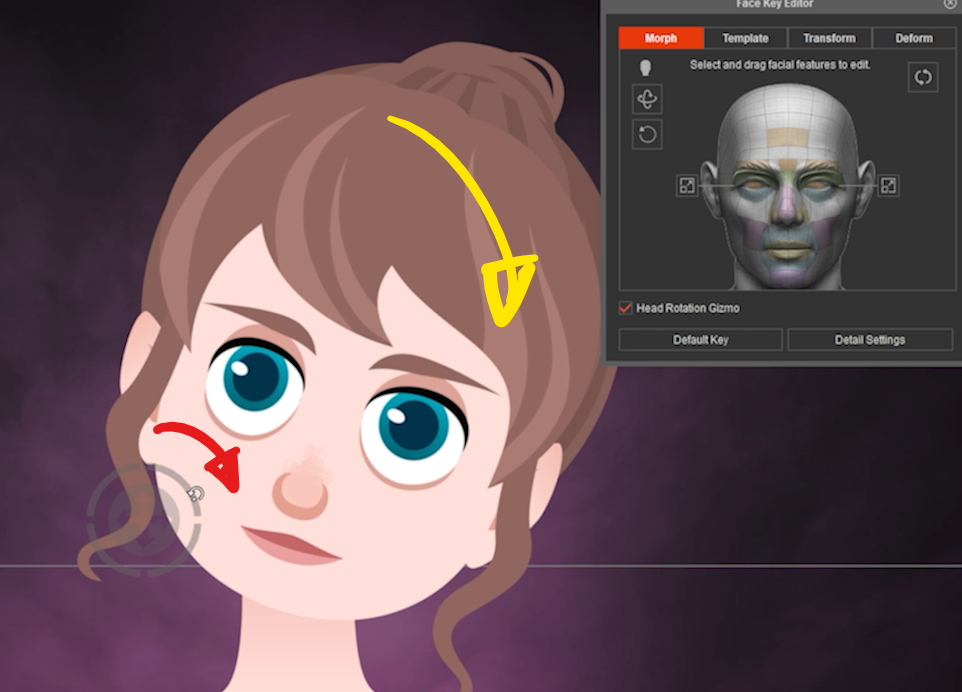
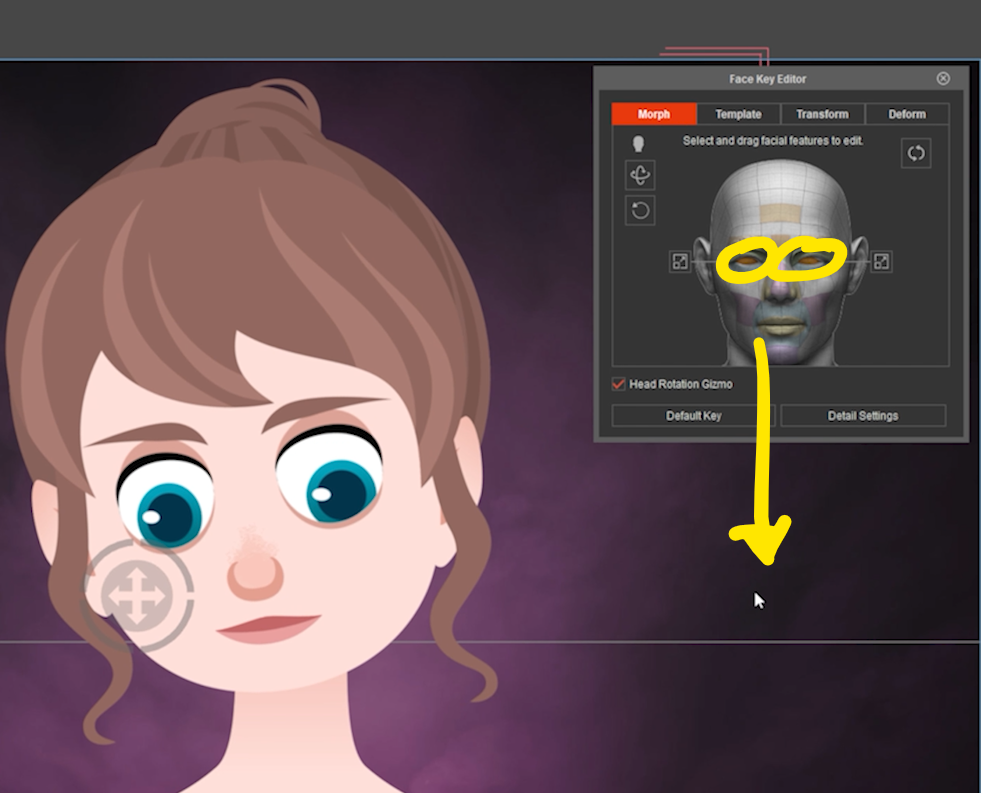
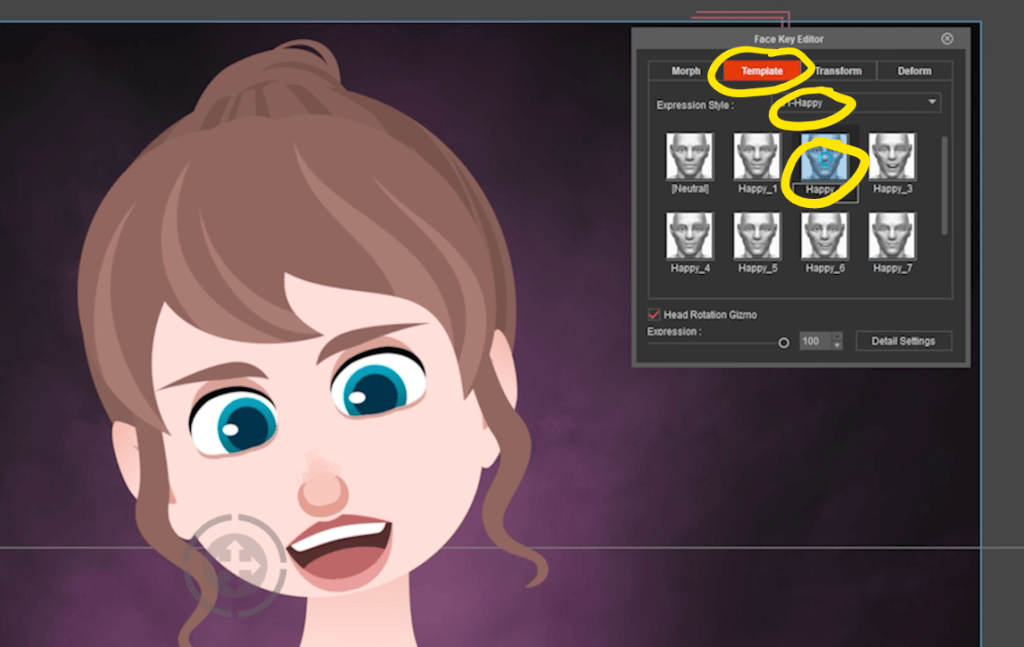
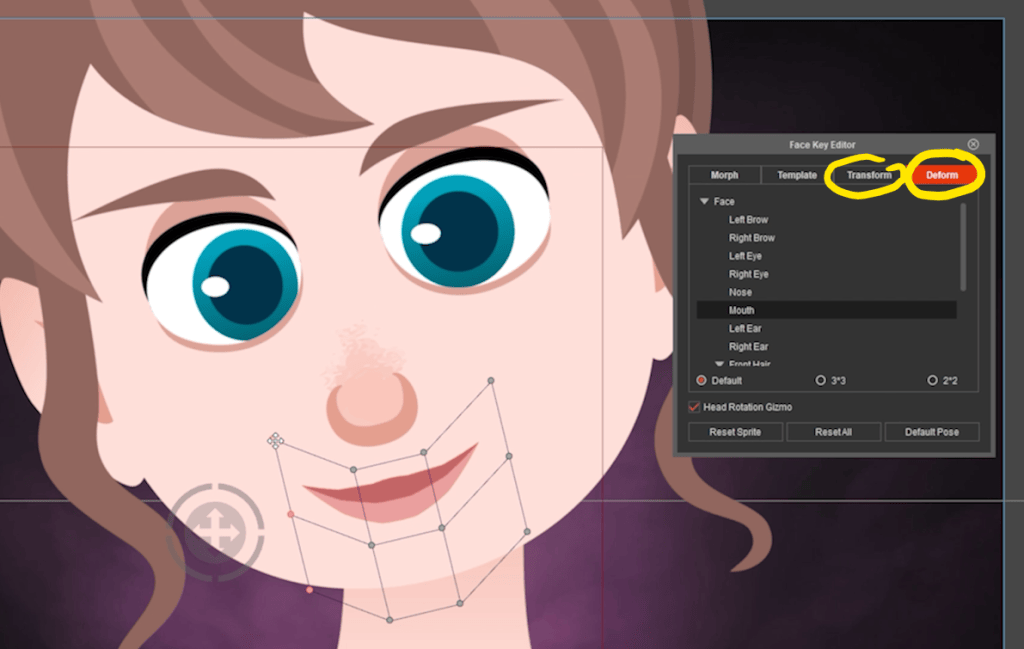
Facial animation and Lip Sync have long been strong suits for Reallusion since the days of CrazyTalk. The Face Key Editor and the Face Puppet give us control over the facial expressions of our characters. Both tools have a small learning curve and can be productive on first use. The more experience you gain the better your animations become over time.
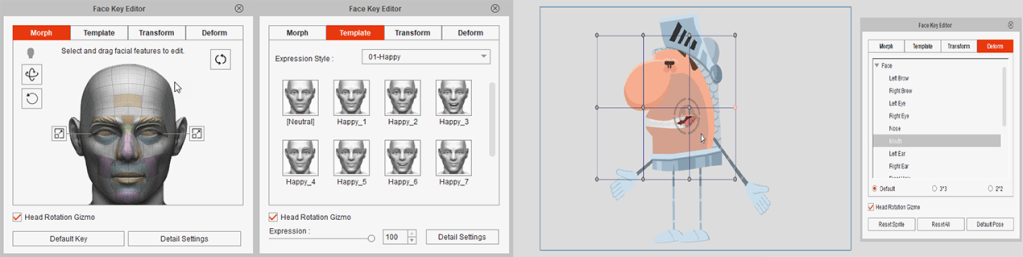
For Lip Sync you can load the file with the character selected and Cartoon Animator will do the rest. If you aren’t satisfied with the results you can go into the timeline and edit the visemes to get the outcome you are looking for.

You can also Record Voice, TTS (text to speech), MP4, and Cartoon script which dates back to the days of CrazyTalk.
Cartoon Animator’s facial animation and lip sync tools are easy to use giving you one less thing to worry about while making your masterpiece.
2. 3D Motion Support
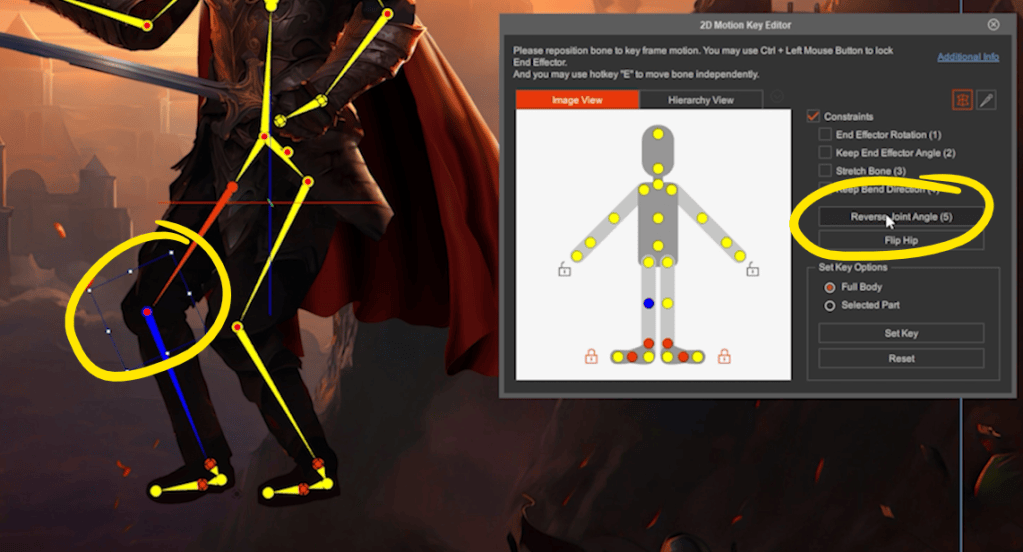
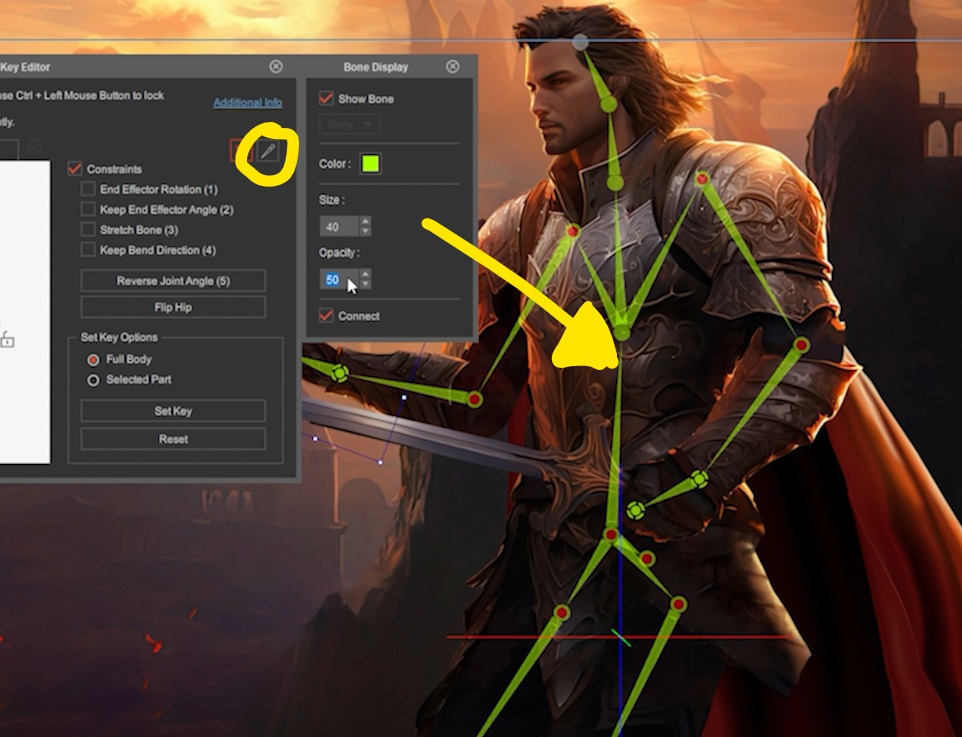
The ability to use 3D-based motions cannot be overstated as many 2D animators are also 3D animators with a large library of 3D motions. While it might seem confusing to some, Cartoon Animator can make use of those 3D motions with its import 3D motion popup.
Some tweaks can be made in the popup, but it works well just by loading the motion and then continuing. The popup provides a section for camera projection from -180 to 180. There is also a Motion subsection with a Ground Offset slider and checkboxes for Hand Contact, Foot Contact, Root Motion, and Flip Body. Below that is a checkbox for Camera Tracking.
Furthermore, in ActorCore you can find a collection of Cartoon & Anime motion assets designed for 2D-styled characters. Easily import them to Cartoon Animator and project the movements to your character for advanced performances.
3. Motion Capture Animation
Motion Live 2D is a go-between interface for recording and importing motion capture from a variety of solutions. Cartoon Animator can get you started with motion capture devices like webcams, iPhones, Leap Motion, Perception Neuron, and Rokoko. While not all of these solutions are within everyone’s budget, it does include more affordable ways to get started using a Webcam or iPhone for facial capture and Rokoko smartgloves for hand motion capture. From there on to full motion capture suits, Motion Live 2D is an easy-to-use interface to provide mocap solutions for your 2D animation projects.
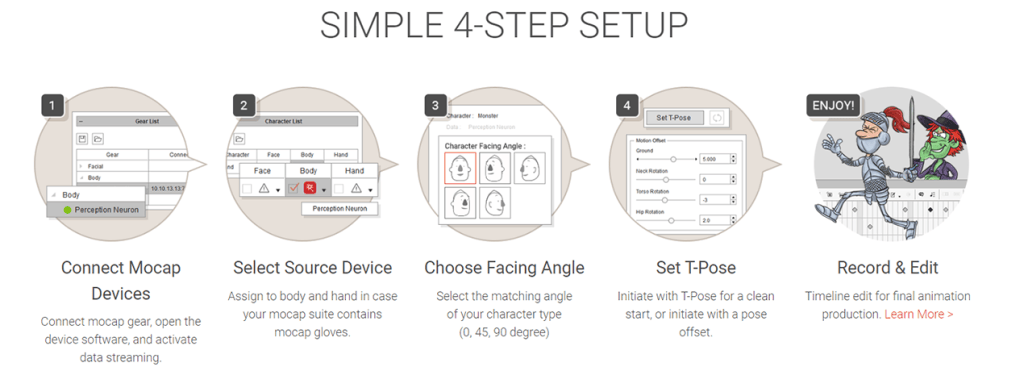
For more information on mocap solutions please visit the following pages: FACIAL MOCAP (Webcam), FACIAL MOCAP (iPhone), HAND MOCAP BODY MOCAP
4. 360 Head
The 360-degree head simplifies the work of presenting your character from multiple angles. You can do a quick setup or go into a more detailed setup depending on your needs. The Quick Head Turn Setup uses a head-shaped mask for a boundary that keeps the face within that mask. This gives us the option of turning the head within the mask to create different angles without a lot of confusing work if you have never done this before.
If you want to get into more detail there is another mode, Toggle Head Turn Layout, that will provide much more control with more points available for more turns of the head. All this without additional sprites to keep things simple if you are learning while still having the tools of FFD, Transform, and Sprites for more advanced work.
The 360 Head and Head Creator eliminates the difficult and confusing learning curve when trying to emulate 3D movement in a 2D environment.
You can also purchase 360 Head characters from the Content Store and Marketplace. There is the 360 Head Maker with drag and drop head assembly tools and the Face and Hair Tools.
The 360 Head and associated tools make it easier than ever to animate 2D heads in a 360-degree manner.
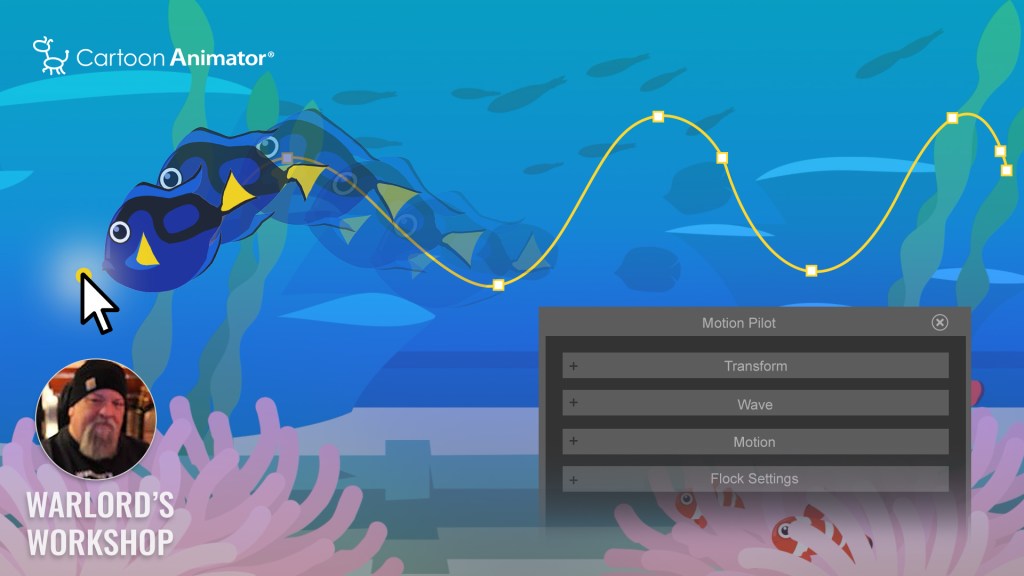
5. Motion Pilot
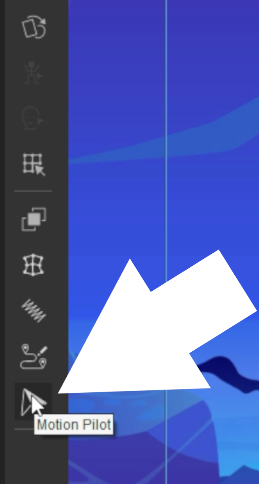
Motion Pilot is one of those tools, that when released, had a huge impact on users. It also had a big impact on new animators who could now animate more easily with the movement of a mouse. From personal experience, I can attest that this is one of my go-to tools for fast 2D animation due to my experience being in 3D. Now legacy 3D animators like me can join in on the 2D fun with little to no learning curve.
To quote from Reallusion’s website:
Motion Pilot is tailored for a new wave of 2D animators seeking opt blend simplicity and efficiency. With its intuitive, real-time interface, it empowers you to effortlessly animate characters and props using puppet animation techniques.
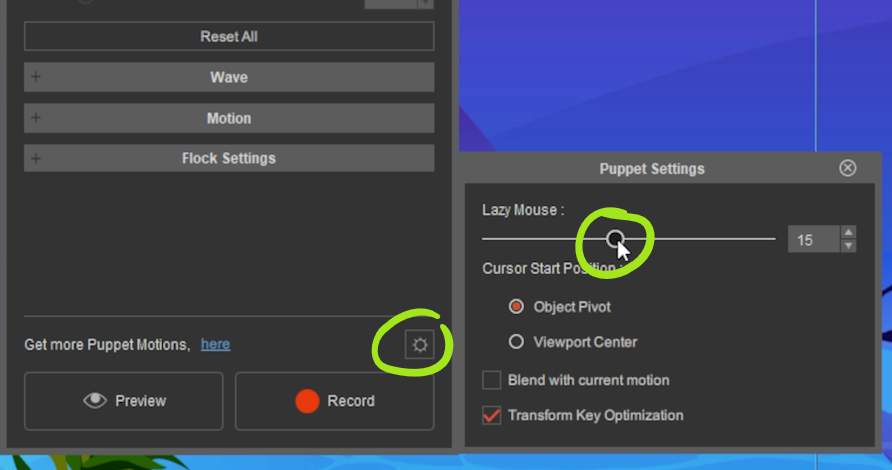
When I say using a mouse that also includes tablets with pens or a stylus, the point is that the animation is created by following the input device across the screen or drawing surface. Draw in some easily added spring bones, set their parameters and you have just added more motion to the animation. All in one pass after the spring bones are added.
Motion Pilot is just one of many 2D animation tools packed into Cartoon Animator. Like other tools, Motion Pilot saves time which saves expense and frustration leading to a more pleasant and creative animation experience.
Motion Pilot Features
Transform
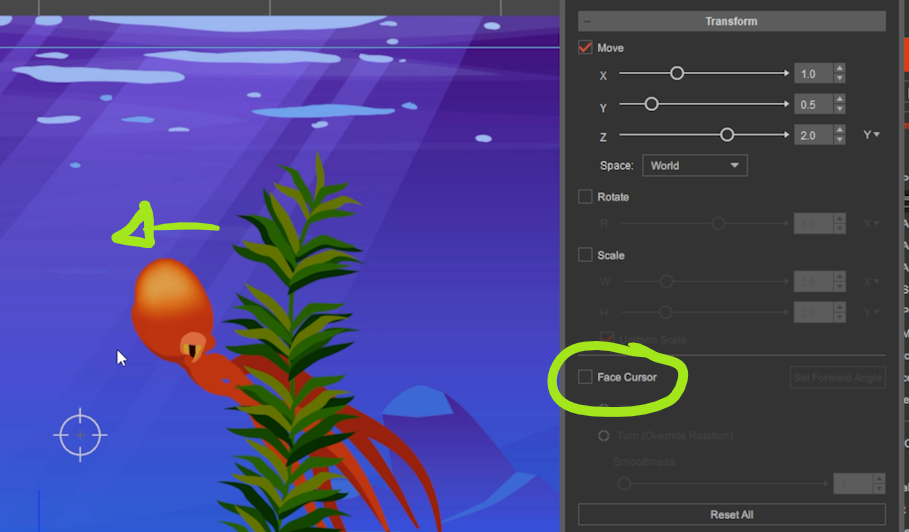
Transformation is at the heart of puppeting, providing you with the ability to effortlessly manipulate the movement of objects. You can axially guide objects, rotate them, adjust their size, or automatically reorient them using flips and turns.
Wave
Generate naturalistic wave motions by adjusting its frequency and amplitude, then sprinkle in a bit of noise for pizazz. To time the wave patterns with precision, align its cycles with the cursor speed.
Motion
Puppetry can facilitate character animation and prop motion. Through straightforward mouse control, frame sequences can be played back with smooth blending of animated effects like free-form deformation and elastic motion.
Flock
Simulating natural flocking behavior and controlling the animation tempo has never been simpler. You can establish a leader and its followers, define the animation sequences, and choose between uniform or random delay times to create organic swarms.
6. Motion Path
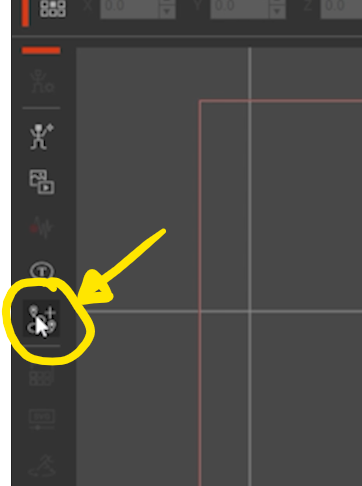
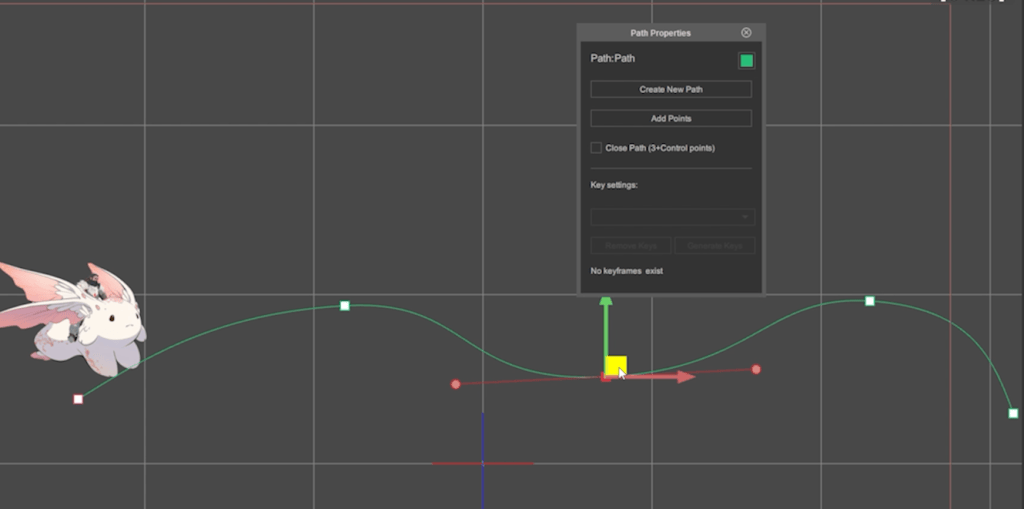
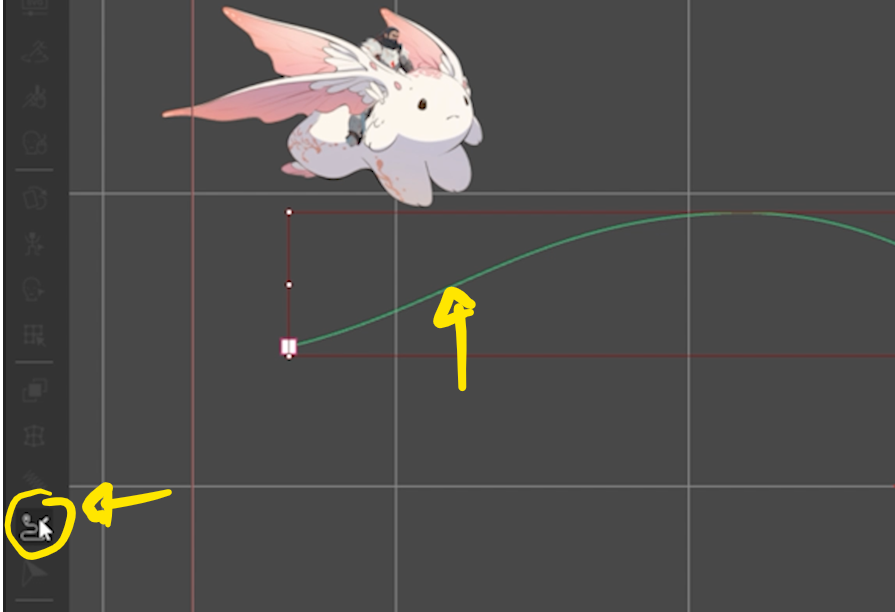
Motion Path, not to be confused with Motion Pilot, is another easy-to-learn tool that allows you to “animate anything along a path”. This makes quick work out of tasks like airplanes, helicopters, and spaceships flying across the screen or animating a passage across the sea with a map and a ship icon to show the progress as it moves along the path.
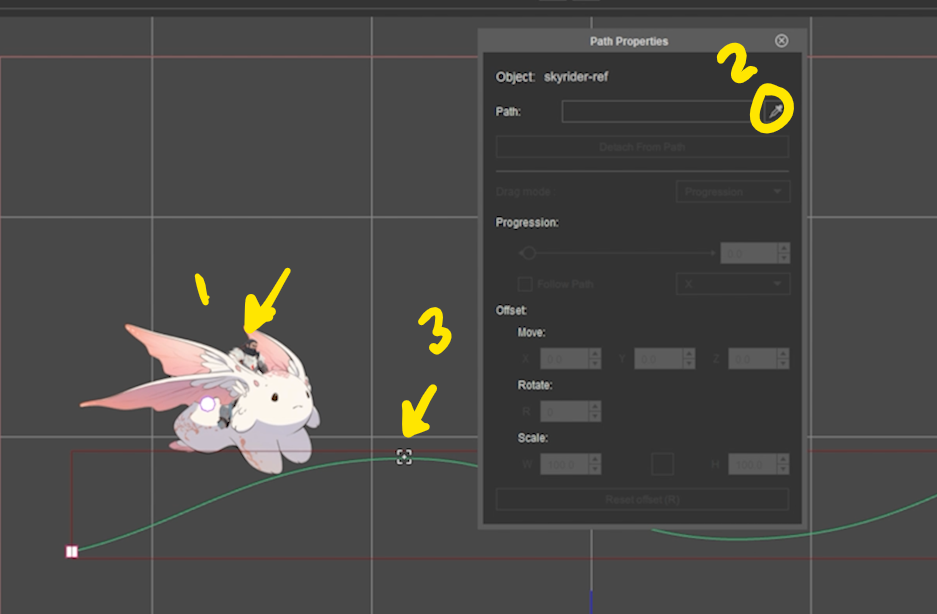
You draw out a path, pick an object like a prop or a character, and assign it to the path. There is a Path Properties dialog box that pops up allowing you access to attributes like Path Progression, offset, rotate, and scale. There is also a Follow Path check box with a drop-down menu offering a positive or negative axis to follow.
The Path Progression slider is where Cartoon Animator sets keyframed positions along the path. If you want the object to be 35 percent down the path at frame 200 you go to frame 200 and set the Path Progress to 35 percent.
Yes… it’s that easy.
7. Spring Dynamics
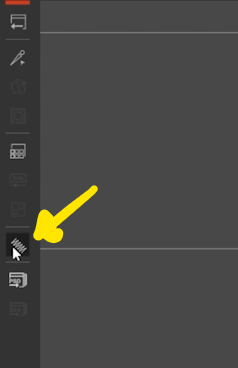
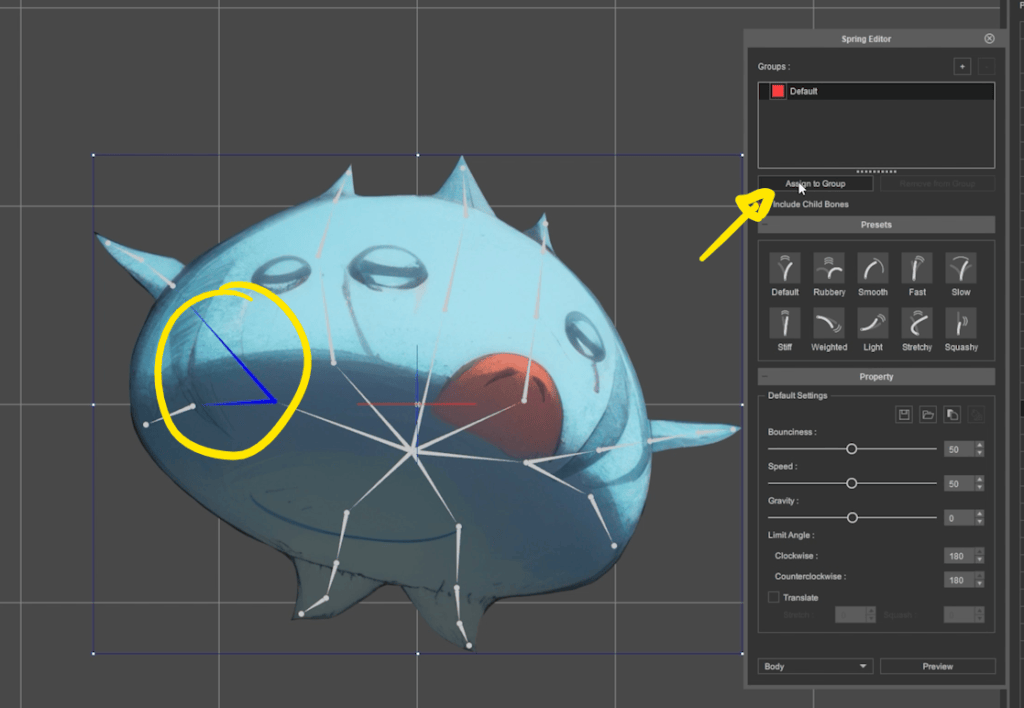
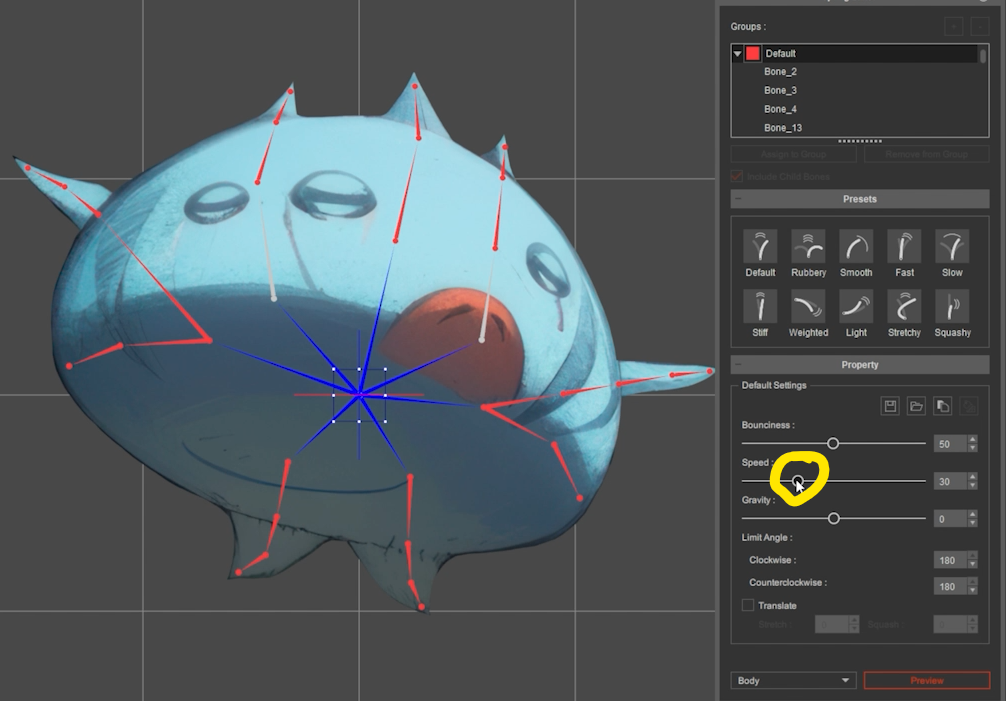
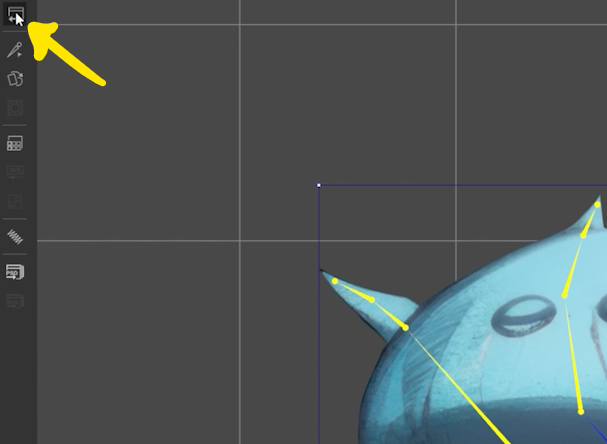
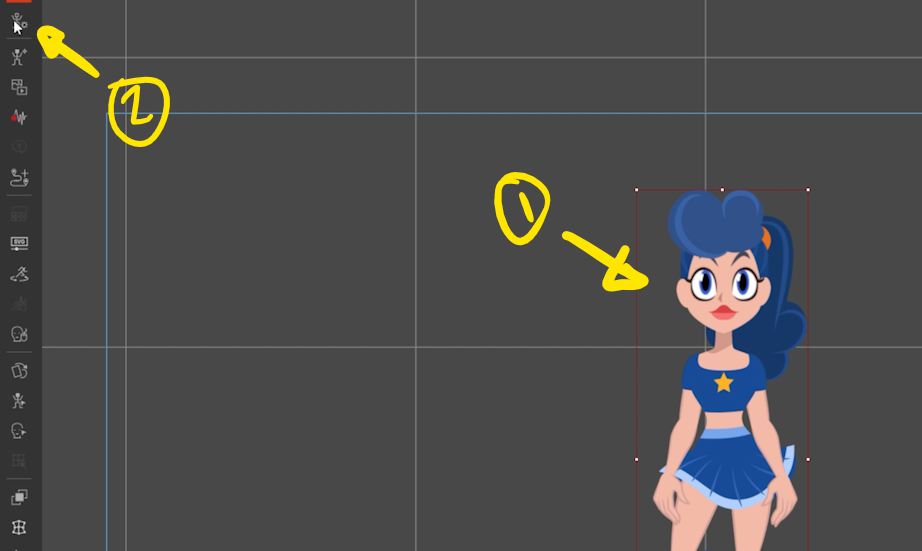
To use Spring Dynamics you will need to create bones that can be converted to spring bones. The process of creating the bones is shown below and is a very simple task to complete. Don’t let the necessity of creating bones stop you from using spring effects. This is a skill that new users can pick up quickly as creating bones is a fundamental part of making your own, custom characters.
Another big dog on the block when it comes to quickly animating anything from a simple image to a more complex object with lots of moving parts, Spring Dynamics is a hero in its own right. Like Motion Pilot, this tool adds another layer of movement that does not require manual keyframing and is done on the fly as the program runs along the timeline.
Whereas Motion Pilot is for a specific movement, Spring Dynamics adds that extra flair of moving parts that inherit movement from the character or prop they are assigned to.

8. FFD – Free Form Deformation
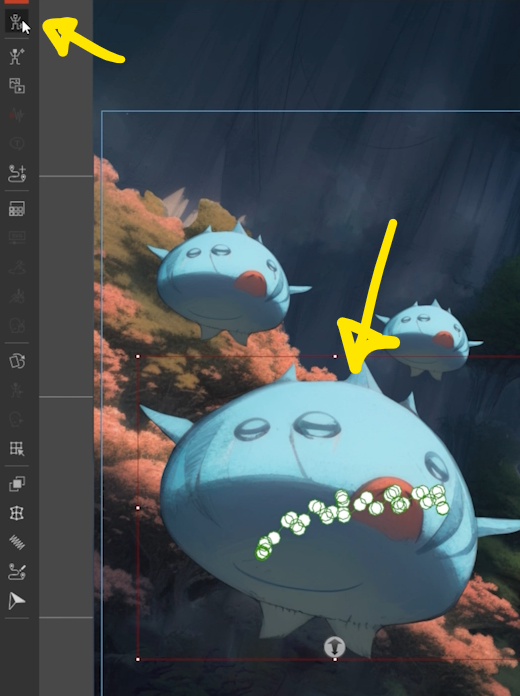
Free Form Deformation is a tool that many 3D and 2D animators are familiar with. It is a bunch of dots (handles) across a grid that allows you to move those dots deforming the image. If we move up or down the timeline between deformations, you get an animation that morphs from one deformation to the other.
Yet another easy-to-learn and use tool that has many uses and makes quick work out of an animation task from swaying flowers to more complex movements like the roaring TRex shown in the demo video below.
9. Pipeline (PSD, Vector, AE)
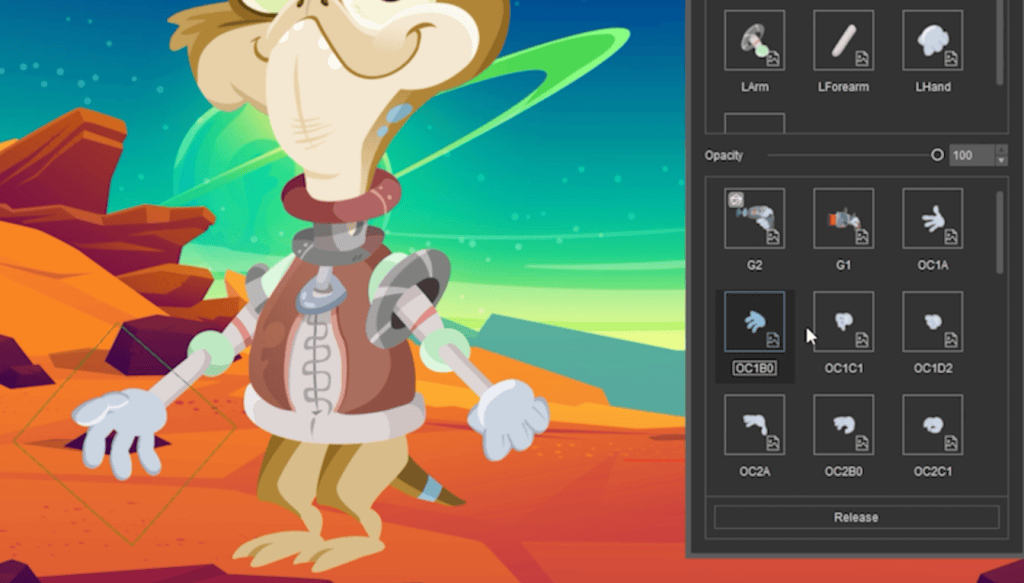
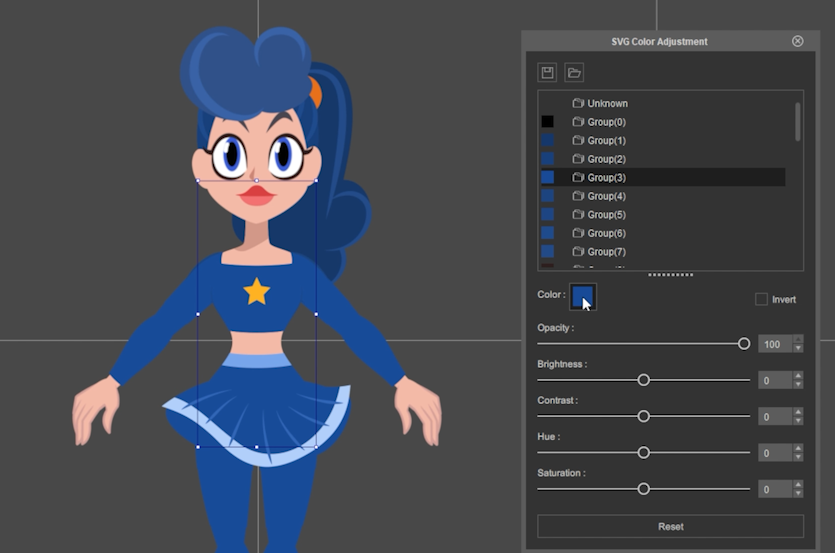
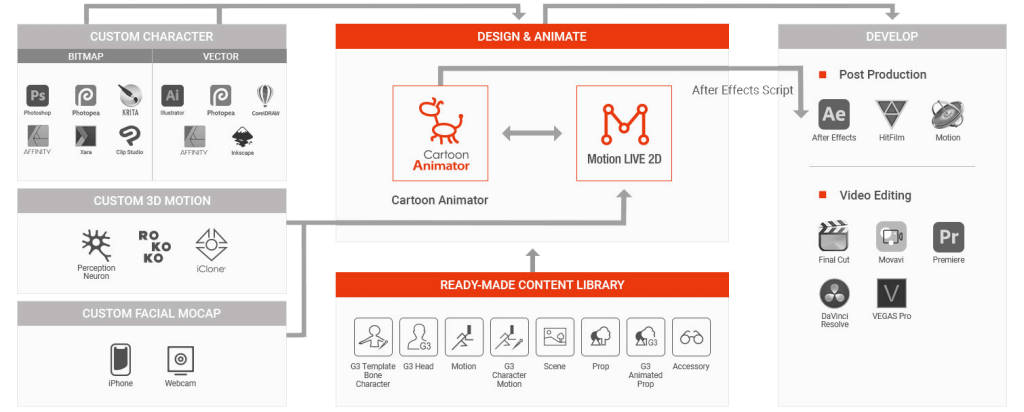
Cartoon Animator’s 2D animation pipeline utilizes SVG and PSD file types and works with both Vector and Bitmap formats that will export to industry standard tools. The Image and Vector sections of the Preferences panel are where we hook up our editors such as Photoshop for image and Illustrator for Vector.
This allows for a seamless passthrough (round-trip editing) to the preferred external applications in both directions eliminating the need for export and import.
Currently supported for Images are Affinity Designer, Affinity Photo, Clip Studio Paint, and Krita along with Photoshop. On the Vector side supported applications include Affinity Designer, CorelDRAW, Inkscape and Illustrator.
Create new characters and props or edit existing items with tools used by professionals around the world.
Speaking about professionals, to get a cinematic finished look in Cartoon Animator projects, After Effects plays a crucial role in providing high flexibility in final compositing and VFX editing. AE Script contributes a seamless workflow to reconstruct exported CTA projects as AE layers, while keeping the keyframes and Z-depth of all objects, along with the sound and camera movements.
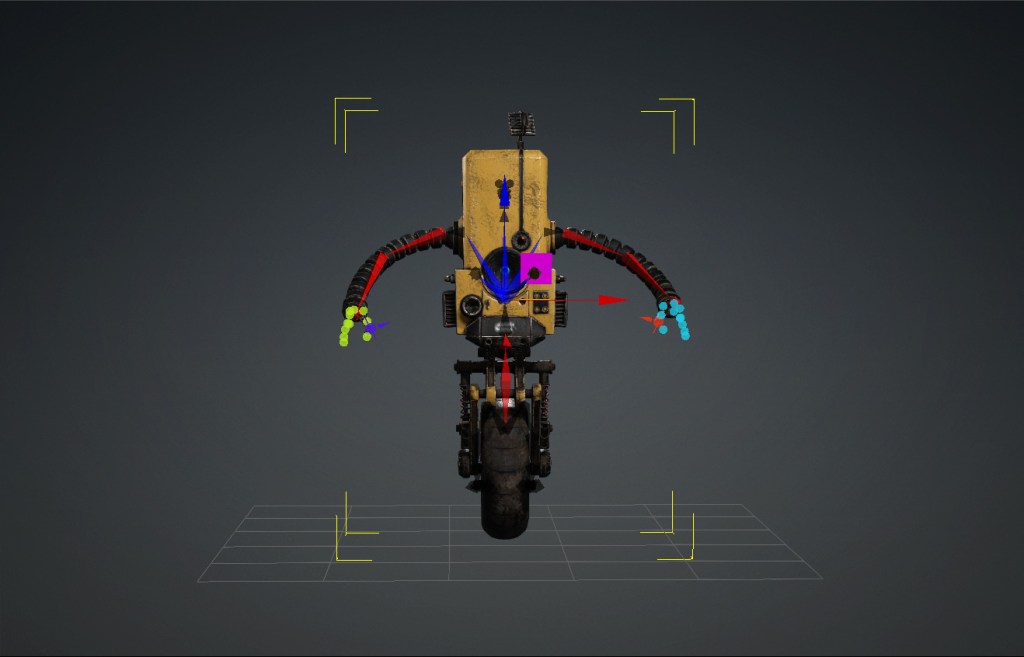
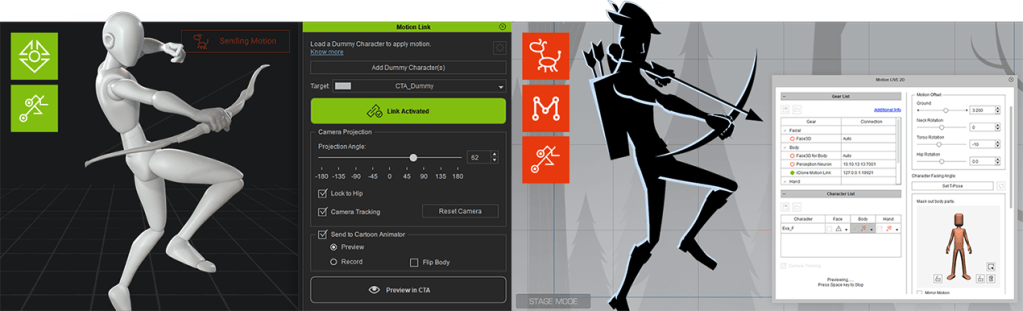
And… here is a little bonus if you haven’t checked it out already. Take a look at motion link. This is a live link between Cartoon Animator and iClone to create and edit 3D motions! Not only can you convert 3D motions to 2D as mentioned above, but with motion link you open up endless possibilities for expanding your motion library.
SUMMARY
These are just nine reasons to use Cartoon Animator 5 for your next 2D project. While these are great reasons to use the software, they are far from the only reasons. Cartoon Animator 5 is packed with 2D tools to help you accomplish tasks that used to be reserved for seasoned professionals and fine artists. As with all Reallusion applications and tools, Cartoon Animator is easy to learn, easy to use, and contains a big toolbox of 2D tools.

MD McCallum – WarLord
Digital Artist MD “Mike” McCallum, aka WarLord, is a longtime iClone user. Having authored free tutorials for iClone in its early years and selected to write the iClone Beginners Guide from Packt Publishing in 2011, he was fortunate enough to meet and exchange tricks and tips with users from all over the world and loves to share this information with other users. He has authored hundreds of articles on iClone and digital art in general while reviewing some of the most popular software and hardware in the world. He has been published in many of the leading 3D online and print magazines while staying true to his biggest passion, 3D animation. For more information click here.