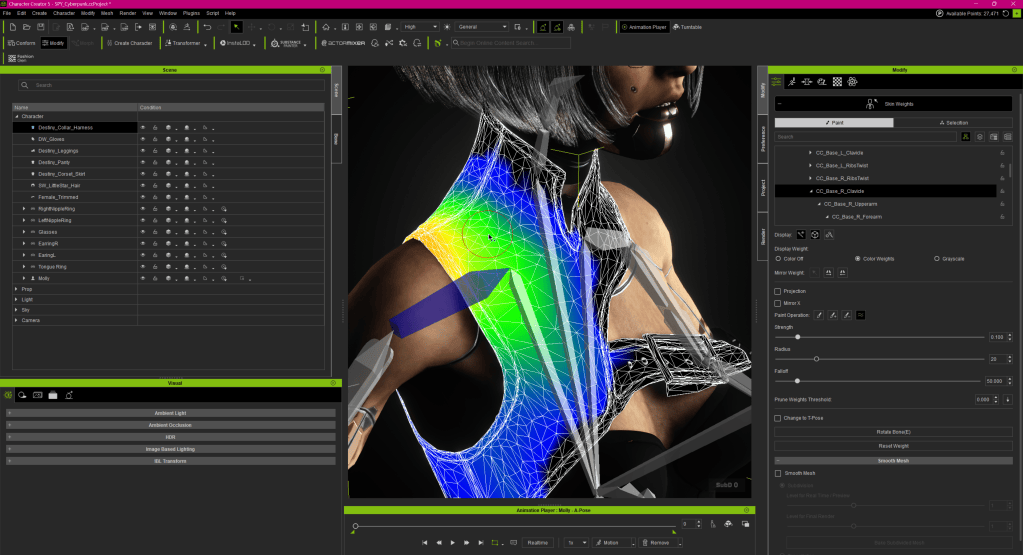
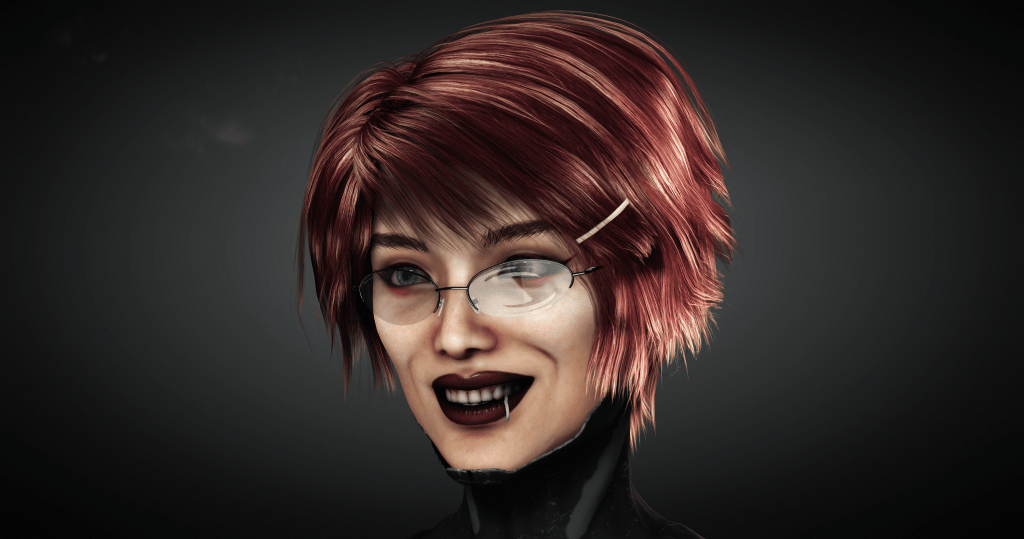
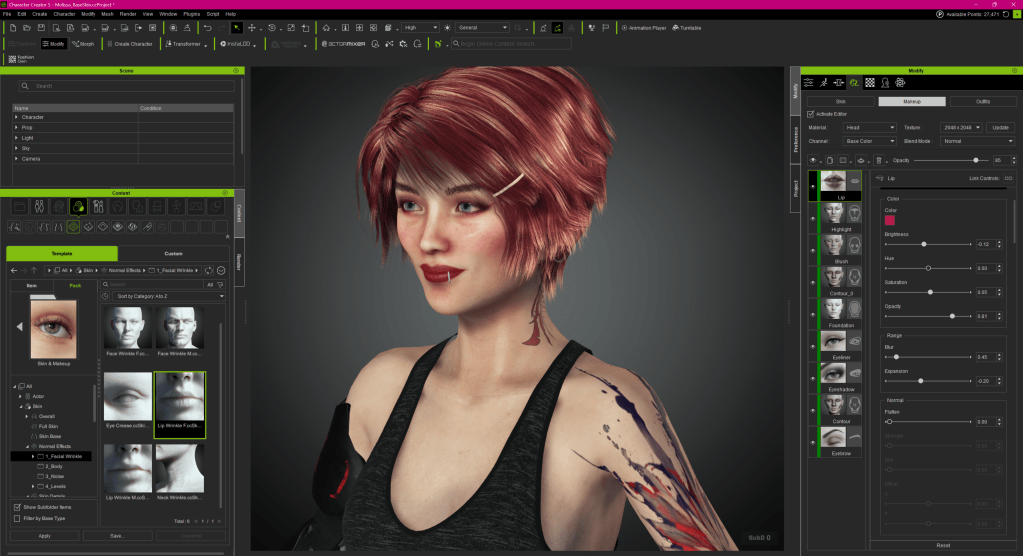
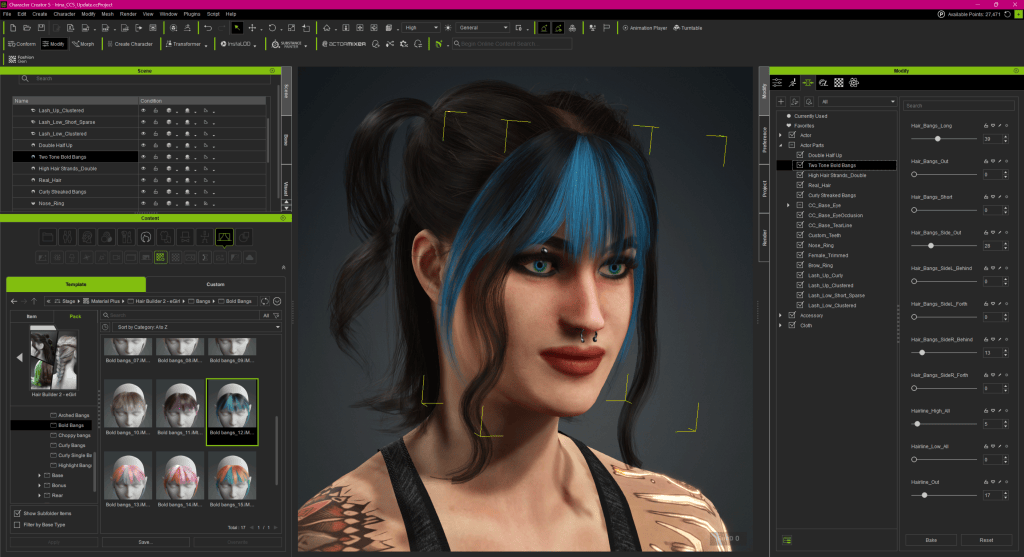
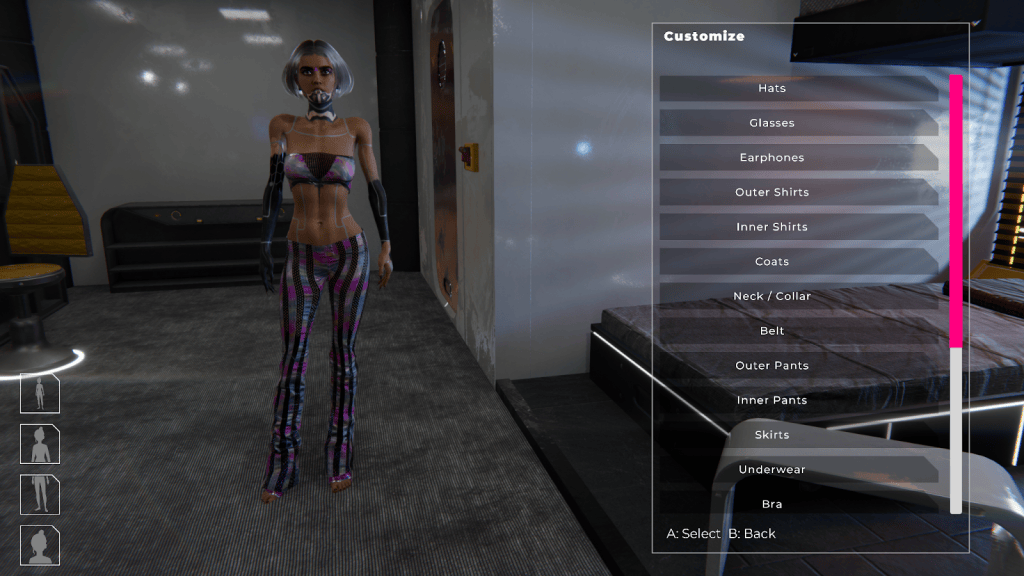
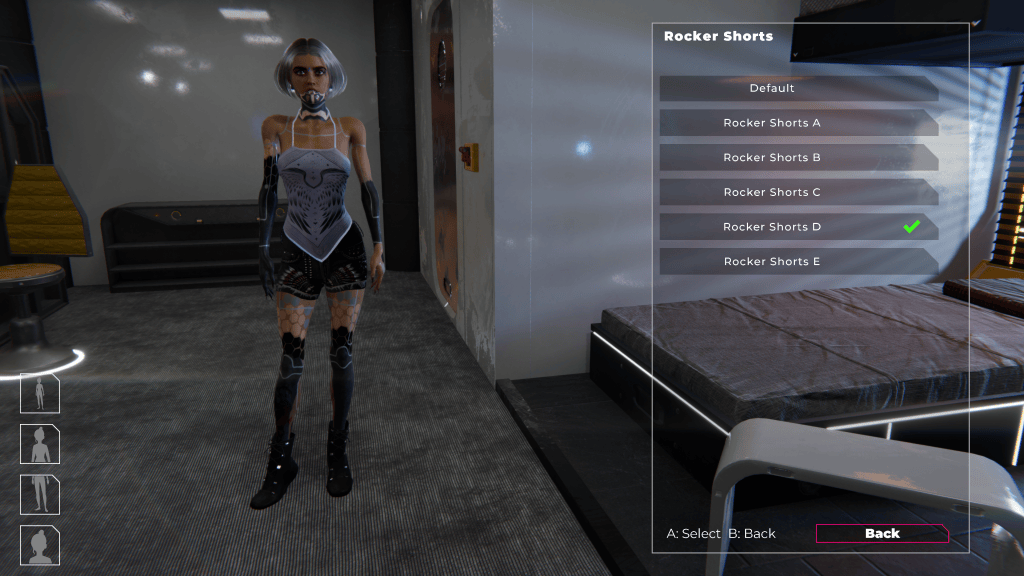
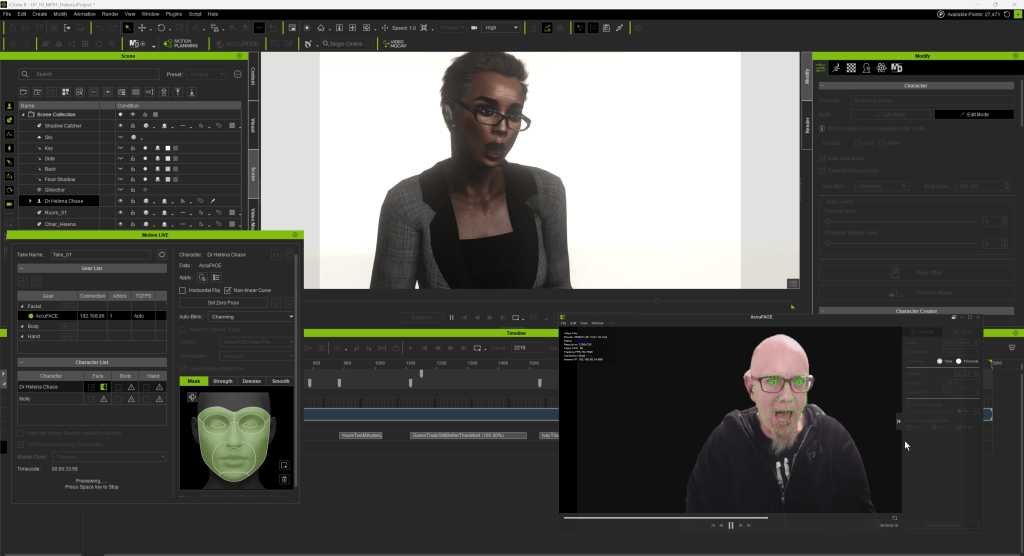
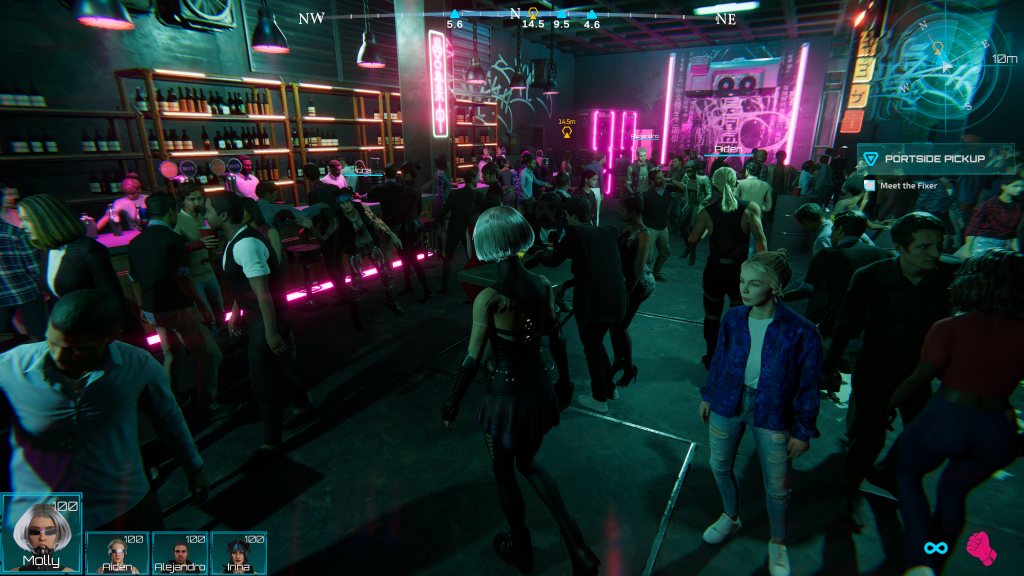
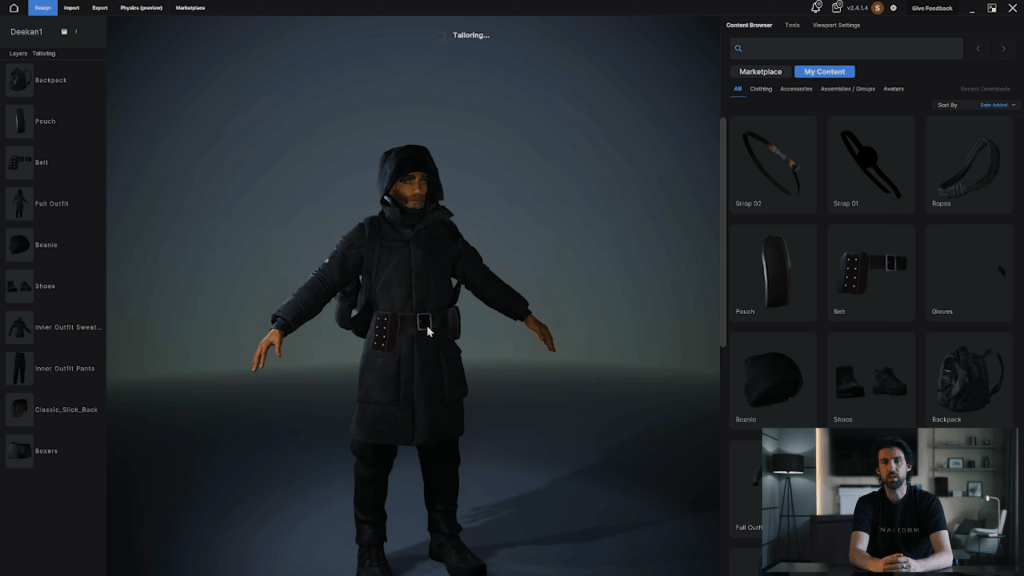
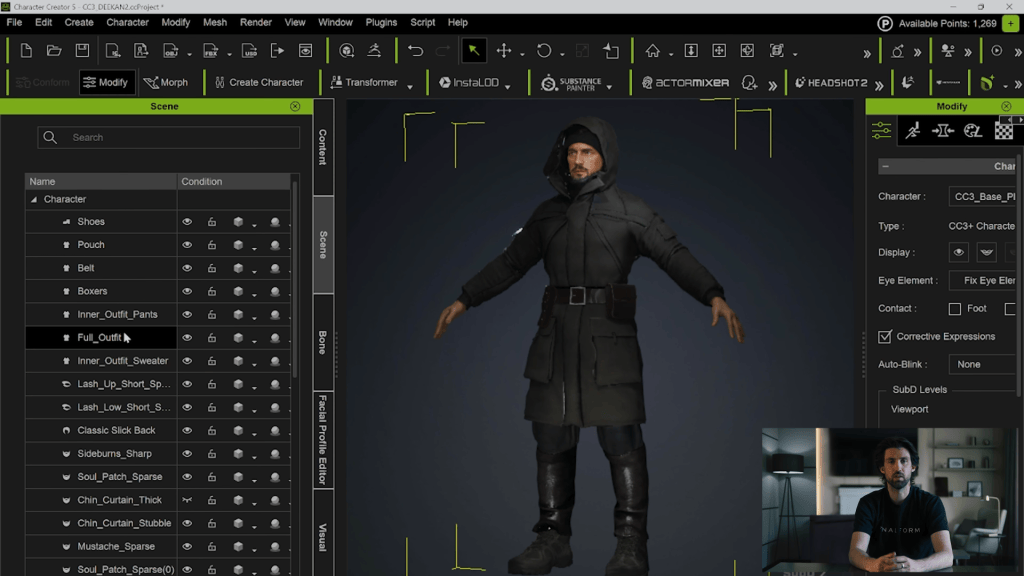
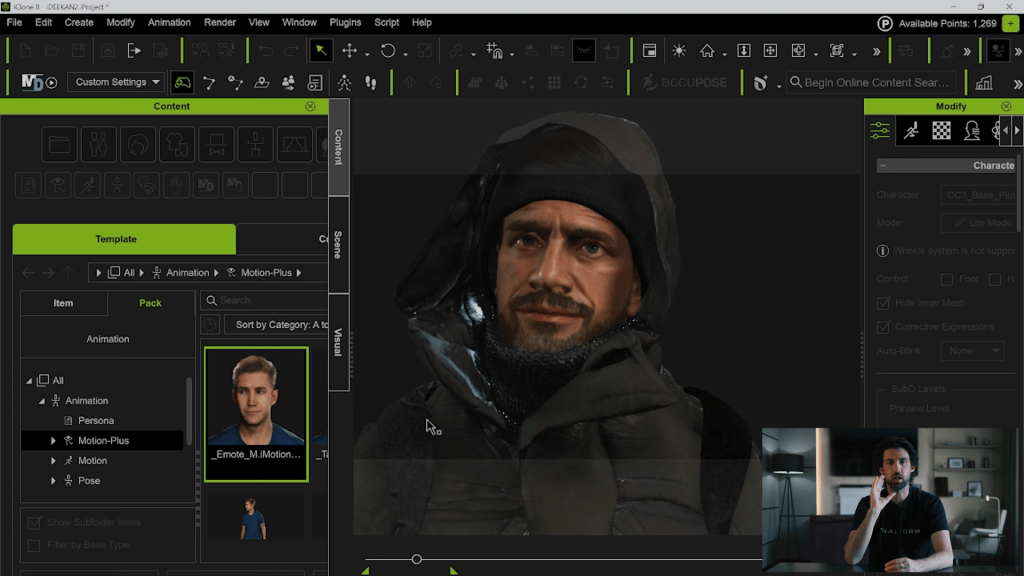
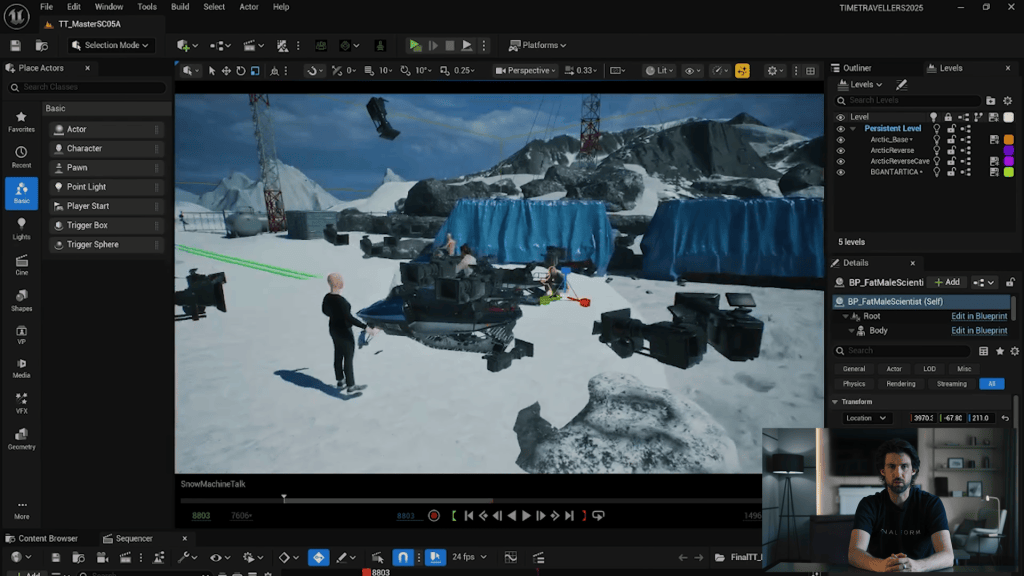
Hi, I’m Melis Caner, a 3D Generalist and filmmaker with a Film degree from Dokuz Eylul University. After graduating with a focus on cinematography, editing, and sound design, I discovered 3D animation during the pandemic that followed. Amazed by its limitless creative possibilities, what began as a hobby quickly became my career and a new form of self-expression. My lifelong love for drawing, dancing, and acting now comes together in 3D animation, blending all my passions into one art form.
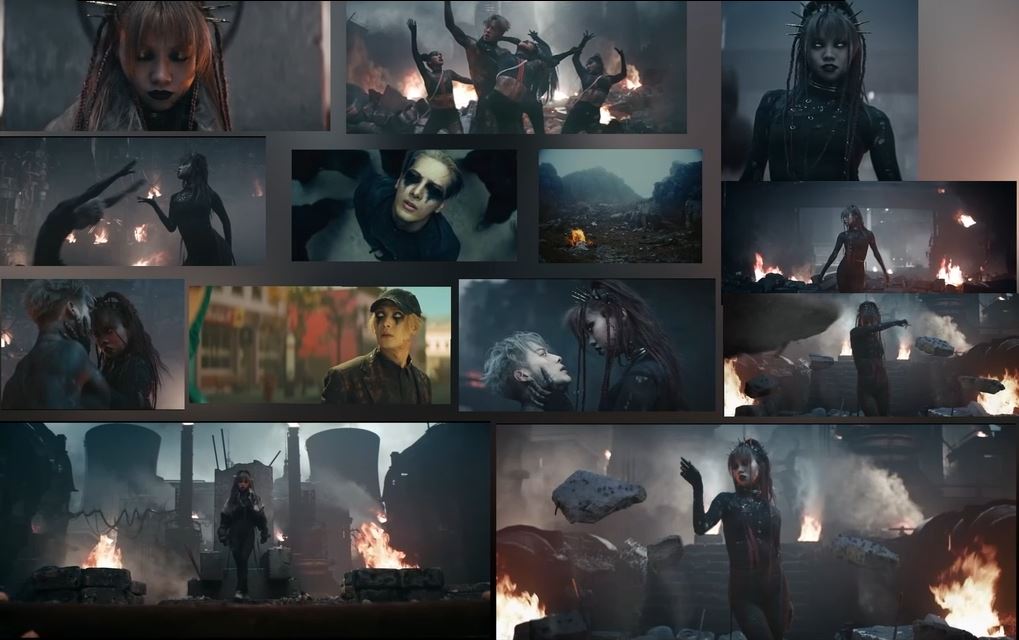
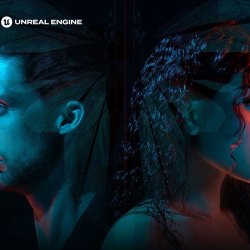
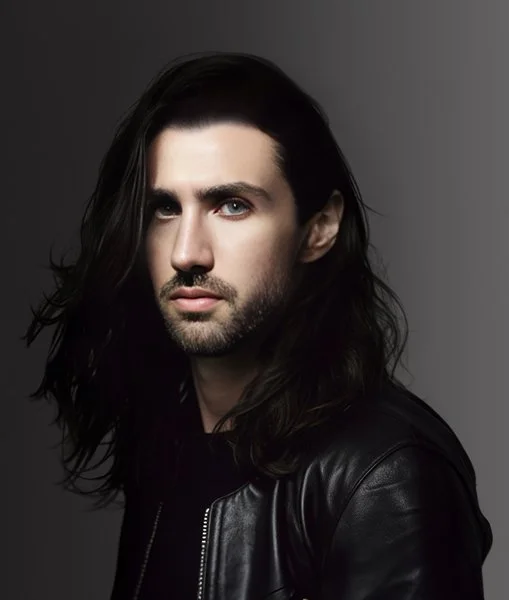
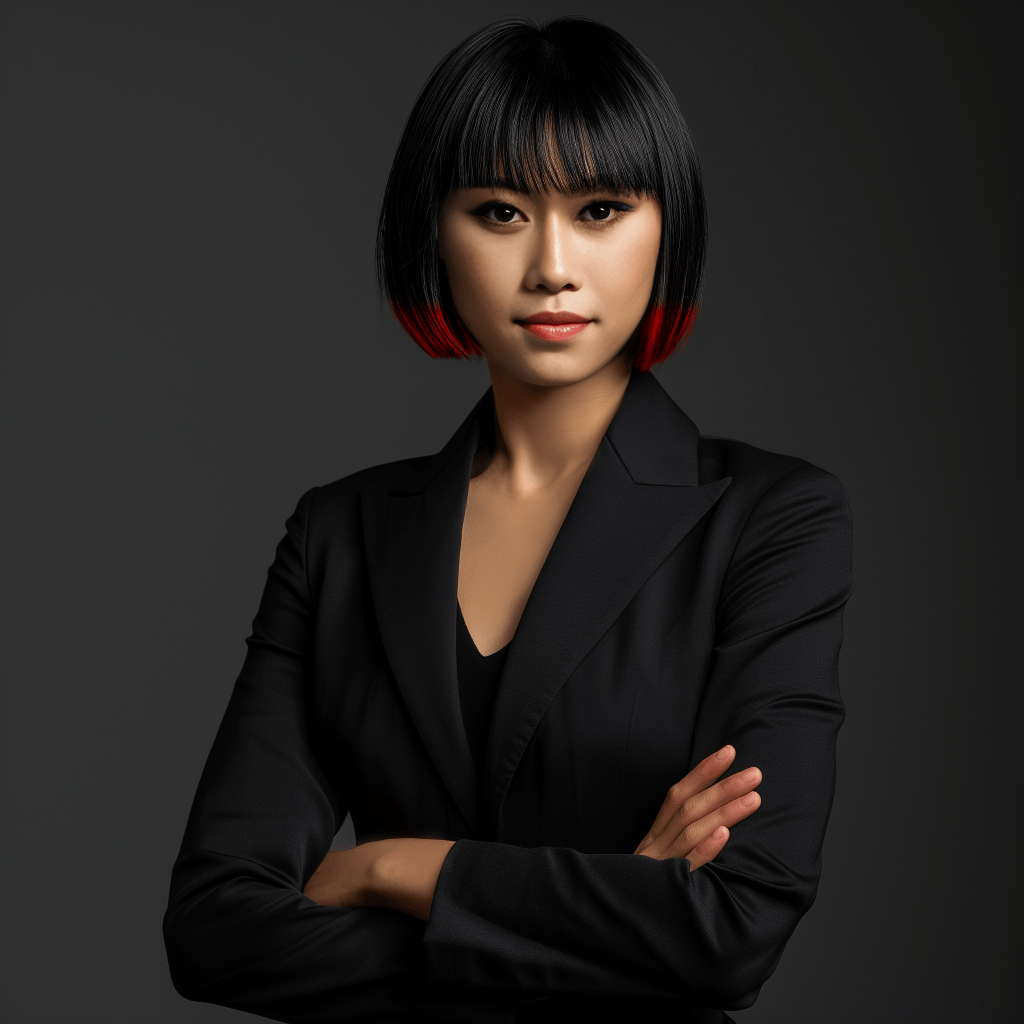
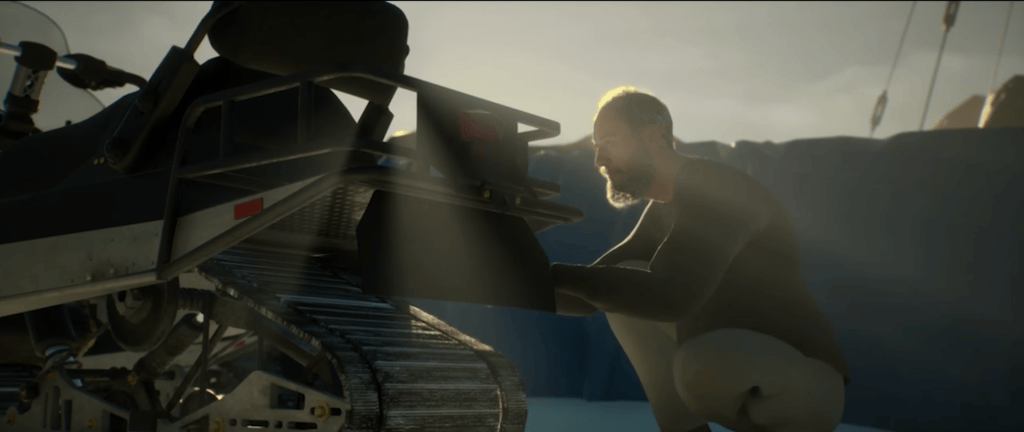
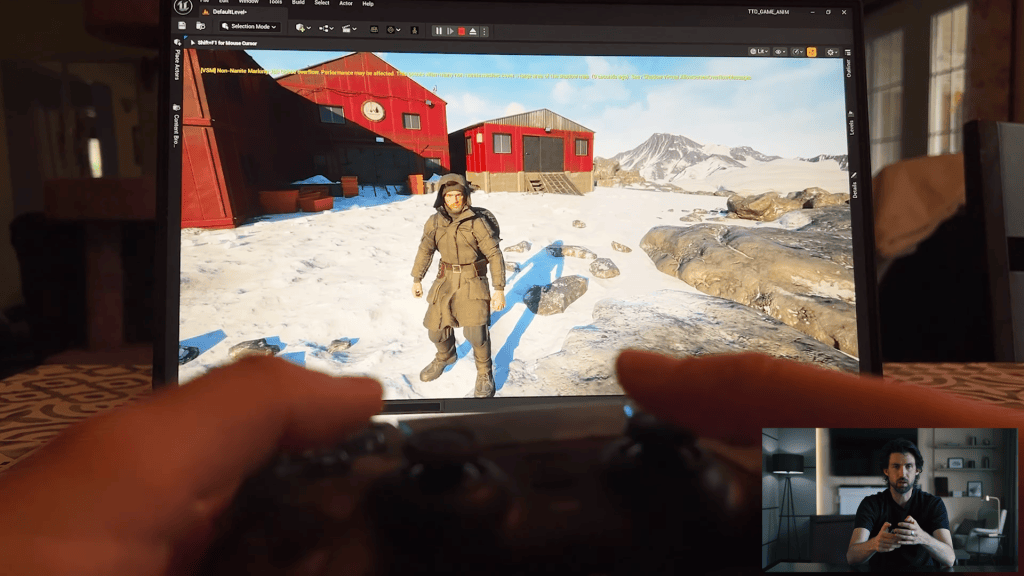
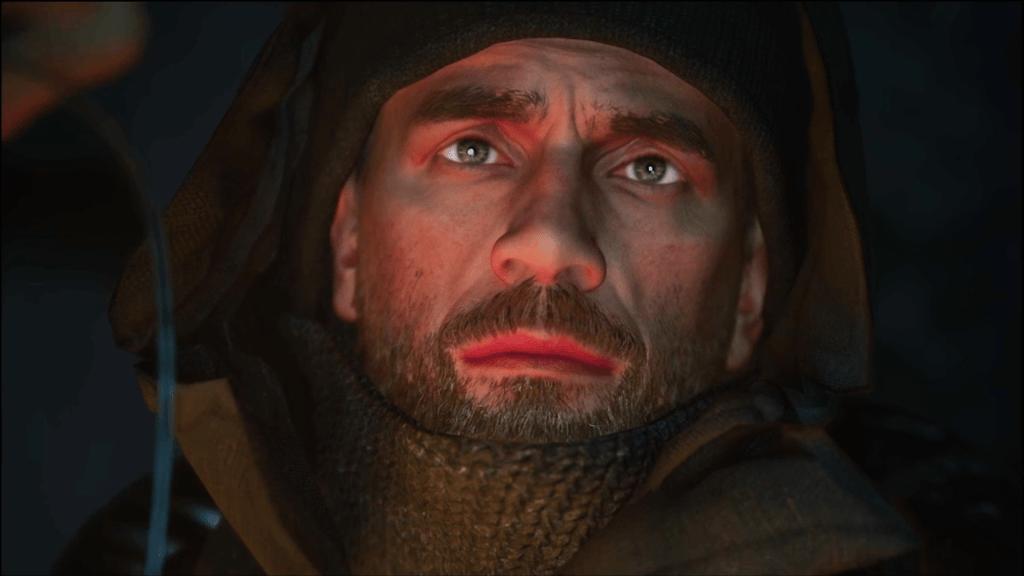
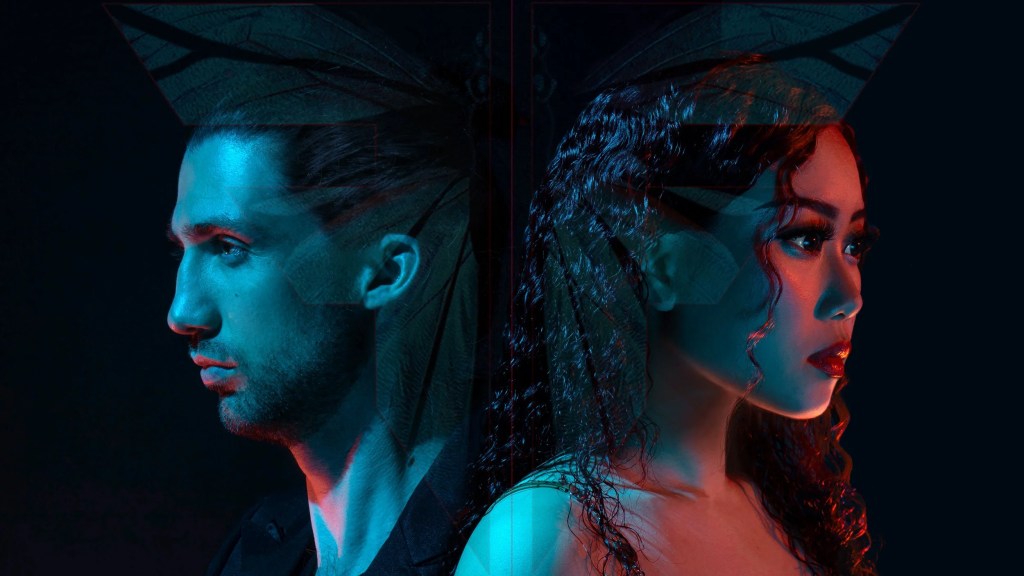
I’ve been obsessed with this music video. So I wanted to create a similar scene, but in my style. The character concept is a remake of Jackson Wang’s Music Video “Cruel.” Watch the full video side by side with my mood reference clippings.
I start by using the new HD stylized base model from Character Creator 5.
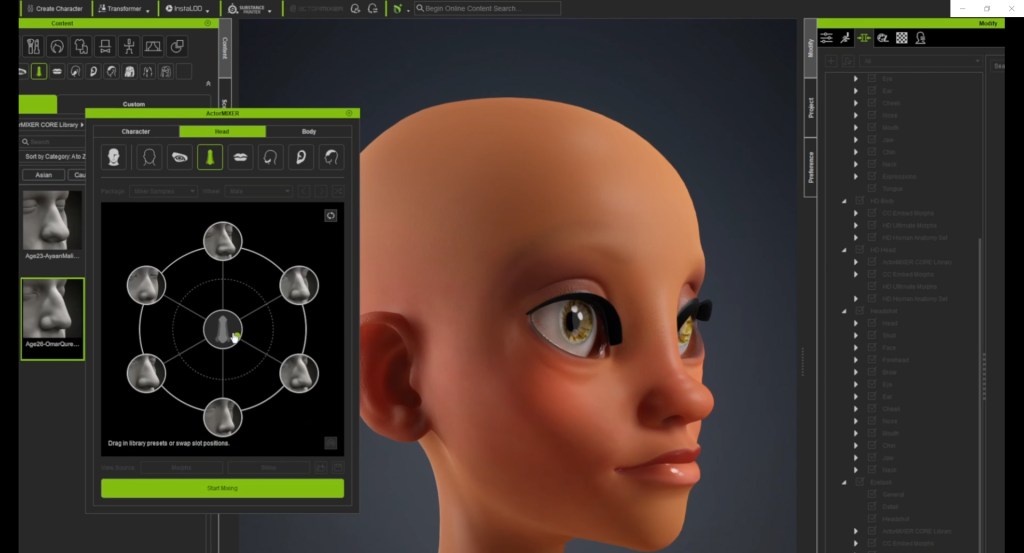
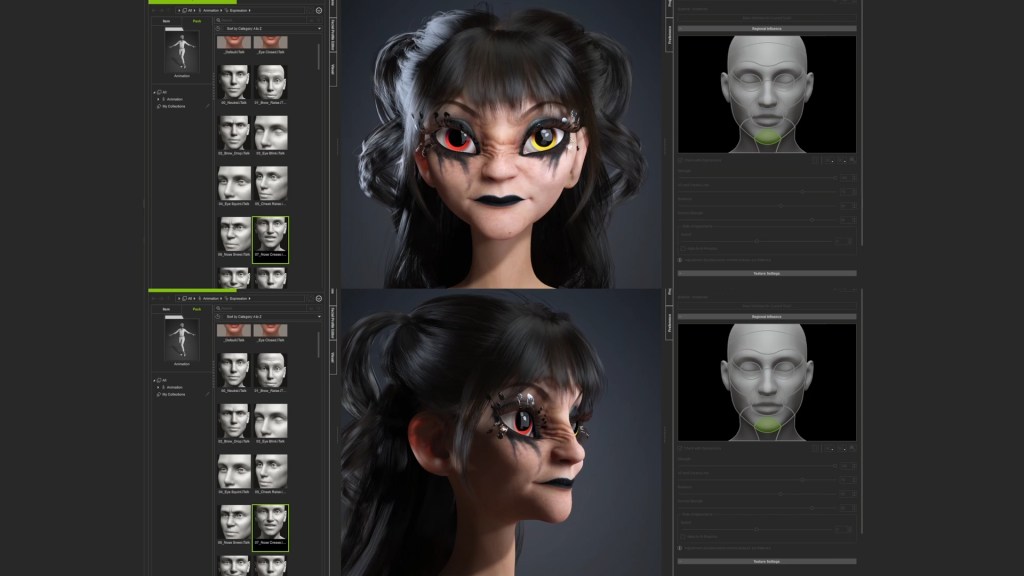
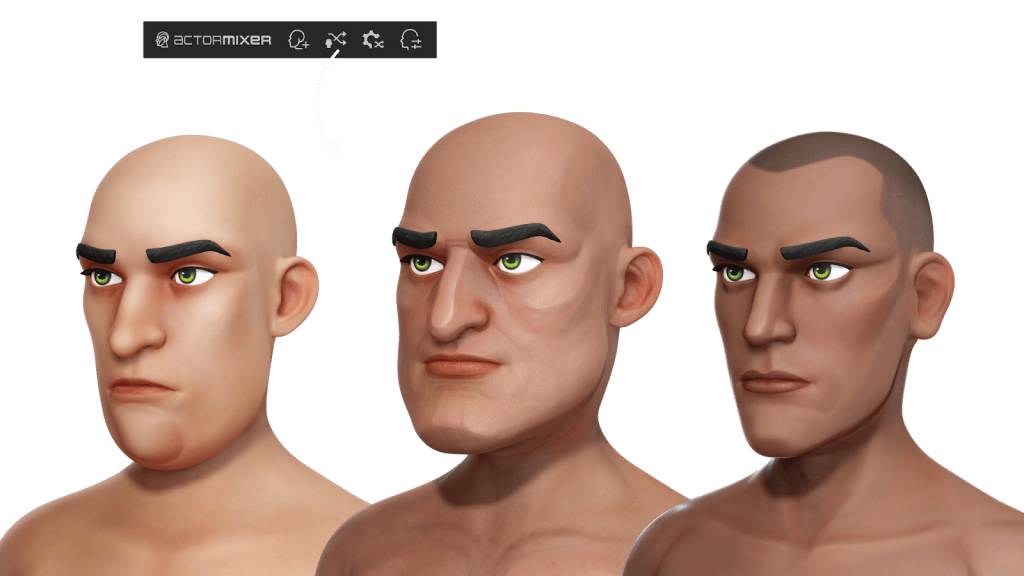
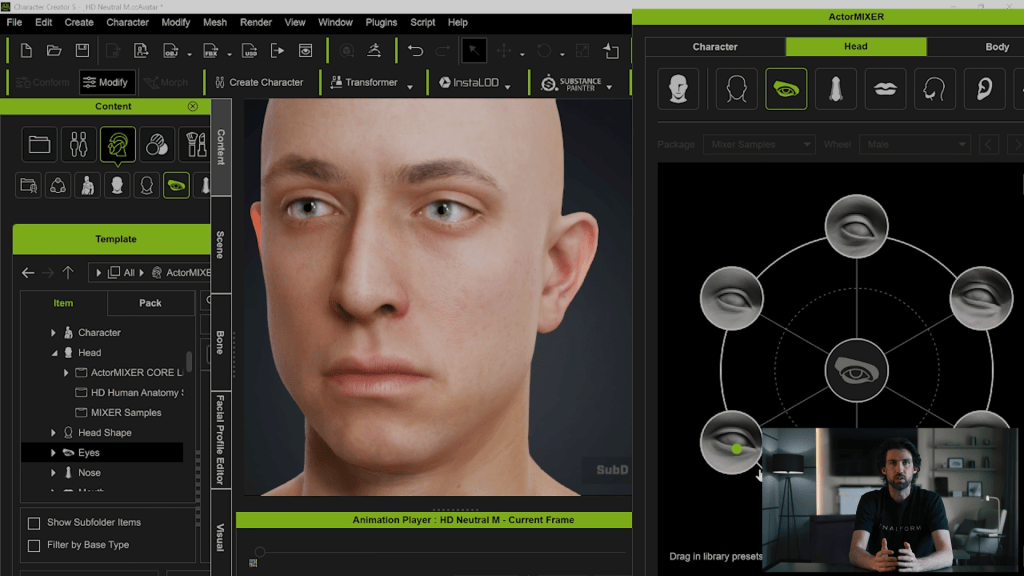
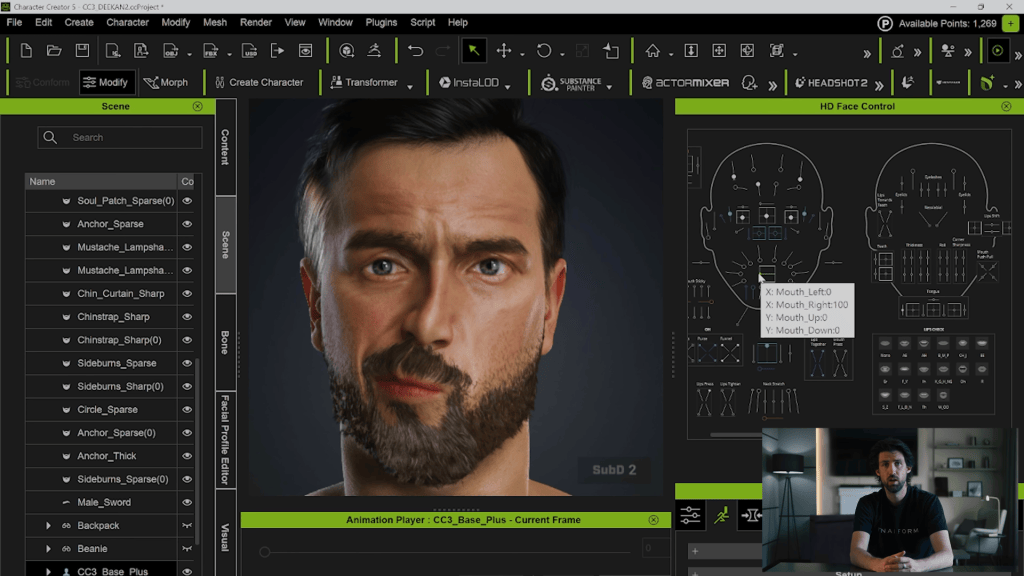
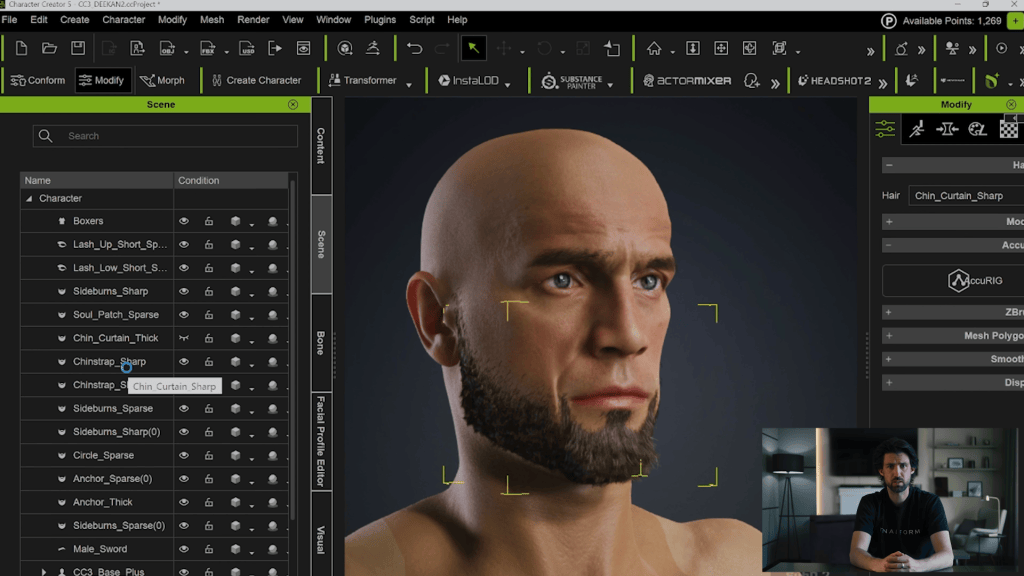
With ActorMIXER, you can combine different models and swap individual actor parts seamlessly. Just drag it onto your character, and the skin details will already look incredible. From there, I refined the makeup and ran a few expression tests, and the results turned out great as well.
ActorMIXER: a brand new way for character editing
If you are working on projects with unique character designs, using CC5 HD characters from the Reallusion Content Store will be more efficient. In the store, you will currently find several HD characters ready for use with ActorMIXER.
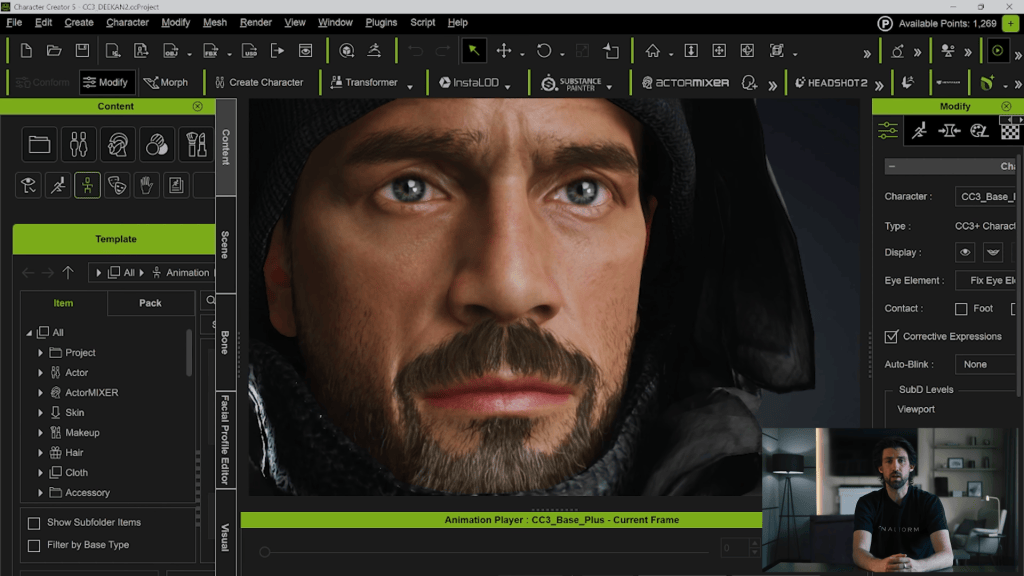
I would also recommend using the “Digital Soul 100+” pack for detailing the character expression. This saves my time tremendously in emoting the character.
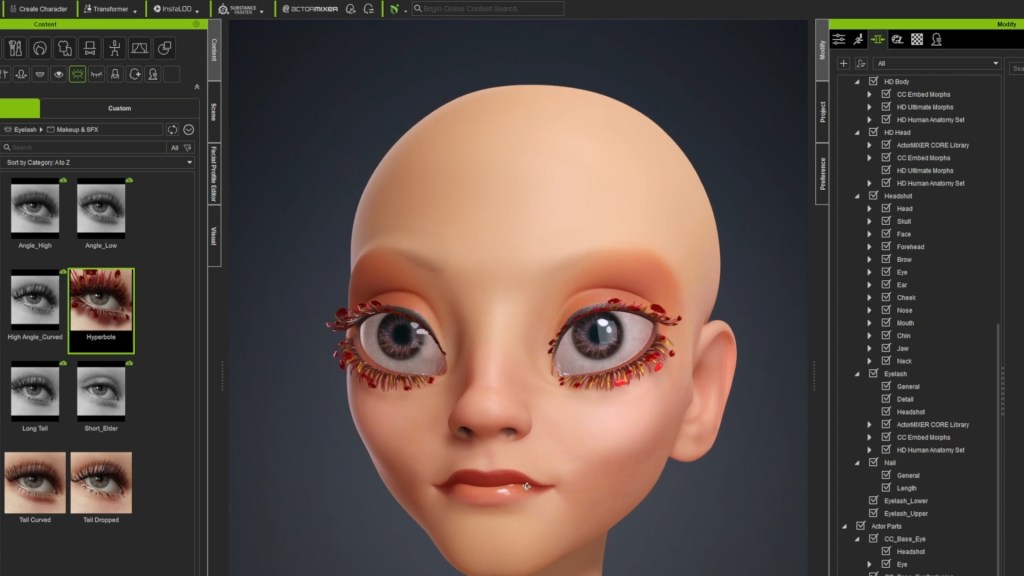
Appplying the HD eyelash content on the characterDigital Soul 100+ pack helps with quick facial expression settings
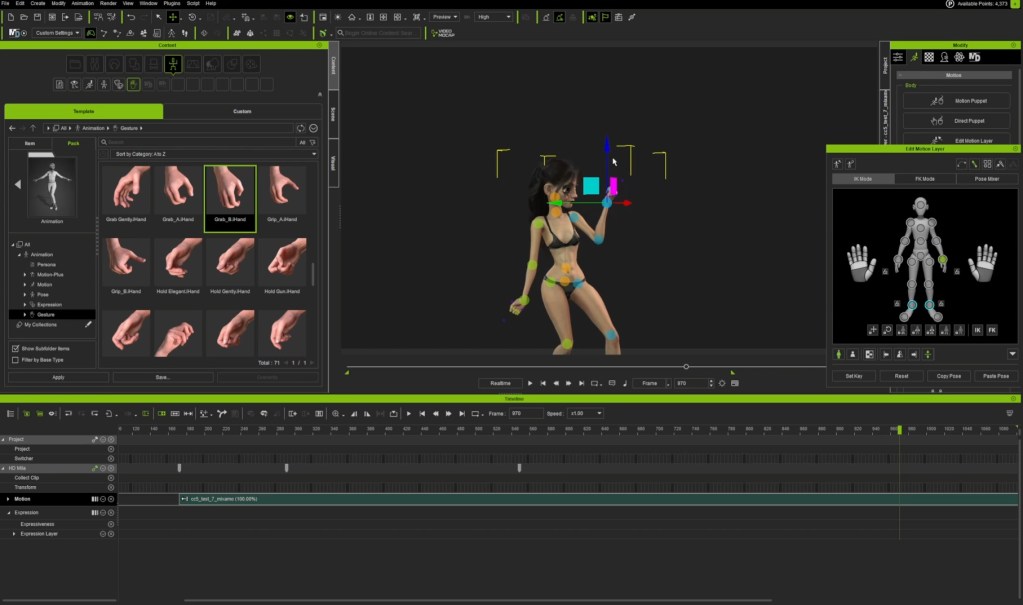
Rokoko Body Capture and Character Animation in iClone
I captured my motion with the Rokoko suit and cleaned the motion up in iClone. I added facial animation with my favorite “Digital Soul” pack. This basically drags and drops the selected expression, then applies it to my character.
Mocap in Rokoko suits
3D Cloth Customization and Cloth Simulation
For the outfit, I purchased a 3d suit on CLO Connect. I designed the cropped sleeves of the clothing, and then simulated everything in Marvelous Designer.
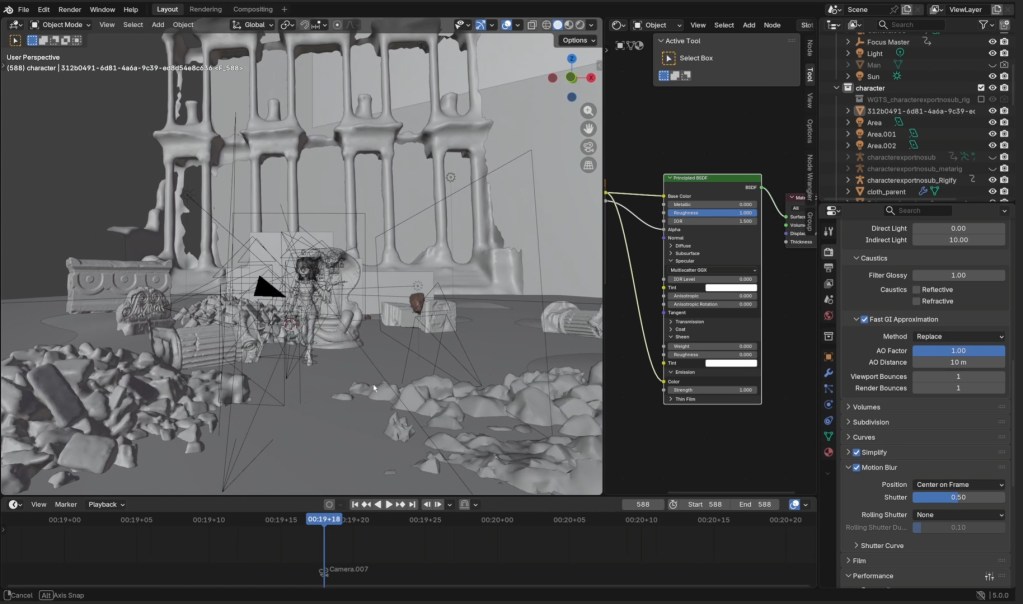
Scene Composition in Blender
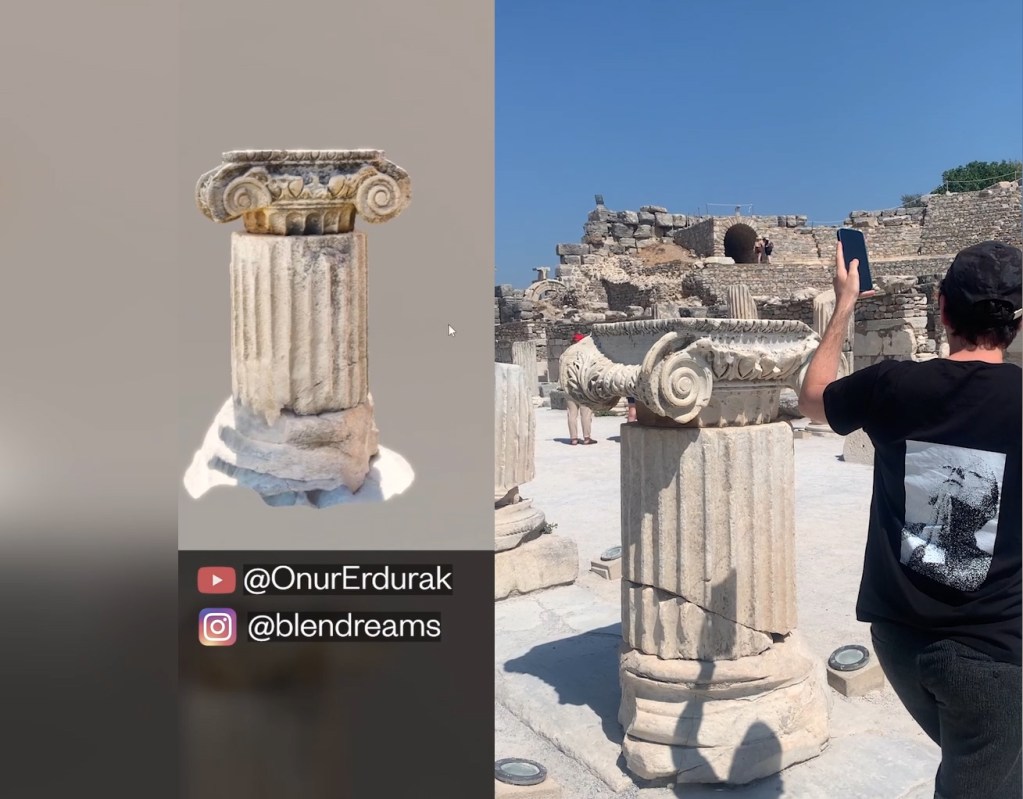
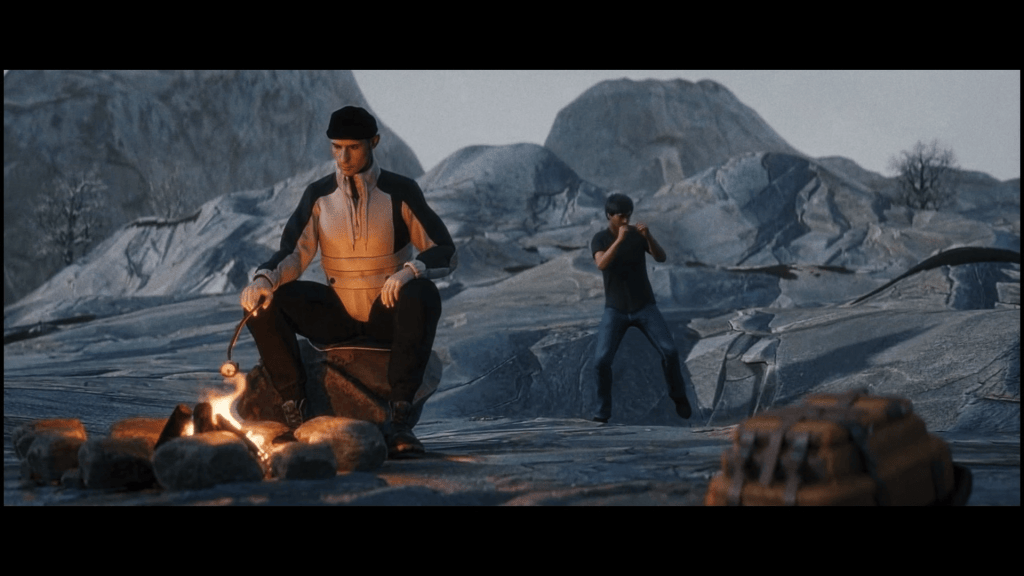
Finally, I built the scene in Blender using the 3D Scan tools that I scanned in the ancient city in Turkey, captured by Blendreams. Although I cannot move as coolly as the dancer queen, it is fun to see CC5 fit into my workflow. And Character Creator is truly a good companion with Blender.
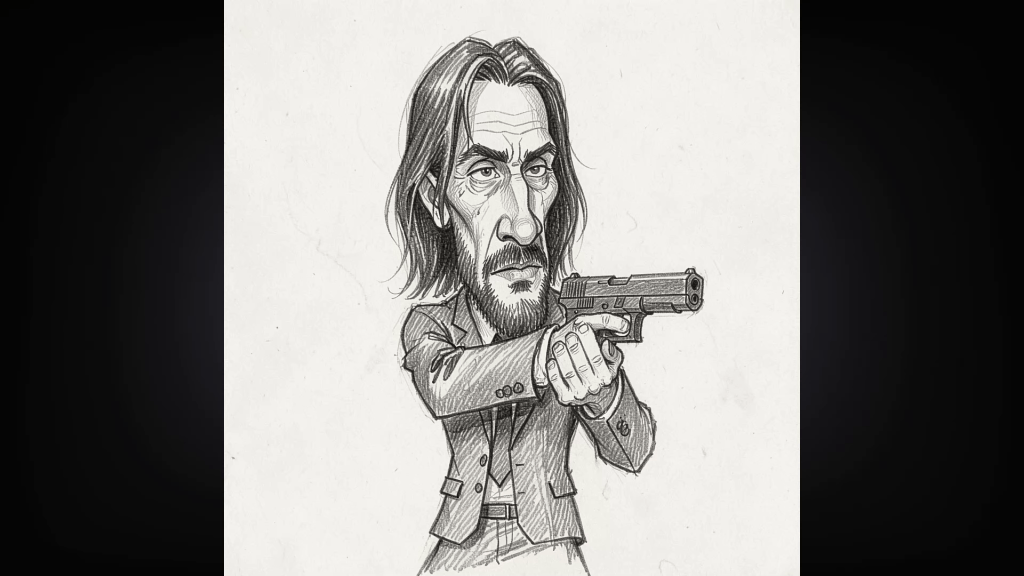
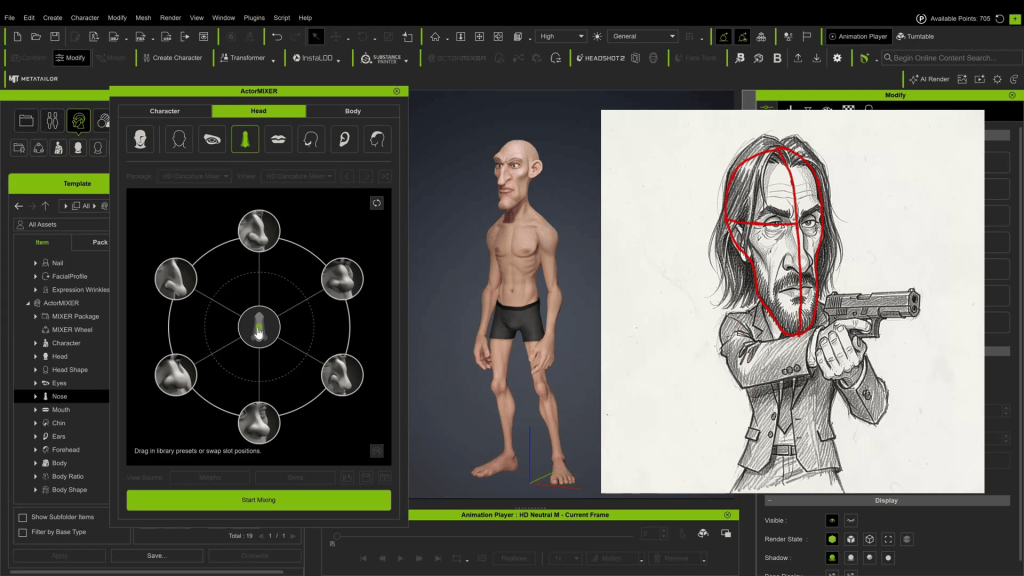
In this tutorial, we will quickly create a John Wick-inspired 3D caricature based on a sketch.
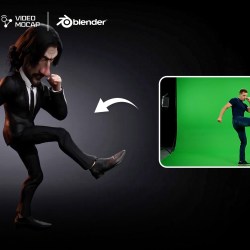
We will leverage the power of Character Creator’s ActorMIXER to create a strong base for an exaggerated character, use Blender for custom grooming and refining, and finally, bring the character to life in iClone. During this process, we’ll be using AI-generated animation and the Video Mocap plugin.
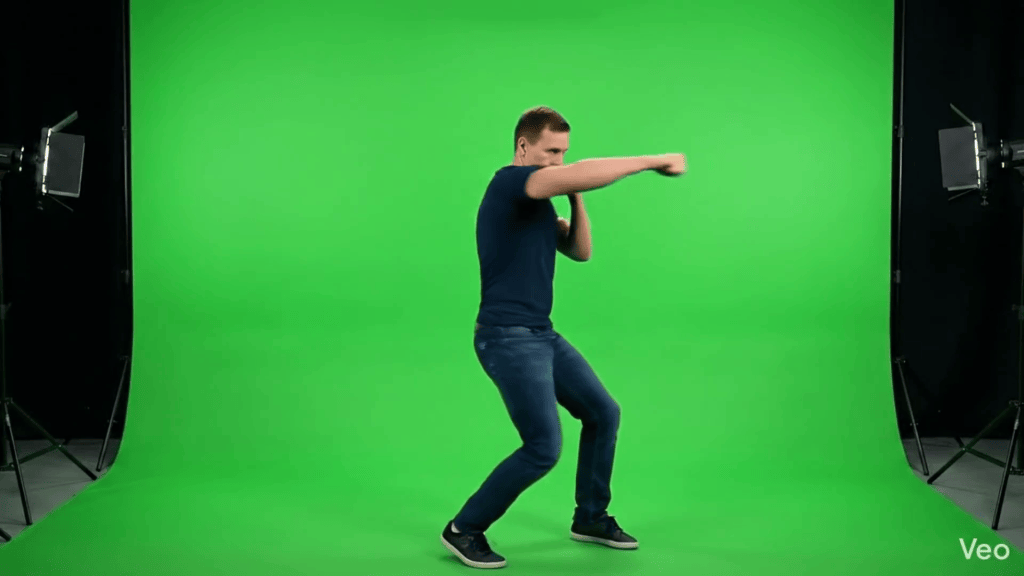
AI Video Generator (e.g., Google Flow/Veo) used for motion source.
Mythcons
Greetings, my name is Peter Alexander. In this demonstration, I’m going to walk you through how you can leverage Character Creator 5‘s new ActorMIXER as a powerful stepping stone to create unique, stylized characters. We’ll use the CC Base Mesh as our foundation, and ActorMixer will provide the next layer from which to build, making professional character creation that much easier. For this demo, I’ll be creating a stylized version of Arnold, using the Blender Autosetup pipeline, which is both cost-effective and efficient for creating characters and assets.
Step 1: Establishing the Foundation in Character Creator
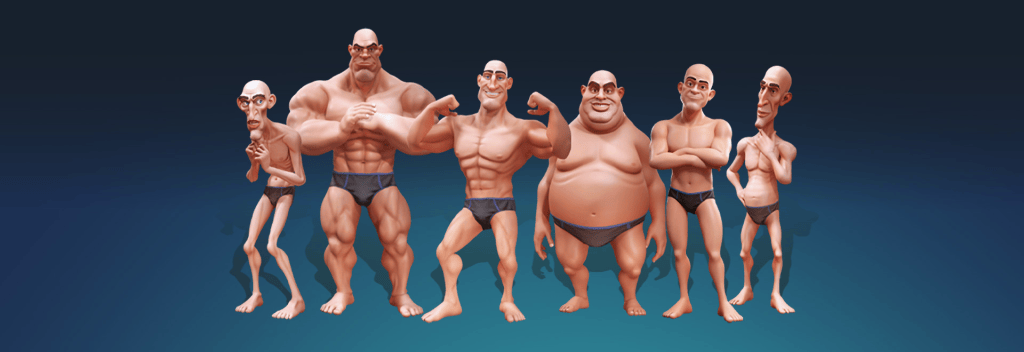
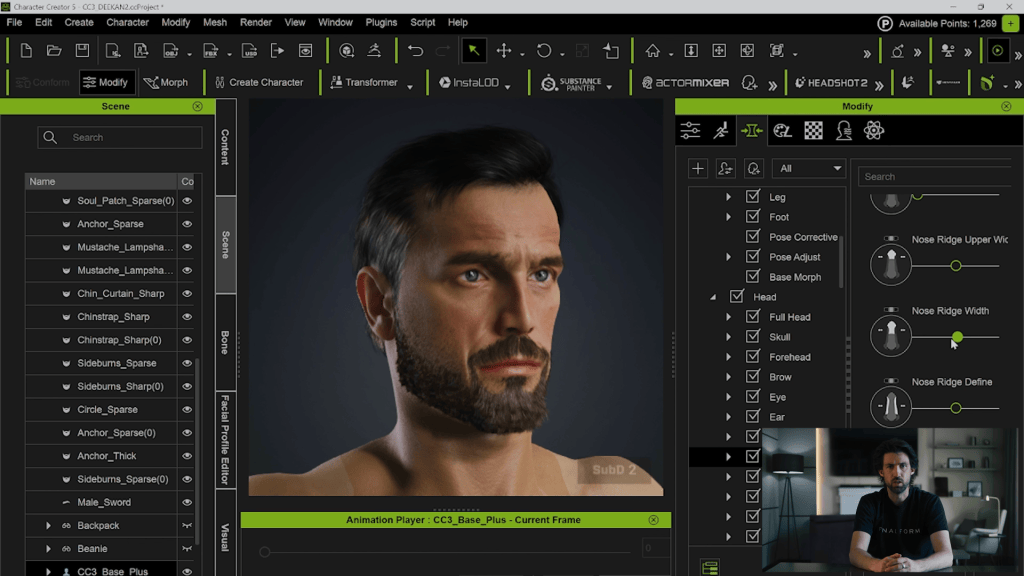
The hardest part of character design is often just getting started in a specific direction. ActorMIXER, combined with the CaricatureMIXER pack, makes this easy by providing useful directions for body types and character exaggeration.
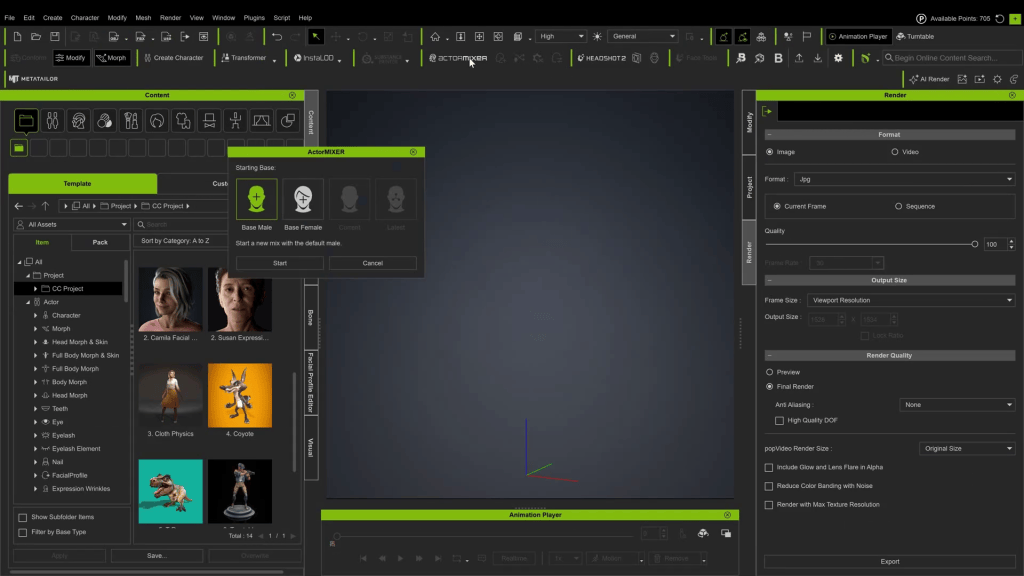
Initiate ActorMIXER: Start by loading up ActorMIXER within Character Creator. Select the standard “Male” option.
Define the Shape: Ensure the CaricatureMIXER pack is loaded. Begin defining the character’s shape by mixing the presets.
Target the Look: For a John Wick caricature, aim for a fairly slender body, a thin face, and a long, narrow nose. Leaning towards the “Thin” shape preset in the CaricatureMIXER pack is a good starting point to dial in the exaggeration.
Pro-Tip: While these packs provide a solid foundation, to really develop a strong caricature style, it is highly recommended that you study master artists like Tom Richmond.
Step 2: Refining Proportions and Initial Assets
Once the general direction is set in ActorMIXER, exit back to the main Character Creator interface for refinement.
Adjust Proportions: Use Character Creator’s tools, such as Morph Sliders, the Proportion Editor, and the Edit Mesh tool, to adjust the character further.
Exaggerate the Head: Caricatures are often defined by larger-than-normal heads. Scale the head up to achieve that distinct caricature look.
Add Base Assets: Give the character a basic prefab suit from your existing content library and add some initial facial hair.
Assess Needs: If you cannot find the exact hairstyle needed in your library, prepare to send the character to Blender for custom creation.
Step 3: Custom Grooming and Rigging in Blender
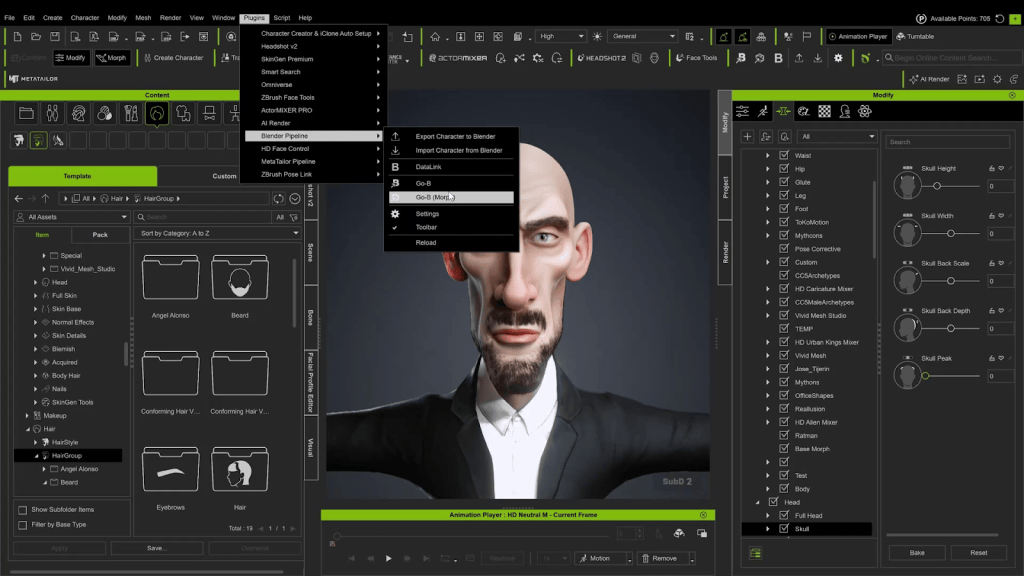
Send the character FBX to Blender to refine the sculpt, fit clothing better, and create custom hair.
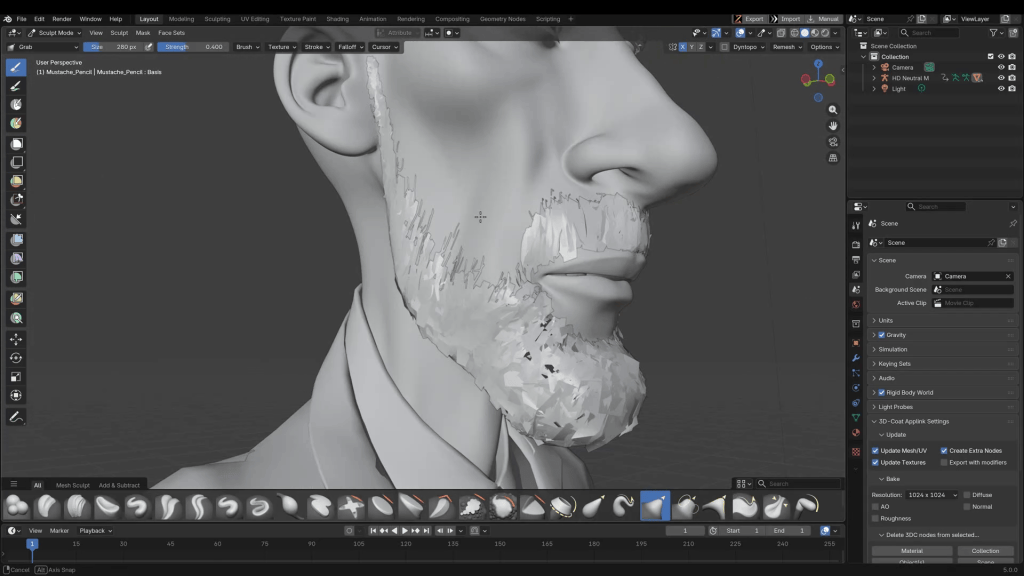
Refine Sculpt and Clothes: In Blender, use sculpting tools to further refine facial features and adjust the fit of the clothing over the exaggerated body shape.
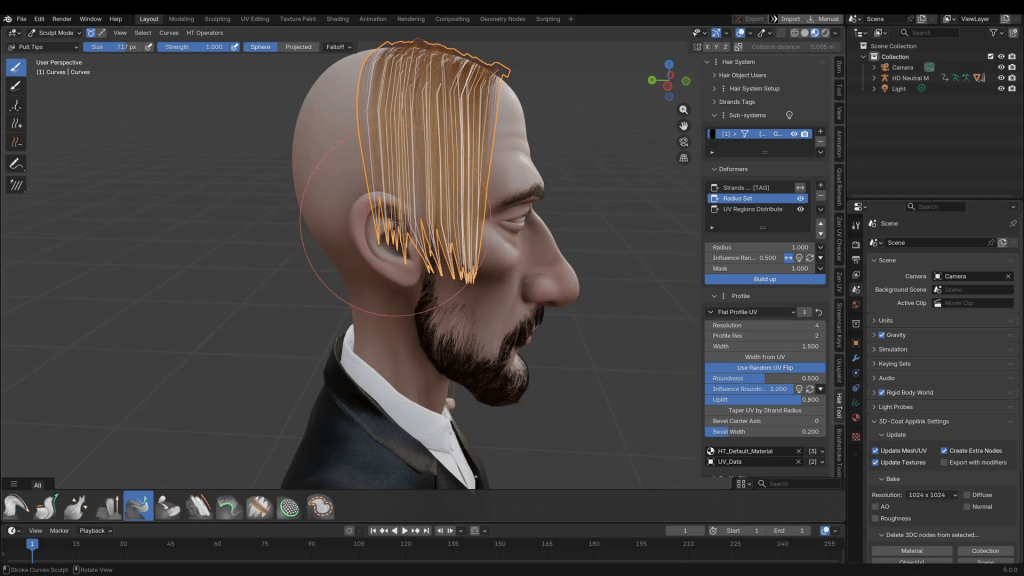
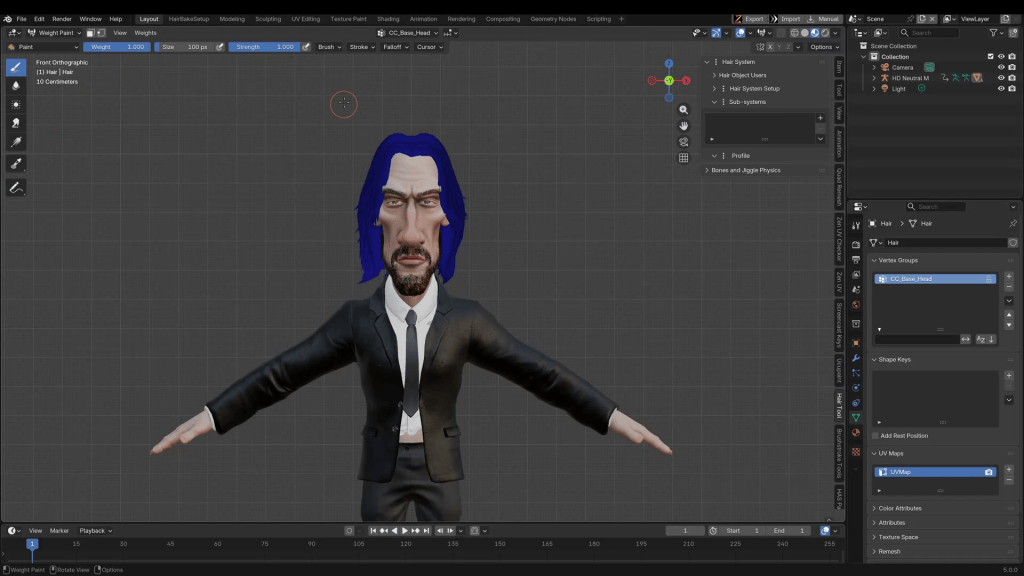
Create Hair: Create a custom hairstyle. The Blender “Hair Tool” add-on is highly recommended for assisting with basic hairstyles. (Optional: Add extra assets, such as a suitable tie, if available in your Blender assets).
Rigging Assets: Once the hair and accessories are created, they must be rigged to the main character’s armature.
Select the item (e.g., the hair object).
Hold Shift and select the character armature.
Press Ctrl + P to parent them.
Choose “With Automatic Weights” (this is the most common selection for clothing).
Adjust Weight Skinning: Refine the rigging by adjusting weight painting. For short-to-medium hair like this, generally assign 100% of the weights to the “Head” vertex group. (For longer hair, you might also need to include neck groups).
Step 4: Preparing AI Motion Capture in iClone
With the character model finalized, send it back through Character Creator for any final checks, and then export it to iClone. Before applying motion to the character, you need a source video for the motion capture.
Generate AI Video: Use an AI video platform (such as Google’s Flow using Veo) to generate the desired motions. For this tutorial, three martial-arts style clips were generated and stitched together to create an 18-second fight sequence.
Motion Selection Advice: The Video Mocap plugin is a credit-based service. To maximize it, use input videos with very deliberate motions that are not too fast. Things like dance moves are perfect; super-fast combat motions or flips might yield mixed results.
Step 5: Applying Motion Capture
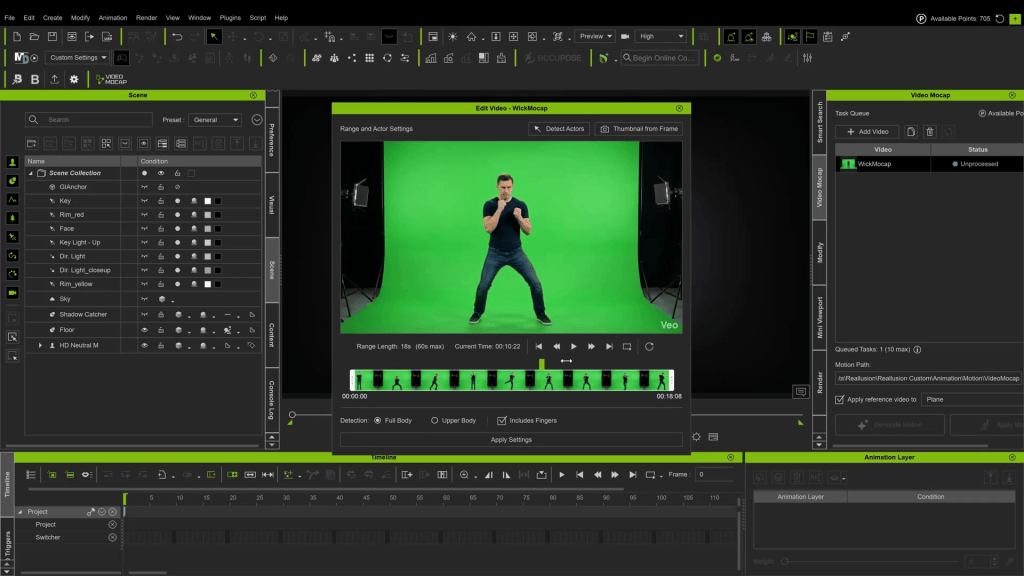
Load the Video Mocap Plugin: In iClone, open the new Video Mocapaddon.
Import Source Video: Load your AI-generated martial arts video.
Settings: If it is a solo animation, you do not need to select “Detect Actors”.
Sample the Motion: Analyze and sample the video movements. (Note: This 18-second video took approximately 10 minutes to sample. While this seems long, manually animating these moves would take significantly longer).
Conclusion
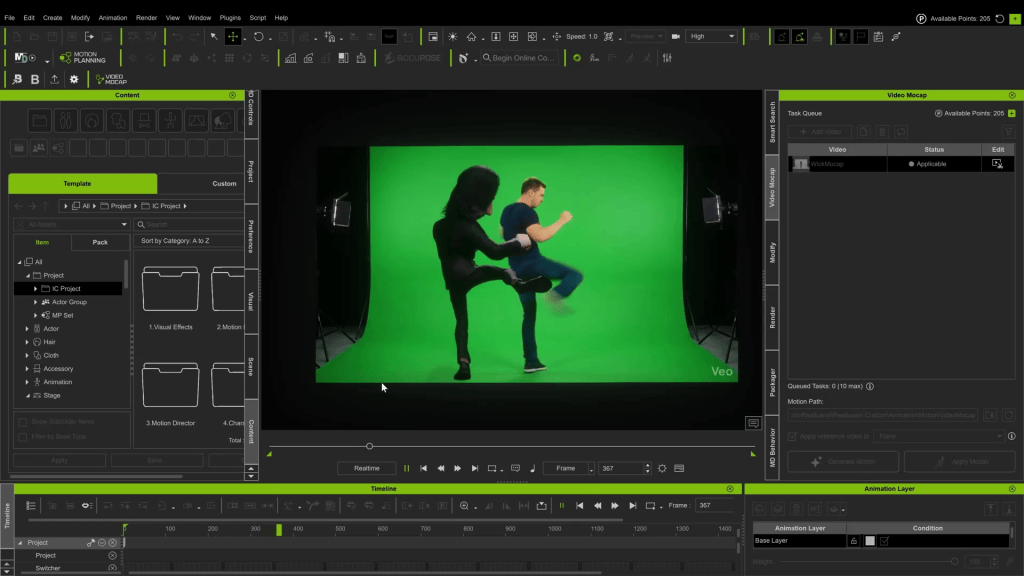
Once the motion is generated, apply it to your character. iClone will generate a plane showing the input video behind your character for comparison purposes.
By experimenting with clear video inputs, you can maximize your animation results. And there we have it: John Wick is animated and ready for revenge.
Cartoon Animator: A New Creative Era for 2D Animators
What happens when decades of traditional animation experience meet modern artificial intelligence? According to Australian illustrator and animator Garry Pye, it doesn’t replace creativity—it amplifies it. In a world where anyone can now press a button to generate an image, the real opportunity lies in combining AI with professional animation tools to gain speed and control.
This article explores Garry Pye’s evolving 2D-first workflow—blending Cartoon Animator (CTA), AI-powered image and video generation, and professional post-production tools—to show how 2D animators can create their own character, design compelling stories, and future-proof their creative careers without abandoning familiar pipelines.
From Pencil and Paper to AI-Assisted 2D Creativity
For most of his life, Garry learned animation “the hard way.” Reference books, hand-drawn sketches, frame-by-frame animation—every skill earned through repetition and persistence. Creating a simple cartoon scene once meant hours or days of preparation.
AI changed that overnight.
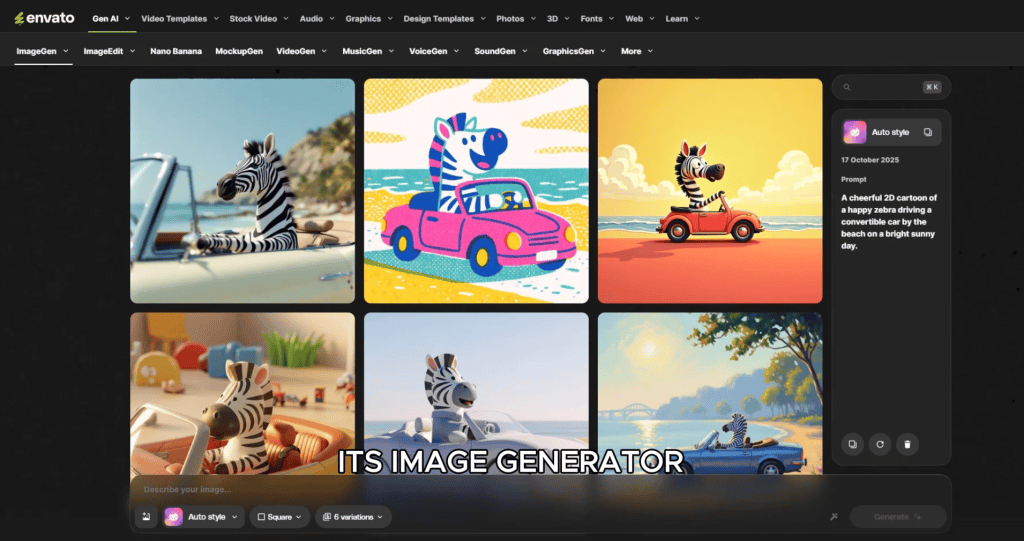
By describing an idea—like a zebra driving a convertible along the beach—Garry can now generate concept images in seconds. Even better, those images can be refined through iterative prompts: wardrobe changes, lighting adjustments, props, and camera angles.
But while AI accelerates ideation, Garry quickly learned an important lesson: AI alone is not a one-stop shop.
AI Is Not a Pipeline—It’s a Powerful Assistant
Despite its impressive results, AI still struggles with long-form storytelling, precise character acting, and consistent performance across scenes. Generating one good image often means discarding several unusable ones.
That’s why Garry approaches AI as a modular toolkit:
ChatGPT / Grok for ideation, scripts, and concept exploration
AI image generators for rapid visual development
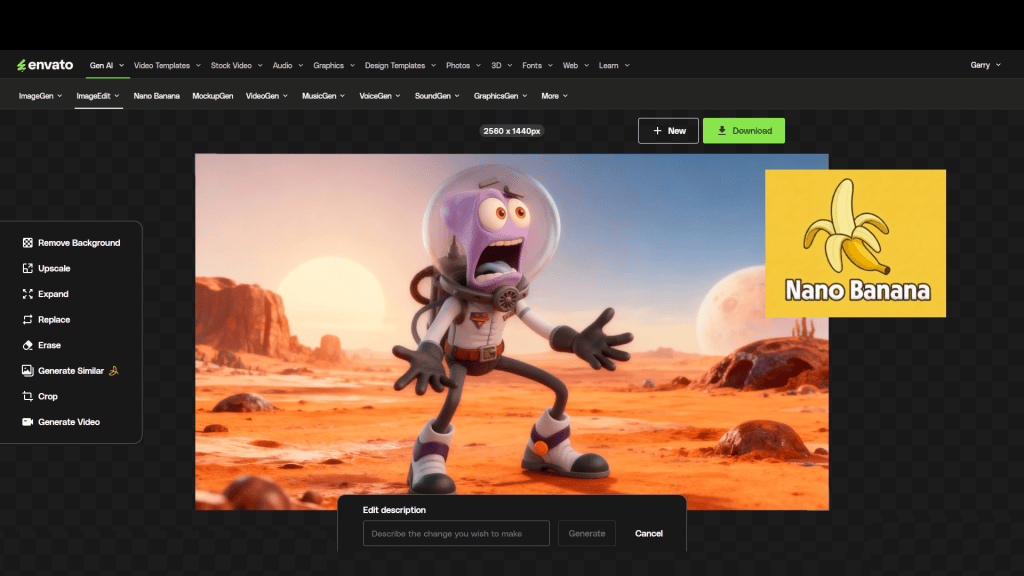
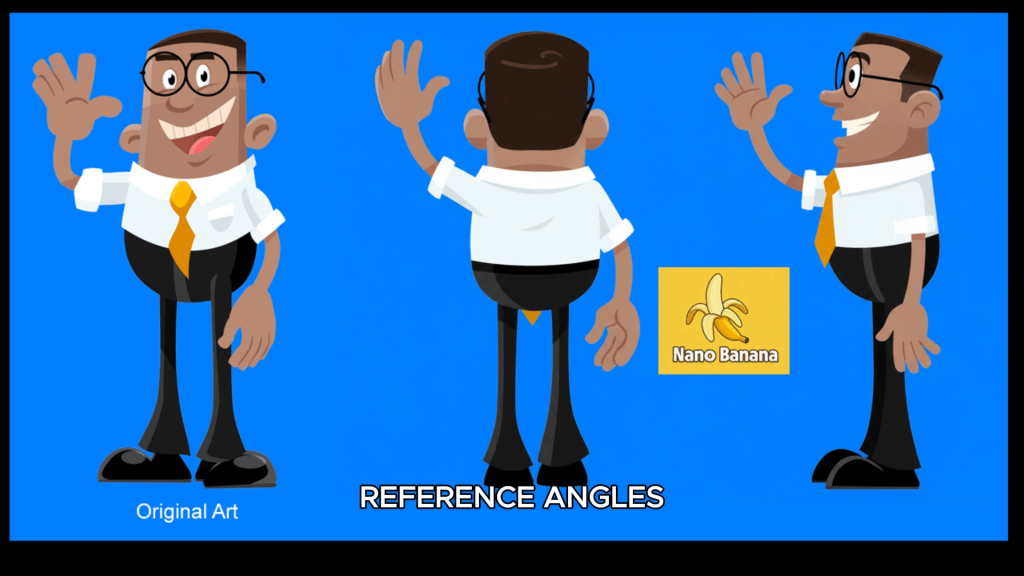
Nano Banana for controlled image editing and camera angle changes
Envato Image to Video for short animated sequences
Photoshop for cleanup and compositing
CapCut for final edits
This modular approach allows one animator to achieve results that previously required a full production team.
Every day, Garry begins by opening ChatGPT and having a conversation. Rather than issuing commands, he treats it as a creative collaborator—sharing goals, ideas, and challenges.
ChatGPT and Grok are used for:
Producing reference images
Story concepts and scriptwriting
Visual descriptions for image generation
Exploring alternate narrative directions
The more specific the prompts, the better the results. Garry emphasizes that AI must be guided carefully—clear language and precise direction are essential.
Why 2D Artists Have an Advantage
Although AI excels with 3D figures, Garry’s expertise lies firmly in 2D animation—and that’s where Cartoon Animator truly shines as a professional 2D animation software.
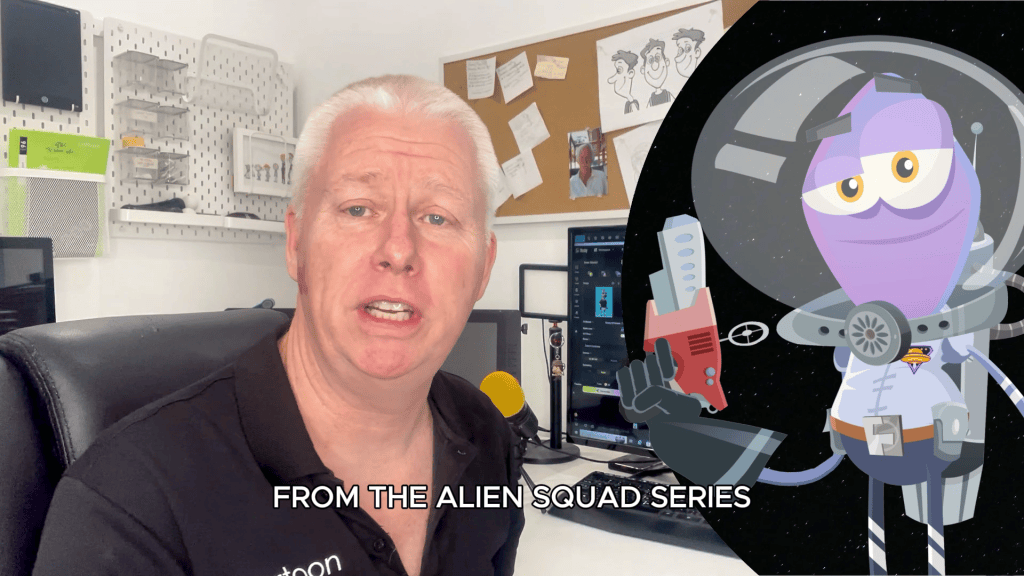
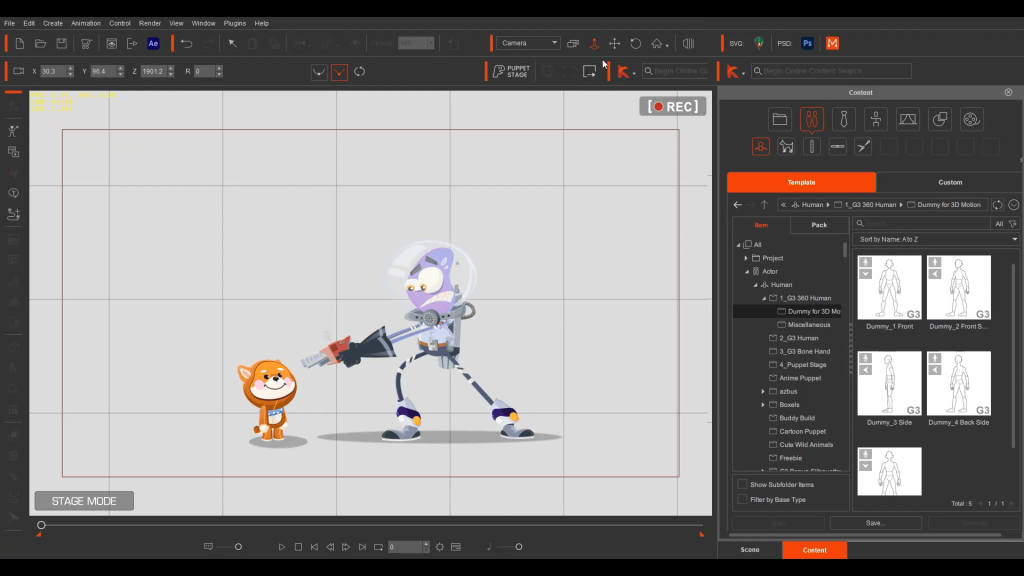
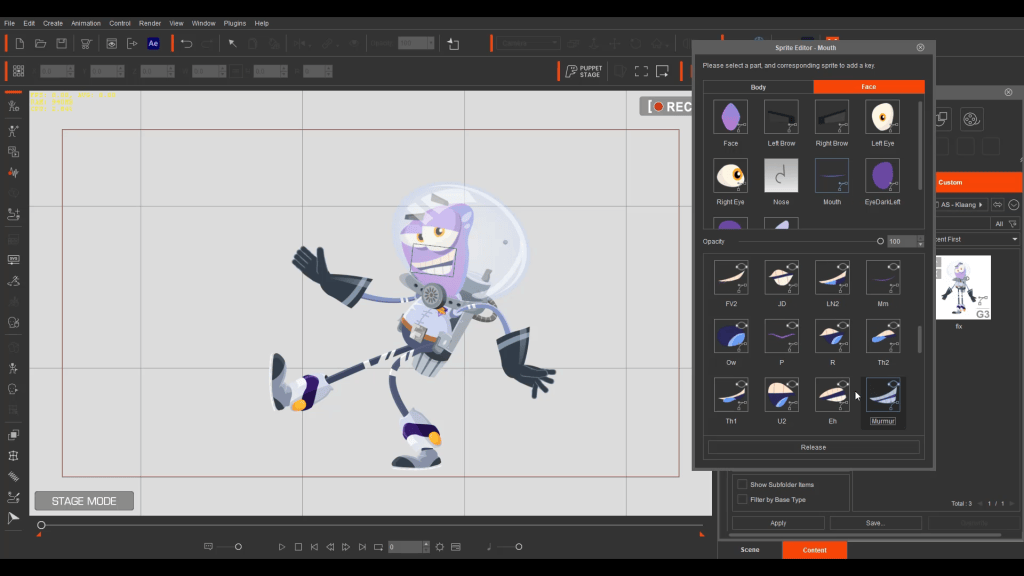
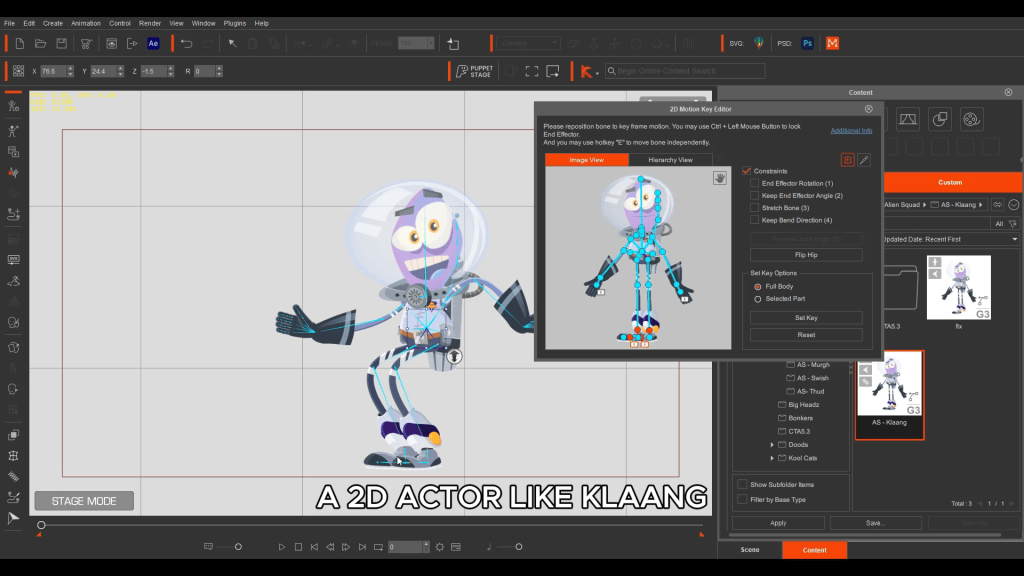
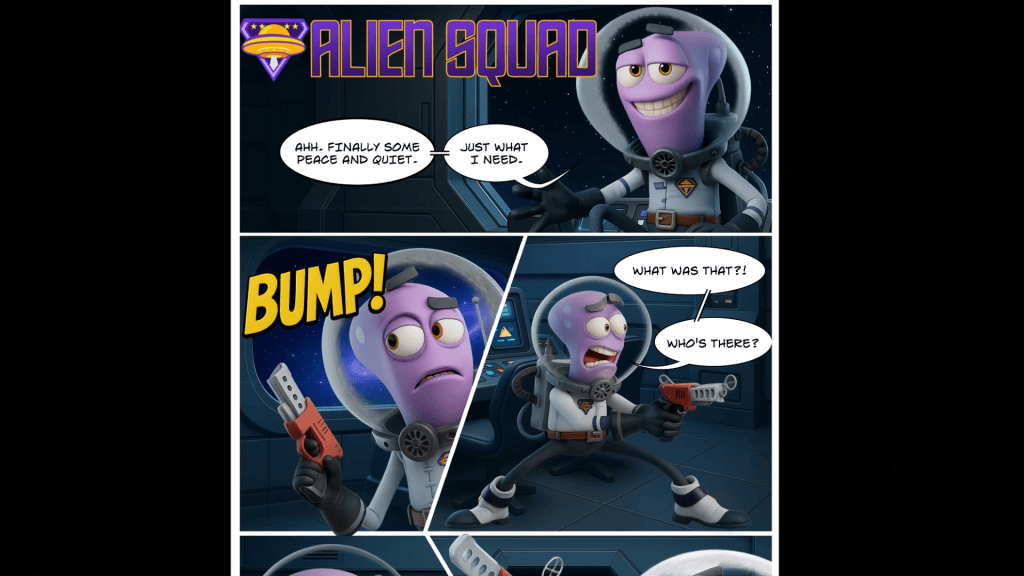
Using his original 2D character, Klaang from Alien Squad, Garry demonstrates a powerful 2D-centric hybrid workflow that keeps Cartoon Animator at the core:
Pose the character in Cartoon Animator
Export a still image
Ask AI to reimagine that pose as a 3D character
Refine results in Photoshop
The consistency across poses is impressive, and each pose becomes a standalone asset usable in print, comics, or animation.
This approach bridges 2D and 3D while keeping 2D animation, sprites, and performance control inside Cartoon Animator—without requiring deep modeling knowledge.
Envato: Image, Edit, Animate
Envato has become a cornerstone of Garry’s AI workflow. Its tools combine image generation, editing, and animation in one evolving platform.
Nano Banana: Controlled 2D Creativity
Nano Banana allows creators to edit only what they request—preserving character identity, lighting, and composition. Unlike many AI tools, it doesn’t randomly alter the entire image.
Key advantages include:
Camera angle changes from a single image
Selective edits
Lighting and color adjustments
For Cartoon Animator users, this is equivalent to gaining virtual 3D camera control inside a 2D pipeline.
Image to Video: Speed Meets Consistency for 2D Animation
Envato’s Image to Video generator has transformed Garry’s workflow. By defining a start and end frame—often created directly in Cartoon Animator’s Stage or Composer modes—he maintains visual consistency while AI fills in the motion.
In under an hour, Garry can:
Set up shots
Generate multiple animated clips
Assemble them into a coherent sequence
Even creators who struggle to draw can now produce polished animations—while experienced animators gain unprecedented speed.
Expanding What’s Possible with 2D + AI
Beyond character animation, AI excels at tasks that are traditionally time-consuming:
2D Animated Props
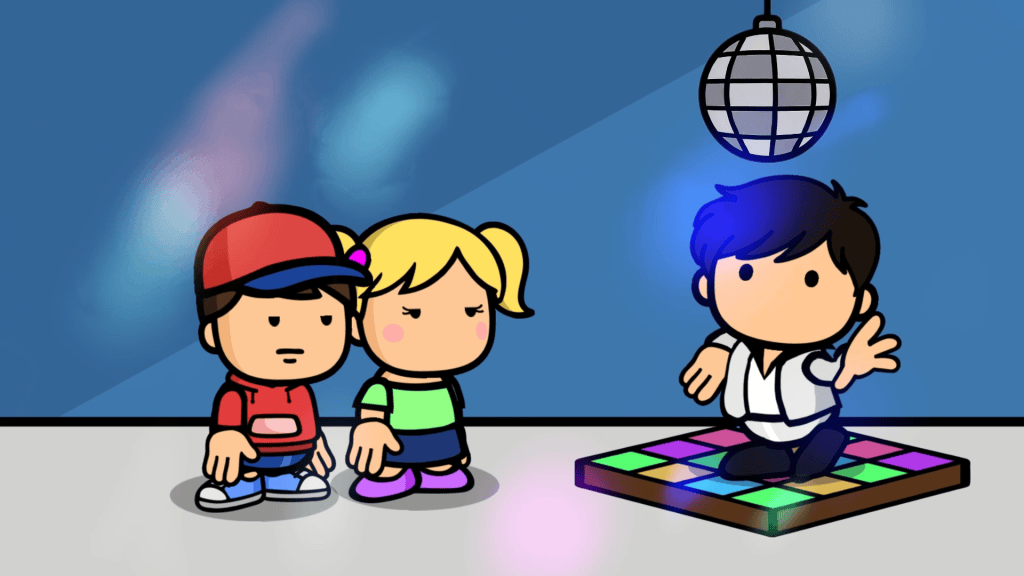
Static objects like disco balls or fire can be animated via Image to Video tools. Individual frames can then be imported into Cartoon Animator as animated props.
2D Living Backgrounds
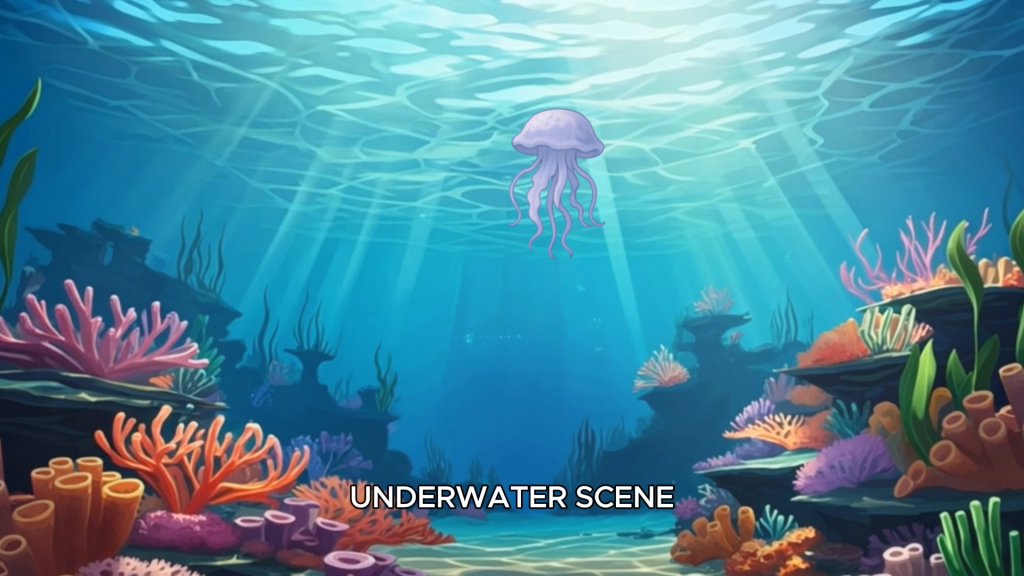
AI-generated environments—such as underwater scenes—can be cleaned in Photoshop and animated to create dynamic backdrops. These animated backgrounds drop directly into CTA’s Stage Mode.
Cartoon Character Turnarounds and Sprites
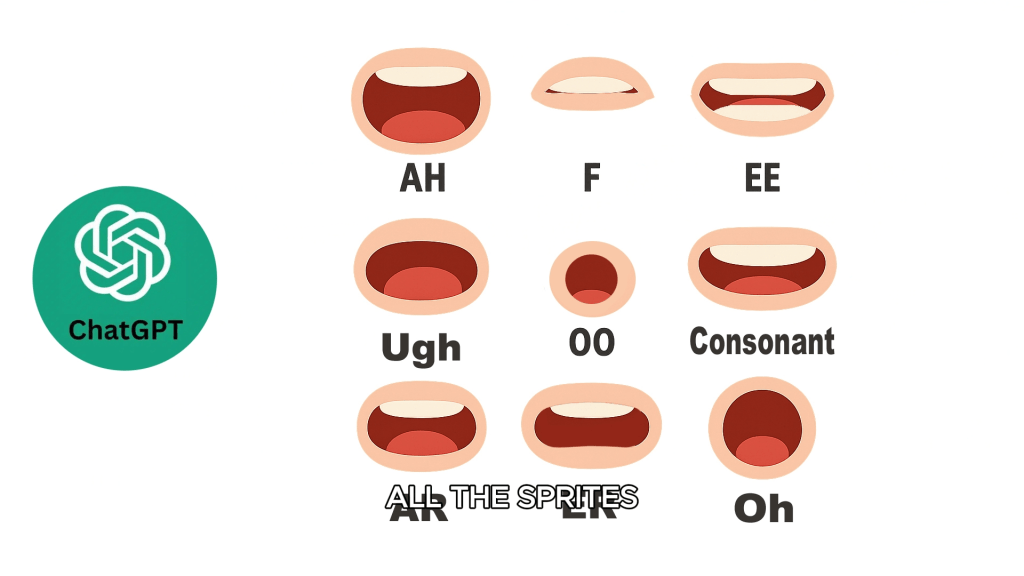
AI can generate side and back views of characters, mouth sprites, and eye sets—ideal for creating custom rigs or preparing assets for 360-degree heads.
Additionally From AI Images to 3D Characters
One of the most exciting developments in AI is the ability to convert images into 3D models. Tools like Meshy can generate a Blender-ready character base from a single image.
While current results may include dense topology and imperfect meshes, the speed is undeniable. Garry notes that what once took months of modeling can now be achieved in minutes—and the technology is improving rapidly.
For creators working in Blender or other 3D animation software, this opens new doors:
Rapid exploration of styles and proportions
Faster prototyping
AI-assisted character designer workflows
Cartoon Animator: The 2D Control Layer AI Can’t Replace
Despite AI’s rapid growth, Garry is clear: AI is not a replacement for professional animation software.
2D rigging, bone systems, and sprite-based character control
Precise motion editing
2D camera control, staging, and shot continuity
Performance-driven storytelling
AI speeds up the process, but Cartoon Animator delivers the polish, timing, and performance control that 2D animation requires and AI cannot provide on its own.
Pros of Combining Cartoon Animator and AI for 2D Production
Speed: AI handles repetitive and experimental tasks while CTA focuses on performance
Creative Freedom: Explore more 2D ideas, poses, and shots without increased production time
Solo Production Power: Small teams can produce studio-level results
Future-Proof Skills: 2D artists who master Cartoon Animator are perfectly positioned to leverage AI
Quality Control: Human direction ensures consistency and storytelling integrity
Key Lessons Garry Has Learned
Garry summarizes his AI experience with three guiding principles:
Free plans limit results; professional output requires investment
Think outside the box—anything is possible
Be extremely specific with prompts
Above all, AI needs a creative boss.
Conclusion: AI Has Supercharged Creativity for 2D
AI hasn’t taken creativity away from animators—it has expanded what’s possible. By combining AI tools with Cartoon Animator, iClone, and traditional skills, creators can work smarter, not harder.
For 2D animators, content creators, and production studios, the message is clear: use AI to accelerate production—but rely on Cartoon Animator for performance, storytelling, and control.
Explore Cartoon Animator, iClone, and Character Creator to build an animation pipeline where AI accelerates your ideas—and your skills remain the driving force.
FAQ
Can AI replace Cartoon Animator or iClone?
No. AI enhances speed and ideation, but Cartoon Animator and iClone provide essential animation control and polish.
Is this workflow suitable for beginners?
Yes. AI lowers entry barriers, while Cartoon Animator helps beginners learn professional animation fundamentals.
Can I use AI-generated characters in Blender?
Yes. Tools like Meshy can convert images into Blender-ready models, though cleanup may be required.
How does Character Creator fit into this pipeline?
Character Creator 5 provides a professional character base for consistent, production-ready assets.
What’s the biggest advantage of combining AI and Cartoon Animator?
Garry Pye is an Australian illustrator, animator, and Cartoon Animator instructor with over a decade of industry experience. Known for his approachable teaching style, sharp humor, and deep technical knowledge, Garry has built a reputation for making animation accessible to beginners while still inspiring seasoned professionals.
His work spans animated shorts, educational content, and live presentations where he demystifies complex workflows. At the core of Garry’s philosophy is a belief that storytelling always comes first—and tools should serve creativity, not limit it.
Today, Garry is exploring how AI can become a creative assistant inside professional animation pipelines rather than a replacement for skilled artists.
Luis Duarte is a 3D digital artist specializing in character creation for animation and video games. His work is distinguished by a strong focus on stylized aesthetics, crafting characters that are highly expressive and full of charisma. Clearly inspired by the visual language of cartoons translated into 3D, Luis excels at simplifying realism with keen artistic judgment, resulting in clean, well-structured, and visually striking designs.
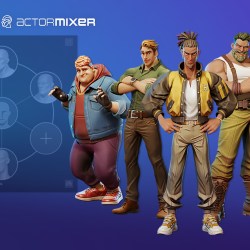
As many of you already know, Character Creator 5 (CC5) arrived with a very important update that we did not explore in depth in the previous article, as it truly deserved its own dedicated space. We are referring to ActorMIXER Pro, a powerful tool that allows me to significantly streamline the creation of infinite character variations by blending components together, starting from unique designs created entirely on our own.
My name is Luis Duarte, and in this tutorial I will show you how to create CC5 assets converted into ActorMIXER sliders, which can then be stored inside your own custom content library.
1. Our Character Lineup
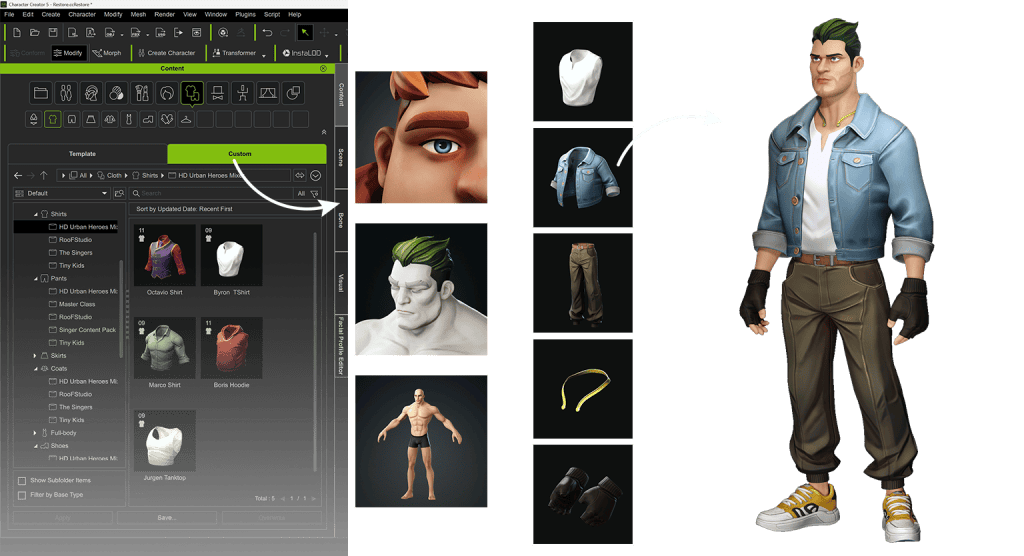
For this section of the tutorial, I am using the main assets from our latest content pack, HD Urban Kings, developed exclusively for use within Reallusion’s 3D ecosystem.
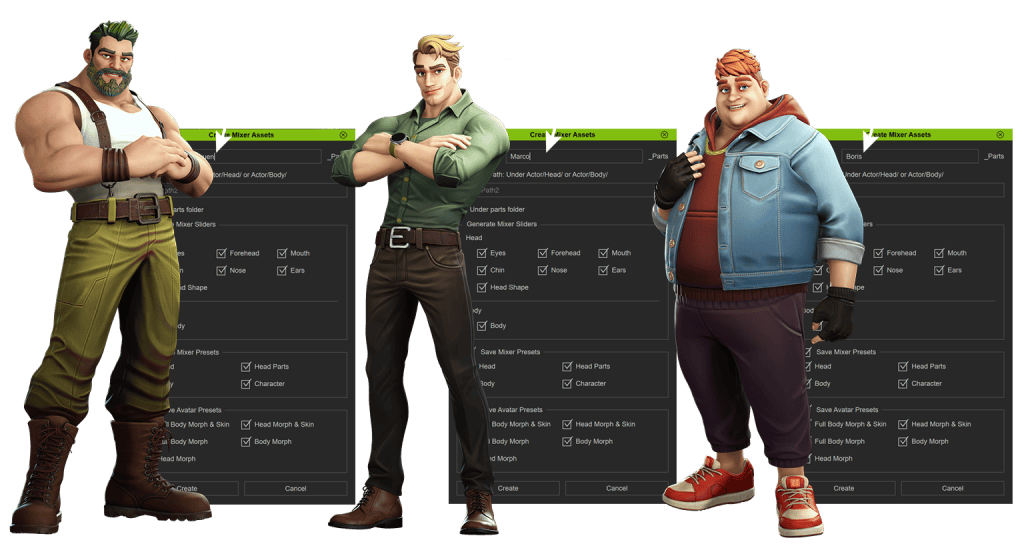
This content pack features five stylized characters designed with a Fortnite-style, battle royale aesthetic, each with different clothing styles and body shapes. These body shapes can range from slimmer silhouettes to more robust builds. Using ActorMIXER, these variations can be combined to create new characters, following the same workflow we used for designing action heroes like Byron. For a deeper look at the full design process, I recommend checking out the previous article on Byron.
As an additional note, it is not strictly necessary to have five different character assets for this process, since the focus is placed solely on body structure. In fact, this tutorial can be replicated using only three characters. The only essential requirement is havingActorMIXER Pro installed, as it enables the necessary combinations efficiently.
2. Creating Mixer Assets
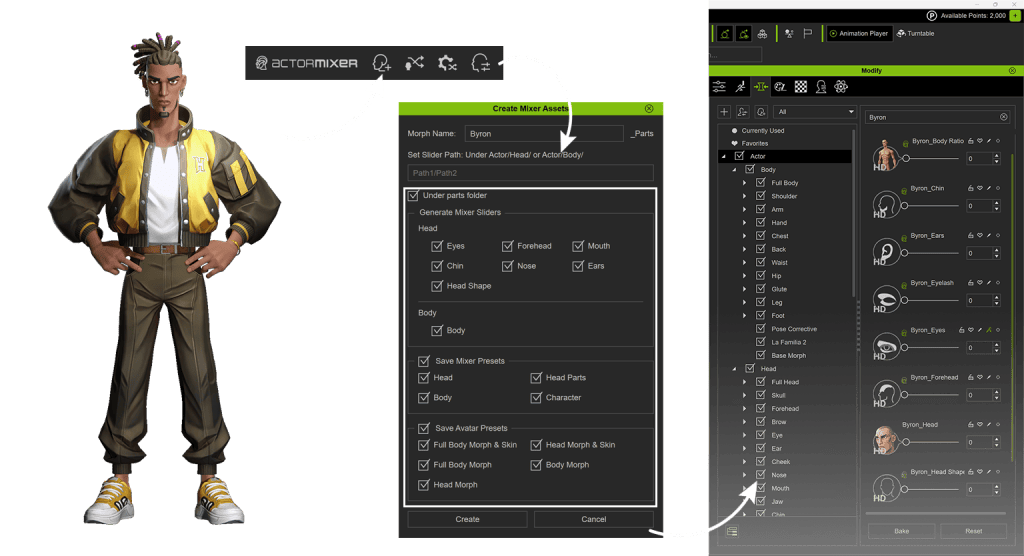
To build a small Mixer asset library, I work with each character individually. As a first step, I start with the character Byron. From the Actor Mixer toolbar, I click on the “Create Mixer Assets” icon. During this process, I assign a name to the resource using the character’s name (Byron). Next, I enable the “Under Parts Folder” option and, in my case, leave all options enabled to generate a complete set of components.
I also enable the avatar preset sets, which allow the sliders to appear inside the morph library. Finally, I press the “Create” button to complete the process.
Tip: I recommend repeating this same procedure for every character you want to include in the Mixer wheel.
This process generates several assets that are organized into different sections within CC5. Most of them are controlled through sliders, enabling fast and precise adjustments in an intuitive way. Additionally, the gallery includes various skin materials that help clearly define the character’s final appearance.
3. Creating Thumbnails for Your Assets
If you want to build a personalized content library with a wide variety of assets, organization is key. One of the most effective ways to achieve this is by making each asset easily recognizable, and thumbnails play a crucial role in that process.
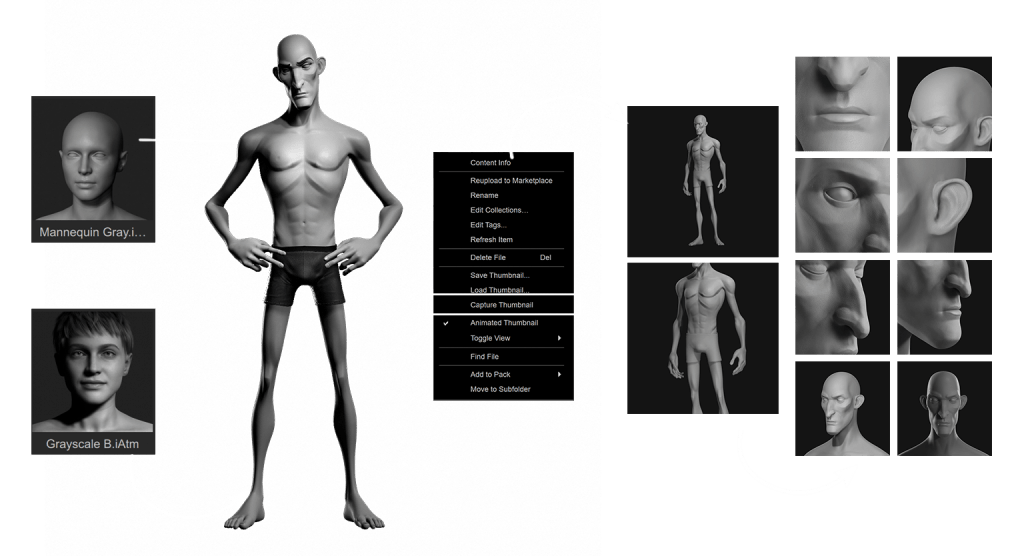
Reallusion makes it very easy to create custom thumbnails for each asset. The key is to apply a general gray material to the character and add a basic backdrop; No further adjustments are required. The “Mannequin Gray” material is available from the free content included with Character Creator, as is the grayscale atmosphere.
After that, I take close-up camera shots and click “Capture Thumbnail” in the content library. I repeat this process for each part provided by the Asset Mixer. The goal is to clearly identify each segment, making it much easier to manage and locate them within the Mixer wheel, optimizing both workflow and control over the character elements.
4. Managing and Editing Mixer Wheels
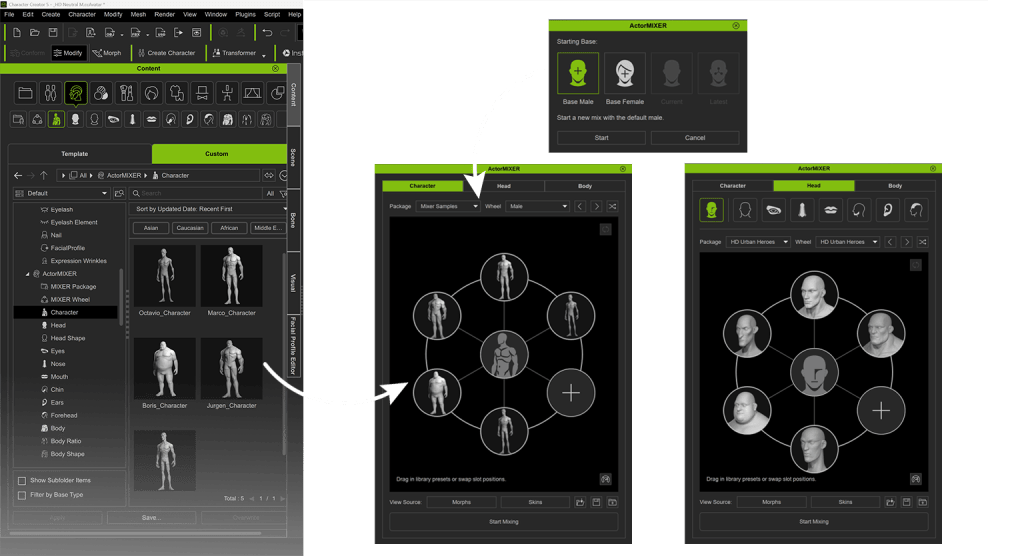
I open Actor Mixer from the toolbar and, in this case, use a male base mesh as a template. Upon launching, the system takes me directly into edit mode, where I can customize the wheel I want to use for morphing.
The process is straightforward: I navigate to the content library and switch between the different categories offered by the Mixer, which are already synchronized. From there, I simply drag and drop the elements directly onto the editing wheel.
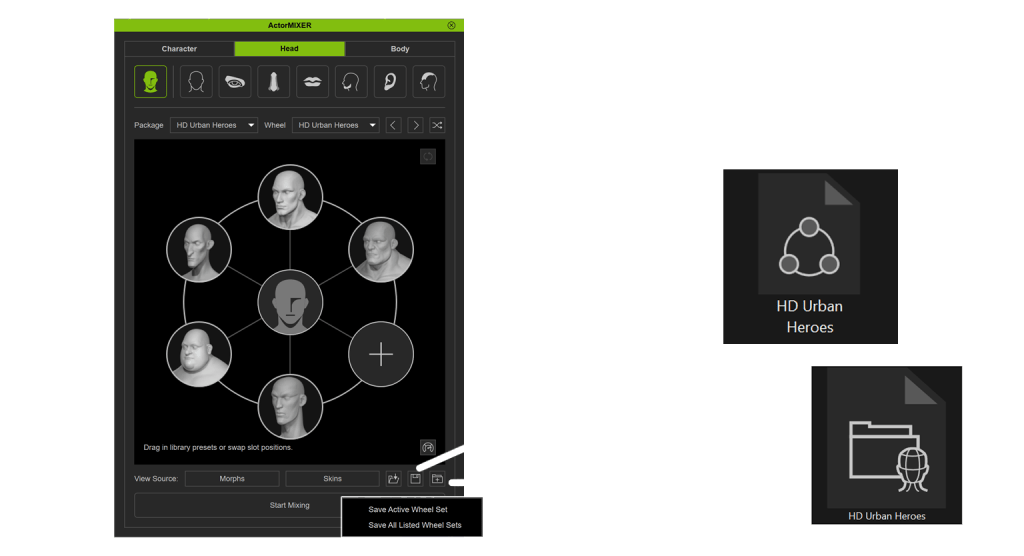
Tip: You can save your wheels for future projects using “Save Active Wheel Set”, which stores only the current wheel, or “Save All Sets”, which is ideal for preserving all wheels across categories and reusing them in other projects.
One of the most powerful aspects of this workflow is that everything can be edited in real time. You can remove, replace, and reorganize elements as needed, while maintaining full control over the final result at all times.
5. Mixing Characters with ActorMIXER
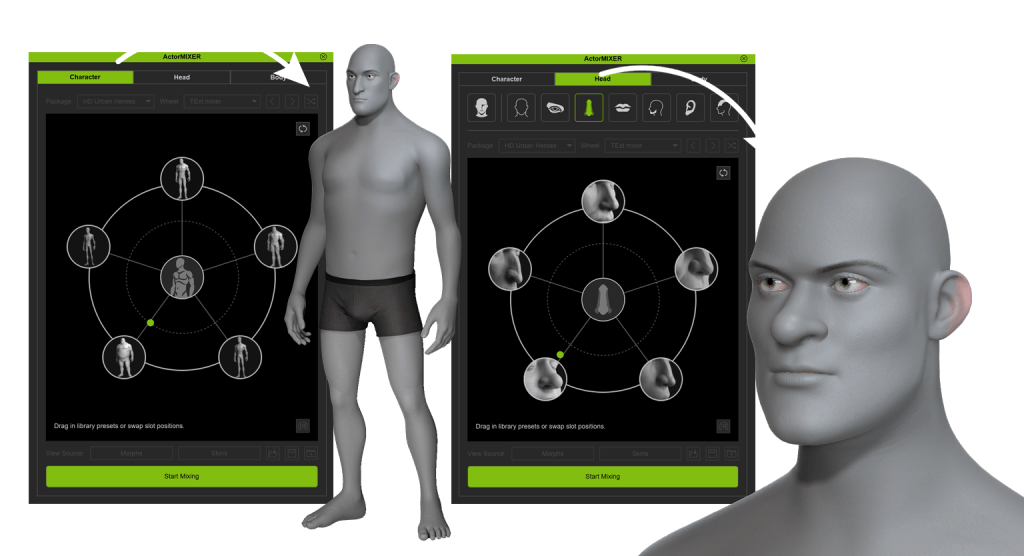
When everything is ready, I click “Start Mixing” (the green horizontal button). Intuitively, I move the green point located at the center of the wheel toward each of the outer circles that I previously configured. As I do this, I can see in real time how the body structure changes as the point moves.
The shapes blend together as the cursor passes through the intersections, creating unique and dynamic combinations. The experience is genuinely fun and closely resembles a video game avatar editor, making the creative process highly interactive and enjoyable.
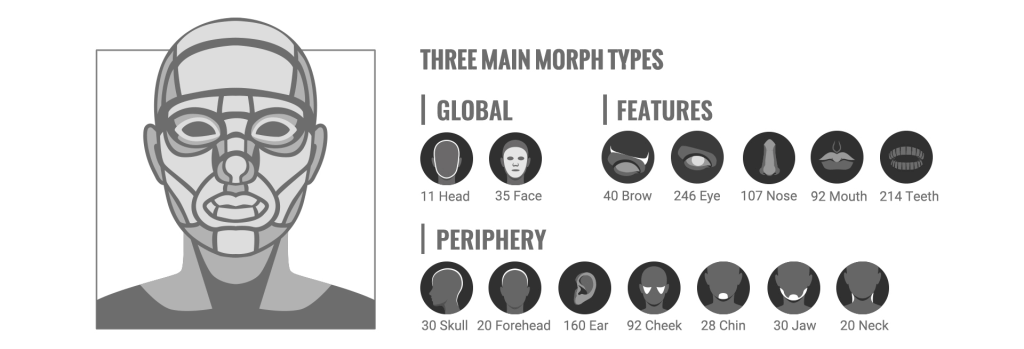
Actor Mixer is organized into three main categories: Character, Head, and Body. Within the Head section, we find individual segments that allow us to modify specific elements such as eyes, nose, mouth, ears, and the overall head shape. This means the mixing possibilities are extremely broad. Taking advantage of this flexibility, I apply different combinations and merge the results to create a new character that maintains the same artistic style characteristic of HD Urban Kings.
6. Character Ready for Animation
Once the character’s shape is fully defined, I close Actor Mixer and make sure to include all the assets from my gallery that define the character’s final look. I start by dragging in the skin asset, followed by eyes, eyebrows, and hair, and finally add the clothing assets. With this approach, the character is fully prepared and ready for animation, with all visual elements integrated in a cohesive and consistent manner.
7. Random Face Function
To take full advantage of the nearly infinite possibilities of character generation, I use the Random Face function, which can be found in the compact Actor Mixer menu. This tool allows me to quickly and efficiently explore a wide range of facial variations.
If I want to take advantage of custom shapes, I simply open the Random Face settings window and set the generation path to my own customized files. Once this is configured, I can use the Random Face generation button to create faces randomly, repeating the process until I achieve the result that best fits the character I am developing.
FAQ
Can I create my own assets inside Actor Mixer?
Yes. To create your own assets in Actor Mixer, you will need the ActorMIXER Pro version. This version allows you to take character creation to the next level, offering greater freedom and control. You will be able to combine your own assets with most of those available in the gallery, opening up nearly unlimited design possibilities.
Is the entire content gallery compatible with Mixer-generated characters?
Yes. In fact, by acquiring the Pro version of ActorMixer, you gain access to a variety of HD assets that enrich your gallery and allow you to start experimenting even if you do not yet have your own custom resources.
Can morph sliders be used while mixing?
Yes, but it is recommended to use only the sliders that display the ActorMIXER icon. These are the only ones that remain functional if you decide to resume character mixing later, ensuring consistency and control throughout the process.
For Blender artists looking to create their own characters without sacrificing realism, flexibility, or production speed, character creation has long been a complex, fragmented process. From sculpting and retopology to texturing, rigging, and animation prep, building a usable character base often takes weeks—sometimes months.
That workflow is changing. In their in-depth review of Character Creator 5, the team at Orbit Valley explores how Reallusion’s latest tools integrate seamlessly with Blender to deliver a streamlined, high-quality character designer pipeline for modern 3D animation software users.
This article breaks down Orbit Valley’s experience, insights, and production philosophy—showing how Character Creator 5, iClone, Blender, and real-world 3D character scans work together to empower artists, studios, and content creators.
Rasmus Rørbæk | Phichet S.B
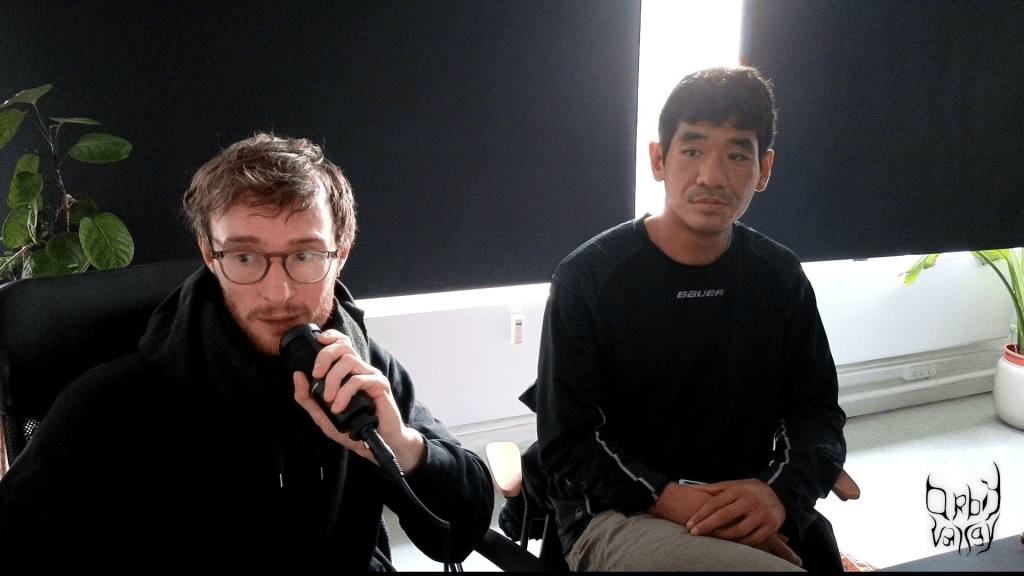
Founded in March 2023, Orbit Valley was established with the goal of operating as an end-to-end production company capable of blending disciplines, formats, and creative philosophies.
The studio’s founders—Rasmus Rørbæk and Phichet S.B.—originally connected through a shared passion for music. While their peers focused on sound creation, Rasmus and Phichet naturally gravitated toward the visual dimension, shaping identities, atmospheres, and moving imagery that complemented musical expression.
Phichet brings an extensive background as a freelancer, specializing as a VJ, 3D animator, and editor, with deep experience in commercial production environments. Rasmus, a graduate of The National Danish Film School, trained as a cinematographer after years working independently as a director and filmmaker.
Both founders were shaped by a strong DIY ethos, valuing adaptability, experimentation, and cross-disciplinary workflows. Orbit Valley’s creative philosophy embraces the idea that there are no fixed rules—only tools and intentions. Their inspiration draws heavily from meditation and mindfulness, influencing their desire to create from a grounded, conscious state rather than rigid technical frameworks.
This mindset made them an ideal team to evaluate Character Creator 5 as a flexible Blender human creator rather than a closed or prescriptive system.
Why Character Creation Is a Bottleneck for Blender Artists
For many Blender users, character creation represents the most time-consuming and technically demanding part of the pipeline.
Common pain points include:
Sculpting anatomically accurate human forms
Achieving production-ready topology
Generating realistic skin materials
Building facial rigs suitable for animation
Preparing characters for motion capture or performance animation
While Blender excels as a general-purpose 3D animation software, it is not purpose-built as a character designer. Orbit Valley recognized that the challenge wasn’t Blender itself—but the lack of an efficient, standardized character base to build from.
This is where Character Creator 5 (CC5) enters the workflow.
Character Creator 5: A Production-Ready Character Base
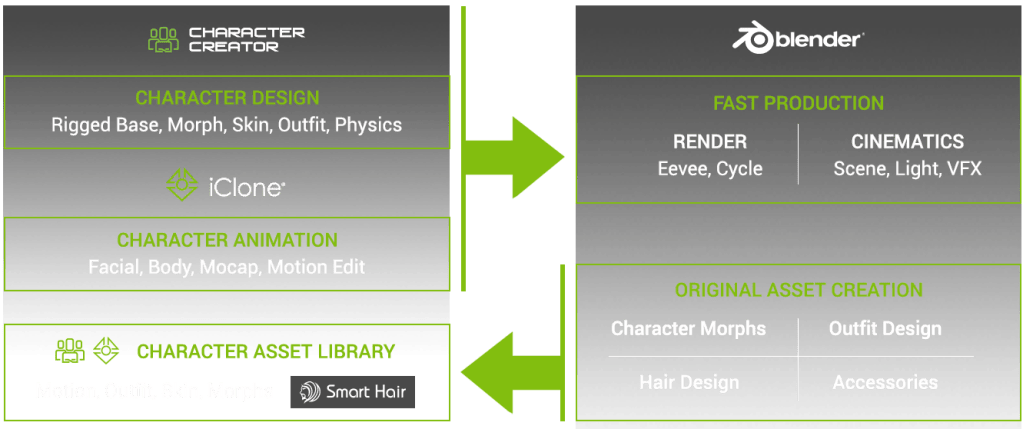
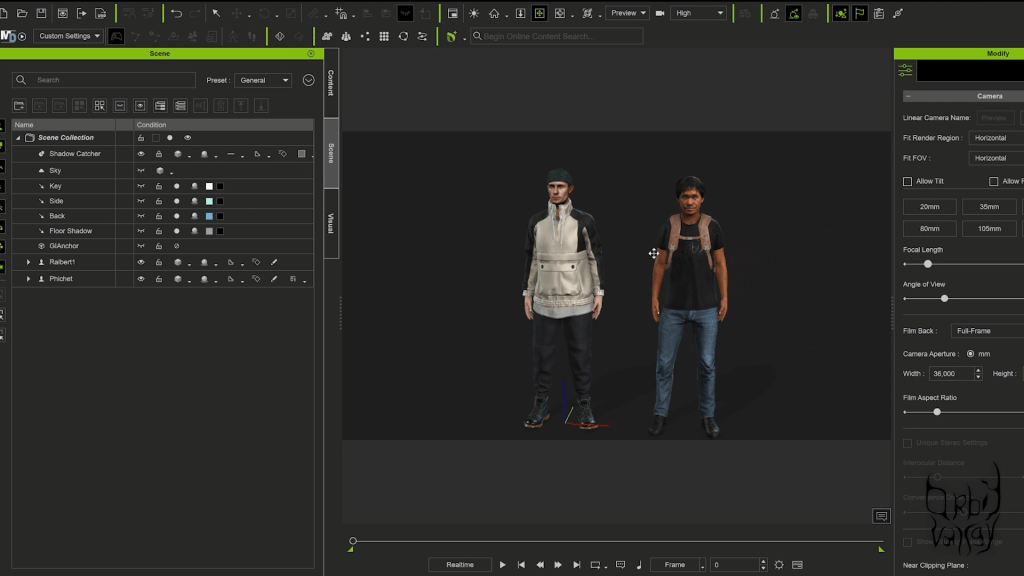
Character Creator 5 is designed to give artists a high-quality, animation-ready human character from the start. Rather than replacing Blender, CC5 acts as a powerful front-end system that feeds clean, consistent assets directly into Blender’s ecosystem.
Orbit Valley highlights that CC5 excels in three core areas:
Speed – Characters can be created, customized, and exported in a fraction of the time
Consistency – Topology, UVs, and rigs remain stable across characters
Interoperability – Assets move cleanly between CC5, iClone, and Blender
For artists who want to create your own character without reinventing foundational work each time, CC5 provides a dependable starting point.
Integrating Character Creator 5 with Blender
One of the most important aspects of Orbit Valley’s review is the non-destructive relationship between Character Creator 5 and Blender.
Rather than locking artists into a proprietary environment, Reallusion supports Blender as a first-class destination.
Blender-Ready Assets from Day One
Characters exported from CC5 arrive in Blender with:
Clean, animation-friendly topology
Fully functional facial and body rigs
PBR materials compatible with Blender’s shading system
Consistent scale and orientation
This allows Blender artists to immediately begin refining, shading, lighting, and animating—without technical cleanup.
A True Blender Human Creator Workflow
Orbit Valley emphasizes that CC5 functions as a Blender human creator, not a replacement for Blender’s creative control. Artists remain free to sculpt, stylize, or push realism further inside Blender while benefiting from CC5’s robust foundation.
Leveraging Real-World Data with 3D Character Scans
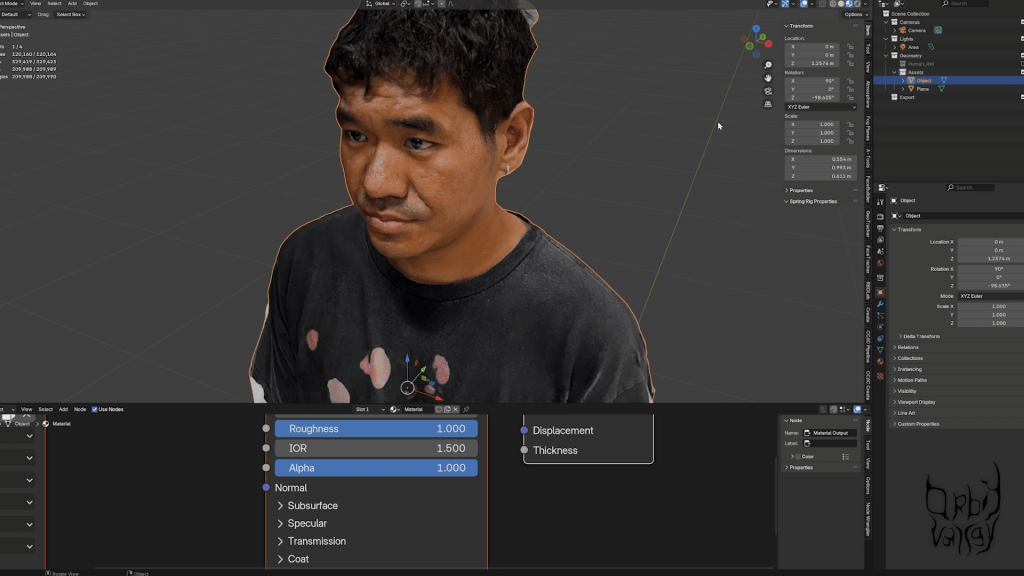
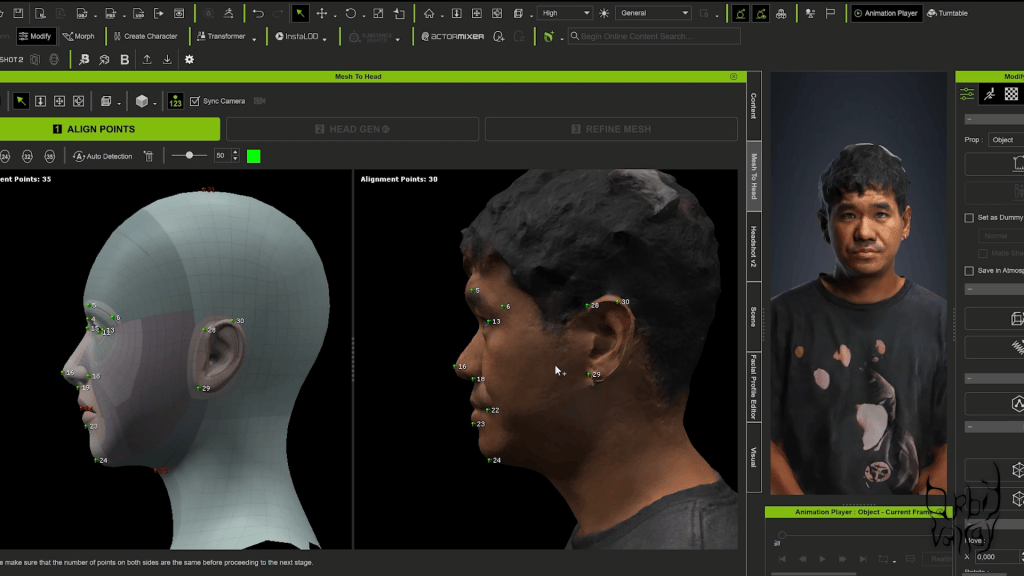
A standout feature in Orbit Valley’s workflow is the integration of 3D character scans.
By capturing real human data and feeding it into Character Creator 5, artists can achieve an exceptional level of realism while maintaining full editability.
From Scan to Animation-Ready Character
Orbit Valley describes a streamlined process:
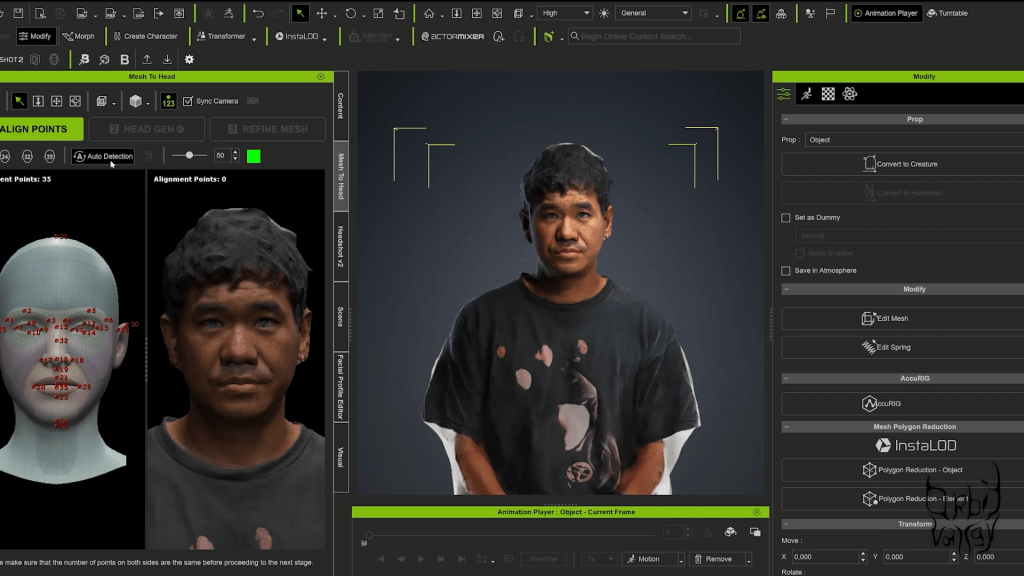
Capture real-world facial or body data using scanning tools
Import scan data into Character Creator 5
Align and refine scans using CC5’s morph system
Generate clean topology and textures
Export directly to Blender or iClone
This approach bridges the gap between reality and digital performance—making CC5 a powerful hub for scan-based workflows.
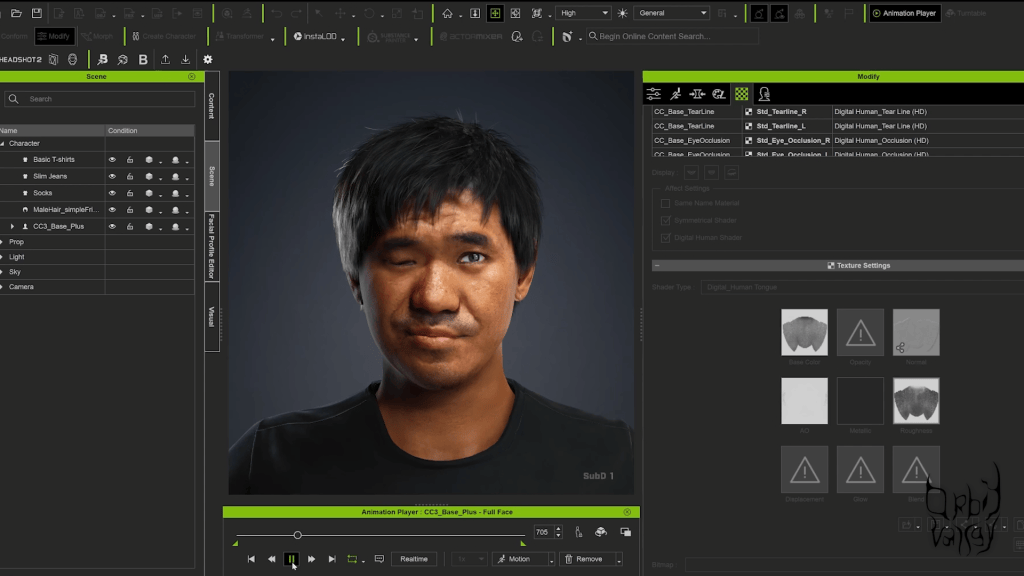
Headshot 2: Turning Photos into Production Characters
Another key component highlighted in the review is Character Creator Headshot 2.
Headshot 2 allows artists to generate detailed, realistic human heads from photographic reference—dramatically reducing setup time.
Why Headshot 2 Matters for Blender Artists
For Blender users, Headshot 2 offers:
Rapid generation of realistic facial proportions
Seamless integration with CC5’s morph system
Full compatibility with Blender export pipelines
Orbit Valley notes that Headshot 2 is especially valuable for commercial projects, music visuals, and narrative content where likeness and emotional connection are essential.
iClone: Real-Time Animation and Performance Control
While Character Creator 5 handles character generation, iClone plays a critical role in animation.
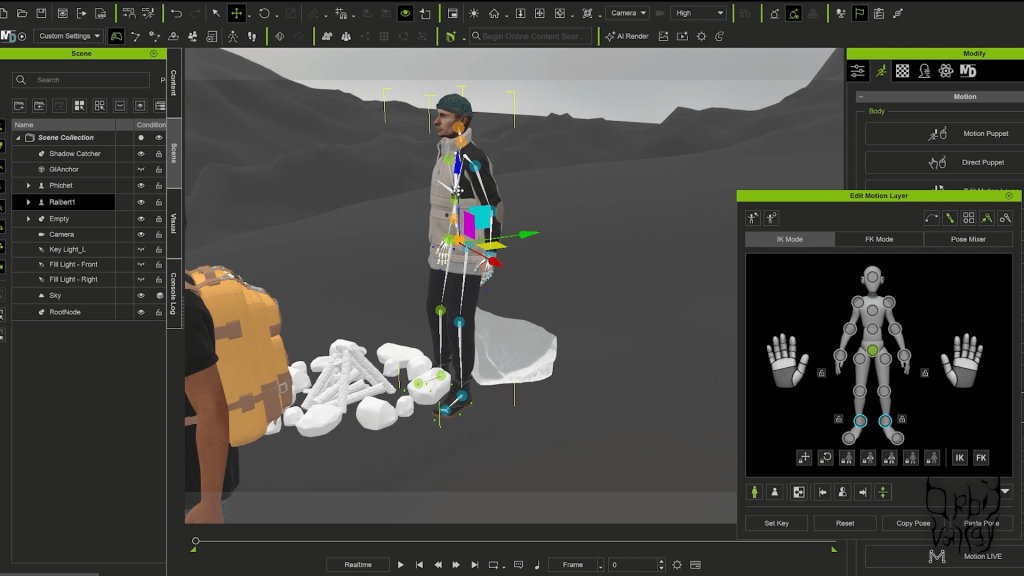
Orbit Valley highlights iClone as a real-time animation hub that complements Blender rather than competing with it.
Why Use iClone with Blender?
The combined workflow offers several advantages:
Real-time preview of motion and performance
Facial animation and lip-sync tools
Motion capture integration
Rapid iteration before final Blender rendering
Once animation is finalized in iClone, characters can be sent back to Blender for lighting, shading, and final output—preserving creative flexibility while saving time.
The Advantages of the Reallusion + Blender Pipeline
Orbit Valley’s review makes it clear that the real strength lies in using these tools together.
Key Benefits at a Glance
Faster character creation without sacrificing quality
Reliable character base for multiple projects
Scalable workflows for studios and freelancers
Easy onboarding for new team members
Compatibility with modern production pipelines
For studios, this means predictable results. For solo creators, it means focusing on storytelling instead of technical hurdles.
Designed for Modern Content Creators and Studios
Orbit Valley emphasizes that Character Creator 5 isn’t limited to one type of user.
It benefits:
Blender animators building narrative projects
Content creators producing short-form media
Production houses needing scalable character pipelines
Indie filmmakers working with limited resources
By reducing friction, CC5 allows creators to iterate faster and explore more ideas.
Conclusion: A Smarter Way to Create Your Own Character
Orbit Valley’s review of Character Creator 5 reveals a powerful truth: modern character creation doesn’t have to be slow, fragmented, or overly technical.
By combining Character Creator 5, iClone, Blender, and real-world scanning tools, artists gain a flexible, professional pipeline that respects creative freedom while delivering production-ready results.
For anyone looking to create your own character, streamline their Blender human creator workflow, and elevate their 3D animation software pipeline, Reallusion’s ecosystem offers a compelling solution.
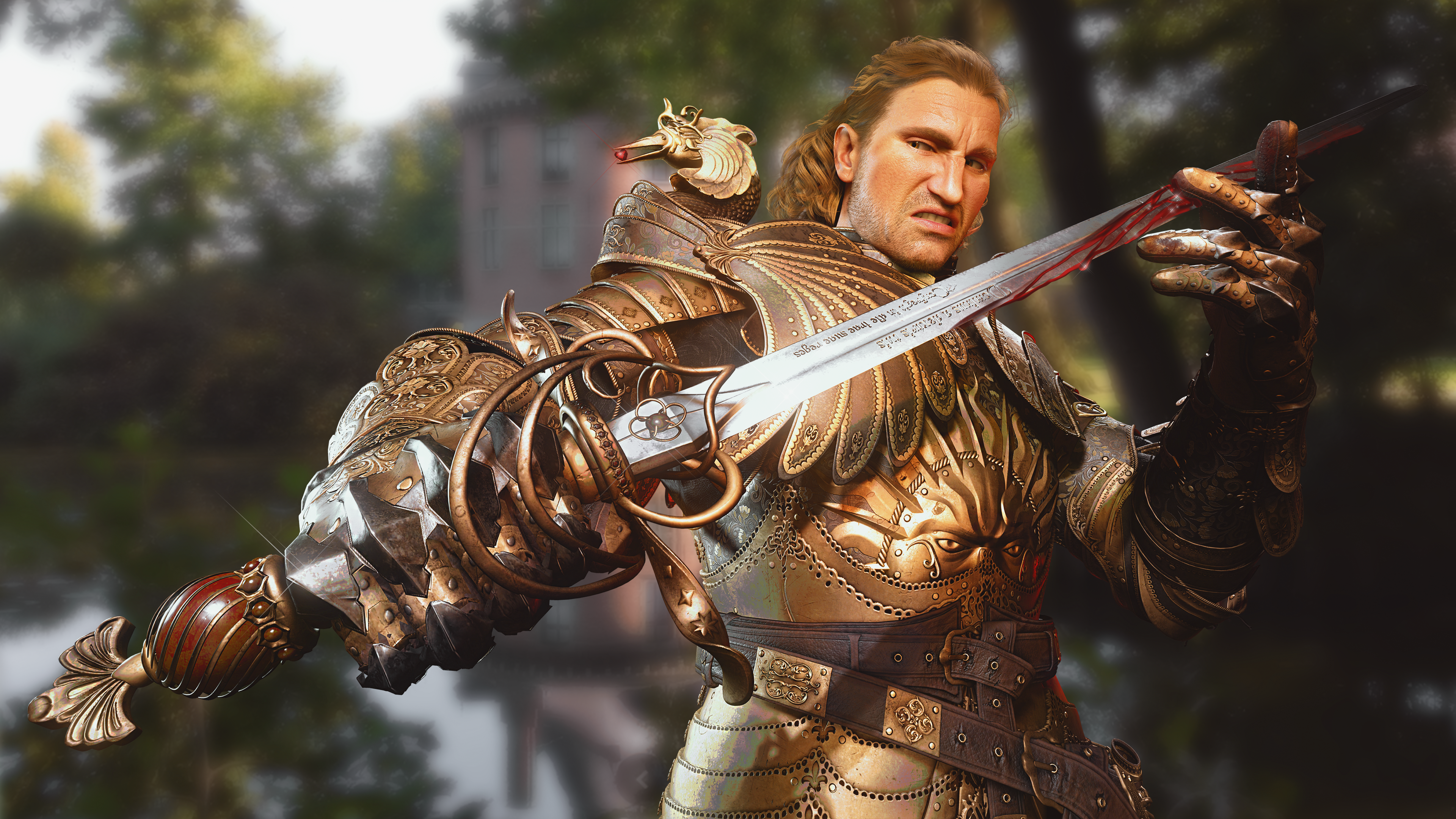
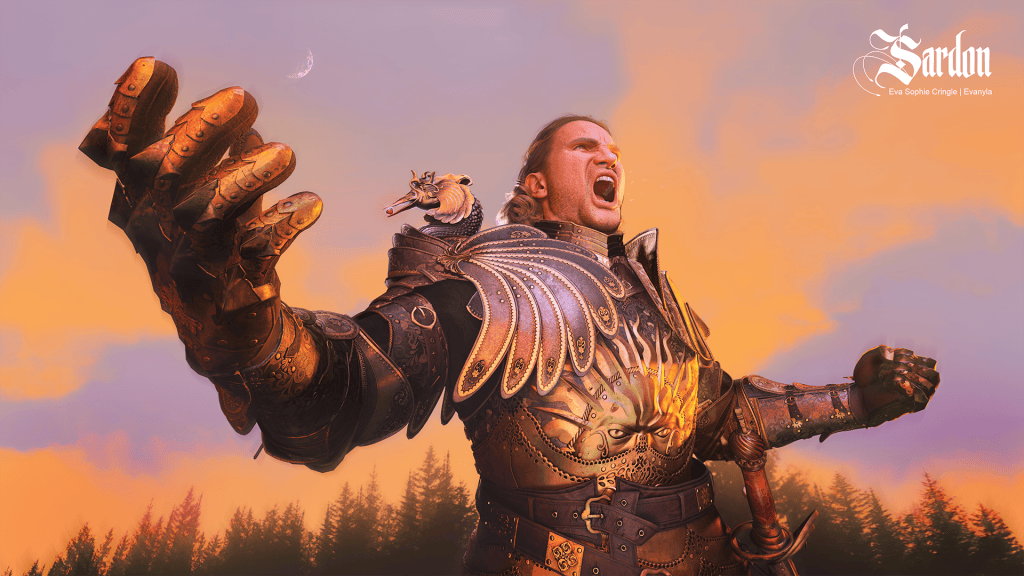
Hi, my name is Eva Sophie Cringle, also known as Evanyla. I am a 3D Character Artist with five years of professional experience, currently working as a freelancer and lecturing at universities. In this article, I will guide you through my complete Character Creator 5 pipeline, from start to finish, using my character Sardon as an example. Along the way, I will share some practical tips and small insights that helped me achieve this outcome.
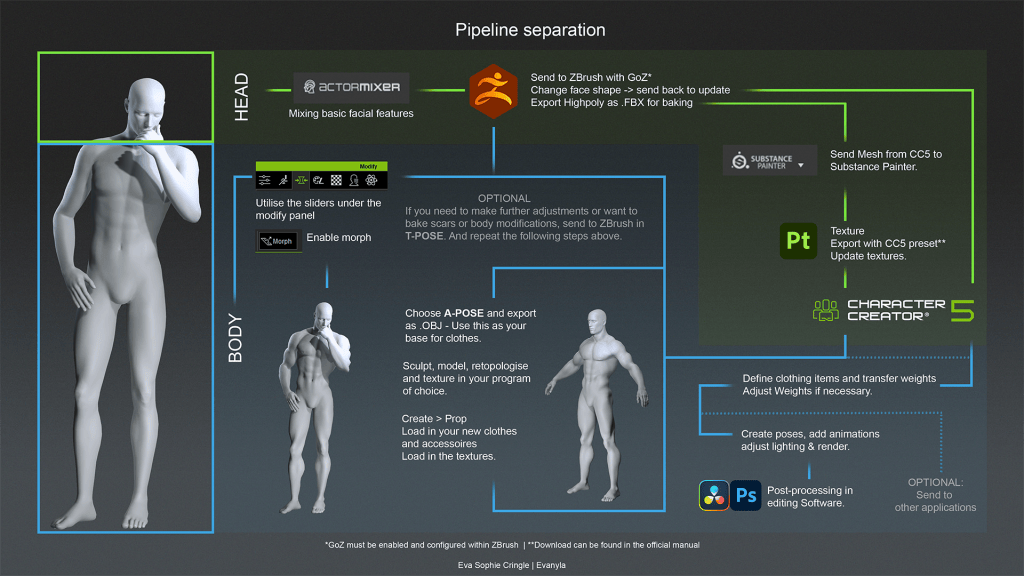
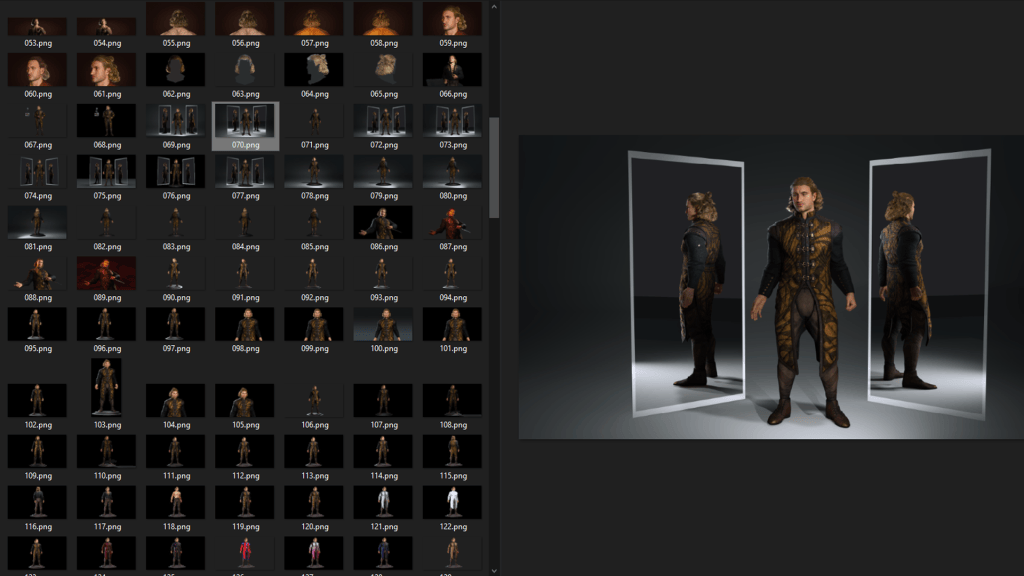
This is the diagram of my own pipeline, utilizing CC5 and 3rd-party software:
Outline for my personal pipeline utilising CC5 and adjacent software
1. HD base, morphs, & ActorMIXER
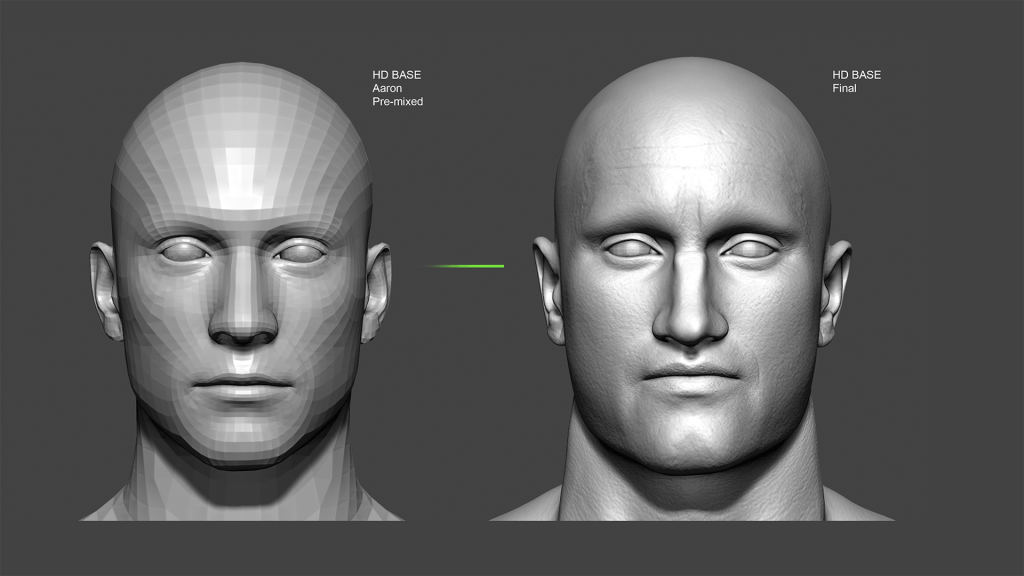
HD Basemesh Aaron with Actormixer.
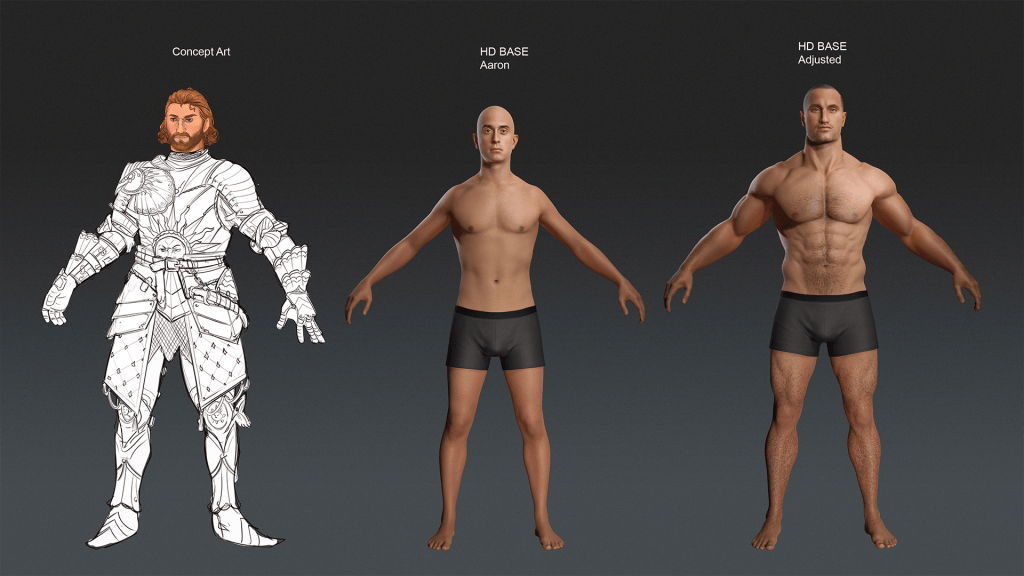
Character Creator 5 provides two HD base bodies: Aaron (male) and Ariana (female). Since Sardon is a male character, I chose Aaron as my starting point. The HD base allows for the mesh to be subdivided back and forth depending on usage.
I began with a concept sketch, which served as my primary reference throughout the process. As this was a solo project, I allowed myself to iterate freely and adjust the design organically.
Starting from the base body, I adjusted the height to 194 cm (6’3″) and added muscles using the HD Body morphs(Modify > Morphs > HD Body).
I did not replace the base skin textures (except for an added hairline). Instead, I added body hair, stubble and eyebrows from the Content Browser. I also slightly adjusted the skin hue towards red and olive tones (Modify > Textures > Select Body > Activate Skin Colour > Adjust).
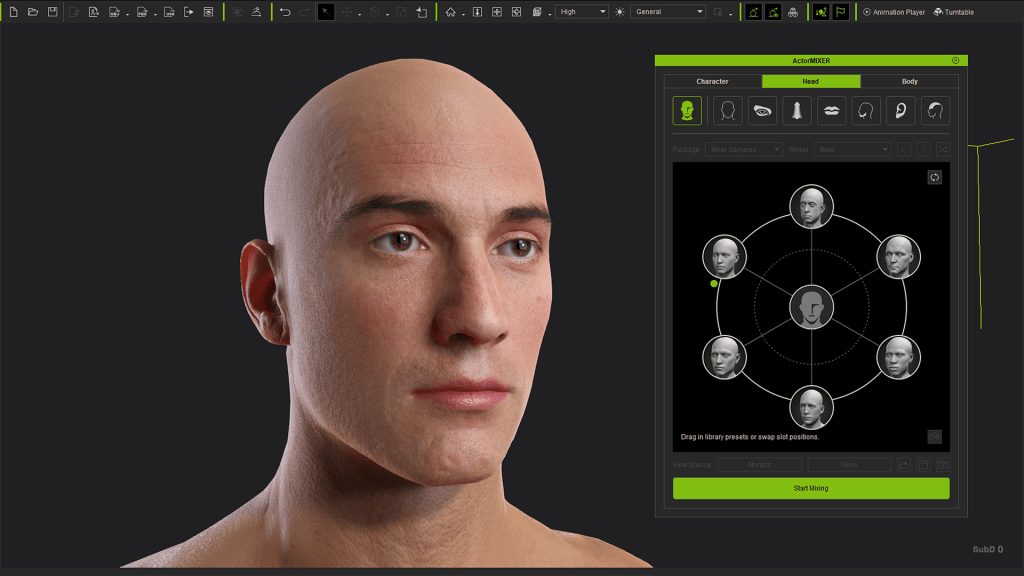
ActorMixer for face morphs.
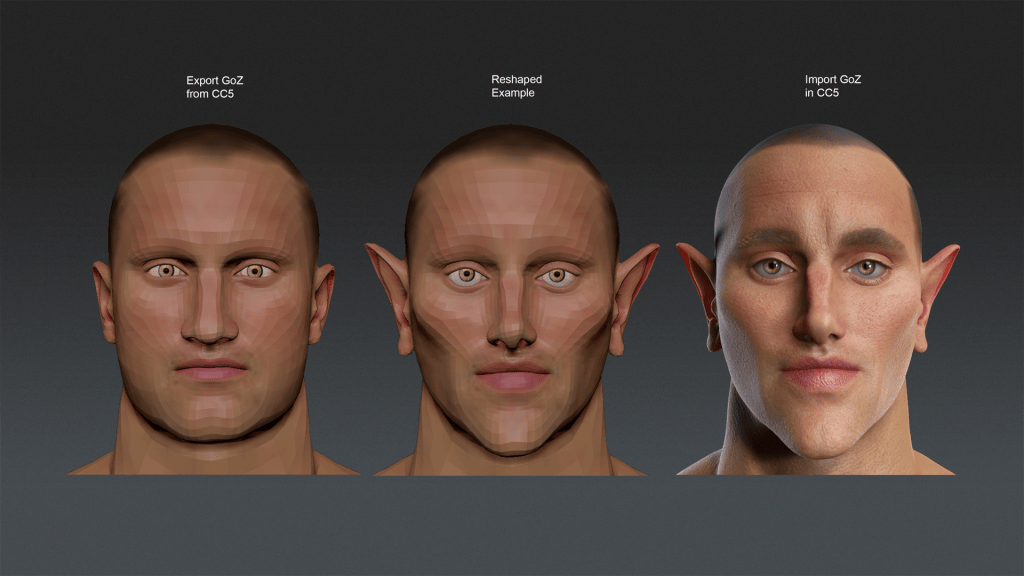
For the face, I used ActorMIXER to establish a rough foundation for head shape, ears and eye placement. I intentionally left finer facial details for later. Once satisfied, I ensured the model was set to SubD0, selected it, and sent it to ZBrush via GoZ using the default options.
(Before and after) Concept art (Evanyla) and basemesh adjustments
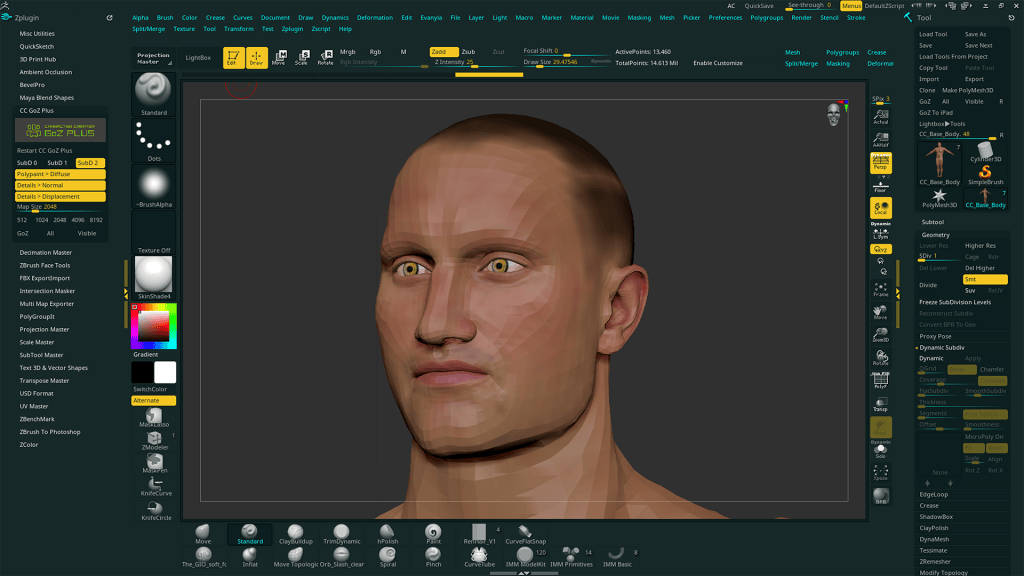
2. Reshaping the face in ZBrush with GoZ
If you are not planning to make significant changes to the body, you can safely send the character in an A-Pose. If you intend to modify body proportions, sending a character with a T-Pose via GoZ Plus is required.
In ZBrush, I reshape the facial structure primarily using the Move brush, although other brushes can be used as needed. I recommend hiding the eyelashes during this process, as they tend to be visually distracting. Even if the eye area is altered, CC5 provides tools to correct this later.
For characters that require heavier detail, such as deep wrinkles, scars or damage, I separate the workflow as follows.
2.1 Reshaping only
I keep the subdivision level relatively low, as only the lowest subdivision is sent back to update the base mesh. The main tools I use are the Move brush and lasso masking to establish the overall form. Once satisfied, I select GoZ All (Tool > GoZ All) to send the mesh back to Character Creator. When CC5 reopens, I check the dialogue window.
Good outcome: the window displays “Update” at the top. Proceed as normal.
Bad outcome: the window displays “Create Cloth” at the top. This indicates a mismatch. Possible fixes include:
Ensure the character in CC5 is still in SubD0 and unchanged in pose
Make sure no additional SubTools were added in ZBrush
Confirm that no meshes were renamed in ZBrush
Try GoZ on the active subtool only
Try GoZ+ (ZPlugin > CC GoZ Plus), disable all texture maps, set SubD0 and press All
If none of these resolve the issue, this step may need to be redone, as some mismatches cannot be corrected.
2.2 Skin sculpting
(Before and after) Facial reshaping and surface details
For characters with more surface detail, I first complete the reshaping step above and confirm the base mesh updates correctly in CC5. I then return to the ZBrush file, delete unnecessary SubTools, usually keeping only the head unless body sculpting is required.
I subdivide the mesh to a higher resolution and sculpt wrinkles, scars, pores and other details. I strongly recommend working with layers for flexibility. Once sculpting is complete, I export the high-poly mesh (ZPlugin > FBX Import Export).
From CC5, I export the character again in the same pose as an OBJ, including textures. This is used as the low-poly base for baking and texturing.
In Substance Painter, I import the low-poly OBJ and load the existing head and body textures as resources. I then bake using the high-poly FBX, adjusting the cage until there are no visible errors. I typically bake at 4K resolution and downscale later if required.
In the texturing stage, I reapply the diffuse textures using fill layers and make adjustments. This is also where I define the hairline. Make sure to use the official Character Creator export preset for Substance Painter, available in the documentation:
I often replace the eye texture entirely. You can either use existing eye assets or create your own based on the CC5 eye shader. I export the diffuse texture and open it in Photoshop.
(Modify > Textures > Eyes). I photograph my own eye using flash, cut out the iris and pupil, remove reflections, and adjust the shape. Since the texture is mirrored, this cleanup is essential. I then adjust the colour as needed. For Sardon, I used a hazel tone.
4. Creating clothes, hair, and armour
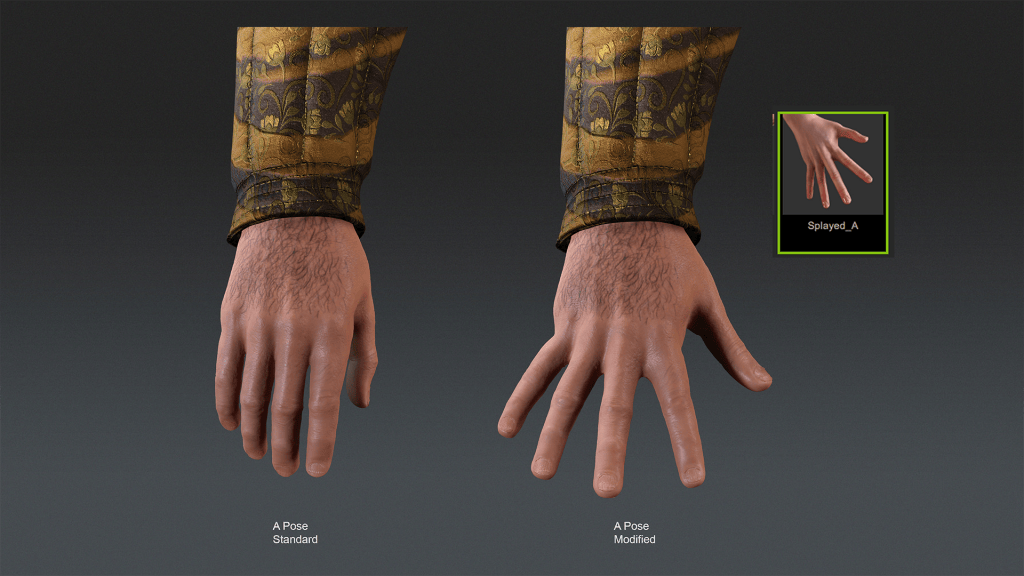
Before creating clothing, I strongly recommend setting up a modified A-Pose.
The main improvement over the default A-Pose is using splayed hands. These can be found here (Content > Animation > Gestures). Sculpting gloves becomes significantly easier, and texture baking produces fewer errors due to better cage wrapping between fingers.
I also mirror the pose (Modify > Motion Pose > Edit Pose > Mirror), as the default A-Pose is slightly asymmetrical.
(Before and after) Modified A-Pose
Once complete, I save the pose to my custom library for later use. (Content > Custom > Animation > Pose > Save).
I then export the full character as an OBJ using the current pose.
Tip1: For very muscular characters, export both SubD0 and SubD2 versions. Muscle definition can differ between subdivision levels, which may cause mismatches later.
Tip2: I first import the model into Maya to remove unnecessary geometry such as hair, underwear, and other unused elements, keeping only what I need. I then export a cleaned OBJ for further work.
4.1 Marvellous Designer
Clothes made in Marvelous Designer, sculpted details in ZBrush
I usually start clothing in Marvelous Designer as it allows me to create patterns and folds. I import the OBJ and recreate patterns either from reference or from scratch. I keep complexity in check and decide early whether details are better handled in MD or sculpted later in ZBrush.
Often, I bring garments directly into ZBrush as high-poly meshes for further sculpting, then later retopologize in Maya or TopoGun. This requires more welding but can still be efficient depending on the garment type.
Tip: Technically speaking, you could export your CC5 Character with motion to simulate a catwalk with realistic cloth movement.
4.2 ZBrush
Armour sculpted within ZBrush. Hands utilise the splayed hands for reduced baking errors.
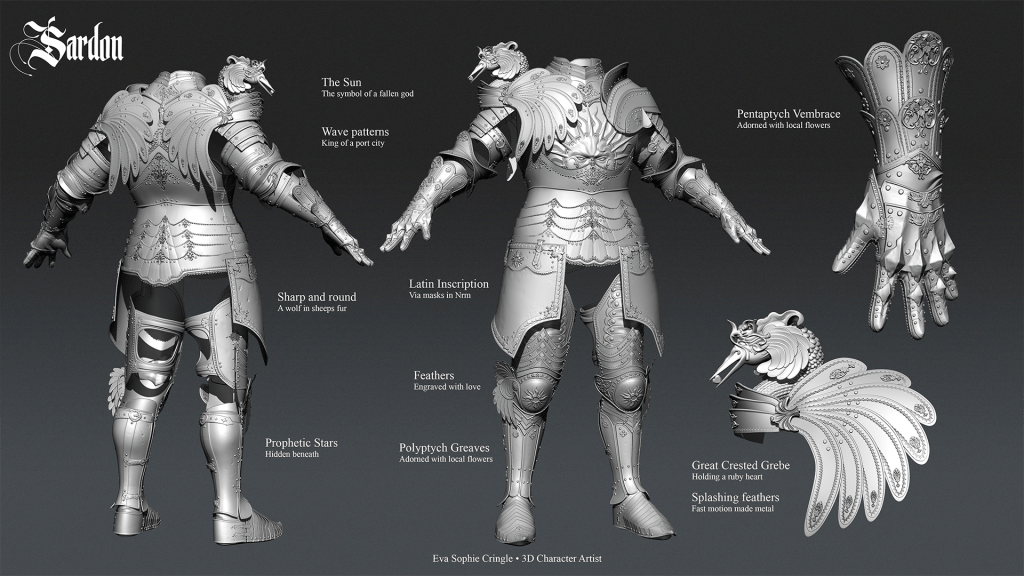
In ZBrush, I import both the SubD0 and SubD2 body meshes as sculpting references. For armour, my workflow typically follows this sequence:
(Mask with lasso > Extrude zero thickness > Unmask > Mask by border > Invert mask > Soften mask > Polygroup > ZRemesher (half or same, with polygroups) > Extrude > Bevel or further edits using ZModeler.)
Some pieces benefit from quick retopology in Maya before refining further in ZBrush, especially armour that requires clean edge flow. For ornaments, I strongly recommend using IMM brushes instead of alphas. IMM brushes create real geometry rather than projected detail, resulting in cleaner bakes. They also do not require extremely high subdivision levels.
Tip1: After placing IMM ornament meshes, decimate them to reduce polycount without visible quality loss (ZPlugin > Decimation Master).
Tip2: If the sculpt becomes too heavy, split the mesh into multiple files to keep ZBrush responsive. For Sardon, I had it split between Clothes, Armour, and Scabbard + weaponry.
4.3 Maya
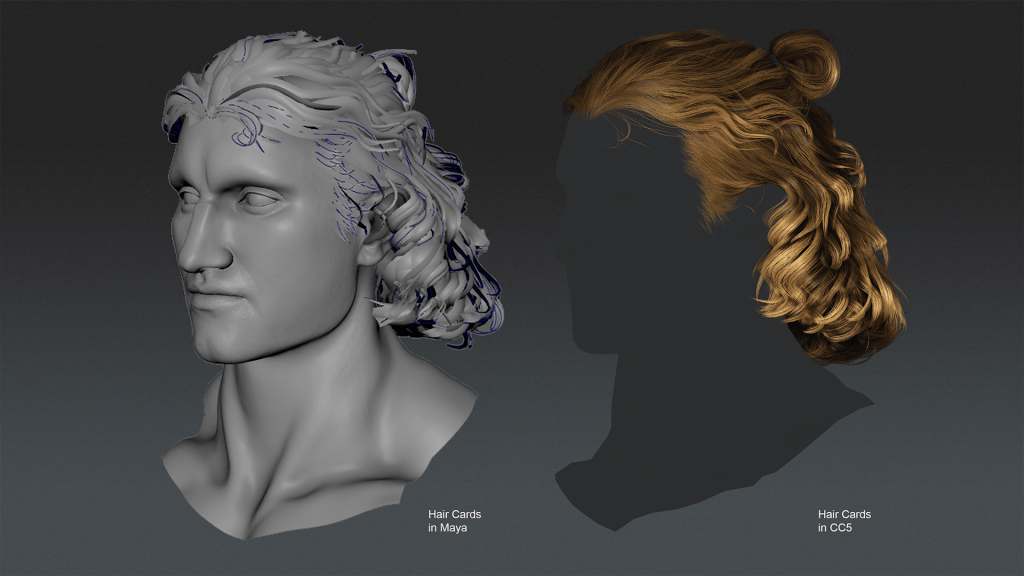
In Maya, I create hair cards using GS CurveTools (Paid Plugin for Maya). After importing the character, I delete unnecessary geometry, such as the body and teeth, and begin setting up materials.
I mark the hairline in Photoshop or Substance Painter to guide placement and darken the scalp where hair emerges. Since I was satisfied with CC5’s hair shader, I reused its textures instead of switching to XGen or Fibershop. I add a temporary hairstyle in CC5, export the diffuse and opacity textures, and reuse them in Maya.
For hair materials, I assign a Lambert shader, load the textures, and enable Alpha Is Luminance on the opacity map. In Viewport 2.0, I enable depth peeling at the highest quality.
Tip1: For debugging hair layers, duplicate the material and apply high contrast rainbow colours to the diffuse texture inside Photoshop.
Hair shader using the Bucket tool:
Hair cards made in Maya with GS Curvetools vs Final render in CC5.
Tip: To test hair, export it as an OBJ file, open a clean Maya scene, combine and smooth it if needed, and then export it again. In CC5, adjust the transform if necessary and apply the hair shader using the Bucket tool.
5. Import back into CC5
Once clothing, hair, and armour are retopologized, UVed, and textured, I import them into CC5 as props (Create > Prop).
Tip: Import related items in batches rather than combining everything into one object.
If an offset occurs on import, you can either correct it via (Modify > Attribute > Transform) or adjust the character pose to match (Modify > Motion Pose > Edit Pose). If the meshes appear blocky, ensure that you smooth the edges before exporting from Maya.
6. Setting up textures and materials
Assigning textures to the meshes, Weight painting adjustment on the poleyn (knee armour)
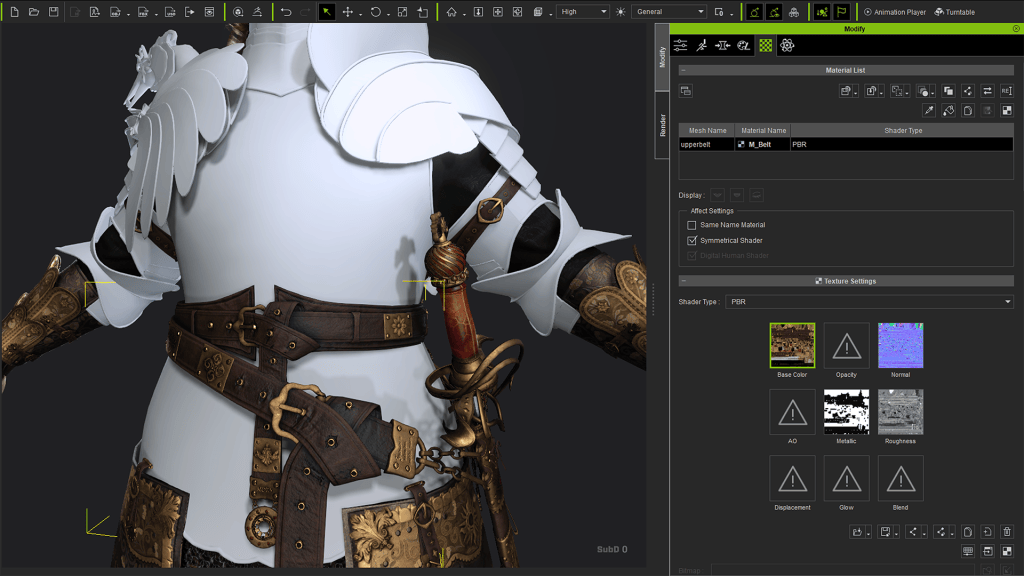
With all meshes in place, I assign materials (Modify > Textures) by dragging and dropping from the file browser. I leave normal and displacement maps until last, as they prompt additional options.
To elevate the flat faulds (layered plating around the waist), I created a custom mask for the displacement. With tessellation level on max, multiplier at 0.5 and grey scale value at 0 (Black = noelevation).
Tip: If physics are planned, ensure simulations are enabled (At the top row > “Rigid body simulation” and “Soft cloth simulation”).
7. Technical art
To ensure custom meshes conform to the character correctly, they must be bound to the skeleton and weighted properly. Select the mesh and assign a parent bone (Modify > Attribute > Attach). If the bone is difficult to select, click on any body part. Then use the dots inside the panel to choose from the list.
Once parented, the object will move along but not deform. Select it again and use “Transfer Skin Weights”. Choose the appropriate clothing type. Defaults work for most items, but shoes and gloves should not use the default setting. For the Sabatons, I had to combine them with the actual leather shoe beforehand, as your character can only wear one pair of shoes.
Weight painting adjustment on the poleyn (knee armour)
After binding all items, test deformation using the debug animations in the playbar. These include full-body and more limb-focused movements (Animation player > motion > Body rig).
Tip: You can pause the animation or even pose to get your mesh where you need it to be for testing. You can return into A or T pose at any time.
Weight painting adjustments are usually necessary, especially for armour. This mode can be performance-heavy, so save the scene frequently. Armour often needs rigid behaviour, but to save time, I often focus on parts close to joints like the pauldron and couter armor pieces. I then check to which bone I can assign 100% of the weights to, to make sure I get the least deformation and most natural movement.
Here is what I changed:
Pauldron: 100% clavicle bone
Couter: 100% elbow share bone
Tassets: 100% waist bone
Poleyn: 100% knee share bone
If you have imported any clothing items or armour that covers any body part, you can select it and enable the option to “hide body mesh” (Modify > Attribute >). Then click on the body parts which you want to make invisible.
Tip: Do not delete the mesh where that information is stored. I recommend creating a “Dummy mesh”, which you can rename to “Do not delete”. I gave my character piercings on his chest, which I named “disappiercing” so I always know which mesh I can select to change the hidden body parts.
8. Setting up a render
8.1 Pose and Express
Posing Sardon to scream dramatically.
With everything prepared, I begin posing. This is where character personality really comes through. Choose a well-lit atmosphere and start posing (Content > Stage > Atmosphere).
Tip: If performance drops, switch from High to Quick mode temporarily. (Top bar)
Save poses to the Custom tab for iteration. I usually refine each pose three to four times, checking from all angles to make sure the pose is readable and has no clipping. In the Expressions tab, I experiment with facial expressions to match the character’s personality and save those as well. For Sardon, I chose a proud sneer.
8.2 Lighting
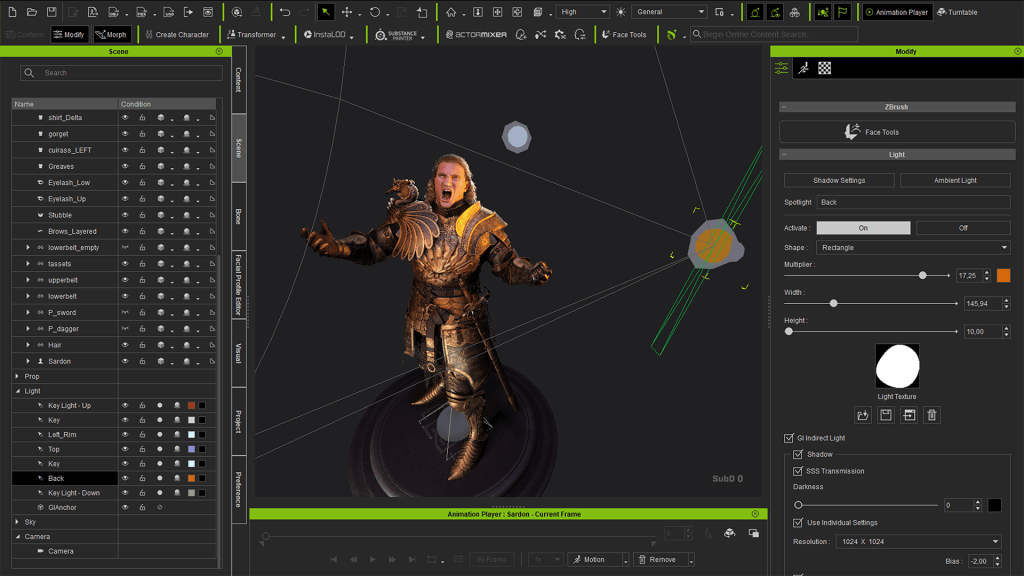
Adding and adjusting lights within the scene
I prefer full control over lighting, so I create custom light sets based on existing HD presets (Content > Stage > Atmosphere > CC5 HD).
A strong fill light, clean rim lights, and controlled shadows are key. Good lighting can elevate a model, while poor lighting can undermine even strong work. You can add custom lights to your scene via (Create > Light >). In the modify panel, you can change the attributes to fit your needs.
Tip: Introduce subtle temperature variation between lights, such as a warm fill and cooler rim light for greater contrast.
8.3 Turntable
For my portfolio, I always include turntables. Both digital and physical turntables can be used. CC5 allows you to rotate the scene, character or lights independently. I usually render one light turn and one character turn and combine them in DaVinci Resolve .
9. Rendering
Lighting adjustment, slight camera adjustment.
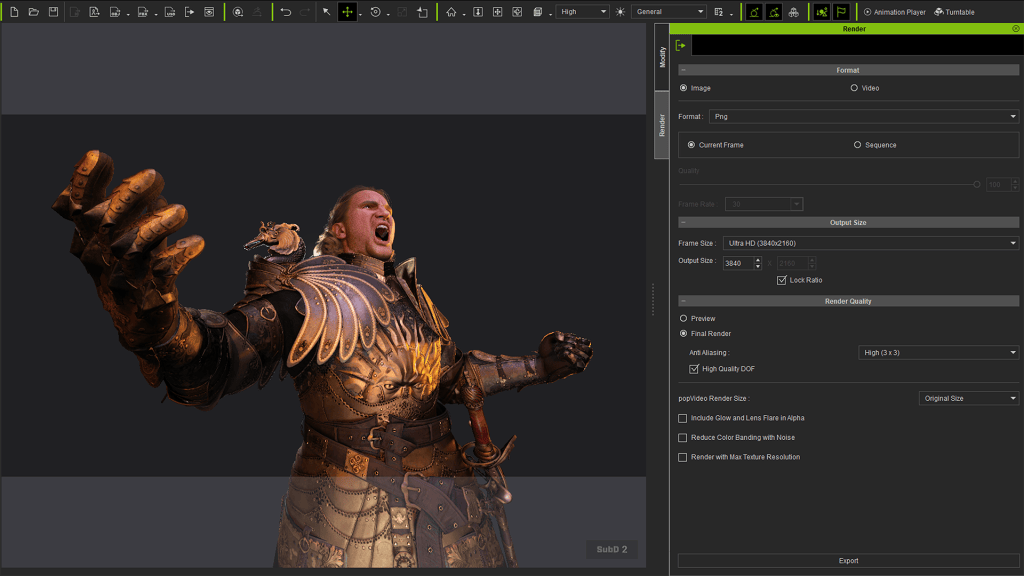
In the render settings (Ctrl + 3), I disable the background to allow transparent output. Open the render layout (Ctrl + 5) to access all of the controls for exporting. You can always add other windows like the playbar via (Window > ).
9.1 Images
One of many renders, many just differ slightly in pose, angle or lighting
I render my shots in Ultra HD as PNG files with maximum anti-aliasing. Post-processing is handled in Photoshop. Camera focal lengths usually sit between 80 and 105 mm, with depth of field disabled. You can find the camera settings by selecting them in the Scene tab. For action shots, I use a lower focal length for added dynamism.
Tip: Very high focal lengths can cause viewport artefacts. Reduce the value until they disappear.
9.2 Videos
Turntable renders within DaVinci Resolve
I render videos in standard HD MP4 format: one light-only turntable and one character turntable. Speed and direction can be adjusted in the turntable settings. If you want to add a turntable to your scene, click on the icon in the playbar.
10. Post-processing in Photoshop
Before and after-post processing.
I organise renders using Artboards for clarity. The size is the same as the renders (3840 x 2160). Once everything is placed, I begin final adjustments.
I selectively sharpen high contrast areas using the sharpen brush rather than applying a global filter. Dodge and burn to enhance depth, emphasising rim lights and toning down overly bright areas to fake additional shadow.
I rarely colour correct, unless necessary or to boost certain areas of interest.
10.1 Secret metal trick
A neat little trick to make the metalness richer in post-production.
For metal-heavy assets, duplicate the layer and apply a Curves adjustment. Push the curves up and down until a strong colour variation appears, then merge and reduce opacity. Mask the layer and paint the effect selectively. This adds subtle richness and variation to metal surfaces.
11. Summary
Final render of Sardon
This concludes my complete Character Creator 5 workflow and how I integrate it into my broader character pipeline. I am very happy with how Sardon turned out, and I look forward to my next character project, where I want to go deeper into the advanced tools. If you want to see more breakdown shots and renders, you can view my portfolio here:
For most of his career, Mike Wuetherick worked inside large studios, surrounded by character artists, riggers, animators, and graphics engineers. He shipped games, led Unity’s film team, collaborated with Disney and Netflix, and even won an Emmy for CG production work.
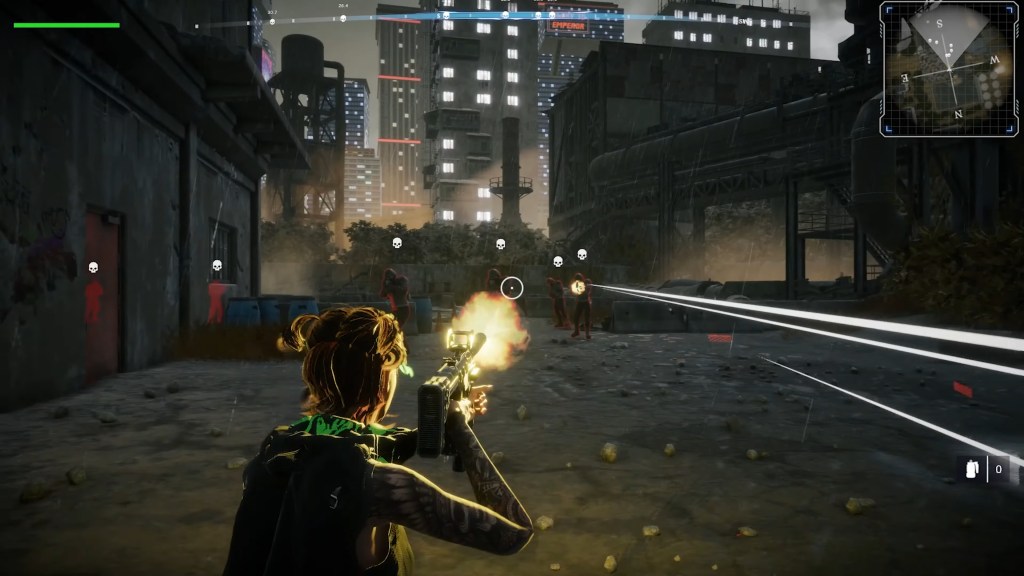
Today, he is building an ambitious cyberpunk indie game largely on Unity by himself.
The difference between those two worlds is not just team size. It is the tools. For Mike, Character Creator and iClone have become the foundation that makes solo, production-quality game development possible.
Mike Wuetherick
Mike Wuetherick has spent more than 25 years working across games, film, and real-time production.
He shipped multiple commercial titles early in his career, including Pac-Man games and a Katamari project at Namco. From 2016 to 2023, he worked at Unity, starting in product management before moving on to lead the company’s film and virtual production initiatives.
During his time at Unity, Mike collaborated closely with Oats Studios, contributing to the production of Adam Episodes 2 and 3, where a small, elite team pushed real-time CG storytelling to cinematic quality.
He also worked with Disney Television Animation on projects including Baymax Dreams and Sherman, combining real-time technology with character-driven animation. The Baymax Dreams project was later recognized with a Technical Emmy Award in 2018, highlighting the impact of real-time pipelines in broadcast animation.
Alongside these productions, Mike ran a dedicated motion capture stage in Vancouver, supporting facial, body, and performance capture workflows for film and episodic projects.
What’s He Building on Unity? Dystopia Punk: Zero Hour
Mike’s current indie project is Dystopia Punk: Zero Hour, a cyberpunk, near-future co-op game built on Unity.
Set in a world dominated by powerful governments and corporations, Dystopia Punk focuses on four-player online missions. Players work together to infiltrate facilities, hack systems, fight enemies, and complete objectives across a series of mission-based maps. Rather than a massive open world, the game uses carefully designed environments that support different play styles, from stealth to direct combat.
The game is built in third-person, a deliberate design choice. For Mike, character customization only matters if players can actually see their character in action. Animations, outfits, and movement are part of the experience, not something hidden behind a first-person camera.
Mike is aiming to release an early playable version within the year, targeting summer if possible.
Mike’s Indie Game Pipeline
While Dystopia Punk is a solo project, the pipeline behind it is closer to what you would expect from a small studio:
Character creation and assembly in Character Creator
Clothing authored in Marvelous Designer, refined in 3ds Max or Blender
Rigging, skinning, and optimization handled inside Character Creator
Performance and facial animation created in iClone
Export to Unity, where runtime customization and gameplay systems take over
Character Creator sits at the center of this workflow. Everything else connects to it.
Why Character Creator Is the “Core of Everything”
Mike describes his current workflow with a simple reality check: when you are a one-person team, you do not have the luxury of rebuilding character pipelines from scratch.
In a studio environment, character production is distributed across specialists. In solo development, those responsibilities still exist, but the person handling them is the same one designing gameplay, writing code, and building levels.
Character Creator replaces an entire layer of production overhead.
Built for a One-Person Team
For Mike, the value of Character Creator is not one single feature. It is how many traditionally separate tasks are solved in one place:
Rigging and skinning Character Creator allows him to auto-rig with AccuRIG and skin characters quickly, with live skin weight painting that is far faster and more intuitive than traditional DCC workflows.
Wrinkles and expression systems Upgrading characters from CC4 to CC5 instantly adds wrinkle maps and higher-quality deformation, improving realism without redoing work.
SkinGen for layered detail SkinGen is essential for Dystopia Punk’s cyberpunk aesthetic. Tattoos, decals, and layered skin details can be added and adjusted rapidly, making iteration painless.
Hair Builder for game-ready hair Mike relies on Hair Builder rather than custom groom pipelines. It allows him to mix, adjust, and recolor hair components while keeping performance suitable for real-time games.
Optimization tools for game character
Depending on the project, Mike uses Game Base conversion, LOD generation, and the Remesher to tailor characters for runtime performance. These tools are available when required, without forcing a separate optimization pipeline.
Runtime Customization in Unity
Inside Unity, Mike has built custom systems that extend what Character Creator provides. Clothing and body part masking, modular outfit combinations, and mix-and-match customization all happen at runtime.
Character Creator provides the structured, consistent foundation that makes these systems possible.
Taken together, these features allow Mike to handle character creation at a level that would normally require multiple dedicated roles.
iClone for Performance: Face + Body + Hands That “Just Sync”
Animation is another area where solo developers often struggle. Traditional motion capture pipelines rely on multiple tools for body, face, and hand capture, followed by time-consuming alignment and cleanup.
Mike has managed those pipelines before. At Unity, he ran a full mocap stage using professional systems.
With iClone, the experience is fundamentally different.
Mike used AccuFACE for facial mocap
Facial animation, body motion, and performance data are unified in a single environment. Mike uses Faceware regularly and has also worked with Rokoko suits, though he notes that hardware setup time can be a barrier. This is why he is particularly interested in video-based mocap, which aligns closely with how animators already work—by recording reference footage.
For Mike, iClone removes technical friction and lets him focus on performance rather than data management.
ActorCore for Background Crowds
Character Creator is not only used for hero characters.
To populate environments quickly, Mike relies heavily on ActorCore. With ready-to-use characters and animation libraries, he can block out crowd scenes and background activity in minutes rather than days. This is especially important for creating the sense of a living city in Dystopia Punk.
Unity Auto Setup: The Real Indie Superpower
One of the biggest challenges for solo developers is rendering quality. Skin, eyes, hair, and wrinkles are notoriously difficult to set up correctly without dedicated graphics engineers.
Whether working in HDRP or URP, Auto Setup ensures that characters exported from Character Creator arrive in Unity with shaders, materials, and wrinkle systems configured correctly. The result is predictable, production-ready visuals without weeks of shader development.
For a one-person team, that reliability is invaluable.
The Time Savings: Months vs Days (And a Two-Week Game)
Mike often compares his current workflow to his experience producing at scale.
In a traditional studio environment, even with multiple character artists and outsourcing support, it could take three to four months to complete a single production-ready character.
Using Character Creator, Mike can build a new character in a couple of days.
That difference compounds quickly.
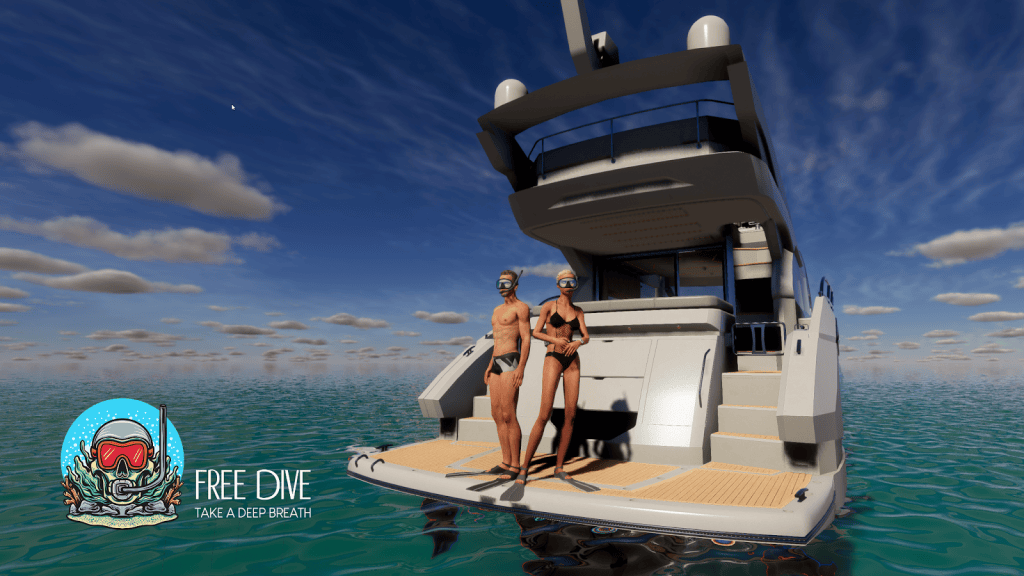
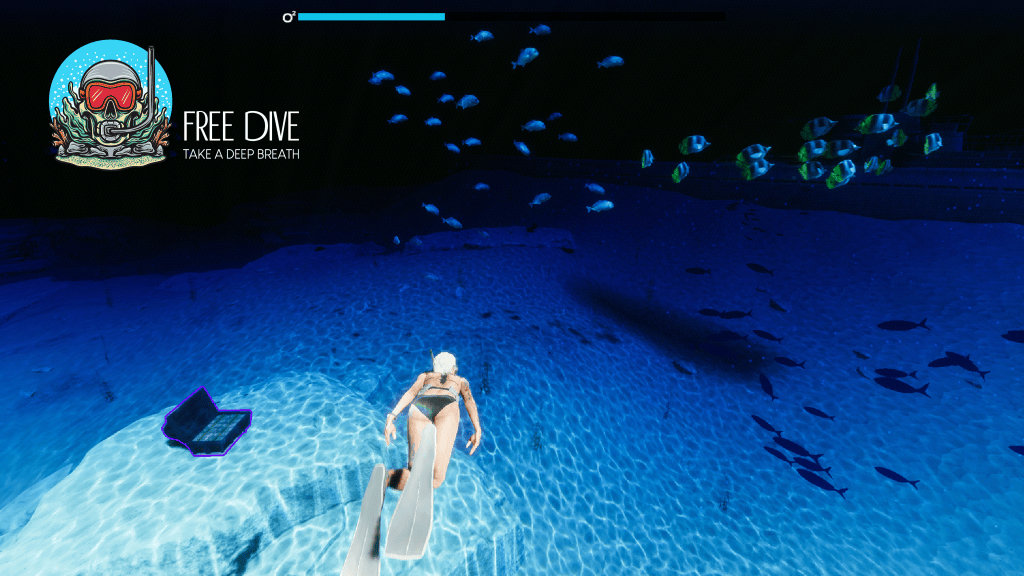
As proof, he points to Free Dive, a small third-person game he built during a game jam. Using Character Creator and iClone, he was able to create characters and ship a complete playable experience in two weeks.
For Mike, that project was a turning point. It demonstrated that solo development was not just possible, but sustainable.
Conclusion
Mike Wuetherick’s journey—from Emmy-winning virtual production to solo indie game development—highlights a fundamental shift in how characters are made.
Character Creator handles the foundation. iClone handles performance. Auto Setup makes Unity integration dependable.
Together, they allow one developer to work at a level that once required entire teams.
For indie creators and small studios, that changes what is realistically achievable.
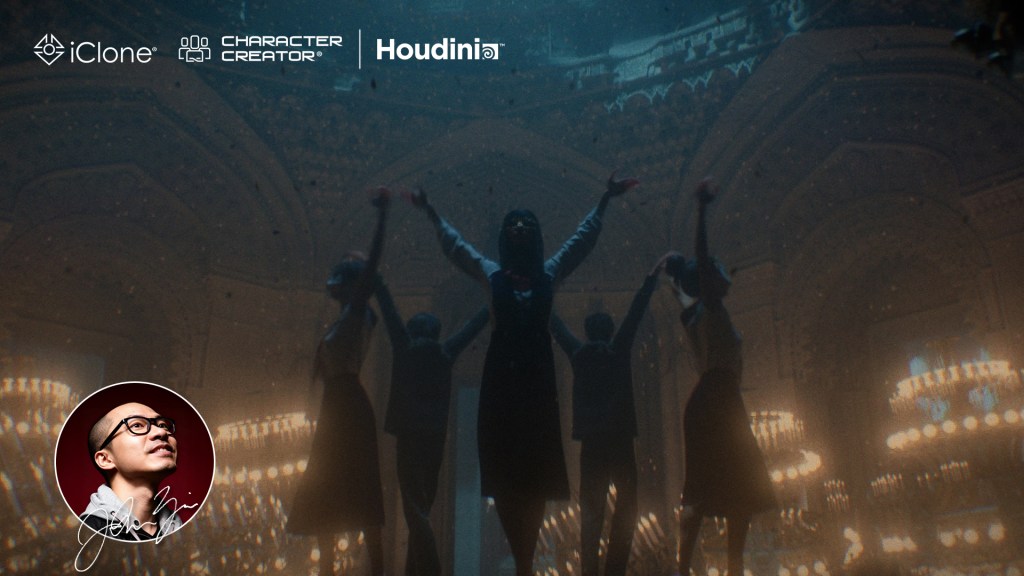
Houdini artist Kay John Yim used Character Creator and iClone to animate a mesmerizing short inspired by Satoshi Kon
John Yim
Hi I’m John Yim. I am a Chartered Architect and CGI Artist based in London. Obsessed with creating beautiful imagery, my passion has taken me beyond architecture into fashion design, character design, and landscape design, enriching my artistic vision with fresh perspectives and diverse influences. As an architect, classical architecture and ballet speak to my artistic DNA. I have always loved how extravagant, ornate architecture and elegant ballet movements complement each other so naturally.
At the same time, modern anime has been my greatest inspiration for personal projects—even more so than live-action films or CG animations. Of all the anime I have watched, dance sequences capture something essential about the medium—a unique energy, mesmerizing rhythm, and playfulness that can only be achieved when animators have complete control over every frame transition and moment of stillness. These moments embody the spirit of anime in a way that has always resonated deeply with me.
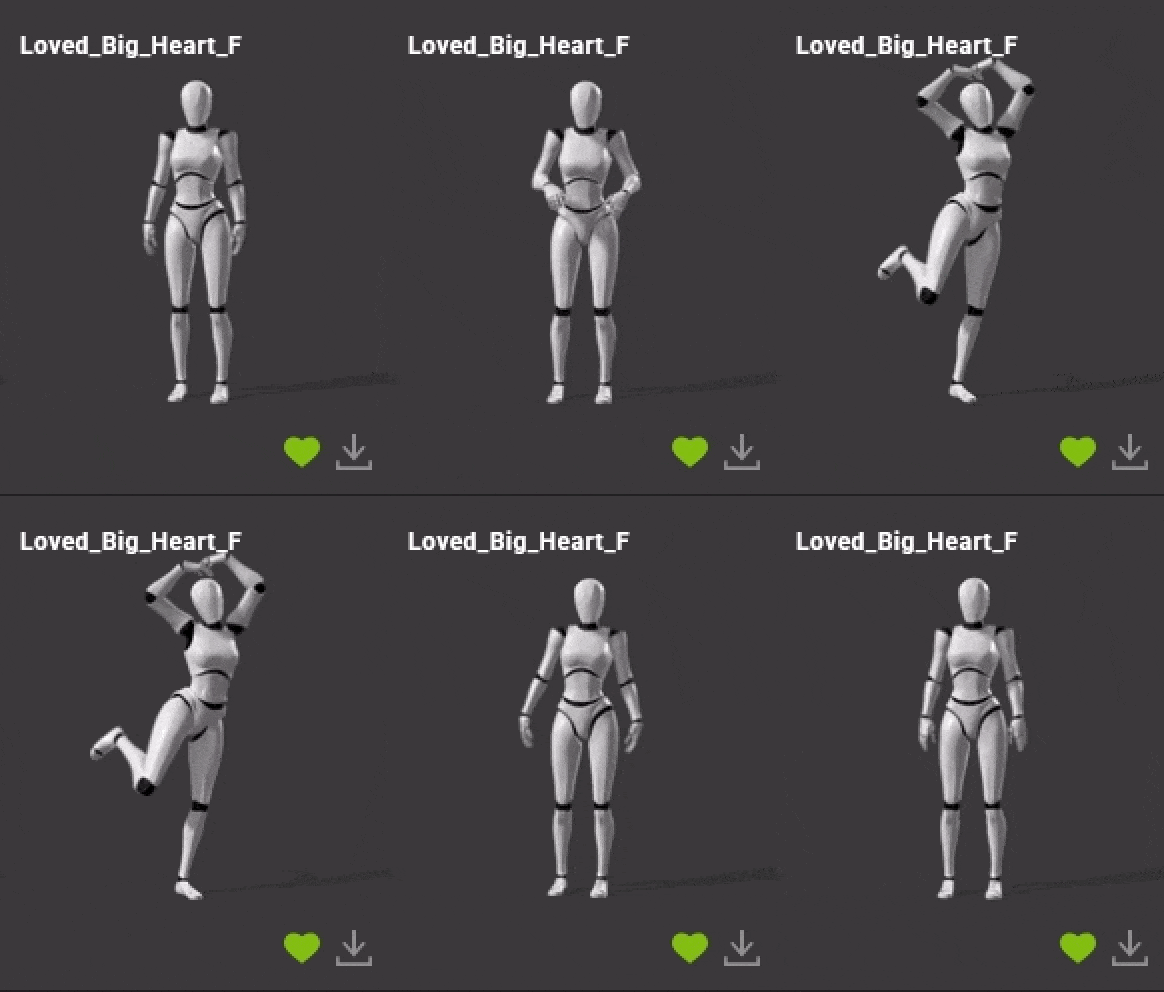
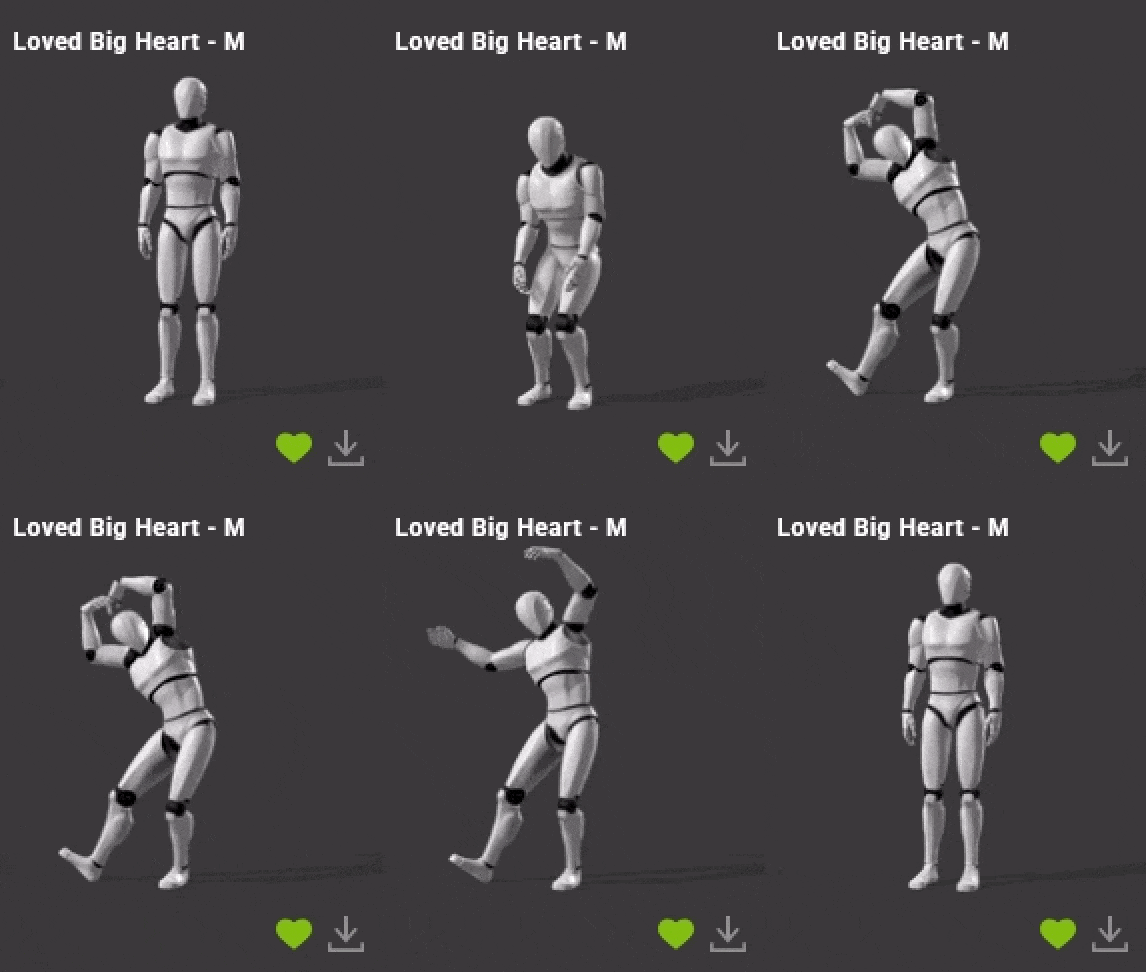
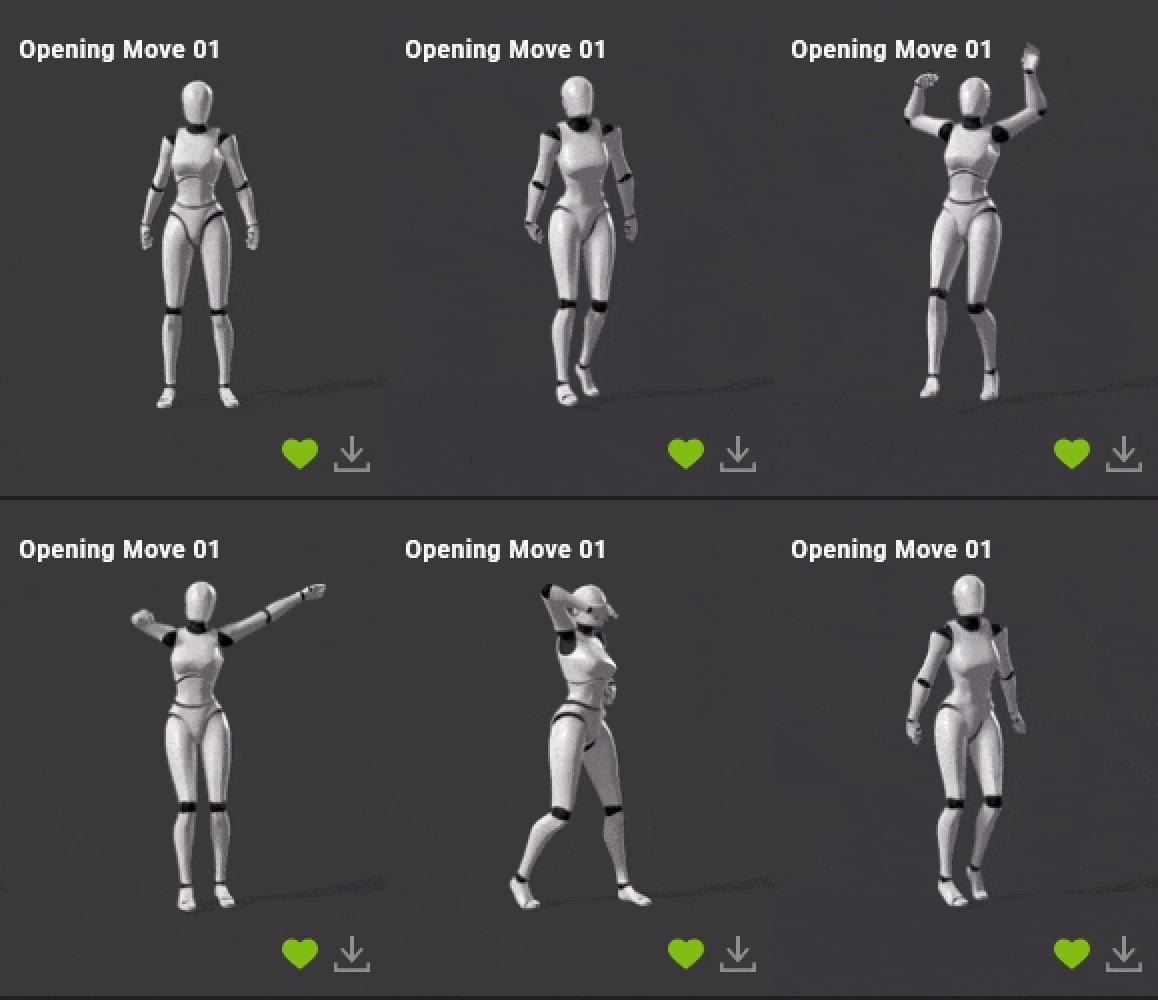
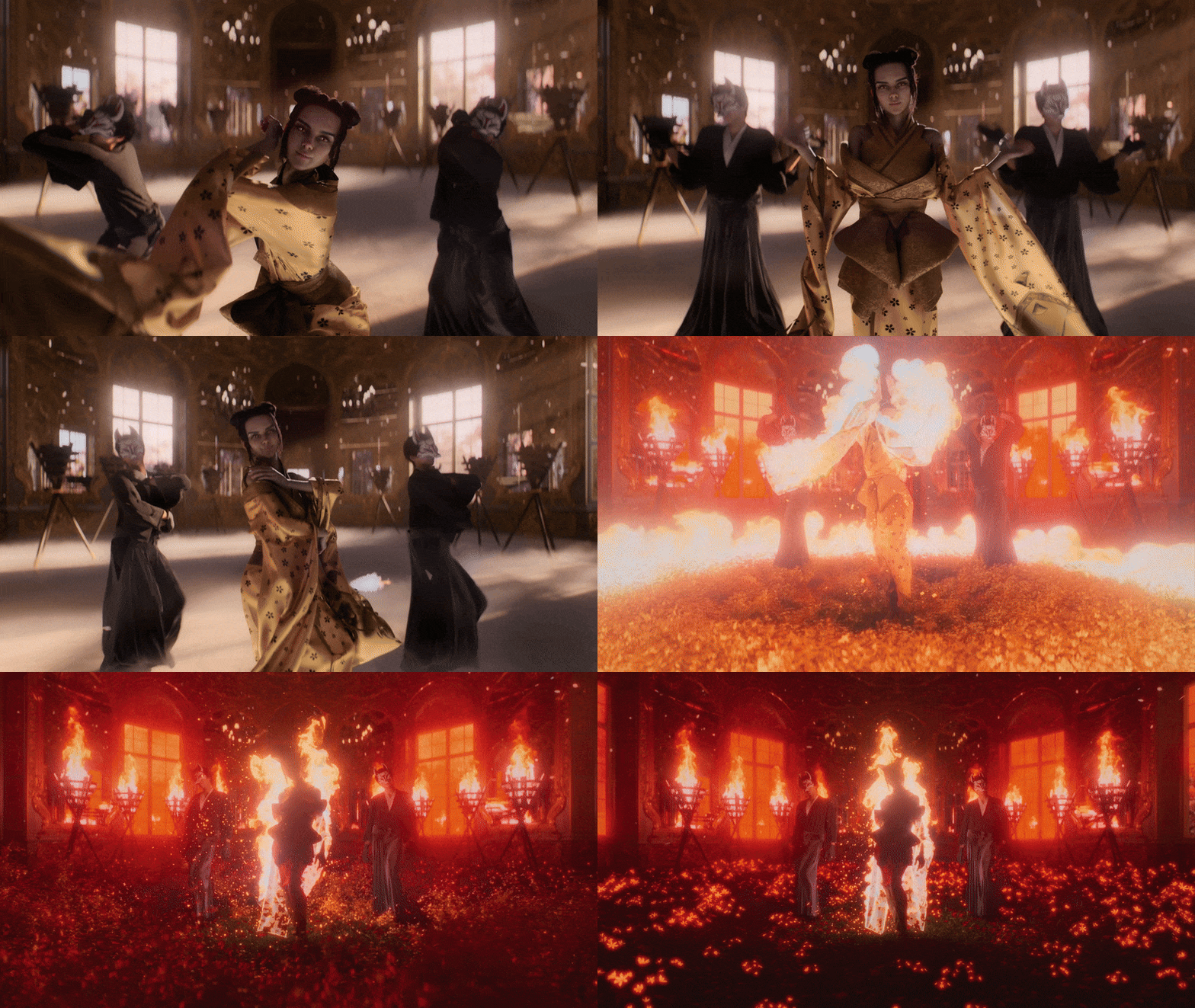
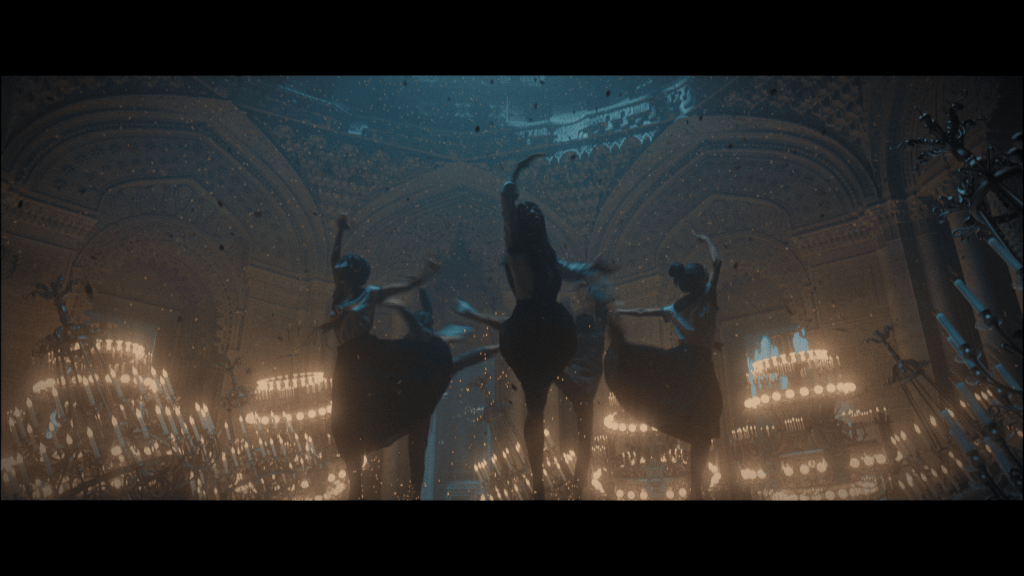
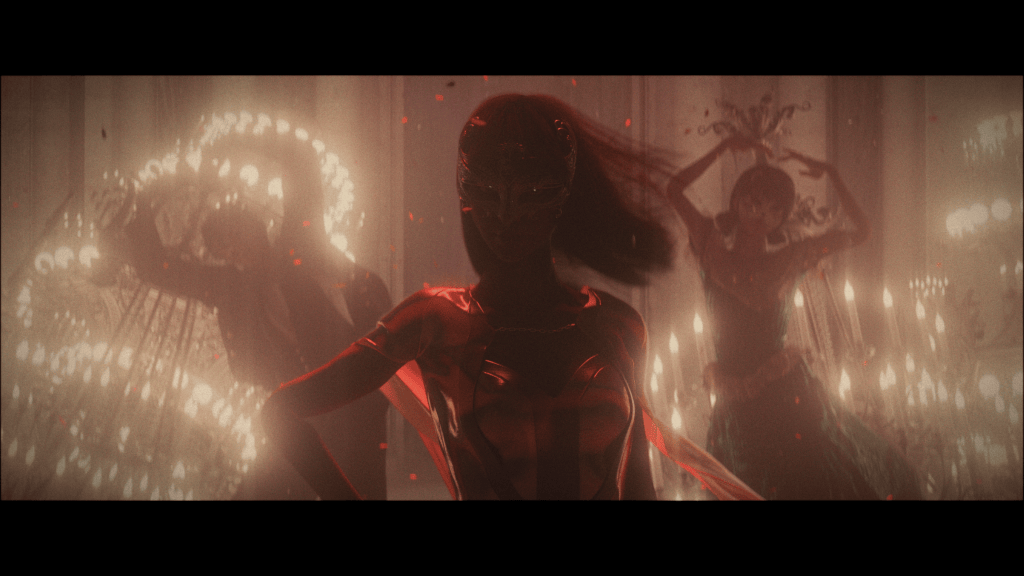
Project “Big Heart” started as a simple weekend experiment with a playful mocap anime I found on Reallusion ActorCore. As I added more details and drew inspiration from music videos, it gradually evolved into one of my most ambitious CG projects yet, spanning nearly a year. I wanted to blend both sides of myself—the anime enthusiast and the architect—together in a single fantastical CGI project.
Character Creation & Character Animation
Out of all the 3D software I use, CC, iClone & Marvelous Designer remains the ones I have not replaced with Houdini. Houdini’s character rigging and animation capabilities are powerful but overly technical and counterintuitive. Without any formal training in rigging or animation, CC & iClone simply works better for my needs. Its intuitive interface lets me focus on being an artist rather than getting bogged down in technical problem-solving.
I kicked off the project by creating 2 characters in CC, in which I used the body morphs to tweak their height, body shapes and facial features. Then I exported them to iClone, downloaded three motion sets from ActorCore and blended them together to create the initial sequence. Those ended up becoming the final sequence of the animation, in addition to a couple more motion sets that I gradually added later on.
Edit Motion Layer is my go-to iClone tool. It lets me manually keyframe character movements using IK joints, which was crucial, especially for fine-tuning the characters’ hands to avoid colliding into their clothes in simulations down the line.
Looking back at my earlier projects, “Henshin” and “The Playful Deity”, one notable critique is how the characters looked and moved identically—at times creating an uncanny effect. In reality, even the most rehearsed dancers exhibit natural variations in their movements.
To create character variation without significantly increasing rendering time, I used two character bases—one female and one male—five different hairstyles, and three costume variations. This approach provided just enough diversity to avoid the identical uncanny appearance while maintaining the dance troupe’s visual cohesion. For the movements, I vary the mocap through one of two methods: either adding an extra layer with keyframes on top of the mocap data, or slightly shifting the mocap keys. I believe subtle variation serves the best here, because there is something mesmerizing about perfectly-synced movements while excessive variation can be distracting.
Cloth Simulation
I used Marvelous Designer for the initial cloth fitting, and used Houdini to add details (stitches, hems, garment thickness, zips and buttons). While Houdini is more than capable of creating garments from scratch, it still lacks the real-time feedback of Marvelous Designer, which disrupts my creative flow during cloth-fitting.
MD Cloth fitting
Mask painting
Two things mattered most when creating the garments. First, I tried to avoid overlapping cloth as much as possible—Vellum in Houdini hates overlapping geometry. Second, particle density settings needed some thought. I kept particle distance at 10 units minimum. A lot of tutorials say to crank it down to 2 for more detail, but I found that just made simulation times ridiculous without much payoff. 10 units was the sweet spot for me.
Once I had all the garments fitted to the character A-pose, I converted everything to quad meshes and exported as welded OBJ files straight into Houdini, as OBJ was the only format that kept material data from Marvelous Designer intact during export. I split the imported OBJ by materials and applied different Vellum properties to each piece. Then I painted masks to control what simulated and what did not. Usually I masked out the entire back and waist area, using Point Deform to stick those parts directly to the character animation. This gave me a hybrid setup where some parts followed the character rigidly and other parts simulated freely.
Cloth simulation
While a lot of Houdini artists prefer using the Remesh node to convert everything to triangles before running Vellum – as triangles capture more detail with fewer points- I personally preferred quad meshes as they worked good enough in most cases without the trouble of deforming the triangular mesh back onto the quad mesh afterwards for rendering.
Vellum parameters do not correspond to real-world values and their behavior changes based on mesh density, so achieving a specific fabric appearance requires extensive trial and error. For final simulations, I typically use 20 substeps and 200-400 constraint iterations for multi-layered cloth simulations. Once I was satisfied with the simulation (an iteration process that took months), it was simply a matter of using Point Deform to attach buttons, chains, stitching, and seam details onto the simulated clothing.
Final render still
Hair Simulation
In preparation for hair simulation, I started with iClone Hair Mesh as the base, then used “Cards to Curves,” an HDA found on GitHub — a simple solution for hair mesh conversion in Houdini. During early test simulations, I realized that apart from the main character’s long hair, the other hairstyles simply did not move enough to make a noticeable difference, even when blown by wind. Consequently, I only simulated the long hair and kept the remaining hair meshes exported from iClone, intact without modification. The main takeaway is that one must add “glue” as a Vellum constraint to prevent individual hair strands from becoming excessively separated during simulation. I also used “Pin to Target” Vellum constraint to keep the upper portion of the hair attached to the scalp, which reduced simulation times.
FX Simulation
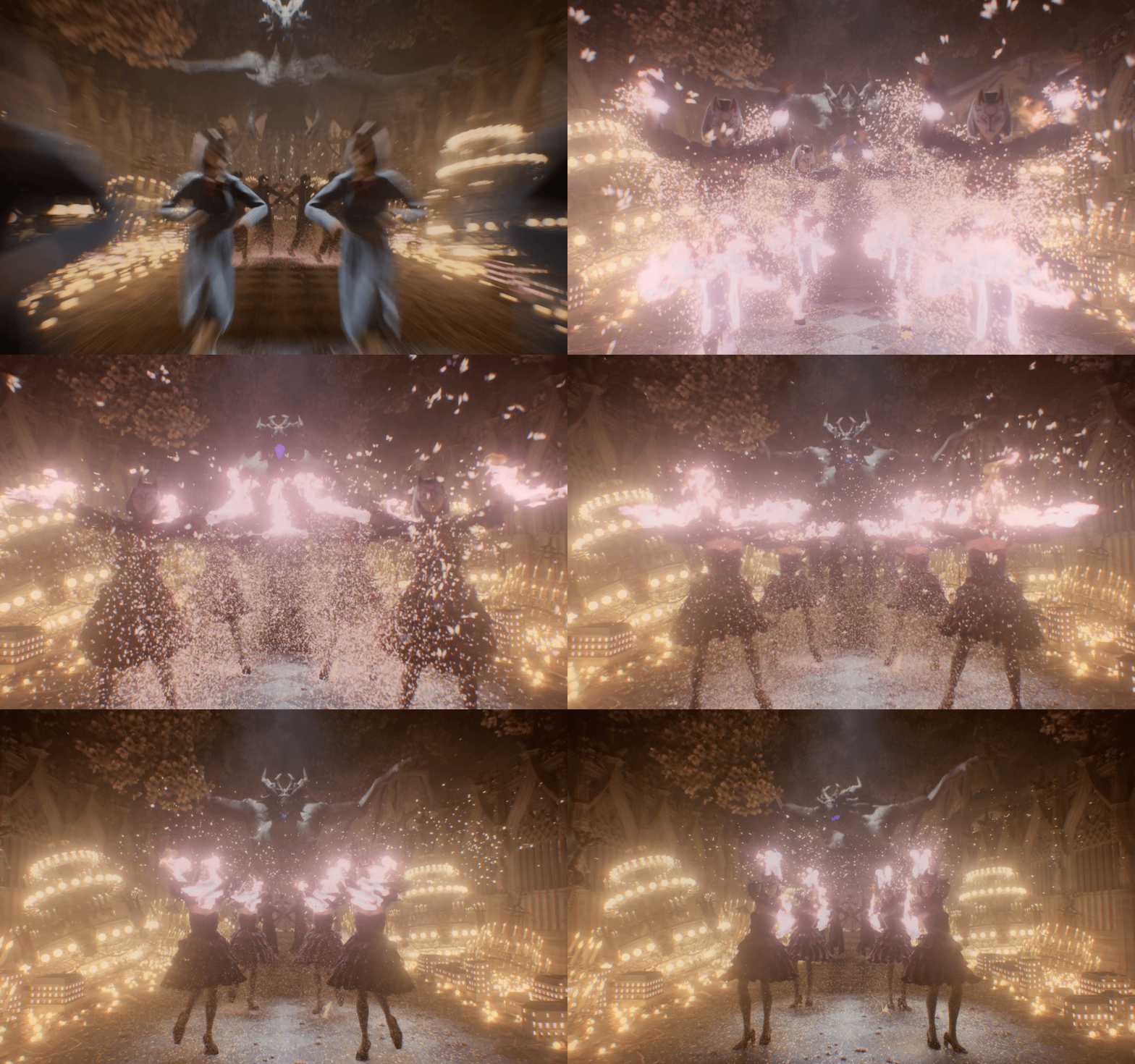
I used Axiom Solver for the pyro sims and Embergen for the fog and shockwave sim. In order to add more depth to the final shots, I experimented with creating ground-level fogs using Embergen. I exported the animated characters and a poly-reduced geometry of the environment, then imported them into Embergen as collision geometry. The fog is created from a box volume with randomized vortex noise. The collision geometry would then interact with the fog. Then I exported the simulated fog as VDB into Houdini.
I also used one of Embergen’s shockwave presets to create the heart-shaped shockwave in the final shot. The only change I made was swapping the emission source to a heart-shaped geometry, then I exported both the volume as VDB and the particles as Alembic into Houdini. I rendered the particles with an emissive material in the final render to add an extra layer of detail on top of the VDB shockwave.
Embergen: fog
Embergen: shockwave
Since both Axiom and Embergen are exceptionally fast pyro solvers, the challenge in FX simulation for this project shifted from optimizing simulation time to perfecting the timing — particularly for rapid simulations like the shockwave effects. Rather than simulating over and over again in Embergen, I used “retime” and “timeshift” in Houdini to shift the VDB’s timing around to match the overall rhythm of the dance in a way that felt satisfying.
Some shots contain less movement than others. To ensure the sequence consistently feels animated and dynamic, I added falling petals throughout all the shots. The petals are Houdini Vellum simulations that were essentially reused across all sequences. This addition also enhanced the fantastical quality of the final render.
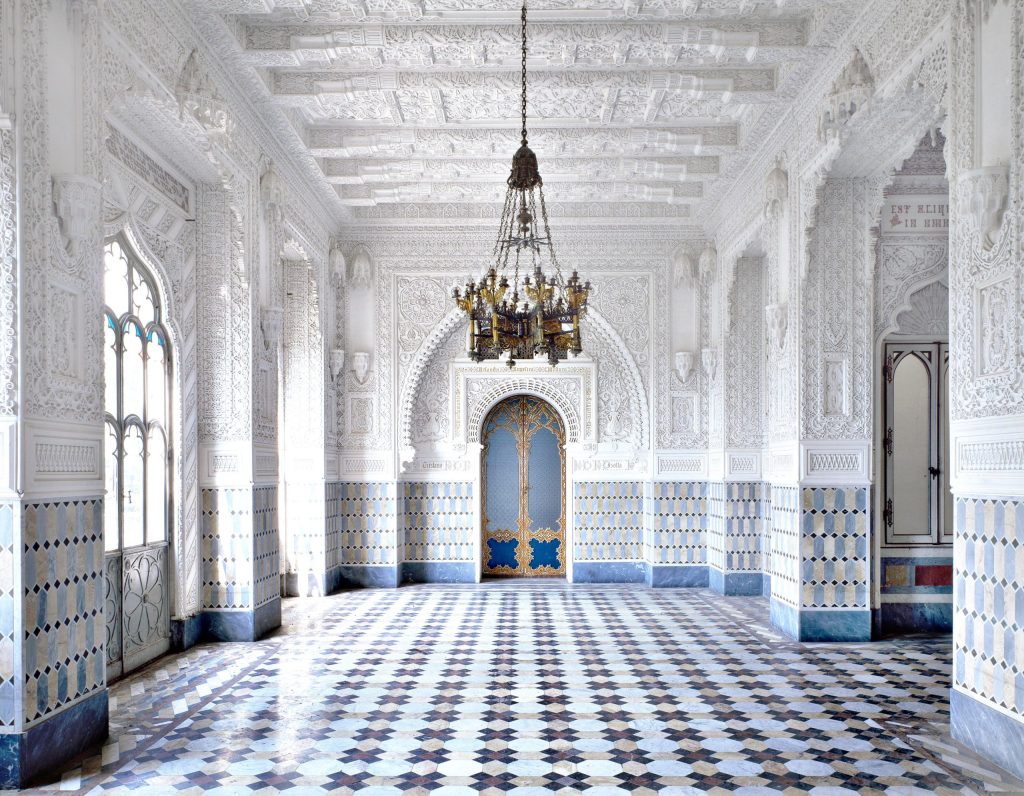
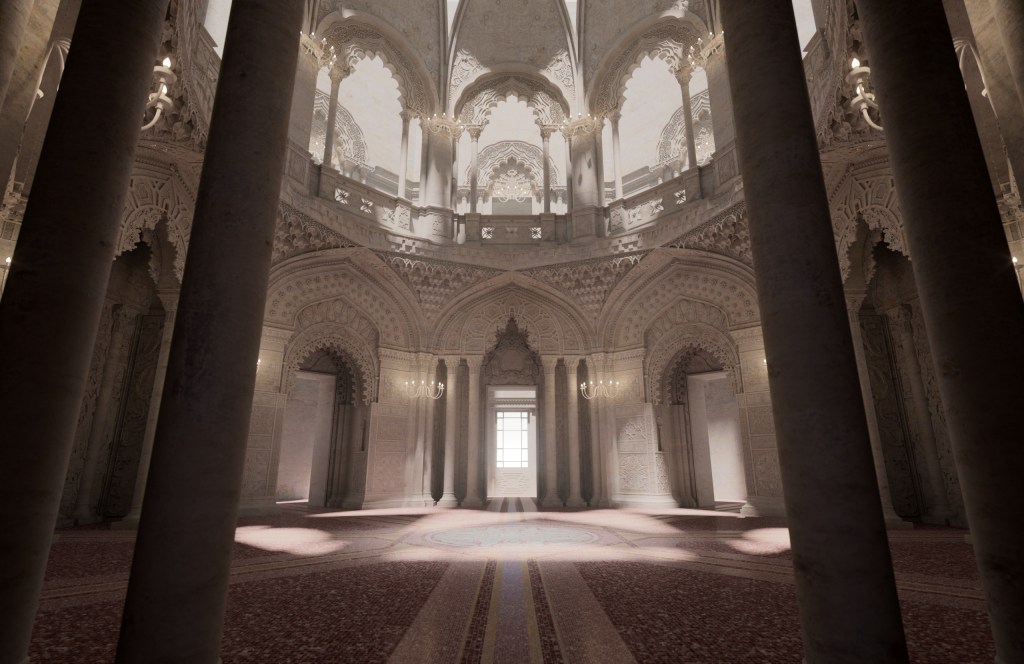
The environment draws inspiration from the Castle of Sammezzano in Tuscany, one of the finest examples of Moorish Revival architecture. The castle features 365 rooms, each with unique and elaborate Moorish decoration, though it sadly remains abandoned today.
In appreciation of this remarkable interior, I began recreating several of its two-story spaces in Rhino five years ago, though it has only recently become possible to incorporate the model into animated sequences due to its size. The breakthrough that made the model usable was straightforward: using a render farm to run polyreduce operations on the model. It had not occurred to me earlier that I could utilize a render farm for Houdini operations beyond rendering alone. This saved me from countless crashes and headaches.
Rendering
Once I was satisfied with all the simulations, I exported everything as Redshift Proxies. This essentially pre-processed geometry for rendering, which saved considerable time during iterative render tests when lighting and materials were the only remaining variables at this stage. Based on test renders, I estimated it would require at least six months of continuous rendering on a local workstation with dual 4090s. This was impractical, as I still needed to use my workstation for other work during that period.
Environment rendering
Upon further investigation, I discovered that “Bokeh” was the main culprit in the long rendering times. Simply by turning off bokeh I have cut down the final rendering time from 6 months to less than 2 months. The remaining challenge at this stage is to composite depth of field to all the rendered sequences in Nuke, which is something I have been postponing for years.
Compositing
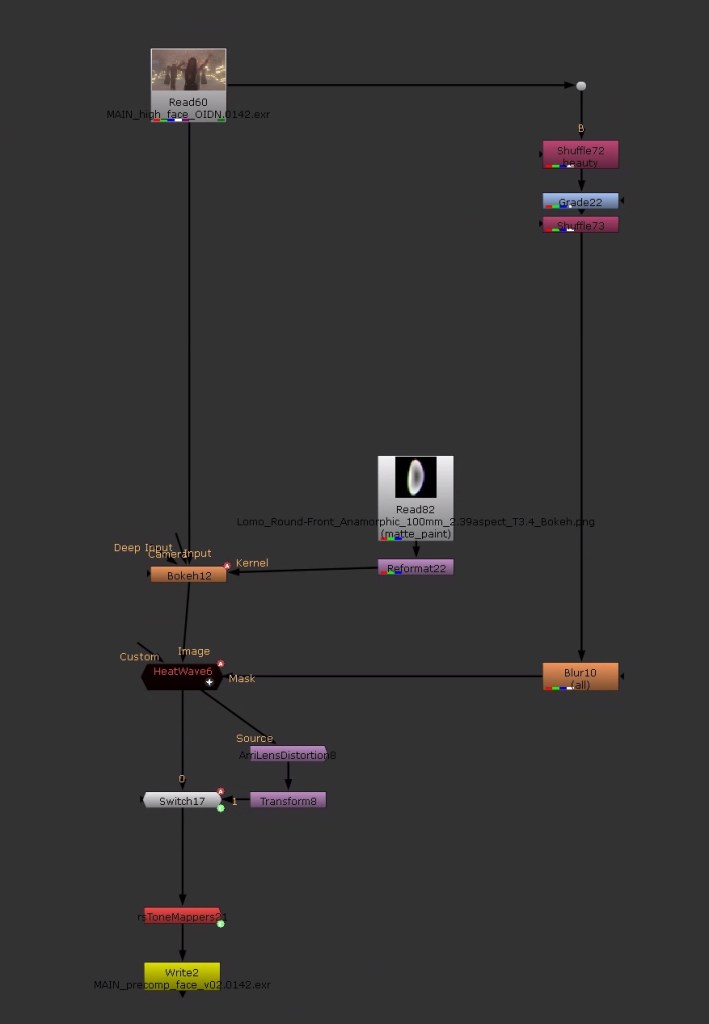
Learning to composite in Nuke was one of my personal goals for the year, and it proved essential for this project, particularly in reducing rendering time. I use Nuke primarily for adding depth of field, lens/heatwave distortion, and chromatic aberration to the final renders.
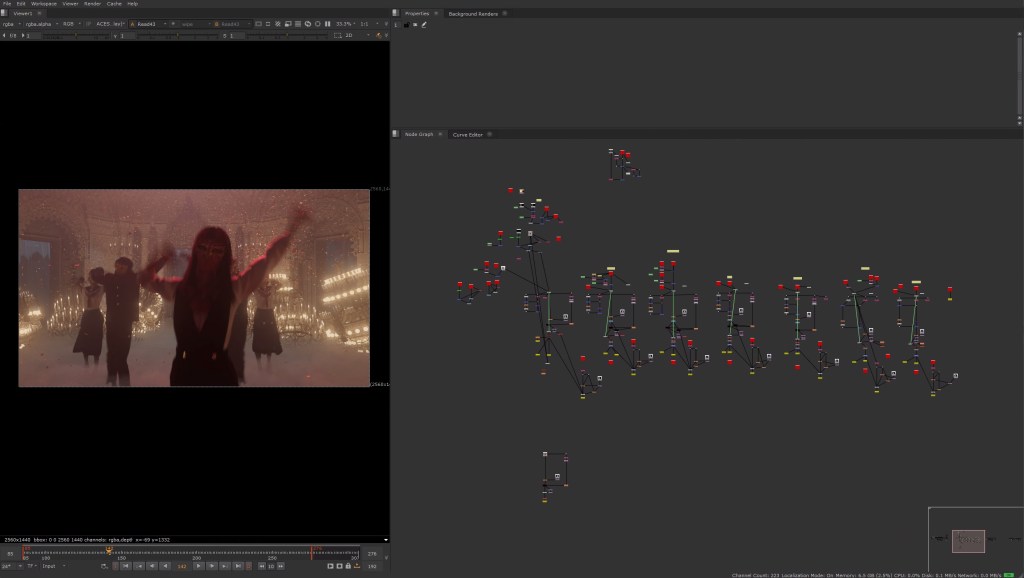
Screenshot from Nuke
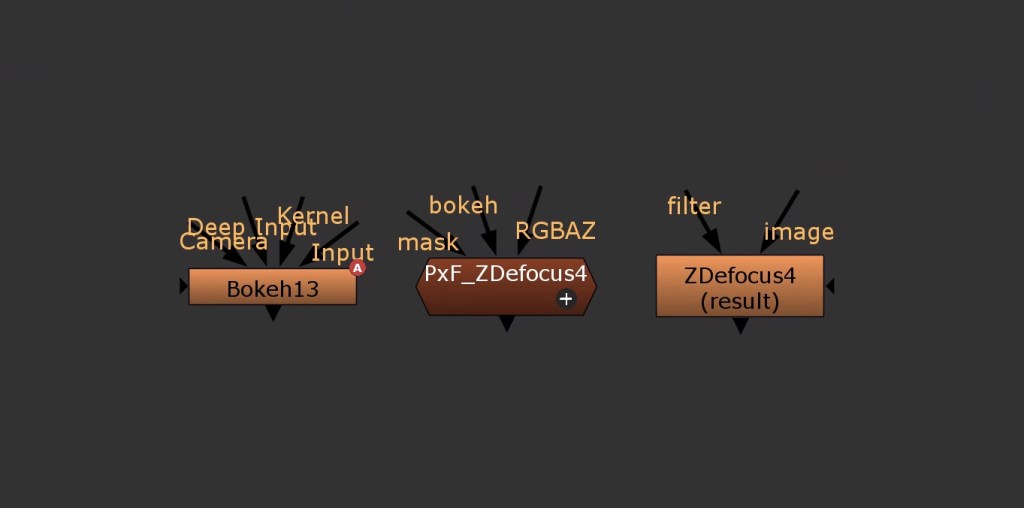
On the left is a typical script in Nuke. After testing three different nodes — ZDepth, Pxf_ZDepth, and Bokeh — I narrowed it down to either Pxf_ZDepth or Bokeh.
Pxf_ZDepth offers decent quality with nearly real-time results, making it genuinely enjoyable to use, especially with the ability to pick directly on screen and shift the focal plane to the selected spot. Bokeh produces the best quality but runs much slower than Pxf_ZDepth, and lacks interactive focal plane selection. I opted for Pxf_ZDepth to maintain workflow efficiency during early stages, then switched to Bokeh for final rendering for the best quality.
Switching to DaVinci Resolve from Adobe Premiere Pro was another personal goal for the year, as Resolve excels in all aspects of editing in terms of speed, features, and color correction. Resolve allowed me to bring ACEScg renders directly from Nuke and perform non-destructive color correction. It also includes an excellent built-in denoiser that rivals Neat Video—a third-party plugin that had to be purchased separately for Premiere Pro. Additionally, exporting videos in Resolve is multiple times faster. The only obstacle was that I had to take the time to retrain my muscle memory.
Different ways of adding bokeh in Nuke
Afterthoughts
“Big Heart” stands as one of my most enduring projects to date, spanning almost a year from ideation to completion, with the primary takeaway being the meaningful improvements that can be achieved through subtle variations in hairstyle, clothing, and movement, as well as the efficiency that compositing can bring to a CG project. This project reinforced my conviction in the power of procedural workflows in Houdini—once I established the pipeline, I could iterate between Houdini and iClone to update expressions and motions without redoing any of the technical setup.
While I appreciate the intuitiveness of animating in iClone, the inability to see real-time changes in clothing and hair while adjusting poses remains a persistent pain point. I plan to integrate iClone more closely with Houdini’s native rigging to address this, particularly with Houdini 21’s new machine learning tools for simulation—a challenging path I am nevertheless prepared to pursue.
At the time of writing, Reallusion AI Render has also been released. Like many artists online, I initially held strong reservations about the flood of AI imagery and videos, as the majority lack artistic intent and represent low-effort output … the antithesis of art. However, Reallusion’s AI Render in iClone revealed a new level of control that demonstrated how artists could art direct generative AI using ComfyUI. I did a week-long experimental project utilizing a combination of CG and AI tools to bring myself and my CG model into a professional photoshoot setting.
AI was mostly used for iterating through different expressions and upscaling for the final render. Although it required significant effort to combat AI hallucination and control the output, I believe that with advances in finer controls, AI Render and ComfyUI could become powerful tools in a CG artist’s arsenal. With the release of Reallusion Character Creator 5, which introduces ActorMIXER and more detailed skin textures, creating character variations for multiple-person shots has become significantly easier. I am genuinely excited to explore integrating both AI Render and Character Creator 5 into my workflow in future projects.
Introduction: Where Cinematic Vision Meets Character Technology
In today’s real-time production landscape, the ability to create your own character with speed, precision, and cinematic intent has become essential for previs, virtual production, and modern filmmaking. At the forefront of this evolution is Final Form Studios, led by director and in-camera VFX specialist Stephen Wilcox, alongside producer and creative director Shiho Moriya.
Based in Tokyo, the husband-and-wife team blends cutting-edge 3D animation software with a filmmaker’s eye and a producer’s discipline. While Wilcox drives technical innovation through Character Creator 5, iClone 8, and Unreal Engine, Moriya oversees creative and production workflows end to end—ensuring that every character, scene, and previs sequence communicates emotional clarity and practical intent. Together, they have built a pipeline that transforms early ideas into director-ready visuals, helping creators reach their own “final form” long before cameras roll.
Stephen Wilcox
Stephen Wilcox is a director and in-camera VFX specialist with 7 years of experience using Unreal Engine for previsualization, LED virtual production, and real-time pipelines.
Based in Tokyo, he has led previs and LED virtual production for Japan’s largest TV/film studios, international DJ tours, and high-profile branded content.
With a background in cinematography, Stephen brings a filmmaker’s eye to cutting-edge CG workflows, blending creative direction with technical precision. His work bridges the gap between directors and technical teams, ensuring the entire production crew is aligned from previs to post.
Shiho Moriya
Shiho Moriya is a bilingual (Japanese/English) producer and creative director based in Tokyo. She oversees both creative and production workflows across live-action and CG projects.
With a background in visual design and a strong artistic eye, Shiho brings a refined aesthetic and emotional clarity to every project. She manages the full production pipeline from concept development to final delivery, blending creative vision with clear communication and technical precision.
Her ultimate goal is to help every client and creator reach their own “final form.” She listens deeply, identifies creative and logistical challenges, and acts as a bridge between vision and execution, ensuring every idea is both beautifully realized and practically delivered.
Stephen Wilcox and Final Form Studios
Stephen Wilcox is a director and in-camera VFX specialist with over seven years of experience using Unreal Engine for previs, LED virtual production, and real-time pipelines. Based in Tokyo, he has led previs and virtual production workflows for Japan’s largest film and television studios, international DJ tours, and global branded campaigns.
Unlike purely technical CG vendors, Final Form Studios was built from a cinematography-first mindset. Wilcox and his team understand how previs must serve directors, DPs, and on-set crews—not just technical departments.
“We don’t just make things look good. We make them work on set.”
Stephen Wilcox – CEO of FINAL FORM LIMITED / FOUNDER / DIRECTOR
Why Previs Demands Better Characters
Traditional previs often relies on low-detail proxy models or default characters that fail to communicate tone, emotion, or scale. This disconnect can lead to:
Misaligned creative expectations
Inefficient LED stage planning
Expensive revisions during production
Final Form Studios addresses this by upgrading previs characters into near-final digital doubles, ensuring everyone—from directors to lighting teams—shares the same visual language early in the process.
Below we show the original MetaHuman characters that were used in the first draft of the previs.
From MetaHuman Previs to Director-Ready Characters
MetaHuman Creator has become a popular starting point for Unreal Engine previs due to its speed and realism. However, Wilcox found limitations when MetaHumans were pushed beyond early blocking stages.
Common challenges included:
Limited body proportion control
Clothing layering issues
Reduced flexibility for stylized or cinematic character bases
This is where Reallusion Character Creator 5 (CC5) morphing technology becomes transformative.
Character Creator 5: A True Human Creator for Previs
Character Creator 5 functions as a powerful character designer and character base generator, allowing artists to rapidly iterate on both realistic and stylized humans while maintaining clean topology and animation-ready rigs.
CC5’s ActorMixer: Fast Foundations
Wilcox begins his workflow using the Character Creator 5 ActorMixer, blending multiple body and head presets to quickly establish believable proportions.
This approach allows teams to:
Match character silhouettes to casting intent
Adjust anatomy for camera angles
Create multiple variants without starting from scratch
For previs, this means characters instantly feel intentional rather than generic.
Facial Control Beyond MetaHuman
While MetaHuman Creator excels at realism, Character Creator 5 offers deeper facial slider control, enabling finer adjustments for:
Age progression
Facial asymmetry
Emotional readability at mid and wide shots
These subtleties are crucial for previs where performance and blocking must read clearly—even before final casting decisions are made.
Character Creator’s HD Face control gives you fine-grained control at the same level you’d expect inside MetaHuman Creator—jaw, lips, cheeks, brows, eye micro-movement—but with the added benefit of being fully editable before you ever hit Unreal. For previs and director reviews, that’s huge. We can iterate on performance, test facial beats in iClone, and walk into Unreal Engine with characters that already feel locked creatively.
For Unreal Engine teams, it removes friction. You’re not rebuilding performances or rethinking rigs—you’re just pushing creative decisions forward faster, with more control and a lot more flexibility across different pipelines.
“What changed the game for us with Character Creator 5 is how closely the facial control system now aligns with MetaHuman. You’re working with a comparable facial skeleton and a dense, production-ready control set, which means facial animation, lip sync animation, and mocap data translate cleanly without fighting the rig.”
Stephen Wilcox – CEO of FINAL FORM LIMITED / FOUNDER / DIRECTOR
Hair and Facial Hair Layering
One of Character Creator’s standout advantages is its layered hair system. Instead of relying on single groom assets, Wilcox stacks multiple hair elements to create fuller, more cinematic silhouettes.
This is especially useful when:
Matching concept art
Supporting harsh or stylized lighting
Preparing characters for LED volume environments
Clothing That Actually Works: MetaTailor → CC5
Clothing often breaks previs pipelines. Poor layering, clipping, or rigid deformation can undermine otherwise strong character work.
Final Form Studios uses MetaTailor, then imports garments into Character Creator 5, where:
Clothing layers correctly
Weight painting behaves predictably
Garments remain animation-ready
This eliminates hours of manual cleanup and ensures characters remain usable throughout production.
MetatailorClothing inside Character Creator
iClone 8: Animation and Performance Refinement
Once characters are finalized in CC5, they move into iClone 8 for performance testing and motion polish.
Facial Tests and Lip Sync Animation
iClone enables rapid lip sync animation and facial testing—critical for previs dialogue scenes. Directors can evaluate:
Emotional timing
Eye direction
Performance clarity
Without waiting on final animation passes.
Motion Capture Cleanup and Blocking
Wilcox emphasizes controller-friendly blocking, allowing directors to iterate on performance beats before committing to high-fidelity motion capture.
This hybrid approach combines:
Mocap realism
Animator control
Fast iteration cycles
Sending Everything Cleanly into Unreal Engine 5.6
One of Reallusion’s biggest strengths is its clean Unreal Engine pipeline, which includes the free Unreal Auto Setup tool that automates the task of Digital Human shader assignment and characterization for Unreal Engine. Characters, animations, and facial data transfer reliably—preserving hierarchy, materials, and performance data.
Inside UE 5.6, Final Form Studios previews:
Arctic base environments
Interior ship scenes
Full previs sequences from Time Traveler’s Diary
This allows previs assets to transition smoothly into:
LED virtual production
In-camera VFX
Final pixel workflows
Why CC5 + Unreal Outperforms MetaHuman Alone
MetaHuman Creator is powerful—but it isn’t designed to be a full previs character system on its own.
Character Creator 5 advantages include:
Full body and proportion control
Superior clothing workflows
Faster iteration for directors
Easier stylization when realism isn’t the goal
By combining MetaHuman where useful and CC5 where flexibility matters, Wilcox builds a hybrid pipeline that delivers both realism and control.
A Production-Ready Pipeline, Not Just Assets
Final Form Studios’ pipeline supports:
3D scanning
Motion capture
Unreal Engine environments
LED volume alignment
Because Character Creator and iClone integrate cleanly with Unreal, previs assets remain valuable throughout the entire production lifecycle. The iClone Motion Director system debuts game-play controls to drive characters, apply motion triggers and dynamic cameras to direct scenes in real-time.
Learn more about UEFN / GASP Game Control Integration:
Why “Final Form” Matters
The studio’s name reflects its philosophy: every project has a truest version waiting to emerge.
“From concept to camera – We help creators reach that final form.”
Stephen Wilcox – CEO of FINAL FORM LIMITED / FOUNDER / DIRECTOR
Reallusion tools make that transformation faster, clearer, and more collaborative.
Who This Workflow Is For?
This pipeline is ideal for:
Directors planning complex scenes
Studios preparing LED shoots
Production houses minimizing reshoots
Indie filmmakers scaling up quality
If you want to create your own character for Unreal with precision and speed, CC5 provides a future-proof solution.
Conclusion: The Future of Previs Is Character-Driven
Stephen Wilcox and Final Form Studios demonstrate how previs has evolved from rough blocking into a creative decision-making engine. By pairing Character Creator 5, iClone 8, and Unreal Engine, filmmakers gain unprecedented control over character, performance, and visual intent.
For anyone working in 3D character animation, Reallusion’s ecosystem offers not just tools—but a smarter way to tell stories before the camera ever rolls.