
首頁 » Page 5
The Judas Mark: A Student Blender Short Film Pushing Cinematic Character Art

Introduction: From Student Vision to Cinematic Reality

For final-year student pursuing a BA in Motion Graphics and Animation at Northumbria University – Wagmi Wibhawith, storytelling is more than visual expression, it’s a reflection of belief, morality, and emotion. His graduation project, The Judas Mark, serves as both a technical showcase and a philosophical exploration, brought to life with Reallusion’s Character Creator, iClone, and Blender.

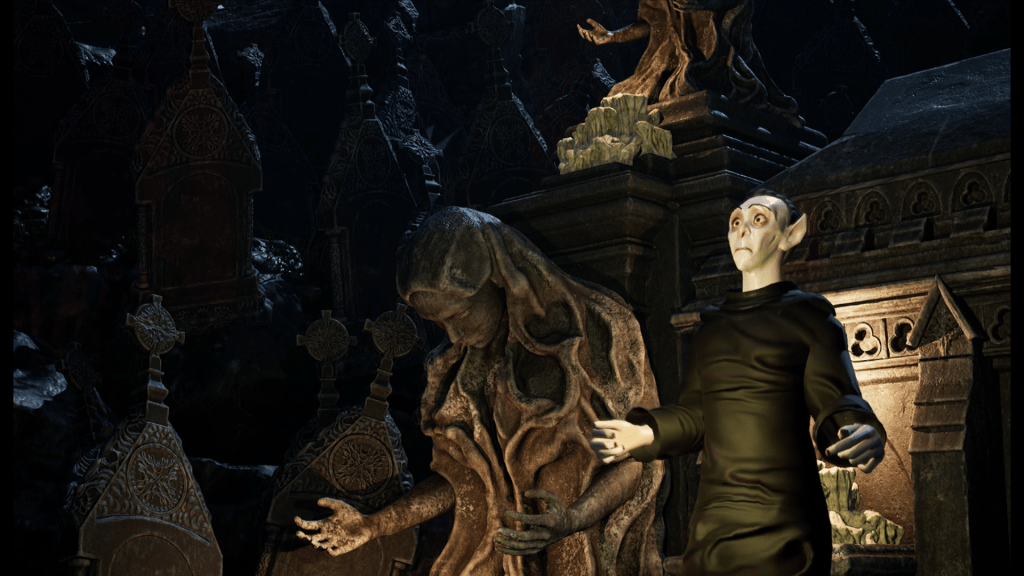
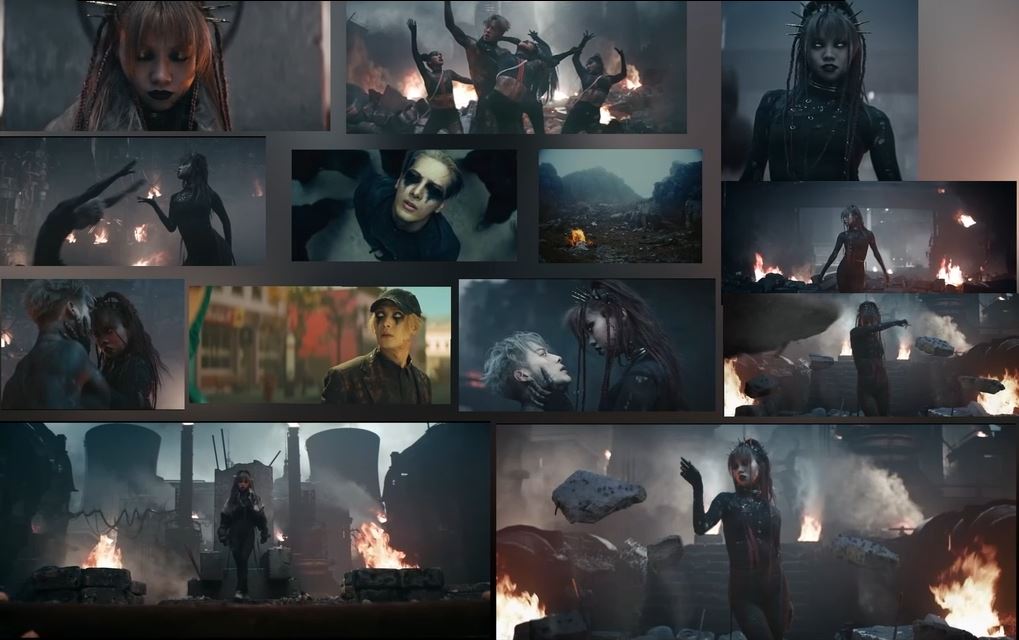
The Judas Mark is a dark, surreal 3D animated short film exploring betrayal as the ultimate, unforgivable sin. The film asks: “What happens when neither heaven nor hell can claim a soul?” The story follows a sinful protagonist who steps into a vast courtroom for judgment. As the statues representing the seven deadly sins remain dark, a final, eighth statue, Disloyalty, ignites. The judges silently reject him, condemning him to a fate worse than hell.

Through this short film, Wagmi proves how accessible, real-time 3D animation software can empower creators to craft visually stunning narratives without the traditional time and budget constraints. For aspiring character designers, his process is a masterclass in using modern digital tools to create your own characters and fully animated worlds.

The Concept Behind The Judas Mark

Set in a surreal, celestial courtroom where souls are judged beyond heaven or hell, The Judas Mark questions the moral weight of disloyalty. The story follows a lost soul confronted by eight towering embodiments of sin, with Disloyalty represented as a new, eighth deadly sin—a haunting metaphor for moral grayness and betrayal.

Inspired by biblical allegory from Genesis’s Cain, Dante’s Inferno, and the existential philosophies of Camus and Kafka, the film merges theological depth with abstract visual design. Wagmi’s worldbuilding immerses viewers in a space that is both spiritual and cinematic—a world crafted from digital sculpture, animation, and emotion.

“The film treats Betrayal as the ultimate unforgettable sin. It asks, what happens when neither heaven nor hell can claim a soul?”

Wagmi Wibhawith – 3D Concept Designer and Artist | Creative Storyteller

Creative Foundations: From Research to Design

Before opening any 3D animation software, Wagmi immersed himself in theological and literary research. His concept evolved through storyboarding, symbolic design, and digital previsualization, setting the foundation for an emotionally grounded story.

To visualize the statues representing the sins, he worked with friends to pose reference photos, which he then composited in Photoshop to experiment with shape, form, and emotion. This photo-bashing technique helped define the surreal tone and served as the blueprint for his 3D modeling phase.

From Concept to Creation with Reallusion Tools

With nine characters to develop, Wagmi needed efficiency without sacrificing quality. That’s where Reallusion’s Character Creator (CC) and iClone transformed his production.

1. Rapid Character Creation and Customization

Using Character Creator, Wagmi sculpted each sin as a symbolic embodiment, ranging from the feminine wrath to the gaunt greed -directly using morph sliders and preset body bases.

“What would have taken months of sculpting and modeling was made really easy. Character Creator let me focus on storytelling rather than technical modeling.”

Wagmi Wibhawith – 3D Concept Designer and Artist | Creative Storyteller

Character Creator’s human creator features gave Wagmi full control over anatomy, proportions, and expressions, helping him to create unique character bases that visually embodied moral corruption and spiritual decay. Each model was generated as a fully rigged mesh with clean topology, ready for animation or export to Blender.

2. Integrated Workflow with Blender

To streamline the process, Wagmi relied on Reallusion’s free Auto Setup plugin for Blender, allowing one-click export of his Character Creator characters into Blender scenes. The integration eliminated file compatibility issues and accelerated iteration between concept and render.

“The Auto Setup plugin built a seamless bridge between softwares,” Wagmi notes. “It saved me tons of time, especially when working with nine characters.”

Wagmi Wibhawith – 3D Concept Designer and Artist | Creative Storyteller

Inside Blender, he refined poses, adjusted materials, and used the Cycles rendering engine for cinematic lighting and ray-traced reflections, blending realism with painterly surrealism.

3. Dynamic Posing and Composition

Within Character Creator, Wagmi could pose characters directly, adjusting facial and body expressions before export. This made it easy to stage his characters in symbolic group compositions, preserving both realism and emotion.

The result was a living tableau—each sin telling a story through gesture and body language. Posing tools inside CC allowed Wagmi to achieve realistic human anatomy and natural hand articulation, avoiding the stiffness that often plagues student productions.

Animating Emotion: iClone and Motion Capture Integration

Wagmi’s film features minimal dialogue, relying on movement and facial expression to convey emotion. To achieve believable animation, he combined AI motion capture with iClone’s real-time facial capture tools.

1. Motion Capture Made Simple

Instead of spending weeks keyframing, Wagmi used QuickMagic AI for iClone AI video-to-motion capture, translating live-action performances into smooth animations for his protagonist.

He then imported these motions into iClone for refinement, where layered motion editing allowed him to tweak timing, clean intersections, and enhance realism.

“I could instantly apply the animations from QuickMagic and iClone’s facial capture,” Wagmi explains. “It gave me the realism I needed to sell these characters as real people.”

Wagmi Wibhawith – 3D Concept Designer and Artist | Creative Storyteller

2. Realistic Facial Animation

For emotional scenes—like moments of shock or realization—Wagmi used iClone’s facial capture system, connecting his iPhone to record his own expressions in real time. The captured data was instantly synced to the Character Creator 4 rig, providing lifelike iClone AccuLIPS lip sync animation and nuanced facial movements.

This seamless link between Character Creator and iClone created a real-time performance pipeline, perfect for indie filmmakers aiming to humanize their 3D characters without massive budgets or complex setups.

Polishing and Rendering

After integrating motion and facial animations, Wagmi completed lighting, shading, and composition in Blender. Certain characters—like the Pride sin holding his own head—required additional manual adjustments, made easier thanks to the rigged skeletons from Character Creator.

By blending iClone’s motion realism with Blender’s cinematic rendering, Wagmi achieved a tone that felt both spiritual and tactile—a reflection of The Judas Mark’s psychological depth.

Why Reallusion Tools Stand Out

The success of The Judas Mark lies not just in its concept but in the tools that made it possible. For Wagmi, Reallusion’s ecosystem offered a perfect balance of speed, control, and creative flexibility.

Advantages:

  • Instant Character Creation: Generate rigged 3D characters in minutes with professional topology.
  • Cross-Software Integration: Auto Setup bridges CC and Blender without manual rigging.
  • Real-Time Motion & Facial Capture: Animate expressive performances without traditional mocap hardware.
  • Focus on Creativity: Eliminate repetitive technical steps to focus on story and emotion.

“The quality and speed that Reallusion offers is unmatched in the industry,” Wagmi concludes. “It helped me tell the story I wanted—without compromise.”

Wagmi Wibhawith – 3D Concept Designer and Artist | Creative Storyteller

It was encouraging to listen to Reallusion’s Director of Partnership Marketing, Enoc Burgos, make direct comments on the style and attention to detail on the project, which really motivated us.

Conclusion: Redefining Student Filmmaking with Reallusion

With The Judas Mark, Wagmi Wibhawith demonstrates how the next generation of storytellers can leverage 3D animation software like Character Creator and iClone to bring ambitious visions to life. His graduation film stands as proof that you don’t need a studio-sized team to create stunning, emotionally rich 3D character animation—just the right tools and a relentless creative drive.

Follow Wagmi

https://www.linkedin.com/in/wagmiwg

https://www.instagram.com/wagmiwg.art

https://www.youtube.com/@wagmiwg/featured

FAQs

What makes Reallusion’s Character Creator ideal for independent artists?

Character Creator provides customizable, fully rigged human bases, making it easy to create your own character designs without sculpting from scratch.

How does iClone improve lip sync animation and facial capture?

iClone supports real-time facial tracking via webcam or iPhone, generating accurate lip sync and emotional expressions instantly.

Can Character Creator characters be used in Blender or Unreal Engine?

Yes. The Auto Setup plugin allows seamless export with materials, rigs, and animations ready for Blender, Unreal, and other DCC tools.

How does Reallusion compare to traditional workflows?

Traditional sculpting and rigging can take months. Reallusion’s ecosystem reduces that to days, letting artists focus on creativity instead of technical bottlenecks.

Is iClone suitable for students or small studios?

Absolutely. iClone’s real-time tools make it perfect for small teams needing cinematic-quality animation quickly and affordably.

Related Posts

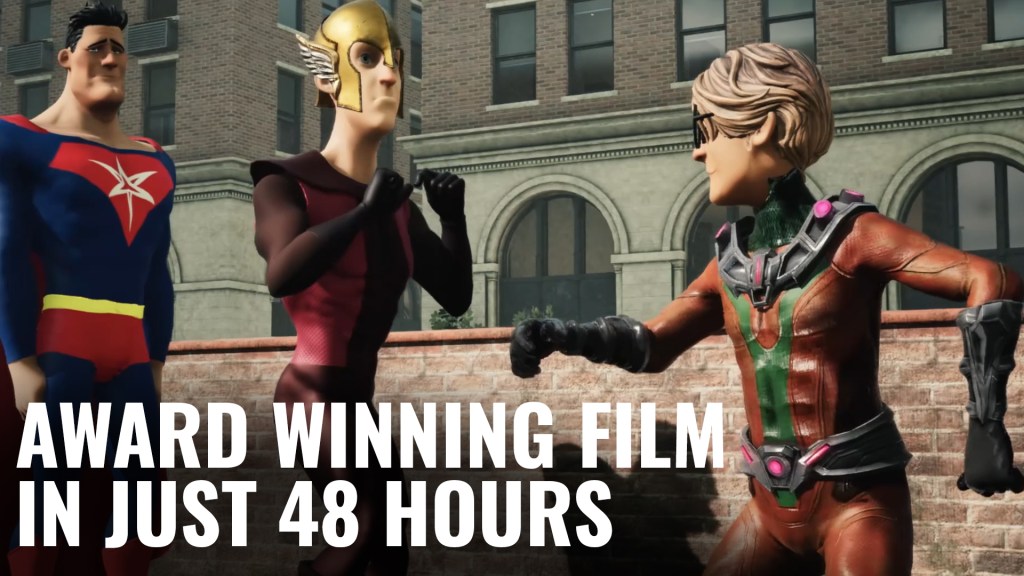
CC5 HD Pipeline Workflow: Creating Fortnite-Style Action Heroes for Animation
Luis Duarte

Luis Duarte is a 3D digital artist specializing in character creation for animation and video games. His work is distinguished by a strong focus on stylized aesthetics, crafting characters that are highly expressive and full of charisma. Clearly inspired by the visual language of cartoons translated into 3D, Luis excels at simplifying realism with keen artistic judgment, resulting in clean, well-structured, and visually striking designs.

Check Luis’s ArtStation

Overview

Character Creator 5 represents a major step forward toward the next generation of high-definition characters. This version introduces the ability to add multiple layers of detail through subdivision-based workflows, multi-level map baking from ZBrush, and greater flexibility for creating stylized characters with a clearly professional finish.

In this article, I will guide you through the new features of Character Creator 5 and its integration with different tools in the 3D pipeline. We will examine how CC5 connects with ZBrush for high-definition detailing, Blender for polygon count control and optimization, and Substance Painter for texturing—always maintaining a clear focus on a stylized aesthetic inspired by Battle Royale video game characters.

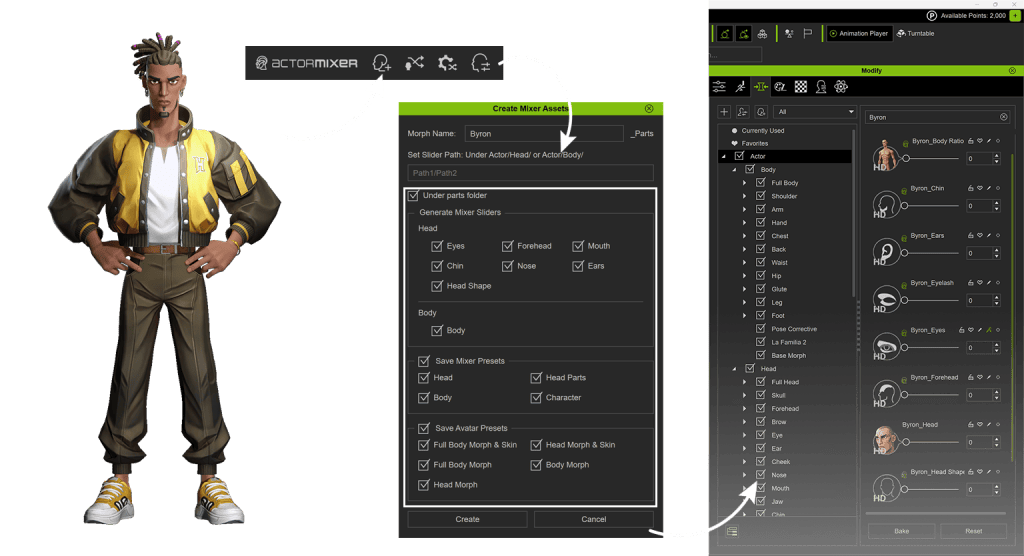
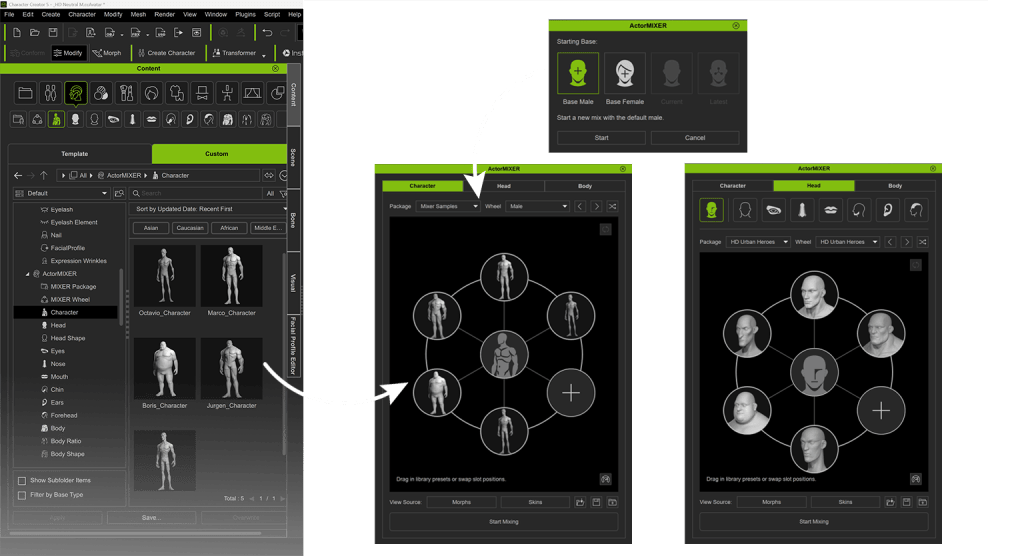
We will explore the workflow used to bring Byron to life, one of the characters included in the HD Urban Kings Content Pack. The pack is now officially available and can be purchased directly from the Reallusion Content Store, allowing artists to easily access and integrate these high-quality stylized characters into their own projects.

For the creation of this character, I used a selection of references gathered from Pinterest. Based on these references, I focused the design on three key aspects: body silhouette and proportions, facial design, and clothing style.

1. Starting with a Neutral Base

With the project open in CC5, I begin by working with a neutral base mesh. This mesh is ideal for establishing a strong character silhouette thanks to its low polygon count, which provides excellent control during the creation process. It also includes a complete skeletal rig, well-organized UVs, and a full set of morphs, making it easy to smoothly create facial expressions and animations.

2. Building the Silhouette with Morph Sliders

Using the morph sliders, I modify the shape of the base mesh, which allows me to quickly build the character’s silhouette. At this stage, I focus exclusively on body stylization, introducing unique characteristics from the very beginning. For example, I can slightly enlarge the hands and feet, elongate the neck, and refine the pelvis and joints, achieving a more dynamic and stylized design early on.

Once I am satisfied with the overall body structure, I save this base project to the Content Library. This allows me to keep a secure and reusable backup.

3. Using HeadShot in the Workflow

The logical next step would be to send the model to ZBrush using GoZPlus to begin sculpting, which works extremely well. However, in this case, I chose a slightly different approach: I modeled Byron’s head structure directly in ZBrush, starting from a basic geometric shape. This process is particularly enjoyable, as it focuses purely on sculpting. For this step, I recommend working at a medium level of detail, since the primary goal here is to define the facial silhouette and head shape.

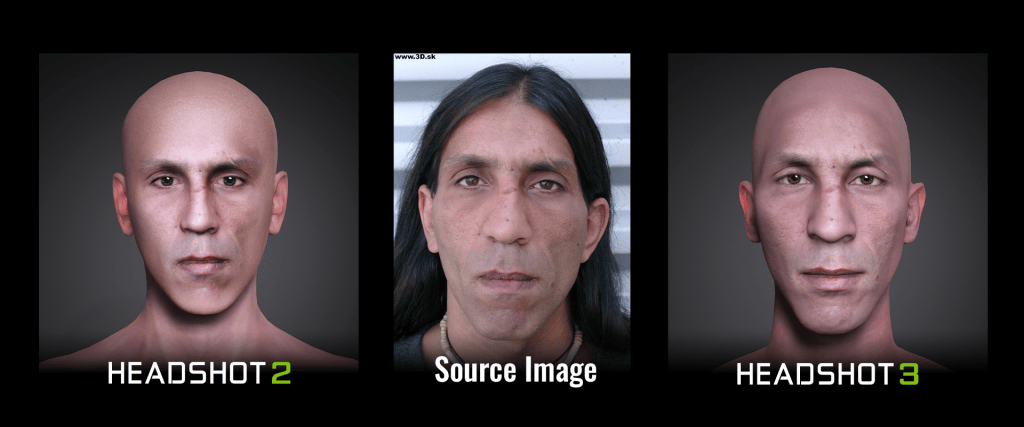
Later, I use the HeadShot 2 plugin to transfer all the previously sculpted details from ZBrush. I then export the high-density head as an OBJ file and, using the mesh generation process, transfer those details onto a CC5 body.

Tip: Add subdivisions during the mesh redefinition process to achieve a cleaner and more detailed transfer.

To integrate the head with the body, I recommend creating a head slider using the HeadShot-generated project. This allows us to return to the original project, incorporate the head structure, and prepare for the next stage of facial development.

4. Defining Details in ZBrush

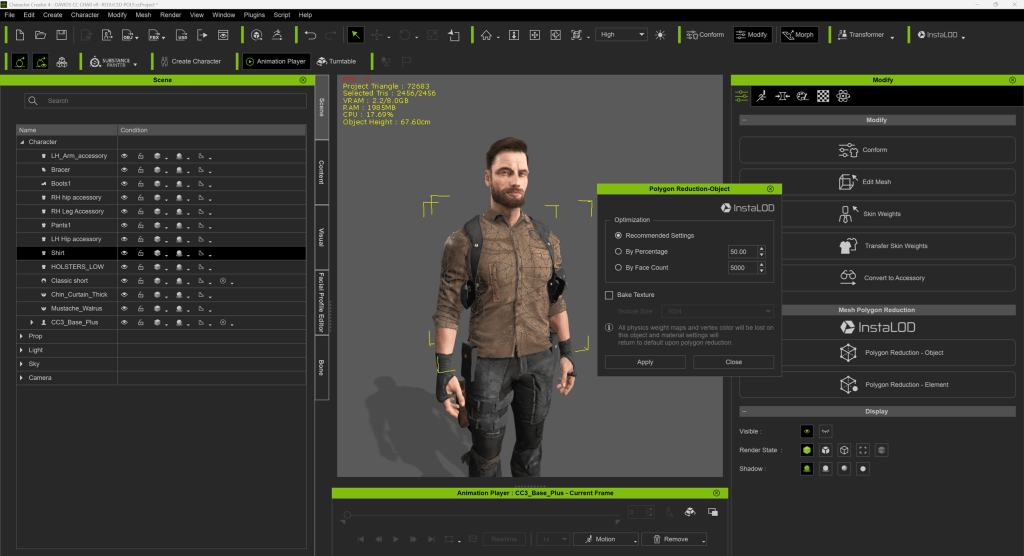
Using GoZPlus, I send the character to ZBrush in an A-pose, working with subdivision levels 6 or 7. At this stage, I prepare the model to add the layer of detail that will define the stylized aesthetic of the character.

From a technical standpoint, there are several key rules to follow in ZBrush:

  1. Do not modify the topology, including tools such as Dynamesh, ZRemesher, or ZModeler.
  2. Avoid making excessive pose changes.
  3. Keep all subtool names unchanged.

By following these guidelines, I maintain a solid connection between CC5 and ZBrush, allowing me to switch between both applications as needed. This workflow lets me visualize updates directly in the CC5 avatar, apply additional adjustments in ZBrush, and return using GoZ; all while ensuring an efficient and fluid pipeline.

At this stage, I can add an extra layer of detail. Using various brushes, I enhance fine elements in key areas such as the eyes, lips, fingers, and joint regions.

5. Automatic Map Baking with GoZ Plus

At this point, I send the character back to CC5 using GoZPlus. I enable only the normal maps, disabling the other options that are active by default. I keep SubD set to 0 and choose a balanced 4K resolution. In the update window, I make sure to preserve both geometry and texture details.

Next, I add additional levels of detail. In CC5, I subdivide the mesh to SubD Level 1, and in ZBrush, I activate the SubD 1 option. I repeated the process, but only to update the texture. This allows me to visually compare how the details behave across different layers.

Tip: To add an extra layer of detail, repeat the same process by working at SubD Level 2 in CC and enabling SubD 2 in ZBrush.

6. Clothing and Accessories Modeling

I make sure to create visually appealing accessories, always based on my references and with a unique style. I aim for simple shapes that stand out through high-quality finishes, especially in the texture work.

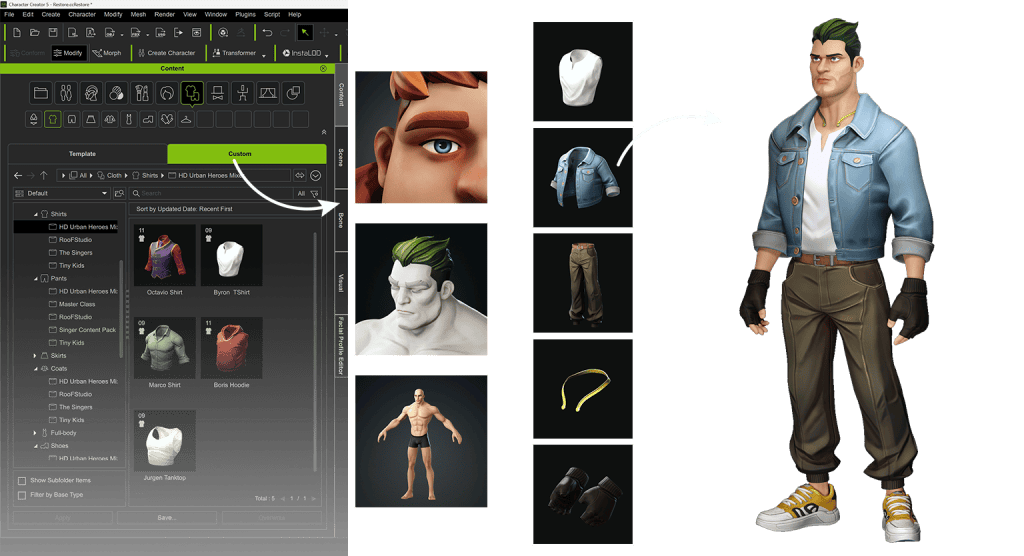
The final design features an afro hairstyle with braids, a beard, a sleeveless shirt, a loose-fit jacket, pants that match the character’s style, athletic footwear, and several additional accessories.

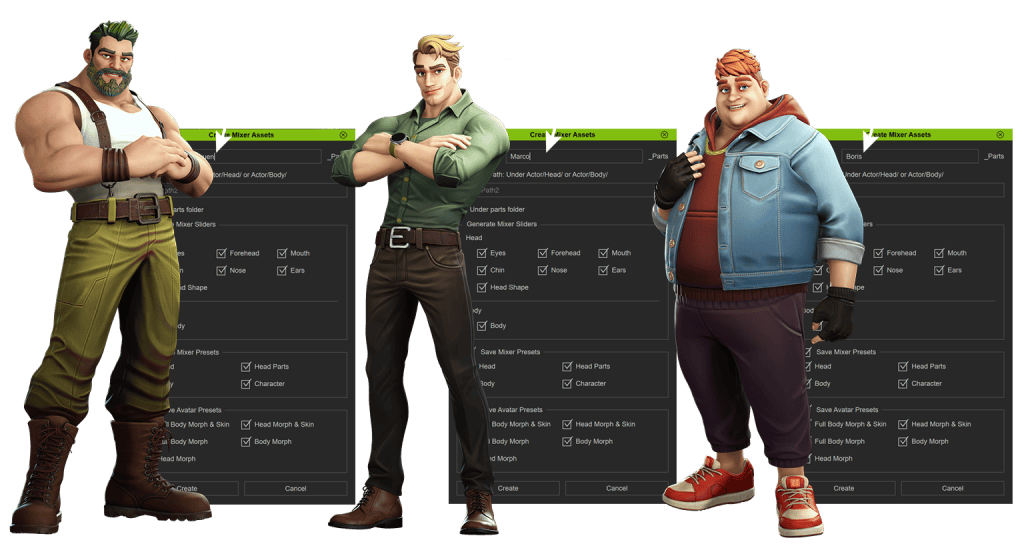
Since I want to combine the clothing and accessories with characters other than Byron, each piece has its own UVs and is not merged with the others. This allows me to reuse each element independently across different characters.

7. Hand-Painted Texture Style

For Byron’s texturing, I use Substance Painter. I export the avatar from Character Creator along with the normal maps generated during the ZBrush baking process, with the goal of creating a stylized skin look. This can be done directly through CC5’s integrated Substance pipeline or via manual export, as in this case.

The main idea is to focus on the painting technique, replicating brush strokes as if working on a digital illustration. To achieve this, I use darker tones in shadow areas and lighter tones in illuminated regions, without applying any additional effects. I work exclusively with brushes, resulting in a finish that reinforces the character’s stylized aesthetic.

For the hair and other accessories, the process is similar, with the difference that detail maps need to be baked directly in Substance Painter. Additional maps such as Ambient Occlusion, Roughness, and others can also be included depending on the project’s needs. Finally, I export all textures at 4K resolution to ensure optimal quality.

For the internal avatar textures, I adjust tones directly using an image editor (I personally use Photoshop). I start with the eyes, making color corrections, applying white strokes to adjust eyelash opacity, and performing basic adjustments on the teeth, always aiming for a natural result that matches the character’s style.

8. Character Assembly

The first step in assembling Byron is integrating the textures. From the Material Editor, I select each body part and assign the corresponding base maps in the texture slots. This process ensures that every surface of the character has the desired level of detail before moving on to final adjustments.

To create the clothing, I import the pieces as .OBJ accessories using the Create menu. Once an element is correctly positioned in the viewport, I use Transfer Skin Weights to copy the skin weights from the body. I then assign the appropriate category—such as dresses, shoes, or gloves—ensuring each piece adapts naturally to the character.

I use the Skin Weight Editor to correct clothing deformations, a very useful tool that allows me to preview how each garment behaves during animation. For larger areas, I use the brush tool, while for more precise adjustments, I switch to vertex selection mode, ensuring accurate and natural deformation in every movement.

To convert accessories, I use the Convert Accessory module. In this case, transferring skin weights is not necessary, since the accessory is linked only to the nearest bone. This simplifies the process and ensures the accessory remains correctly positioned.

9. Conclusion

Creating Byron has been a journey that combines creativity and technical precision, fully exploring the capabilities of Character Creator 5 and its integration with complementary tools such as ZBrush and Substance Painter. Each stage of the workflow—from the initial silhouette to final assembly—allowed me to maintain a strong and consistent visual identity.

By simplifying shapes, emphasizing color, and ensuring the character is animation-ready, this process demonstrates how a structured and creative approach can transform a simple idea into a cohesive and visually compelling 3D character.

FAQ

Can I edit my character’s colors in Character Creator 5?

Yes. Character Creator includes a color editing module that allows you to work directly on both base textures and materials. This makes it possible to perform fine adjustments within the software, without needing external tools.

Can I store my character’s clothing to use it with other characters?

Absolutely. CC5 allows you to organize each garment within the Content panel, including accessories and specialized items such as gloves. This makes it easy to reuse clothing across different characters and projects.

Can I use another program instead of ZBrush to sculpt my character?

Yes. CC5 is compatible with several sculpting applications, allowing you to adapt your workflow according to your needs and preferences, and choose the tool that best fits each project.

Where can I animate my finished character?

You can preview basic animations directly in CC5. For custom animations, simply send your character to iClone with one click to edit body movements, create facial expressions, add voice lip-sync, or generate animations using motion capture. You can also produce complete multi-character scenes with integrated cameras and environments. These animations can also be live linked or exported for rendering in other software such as Unreal Engine, Blender, or Autodesk Maya, expanding your creative possibilities.

Related Article

CC5 x ZBrush: Create a HD Sci-Fi Vanguard (2/7)- Sculpting the Body and Simulate the Nano Suit

This article is the second chapter in our seven-part Character Creator 5 (CC5) HD GoZ Pipeline Series on the complete workflow from CC5 base creation to ZBrush sculpting, Substance 3D Painter texturing, and finally Marmoset Toolbag rendering.

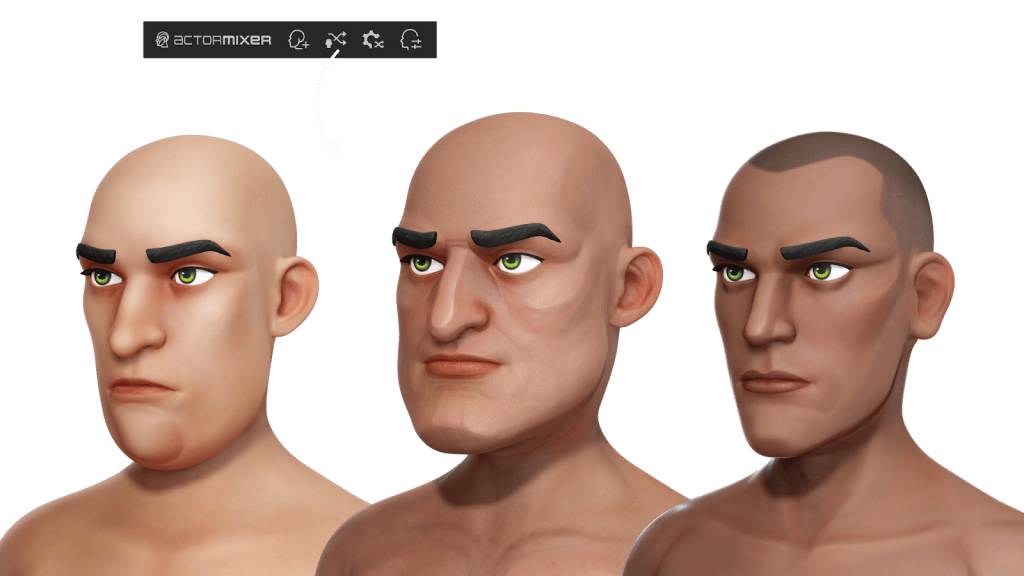
In Part 1, we shaped the character’s foundation using Actor Mixer, click-and-drag morphing, facial tests, and skin editing. For part 2, we move into ZBrush with GoZ / GoZ Plus, sculpting workflows, anatomy adjustments, building the sci-fi suit, and preparing subdivision-ready meshes for Character Creator 5.

Pablo Munoz Gomez

Hello, my name is Pablo Munoz Gomez, and I’m an enthusiastic 3D concept and character artist who is deeply committed to the spread of knowledge. My expertise lies in 3D sculpting, visual development, and engaging in mixed-media projects. I take immense pride in being the creator of Pablander Academy, serving as an outlet for showcasing my work, sharing my workflows, and assisting fellow artists in honing their skills across a wide range of subjects.

Sculpt the Body and Nano Suit

After importing the CC5 mesh into ZBrush, we store a morph target and bake our sculpting layers. This lets us selectively bring back the transferred normal details only where needed, which is typically around the face. Using the morph brush, we can paint the original microdetails back in while keeping broader changes intact on the rest of the body.

Our goal is to take advantage of the CC5 normal details just for the face, since the body will be covered by the sci-fi suit and doesn’t require any skin detail.

Blocking out the suit: Softening anatomy without losing structure

The suit should feel like a material layer over the body, rather than just painted-on muscle. We began by reducing anatomical definition: smoothing transitions, softening muscle separations, and suggesting seams, like a neck trim, using a few clay buildup strokes. Then, with a standard brush, we indicated the primary wrinkles and the general compression of the suit.

With a 14+ million poly mesh, switch to tools like Smooth Strong for effective smoothing.

Use references and targeted masking

References are essential. For this project, we collected images of wetsuits, surf suits, and dive gear to study where fabric naturally compresses and folds. Later, we can refine the wrinkles based on the character’s pose and how the material stretches or compresses around joints.

Masking is a quick way to simulate local compression. For example, we masked and inflated the calf areas to suggest the effect of boots. Keep in mind: this stage is just a blockout as precision comes later.

Brushes and tools that speed up believable fabric details

Beyond native ZBrush tools, these brushes accelerate believable material creation:

  • Gio Brush – A cleaner, more controlled Dam Standard for seams & micro creases
  • Compression Falls – Ideal for quick small wrinkles and fabric compression
  • Clean Builder Brush – Adds volume cleanly without clay stacking artifacts
  • FormSoft – Vital for shifting mass at high subdivisions without destroying detail

Alternate strokes with Alt to create ridges and fall lines for more organic suit behavior.

When to use Marvelous Designer and how to bring the simulation back

Simulating the suit in Marvelous Designer is a lot of fun and produces a more physically accurate set of folds and material behavior. 

Workflow overview:

  1. Duplicate the base mesh.
  2. Isolate the suit region.
  3. ZRemesh to reduce mesh density.
  4. Export avatar with the suit to Marvelous Designer.
  5. Use existing UVs as 2D patterns when applicable.
  6. Adjust shrinkage (warp / weft) to control wrinkle density.
  7. Export back to ZBrush for cleanup.
  8. ZRemesh → Project from History → Polish the surface into clean quads.

That simulation gives more realistic falls and tension, especially in complicated areas like knees, elbows, and the torso. But here’s the important distinction that unlocks the best results in Character Creator 5 and one of my new favourite features: subdivision levels.

Project the simulated suit onto the base mesh

Character Creator 5 now supports subdivision levels up to 2 on the visible geometry. To fully leverage that and showcase the capability, we can have the suit as part of the main base mesh, not a separate object:

  1. Project its detail onto the subdivided CC5 base mesh.
  2. Hide/delete the temporary suit mesh.
  3. Continue refining directly on the base.

This approach preserves the original CC5 topology and ensures that subdivision data moves cleanly between ZBrush and CC5.

Sculpting the face and pushing toward a slightly alien look

The goal here is to maintain a humanoid silhouette and subtly push proportions to achieve an otherworldly vibe. The CC5 base typically includes clean polygroups, which makes isolating and masking facial features quick and accurate.

Recommended workflow:

  • Start at a low subdivision to define main volumes.
  • Move to Clean Build Brush for form shaping.
  • Use Dam Standard / Gio Brush for sharper cuts.
  • Finish with FormSoft at high subdivisions for proportional adjustments.

This approach preserves CC5’s microdetail layer while introducing an alienesque flair.

Send it back to Character Creator 5: GoZ Plus and subdivision control

The GoZ Plus plugin is essential for automating exports back to CC5 with a single click, provided you configure a few key settings correctly. Since CC5 is now capable of handling higher resolution geometry, I recommend: 

  • Setting subdivision Level to 2.
  • Disabling Polypaint to Diffuse (unless texturing is done).

Enable Adjust Bones to Fit Morph if you changed proportions

Once updated, the Modify panel in CC5 includes sub‑D level controls for viewport and render. When set to Subdiv 2, you view real geometry at that level, producing much cleaner silhouettes and deformations compared with the old workflow.

Efficiency Tips for This Stage of the Pipeline

To maximize efficiency in this pipeline, I leverage several key features of Character Creator 5. The native subdivision level support is a game-changer, allowing me to view and render real subdivided geometry for superior silhouette fidelity without relying on displacement maps or things like that. The GoZ Plus automation is equally critical, streamlining the round-trip process between ZBrush and CC5. 

I also rely on Adjust Bones to Fit Morph to ensure the rig remains functional after significant shape changes. The ability to preserve polygroups and morph targets grants me precise control over facial and accessory isolation during localized edits.

Coming Up in Part 3

In the next chapter, we’ll move deeper into hard-surface creation inside ZBrush. That includes building the chest plate, extracting armor panels, adding thickness, and sculpting modular components like boots. We’ll also explore rapid blockout techniques using Dynamesh, manual retopology with ZSpheres, and how to organize clean polygroups for extrusion workflows. Once the armor set is complete, we’ll prepare all pieces for re-import into Character Creator 5 for rigging, material setup, and texturing preparation.

Related Posts

Creating a Stylized Arnold Schwarzenegger 3D Caricature with CC5, ActorMIXER & Blender

Mythcons

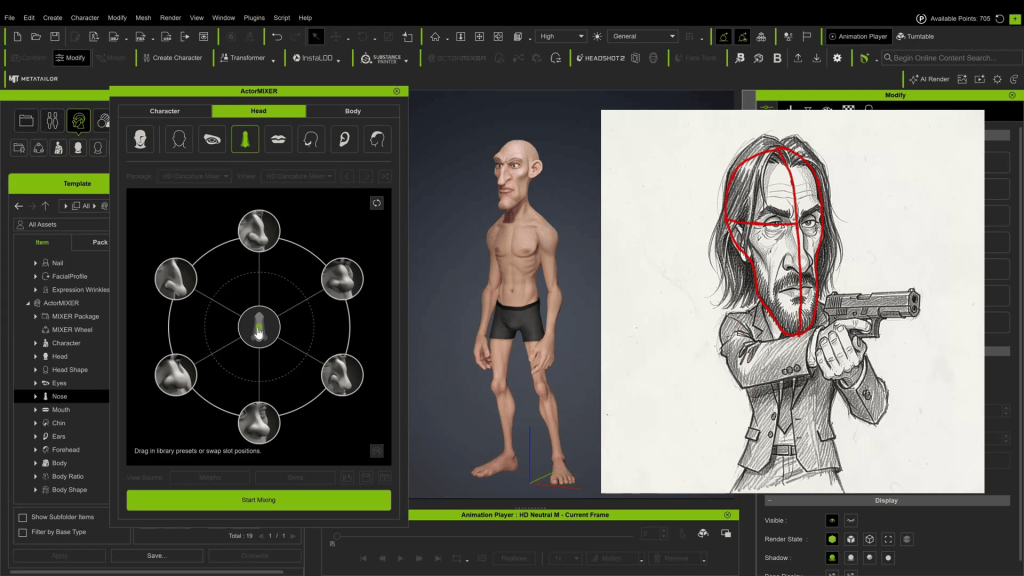
Greetings, my name is Peter Alexander. In this demonstration, I’m going to walk you through how you can leverage Character Creator 5‘s new ActorMIXER as a powerful stepping stone to create unique, stylized characters. We’ll use the CC Base Mesh as our foundation, and ActorMixer will provide the next layer from which to build, making professional character creation that much easier. For this demo, I’ll be creating a stylized version of Arnold, using the Blender Autosetup pipeline, which is both cost-effective and efficient for creating characters and assets.

Visit Mythcons’ ArtStation

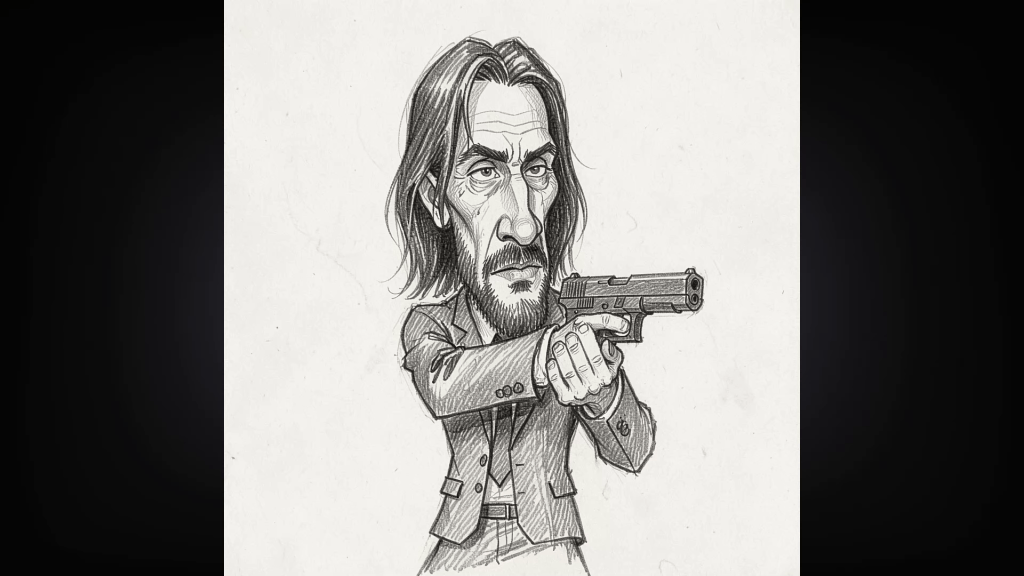
In this tutorial, I will walk you through the steps to create a celebrity-style 3D caricature—specifically a stylized Terminator—using Character Creator 5, ActorMIXER, and the Caricature MIXER pack. We will move between AI generation, Reallusion tools, and Blender to refine the look.

Tools Used:

  • Character Creator 5 (CC5)
  • Headshot 2.0
  • ActorMIXER & Caricature MIXER Pack
  • Hyper3D (AI)
  • Blender (with CC Auto Setup Addon)
  • Krita (or any raster editor)

Step 1: Generating 3D Reference with AI

While you can sculpt manually from photos, creating a 3D reference mesh gives us a faster starting foundation.

  1. Generate Image References: Ask an AI image generator for front and side views of your subject (Arnold), ensuring you request to remove hair for a cleaner mesh.
  2. Generate the 3D Reference: I used Hyper3D for this workflow.

Note: I chose Hyper3D because other platforms (like Hunyuan) produced results that were already too stylized. I wanted a more neutral base to apply my own stylization to. 

Step 2: The Foundation (Headshot 2.0)

Once you have the .OBJ or mesh from Hyper3D, load it into Headshot 2.0 inside Character Creator.

  1. Select the Mesh option. 
  2. Alignment: Align the corresponding points on the reference mesh to the CC base mesh.

  1. Refine: Use the included brushes to add, delete, or switch between subdivisions to ensure details align correctly.
  2. Generation Settings: Set the generation type to Male and select a Masking Style (this helps blend the reference details into the CC base smoothly).

Step 3: Body Shaping & Exaggeration

He isn’t a Terminator without an imposing physique. This is where we start pushing the style.

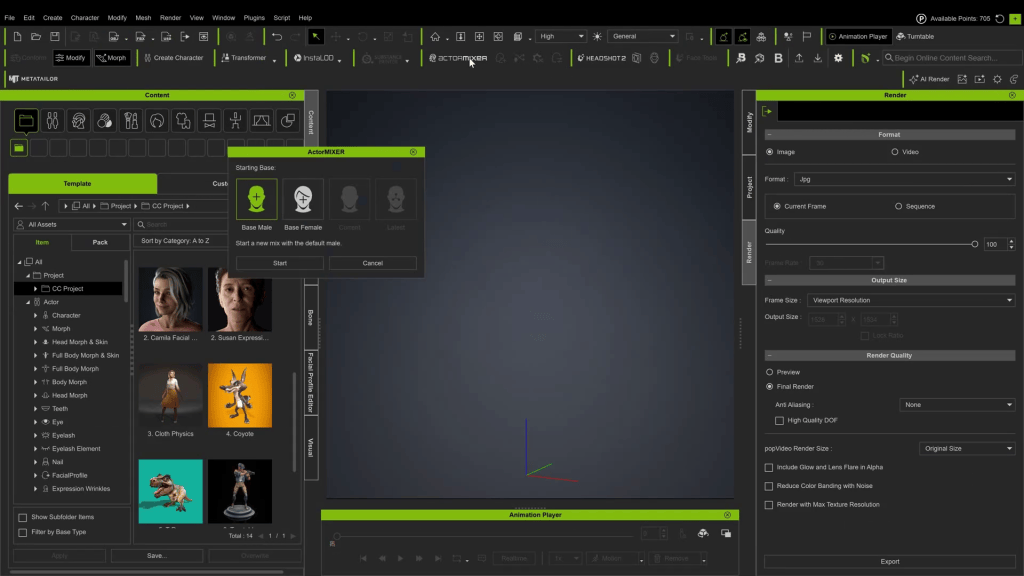
  1. Open ActorMIXER

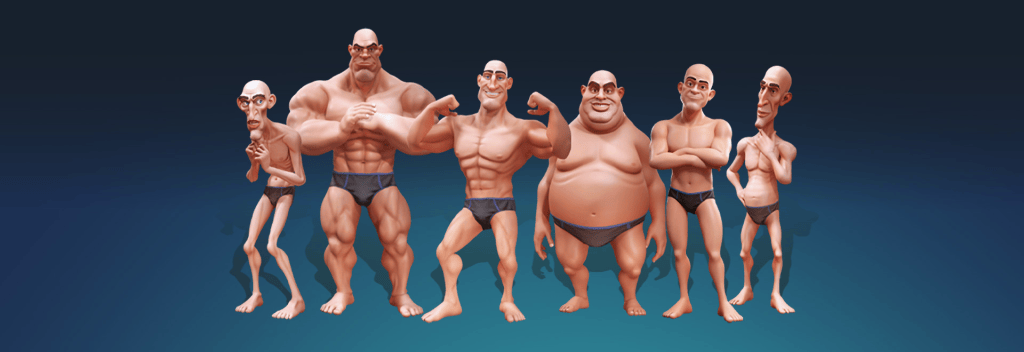
2. Blend elements from the Caricature MIXER pack with standard muscle morphs.

3. Cycle through combinations to find the right balance of “Brute” and “Caricature.”

4. Mesh Correction: If areas don’t blend well, use the Edit Mesh brushes.

Technique: Reduce the mesh to low resolution, smooth out the artifacts, and then mirror the changes to the other side.

Troubleshooting Tip: Fixing Symmetry & Bone Alignment If you find that your mesh edits aren’t mirroring correctly, the bone coordinates might be off.

  1. Select the bone (e.g., Head, Jaw Root, or Upper Jaw).
  2. Check the Move and Rotation values.
  3. Move X should generally be 0
  4. Rotation is often not zero. If you see a value like -89 degrees, change it to -90 or 90 degrees. Correcting these values usually solves mirror symmetry issues.

Step 4: Texture Cleanup

The AI projection will likely leave unwanted shadows on the face texture.

  1. Export the texture to a raster editor (I use Krita). 
  2. Paint out the heavy baked-in shadows.
  3. Note: You will lose some likeness, but for a caricature, clean textures are often better than noisy photo-real ones.

Step 5: Sculpting in Blender (Round 1)

Now we need to push the shapes beyond what sliders can do.

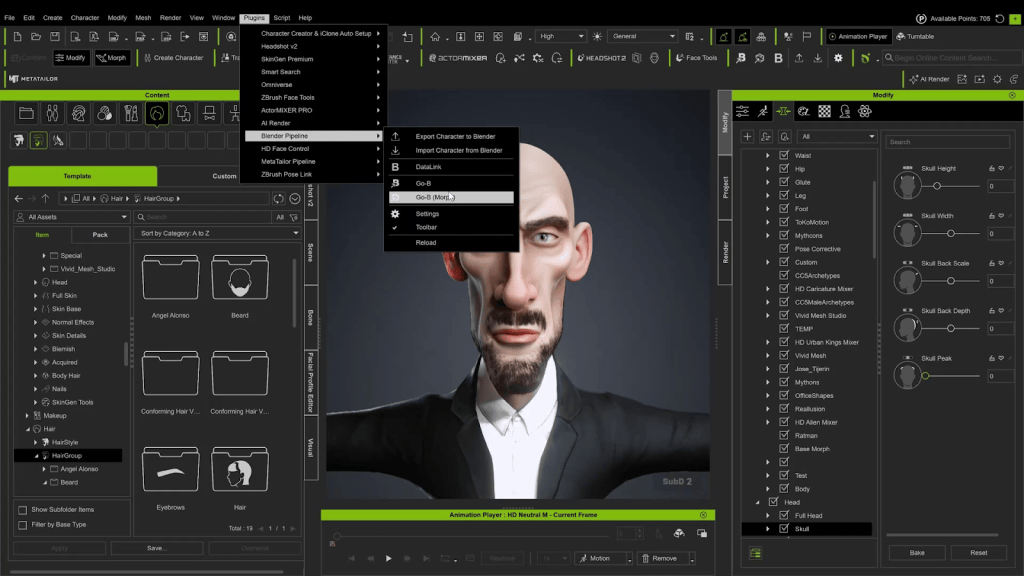
  • Use the Blender Auto Setup Addon.
  • Send the character using Morph Edit at SubD 2 (we don’t need a low-res pass for this).
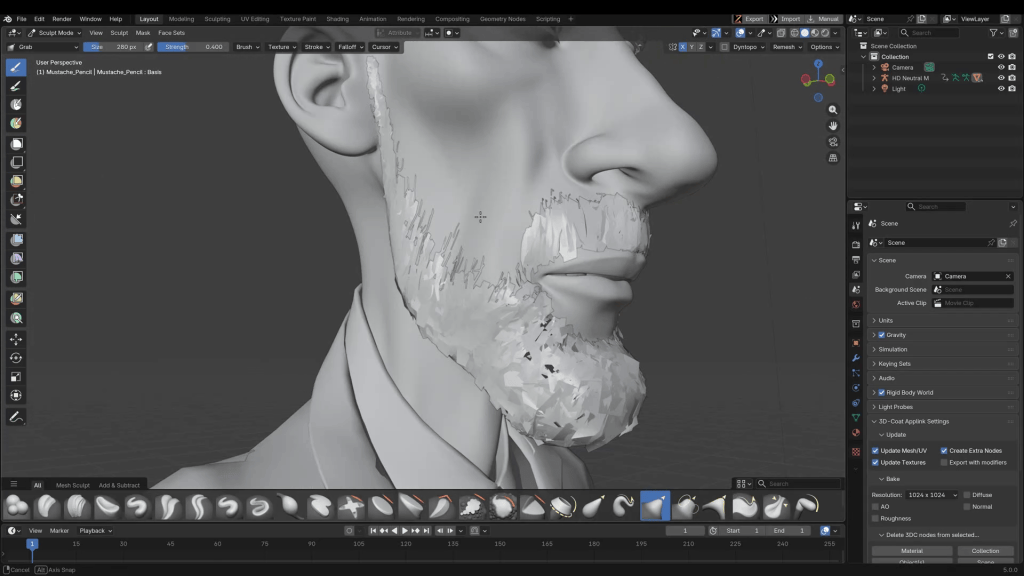
  • Sculpting: Use the Grab/Move brush to push the stylization. Since CaricatureMIXER gave us a good foundation, we are just refining shapes here.
  • Send back to CC5: Once updated, check the silhouette.

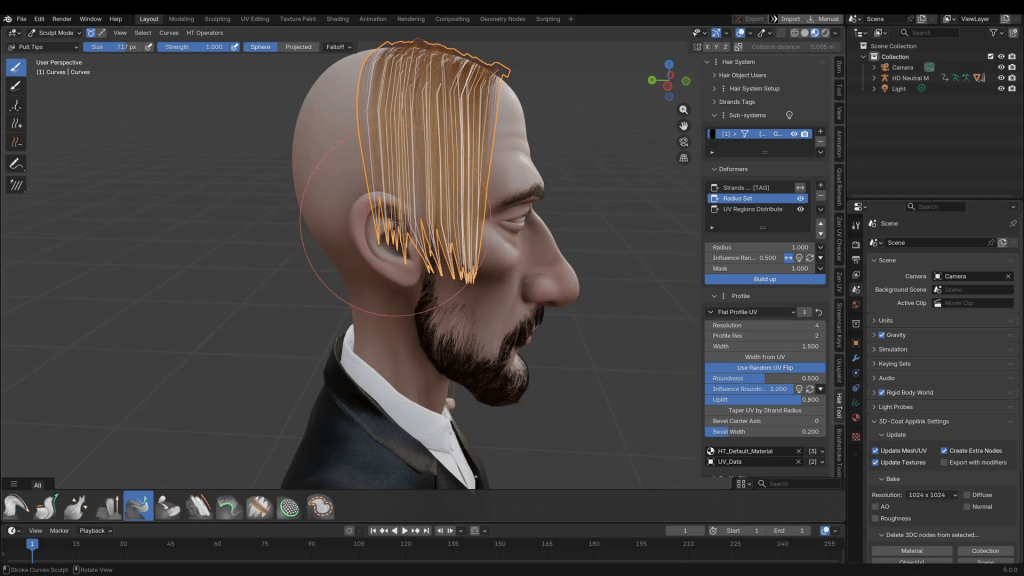
Iteration Note: After applying hair in CC5, I realized the forehead was too low. I simply sent the character back to Blender, adjusted the forehead height, and updated the mesh again.

Step 6: Clothing & Smart Search

To dress the character, we can use the Smart Search feature in the Content Panel.

  • Trial Function: You can download a watermarked version of clothing to test the fit.
  • Deep Search: Use “Deep Search Similar” to find assets that match the vibe of the items you are looking at.
  • Licensing Explained:
    • i-Content: For use strictly within iClone/CC.
    • Standard: Required if you plan to export the mesh to Blender or ZBrush (which we are doing).

Layering Tip: Check your Clothing Layer Settings. Ensure the Leather Jacket is layered above the shirt and jeans to prevent mesh collision.

Step 7: Fitting Clothes to Extreme Shapes

Because this caricature has exaggerated proportions, standard clothing won’t fit perfectly out of the box. We need to fix the stretching.

  • Establish DataLink: Make sure your CC5 character and Blender are connected via the Pipeline addon.
  • Bind Pose: Ensure the character is in the default Bind Pose in CC5.
  • Send to Blender: Send the character (mesh) to Blender.
  • Sculpt the Fit:
    • Use the Grab brush to pull clothing over the muscles.
    • Caution: The Smooth brush in Blender is very strong. Lower the strength significantly before using it on clothing.
  • Update CC5: In the Blender Pipeline addon, under DataLink, select Mesh. This updates the vertex positions inside Character Creator. 

Step 8: Final Polish

Once the clothing fits:

  1. Adjust facial expressions to verify that the rig handles the new shapes correctly.
  2. A lot of the likeness comes through in the expression (the squint, the stoic mouth).
  3. Set up your lights and render!

Summary

This workflow is designed specifically for caricaturizing characters efficiently, without sacrificing control or pipeline flexibility.

At the core of this process is ActorMIXER, combined with the CaricatureMIXER Pack, which dramatically lowers the barrier to stylized character design.

Reallusion’s rich content ecosystem further accelerates the workflow. With a wide range of ready-to-use clothing and assets, plus the Smart Search and Deep Search Similar features, finding outfits that match a specific character archetype or visual vibe becomes frictionless

When custom refinement is needed, the full Blender pipeline ties everything together. Thanks to CC Auto Setup and DataLink, both character shapes and clothing adjustments can be sculpted directly in Blender and seamlessly synced back to Character Creator.

Related Posts

CC5 x ZBrush: Create a HD Sci-Fi Vanguard (1/7)- Character Base Creation with ActorMIXER

Character Creator 5 dramatically improves the workflow for fast character iteration, stylization, and asset customization. It’s now paired with an even smoother HD GoZ pipeline all the way to Marmoset Toolbag rendering.

This article is the first in a seven-part series, where we break down a complete CC5 → ZBrush → Substance Painter → Marmoset Toolbag 5 workflow for creating high-quality sci-fi characters. Each chapter focuses on a different stage of the pipeline, and together they form a full production-ready guide for artists.

In this first part, we’ll walk through choosing your base mesh, prototyping with the ActorMIXER, refining morphs, previewing facial rigging, and preparing clean skin edits to set the foundation before sculpting begins.

Pablo Munoz Gomez

Hello, my name is Pablo Munoz Gomez, and I’m an enthusiastic 3D concept and character artist who is deeply committed to the spread of knowledge. My expertise lies in 3D sculpting, visual development, and engaging in mixed-media projects. I take immense pride in being the creator of Pablander Academy, serving as an outlet for showcasing my work, sharing my workflows, and assisting fellow artists in honing their skills across a wide range of subjects.

Pick a Mixer-Ready Base

Start inside Actors → Content → Character → Mixer Ready. These assets are specifically optimized for CC5’s new ActorMIXER workflow, making them ideal starting points for rapid character prototyping.

For a male creature, select an HD base such as the HD Aaron asset. Drag and drop it into the viewport. Once loaded, remove any geometry you won’t use so you are working with a clean base mesh.

Fast Morphing with Viewport Click-and-Drag

While CC5 still provides a huge library of sliders, a faster and more intuitive approach is to morph directly in the viewport. Enable the viewport morph switch, hover over the model, and simply click-drag to push or pull shapes. You can quickly adjust neck thickness, jaw length, eye spacing, and so on.

This direct manipulation is ideal for exploring exaggerated or stylized proportions quickly. Small adjustments give immediate personality without fiddling through long slider lists.

ActorMIXER: The Big New Feature

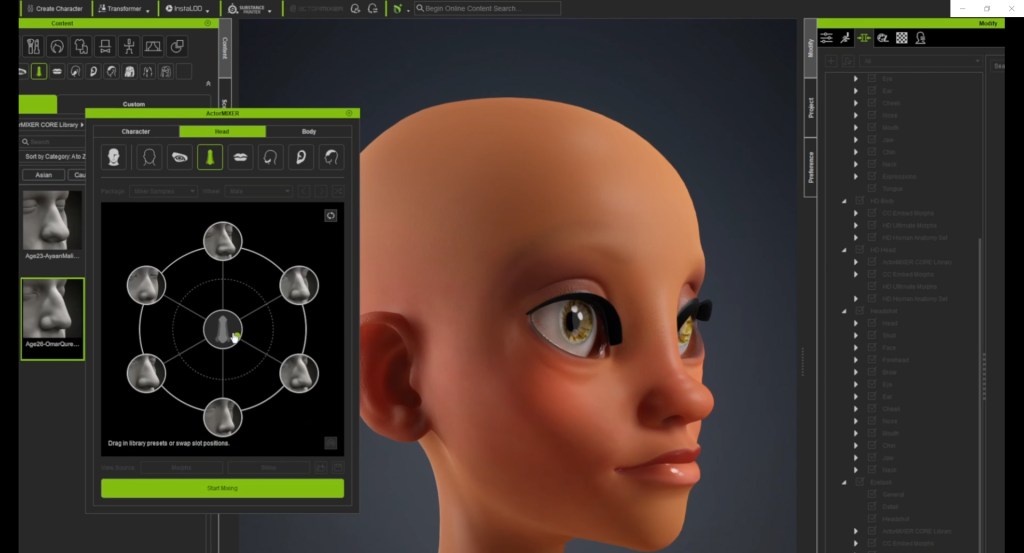
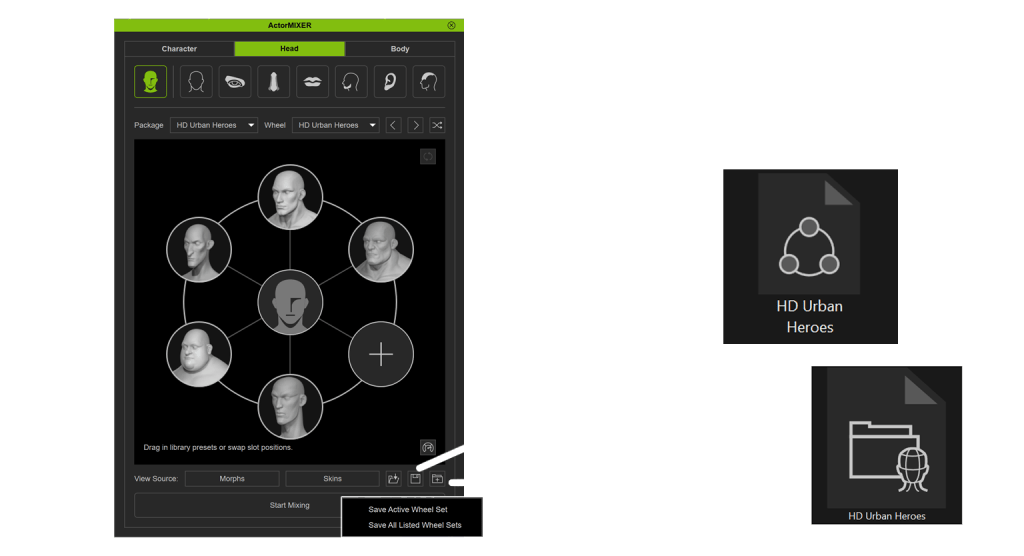
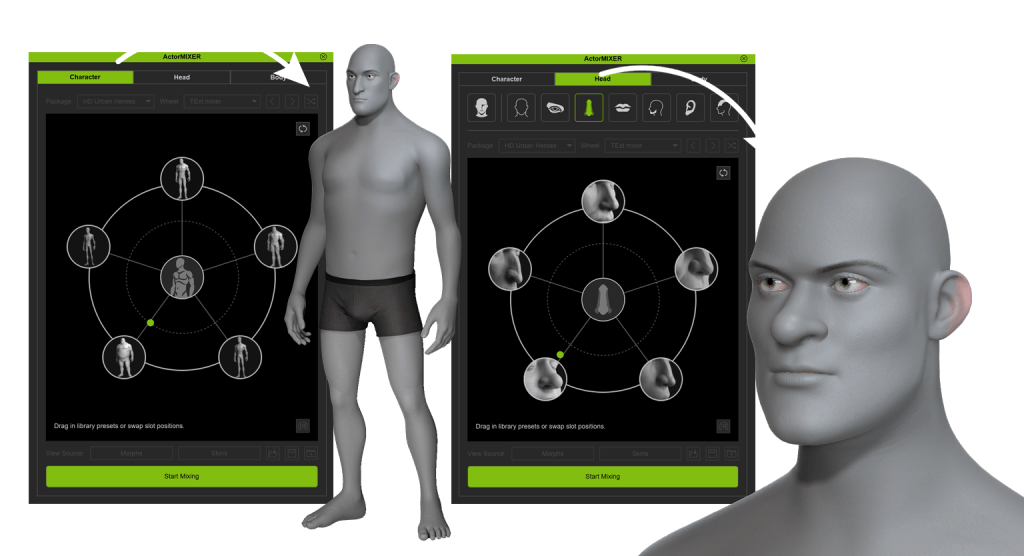
ActorMIXER is the new standout feature in CC5. It provides a radial visual controller that lets you mix multiple body or head presets and refine the results quickly. Available under Modify → Settings → Mixer (Current), it works with the full character, head only, or body only. 

Open it via Modify → Settings → Mixer (Current).

You can work with:

  • Full character
  • Head only
  • Body only

Drag the central control point toward different zones to blend presets, stylized, muscular, aged, or softer forms.

Why ActorMIXER is a Game Changer

  • Visual blending helps you pick the perfect in-between looks without guessing slider values.
  • Independent head/body mixing allows character hybridization, like realistic bodies with stylized alien heads.
  • Rig-aware ratios ensure bones automatically follow mesh changes, keeping animation deformation natural.
  • Optional proportion editing gives full artistic freedom when stylizing creatures or non-human silhouettes.

This tool allows you to generate a unique character identity extremely early in the process — before sculpting or outfit modeling even begins.

Refining Expression and Facial Rigging

Before committing to sculpting or clothing, test the character’s facial movement. Go to Modify → Motion → Edit Facial and use the controllers to preview the range of motion for the jaw, brows, eyes, and more. Use the middle mouse button to drag controllers and watch how parts move.

CC5 retains the powerful dynamic wrinkle system first introduced in CC4. These wrinkles auto-activate based on expression intensity, giving instant feedback on how the face behaves in animation.

Why This is Important before Sculpting

  • You can identify where folds should be emphasized or softened in ZBrush.
  • Lets you avoid sculpting wrinkles that will later conflict with the dynamic system.
  • You get a roadmap of natural compression zones — directing the sculpt rather than guessing.

If you want to go deeper, CC5 also supports custom dynamic wrinkle profiles, letting you design completely unique expression maps. I have another in-depth series on the YouTube channel covering this process specifically, in case you are interested.

Skin Editing with the Activate Editor

The skin editor is also very powerful and flexible. Open the paint palette section and click Activate Editor to access base textures, IDs, and material resources.

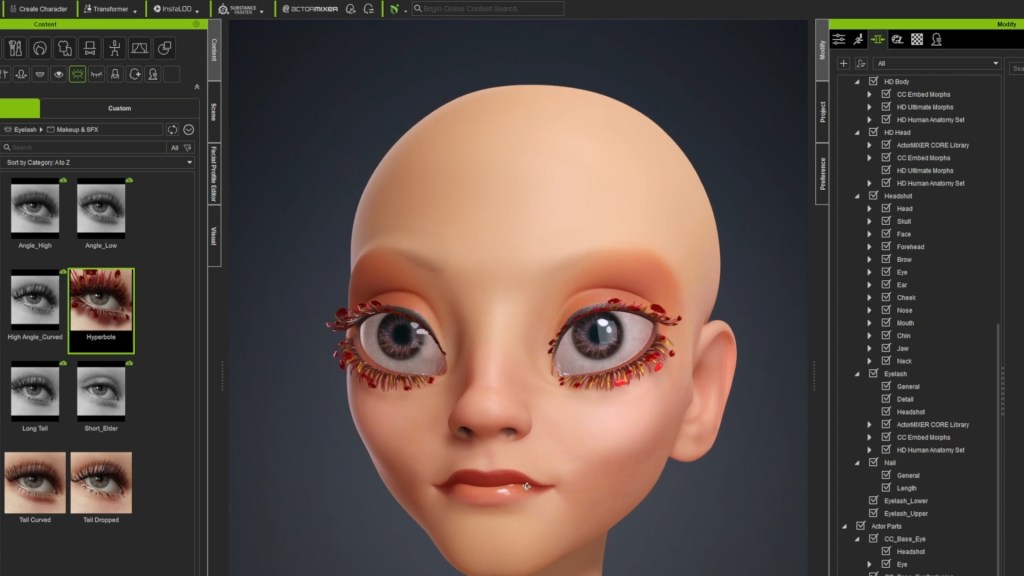
I like to work on the face first, especially since in this project the body will be covered by a suit or armour. Use brightness, hue, and saturation to push toward a stylized tone. Remember that different regions, like lips or specialized body parts, might use separate material IDs and therefore require individual editing. After adjusting the face, click Update to propagate changes across the body. Deactivate the editor to bake the textures.

It’s best to check specific areas like the lips, eyes, teeth, and accessories immediately upon import, as these often come with separate IDs that require manual adjustment to function correctly. Of course, none of this is necessary for the project but I wanted to share with you because the options are in there and are quite useful to know. 

Exporting the Base Mesh to ZBrush with GoZ

Once the CC5 base is established, send the mesh into ZBrush using the GoZ button in the Scene tab. Choose Create Template > A-Pose (recommended for sculpting).

Character Creator transfers normal map details into a ZBrush sculpting layer as high-fidelity detail. That means pores and micro-skin texture are preserved and editable as a layer, very useful for toggling intensity or removing detail during broad-form sculpting.

Fixing Brush Scale in ZBrush for CC5 Meshes

Due to CC5’s real-world scale, ZBrush brushes may feel too small, even at maximum diameter. Go to Preferences > Draw and choose 5000 for Max Brush Size and 50 for Dynamic Brush Scale.

This dramatically improves the usability of brushes when working on full-body meshes with millions of polygons.

Coming Up in Part 2

In the next chapter of the series, we’ll take the CC5 base mesh into ZBrush using GoZ, begin sculpting primary and secondary forms, and block out the sci-fi suit. We’ll also explore how to manage CC5’s transferred microdetail layers, fix brush scale issues, and prepare a clean sculpt for subdivision workflows before sending everything back into Character Creator 5.

Related Posts

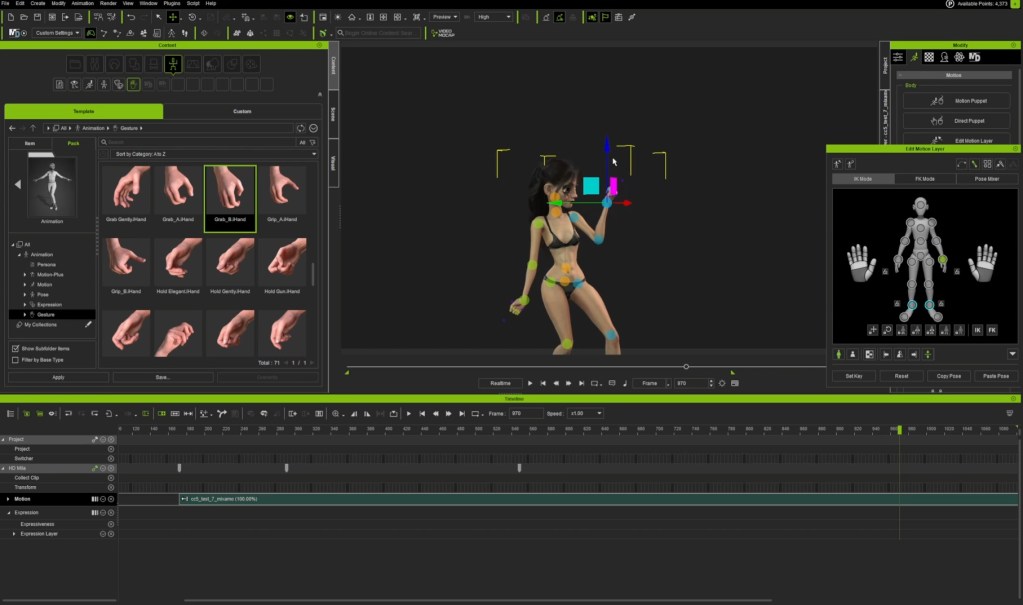
AccuPOSE INFINITY: One-Time Purchase Unlocks 1,400+ AI-Trained Poses

Thank you for supporting AccuPOSE and helping us shape this new generation of motion editing. Based on user feedback—and now that we’ve released more than 1,400 AI-trained poses—we are transitioning AccuPOSE INFINITY from a subscription model to a one-time purchase ($149 USD), effective January 6.

AccuPOSE INFINITY was originally offered as a subscription to support multiple content drops and to deliver this technology to users as quickly as possible. Over the past few months, all content planned for this year has been released. With the full library now available, we believe creators can fully benefit from the breadth and diversity of AccuPOSE INFINITY without an ongoing subscription, which is why we are transitioning to a perpetual license.

While we will continue adding new models and improvements over time, these updates will not follow a fixed schedule.

Cartoon Category Added to AccuPOSE INFINITY

This update also includes AccuPOSE INFINITY Expansion 6, introducing a brand-new Cartoon category designed for exaggerated, expressive animation styles.

  • Cartoon category
    • Stylized, highly flexible poses for cartoon-like animation
    • Includes Male, Female, and Kid poses
    • Ideal for expressive storytelling

In addition to the Cartoon category, this update also adds the following pose themes:

  • Free Fight
  • Panther Lady
  • Aerial Fighter

With these new additions, AccuPOSE INFINITY now offers over 1,400 poses in total, all available through a single purchase.

Check out the full library of poses

Our Thanks to AccuPOSE INFINITY Early Supporters

To ensure fairness and to thank our early adopters:

All users who have ever subscribed to AccuPOSE INFINITY — whether the subscription is currently active, expired, or renewed — will automatically receive the full perpetual license

✅ Perpetual License Delivery

The perpetual license redeem link is provided below for your convenience.

>> Redeem HERE

To ensure all eligible users receive their copy, notification emails will also be sent on December 29 and January 6.

Please check your inbox (including spam or promotions folders) on or after these dates for confirmation.

✅ For Users Who Renewed Their Subscription

If you have renewed your AccuPOSE INFINITY subscription:

  • The renewal fee will be refunded in the form of Reallusion Bonus Points (BP)
  • BP notification emails are scheduled to be sent before January 12

✅ Workgroup Subscribers

Workgroup subscribers will receive separate emails with instructions tailored to their specific subscription status.

One Purchase. Long-Term Ownership

This change allows creators to invest once and own AccuPOSE INFINITY permanently, making it easier to integrate into long-term workflows without recurring costs.

Thank you again for your trust and continued support. We look forward to growing AccuPOSE with more enhancements in the future.

Garry Pye: Using AI and HeadShot in Character Creator

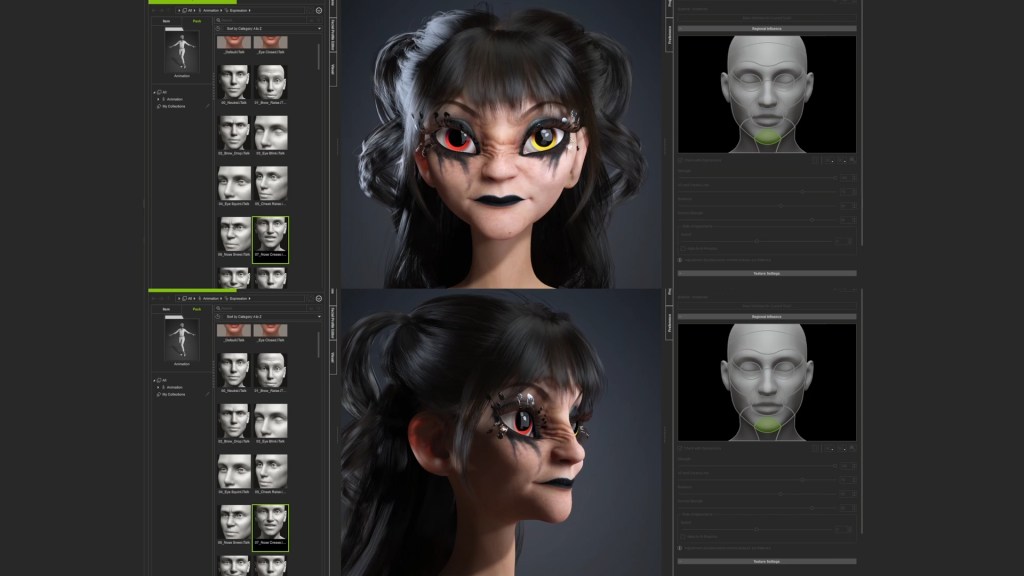
Building Lulu’s Head: AI, HeadShot, and Hope

In the first Lulu entry, Garry Pye set out with a clear goal: to apply everything learned from building Carl and approach 3D character creation with more confidence and intention. Now, in this second chapter of Lulu’s journey, that mindset is put to the test where it matters most—the face. This post dives into the creative and technical process of turning a 2D illustration into a living 3D head, blending AI tools with Character Creator and its Headshot plugin to shape Lulu’s identity from the ground up.

When it comes to creating 3D characters, the part that still makes my brain hurt a little is the face. As I start thinking about facial rigging, lip synching, and all those tiny muscle movements in sculpting software, my brain goes on holiday. So for now, I’m sticking with what I know works, using Headshot 2.0 for my character’s head and Character Creator for everything else.

The process starts with a bit of AI magic. I take one of my 2D illustrations, in this case, my design for Lulu, and feed it into an AI program (for Lulu, I used Krea) to create a 3D stylised version of her. 

The goal here isn’t to copy the AI result exactly. It’s just a visual guide or inspiration. To get a better sense of her form, I use AI again to generate images of her from different angles, making sure I can clearly see her head shape and hair from every side. Once I’ve got those angles, I take them into another AI tool, Rodin, which converts the reference into an actual 3D model of Lulu’s head. It’s like jumping ten steps ahead in the creative process. I then export that head as an FBX file and import it into Character Creator as a prop, ready to bring it into Headshot, where the real fun begins.

Inside Headshot, I start plotting face markers, little dots that tell the program where all the important facial landmarks are. Because Lulu’s head is more stylised than a realistic human face, I place extra markers wherever I need them, making sure to define everything from the top of her head right down to the base of her neck. The more time you spend here, the better the results later on, and the best part is that Character Creator lets you make changes in real time. You can shift a marker, hit generate, and see the update instantly. It’s a process that feels creative rather than technical, which is the way I work best.

A handy little trick I’ve picked up is to temporarily replace the skin texture with a grid pattern. It might sound odd, but it gives you perfect symmetry guides while you’re placing points, a lifesaver when you’re still learning to eyeball things accurately.

Once all the markers are where they should be, I generate the new skin. If something looks off, I can simply go back, nudge a few points, and regenerate. There’s no pressure. The freedom to keep redoing this process makes this whole step surprisingly enjoyable.

Then comes Refine Mesh, the digital equivalent of smoothing out a clay sculpture. Using the Project tool, I can make sure the new face sits snugly against the base mesh, pressing all those surfaces together. It’s like watching a mask slowly become a face.

And just like that, Lulu’s head is born.

For me, this was one of those quiet “wow” moments. The point where you suddenly realise how far you’ve come. I couldn’t help but notice how much faster I’d reached this stage compared to my first character build. Credit for that has to go to Character Creator, which makes it incredibly easy to make adjustments on the fly. Everything happens right there in front of you, updating in real time, so instead of guessing and waiting, you’re sculpting and seeing instant results. 

Already, I could see the beginnings of Lulu’s personality emerging. The face wasn’t perfect, not yet at least, but it had that unmistakable spark of life. And for anyone who’s ever built a 3D character from scratch, that’s the moment that hooks you. That’s the moment you fall in love with the process.

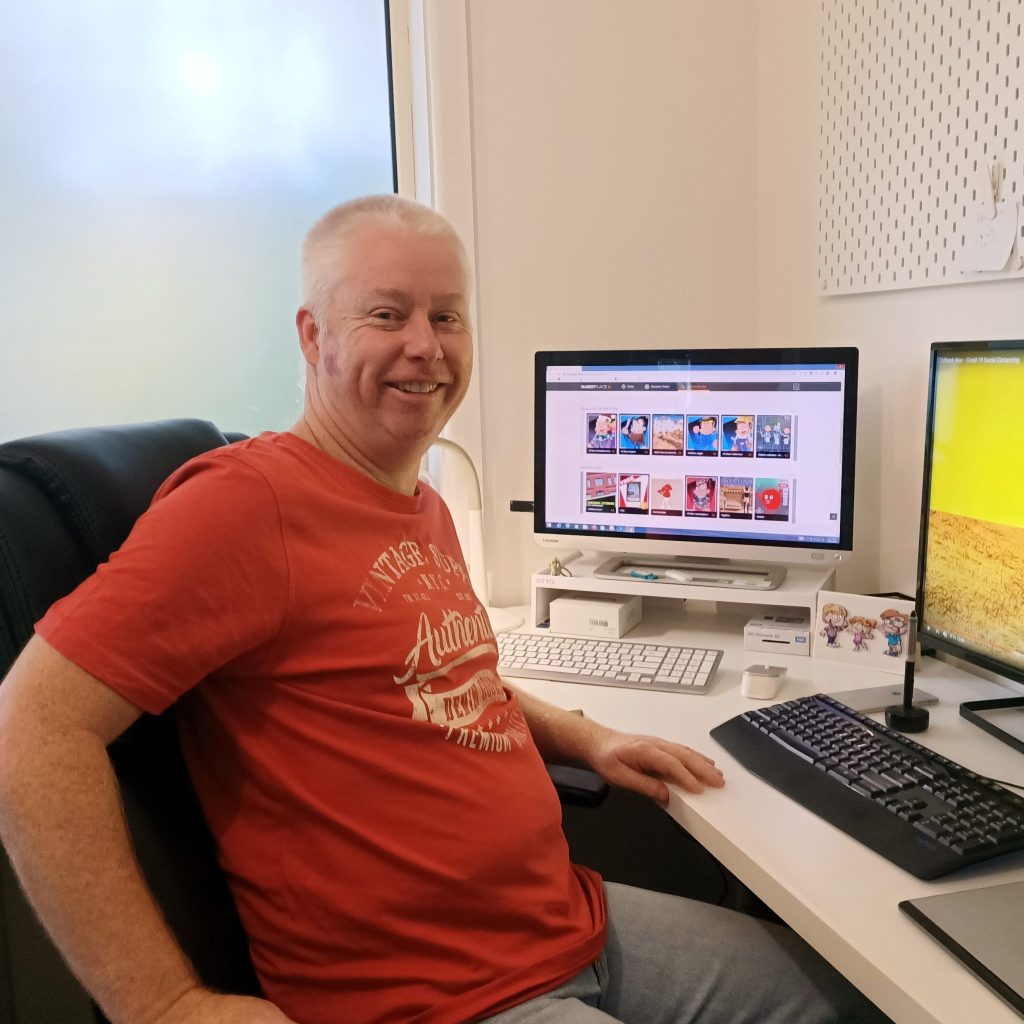
This image has an empty alt attribute; its file name is Garry-Pyes-profile-image-edited.jpg
Garry Pye – 2D/3D Animator, Cartoonist, Content Developer

Garry Pye – 2D/3D Animator | Content Developer

Garry Pye is an Australian illustrator, animator, and Cartoon Animator instructor with over a decade of experience in the animation industry. Known for his unique blend of creativity and humor, Garry’s work spans from teaching animation techniques to creating innovative content that helps both novice and experienced animators improve their skills.

Garry’s enthusiasm for storytelling and animation shines through in all his projects, whether it’s creating animated shorts, preparing educational tutorials, or sharing his expertise by teaching. With a passion for making animation accessible and fun, Garry has built a community of learners who not only appreciate his knowledge but also his infectious sense of humor and dedication to his craft.

Follow Garry Pye’s iClone Page2D Animation Page2D Marketplace

Related Posts

2026 Reallusion Software Subscription Options: Expanding Your Creative Freedom

Starting January 6, 2026, Reallusion will introduce new subscription-based licensing options, giving you greater flexibility to choose the plan that best fits your needs. Alongside the existing perpetual licenses, these subscription plans significantly expand creative possibilities across Reallusion ecosystems for Character Creator, iClone, and Cartoon Animator. All subscription plans provide the same rights and privileges as perpetual licenses under the Reallusion Software EULA, ensuring a fair and consistent experience for all customers.

Subscription Model Benefits

Available with monthly or annual renewal options, subscription licensing offers a flexible and budget-friendly solution for short-term projects and creators new to the Reallusion family of products.

  • Same EULA Rights
    Enjoy the same commercial-use rights and features as perpetual license holders, fully covered under the Reallusion EULA.
  • Stay on the Cutting Edge
    Always access the latest software versions—including major upgrades (e.g., iClone 8 to iClone 9)—at no additional cost during your active subscription.
  • Full Ecosystem Access
    Get unrestricted access to plugins and content purchases that integrate seamlessly with your existing pipelines and third-party tools, including Blender, Unreal Engine, Unity, Maya, ZBrush, and more.
  • Upgrade Perks
    Receive an exclusive member discount when upgrading your subscription or switching to a perpetual license. Transitions are seamless, with no service interruption, and discounts are automatically applied at checkout.

Reallusion offers seven subscription plans, available with both monthly and annual billing options. Get started with Character Creator for as little as $8.30 per month, or iClone for just $16.90 per month. For detailed plan information and comparisons, please visit our official website.

Perpetual Model Benefits

Reallusion continues to support perpetual licensing for creators and studios that value the reliability and long-term stability of permanent software ownership.

  • Pay Once, Own Forever
    Make a one-time purchase with no recurring fees to secure a lasting production tool for your pipeline.
  • Stable Production Environment
    Ideal for long-term projects that benefit from consistent version control and a predictable, uninterrupted production environment.
  • Collaborative Synergies
    Perpetual licenses remain essential for teams requiring advanced software management and allocation, including floating license control, shared content and project purchases, and seamless collaboration with external clients and partners.

License Recommendation

Perpetual Licenses are ideal for users who prefer permanent ownership, and for companies, studios, or educational institutions that need multi-seat licenses, team-based content sharing, floating license, and seamless external collaboration via Workgroups. We recommend purchasing our two most popular bundles to get started and save over 35%, or you may visit our Software Store to mix and match your own custom bundle.

Subscription Licenses are best for personal use, short-term projects, or budget-conscious creators. The Reallusion 3D Suite 365 plan is the premier option for a complete CC & IC toolkit. Choosing the Annual Plan provides the most cost-effective value to get started.

License TypesPerpetual LicenseSubscription License (365)
Best For 1. Permanent use
2. Content sharing, team collaboration
3. Studios and businesses 
1. Personal use
2. Short-term projects
3. Budget-conscious creators
User Rights1. Commercial use rights (EULA)
2. Access to full content and add-on platforms
3. Pipeline support for 3rd-party integrations
Unique Benefit1. No recurring fees
2. Multi-seat licensing and workgroup management
1. Access to most up-to-date versions
2. Flexible upgrade options
PaymentOne-time Purchase (No recurring fees)Recurring Payment (Billed monthly or annually)
Refund Policy14-day money-back guaranteeNo refund, Cancel anytime (next billing)
LimitationPersonal license only
(Not suitable for workgroups or educational licensing)

Learn More

Explore the software subscription store

Software EULA

Reallusion Store FAQ

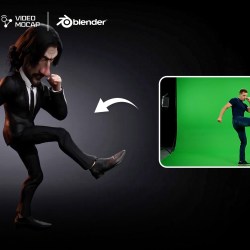
Researcher Thies shares complete character workflow and honest review with CC5, iClone and Blender. He uses the latest Video Mocap Plugin and get the animation to Blender for final rendering.

Influencer Spotlight: Character Creator 5 Review by Thies Grünewald

Researcher Thies shares complete character workflow and honest review with CC5, iClone and Blender. He uses the latest Video Mocap Plugin and get the animation to Blender for final rendering.

Thies Grünewald

Hi, my name is Thies Grünewald, I am 37 years old, and have been working in film and video production for over 15 years. I have continuously expanded my expertise in the areas of camera, lighting, and audio, and have constantly sought to improve my skills through numerous image films, interviews, explanatory films, music videos, and above all, my own short film projects. In post-production, in addition to editing and color grading, I now focus heavily on 2D- and 3D-animation. Over the years I have added workflows between the programs Blender, Zbrush, and Substance Painter, as well as Marvelous Designer and Character Creator for character design/animation. In compositing, I have been working with Adobe After Effects and other plugins such as Red Giant, Element 3D and Mocha AE since the beginning of my professional career.

Thanks to my job at the university, I have the opportunity to impart knowledge and, at the same time, constantly broaden my own horizons through exchanges with young students and keep pace with the rapid technological developments in the field of AI.

Visit Thies Grünewald’s YouTube Channel

My experience with Character Creator 5

I have been a loyal Character Creator 4 user for a couple of years. Anyone who has ever designed a CGI character from start to finish knows what it means: sculpting, retopology, texturing, shading, rigging, weight painting. With Character Creator, I can focus on my actual strengths: every character I create with Character Creator, whether it’s realistic or stylized, is production-ready and fits seamlessly into my existing workflow.

So sharing my opinion for CC5 becomes a no-brainer for me. Character Creator 5 has become an important part of my work. This allows me to invest more time in my creative processes.

”As a one-man band, it is essential for me to work with tools that allow me to implement my creative projects faster and more efficiently in a professional manner without compromising on quality. For me, CC5 has become indispensable.“

Thies Grünewald, Researcher at University of Applied Sciences South Westphalia

Exploring the Next-Gen Features of Character Creator 5

Let’s quickly talk about the new CC5 features, as I have integrated all of them into this character. First, we have a new subdivision level that allows for incredible detail. We also have a realistic skin system to dial in micro-details, alongside an upgraded facial performance system.

Of course, we have the ActorMIXER. Within seconds, you can play around with models to create unique characters. My goal was to create a specific concept, and I ended up with this female character using the mixer’s various morphs. Whether you are looking for a standard change or a fantasy-style character, you can achieve it with the click of a button — or in this case, by dragging the mouse. For those of us who aren’t primarily character artists, this is a game-changer.

Blender Pipeline and Performance Optimization

Let’s discuss production-ready workflows, specifically integrating this into Blender. If you are working on a slower PC and can’t handle Subdivision Level 2 characters, no problem. You can use the “Create” section to bake your normal maps down to Level 0 or 1. This ensures your characters work fluently even without high-end hardware.

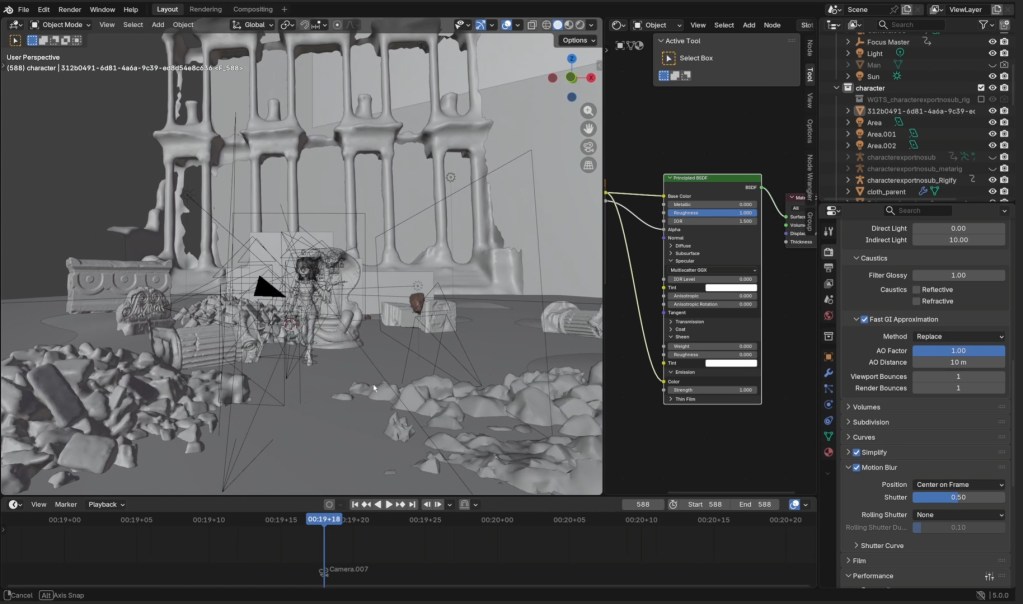
To export to Blender, navigate toPlugins > Blender Pipeline > Export Character. A menu will appear, allowing you to choose your subdivision level; I recommend Level 1 for better playback feedback. Once exported, you can use the free Reallusion add-on for Blender. This tool handles texturing and rigging automatically, removing the technical hassle usually associated with character creation

Rigging and Facial Animation

Once imported, ensure you enable ray tracing in Eevee to make the eyes look their best. The character comes with a high-quality rig and perfect weights from Character Creator. You can also use the Rigify setup in the advanced options to generate a control rig for your animations.

The face rig is particularly impressive. If you’re familiar with Unreal Engine, it will look familiar as it’s based on the MetaHuman system. We even have wrinkle maps for realistic micro-details.

Motion Capture and AI Technology

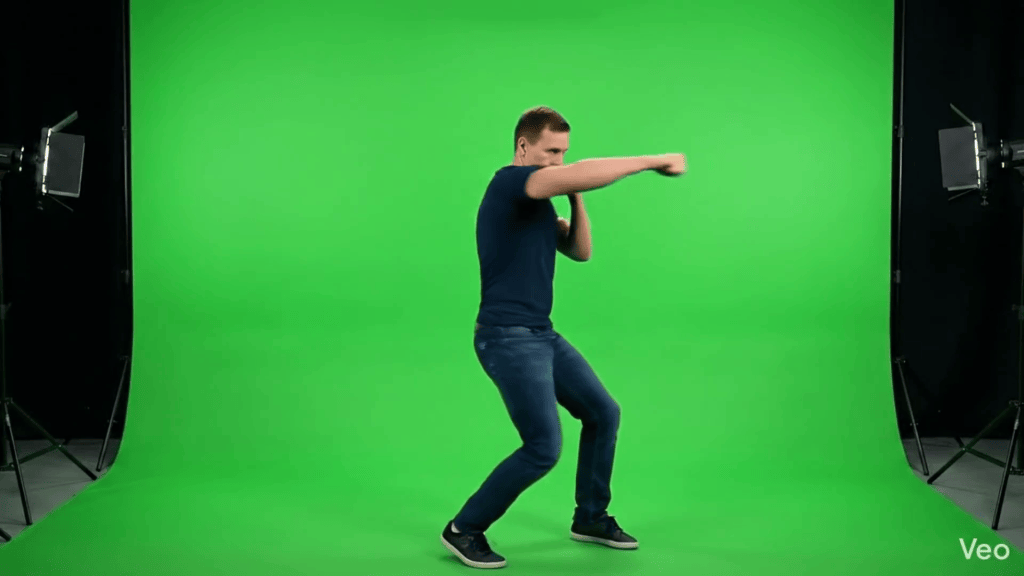
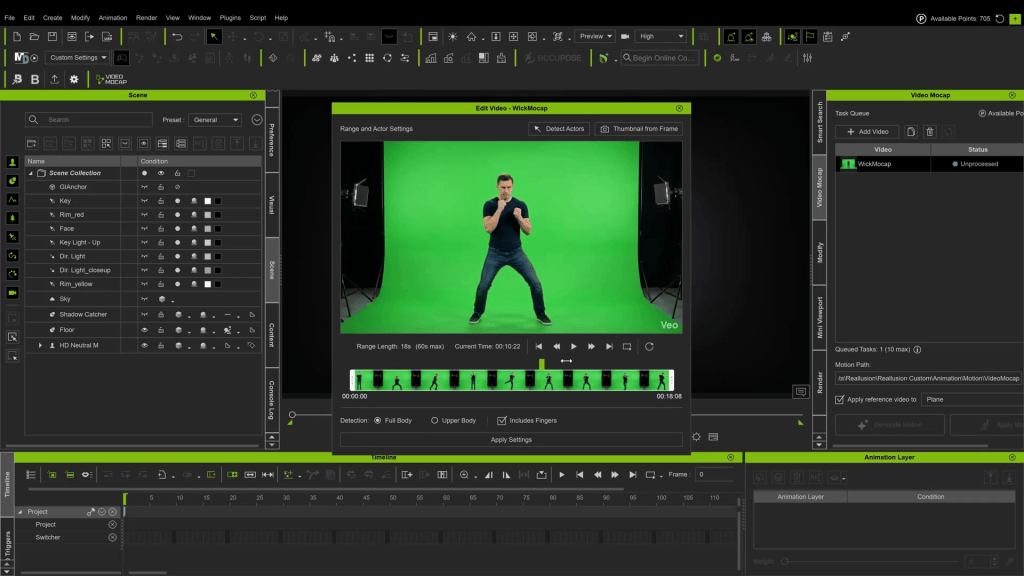
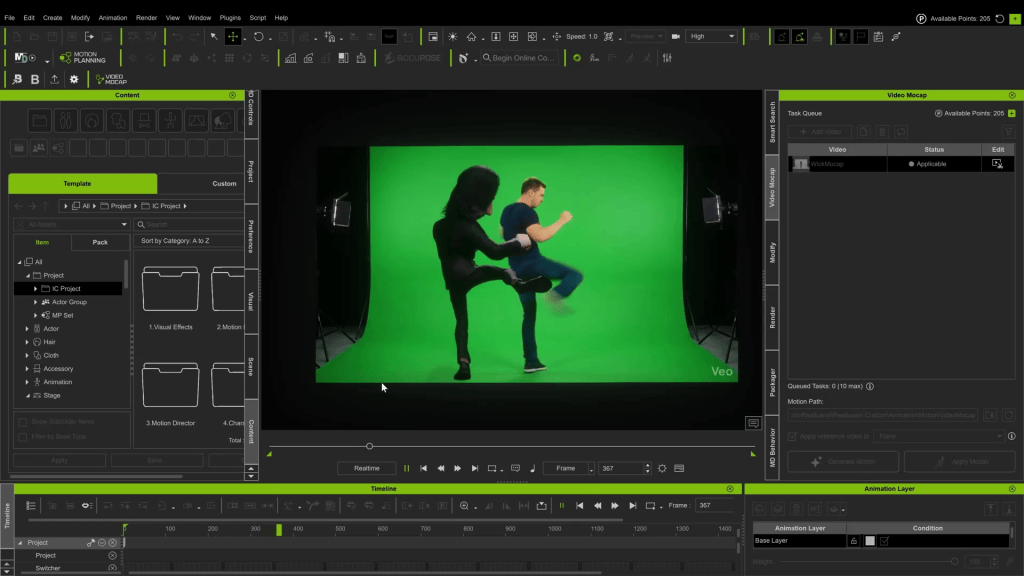
For animation, you can import mocap data or use the new video mocap feature – Video Mocap Plugin. Reallusion has partnered with QuickMagic AI for “motion-suit-less” animation. You simply upload a video — QuickMagic recommends a static camera, but it works with slight movement — and the AI identifies the silhouette for full-body and finger tracking.

While each generation costs about 250 Reallusion points (roughly $2.50 USD), it provides a handy way to get nice animations without an expensive mocap suit. Each generation takes approximately ten minutes, and the software retargets the motion to your character automatically.

Face Mocap and Retargeting

If you prefer different options, the Blender add-on supports face mocap using ARKit. You can use the free Live Link Face app (exclusively for iPhone) to record a CSV file. Uploading that file onto the “proxy face” in Blender applies the mocap data directly to your character’s shape keys.

Additionally, you can import animations from sources like Mixamo. Simply download the Mixamo rig, select your character as the source armature, and preview the retargeted animation. If the rotation is off, just apply a 90-degree X-axis rotation to the character and everything should work fine.

Conclusion

We’ve created a complete, lifelike animation using a character designed in Character Creator 5 (with all its new features), combined with a free face mocap app, and free Mixamo animations. All of this was implemented into an existing 3D scene in Blender, easily and without the need for deep technical knowledge of the complex character animation process.

Related Posts