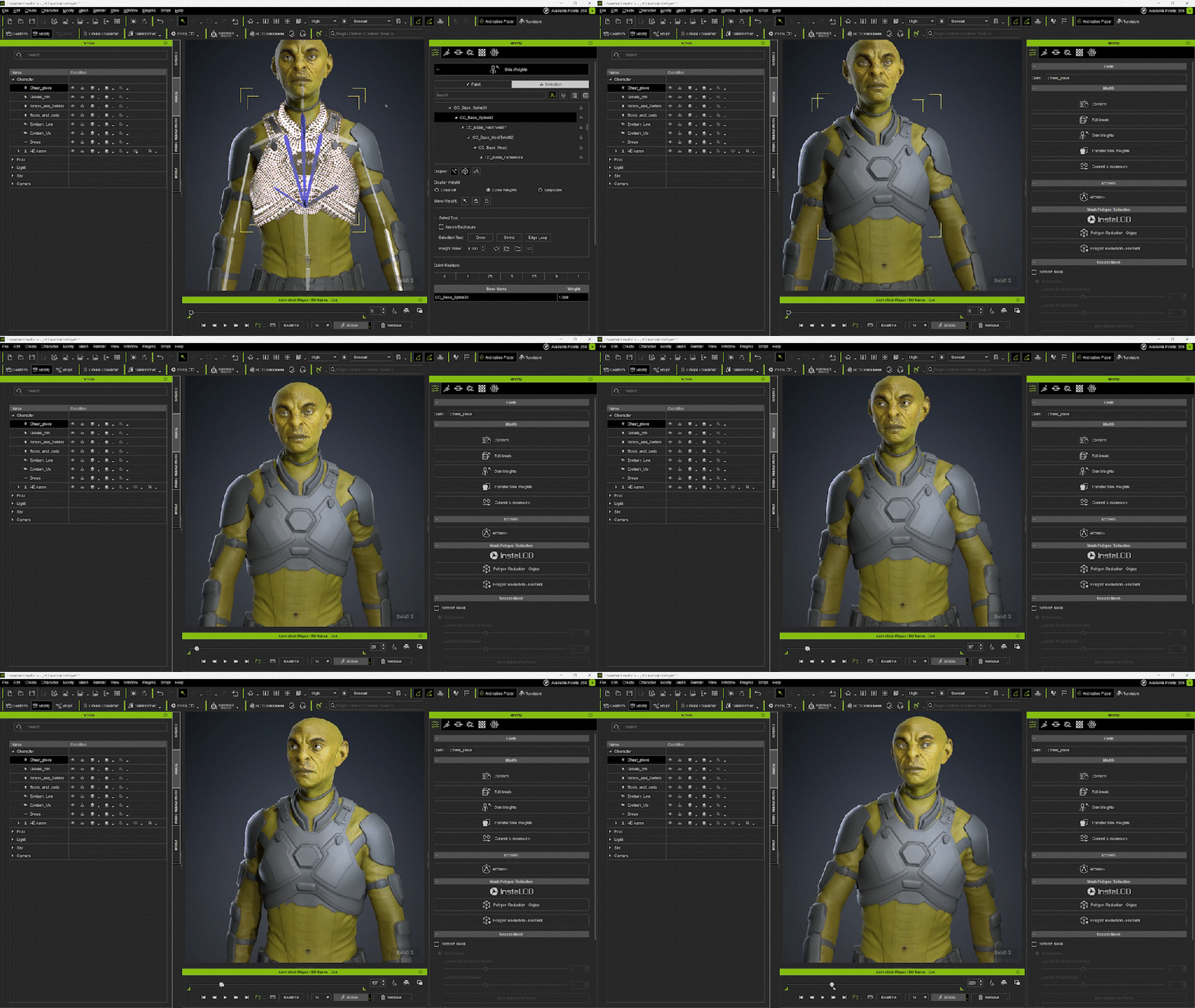
Inside PixelArtistry’s Workflow: AccuRIG Auto-Rigging Meets Video Mocap
Philipp Sieben, the creator behind the growing YouTube channel Pixel Artistry, has built a reputation for turning complex AI workflows into easy-to-follow tutorials. In his latest video, he demonstrates a full end-to-end pipeline that transforms a single 2D AI image into a fully animated 3D shot — all without traditional modeling or motion-capture gear.
The core of his workflow revolves around Reallusion’s AccuRIGand iClone Video Mocap, which bridge the gap between AI-generated assets and production-ready animation.
Philipp Sieben / PixelArtistry
Philipp Sieben is a 3D artist with seven years of experience in the VFX industry, contributing to major productions such as Netflix’s The Witcher and Marvel’s Fantastic Four.
His recent work focuses on the intersection of traditional 3D and artificial intelligence, where he explores how AI can accelerate artistic workflows and open new creative possibilities. He now runs the YouTube channel Pixel Artistry, helping 3D artists, developers, and tech enthusiasts master the latest AI-powered tools.
Step 1 — From AI Image to Full Character Blueprint
Philipp begins by generating a concept character using Midjourney. To prepare the model for 3D reconstruction, he uses ComfyUI to produce clean front, side, and back views in a proper T-pose. These multiviews act as a “turnaround sheet” for the next stage.
Step 2 — AI-Driven 3D Model Generation from Images
The multi-views are then inputted into Hunyuan 3D 3.0, which reconstructs a full 3D character. Philip opts for a 50K-face mesh, which is detailed enough to look good and lightweight enough to rig instantly. Hunyuan outputs a textured FBX file, ready for animation tools.
Step 3 — Get Animating Quickly with AccuRIG Auto-Rigging
To prepare the character for animation, Philipp turns to AccuRIG, Reallusion’s free auto-rigging tool designed to quickly turn static 3D models — even AI-generated ones — into fully rigged characters ready for animation. AccuRIG’s guided marker system makes the process simple, and its direct export to iClone keeps the pipeline smooth.
Philipp’s AccuRIG workflow:
The FBX imports with textures intact
AccuRIG auto-detects major joints on the body
Fine-tunes shoulders, knees, and fingers for better deformation
Hand rigging is mirrored to speed up setup
Within minutes, the AI-generated mesh becomes a fully rigged iAvatar, ready to animate in iClone.
Step 4 — Real Motion, Zero Suits: Animating using iClone Video Mocap
To animate the character, Philipp captures his own movements using iClone Video Mocap, which extracts motion directly from standard video. He records simple actions in his living room, including jumps, punches, gestures; then imports the clips into iClone. The plugin detects full-body and finger motion, analyzes the footage in the cloud, and generates a 3D animation that he can apply to his character with one click.
Most of the motions worked “on the first try”, and Philipp uses iClone’s Motion Layer tools to clean up subtle limb penetrations and pose issues. This tool combination gives him natural movement with full control for refinement.
Step 5 — Assembling the Cinematic Scene in Blender
For the final shot, Philipp exports the animation into Blender using Alembic. He blocks out a simple environment, positions his camera, and then uses ComfyUI again to create a stylized texture pass. Using classic camera projection, he maps the AI-generated textures onto his scene for a rich, cinematic look.
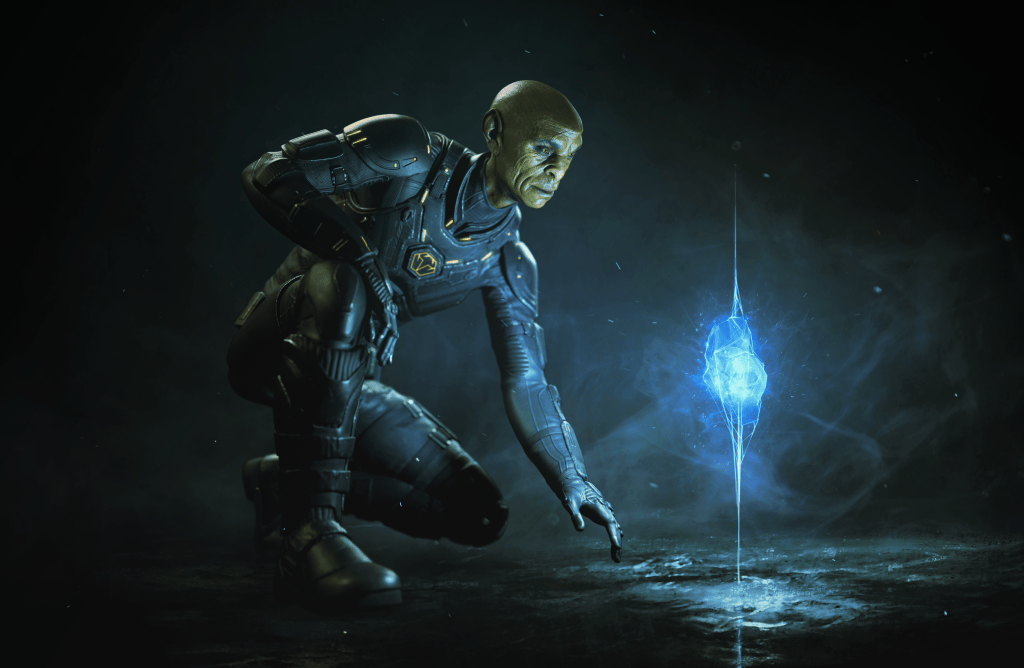
The soldier character is lit to match the environment, and the final render showcases a fully animated AI character integrated into a fully 3D environment.
Why This Workflow Matters
Philipp’s work demonstrates a new, accessible way to build animated 3D content:
AI art → multiviews → 3D reconstruction
AccuRIG → instant production-ready rigging
iClone Video Mocap → natural full-body motion from any camera
Blender → final scene + render
For creators without traditional 3D modeling or mocap resources, this pipeline opens the door to fast, high-quality character animation.
Hi, I’m Marlon R. Nuñez, Creative Director at Digito and the creator behind @mrnunez3D in YouTube. With over 13 years of experience in digital humans, real-time workflows, and stylized realism, I’ve worked across games, cinematics, and XR productions. This article breaks down how I built a fully custom vampire character using ZBrush, Character Creator 5, XGen, and Unreal Engine 5.7, testing the limits of CC5’s HD pipeline and real-time integration.
How I made this Custom Vampire in CC5 and UE
Over the past few weeks, I took on the challenge of creating a fully custom vampire character using ZBrush, Character Creator 5 (CC5), XGen, and Unreal Engine 5.7. This wasn’t just about building a stylized character. It was about testing the limits of CC5’s new HD features, grooming workflows, facial animation, and real-time performance inside Unreal Engine. The following is a breakdown of the entire process.
1. From CC5 blockout to ZBrush sculpt
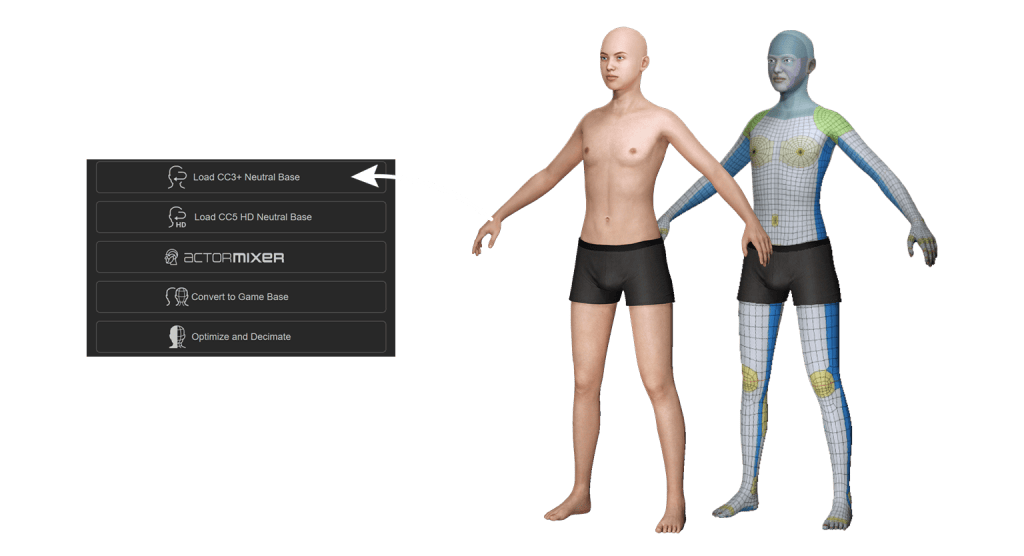
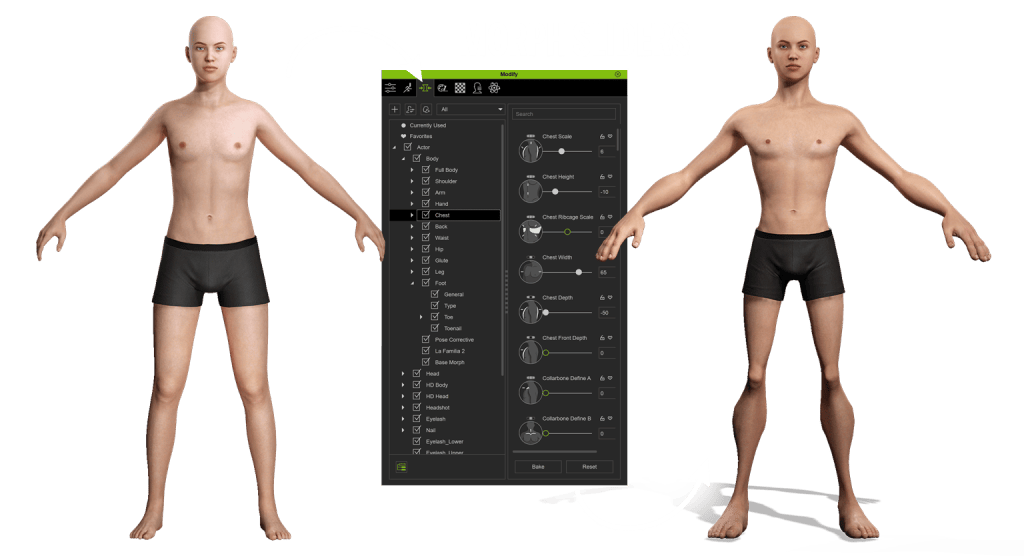
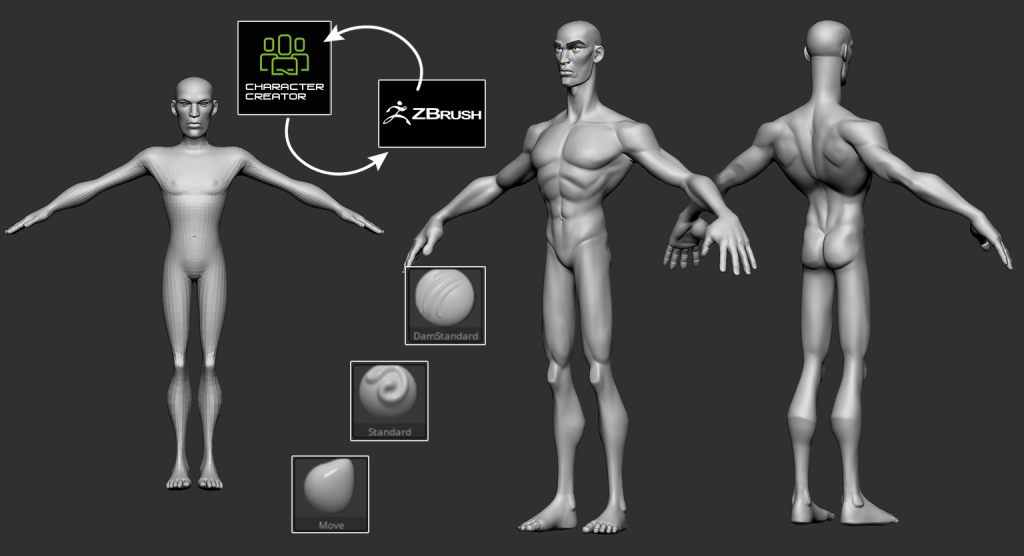
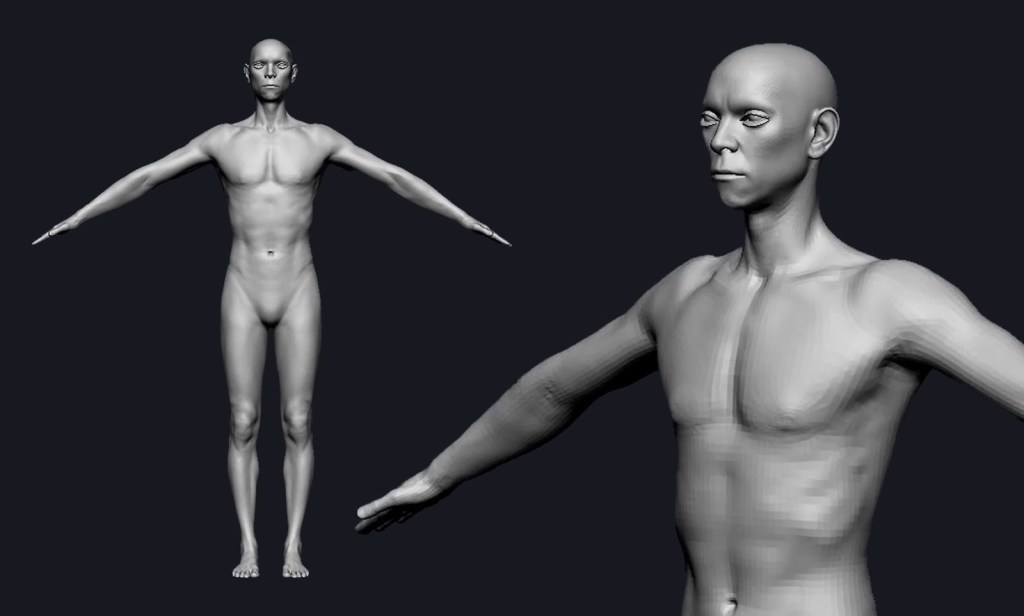
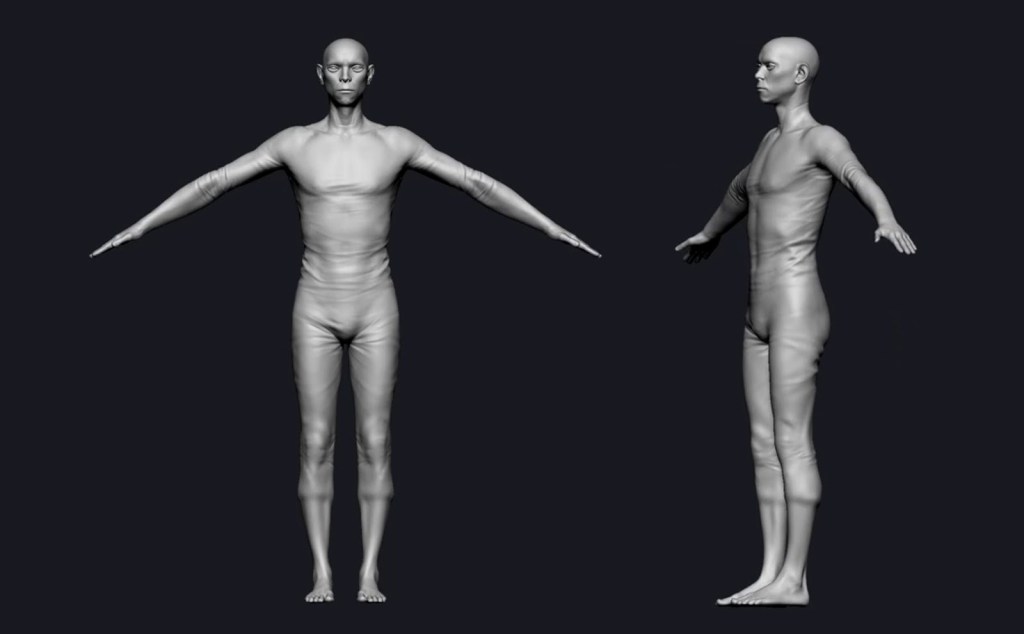
I started by loading the default male avatar in CC5 as a base. Before even jumping into ZBrush, I used CC5’s powerful morph sliders to block out the overall shape of the character. This is a great starting point because it allows you to quickly define general proportions — like head size, neck length, torso width, and limb shape — all in a non-destructive way. Using morphs not only speeds up the design process but also helps establish a solid base mesh with clean topology, ready for sculpting fine details later on. From there, I exported it into ZBrush to begin sculpting.
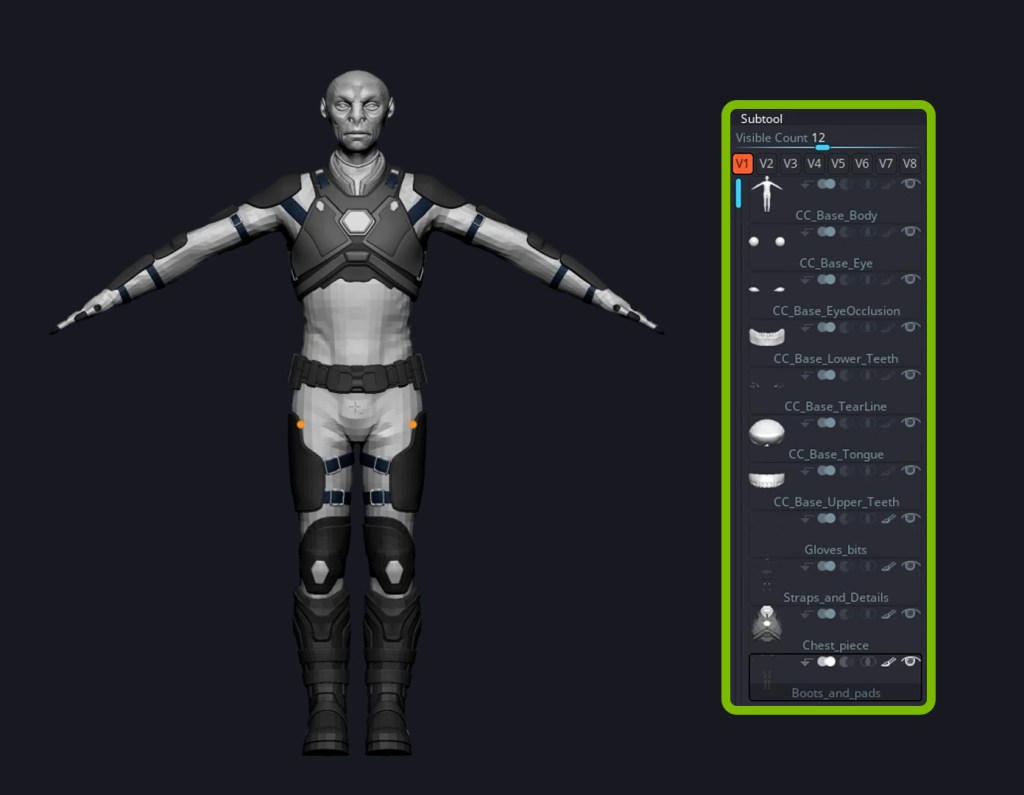
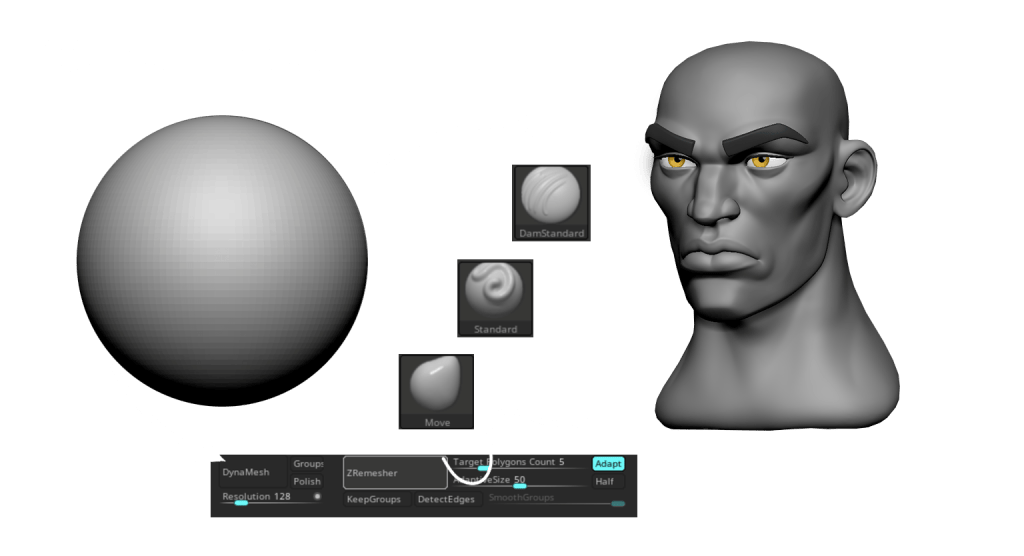
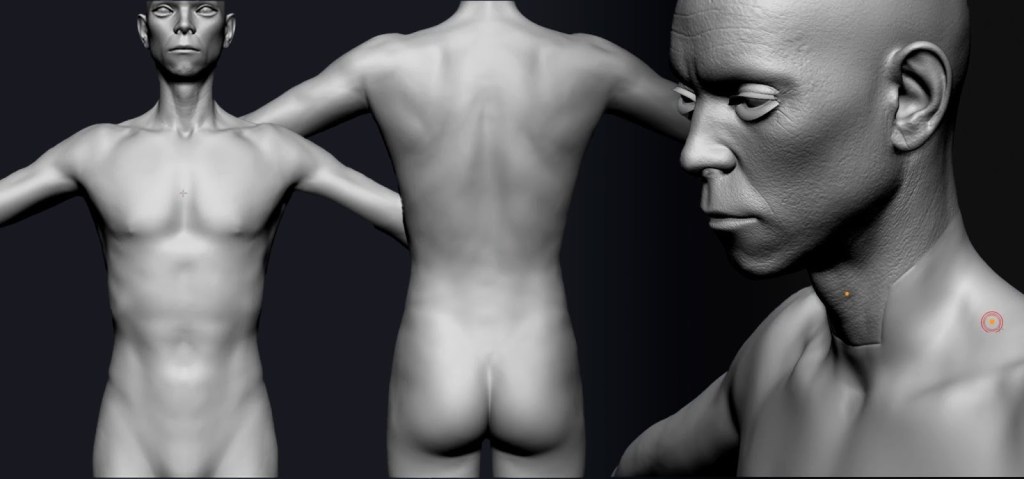
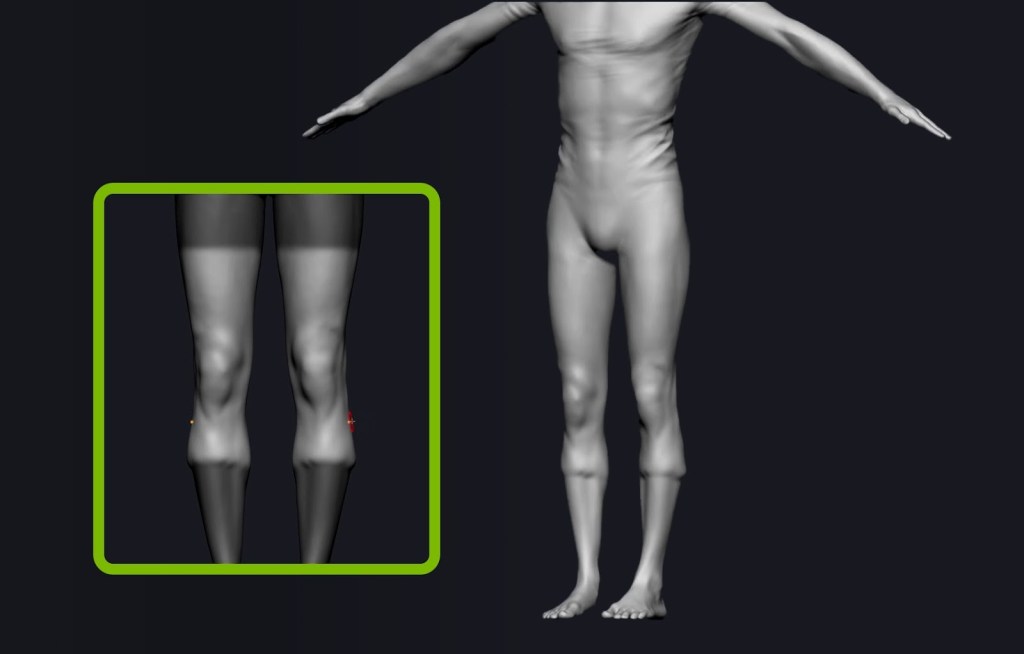
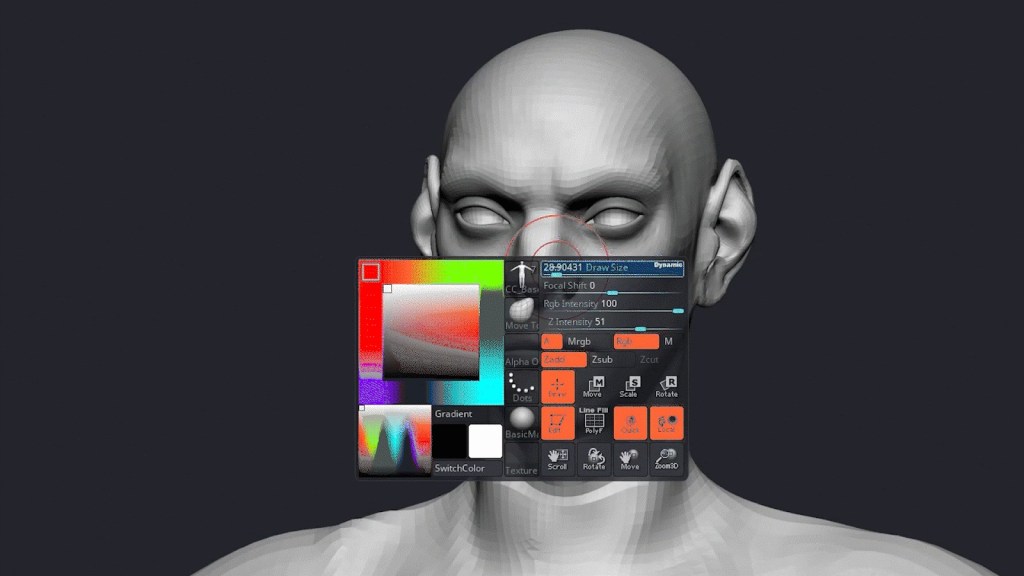
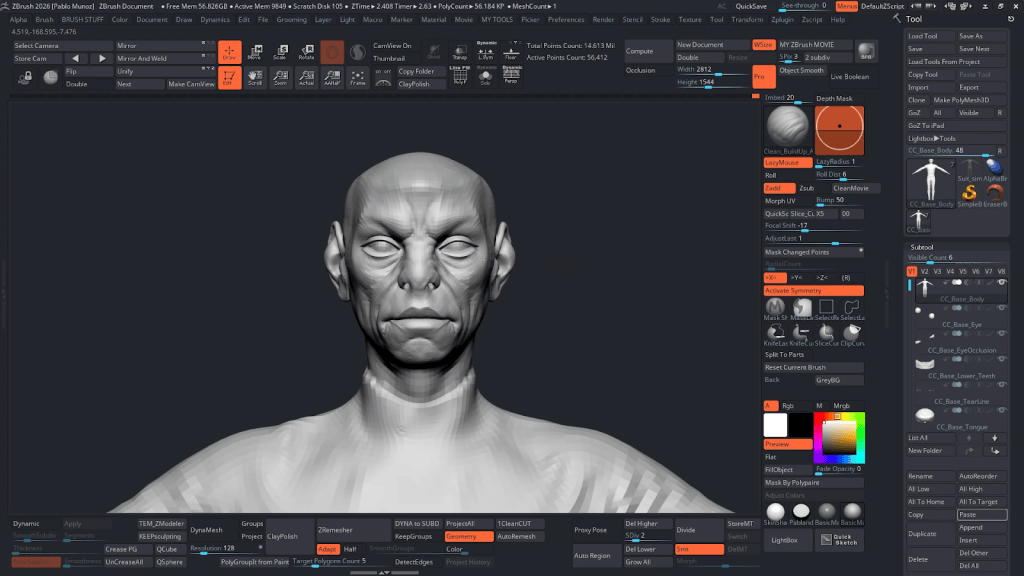
Using a combination of Clay Brush and Dam Standard 2, I carved in wrinkles, secondary forms, and facial structure. This brush combo helped me stay creative and stylize the character without losing realism. Once the primary and secondary forms were working, I used Polypaint to start visualizing the character’s tone.
The goal wasn’t to finalize everything in ZBrush, but rather to set up a clean sculpt ready for HD detailing back in CC5.
2. Refining with CC5 HD Features
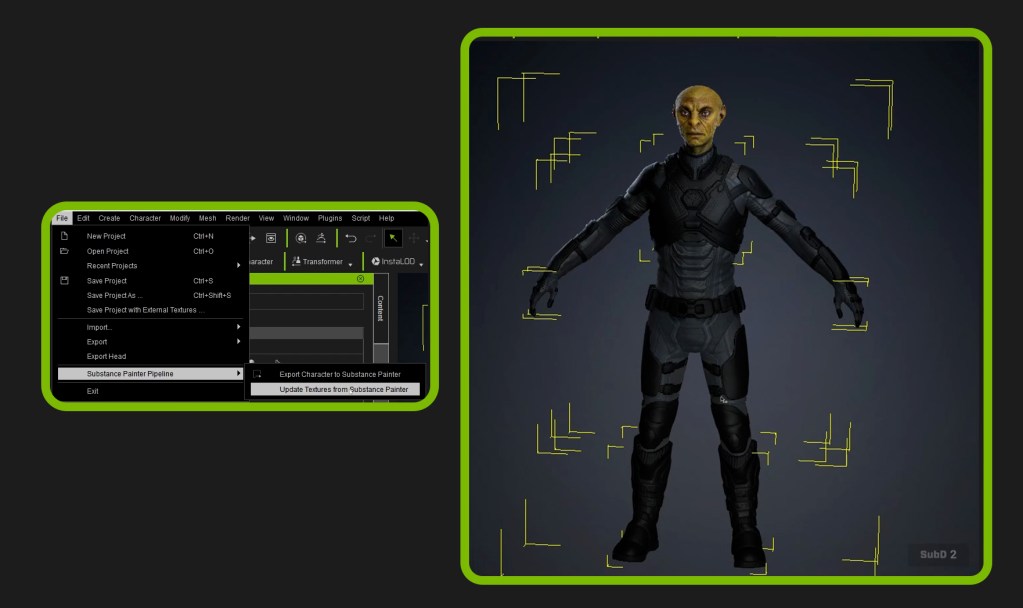
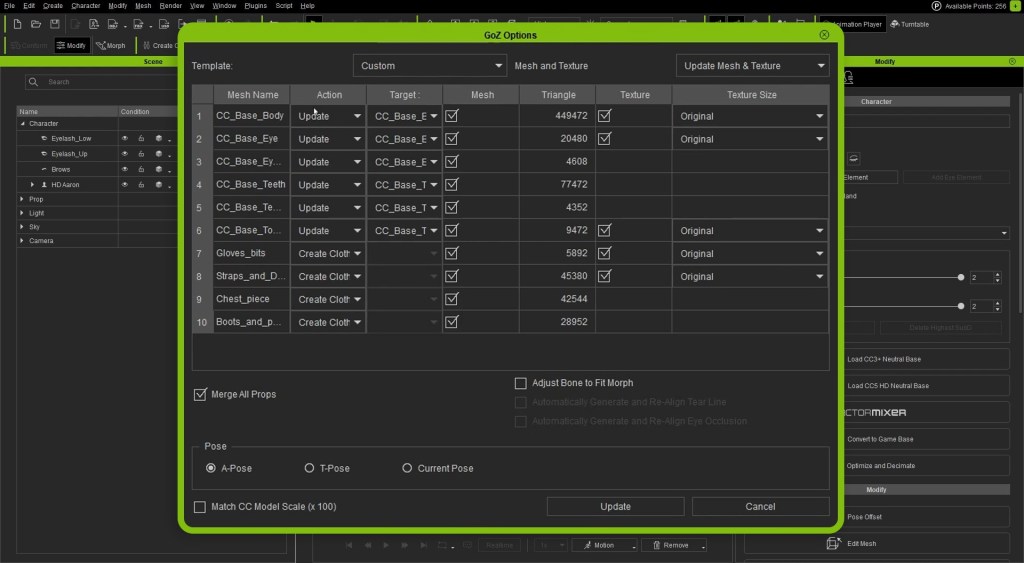
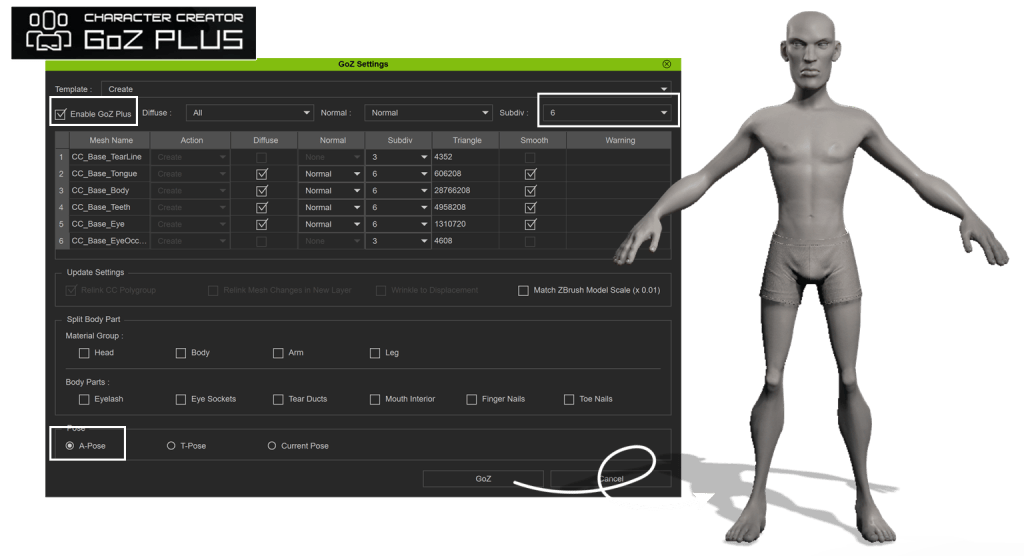
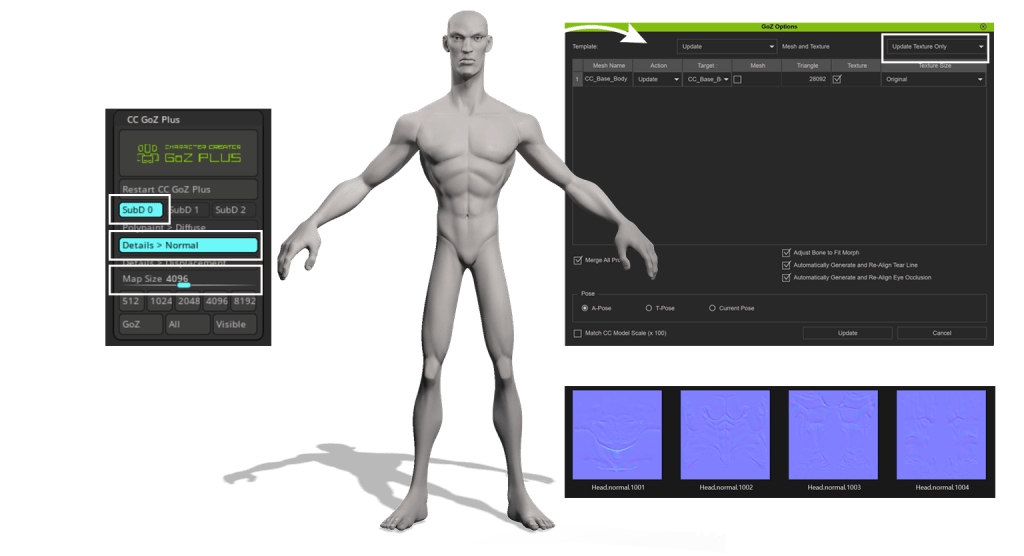
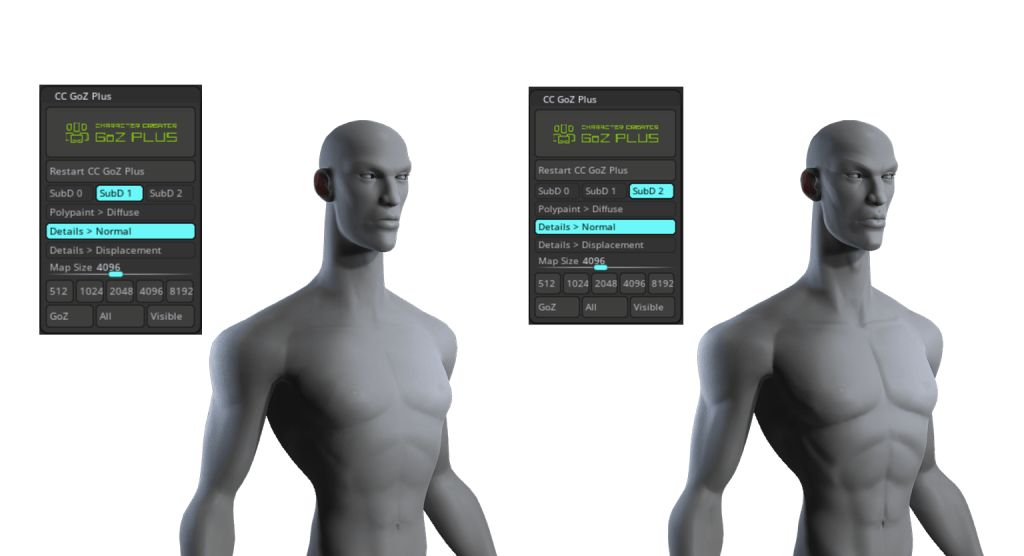
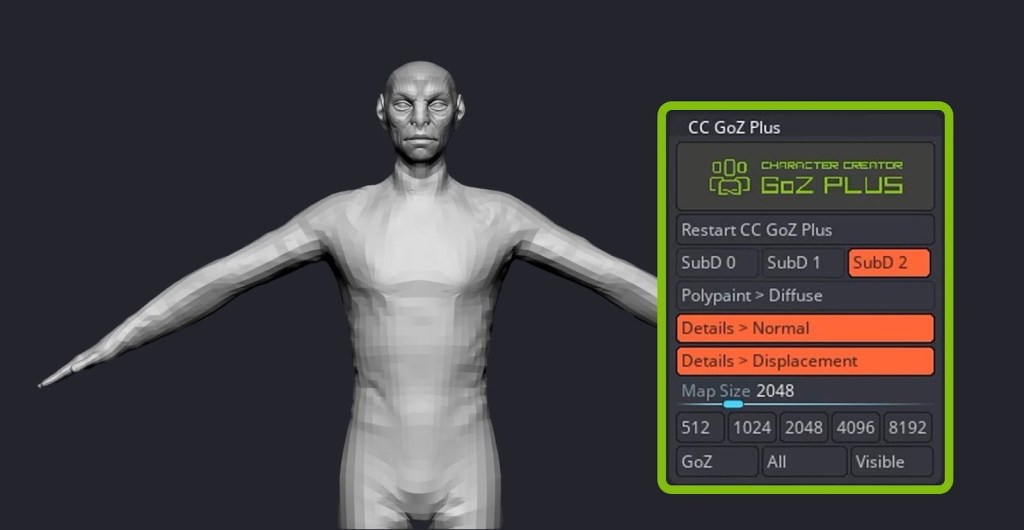
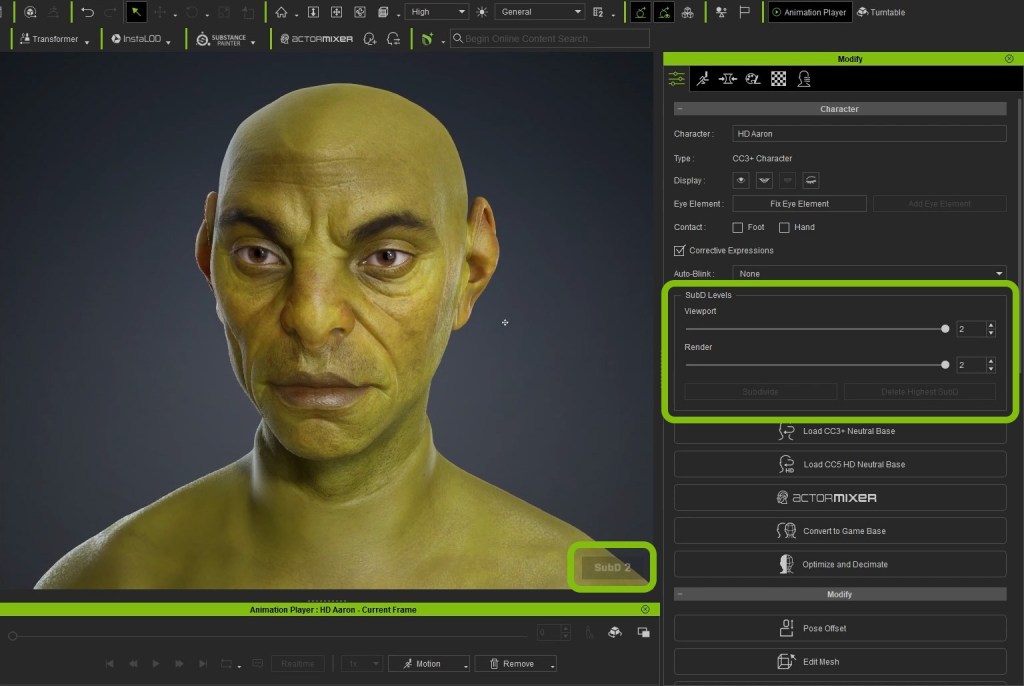
Back in Character Creator 5, I brought in the sculpted mesh using GoZ. The new HD morphs and subdivision tools inside CC5 let me refine anatomical detail without switching back to ZBrush.
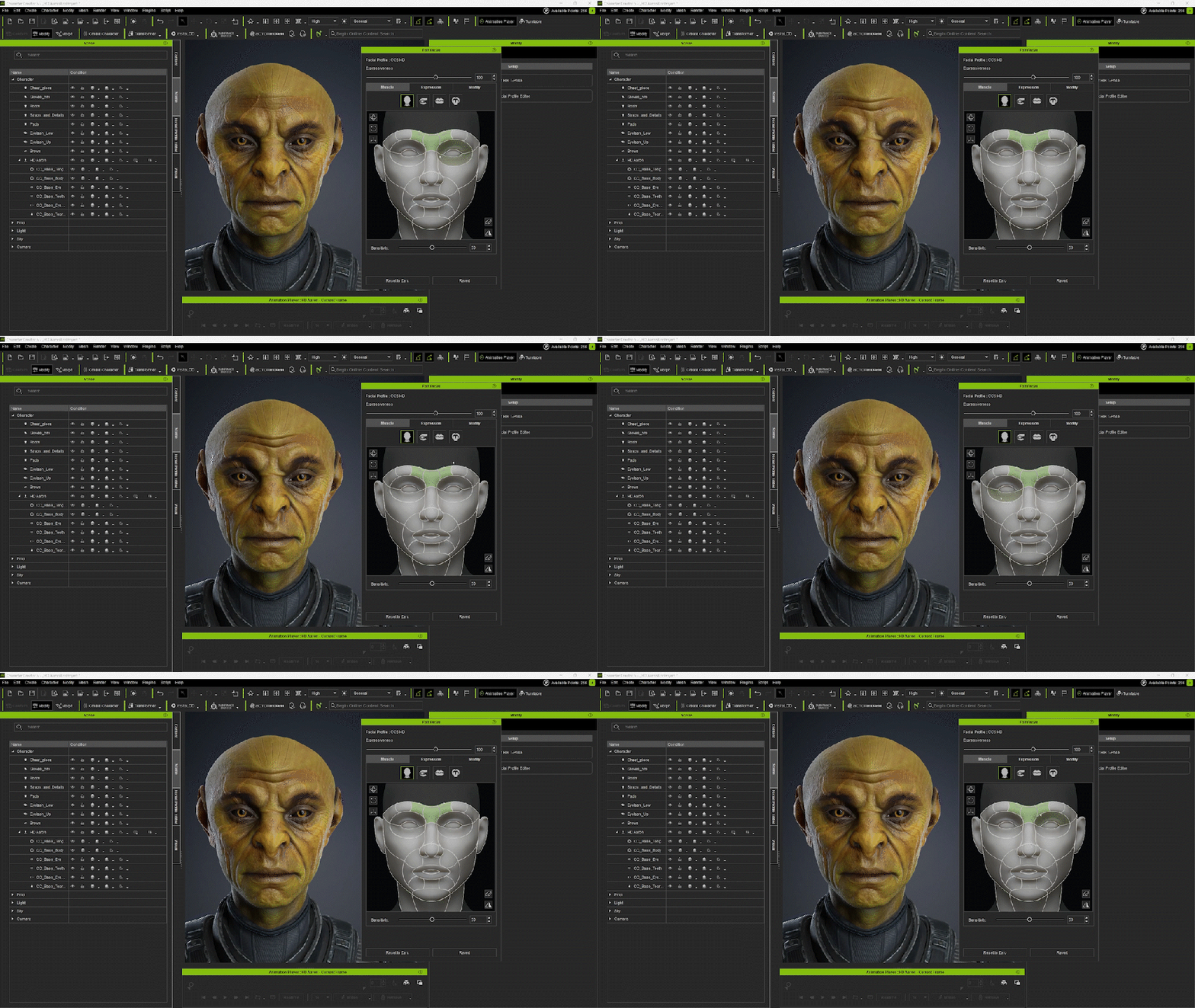
I adjusted muscle definition, sharpened key features, and used non-destructive morphs to fine-tune the look. Since the final result would be used in close-up renders and real-time sequences, this HD detailing step was essential.
3. Clothing and CC5 Edit Tools
Because my focus was the face, I didn’t spend time designing clothes from scratch. Instead, I used the free styling clothing pack in CC5 to mix and match different items.
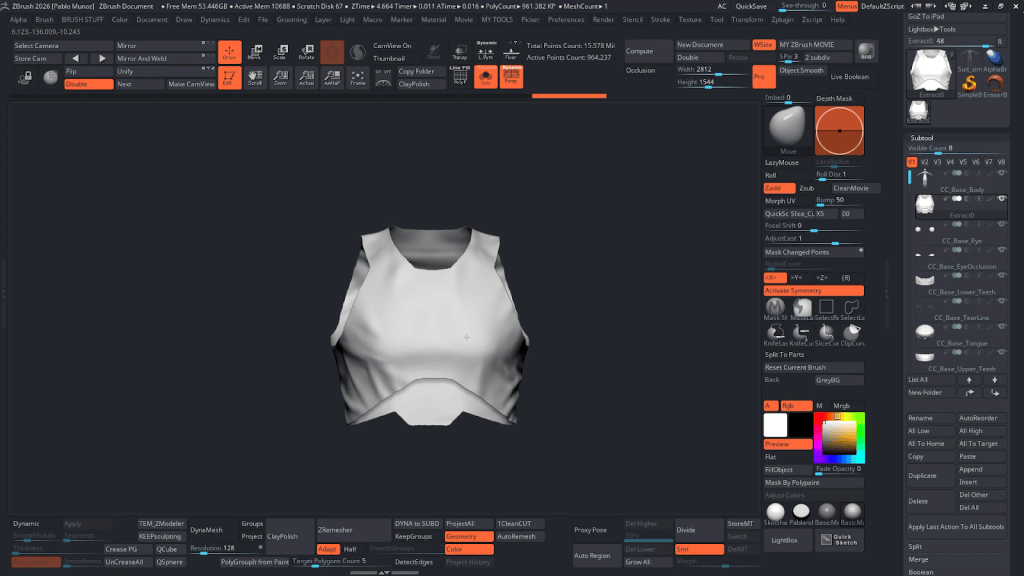
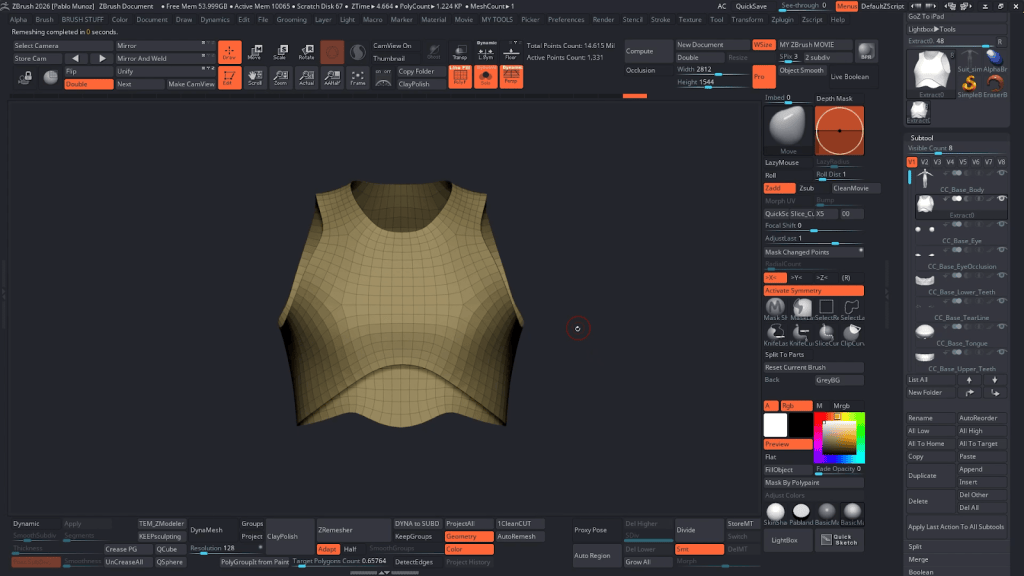
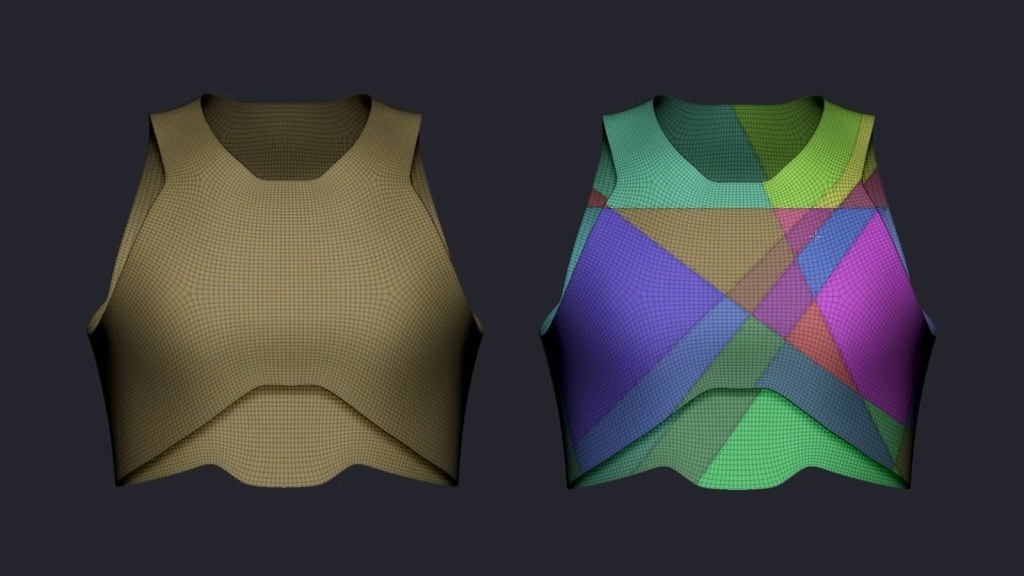
I tested several coats and pants to get a gothic, modern vampire vibe. Once I settled on a base outfit, I exported the clothing back to ZBrush to sculpt unique folds and break symmetry — especially at the bottom of the coat to give it a jagged, dramatic feel.
One helpful trick during this stage is using the Edit Mesh tools inside CC5. These tools allow you to make precise tweaks directly on the clothing or body mesh. This is ideal for resolving minor overlaps, adjusting silhouettes, or even fixing mesh clipping and light skinning issues. They’re especially useful when parts of the outfit intersect with the body during movement or when you need to make manual adjustments to avoid mesh clashing in animation. You can sculpt mesh regions, move vertices, and fix problem areas without having to re-export to ZBrush, which is a huge time-saver.
4. Grooming Hair in XGen (Maya)
For the hair, I wanted something stylized but rooted in realism. I used XGen Interactive Groom in Maya to create both the hair and brows. Once done, I exported the grooms as Alembic caches. These were imported into Unreal Engine and bound to the head skeletal mesh using the Groom component. Rotation and scale adjustments were needed during import (Rotation X = 90, Scale Y = -1) to match orientation.
I imported the CC5 character FBX with Morph Targets enabled to preserve facial blend shapes. Then I used the Create CC Control Rig function to automatically generate a control rig and blueprint compatible with UE5.
One key note: I switched the character to CC5 HD mode before exporting from CC5 to ensure full facial rig compatibility.
6. Scene Assembly, Lighting, and FX
For lighting, I kept it simple: one spotlight, one point light, and a bit of color grading. To give the environment some energy, I added a Niagara fire effect in the background with a red tint, simulating a burning castle vibe.
This helped frame the character in a more cinematic way and added subtle motion behind the dialogue.
7. Facial Animation and Audio Sync
I recorded myself and exported the audio as a WAV file, which I used as the input for MetaHuman performance capture inside UE5. Once the animation was generated, I disabled the head movement (to reuse the mocap animation) and combined the facial performance with the body motion. Later, I ran into an issue with eye movement not tracking properly. The fix was enabling the Control Look At option inside the Control Rig and manually tweaking eye positions frame-by-frame for believability.
8. Solving Mesh Clipping and Skinning Bugs
In UE5, I noticed the coat mesh was intersecting with the body, even though this didn’t happen in CC5. Using Vertex Sculpt tools inside the Skeletal Mesh Editor, I pushed the coat geometry to resolve the issue directly within Unreal. I also used animation curve editing to loop the walking motion and extend the sequence.
Final Thoughts
This workflow was a great mix of creative sculpting, technical problem-solving, and real-time character performance. The CC5 HD features combined with Unreal Engine’s control rig tools gave me flexibility without sacrificing visual quality. If you’re building stylized or semi-realistic characters for games, cinematics, or virtual production, this approach is fast, efficient, and powerful.
Can I animate ZBrush characters directly in Character Creator 5?
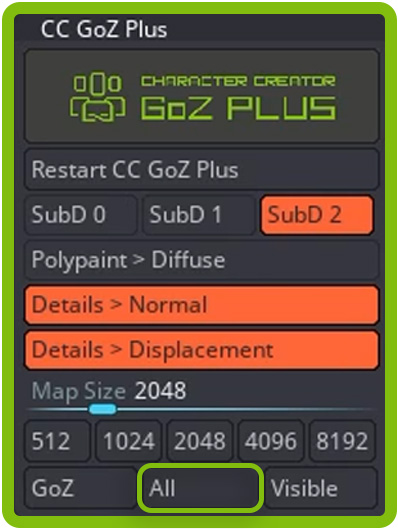
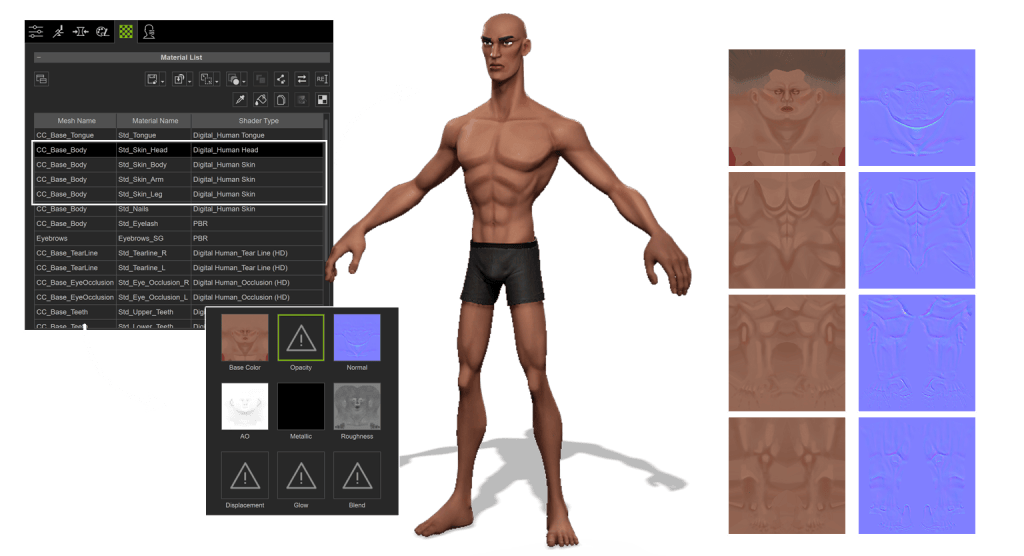
Yes. With CC5’s GoZ Plus bridge, you can transfer your ZBrush sculpts, bake textures automatically, and animate them with body motions, facial expressions, and lip sync.
Do I need to retopologize my ZBrush sculpt before sending it to CC5?
No. CC5’s neutral base mesh has clean topology and is animation-ready. You only need to sculpt details and then bake displacement and normal maps for transfer.
How does CC5 handle HD subdivision from ZBrush?
CC5 supports adaptive subdivisions. You can send models back and forth at different levels (Lv0, Lv1, Lv2) and automatically generate optimized maps for each.
Can CC5 handle non-human characters sculpted in ZBrush?
Yes. CC5 includes tools like Adjust Bones and Pose Offset to fix skeleton alignment, making even stylized or alien proportions fully animatable.
What animation features can I use once the sculpt is in CC5?
You can apply motion capture, motion libraries, facial morphs, dynamic wrinkles, and voice-based lip sync to bring your ZBrush characters to life.
Learn to find and acquire the perfect assets without leaving the software
Matt Hickinbottom
Matt’s journey in media and entertainment began at the age of 12, when he starred in a children’s television show. He later transitioned to composing music and jingles for TV, including work for Disney aimed at European audiences. Broadening his skill set, Matt has become a highly sought-after producer, director, and director of photography, with experience creating award-winning promos for SONY Pictures. His work takes him worldwide, producing cinematic adverts for Merlin Entertainment across LEGO Discovery Centers, Sea Life Centers, and Warwick Castle attractions.
Since 2020, Matt has incorporated iClone as a core tool in his workflow for animated content creation, utilizing iClone animations, Character Creator avatars, and Perception Neuron motion capture in his projects.
Project: The Longest Goodbye
“I’m currently building a pitch project for a team in the US for funding towards a feature length animation with the main story centering around the elderly and sufferers of Alzheimer and Dementia. We have already created a few trailers, but the next round is for us to create a 3 minute section of what the final project will look like. This is a perfect opportunity for us to shout about what is possible with iClone, Smart Search, and the iContent,” said Matt.
Smart Search in iClone and Character Creator
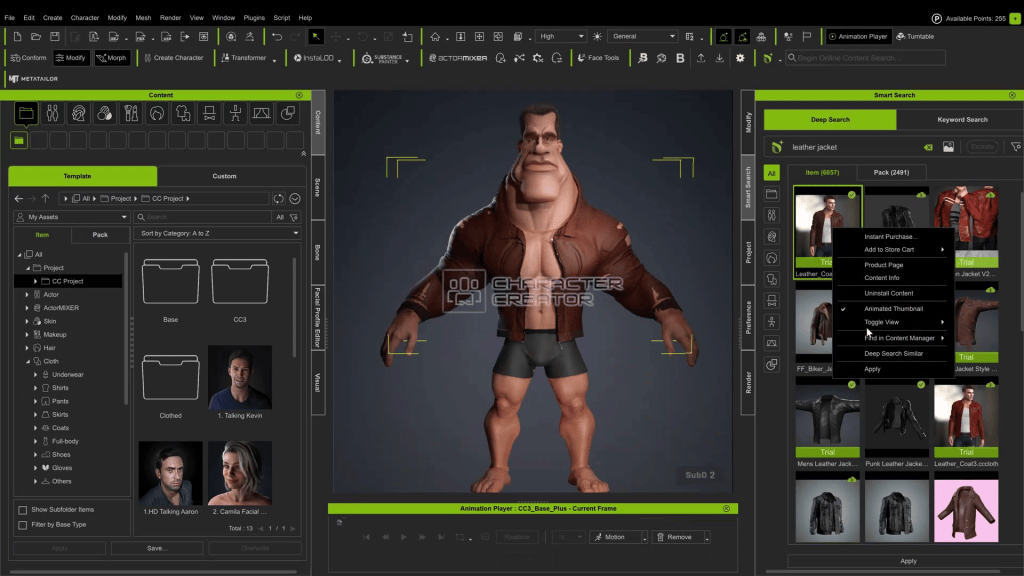
When you are deep in a creative build (whether it is a scene for a corporate animation, a community project, or a feature film) the last thing you want is to break your flow just to go asset hunting. That’s why Smart Search in iClone and Character Creator has become one of our favourite features. It’s not just about finding stuff quickly — it’s about buying smarter, testing assets properly before you buy, and saving money with flexible licensing options.
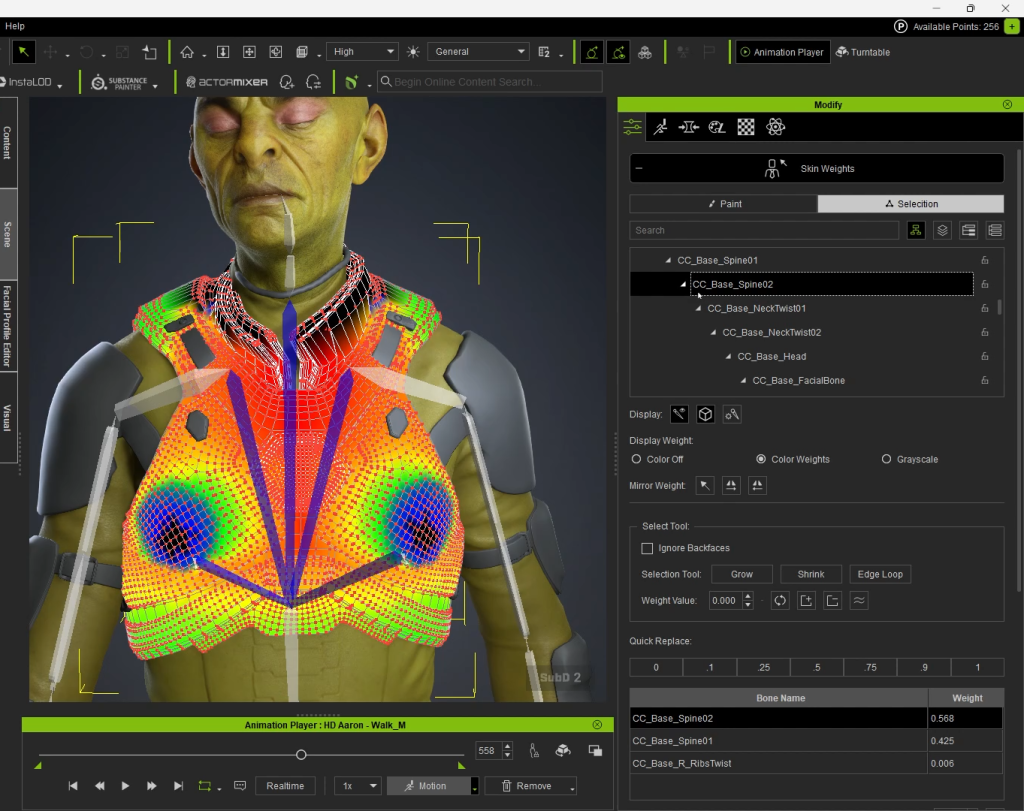
In this article, we’ll share insights from our current feature-length project and show how Smart Search has dramatically improved our workflow.
One Search, Everything in One Place
Smart Search lets us search across our local assets, Reallusion’s Content Store, Marketplace and ActorCore, all at once and directly inside the software. No need to open a browser, log into a separate site, or juggle tabs. We just type what we need, like: “World War 2 plane”, “Old Man Character”, “Dark Sky” … and it shows us everything available.
Since our current project draws heavily on World War II themes, we often need to quickly find existing props or costumes to speed up our workflow. Typing “World War 2” in the search field instantly populates a vast array of assets ready for immediate use. Narrowing the search with more specific terms makes it easy to filter out the perfect items from the many options.
One standout feature is Find Similar, which helps locate related items effortlessly. Another is the ability to search using images (costumes, props…), making the production process far more enjoyable. If we already own an asset, great; if not, we can preview it, check the price, and purchase it directly in the software using our DA points. Having this full range of features — from search to checkout — within a single platform is a huge convenience that lets us stay focused on animation and overall production.
Try Before You Buy — Really!
One of the best things? You can actually test certain assets before you commit to buying them. I’ve literally lost count of how many times I’ve purchased an asset based on the thumbnail and been completely disappointed when popping it into a project as it didn’t quite do what I thought, or look as I thought it would.
Smart Search solves this issue. It lets you drag Trial versions of store items straight into your scene. They’ll have a watermark, sure — but you get to see how they look, how they behave, and whether they fit your project. That’s huge for me: no more guessing based on thumbnails or hoping it’ll work once you’ve paid. We rely on this feature all the time, especially when crafting detailed scenes and checking whether an asset fits the tone. It’s a genuine “try before you buy” system, fully integrated into the workflow.
DA Points Make It Quick and Painless
We use DA points for most purchases. It’s simple, secure, and means we don’t have to mess around with payment screens or credit card details. If we have DA points in the account, we can grab what we need instantly right inside the software (whether it’s a prop, a motion pack, or a new outfit). That’s especially handy when we’re working on tight turnarounds, like prepping visuals for a scene. If we spot something useful, we don’t have to wait. We just get it, drop it in, and keep going. They’re super easy to track too as you now have a constant up-to-date count of your current point balance right there on the screen.
iContent: The Smart Way to Save
Here’s something a lot of people miss, which has really made adventurous projects more affordable for us. When you buy content through Smart Search inside iClone or Character Creator, you can choose the iContent version. It’s only usable within iClone & Character Creator, but it’s 70% cheaper than the export license version.
So if you’re building scenes, animations, or characters that stay inside the Reallusion ecosystem — which we do — iContent is the way to go. You still get full functionality and ability to render from iClone and Character Creator, and if you ever need to upgrade to export later (say, for Unreal or Unity), you can do that too. Without doubt, it’s made our projects more cost-effective and perfect for other small teams or solo creators who want to stretch their budget without compromising on quality.
Why It Matters for Small Teams
We’re a small team with big ideas. We don’t have time or cash to waste and the smart search really has saved us both time & cash. iClone’s Smart Search helps us stay lean and focused. It means we can build faster, collaborate better, and deliver projects on time. And because it’s built into the software, there’s no learning curve… it just works!
Final Thoughts
Smart Search isn’t just a nice extra — it’s a core part of how we work now. It helps us:
Search across local assets, Reallusion’s Content Store, Marketplace, and ActorCore in one go.
Preview and test assets before buying.
Use DA points for quick, secure purchases inside the software.
Save money with iContent when we’re working inside iClone or Character Creator.
Stay focused and creative without interruptions.
If you’re using iClone or Character Creator and you haven’t tapped into Smart Search yet — give it a go! It’s one of those features that quietly transforms your workflow. And once you’ve used it, you won’t want to go back.
AI-enabled video-to-mocap generation smashes barriers to entry.
Like many indie creators, Nick Shaheen works in a small home setup: a desk, a camera, and whatever chaos happens around him. He doesn’t have access to a mocap studio, and inertial suits come with their own frustrations: drifting sensors, unstable Wi-Fi, constant recalibration, and late-night battles with straps and batteries.
This is the gap iClone Video Mocap was built to solve. With just a single camera and a bit of space, Nick can capture a performance and drive a 3D character in minutes. No suit, no prep, no technical friction. It even let him animate an entire three-person band — all performed by himself within the comfort of his room.
Nick Shaheen
I’m Nick Shaheen, a radiologist by profession and a CG artist by passion. My journey into animation started in an unexpected place: in medical illustration. Early in my career, I spent a fair bit of time creating motion graphics and anatomical visuals to help explain complex medical concepts. That experience taught me the power of visual storytelling and deepened my appreciation for animation as a way to communicate ideas dynamically.
iClone’s Video Mocap system uses QuickMagic AI to transform any single-camera recording into a fully retargetable motion file. Key capabilities include:
Full-body, upper-body, or hand-only tracking
No calibration pose required
Up to 60-second recordings per generation
To make the most of the 60-second limit, creators can also combine smaller clips into a single video and generate them all in one task.
The workflow couldn’t be simpler: drop the video into the Video Mocap window, choose a performer and tracking mode, then click Apply & Generate. iClone returns:
Complex hardware setups become unnecessary — the entire mocap workflow is reduced to a single upload and a few minutes of processing.
How Video Mocap Makes an Immediate Difference
1. Fast Capture on a Tight Schedule
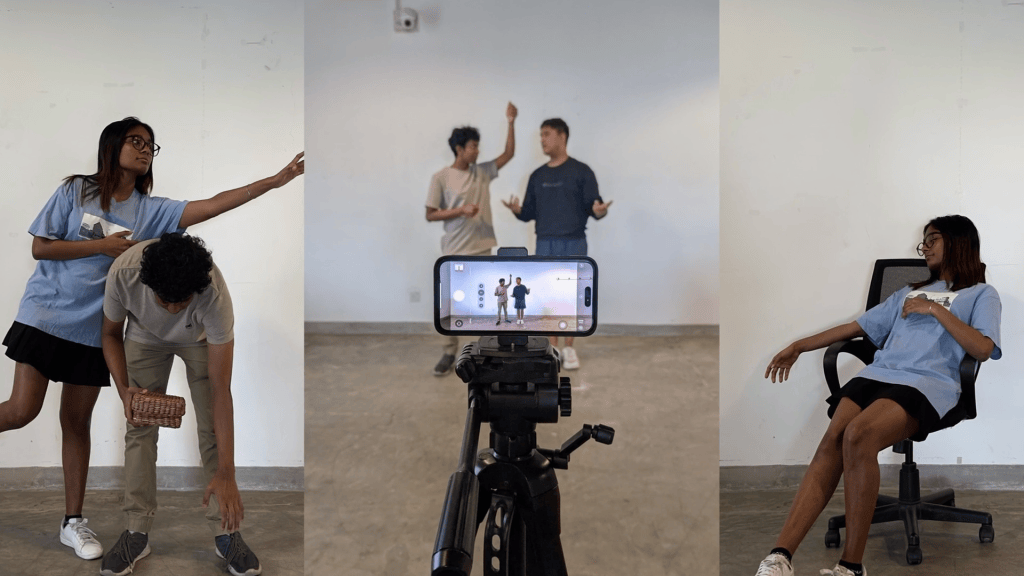
Nick often needs to mocap on the spot, but he has no time for gear setup, addressing sensor drift, or calibrating for accurate capture. With Video Mocap, he can record a quick take and get instantly usable animation, just by acting naturally in everyday clothes. This responsiveness has become an indispensable core of his creative workflow.
2. Ideal for Stylized, Exaggerated Motion
For a stylized short featuring a mime rock band, Nick found that Video Mocap handled exaggerated, expressive motions surprisingly well. Without restrictive gear, he could perform freely, giving the animation a spontaneous and lively feel.
3. For Puppet-On-String Animations
Marionette animation is difficult to replicate with mocap suits, with the subtle pop and slack moments that are hard to capture. Acting out the performance directly in front of a camera gave Nick the exact puppeted style he wanted, and the included reference video made for an easy cleanup process afterwards.
4. Capturing the Vibrancing of TikTok-Style Dancing
Highly energetic TikTok dance motions are tedious to hand-key. Nick recorded these performances and processed them through Video Mocap, instantly applying accurate dance cycles to stylized characters with minimal effort.
5. Beautifully Captures Delicate Choreography
One pleasant surprise was Video Mocap’s ability to capture elegant motion, such as ballet poses and smooth transitions. The resulting animation provided Nick with a strong foundation he could quickly polish inside iClone.
Remote Performance Capture: A Major Advantage
One of Nick’s favorite discoveries was the ability to capture performances remotely. Collaborators anywhere in the world can simply record themselves (even on a phone) and send the video. Nick converts the footage into mocap inside iClone without shipping gear or arranging studio access. For indie workflows, this level of flexibility is transformative.
Best Practices for Optimal Capture
Although iClone Video Mocap is already remarkably precise and easy to use, there are still a few tips that artists should follow to overcome some limitations with the technology:
Occluded limbs or obstructed body parts may not track cleanly.
Sitting, crouching, and lying poses are less reliable.
High-speed athletics and multi-actor interaction are better suited for dedicated mocap systems.
Props should remain visible in the recorded frame.
These limitations are consistent across all video-to-mocap solutions and are manageable with basic planning. Thankfully, iClone features a robust set of built-in motion editing tools to fix or refine anything that needs adjustment.
The Main Takeaway
Video Mocap isn’t a replacement for a fully equipped mocap studio — at least, not yet. Its real strength lies in quickly capturing performances and making mocap accessible and natural for everyday use. It’s an ideal tool for creatives who value convenience and plug-and-play features that can instantly enhance their existing workflows and creative processes.
For Nick Shaheen, it has become one of the most practical tools in his pipeline, transforming simple video clips into production-ready 3D motion. It brings motion capture into the spaces where enthusiasts work their magic. Whether in bedrooms, home offices, or small studios, iClone Video Mocap proves to be a valuable addition to any creative arsenal.
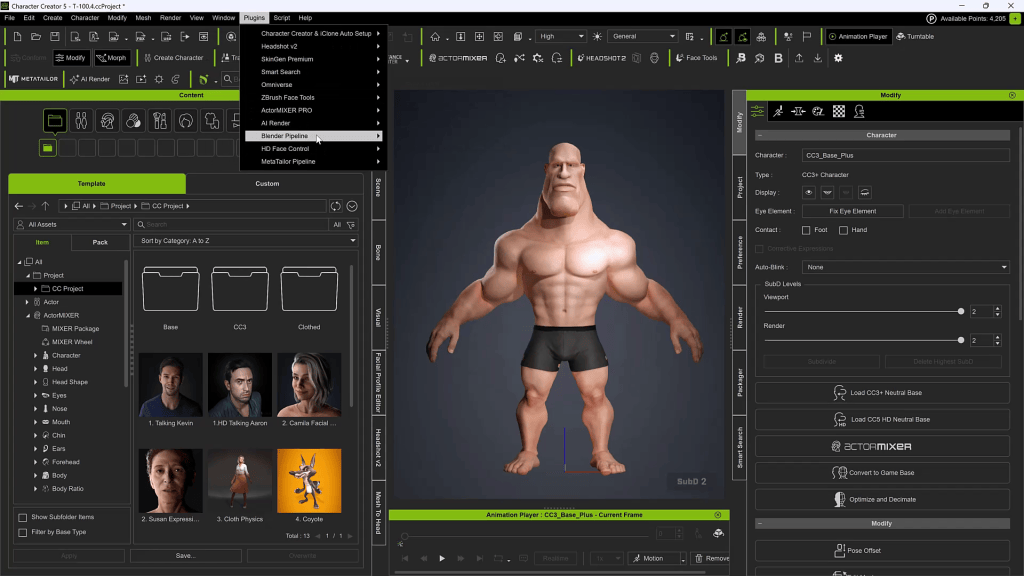
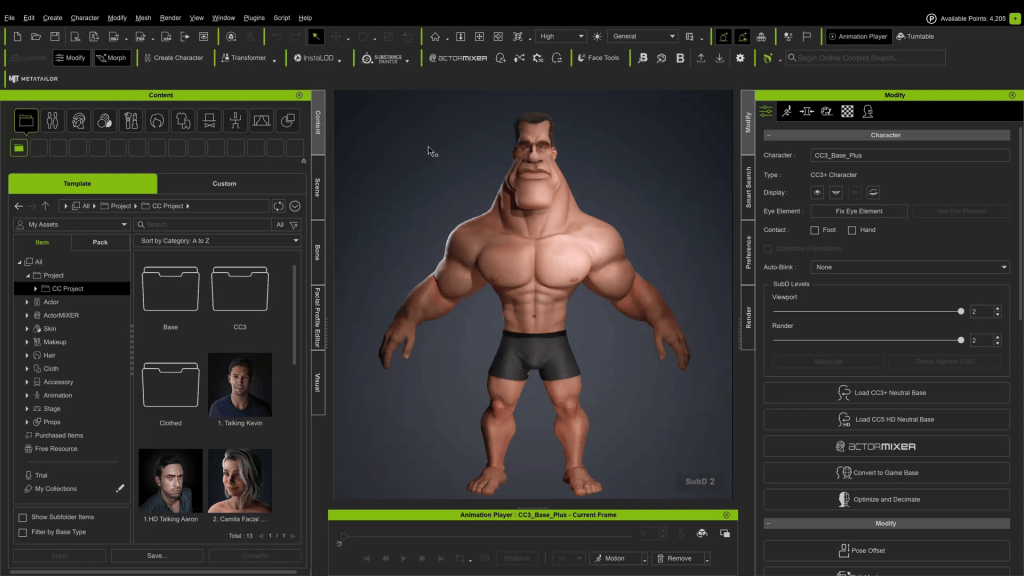
Greetings, my name is Peter Alexander. In this demonstration, I’m going to walk you through how you can leverage Character Creator 5‘s new ActorMIXER as a powerful stepping stone to create unique, stylized characters. We’ll use the CC Base Mesh as our foundation, and ActorMixer will provide the next layer from which to build, making professional character creation that much easier. For this demo, I’ll be creating a stylized version of Wolverine, using the Blender Autosetup pipeline, which is both cost-effective and efficient for creating characters and assets.
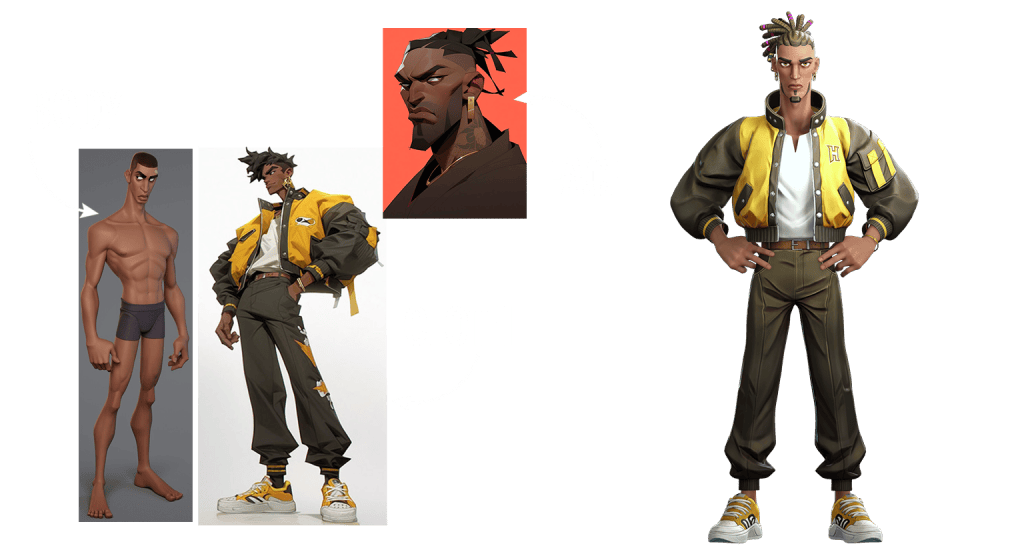
The first step is to establish the base form. Think about the character you want to build. Is it a caricature? I’m using a sketch of Wolverine as my guiding reference.
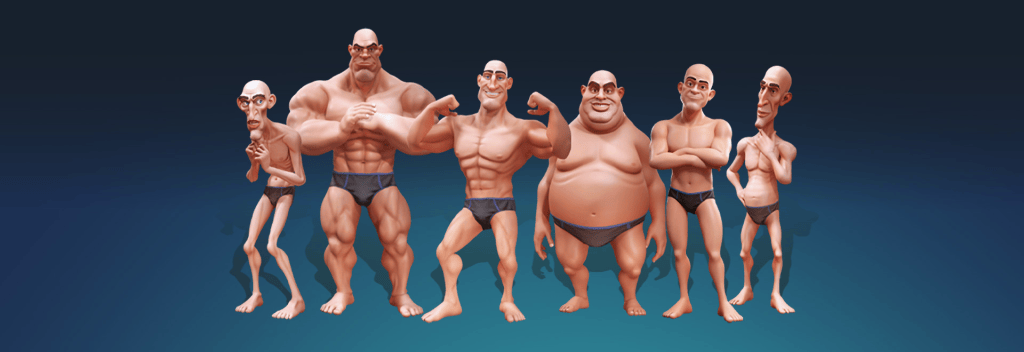
Stylized Proportions: I start by using the standard CC tools to give the character a stylized body-to-head ratio.
ActorMixer: After subdividing, I head to ActorMixer. The “wheel” I am using is the Caricature MIXER Pack, now available in Content Store. This wheel features a mixture of exaggerated options, providing a fantastic jumping-off point.
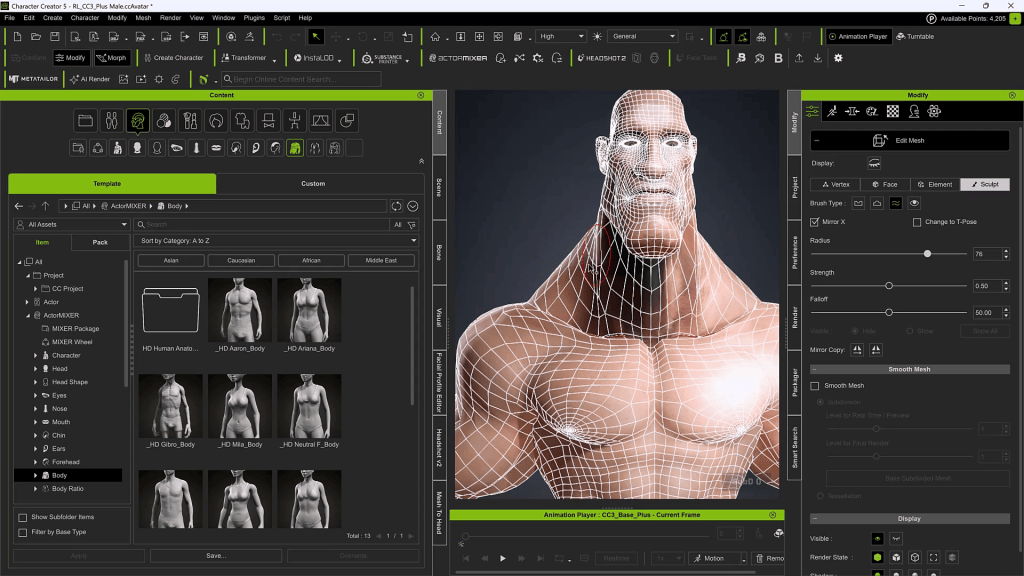
Refining the Shape: My goal isn’t to finish the character here, but to get a solid base. I want a decent amount of muscle and a prominent jaw and head shape. Moving between the wheel points allows me to quickly shape the head and features.
Exaggeration: Finally, I jump into the Proportion Editor to add more exaggeration to the torso. You can also achieve this with the morphing tools, which allow you to lengthen, shorten, and adjust various points on the body just by clicking and dragging.
Phase 2: First Pass in Blender (Sculpting & Hair)
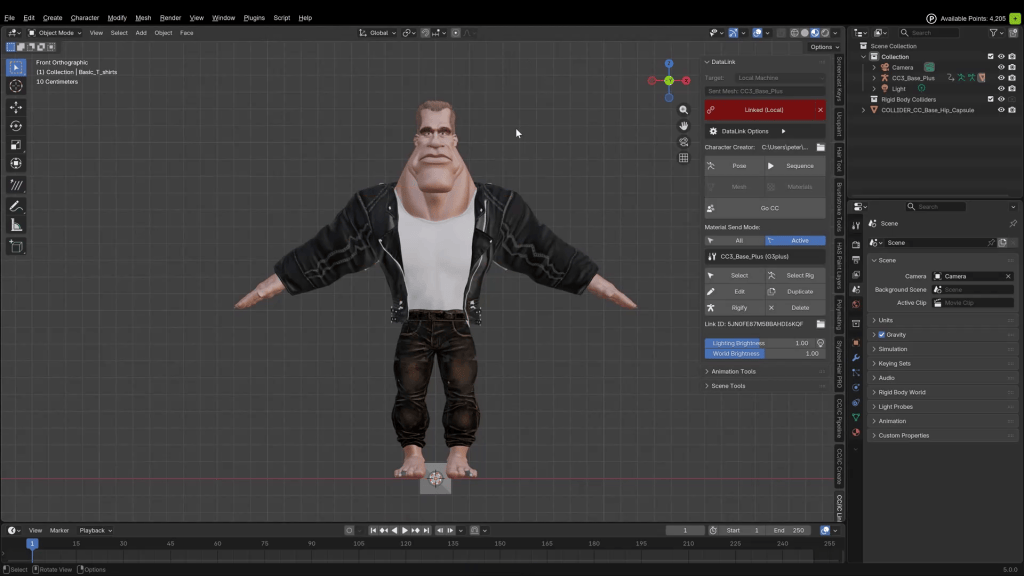
After adding some basic clothing, I send the character to Blender using the Blender Pipeline Menu (found in the Plugins category after installation). Once loaded in Blender, I begin creating his signature hair.
Hair Creation: I highly recommend using the Hair Tool add-on (or a similar dedicated tool) if you aren’t familiar with Blender’s native hair system. These add-ons are relatively inexpensive and make the process much easier. This tool allows me to draw out hair strands simply by holding ‘D’ and drawing lines.
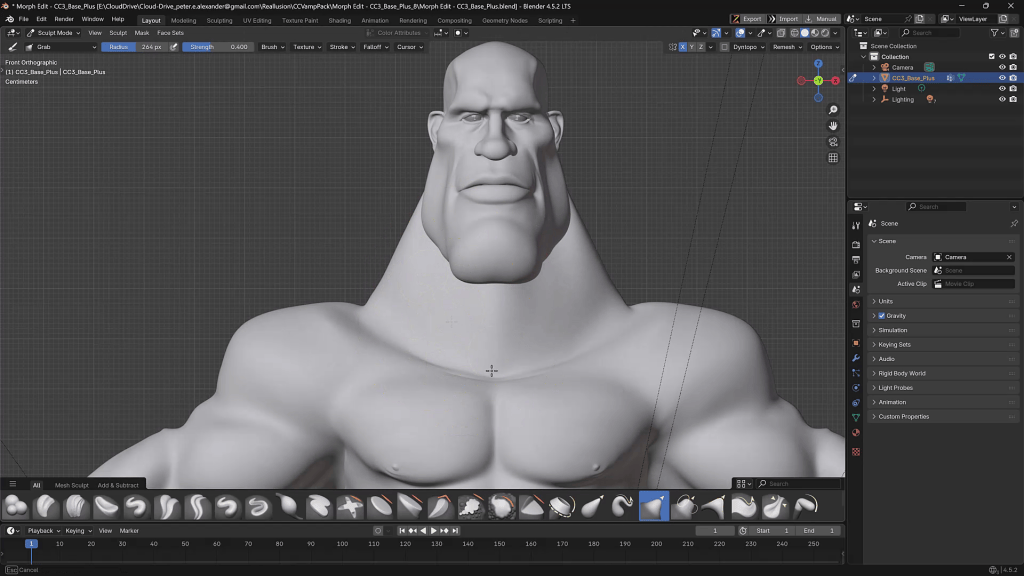
Initial Sculpting: After getting the hair in place, I enter Sculpting Mode to make adjustments to the face, mostly using the Grab brush. I find that adding detail to the face is easier after other features, like hair, are already present.
After some adjustments, light texturing around the face, and adding chest hair for that classic rugged look, I move on to his clothing.
Phase 3: Asset Creation and Texturing
I’ll create the shirt and pants directly in Blender. While CC5 has presets, this method offers full control.
Modeling: Everything in 3D can be built from a single vertex or primitive. I start with a simple plane and begin extracting edges. Once I have enough geometry, I shape it around the character.
Pro Tip: You should not create double-sided cloth geometry. Instead, either cap off the holes or extrude the edges to create the illusion of thickness.
Texturing: To add texture details, I use a free add-on called UCUPaint. By importing images (like a belt buckle or fabric texture) and setting the Projection Coordinates to Decal, you can strategically place textures exactly where you want them on the mesh.
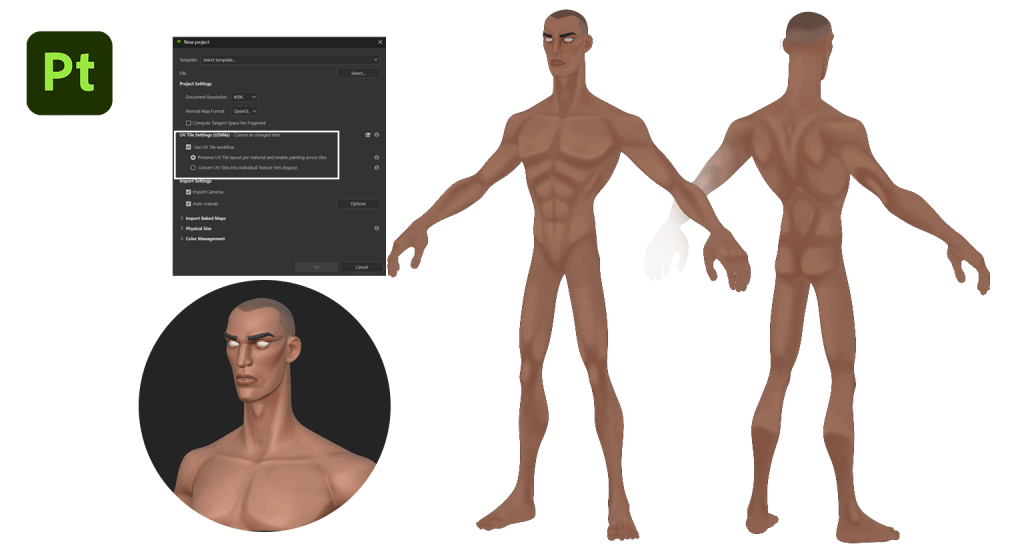
Rigging: Once your assets are created, you can rig them by selecting the asset, then the armature, and pressing Ctrl + P to parent the clothing. If you’re not familiar with this process in Blender, an alternative is to export the clothing as an FBX, import it into Character Creator, and use the Transfer Weights function. Both are viable solutions.
Phase 4: Round-Trip for Expressions & High-Res Detail
With the assets complete, I send the character back to CC5 using the Go CC button.
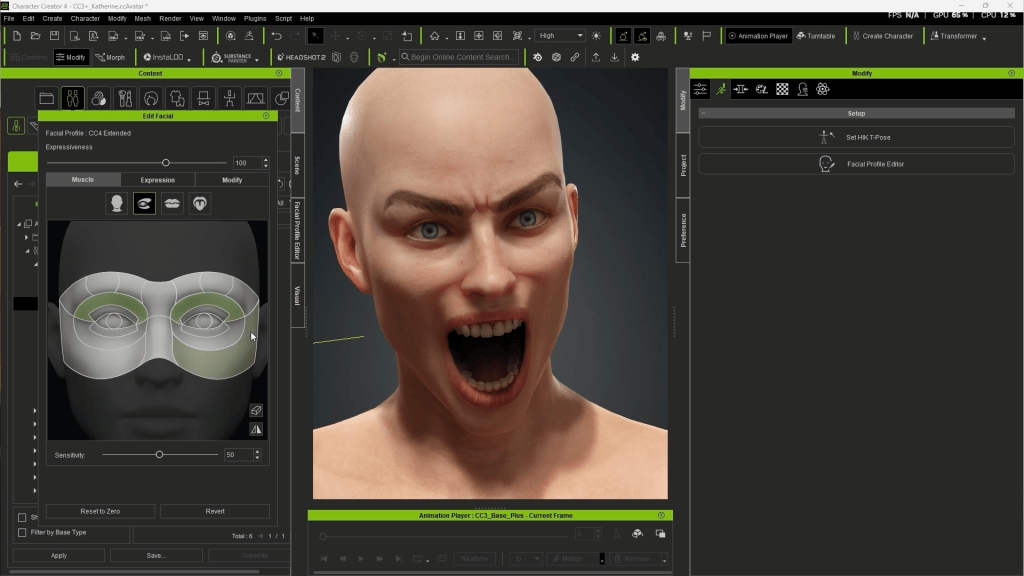
Facial Expressions: I’m ready to adjust his expressions in the Facial Profile Editor. For an exaggerated character, you can use Mesh Edit with Soft Selection to make adjustments. You can also dial an expression slider past 100 and bake it for a more extreme result.
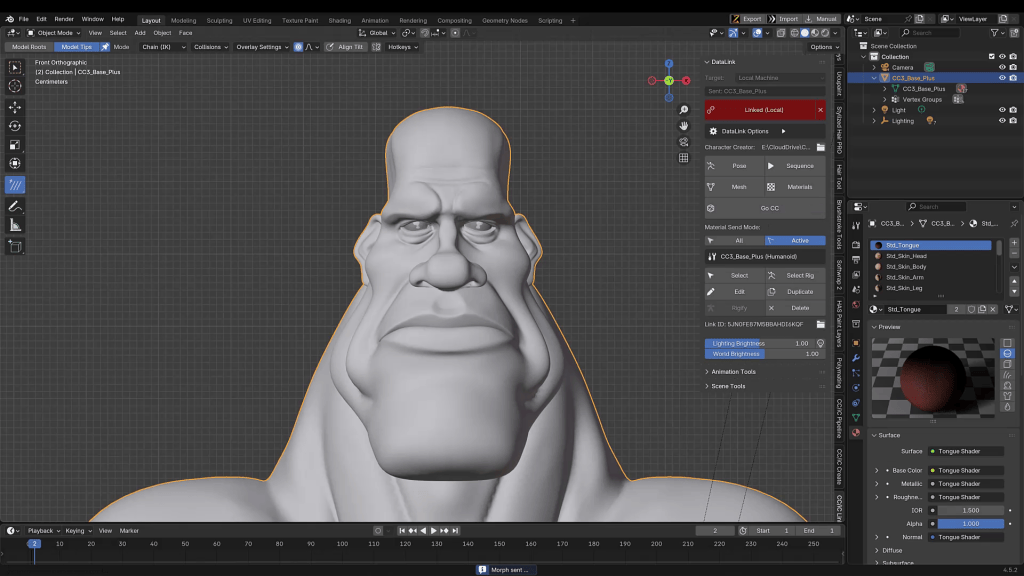
Troubleshooting: I notice the tongue is too small for his mouth, so I exit the editor to scale it up.
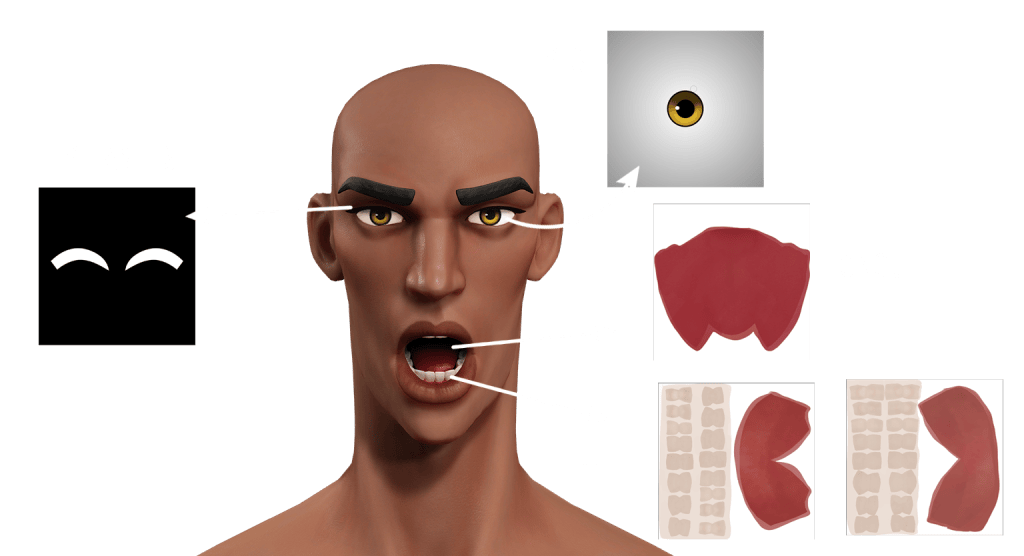
Important: After making a significant mesh change like this, you should always run Auto-Position bones in the Adjust Bones menu.
Polishing Expressions: Back in the Facial Profile Editor, I go down the list looking for issues like teeth poking through the mesh, and I use the sculpting tools to fix them.
Now, for a final detail pass, I’ll send the character back to Blender one more time. This time, I use the Go Blender Morph feature, exporting at Subdivision Level 2. This provides a dense mesh with enough resolution to sculpt fine details like muscle striations directly into the model.
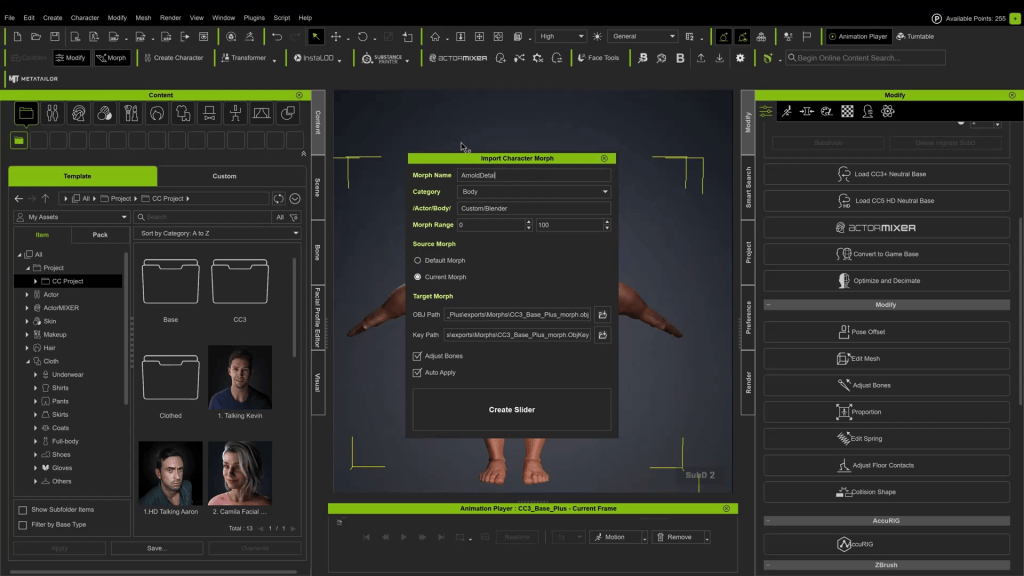
When complete, the pipeline sends these changes back to Character Creator not as a new base mesh, but as a morph slider. This is a powerful, non-destructive workflow that lets me dial in the high-frequency detail precisely within the CC interface.
Phase 5: The Finishing Touch – Retractable Claws
Finally, I’m going to create the claws and make them retractable using Shapekeys in Blender.
Create one claw in Blender and duplicate it.
Animate the retraction by scaling the claw.
Set the transform reference point by using an aligned cursor position and selecting ‘Normal’ as the transform direction.
Turn on Proportional Editing and set it to affect only the selected mesh.
Name the Shapekeys according to each claw’s position (e.g., L_Claw_1, L_Claw_2, etc.).
Export the final claw set as an FBX.
After importing, you can transfer the skin weights. You will also need to manually weight each individual claw at 1.0 (100%) intensity to its respective hand bone. Otherwise, the claws will deform incorrectly with the fingers.
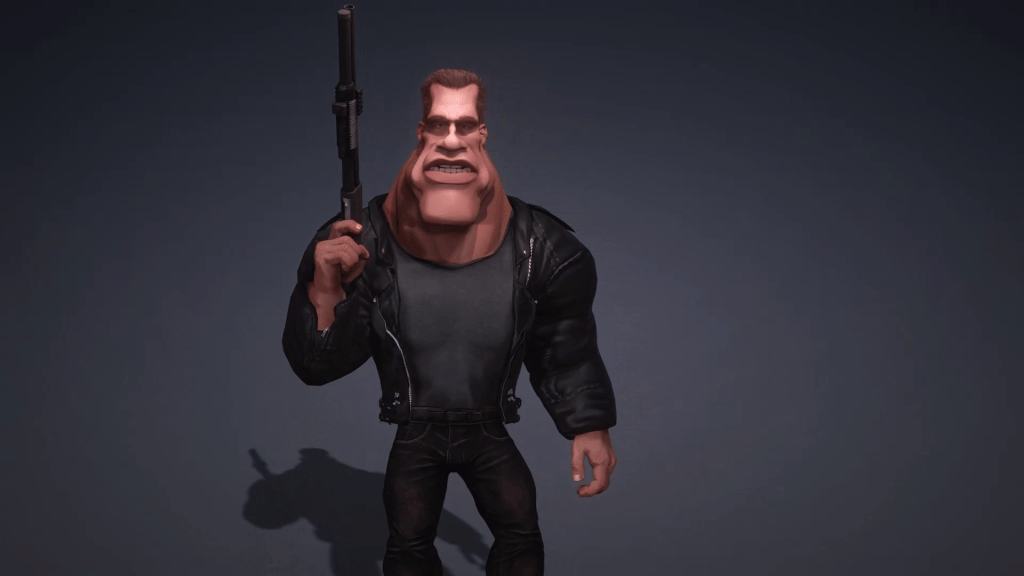
This hybrid approach truly opens up a new world of possibilities, blending the speed and powerful rigging systems of Character Creator with the deep modeling and sculpting freedom of Blender. The result is a fully-featured, animation-ready character, complete with custom assets and expressions, all built with an efficient and flexible pipeline.
Gerard Martínez – 3D Character Artist & Lighting Lead at Jandusoft
I’m Gerard Martínez, a 3D artist from Barcelona specializing in cartoon-style characters. I am also a 3D instructor and teacher. I have the privilege of combining two of my greatest passions: 3D art and teaching.
This story is co-produced with 3CAT.
A Magical Story About Work, Tradition, and Freedom
Some stories are born from an idea. Others, from necessity.
From day one, we knew we wanted to make something different: a game with soul that felt handmade and cultural, yet carried a powerful visual identity. But there was one small problem: time. Our schedule was tight, and our team was small.
If we wanted to build a world as alive as Vilamont, the small Pyrenean village where the story unfolds, we needed tools that could help us stay creative without slowing down production.
The story of Manairons is inspired by Catalan folklore and the tiny magical creatures known as “manairons,” said to accomplish any task in mere seconds.
In our game, the town’s mayor, Llorenç, discovers a magical container that holds a colony of these beings. Little by little, the village becomes trapped in an endless cycle of work. At first, the manairons seem like a blessing. Factories never stop, production grows, and Vilamont begins to thrive.
But as their magic spreads, the villagers lose their trades, their sense of purpose, and eventually, their freedom.
The player takes on the role of Nai, a manairó who decides to rebel against Llorenç’s orders and free the town from their absolute control.
At its core, Manairons is a story about balance: between progress and essence, technology and humanity, control and freedom.
A Vision with Soul
From the very beginning, we knew that Manairons had to move players emotionally before even explaining itself. We did not want players to understand the world through words, but to feel it at first sight.
That vision was made possible thanks to Ivet Macías, our Art Director, Producer, and 3D Artist, who became the visual heart of the project. Under her guidance, the art direction was built around three pillars: atmosphere, narrative tone, and emotion.
Working alongside her was Eliant Elias, our Concept Artist, whose sensitivity transformed abstract ideas into soulful images. Exaggerated silhouettes, faces that were both tender and unsettling, and colors that breathe nostalgia and mystery defined Manairons’ visual identity.
Together, they achieved a balance between the familiar and the uncanny, creating a world that feels close yet slightly off, inviting players to look twice.
Handcrafted and Painterly
Visually, Manairons merges a handcrafted aesthetic with painterly detail. Every texture looks as if it has been brushed by hand, and every light carries emotion. We wanted the player to feel as if they were walking inside a painting.
We took inspiration from Lost in Random, Little Nightmares, and Arcane, yet the final result became deeply personal, rooted in Catalan culture and in our own artistic language. Even though the tone is dark, the game ultimately tells a story of hope.
The Challenge: A Coherent, Fast, and Flexible Pipeline
The character pipeline was one of the most demanding yet rewarding parts of production. Only two people, Ivet and I, handled the entire process of modeling, rigging, and texturing. That meant we needed a workflow that was solid, fast, and predictable.
We started from a Character Creator 4 base mesh, one of the software’s biggest advantages.
Its templates come production-ready with optimized topology, clean UVs, and functional rigging right out of the box. That alone saved us weeks of work, which was invaluable in a project with such a limited schedule.
From there, the Ultimate Morph Pack became our key tool. With its extensive library of sliders, we could define proportions, musculature, and facial features without breaking rig compatibility. The result was a strong, expressive silhouette perfectly adapted to our stylized look.
Bernat Batum: A Character with a Heart (and a Story)
One of the clearest examples of this workflow is Bernat Batum, one of the game’s main bosses. From the start, we wanted him to convey humanity, even within his mechanical stiffness, which came from the manairons’ magic.
I began with a Character Creator 4 base and then sent the model to ZBrush via GoZ to sculpt finer details. Ivet supervised the overall balance to ensure every element stayed true to the project’s visual direction: a stylized and expressive cartoon style.
Once the sculpt was complete, we brought it back into Character Creator 4 with full compatibility, without losing weights or UVs. That seamless integration allowed us to iterate quickly, test materials, and maintain artistic consistency throughout the process.
The Painterly Touch of Eliant Elias
During texturing, collaboration was key. I handled the base materials in Substance Painter, focusing on general tones and physical properties. Then, Eliant added his painterly touch, with brushstrokes, stains, and small imperfections that gave each surface a handcrafted soul.
Thanks to Character Creator 4, we could re-import and preview textures with precision before integrating them into Unreal Engine, ensuring visual accuracy at every stage.
Cartoon Rigging and Animation in Blender
All rigging and animation were done in Blender. Even though Character Creator 4’s rig is robust, we decided to design our own to achieve a more cartoon-like movement, with elastic poses, broader expressions, and a more narrative body language.
This gave the characters life and reinforced the visual tone of the game: dark but full of humanity.
Once animation was complete, the characters were integrated into Unreal Engine 5, where I worked on lighting to highlight textures and maintain the balance between the magical and the handcrafted.
A Pipeline that Empowers Creativity
The combined workflow of Character Creator 4, ZBrush, Blender, Substance, and Unreal Engine gave us two things every artist values: coherence and creative freedom.
We reduced iteration time by more than 40% while maintaining full control over every artistic detail. For a small and focused team, that kind of efficiency makes all the difference.
Working with Character Creator 4 taught us that efficiency can also be creative. It was not just about speed, but about building a stable, predictable workflow that encouraged experimentation without technical risks.
That reliability gave us the freedom to test new ideas while maintaining rig and texture compatibility. It allowed us to focus on what truly matters: the art, the emotion, and the soul of the characters.
A Philosophy of Creation
Through Manairons, we learned something that is now part of our creative DNA. When a tool offers both technical stability and artistic freedom, the result is not just efficiency but the space to create with purpose.
Character Creator 4 was not just another piece of software in our pipeline. It became the bridge between our artistic vision and technical execution. It allowed us to tell our story with sensitivity and detail.
A Glimpse at Character Creator 5
After wrapping up character production, I had the chance to test Character Creator 5, and the experience was incredible. Seeing how much the tool had evolved after spending so many months working with CC4 was truly surprising.
The first thing you notice is the fluidity of the system. Everything feels lighter, faster, and even more integrated with Unreal. The new facial rig immediately stood out to me: it is more expressive, more natural, and opens up exciting possibilities for storytelling and animation.
From an artistic standpoint, maintaining visual consistency across projects is now easier. You can organize libraries, adapt characters to different art styles, and still keep production-level quality.
In short, Character Creator 5 strengthens exactly what artists value most: speed, stability, and creative freedom.
Where Tradition Meets Technology
Thanks to Character Creator 4, Manairons was able to preserve its handcrafted essence without sacrificing efficiency. It became the tool that united tradition and technology, combining the sensitivity of handmade art with the power of a modern production pipeline.
For us, it was never just about building characters. It was about giving life to stories that move people, that speak of culture, identity, and the joy of creating.
Conclusion
If you are a creator or developer searching for that balance between control and freedom, between time and detail, then Character Creator 4, and now Character Creator 5, are the allies that truly make a difference.
They helped us bring a Catalan legend to life, a world filled with light, texture, and soul.
Thank you, Reallusion, for giving us the opportunity to create with heart.
Fast workflow for turning real-life footage into UE5-ready animation
How can an independent animator capture professional-grade motion without suits, markers, or a fully equipped studio? In this creator spotlight, Michael Tiedtke shows how the iClone Video Mocap plug-in can turn simple video footage into polished 3D animation ready for real-time production. With nothing more than a webcam, a smartphone, and a few stock clips, he constructs an entire cinematic sequence — demonstrating how AI-powered mocap can supercharge an animation pipeline for the modern creator.
Michael Tiedtke
Michael Tiedtke is a Pipeline Technical Director at Stiller Studios, where he develops advanced workflows and tools for real-time animated feature production. His work draws on deep expertise in character rigging, simulation, and the Unreal Engine. He is currently contributing to the film Handbok för Superhjältar – Röda Masken. Outside the studio, Michael runs a widely viewed YouTube channel with over a million views. There he shares practical, production-tested tutorials on 3D, VFX, and real-time animation for artists at all levels.
Michael started with the most accessible recording setup possible: a webcam on a tripod and OBS Studio. Instead of worrying about cinematic lighting or composition, he focused on clarity—giving the AI what it needs to extract clean movement.
His guidelines for better results:
Keep the camera at chest or head height.
Stabilize the frame (no shaking).
If possible, turn off motion blur.
Don’t wear baggy clothes.
Keep the whole body in view as much as possible.
These small considerations help the Video Mocap tool track characters faithfully, even before any editing begins.
Video Mocap in iCloneautomatically detects performers, trims the clip, and processes the motion in the cloud. Despite using basic cameras, the results often show strong weight shifts, believable foot contact, and natural movement ready for refinement. The tool is free, and motion generation uses DA Points, offering an affordable, flexible alternative to hardware mocap and other services.
Polishing Motion Inside iClone
With motion applied to a character, iClone’s animation tools take over. Michael used Motion Modifier for quick posture adjustments, then fine-tunes details with the Motion Layer. Reach Target helped to keep hands locked convincingly to chairs, props, and table surfaces, while Motion Trail helps him sculpt smooth arcs for jumps and flips. Even a short cleanup session can turn raw AI tracking into a production-ready clip.
Recovering Tough Shots
To push the system, Michael intentionally used problematic footage, such as cropped legs, motion blur, fast flips, and a dancer in a white dress on a white background. When tracking failed, he repaired the missing moments with a mix of keyframing and iClone’s motion-editing tools, blending AI-generated and hand-adjusted motion into one seamless animation. Nearly any clip becomes usable with a bit of creative editing.
From iClone to Unreal Engine with Live Link
With his animation polished, Michael sent everything into Unreal Engine 5 through Unreal Live Link. This connection lets him see his iClone characters and motions inside Unreal instantly, making it easy to check timing and placement in the final scene. Any adjustments he made in iClone updated live in Unreal, and once the motion was transferred, he used UE Control Rigto fine-tune character positioning directly in the engine. When everything is lined up, he baked the animation into level sequences for rendering.
A Faster Path to Animation
Michael’s workflow showcases a new era of mocap. That is motion capture from everyday video, converted with the Video Mocap tool, refined in iClone, and finished through Unreal Live Link. The process is fast, flexible, and remarkably accessible, even for creators without studio equipment. His final short film, assembled entirely from these methods, demonstrates just how much can be achieved with a camera, iClone, and a modern real-time pipeline.
In David Stapp’s review, he disclosed that Character Creator 5 is truly compatible with his Unreal MetaHuman workflow. The softwrae is aimed at professionals who need an easy, intuitive workflow for creating custom characters from scratch.
David Stapp / Virtual Production Insider
Hi everyone, I’m David Stapp. With over a decade of experience in the film industry, I’ve had many opportunities to hone my craft in post-production, VFX, and even cinematography. And over the past few years, I’ve been able to leverage the skills and insights I’ve gained from my experiences by channeling them into virtual production, which is a major passion of mine.
I now specialize in Unreal Engine environment creation and cinematics, along with ICVFX stage operation and supervision, blending creative vision with technical expertise. I’ve also launched a YouTube channel called “Virtual Production Insider” where the goal is to make virtual production as approachable as possible for people from all walks of life.
For the past few years, Metahumans have been the easiest way to create high-quality, realistic 3D characters. But now, Character Creator 5 is here, and it’s coming for the crown. And I’m not going to lie, it’s got me second-guessing my entire character workflow. I’m the director of virtual production at Form Studios. I use Metahumans a lot—like a whole lot. They really have been an integral part of my journey in Unreal Engine 5 and using it as a filmmaking tool.
We finally got some pretty big updates to MetaHumans in the recent release of Unreal Engine 5.6. I made a whole video that explores all of those upgrades and all those new features, so definitely go check that out. But there are still some areas where MetaHumans are lacking. I wanted to try out Character Creator 5 to see how it stacks up. Luckily, Reallusion hooked me up with a copy of Character Creator 5 and a lot of its plugins so that I could try it out. But I promise you that everything you’re about to read is my opinion. We’re going to dive deep into what this program can do, how it stacks up against the MetaHuman workflow, and honestly, who this program is for.
The Evolution: Major Upgrades from CC4
Before opening the program, I researched the upgrades from Character Creator 4. I’ve used CC4, but the quality wasn’t competitive with MetaHumans, and the transfer workflow to Unreal Engine wasn’t great. With Character Creator 5, they’ve heavily upgraded their character models. The new features include:
More subdivision options.
Skin textures that go up to 8K
Way more blend shapes for way more accurate facial animation.
They also offer a wide variety of plugins for customization. For example, the HD ultimate morphs pack adds quick definition and facial features. The new ActorMixer Core Library lets you mix and match features from different presets. This is similar to the MetaHuman Creator mixer, but CC5 definitely offers more customization beyond the starting point.
Character Creation in CC5: A Quick Demo
I want to give you a quick demo of how easy it is to get up and running. I loaded the HD-based Aaron clothed avatar, which is a full character with hair, clothing, and high-quality skin textures applied. If you click the morph button, you can start adjusting features. And with the morph button enabled, you can highlight over different body parts and drag them to adjust things like cheekbones, the tip of the nose, ears, and eye size. The “Edit Mesh” feature can modify the character, showing the wireframe and allowing you to grow, shrink, or use other tools to really dial in the mesh. This applies to the body as well.
While Unreal Engine 5.6 has the parametric body system, CC5 is the winner when it comes to manipulating the body and adding imperfections or tweaks to the skin. For example, the realistic human skin pack gives you tons of options for adding wrinkles, acne, moles, scars, and even tattoos. Between the plugins and the marketplace, there are thousands of objects to customize your character. This variety is an area where Metahumans have been lacking, as the built-in options in the Metahuman Creator are pretty limited. CC5 wins on the sheer amount of assets, but with the caveat that many are paid options.
“I think this was super smart by Reallusion. They’re not looking at Metahumans as a competitor, but an extension of Character Creator 5. The updated bone structure can match with MetaHumans when using their new export preset, and the Auto Setup tool makes it super easy to take your character to other DCC platforms like Unreal Engine, Unity, Maya, and even Blender.”
David Stapp / Virtual Production Insider and Lead Virtual Production Artist at Forms Studio
CC5’s Greatest Strength: The Metahuman Workflow
It is now so easy to take your character out of Character Creator 5, import it into Unreal Engine, and swap it out with your existing Metahuman. Here’s how:
Creating the Control Rig Assets
Once imported, find the skeletal mesh asset. Right-click on the skeletal mesh and select Create CC control rig. This creates a new rigs folder with the essential body and face control rig assets.
Export & Import Summary
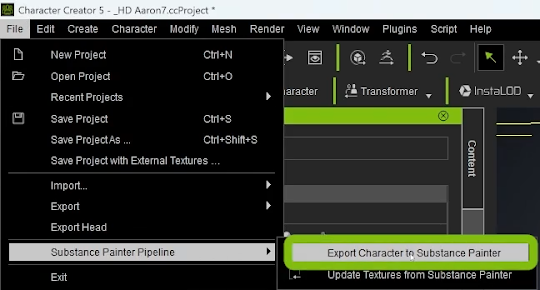
In CC5, go to File > Export > FBX > clothed character. (Note: If the export button is hidden, check your Windows display settings to ensure scaling is at 100%.)
In the export dialogue, select the Unreal Engine UE5 skeleton preset. Uncheck embed textures. Choose a higher subdivision level (like 2) for a more detailed mesh. Hit export.
In Unreal Engine, ensure the Reallusion Auto Setup tool is installed.
Drag the exported FBX file into a content folder. The Auto Setup window will pop up—select high-quality shader and hit okay.
In the traditional FBX import box, make sure use T0 as ref pos is unchecked and import morph targets is checked, then click import.
Final Swap
In Sequencer, I have a Metahuman talking to the camera. Now we replace it.
Click the Metahuman, and hit edit in the blueprint.
Delete all hair from the face component (a Reallusion recommendation). (Tip: Duplicate your Metahuman blueprint first!).
Replace the Metahuman body mesh with the imported Aaron body mesh asset.
Replace the face mesh with the imported Aaron face mesh asset.
Hit compile and save.
Just like that, the Character Creator 5 avatar is in our Sequencer, with the body and face animation applied. This truly opens up the possibilities for creating custom characters and using them seamlessly in Unreal Engine.
My Conclusion: Metahuman Companion
Character Creator 5 is pretty amazing. It has so much customization and so much at your disposal—something that I feel has been missing from the MetaHuman creator. Who is this for? If you are a casual user who creates Metahumans occasionally, CC5 may not be right for you. This is aimed more at professionals who need an easy, intuitive workflow for creating custom characters from scratch. If you constantly create characters for your cinematics, I highly recommend checking it out with a Free Trial of Character Creator.
I don’t view this as a Metahuman killer; I think this is a Metahuman companion. It works really well in tandem with it. I’m excited to integrate this into my workflow because it will give me so many more options for customizing the face and body, and it’s amazing that I can easily bring them into the Metahuman blueprint with very little effort. But if you want to upgrade your workflow and easily customize characters, I recommend checking it out—it’s very low risk with the free trial.
Freelance 3D Motion Designer David Sujono has built a reputation for cinematic, motion-driven visuals that fuse technical precision with artistic flair. Based in Sydney, Australia, David collaborates with agencies and studios worldwide — formerly serving as 3D Lead at Collider Studio, and earning top honors such as 1st place in Rokoko’s Perfect Loop Challenge and 2nd place in Pwnisher’s Chasm’s Call Challenge.
Today, he’s pushing his creative boundaries even further with Character Creator 5, iClone, and the CC4D Tools, crafting high-fidelity digital humans and dynamic animation workflows directly inside Cinema 4D + Redshift.
Building the Hero: From CC5 Base to Tron’s Digital Realm
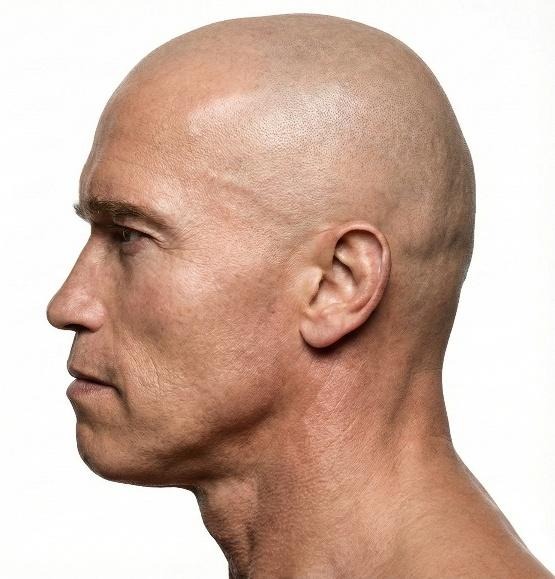
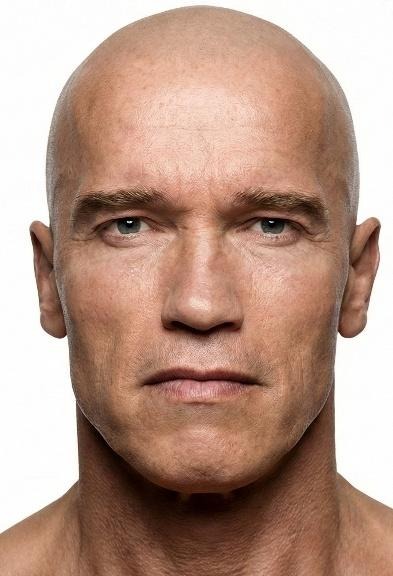
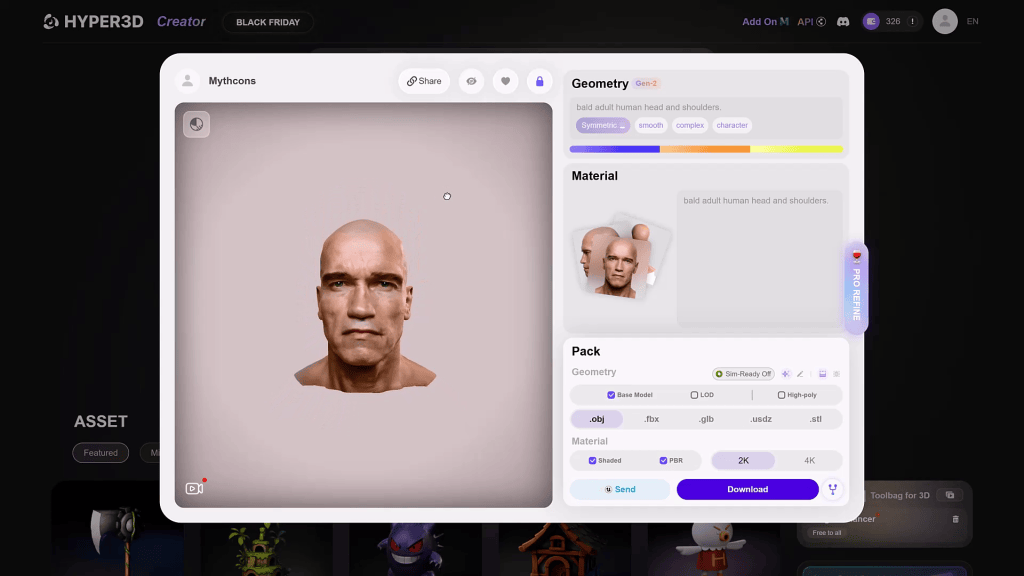
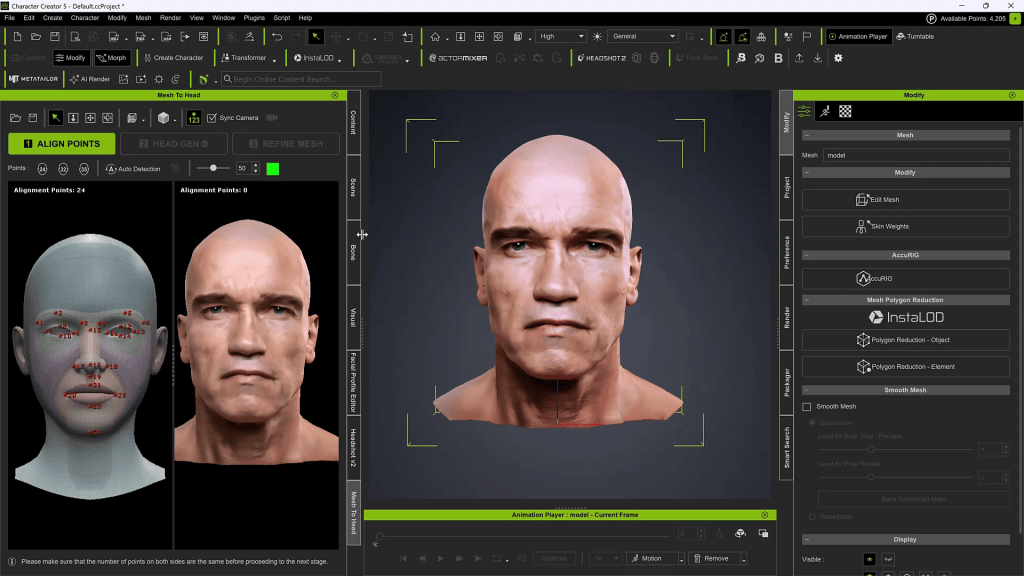
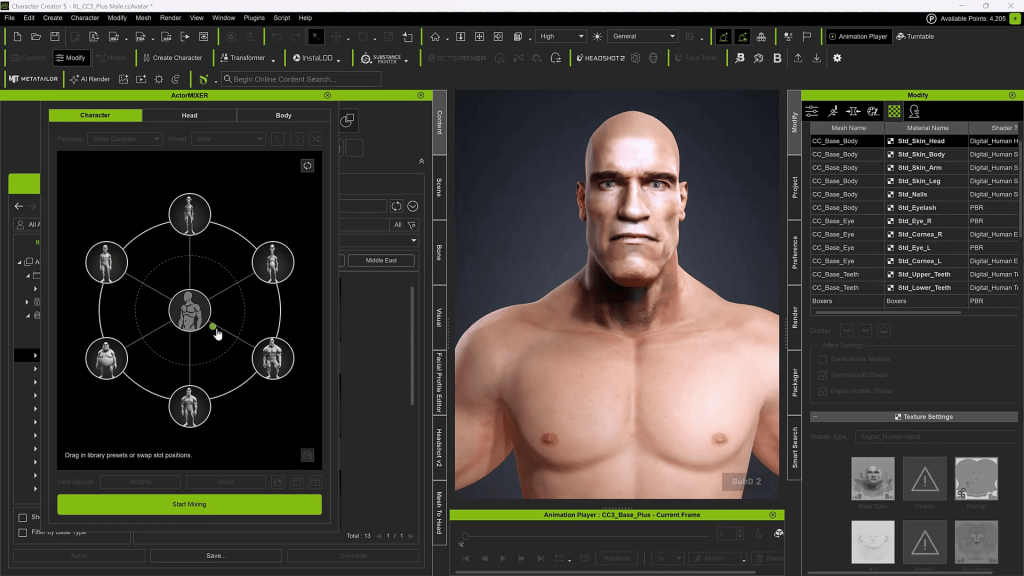
David’s latest short film project revisits the visual language of Tron, with a reimagined protagonist inspired by actor Bruce Boxleitner. Using the new CC5 base character, he explored different head and body variations in theCharacter Creator 5anditsActorMIXERfeature, blending multiple morph sources to fine-tune ethnicity, facial structure, and overall proportions — all in a non-destructive, real-time workflow.
“It was awesome seeing how close I could get — CC5 has so many specific morphs that let me tweak every aspect I wanted,”
David Sujono, Freelance 3D Motion Designer
Armed with a side-by-side reference board, he focused on sculpting subtle details like the nose bridge, eye depth, and head silhouette, leveraging CC5’s new HD morphs and corrective systems. The improved eyelash system and HD eye shaders provided an extra layer of realism, while the new aging morphs opened creative possibilities for his next film — featuring a father-and-son narrative.
CC4D Integration: Seamless from iClone to Cinema 4D
The technical backbone of David’s project lies in the CC4D Tools 1.0.5, which now fully supports CC5’s HD facial rig and Redshift materials.
Using the Import Character feature within CC4D, David brought the entire rigged character into Cinema 4D — automatically linking the control rig, materials, and shaders in one go.
“The CC4D plugin is amazing — it automatically sets up Redshift materials and the control rig, saving me hours,” he said. “The iClone HD face control rig transfers 1:1, and the new facial rig gives me insane control over nuance and expression.”
This seamless bridge allowed him to iterate on animation in iClone, export facial and body motion separately, and swap takes without breaking rigs — a huge efficiency gain for solo creators managing full CG productions.
Animating the Light Cycle: Rokoko Meets iClone
To bring the iconic Light Cycle sequence to life, David used his Rokoko Smartsuit Pro II with a custom saddle setup — simulating motorcycle posture for realistic performance capture.
He captured multiple takes while referencing a previz timeline to sync motion with camera beats, then brought the mocap data into iClone, where he refined movement using reach targets for the hands and feet.
“Capturing movement was crucial. Doing this all by hand would’ve taken weeks,” David explained.
The Motion Layer system helped fine-tune subtle movements — adjusting neck rotations, torso lean, and timing for cinematic emphasis. After smoothing and baking, the results delivered an authentic, weighty performance for the Tron rider.
Facial Motion & Lip Sync: Precision with Dollars Link and AccuLips
Facial performance was handled via Dollars Link, pairing David’s iPhone Live Link app directly with iClone to capture real-time facial mocap. He carefully tuned brow, cheek, and eye movements to keep the performance expressive yet natural.
For speech, David relied on AccuLips to manually refine visemes and enhance lip-sync precision.
“AccuLips is a lifesaver. Facial mocap alone never nails dialogue perfectly — being able to hand-adjust visemes brings the realism up a notch.”
The final animation pass was polished using iClone’s new HD Face Controls, then imported seamlessly back into Cinema 4D via CC4D Tools, maintaining perfect alignment and material fidelity.
Designing the Tron Universe: Procedural Worlds in Cinema 4D
David’s film unfolds across two primary environments: a mountainous tunnel and a vast digital landscape.
He built the terrain using Cinema 4D splines and procedural noises, shaping the tunnel path and animating the Light Cycle along it. For the open-world shots, he combined spline extrusions, displacements, and greeble generators to create depth and complexity with minimal manual modeling.
Textures generated in JSplacement added a futuristic edge through emission maps and digital noise patterns. He layered volumetric lighting, VDB clouds, and soft atmospheric gradients to achieve the film’s signature neon glow.
Final compositing in After Effects involved film grain, glow effects, lens dirt, and cinematic color grading, delivering a look that feels both nostalgic and modern.
Reflections on Workflow & What’s Next
“The fidelity I can achieve with CC5 is incredible — and CC4D makes it effortless to move between tools,” David noted. “Having materials auto-convert to Redshift saves so much time, and iClone gives me the flexibility to iterate animation faster than ever.”
Looking ahead, David is developing a new short film slated for next year — a heartfelt father-and-son story. He plans to push realism even further using ZBrush detailing, CC5 HD morphs, and iClone’s performance capture tools to create his most photorealistic characters yet.