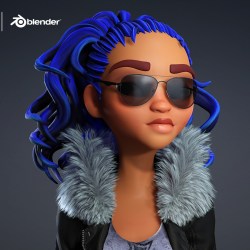
3D animator Cliff (Round Table Animation) shares his honest review of Charcter Creator 5, demonstrating tips on how to custiomize charcater. and bring it to Blender for fight animation.
Cliff Paul/ Round Table Animation
Hey, I’m Cliff, the creator behind Round Table Animation, a YouTube channel dedicated to helping aspiring 3D animators master fight choreography and cinematic storytelling. I’ve worked with indie studios and creative teams to bring action sequences to life using tools like Blender, Unreal Engine, and Reallusion’s Character Creator 5.
My goal is to make animation less intimidating by breaking down complex workflows into clear, creative steps. Whether it’s crafting stylized fight scenes or building custom characters, I love showing how anyone can bring AAA-quality animation to their projects.
Tired of using other characters for animation? Imagine animating your next fight, but instead of using Goku or Spider-Man, it’s your own character. The way they move, the way they fight, their story is built by you. I’m going to walk you through exactly how I created my own original fighter, bring them into Blender, and animate them to life through combat.
This time, I wanted to try something easier than Blender’s character creation tools, especially since I’m not a modeler. That’s when I decided to check out Character Creator 5.
CC5 Interface and Customization
At first glance, the CC5 layout looks super clean, though the many icons can be intimidating. However, once you start playing, it’s really straightforward. I thought of it like an RPG character creator taken to the max.
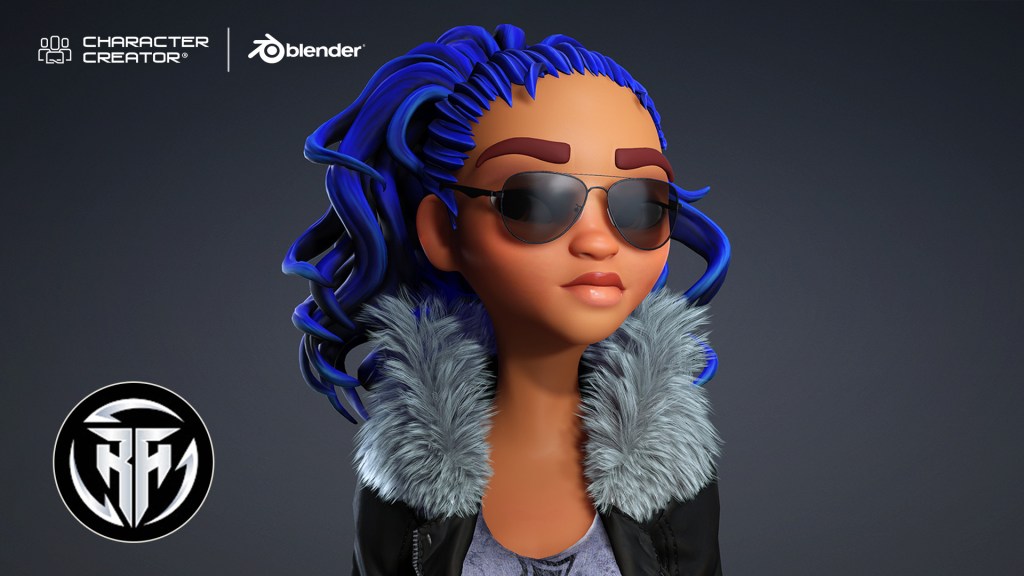
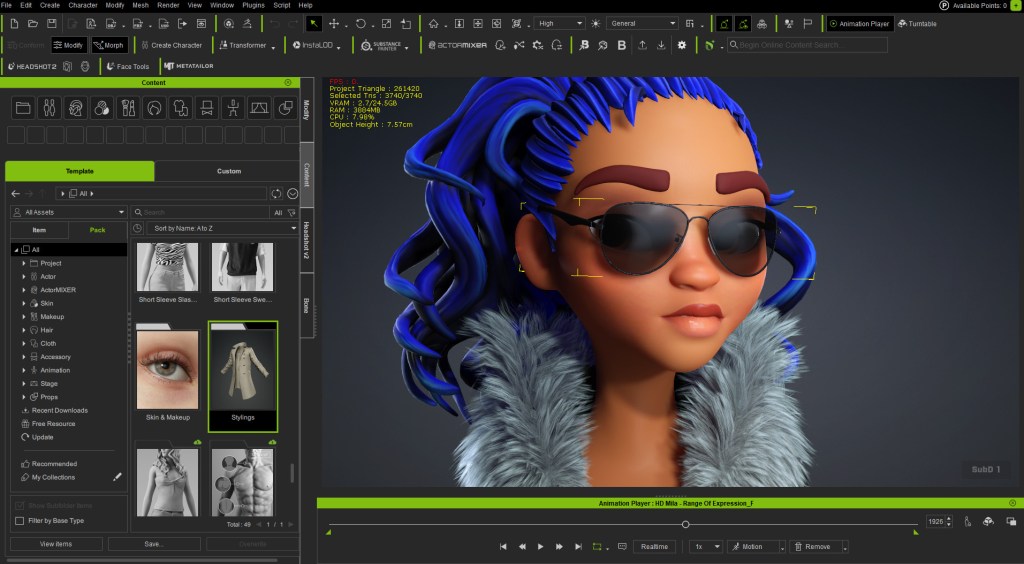
CC5 comes with new high-quality base characters. Instead of digging through endless sliders, you can simply click and drag on the model to stretch the neck, broaden the shoulders, or sculpt the jawline, all in real time. I wanted something more stylized, so I chose the CC5 character, Mila, to customize.
Assembling the Fighter’s Outfit
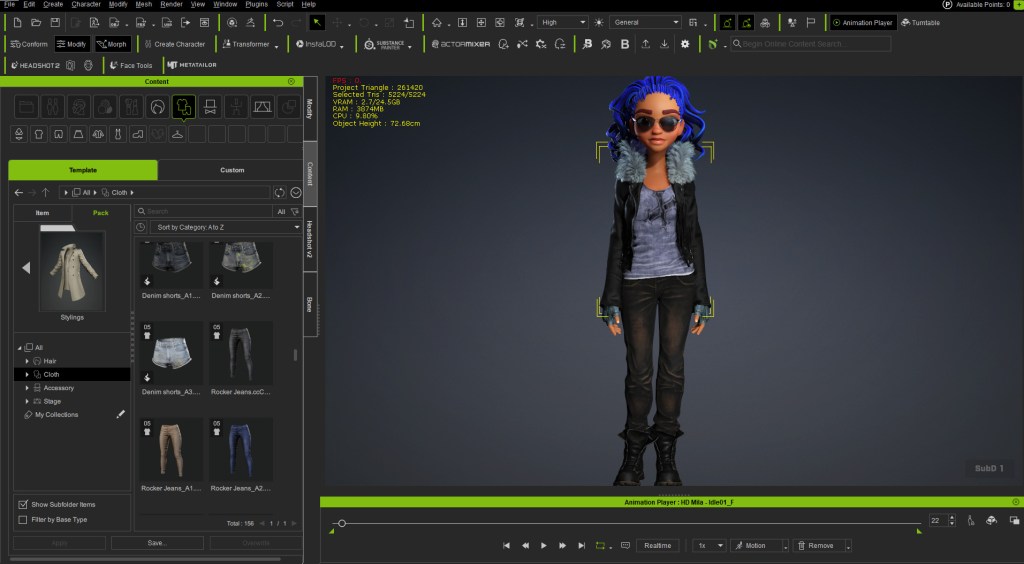
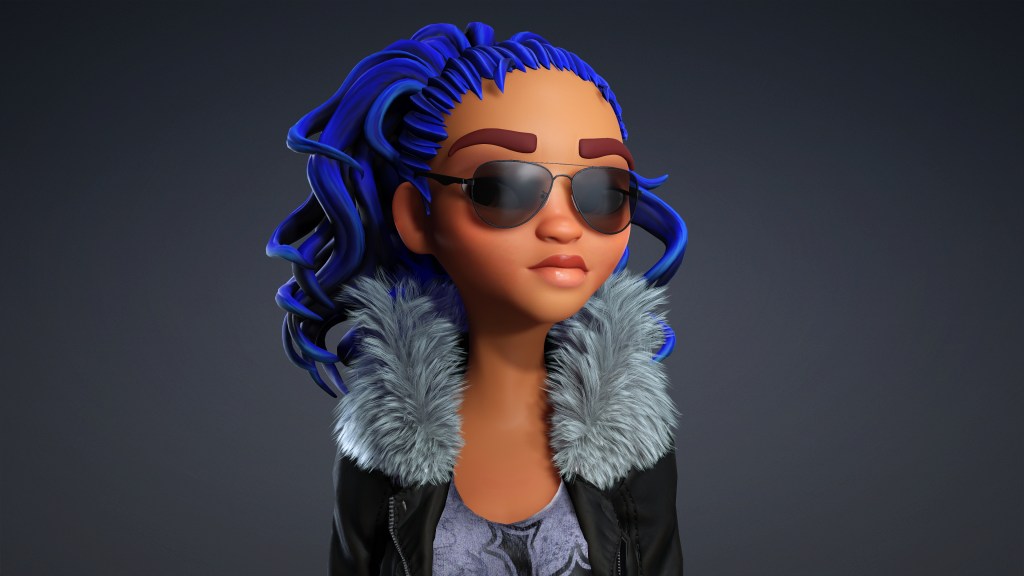
Mila looks great as a base mesh, but I wanted her to look like a fighter. I was going for a cyberpunk, futuristic type of style. You can change and click, and drag any available outfit onto the character, and it automatically adjusts.
I mixed and matched several CC5 assets: a badass shirt, jeans, a nice leather jacket, boots, a cloud wrap, and gloves. The clothes look great and fit because they’re automatically tailored to her.
If there is any clipping (e.g., the jacket touching the body or clipping on the pants), you can go into the mesh edit tools and use the calculating collisions feature to automatically adjust the mesh and fix the part.
Final Checks and Export
I adjusted the sunglasses to fit her face better. From here, we have our custom fighter ready to transfer to Blender. You can check if the clothing works by using the in-program motion check feature, like playing a walk cycle. This also lets you check the facial rig and range of expression. Crucially, all these facial features will transfer as shape keys over to Blender.
To export, I went to File > Export as an FBX, choosing the clothed character and selecting Blender in the tool set. I chose to export just the mesh, not the temporary animation I used for the check.
Rigging and Animating in Blender
In Blender, I used File > Import as an FBX. The character loads in immediately with the textures automatically applied. For rigging, I prefer to use the Auto Rig Pro plugin because it’s easy to put controls on a mesh that already has a base rig. However, you can use Rigify if you are more familiar with it. Once rigged, we have our character ready to go.
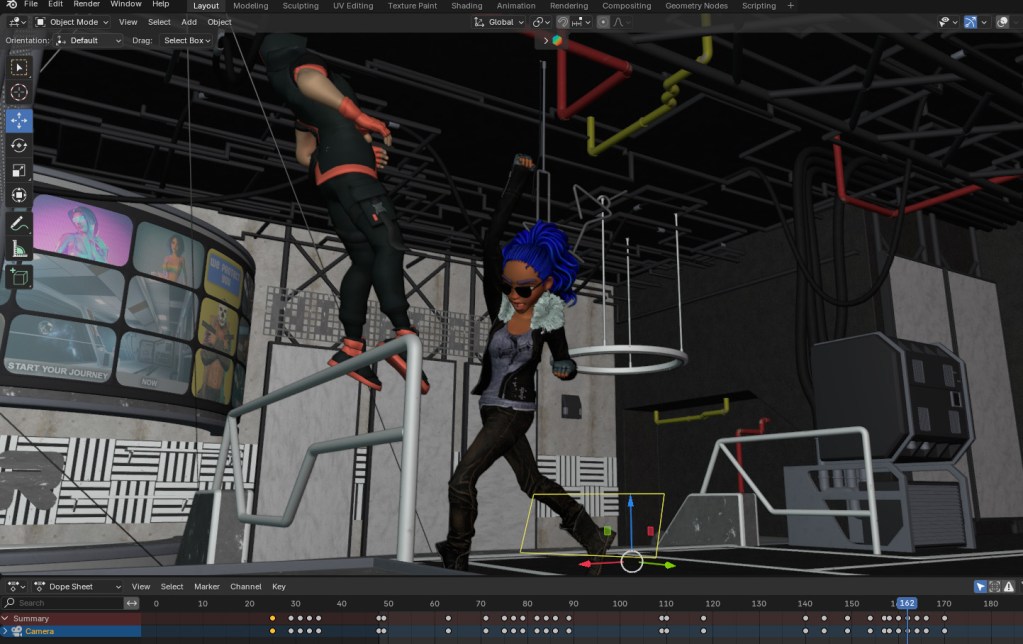
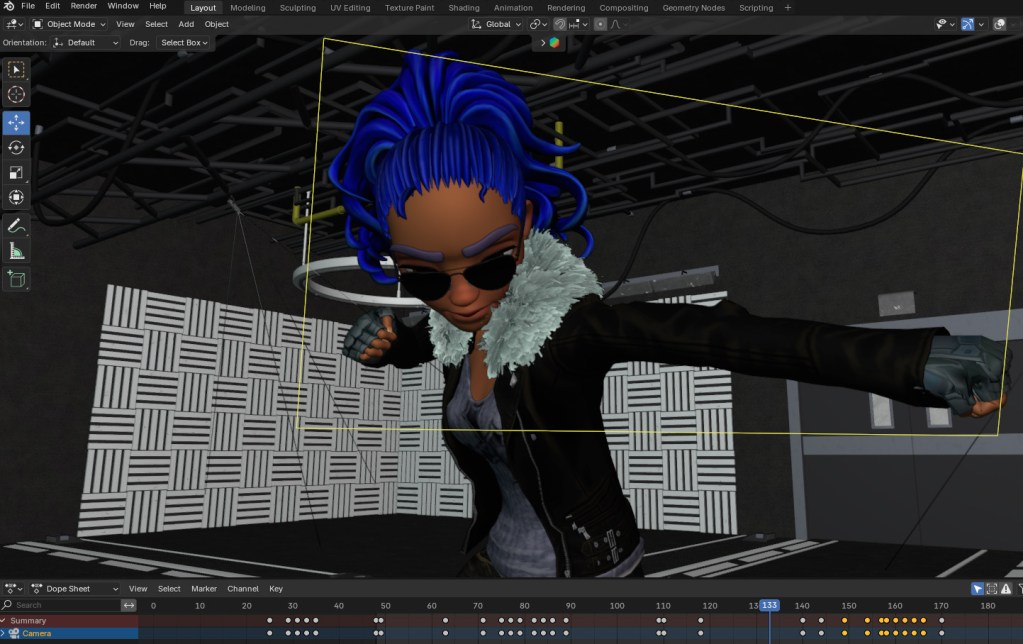
I placed her in a cyberpunk nightclub setting to fight a character. The smooth transition from CC5 to Blender makes the creative process work well. Seeing your own customized character perform a short punch combo is a nice feeling compared to using stock characters.
Fight Animation: Taking my bad-ass CC5 character to Blender.
Final Thoughts
I think CC5 is definitely the tool to make more extravagant, out-of-the-box characters like this, though it takes practice. The following images are the final looks for the character. In the next tutorial, I’ll cover the character animation of impact, so you can ensure that your hits are landing accurately.
There is a lot for beginners to grasp when jumping off into 3D. In the rush to get beginners going, experienced users sometimes forget what it was like to not have a basis to understand a lot of the 3D jargon. This is true for even the fundamentals when we first start. The introduction of High Definition (HD) character mesh in Character Creator 5 has put the spotlight on mesh. While mesh is the basis of any 3D modeling it is not talked about very often.
Character Creator 5 takes care of all the technical work behind the scenes and users are no longer required to have a deep understanding of fundamentals to create a character like early digital artists had to possess. In fact, Character Creator 5 has simplified so much of the character creation process that almost anyone with basic computer skills can make a custom character mesh with it, but not all beginners grasp why mesh attributes matter.
Let’s take a deeper dive into mesh to gain a better understanding of how HD Character mesh works.
What is 3D Mesh?
At its core, a 3D mesh is an organized assembly of geometric elements: vertices, edges, and faces. These basic building blocks interact to create the surface and shape of a digital object. Let’s break down each component:
Vertices: These are individual points in 3D space, defined by their x, y, and z coordinates. Vertices act as anchor points for the structure of the mesh.
Edges: Edges are straight lines that connect pairs of vertices, outlining the skeleton of the model.
Faces: Faces are flat surfaces formed by connecting three or more edges. The most common types are triangles (three edges) and quads (four edges).
When combined, these components form a continuous network, a “mesh”, that envelops the shape of the object. The mesh essentially provides a scaffolding upon which textures, colors, and other features are layered. Meshes are crucial not only in entertainment but also in fields like architecture, engineering, medicine, and virtual reality, where accurate digital representations are necessary.
With Character Creator 5 you don’t have to master any of this but understanding it will enhance your use of CC5.
What is Mesh Density?
Mesh density refers to the number of geometric elements—primarily polygons—that make up the mesh. Polygons are the flat shapes that make up the mesh’s surface. The density is determined by how many of these polygons are present and how closely they are packed together.
A mesh with low density has relatively few polygons, resulting in a surface that may appear angular or faceted, especially when viewed up close. On the other hand, a high-density mesh contains a vast number of polygons, which allows for smoother surfaces, more complex shapes and detail.
Why Mesh Density Matters
Mesh density is a critical factor in the visual quality and realism of a digital model. The more polygons present, the finer the detail. For example, a simple cube might require only eight vertices and twelve triangles, but a highly detailed human face might need tens of thousands—or even millions—of polygons to accurately depict the nuances of skin, muscle, and expression.
However, increasing mesh density comes with trade-offs. More polygons mean greater computational demand. Rendering, animating, and manipulating a high-density mesh can require powerful hardware (think gaming specs as a simple minimum rule of thumb), more memory, and efficient software algorithms. This is why mesh density must be carefully balanced against performance needs, especially in real-time applications like video games or interactive virtual environments.
Mesh Density and Level of Detail (LOD)
One way artists and engineers manage mesh density is through Level of Detail (LOD) techniques. LOD systems use multiple versions of a mesh with varying densities. As an object moves farther from the camera, a lower-density mesh is used, reducing computational load without sacrificing visual quality where detail is not needed. When the object is close to the viewer, a high-density mesh ensures realism and precision. This approach is especially important in large-scale environments where thousands of objects may be visible at once.
Subdivision in Character Creator 5
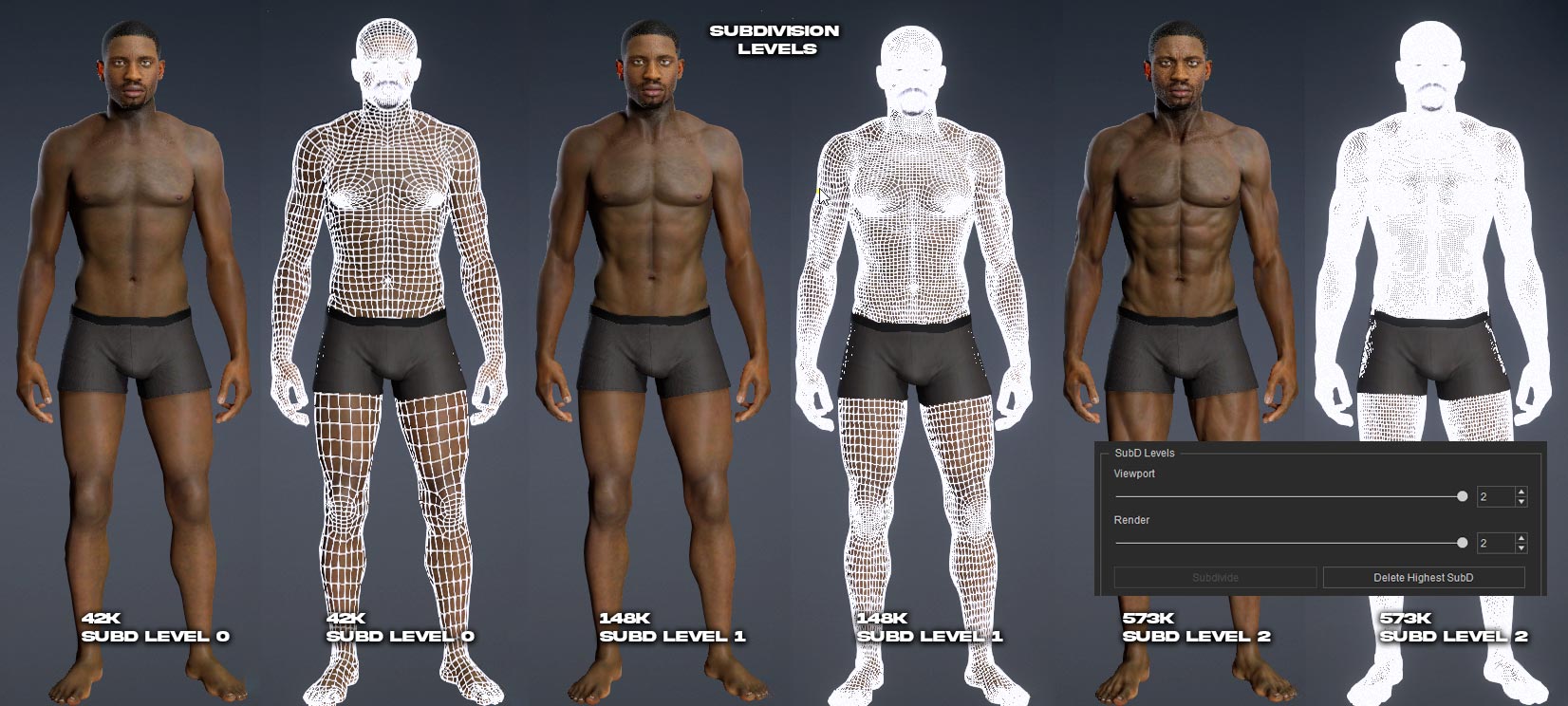
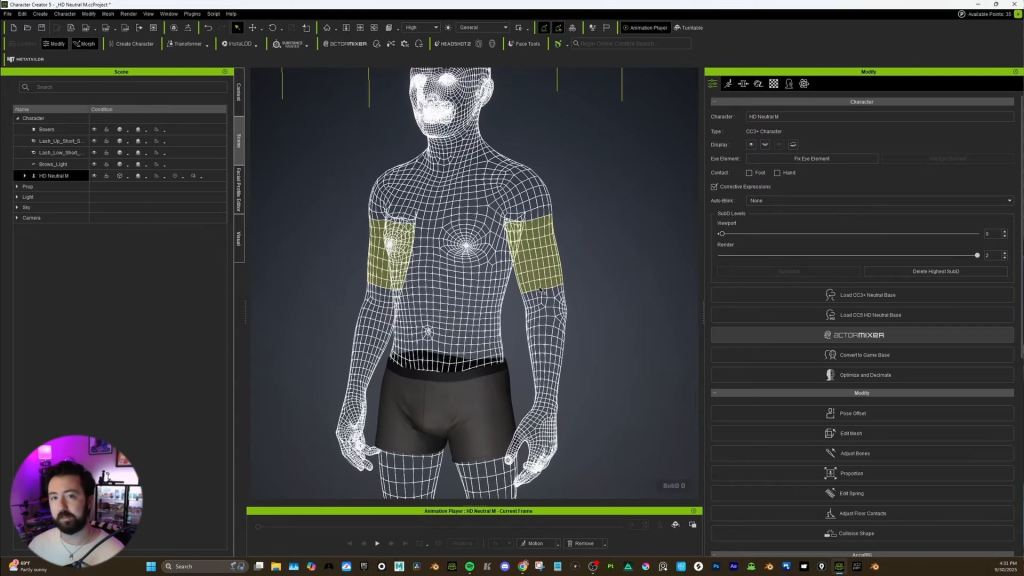
Subdivision in Character Creator 5 is the same as in other 3D applications in that it subdivides the mesh into more faces or polys. By using the subdivision feature in CC5 we can now create three levels of character meshes from simple to highly detailed.
For reference below, the white lines mark the quad boundaries with the widest boundaries being the lowest mesh and the smallest boundaries being closer together and therefore the densest mesh.
High Definition Meshes: The Gateway to Realism
High definition (HD) meshes are those constructed with exceptionally high mesh density. HD meshes are indispensable in scenarios where realism is paramount. This can include character modeling for films, detailed anatomical scans for medical applications, or close-up renders of products for marketing and design.
Achieving Photorealism: Wrinkles, Skin, and Micro-Details
The true power of HD meshes lies in their ability to capture micro-details, the tiny features that give objects and characters their lifelike appearance. For instance, modeling a human face is a formidable challenge. The surface is not simply smooth; it is covered in pores, fine lines, wrinkles, folds, scars, freckles, and subtle textures. With a low-density mesh, these features cannot be accurately represented. The surface appears flat or plastic-like, and the illusion of reality is lost.
High definition meshes, on the other hand, allow artists to sculpt or morph every wrinkle, crease, and pore. Each vertex can be manipulated to create the undulating landscape of human skin. The result is a model that not only looks realistic but also behaves realistically when animated or lit. Shadows fall naturally into wrinkles, highlights shimmer on oily skin, and expressions move convincingly. For animated characters, these details are essential for conveying emotion and personality.
HD Mesh Enhances Muscle & Body Definition
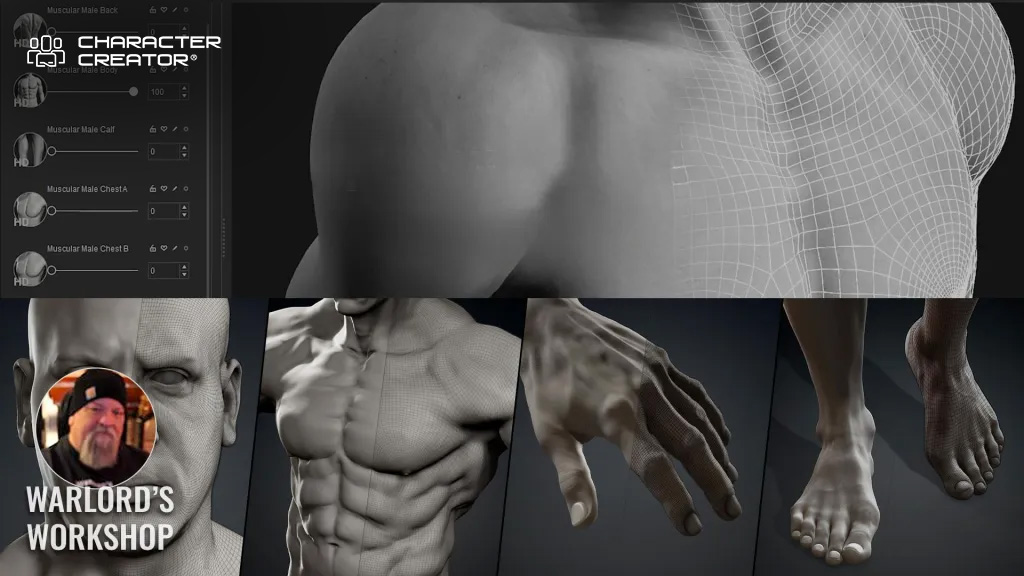
High definition meshes play a crucial role in accurately representing muscles and anatomical features in 3D models. With increased mesh density, artists can sculpt subtle curves, bulges, and indentations that mimic the natural flow of muscle fibers and skin. This allows for the precise depiction of muscle groups, tendons, and bone structure, making the model appear more lifelike.
For example, HD meshes enable the creation of detailed muscle striations, veins, and skin folds that are essential for realistic human anatomy. When animated, these details respond naturally to movement, showing how muscles flex and stretch. This level of detail is especially important for close-up renders, medical visualization, and character animation, where anatomical accuracy enhances realism and believability.
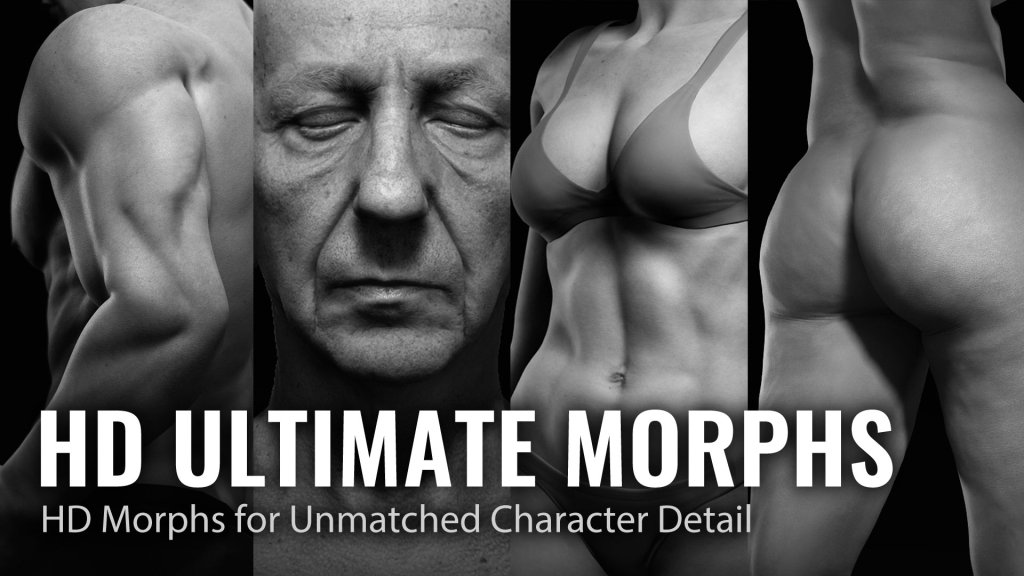
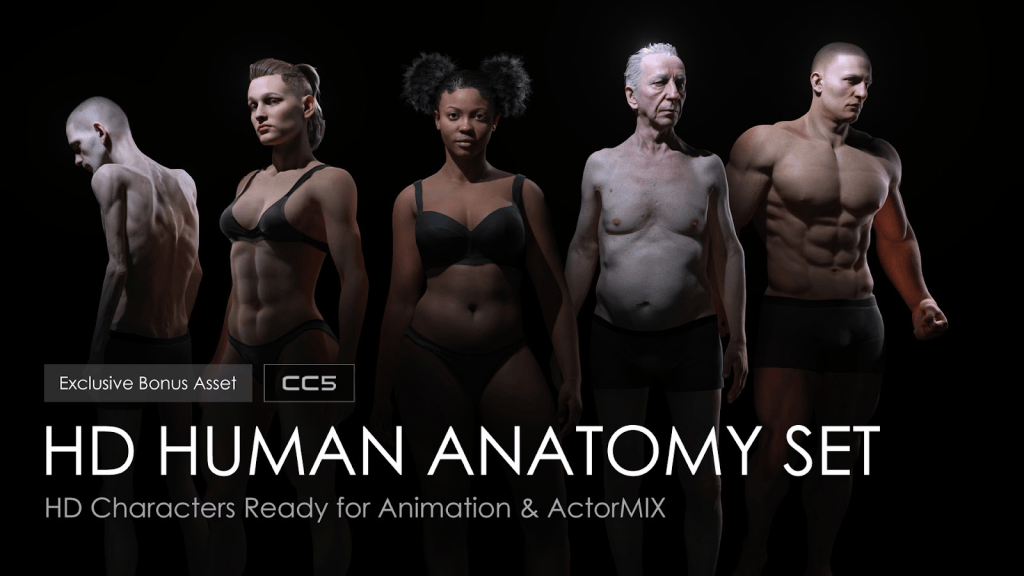
To achieve this level of detail, explore the HD Ultimate Morphs and HD Human Anatomy Set in Reallusion’s Content Store. These packs provide extensive morphing options and detailed anatomical structures to help you create professional-grade realistic characters.
TIP: Seamless CC-to-ZBrush workflow lets you freely sculpt intricate character details and transfer them back to CC as baked texture maps for each subdivision. – Reallusion CC5 Website
Projection – Texture Baking
Texture baking is the process of creating a high-density model for sculpting and one or two lower density models to transfer or “Bake” the high-density mesh contours into maps that produce the same results with much less computational overhead. The high poly model has heavy mesh density for a lot of detail in the muscle, body and skin exterior. The mesh sculpting done on the high density mesh is then transferred to the lower poly meshes via mapping channels like normals or micro normals.
Techniques for Creating High Definition Meshes
Artists and modelers use a variety of techniques to achieve high mesh density and detail:
Subdivision: Starting with a low-density base mesh, the model is subdivided, split into more polygons, to increase resolution. Popular tools like ZBrush and Blender offer powerful subdivision tools.
Sculpting: Digital sculpting lets artists push, pull, and manipulate the mesh as if it were clay, adding and refining details at the vertex level.
Displacement Maps: Displacement maps use grayscale images to deform the mesh at render time, adding complexity without increasing the base polygon count.
The great news for beginners is Character Creator 5 takes care of all this with it’s new subdivision levels. Instead of having a single density mesh you can use subdivision to create two more levels for three in total (Sublevels 0,1,2). This provides much more control over what can sculpted into the high level mesh and then projected onto the lower level mesh. This uses mapping instead of mesh density which saves computational overhead.
A Quick Look at SubD Levels 0, 1, 2 – Subdividing a standard CC3+ Character for More Detail
Rendering and Animation with HD Meshes
Once a high definition mesh is created, it can be textured, shaded, and animated. Textures add color and surface variation, while shaders control how light interacts with the mesh. Advanced rendering engines can simulate subsurface scattering, making skin glow with soft, lifelike radiance, or calculate realistic reflections on shiny surfaces and CC5 takes care of all this for us.
Animation with HD meshes is particularly rewarding in character work. When a character smiles, the mesh moves to create authentic creases around the mouth and eyes. As the skin stretches and compresses, micro-details add depth and believability. Motion capture and facial rigging are often used to drive these intricate mesh deformations.
Challenges and Considerations
Despite their advantages, HD meshes pose challenges. Large file sizes can slow down workflows and overwhelm hardware. Collaboration across teams may require simplifying or “decimating” the mesh to lower densities for certain tasks. Real-time applications, such as video games, must use clever optimization strategies, including normal maps, bump maps, and LOD systems, to simulate detail without the computational cost of millions of polygons.
Summary
As digital art and technology continue to advance, the demand for greater realism grows. Understanding 3D mesh principles lets artists, engineers, and scientists choose the right structure for their purpose, whether it’s a streamlined low-poly asset for a fast-paced game, or a breathtakingly detailed model for a cinematic close-up. The interplay between mesh density and realism defines the cutting edge of visual storytelling, placing the power of hyper-realistic digital creation squarely in our hands.
Digital Artist MD “Mike” McCallum, aka WarLord, is a longtime iClone user. Having authored free tutorials for iClone in its early years and selected to write the iClone Beginners Guide from Packt Publishing in 2011, he was fortunate enough to meet and exchange tricks and tips with users from all over the world and loves to share this information with other users. He has authored hundreds of articles on iClone and digital art in general while reviewing some of the most popular software and hardware in the world. He has been published in many of the leading 3D online and print magazines while staying true to his biggest passion, 3D animation. For more information click here.
Michael Deliso from Deli Productions shows his creation path with the latest Character Creator 5. His honest review helps the Unreal 3d community to dive in to the easy character tools.
Michael Deliso / Deli Productions
I’m Michael Deliso, a Previs Supervisor and the creator of the YouTube channel Deli Productions. For the past eight and a half years, I’ve worked in the film and television industry, helping directors, cinematographers, and VFX supervisors bring their ideas to life through previs. I’ve had the privilege of contributing to projects such as Star Wars: The Mandalorian, Star Wars: Ahsoka, Predator: Killer of Killers, and many more.
I started Deli Productions to demystify the world of animation and cinematography, creating easy-to-follow tutorials that break down the same workflows and creative philosophies I use in professional productions. I also love exploring new software and tools—like from Reallusion—that empower animators to build custom assets faster and focus on what matters most: TELLING GREAT STORIES!
Character Creator 5 is a software that allows you to create custom characters using things like morphs, and allows you to drag and drop outfits. Their entire ecosystem is pretty cool, and the release of CC5 has addressed my main gripes with Character Creator 4 seems to have been addressed. When I first launched CC5, it looked almost exactly the same as Character Creator 4, which is a good thing.
The ActorMIXER: MetaHuman-Style Customization
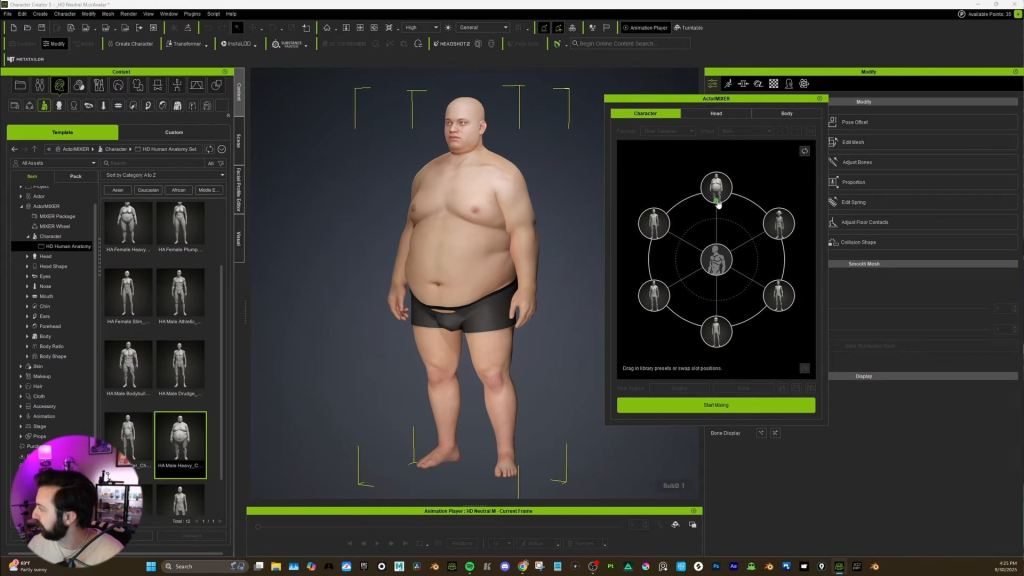
One of the things that they added is something called the ActorMIXERPlugin. It’s very similar to the MetaHuman feature, where you can choose a couple of different people or presets and then slide in between.
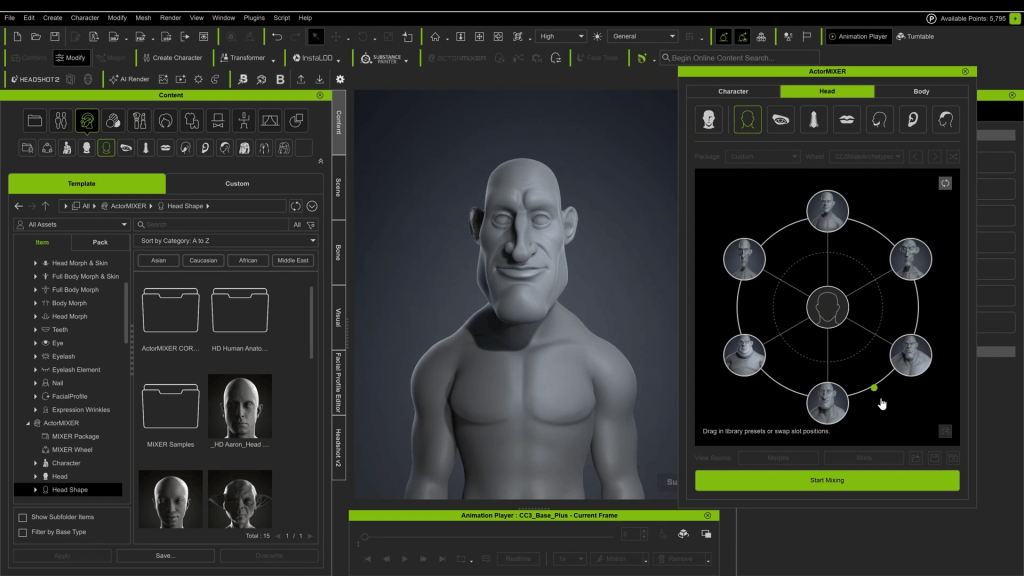
In the ActorMIXER plugin, we have character, head, and body options. You can target specific head features—like eyes, nose, mouth, chin, ears, and forehead—for fine detail adjustments. For the body, you can separate the body ratio and the body shape itself.
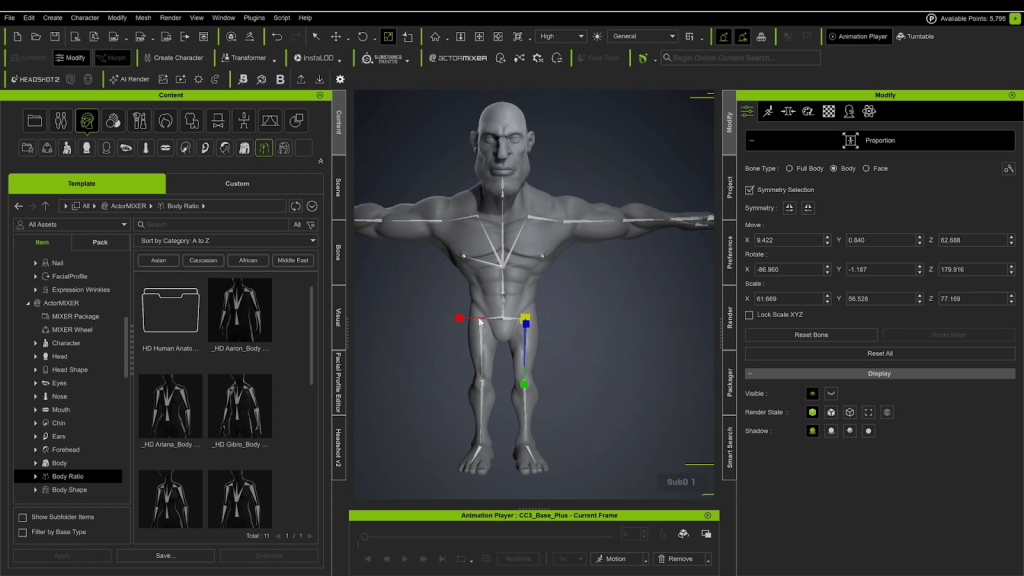
You can drag and drop new features from the HD anatomy set—like a goblin or a heavier-set person—into the mixer. Hitting Start Mixing gives you a dot to move around, combining traits to favor, say, a little bit of goblin and a little bit of heavy set. You can refine the body by separating the body ratio from the muscles to keep the muscle definition intact while changing the overall proportions.
Sculpting with Morphs and Subdivisions
The morph button up top lets you use morph targets (basically blendshapes) to click and drag directly on the character, adjusting arms, neck width, or nose size.
One of the big new things that addresses my main gripe is subdivisions. In CC4, the wireframe was light but lacked detail, which meant fine details from my custom sculpts wouldn’t transfer over. Now, under the modify tab, you can go up to Subdivision 2, which becomes really dense and is great for capturing fine sculpting detail. These subdivisions allow us to use something called HD morphs. Under “HD body”, I can scroll down and give the character finely detailed abs, especially visible if we go up to Subdivision 2.
Optimizing Detail with Baked Normals
Using a higher subdivision makes the rig heavier. The best animation workflow might be to animate on the lighter Subdivision 0 and swap to the detailed Subdivision 2 when rendering.
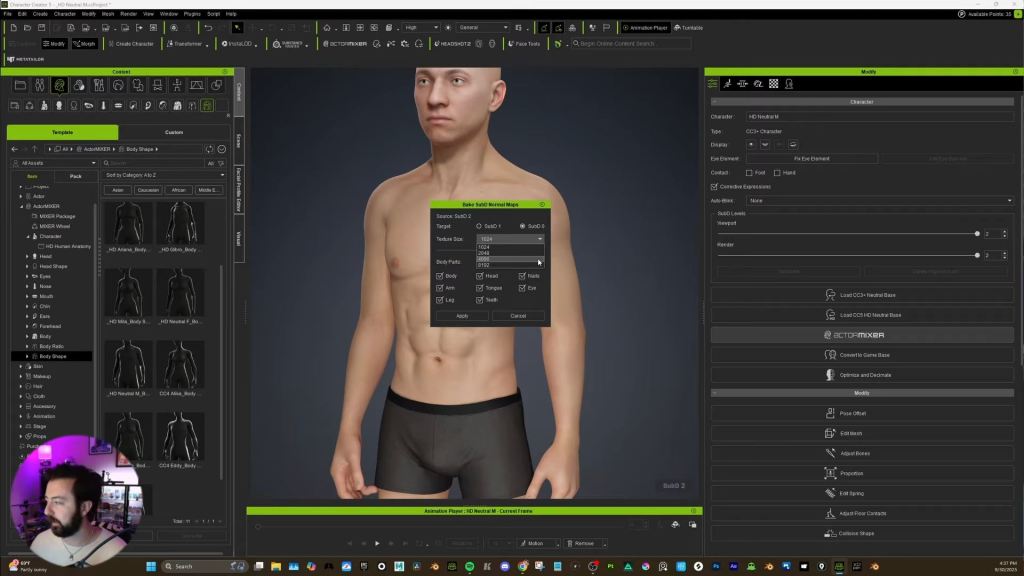
However, CC5 added a way to keep the detail on the lower subdivision by baking your subdivisions into a normal map. The normal map is an image that allows light to interact with the model in finer detail, making it look much better than a heavy character, especially if you have many characters in a scene.
To do this, go to create and select bake subD normal maps. You can choose to bake from the SubD source to SubD0 or SubD1. I recommend a minimum of 4K texture size for a main character, or 8K if your computer can handle it. After applying, the SubD0 character looks pretty damn good with all the normals baked in.
Extended Plus Facial Profile and Unreal Integration
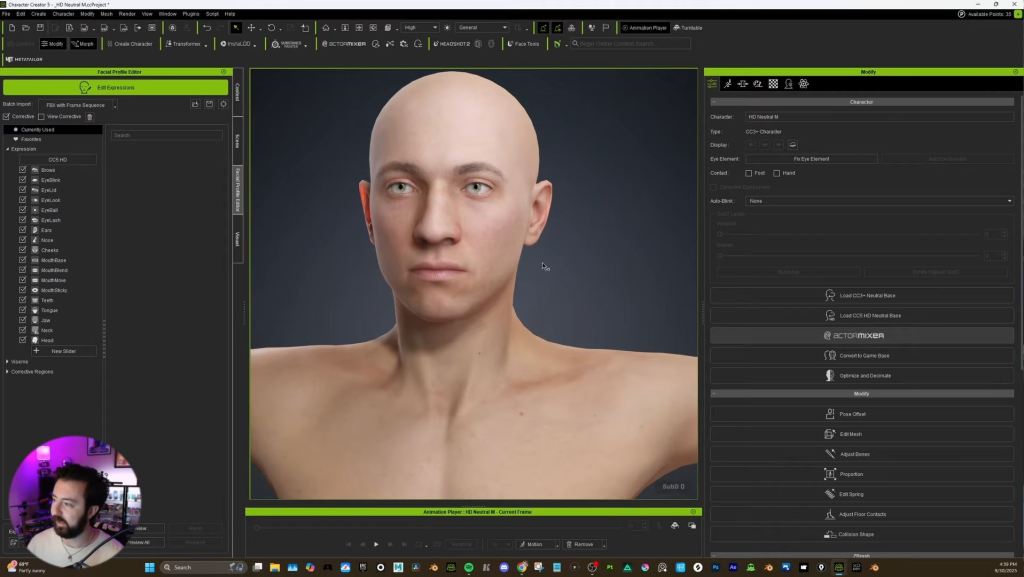
They also added the Extended Plus Facial Profile. This adds corrective morphs that limit how much the mouth moves during animation, preventing it from looking unrealistic and dialing it back into more realism. Crucially, I got confirmation from Reallusion that this Extended Plus Facial Profile does transfer over to Unreal.
I mainly use Character Creator with Maya. I reached out to Advanced Skeleton (which I use for my rigs), and they’ve recently updated—so it should hopefully work with CC5 now. Bringing this into Unreal feels great. I’ve also made a dedicated tutorial video on how to use it.
Unreal Workflow
In CC5, Export the FBX clothed character using the Unreal UE5 skeleton preset. You can select your desired subdivision level here.
Install the Reallusion auto setup tool and the Character Creator control rig plugin from Fab (Unreal’s marketplace).
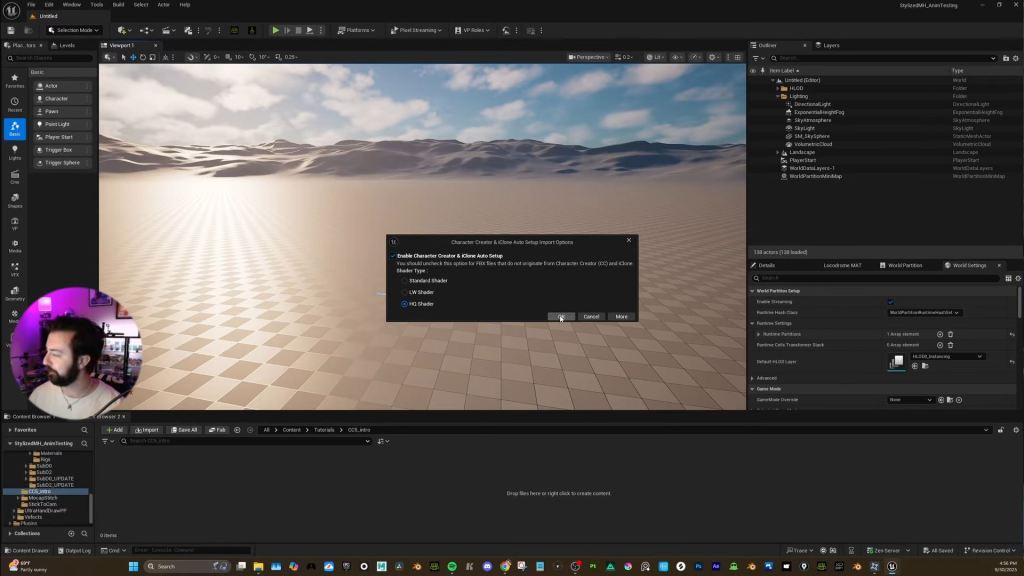
In Unreal, drag the FBX in. In the import window, select the HQ shader and ensure Import Morph Targets is checked, or your facial rig won’t work.
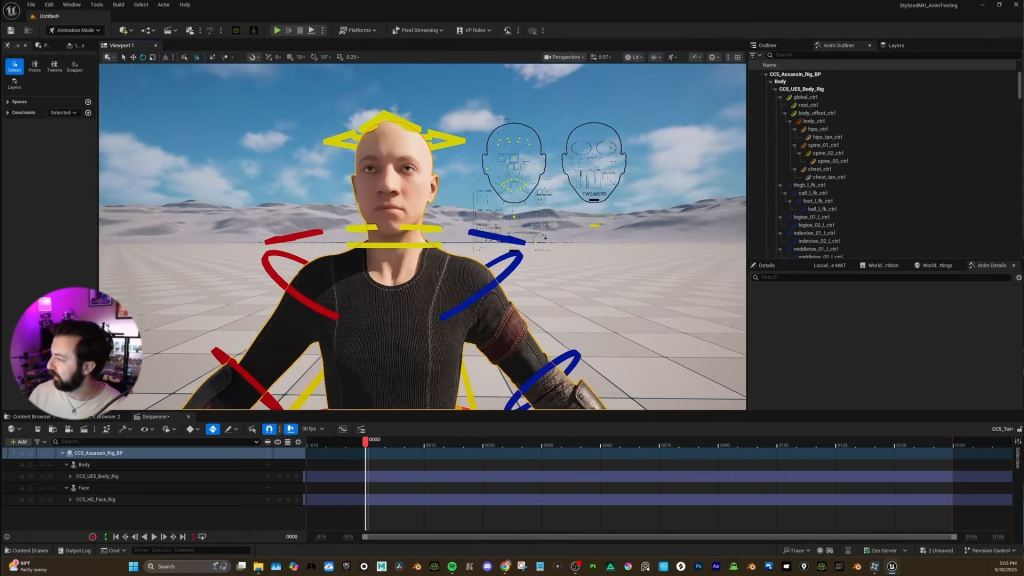
Once imported, right-click the skeletal mesh and select Create CC Control Rig. This separates the body and head into a blueprint like a MetaHuman.
Drag the new rig BP into a Level Sequence, and your character is ready to animate. One thing to note is that you can check the Delete Hidden Faces option during export in CC5 to prevent skin from popping through the clothes
One thing to note is that you can check the Delete Hidden Faces option during export in CC5 to prevent skin from popping through the clothes
Final Thoughts and Next Steps
This was a brief overview of Character Creator 5. I’ll definitely be doing more tutorials for:
Pitting a CC5 character versus a MetaHuman.
An updated process for setting up your character rig in Maya.
Experimenting on getting the character into Blender.
So I am definitely recommending this software to users who are looking for a time-saving character workflow. Stay tuned for more of my channel and videos, and let’s create something cool and fun together in 3D!
Hi everyone, I’m Mohammad Khalikh. I work as a Previs Artist, and I am also a Certified Reallusion Trainer based in India. With over seven years of experience in the Indian film industry, I worked on feature films, series, and commercials – helping directors visualize complex ideas before production begins.
I combine cinematic storytelling with real-time workflows. To achieve this, I heavily rely on tools like iClone and Character Creator to turn scripts into moving stories efficiently. Beyond my studio work, I also train aspiring artists in animation, filmmaking, and previs, empowering them to embrace creativity through technology and transform their vision into powerful visual narratives. You can find more of my work on my YouTube channel, or reach out to me on LinkedIn for more information.
When I first discovered iClone through my mentor Gigi George several years ago, I wasn’t searching for a revolution, just a faster way to visualize stories. What I found was something that reshaped how I approach filmmaking. iClone became more than just software; it became my creative partner, turning raw imagination into cinematic storytelling at real-time speed.
After spending more than seven years in the Indian film industry, I’ve learned that previsualization is one of the most powerful yet underrated phases of production. It’s the stage where directors, cinematographers, and artists like me can experiment freely before a single frame is shot. And with iClone, that process feels intuitive and limitless.
“iClone gives me a real-time canvas to test ideas quickly and see stories come alive before production.”
Mohammad Khalikh, Previs Artist
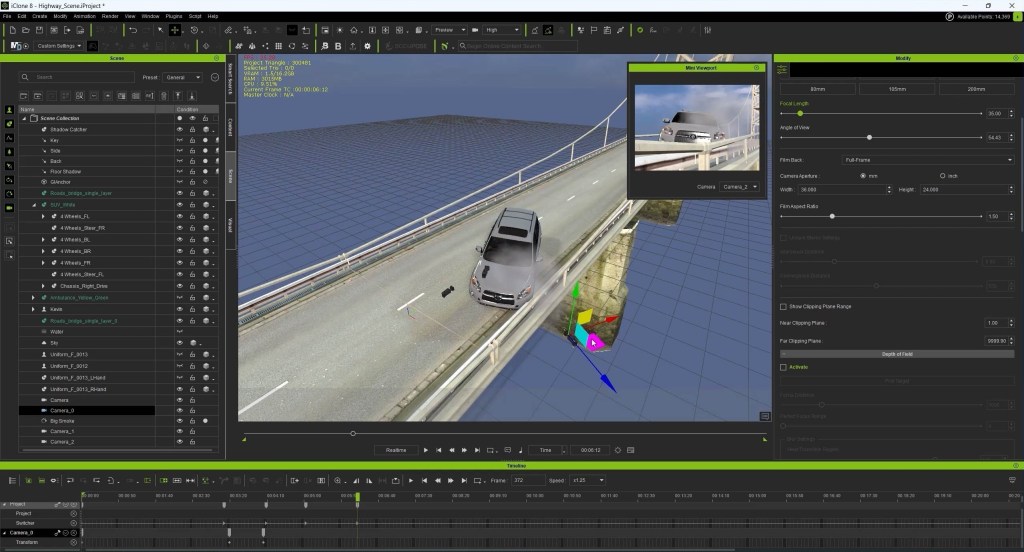
Previs isn’t about perfection—it’s about purpose. Directors need to understand the rhythm of a sequence, the flow of a camera move, or the emotional beat of a scene. iClone lets me visualize all of that in real time. Whether it’s blocking a fight sequence, testing a lighting setup, or experimenting with lens choices, iClone lets me make decisions instantly. I can try five different camera angles in minutes, present multiple versions to a director, and adjust pacing without ever leaving the scene. That creative agility is what makes iClone irreplaceable in my workflow.
“The real-time camera tools in iClone allow me to direct previs sequences like a live shoot.”
Smart Search: Small Feature, Huge Impact
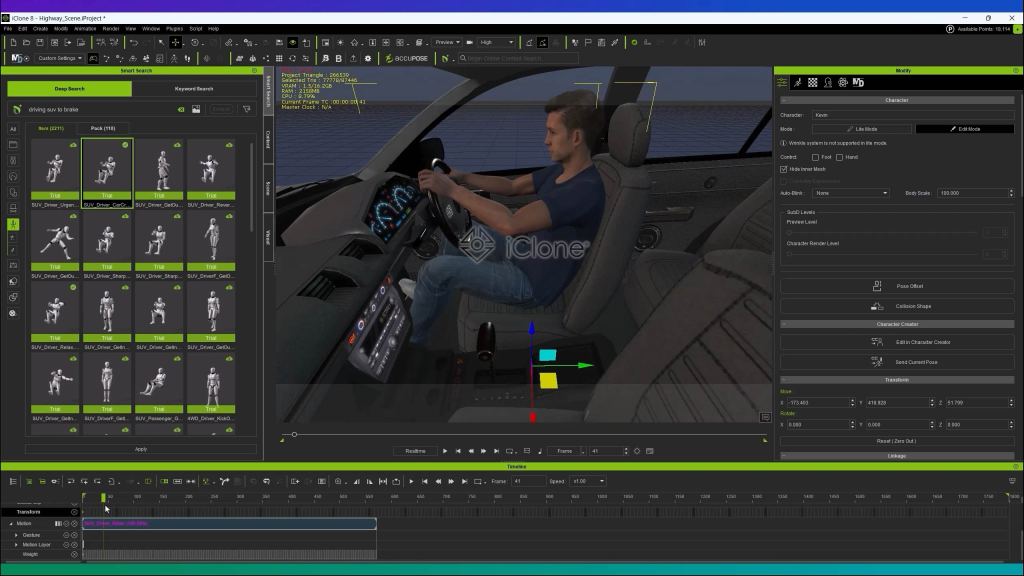
Every artist knows that when inspiration strikes, nothing should slow you down. That’s exactly why the Smart Search feature in iClone 8 has become a game-changer for me.
I often work with extensive libraries of assets, including motions, props, characters, and effects. And finding a specific item used to interrupt my creative flow. Now, Smart Search handles that instantly. Whether I need a fight motion or a specific prop, I can locate it in seconds.
That simple improvement has saved me countless hours. But more importantly, it’s kept my creativity uninterrupted. When tools disappear into the background, storytelling takes center stage … And, that’s exactly what Smart Search enables.
“Smart Search keeps me in the creative zone by instantly finding what I need.”
Building My Previs Pipeline
My previs workflow in iClone usually begins with blocking. I start by laying out the environment, placing characters, and roughing out the action. Then comes the fun part: camera direction. iClone’s cinematic controls give me the same creative freedom I’d have behind a real lens.
Once the foundation feels solid, I move into lighting and timing adjustments. Because iClone is fully real-time, I can refine everything as I go. What once took days now happens in a single session, making iteration quick and collaboration smooth.
“From blocking to lighting—iClone keeps my entire previs workflow seamless and real-time.”
Educator’s thoughts
As a Reallusion Certified Trainer, I’ve had the privilege of sharing these techniques with students and professionals. Many of them start with little experience in animation, yet they’re amazed by how quickly they can create cinematic results. What I love most is watching their confidence grow as they realize previs isn’t about complex software—it’s about storytelling. iClone bridges the skill gap beautifully, turning technical learning into creative exploration.
Looking Ahead
The future of filmmaking is undeniably real-time. As virtual production and previs continue to merge, tools like iClone are becoming the connective tissue between creativity and technology. For independent artists like me, this shift is liberating. It allows us to compete at a global level – delivering cinematic, director-ready sequences without massive teams or budgets.
My journey with iClone is still evolving, but one thing remains constant: the joy of bringing stories to life. Every time I see a director’s idea take shape through previs, I’m reminded why I started this journey. That is to turn imagination into something tangible, one shot at a time.
Inside PixelArtistry’s Workflow: AccuRIG Auto-Rigging Meets Video Mocap
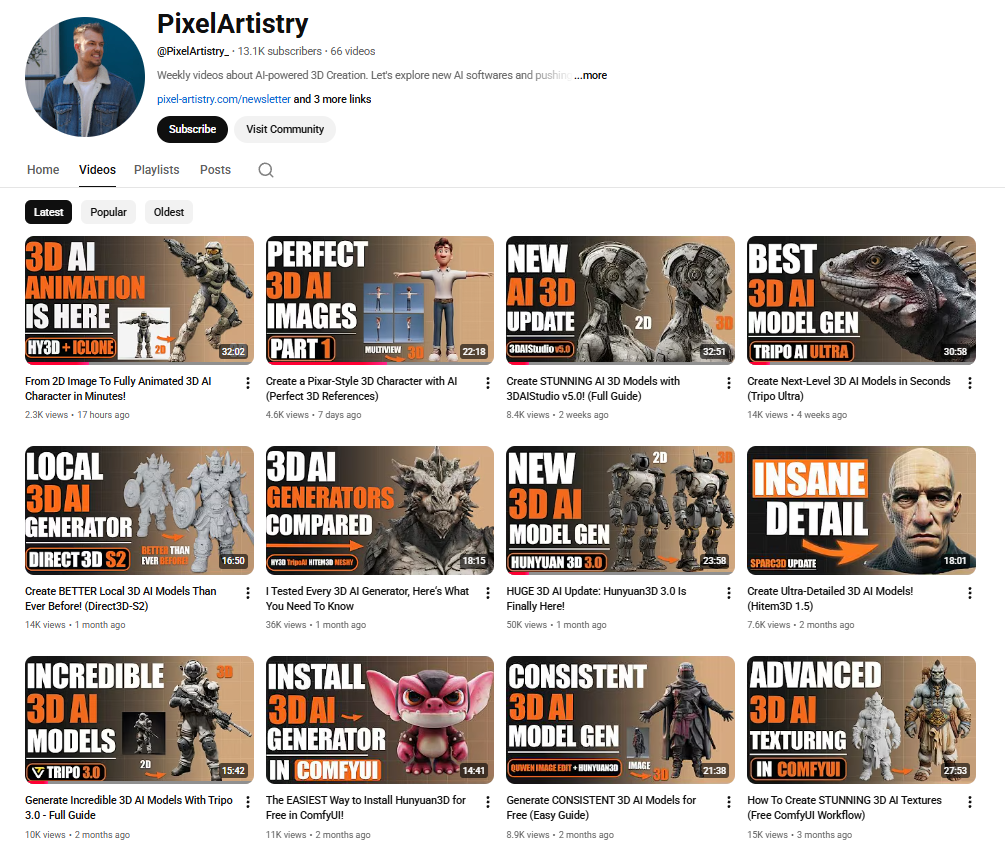
Philipp Sieben, the creator behind the growing YouTube channel Pixel Artistry, has built a reputation for turning complex AI workflows into easy-to-follow tutorials. In his latest video, he demonstrates a full end-to-end pipeline that transforms a single 2D AI image into a fully animated 3D shot — all without traditional modeling or motion-capture gear.
The core of his workflow revolves around Reallusion’s AccuRIGand iClone Video Mocap, which bridge the gap between AI-generated assets and production-ready animation.
Philipp Sieben / PixelArtistry
Philipp Sieben is a 3D artist with seven years of experience in the VFX industry, contributing to major productions such as Netflix’s The Witcher and Marvel’s Fantastic Four.
His recent work focuses on the intersection of traditional 3D and artificial intelligence, where he explores how AI can accelerate artistic workflows and open new creative possibilities. He now runs the YouTube channel Pixel Artistry, helping 3D artists, developers, and tech enthusiasts master the latest AI-powered tools.
Step 1 — From AI Image to Full Character Blueprint
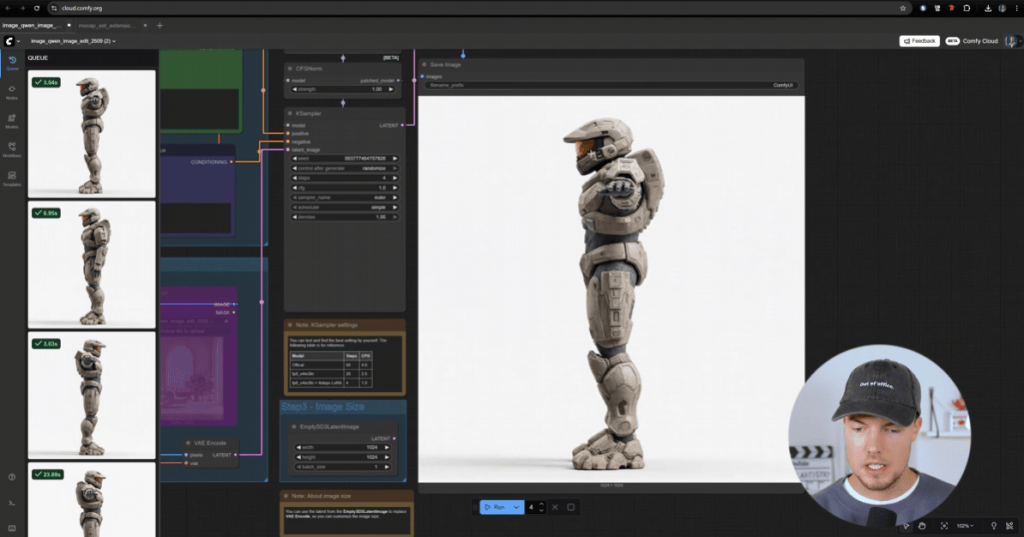
Philipp begins by generating a concept character using Midjourney. To prepare the model for 3D reconstruction, he uses ComfyUI to produce clean front, side, and back views in a proper T-pose. These multiviews act as a “turnaround sheet” for the next stage.
Step 2 — AI-Driven 3D Model Generation from Images
The multi-views are then inputted into Hunyuan 3D 3.0, which reconstructs a full 3D character. Philip opts for a 50K-face mesh, which is detailed enough to look good and lightweight enough to rig instantly. Hunyuan outputs a textured FBX file, ready for animation tools.
Step 3 — Get Animating Quickly with AccuRIG Auto-Rigging
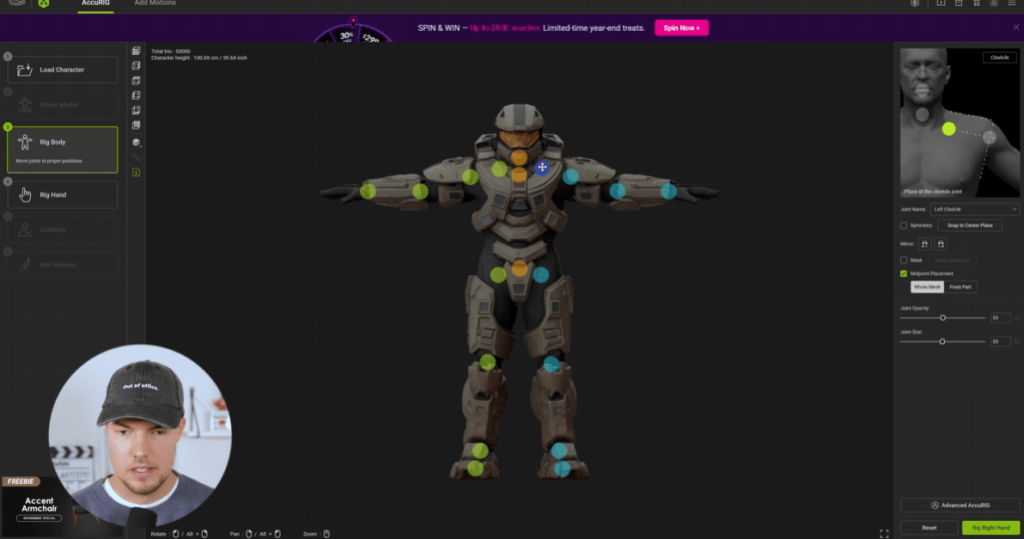
To prepare the character for animation, Philipp turns to AccuRIG, Reallusion’s free auto-rigging tool designed to quickly turn static 3D models — even AI-generated ones — into fully rigged characters ready for animation. AccuRIG’s guided marker system makes the process simple, and its direct export to iClone keeps the pipeline smooth.
Philipp’s AccuRIG workflow:
The FBX imports with textures intact
AccuRIG auto-detects major joints on the body
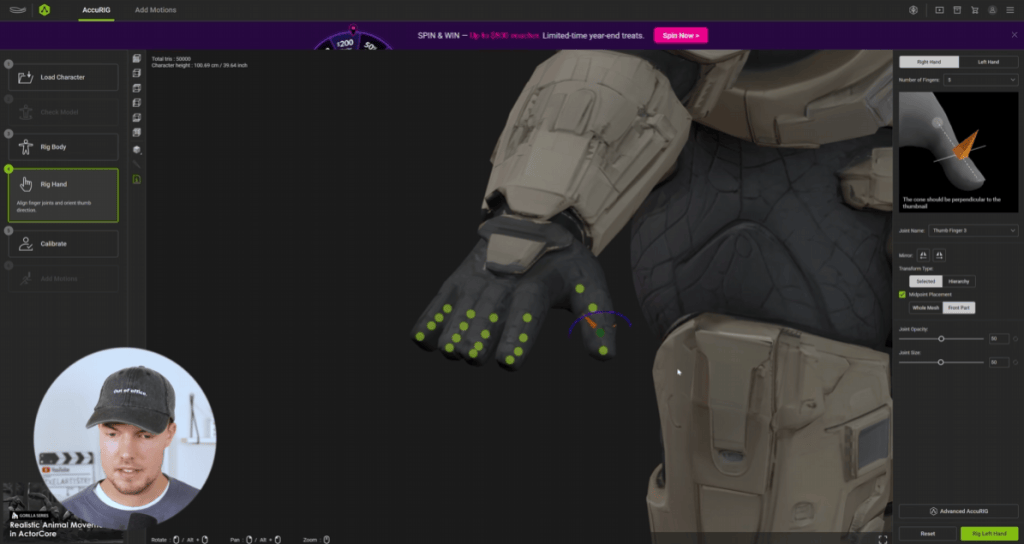
Fine-tunes shoulders, knees, and fingers for better deformation
Hand rigging is mirrored to speed up setup
Within minutes, the AI-generated mesh becomes a fully rigged iAvatar, ready to animate in iClone.
Step 4 — Real Motion, Zero Suits: Animating using iClone Video Mocap
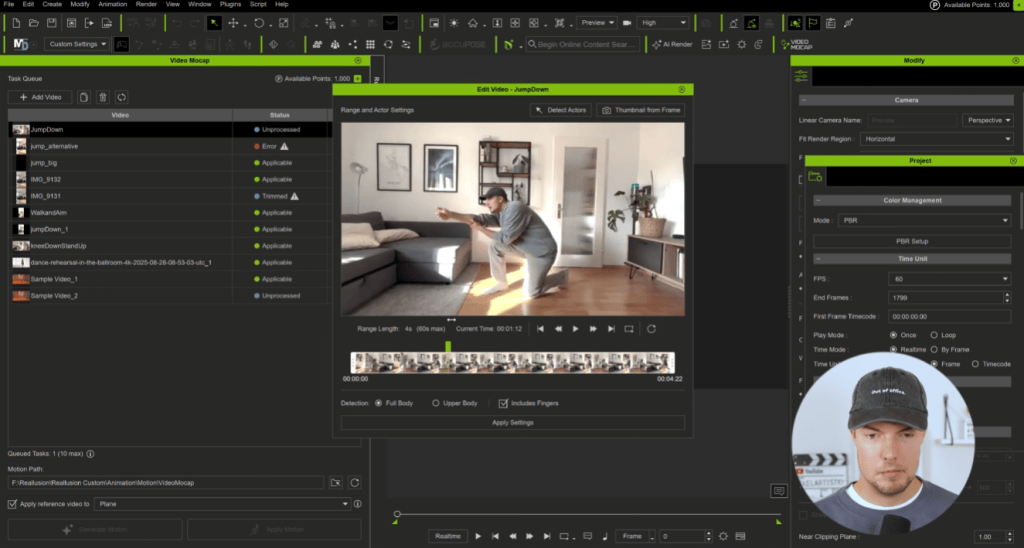
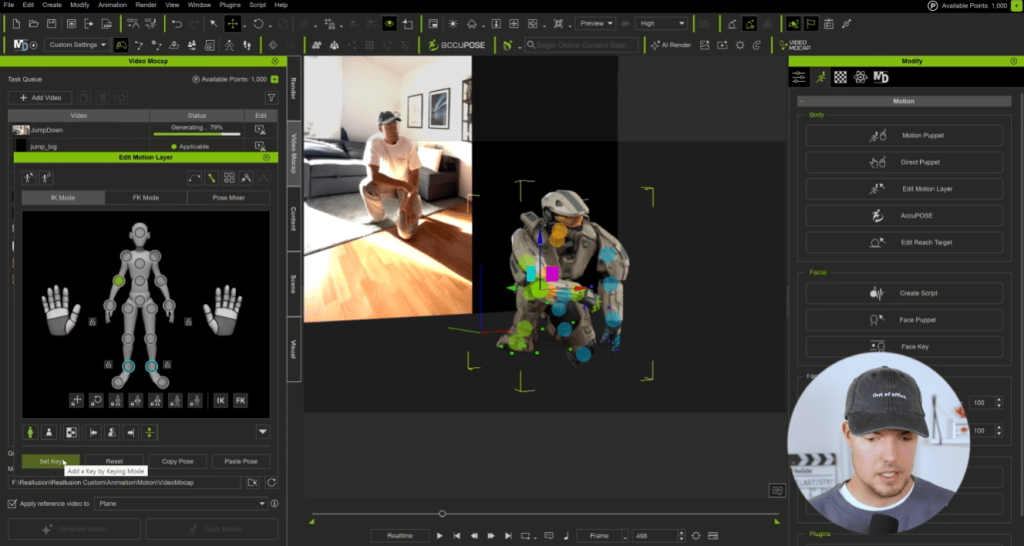
To animate the character, Philipp captures his own movements using iClone Video Mocap, which extracts motion directly from standard video. He records simple actions in his living room, including jumps, punches, gestures; then imports the clips into iClone. The plugin detects full-body and finger motion, analyzes the footage in the cloud, and generates a 3D animation that he can apply to his character with one click.
Most of the motions worked “on the first try”, and Philipp uses iClone’s Motion Layer tools to clean up subtle limb penetrations and pose issues. This tool combination gives him natural movement with full control for refinement.
Step 5 — Assembling the Cinematic Scene in Blender
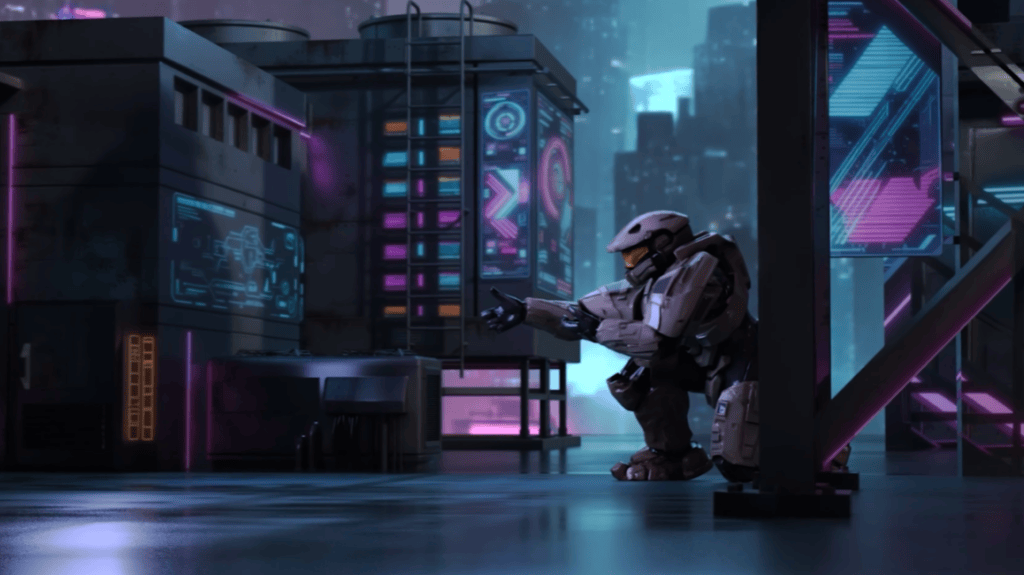
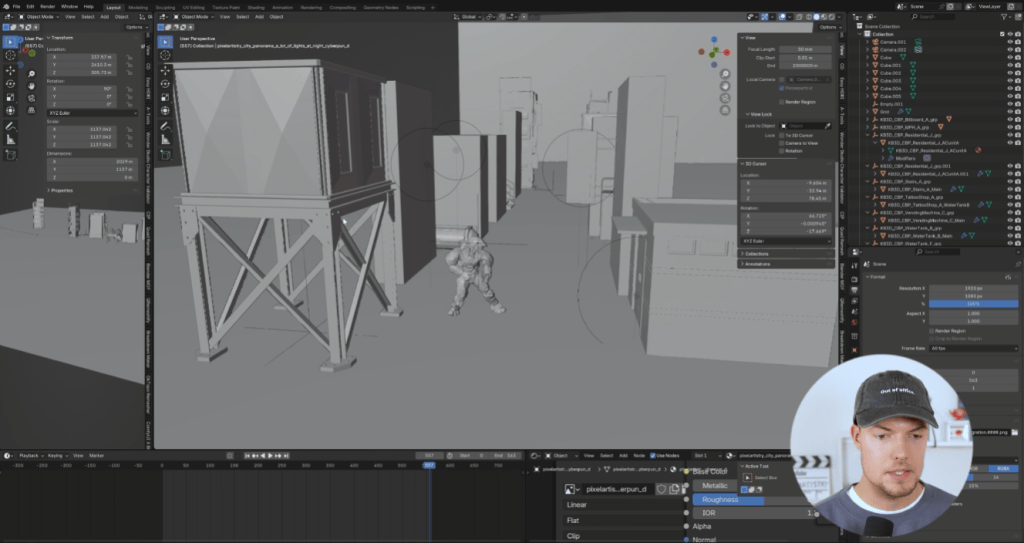
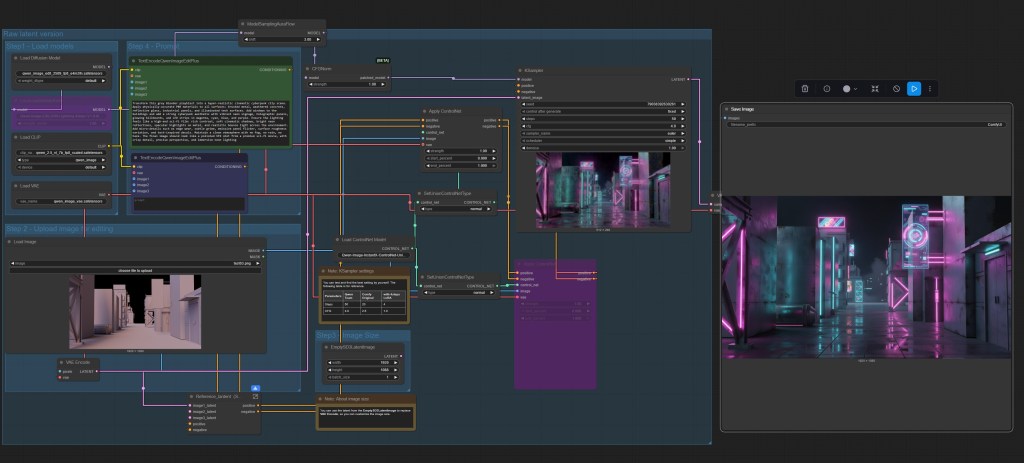
For the final shot, Philipp exports the animation into Blender using Alembic. He blocks out a simple environment, positions his camera, and then uses ComfyUI again to create a stylized texture pass. Using classic camera projection, he maps the AI-generated textures onto his scene for a rich, cinematic look.
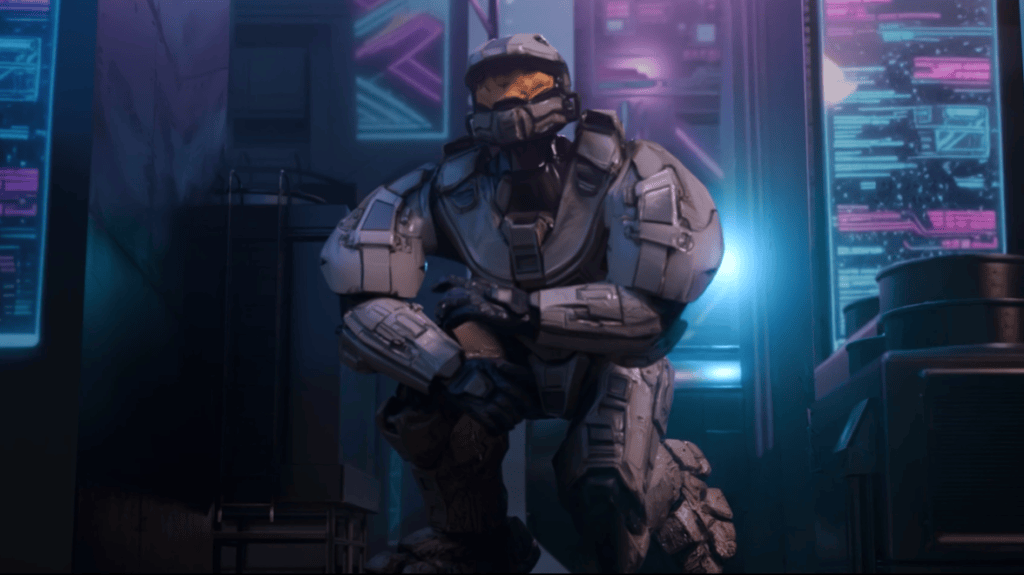
The soldier character is lit to match the environment, and the final render showcases a fully animated AI character integrated into a fully 3D environment.
Why This Workflow Matters
Philipp’s work demonstrates a new, accessible way to build animated 3D content:
AI art → multiviews → 3D reconstruction
AccuRIG → instant production-ready rigging
iClone Video Mocap → natural full-body motion from any camera
Blender → final scene + render
For creators without traditional 3D modeling or mocap resources, this pipeline opens the door to fast, high-quality character animation.
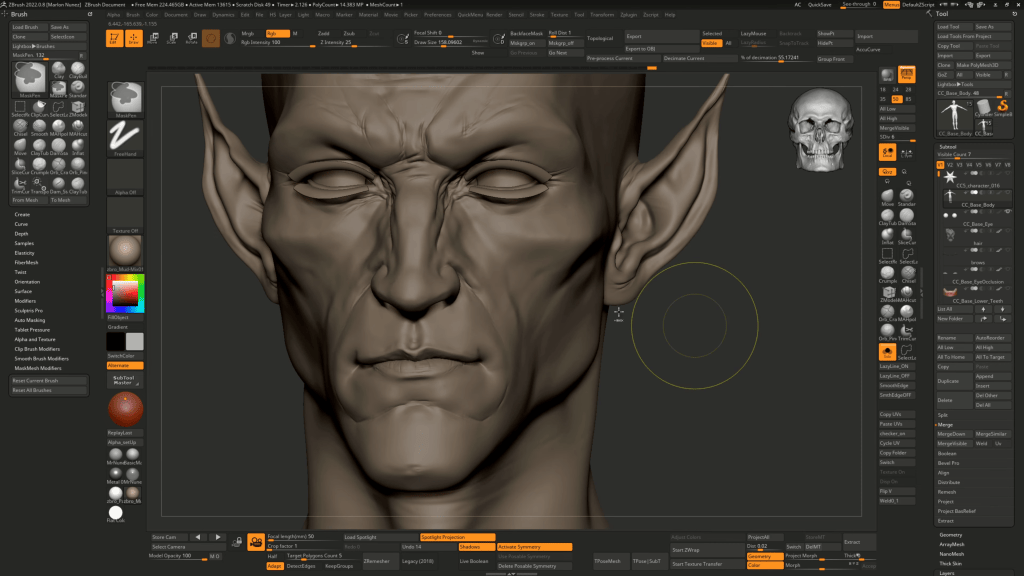
Hi, I’m Marlon R. Nuñez, Creative Director at Digito and the creator behind @mrnunez3D in YouTube. With over 13 years of experience in digital humans, real-time workflows, and stylized realism, I’ve worked across games, cinematics, and XR productions. This article breaks down how I built a fully custom vampire character using ZBrush, Character Creator 5, XGen, and Unreal Engine 5.7, testing the limits of CC5’s HD pipeline and real-time integration.
How I made this Custom Vampire in CC5 and UE
Over the past few weeks, I took on the challenge of creating a fully custom vampire character using ZBrush, Character Creator 5 (CC5), XGen, and Unreal Engine 5.7. This wasn’t just about building a stylized character. It was about testing the limits of CC5’s new HD features, grooming workflows, facial animation, and real-time performance inside Unreal Engine. The following is a breakdown of the entire process.
1. From CC5 blockout to ZBrush sculpt
I started by loading the default male avatar in CC5 as a base. Before even jumping into ZBrush, I used CC5’s powerful morph sliders to block out the overall shape of the character. This is a great starting point because it allows you to quickly define general proportions — like head size, neck length, torso width, and limb shape — all in a non-destructive way. Using morphs not only speeds up the design process but also helps establish a solid base mesh with clean topology, ready for sculpting fine details later on. From there, I exported it into ZBrush to begin sculpting.
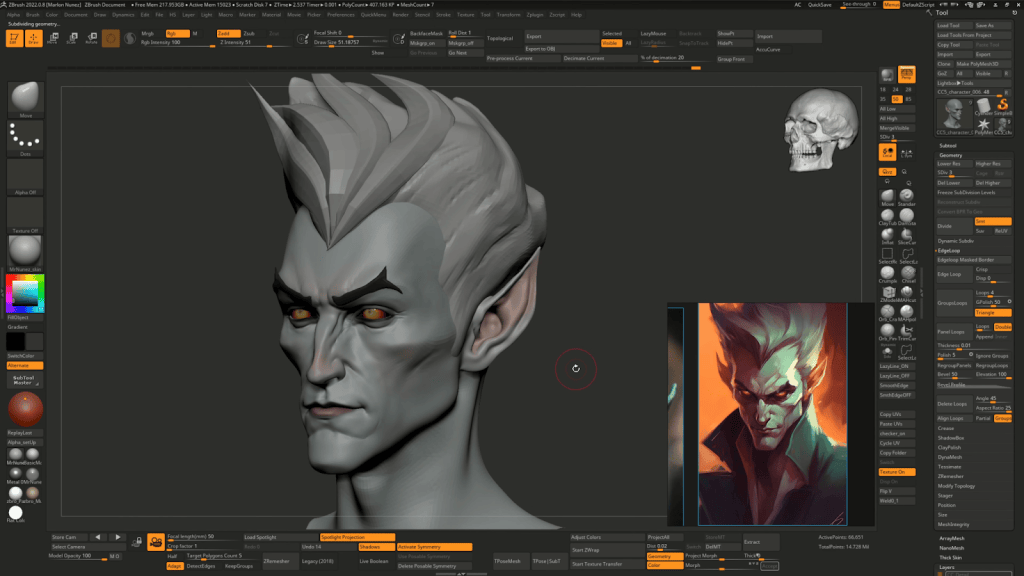
Using a combination of Clay Brush and Dam Standard 2, I carved in wrinkles, secondary forms, and facial structure. This brush combo helped me stay creative and stylize the character without losing realism. Once the primary and secondary forms were working, I used Polypaint to start visualizing the character’s tone.
The goal wasn’t to finalize everything in ZBrush, but rather to set up a clean sculpt ready for HD detailing back in CC5.
2. Refining with CC5 HD Features
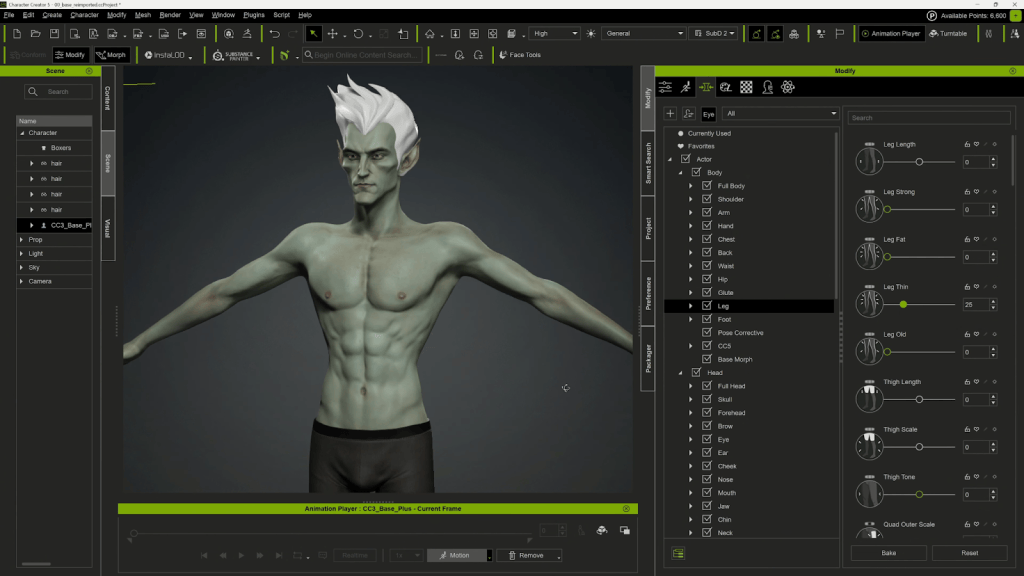
Back in Character Creator 5, I brought in the sculpted mesh using GoZ. The new HD morphs and subdivision tools inside CC5 let me refine anatomical detail without switching back to ZBrush.
I adjusted muscle definition, sharpened key features, and used non-destructive morphs to fine-tune the look. Since the final result would be used in close-up renders and real-time sequences, this HD detailing step was essential.
3. Clothing and CC5 Edit Tools
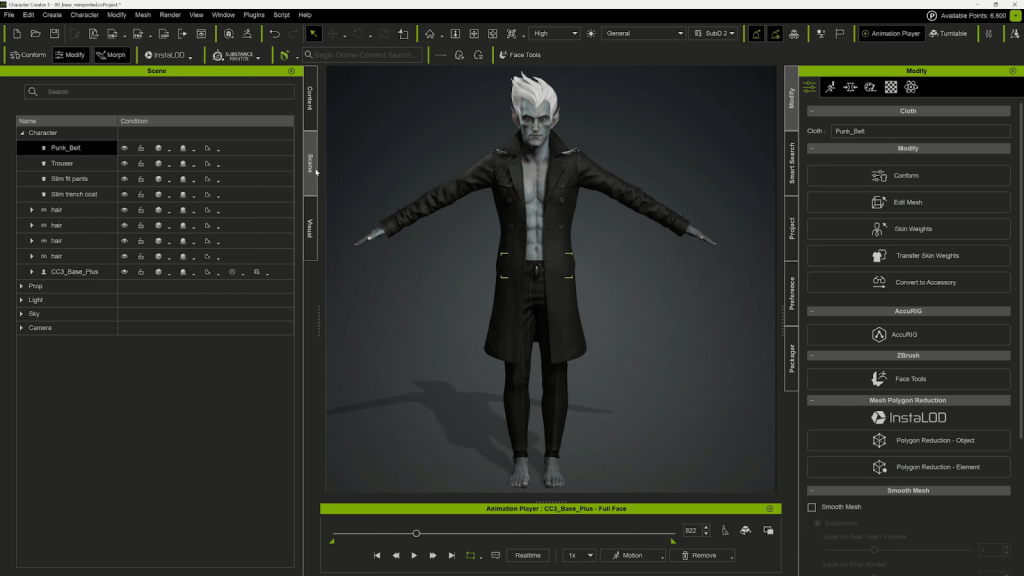
Because my focus was the face, I didn’t spend time designing clothes from scratch. Instead, I used the free styling clothing pack in CC5 to mix and match different items.
I tested several coats and pants to get a gothic, modern vampire vibe. Once I settled on a base outfit, I exported the clothing back to ZBrush to sculpt unique folds and break symmetry — especially at the bottom of the coat to give it a jagged, dramatic feel.
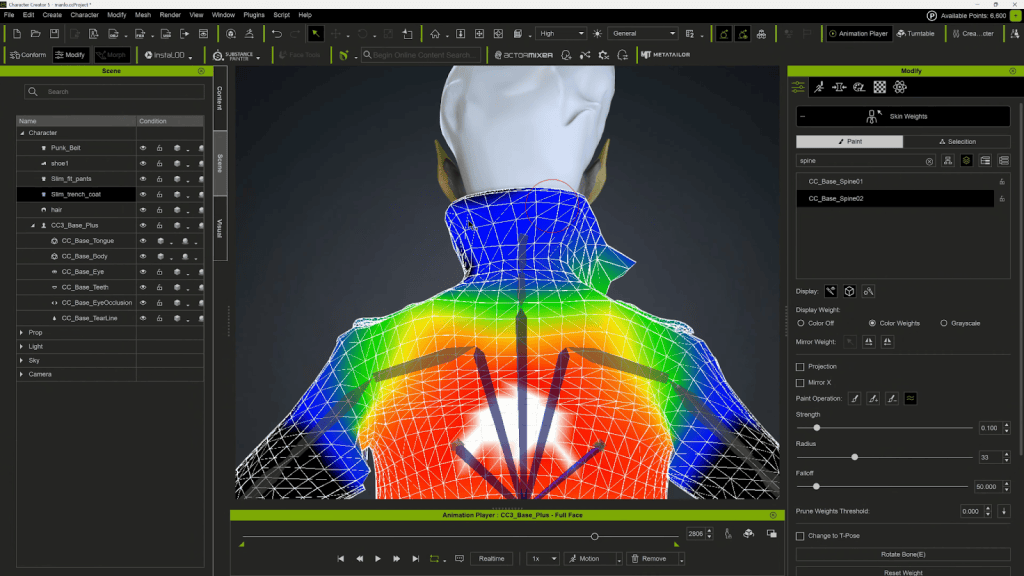
One helpful trick during this stage is using the Edit Mesh tools inside CC5. These tools allow you to make precise tweaks directly on the clothing or body mesh. This is ideal for resolving minor overlaps, adjusting silhouettes, or even fixing mesh clipping and light skinning issues. They’re especially useful when parts of the outfit intersect with the body during movement or when you need to make manual adjustments to avoid mesh clashing in animation. You can sculpt mesh regions, move vertices, and fix problem areas without having to re-export to ZBrush, which is a huge time-saver.
4. Grooming Hair in XGen (Maya)
For the hair, I wanted something stylized but rooted in realism. I used XGen Interactive Groom in Maya to create both the hair and brows. Once done, I exported the grooms as Alembic caches. These were imported into Unreal Engine and bound to the head skeletal mesh using the Groom component. Rotation and scale adjustments were needed during import (Rotation X = 90, Scale Y = -1) to match orientation.
I imported the CC5 character FBX with Morph Targets enabled to preserve facial blend shapes. Then I used the Create CC Control Rig function to automatically generate a control rig and blueprint compatible with UE5.
One key note: I switched the character to CC5 HD mode before exporting from CC5 to ensure full facial rig compatibility.
6. Scene Assembly, Lighting, and FX
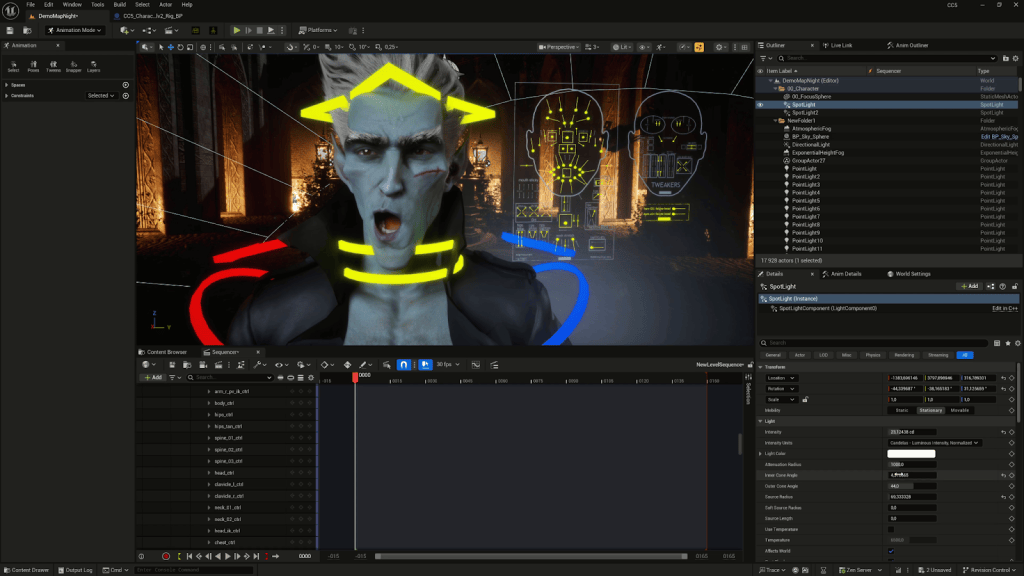
For lighting, I kept it simple: one spotlight, one point light, and a bit of color grading. To give the environment some energy, I added a Niagara fire effect in the background with a red tint, simulating a burning castle vibe.
This helped frame the character in a more cinematic way and added subtle motion behind the dialogue.
7. Facial Animation and Audio Sync
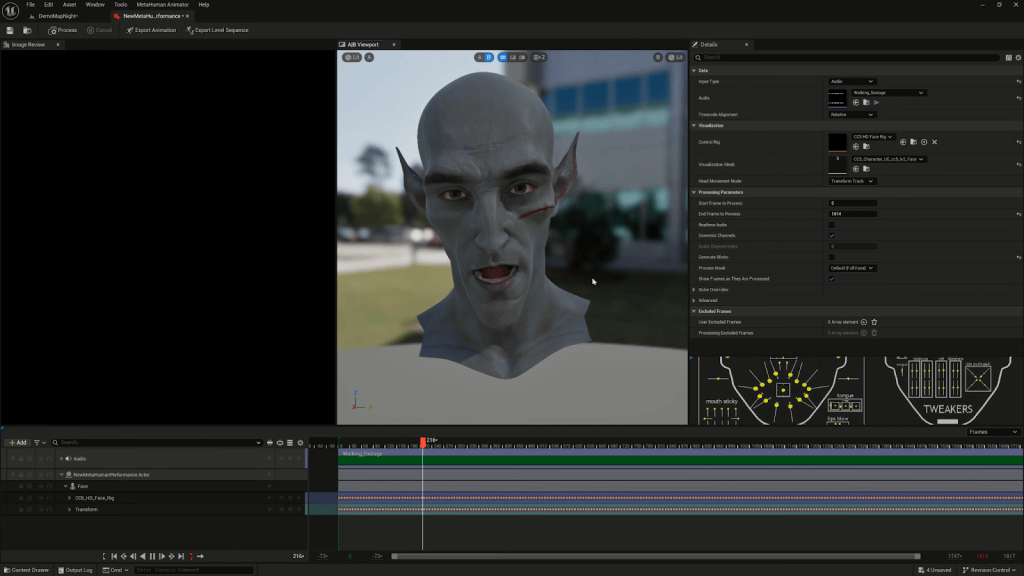
I recorded myself and exported the audio as a WAV file, which I used as the input for MetaHuman performance capture inside UE5. Once the animation was generated, I disabled the head movement (to reuse the mocap animation) and combined the facial performance with the body motion. Later, I ran into an issue with eye movement not tracking properly. The fix was enabling the Control Look At option inside the Control Rig and manually tweaking eye positions frame-by-frame for believability.
8. Solving Mesh Clipping and Skinning Bugs
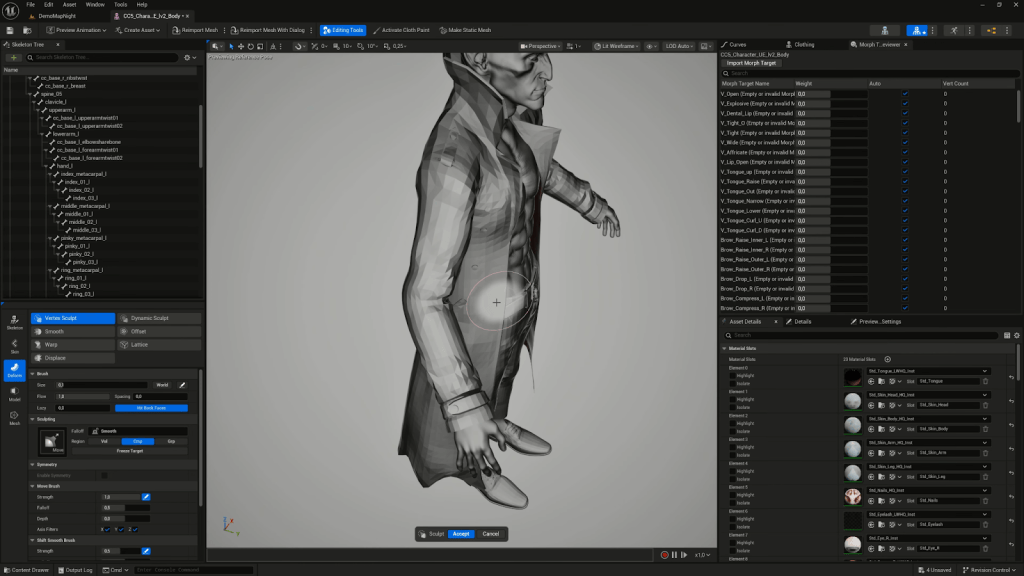
In UE5, I noticed the coat mesh was intersecting with the body, even though this didn’t happen in CC5. Using Vertex Sculpt tools inside the Skeletal Mesh Editor, I pushed the coat geometry to resolve the issue directly within Unreal. I also used animation curve editing to loop the walking motion and extend the sequence.
Final Thoughts
This workflow was a great mix of creative sculpting, technical problem-solving, and real-time character performance. The CC5 HD features combined with Unreal Engine’s control rig tools gave me flexibility without sacrificing visual quality. If you’re building stylized or semi-realistic characters for games, cinematics, or virtual production, this approach is fast, efficient, and powerful.
Can I animate ZBrush characters directly in Character Creator 5?
Yes. With CC5’s GoZ Plus bridge, you can transfer your ZBrush sculpts, bake textures automatically, and animate them with body motions, facial expressions, and lip sync.
Do I need to retopologize my ZBrush sculpt before sending it to CC5?
No. CC5’s neutral base mesh has clean topology and is animation-ready. You only need to sculpt details and then bake displacement and normal maps for transfer.
How does CC5 handle HD subdivision from ZBrush?
CC5 supports adaptive subdivisions. You can send models back and forth at different levels (Lv0, Lv1, Lv2) and automatically generate optimized maps for each.
Can CC5 handle non-human characters sculpted in ZBrush?
Yes. CC5 includes tools like Adjust Bones and Pose Offset to fix skeleton alignment, making even stylized or alien proportions fully animatable.
What animation features can I use once the sculpt is in CC5?
You can apply motion capture, motion libraries, facial morphs, dynamic wrinkles, and voice-based lip sync to bring your ZBrush characters to life.
Learn to find and acquire the perfect assets without leaving the software
Matt Hickinbottom
Matt’s journey in media and entertainment began at the age of 12, when he starred in a children’s television show. He later transitioned to composing music and jingles for TV, including work for Disney aimed at European audiences. Broadening his skill set, Matt has become a highly sought-after producer, director, and director of photography, with experience creating award-winning promos for SONY Pictures. His work takes him worldwide, producing cinematic adverts for Merlin Entertainment across LEGO Discovery Centers, Sea Life Centers, and Warwick Castle attractions.
Since 2020, Matt has incorporated iClone as a core tool in his workflow for animated content creation, utilizing iClone animations, Character Creator avatars, and Perception Neuron motion capture in his projects.
Project: The Longest Goodbye
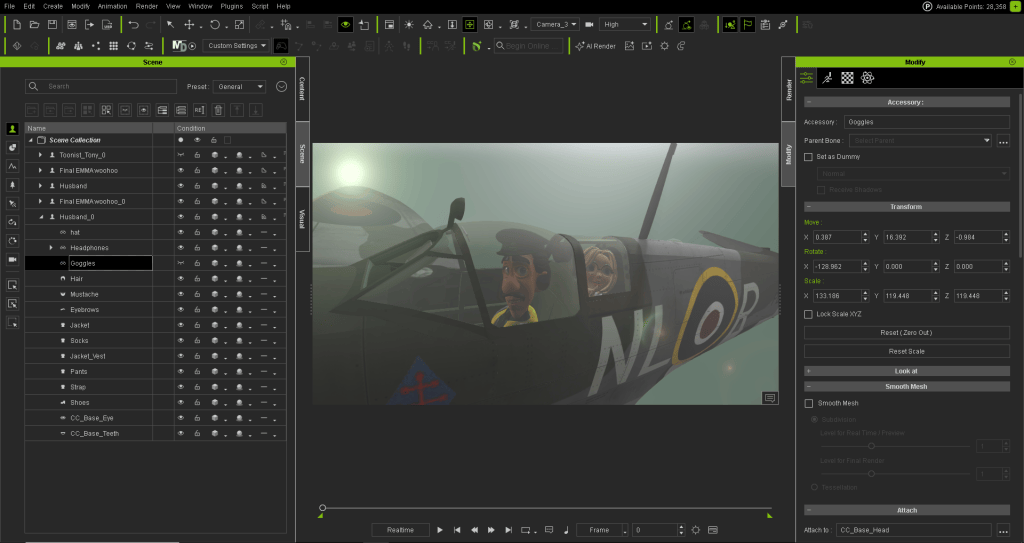
“I’m currently building a pitch project for a team in the US for funding towards a feature length animation with the main story centering around the elderly and sufferers of Alzheimer and Dementia. We have already created a few trailers, but the next round is for us to create a 3 minute section of what the final project will look like. This is a perfect opportunity for us to shout about what is possible with iClone, Smart Search, and the iContent,” said Matt.
Smart Search in iClone and Character Creator
When you are deep in a creative build (whether it is a scene for a corporate animation, a community project, or a feature film) the last thing you want is to break your flow just to go asset hunting. That’s why Smart Search in iClone and Character Creator has become one of our favourite features. It’s not just about finding stuff quickly — it’s about buying smarter, testing assets properly before you buy, and saving money with flexible licensing options.
In this article, we’ll share insights from our current feature-length project and show how Smart Search has dramatically improved our workflow.
One Search, Everything in One Place
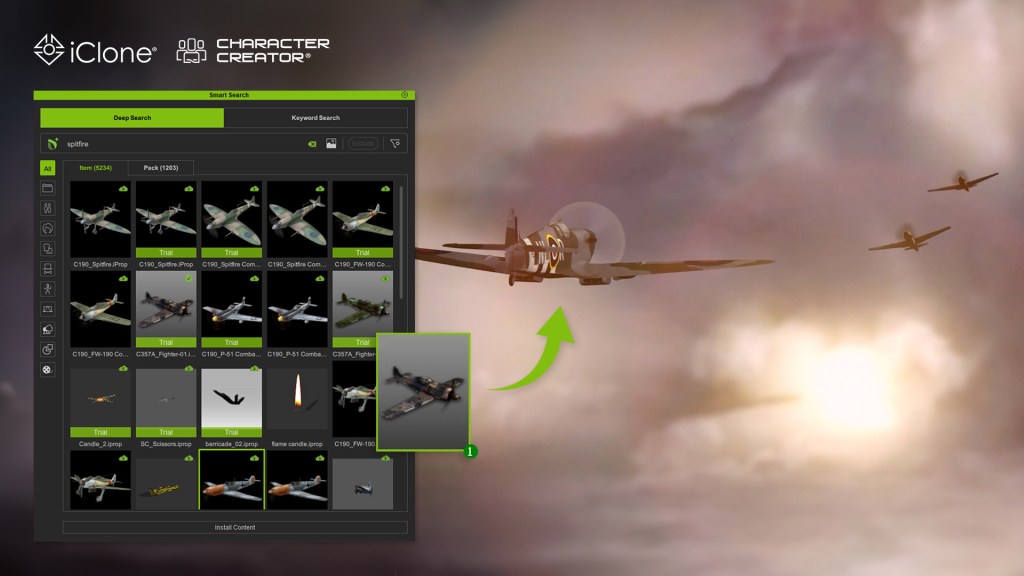
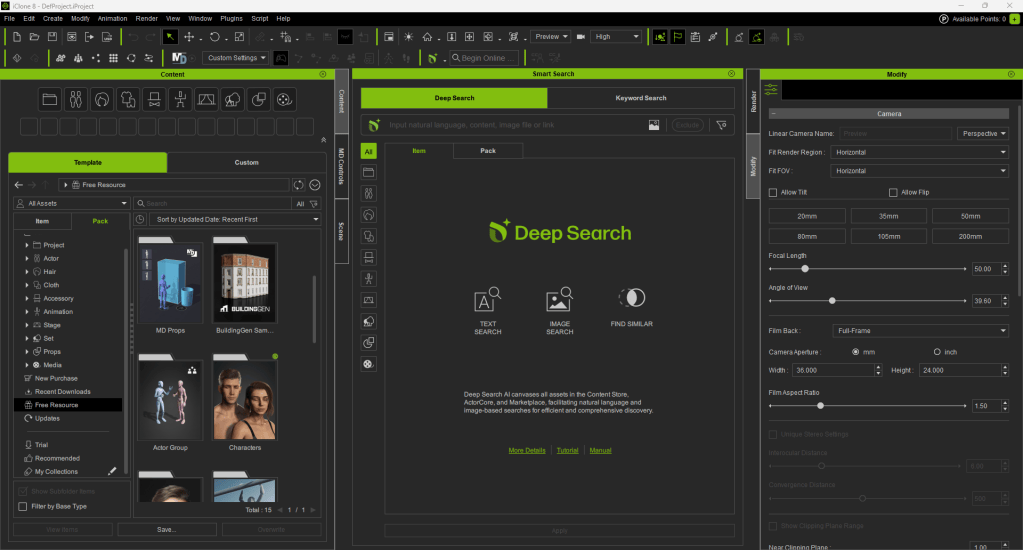
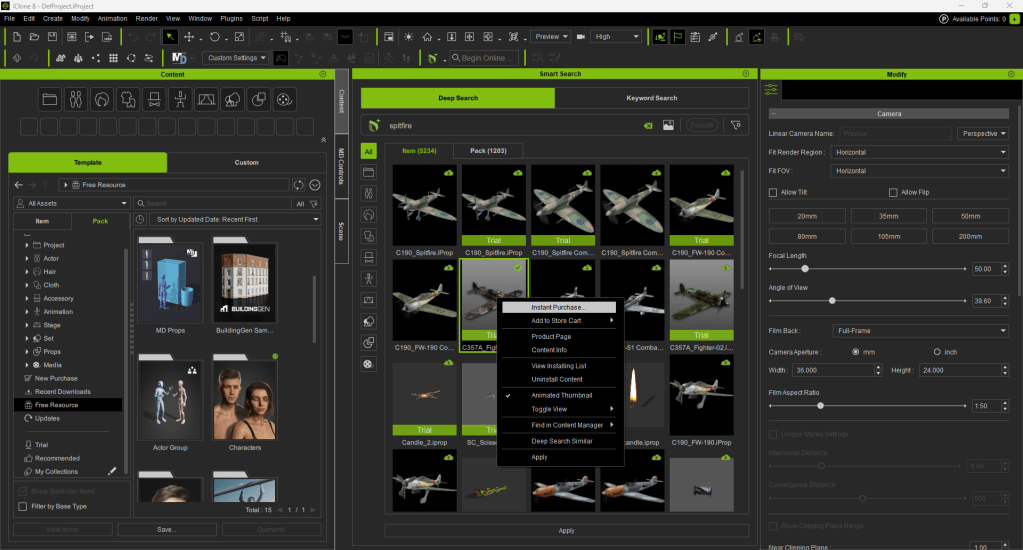
Smart Search lets us search across our local assets, Reallusion’s Content Store, Marketplace and ActorCore, all at once and directly inside the software. No need to open a browser, log into a separate site, or juggle tabs. We just type what we need, like: “World War 2 plane”, “Old Man Character”, “Dark Sky” … and it shows us everything available.
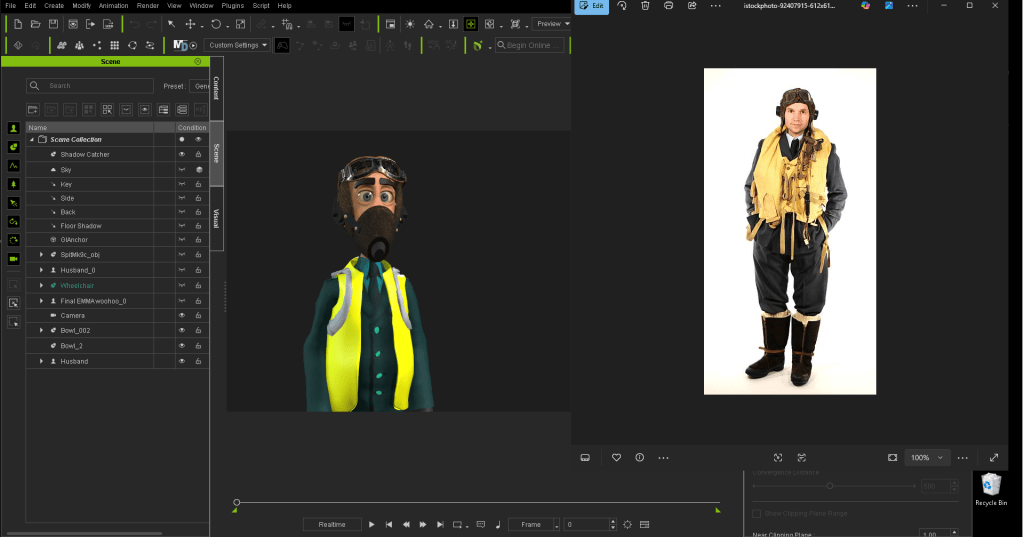
Since our current project draws heavily on World War II themes, we often need to quickly find existing props or costumes to speed up our workflow. Typing “World War 2” in the search field instantly populates a vast array of assets ready for immediate use. Narrowing the search with more specific terms makes it easy to filter out the perfect items from the many options.
One standout feature is Find Similar, which helps locate related items effortlessly. Another is the ability to search using images (costumes, props…), making the production process far more enjoyable. If we already own an asset, great; if not, we can preview it, check the price, and purchase it directly in the software using our DA points. Having this full range of features — from search to checkout — within a single platform is a huge convenience that lets us stay focused on animation and overall production.
Try Before You Buy — Really!
One of the best things? You can actually test certain assets before you commit to buying them. I’ve literally lost count of how many times I’ve purchased an asset based on the thumbnail and been completely disappointed when popping it into a project as it didn’t quite do what I thought, or look as I thought it would.
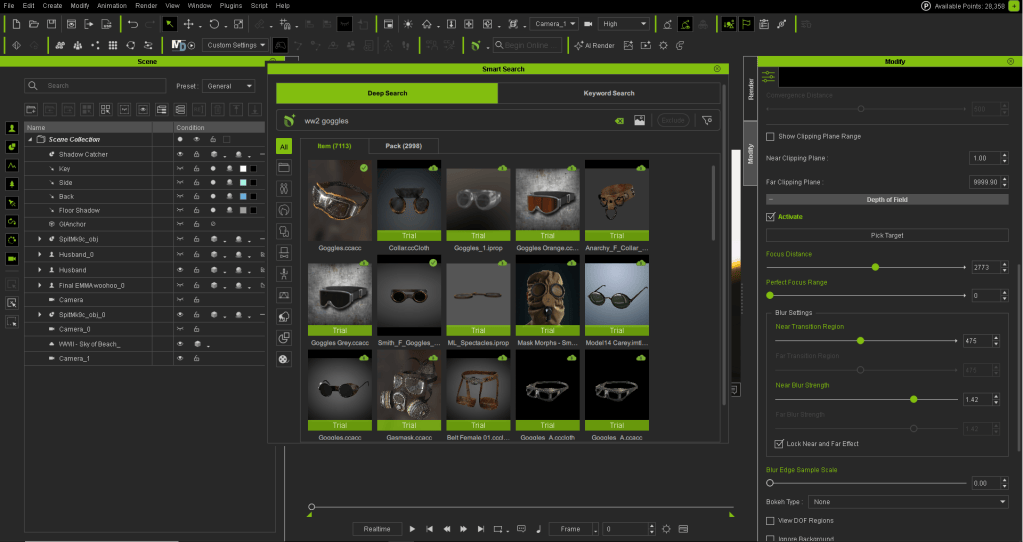
Smart Search solves this issue. It lets you drag Trial versions of store items straight into your scene. They’ll have a watermark, sure — but you get to see how they look, how they behave, and whether they fit your project. That’s huge for me: no more guessing based on thumbnails or hoping it’ll work once you’ve paid. We rely on this feature all the time, especially when crafting detailed scenes and checking whether an asset fits the tone. It’s a genuine “try before you buy” system, fully integrated into the workflow.
DA Points Make It Quick and Painless
We use DA points for most purchases. It’s simple, secure, and means we don’t have to mess around with payment screens or credit card details. If we have DA points in the account, we can grab what we need instantly right inside the software (whether it’s a prop, a motion pack, or a new outfit). That’s especially handy when we’re working on tight turnarounds, like prepping visuals for a scene. If we spot something useful, we don’t have to wait. We just get it, drop it in, and keep going. They’re super easy to track too as you now have a constant up-to-date count of your current point balance right there on the screen.
iContent: The Smart Way to Save
Here’s something a lot of people miss, which has really made adventurous projects more affordable for us. When you buy content through Smart Search inside iClone or Character Creator, you can choose the iContent version. It’s only usable within iClone & Character Creator, but it’s 70% cheaper than the export license version.
So if you’re building scenes, animations, or characters that stay inside the Reallusion ecosystem — which we do — iContent is the way to go. You still get full functionality and ability to render from iClone and Character Creator, and if you ever need to upgrade to export later (say, for Unreal or Unity), you can do that too. Without doubt, it’s made our projects more cost-effective and perfect for other small teams or solo creators who want to stretch their budget without compromising on quality.
Why It Matters for Small Teams
We’re a small team with big ideas. We don’t have time or cash to waste and the smart search really has saved us both time & cash. iClone’s Smart Search helps us stay lean and focused. It means we can build faster, collaborate better, and deliver projects on time. And because it’s built into the software, there’s no learning curve… it just works!
Final Thoughts
Smart Search isn’t just a nice extra — it’s a core part of how we work now. It helps us:
Search across local assets, Reallusion’s Content Store, Marketplace, and ActorCore in one go.
Preview and test assets before buying.
Use DA points for quick, secure purchases inside the software.
Save money with iContent when we’re working inside iClone or Character Creator.
Stay focused and creative without interruptions.
If you’re using iClone or Character Creator and you haven’t tapped into Smart Search yet — give it a go! It’s one of those features that quietly transforms your workflow. And once you’ve used it, you won’t want to go back.
AI-enabled video-to-mocap generation smashes barriers to entry.
Like many indie creators, Nick Shaheen works in a small home setup: a desk, a camera, and whatever chaos happens around him. He doesn’t have access to a mocap studio, and inertial suits come with their own frustrations: drifting sensors, unstable Wi-Fi, constant recalibration, and late-night battles with straps and batteries.
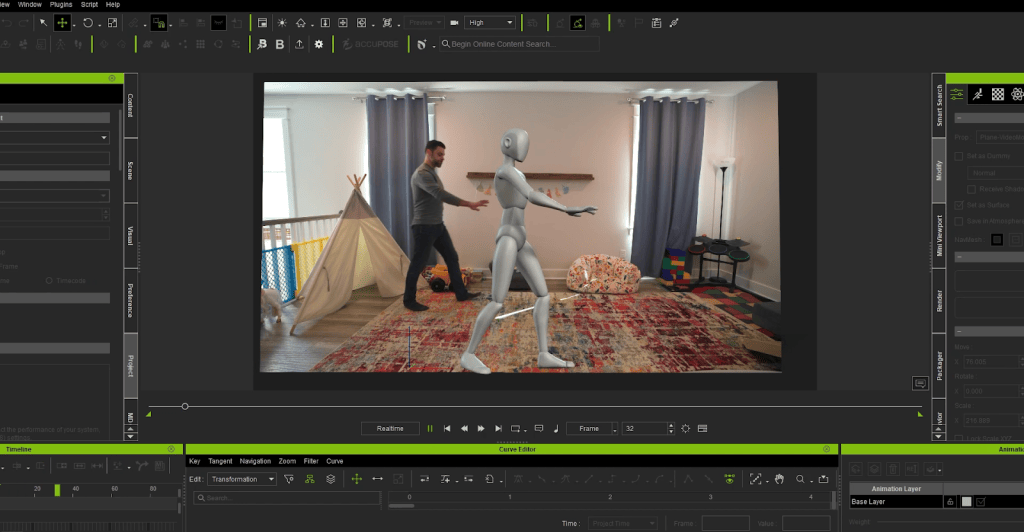
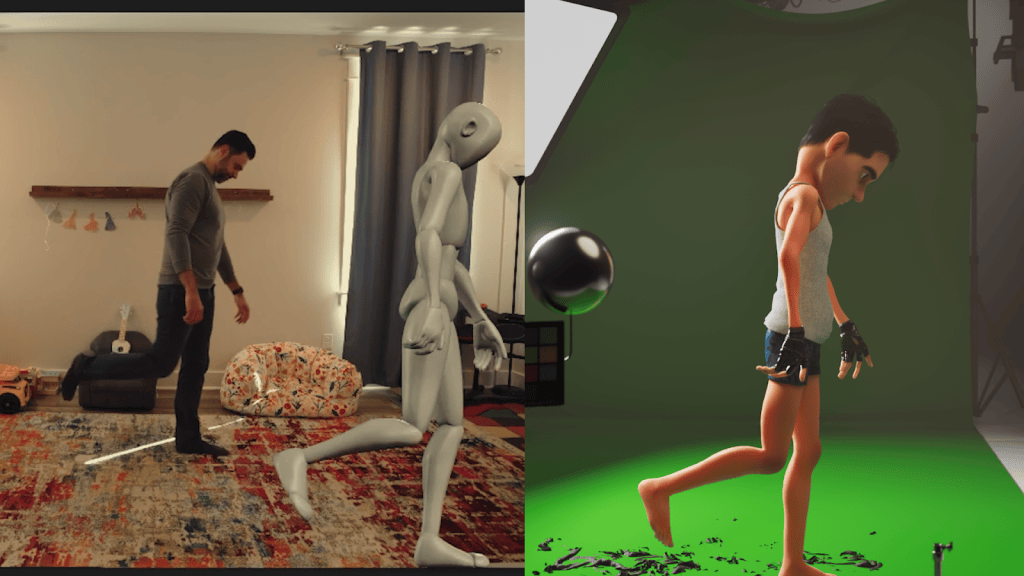
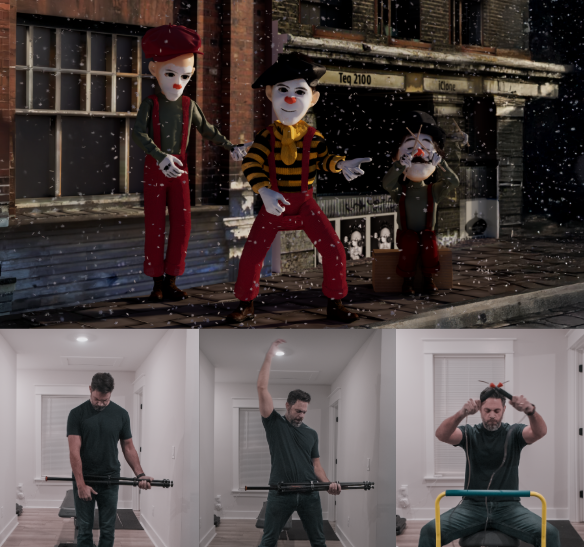
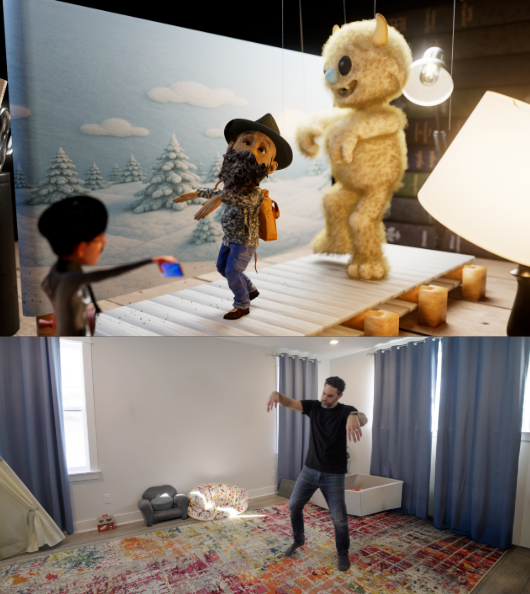
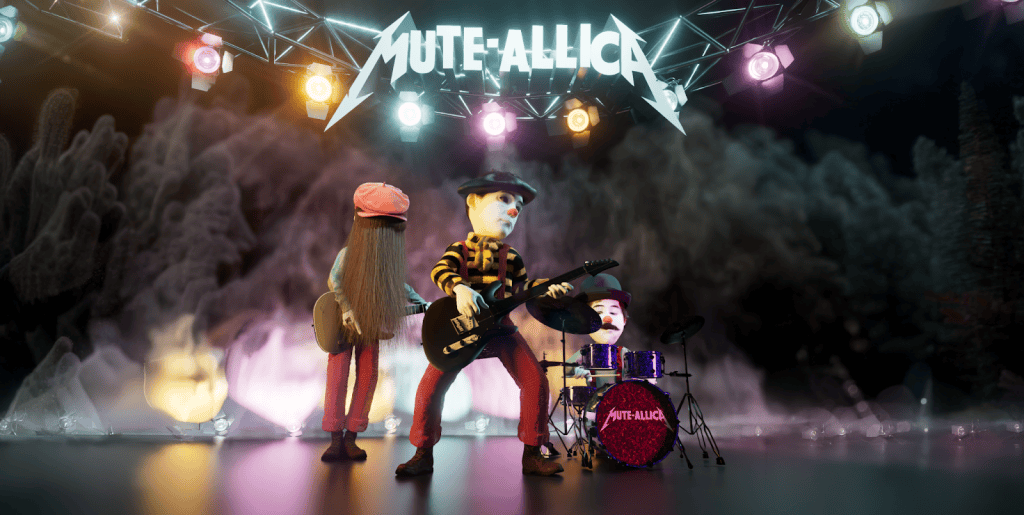
This is the gap iClone Video Mocap was built to solve. With just a single camera and a bit of space, Nick can capture a performance and drive a 3D character in minutes. No suit, no prep, no technical friction. It even let him animate an entire three-person band — all performed by himself within the comfort of his room.
Nick Shaheen
I’m Nick Shaheen, a radiologist by profession and a CG artist by passion. My journey into animation started in an unexpected place: in medical illustration. Early in my career, I spent a fair bit of time creating motion graphics and anatomical visuals to help explain complex medical concepts. That experience taught me the power of visual storytelling and deepened my appreciation for animation as a way to communicate ideas dynamically.
iClone’s Video Mocap system uses QuickMagic AI to transform any single-camera recording into a fully retargetable motion file. Key capabilities include:
Full-body, upper-body, or hand-only tracking
No calibration pose required
Up to 60-second recordings per generation
To make the most of the 60-second limit, creators can also combine smaller clips into a single video and generate them all in one task.
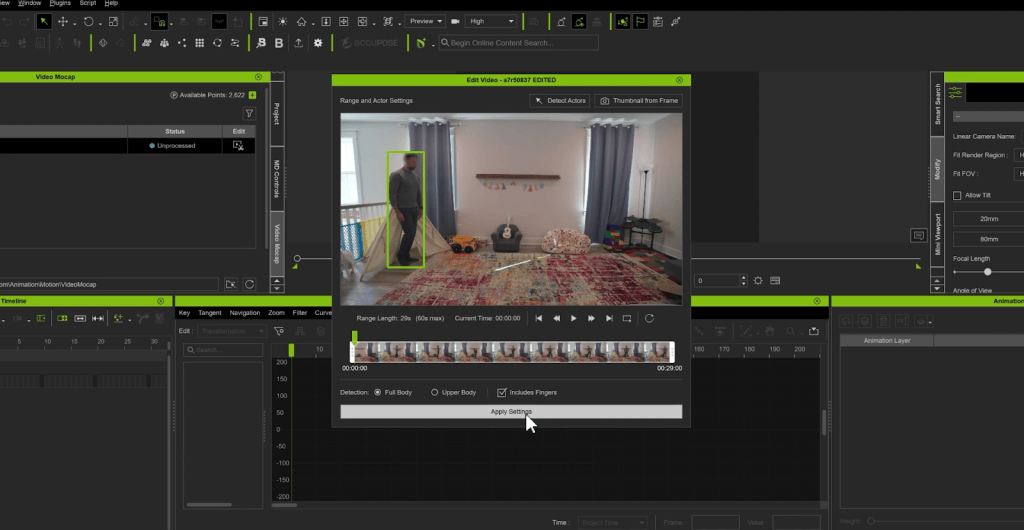
The workflow couldn’t be simpler: drop the video into the Video Mocap window, choose a performer and tracking mode, then click Apply & Generate. iClone returns:
Complex hardware setups become unnecessary — the entire mocap workflow is reduced to a single upload and a few minutes of processing.
How Video Mocap Makes an Immediate Difference
1. Fast Capture on a Tight Schedule
Nick often needs to mocap on the spot, but he has no time for gear setup, addressing sensor drift, or calibrating for accurate capture. With Video Mocap, he can record a quick take and get instantly usable animation, just by acting naturally in everyday clothes. This responsiveness has become an indispensable core of his creative workflow.
2. Ideal for Stylized, Exaggerated Motion
For a stylized short featuring a mime rock band, Nick found that Video Mocap handled exaggerated, expressive motions surprisingly well. Without restrictive gear, he could perform freely, giving the animation a spontaneous and lively feel.
3. For Puppet-On-String Animations
Marionette animation is difficult to replicate with mocap suits, with the subtle pop and slack moments that are hard to capture. Acting out the performance directly in front of a camera gave Nick the exact puppeted style he wanted, and the included reference video made for an easy cleanup process afterwards.
4. Capturing the Vibrancing of TikTok-Style Dancing
Highly energetic TikTok dance motions are tedious to hand-key. Nick recorded these performances and processed them through Video Mocap, instantly applying accurate dance cycles to stylized characters with minimal effort.
5. Beautifully Captures Delicate Choreography
One pleasant surprise was Video Mocap’s ability to capture elegant motion, such as ballet poses and smooth transitions. The resulting animation provided Nick with a strong foundation he could quickly polish inside iClone.
Remote Performance Capture: A Major Advantage
One of Nick’s favorite discoveries was the ability to capture performances remotely. Collaborators anywhere in the world can simply record themselves (even on a phone) and send the video. Nick converts the footage into mocap inside iClone without shipping gear or arranging studio access. For indie workflows, this level of flexibility is transformative.
Best Practices for Optimal Capture
Although iClone Video Mocap is already remarkably precise and easy to use, there are still a few tips that artists should follow to overcome some limitations with the technology:
Occluded limbs or obstructed body parts may not track cleanly.
Sitting, crouching, and lying poses are less reliable.
High-speed athletics and multi-actor interaction are better suited for dedicated mocap systems.
Props should remain visible in the recorded frame.
These limitations are consistent across all video-to-mocap solutions and are manageable with basic planning. Thankfully, iClone features a robust set of built-in motion editing tools to fix or refine anything that needs adjustment.
The Main Takeaway
Video Mocap isn’t a replacement for a fully equipped mocap studio — at least, not yet. Its real strength lies in quickly capturing performances and making mocap accessible and natural for everyday use. It’s an ideal tool for creatives who value convenience and plug-and-play features that can instantly enhance their existing workflows and creative processes.
For Nick Shaheen, it has become one of the most practical tools in his pipeline, transforming simple video clips into production-ready 3D motion. It brings motion capture into the spaces where enthusiasts work their magic. Whether in bedrooms, home offices, or small studios, iClone Video Mocap proves to be a valuable addition to any creative arsenal.
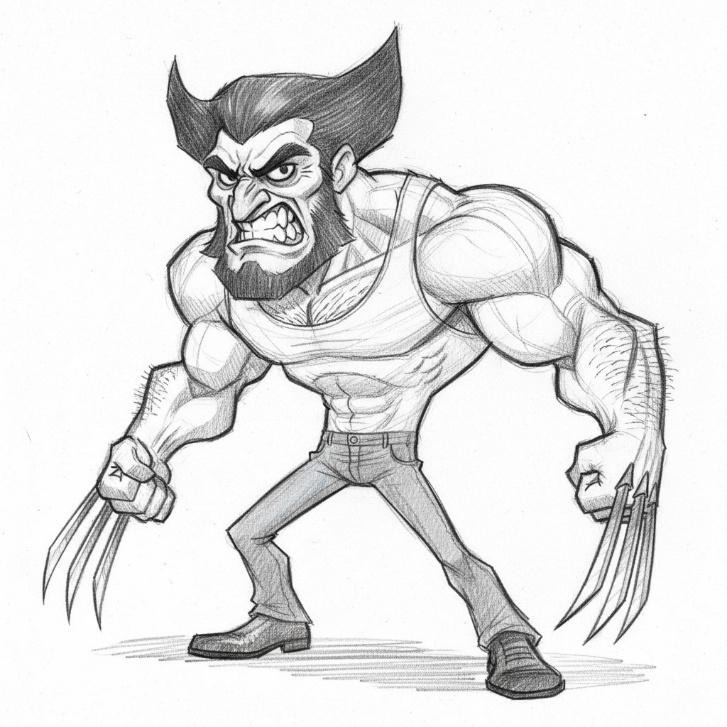
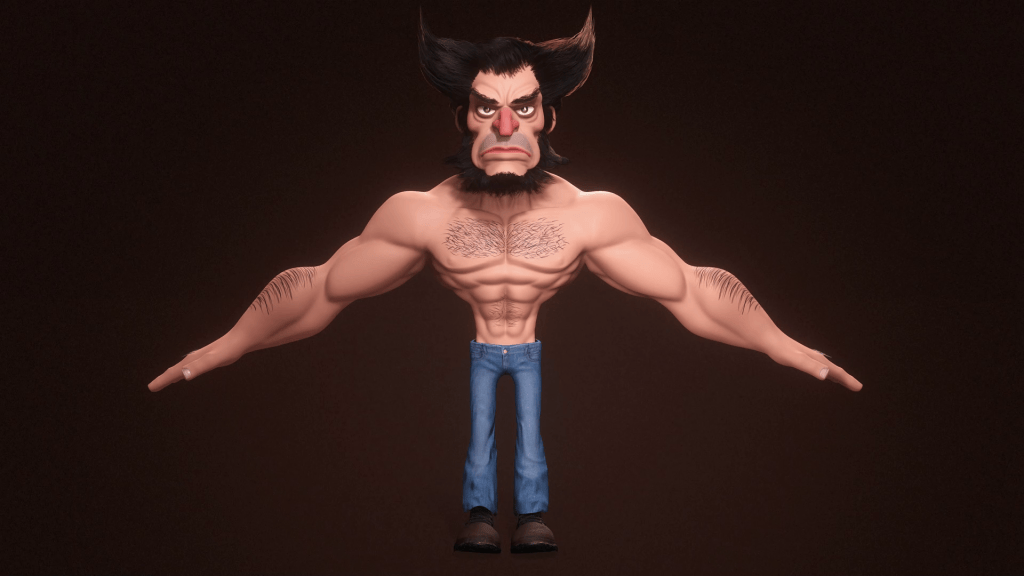
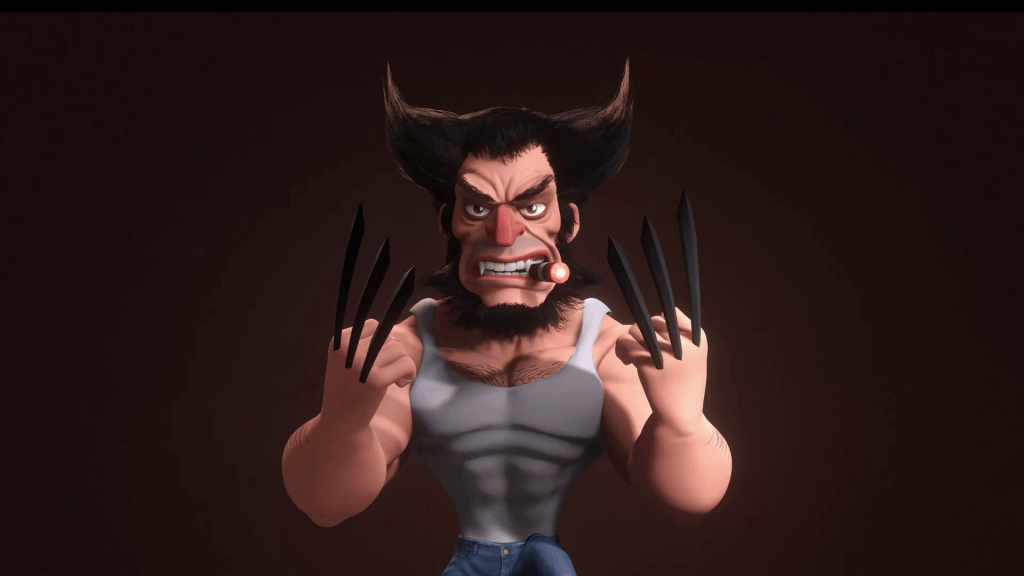
Greetings, my name is Peter Alexander. In this demonstration, I’m going to walk you through how you can leverage Character Creator 5‘s new ActorMIXER as a powerful stepping stone to create unique, stylized characters. We’ll use the CC Base Mesh as our foundation, and ActorMixer will provide the next layer from which to build, making professional character creation that much easier. For this demo, I’ll be creating a stylized version of Wolverine, using the Blender Autosetup pipeline, which is both cost-effective and efficient for creating characters and assets.
The first step is to establish the base form. Think about the character you want to build. Is it a caricature? I’m using a sketch of Wolverine as my guiding reference.
Stylized Proportions: I start by using the standard CC tools to give the character a stylized body-to-head ratio.
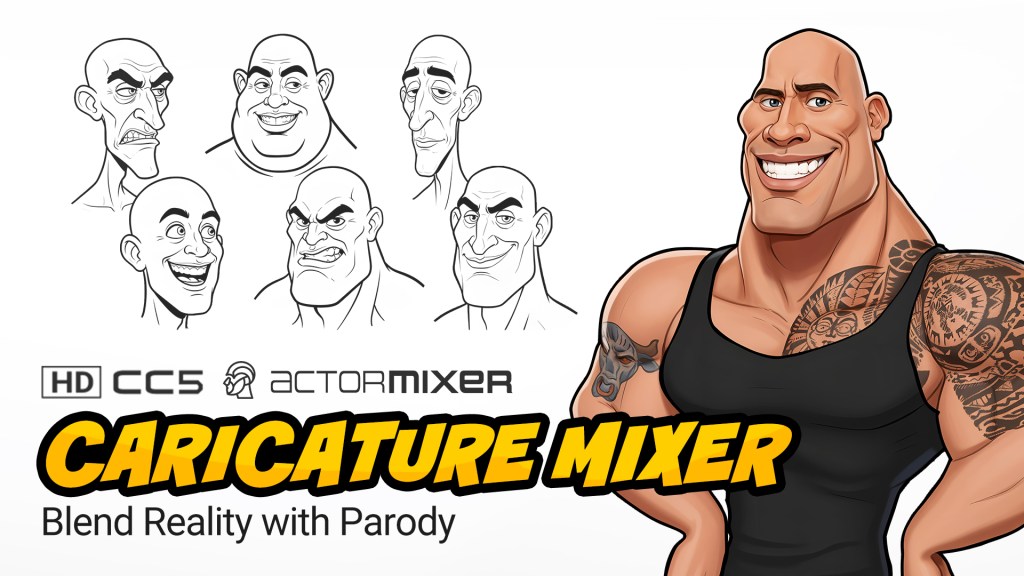
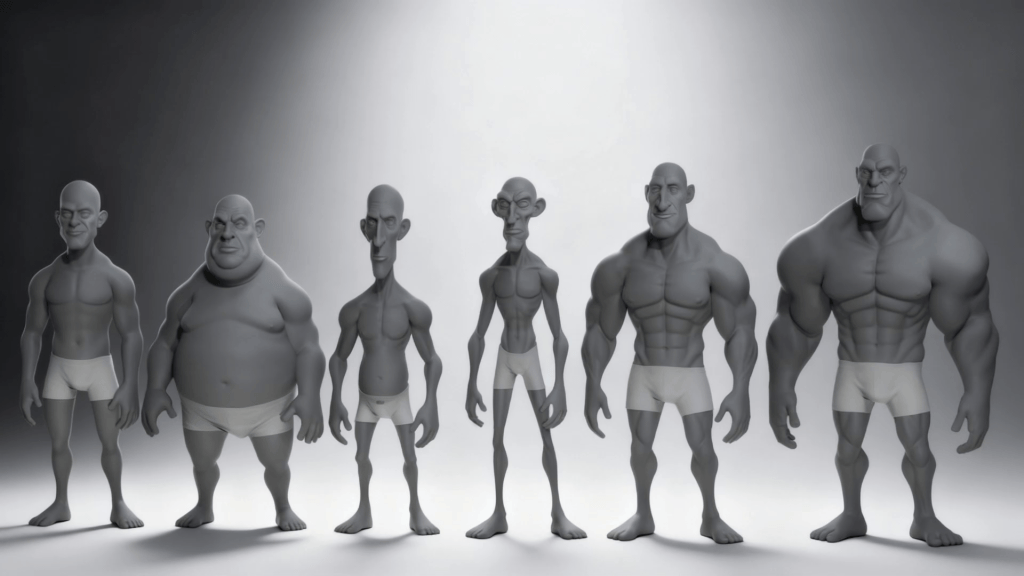
ActorMixer: After subdividing, I head to ActorMixer. The “wheel” I am using is the Caricature MIXER Pack, now available in Content Store. This wheel features a mixture of exaggerated options, providing a fantastic jumping-off point.
Refining the Shape: My goal isn’t to finish the character here, but to get a solid base. I want a decent amount of muscle and a prominent jaw and head shape. Moving between the wheel points allows me to quickly shape the head and features.
Exaggeration: Finally, I jump into the Proportion Editor to add more exaggeration to the torso. You can also achieve this with the morphing tools, which allow you to lengthen, shorten, and adjust various points on the body just by clicking and dragging.
Phase 2: First Pass in Blender (Sculpting & Hair)
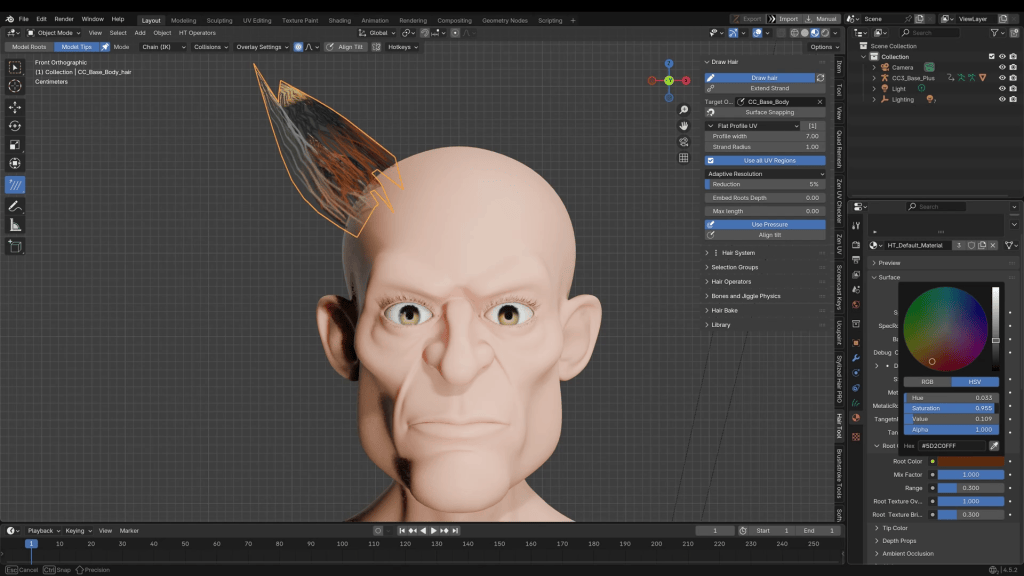
After adding some basic clothing, I send the character to Blender using the Blender Pipeline Menu (found in the Plugins category after installation). Once loaded in Blender, I begin creating his signature hair.
Hair Creation: I highly recommend using the Hair Tool add-on (or a similar dedicated tool) if you aren’t familiar with Blender’s native hair system. These add-ons are relatively inexpensive and make the process much easier. This tool allows me to draw out hair strands simply by holding ‘D’ and drawing lines.
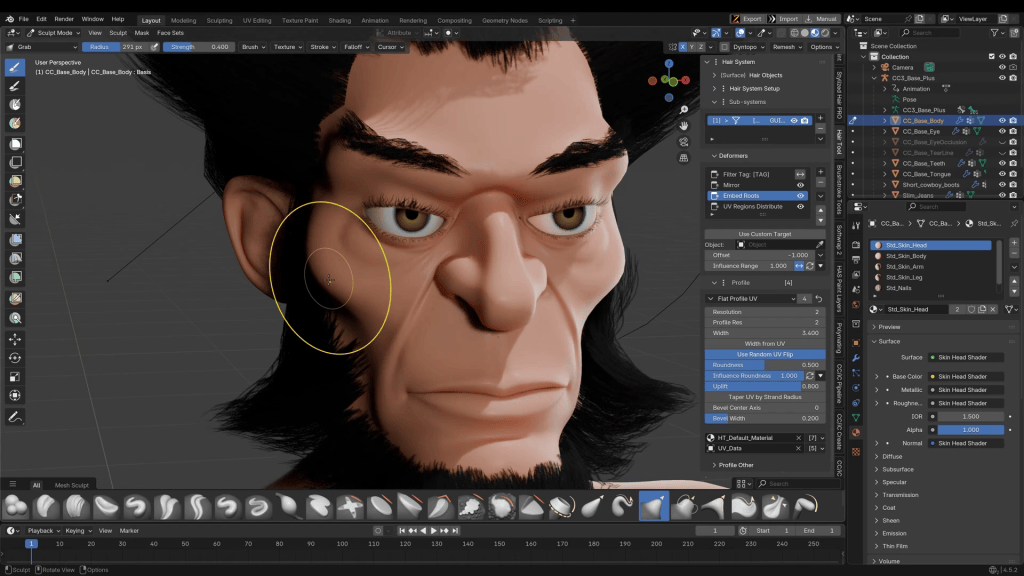
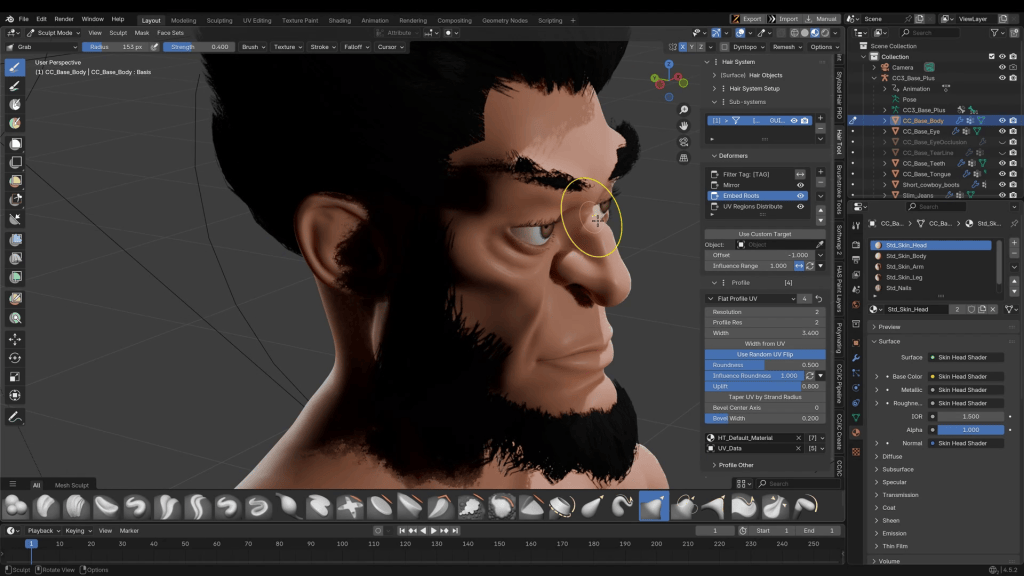
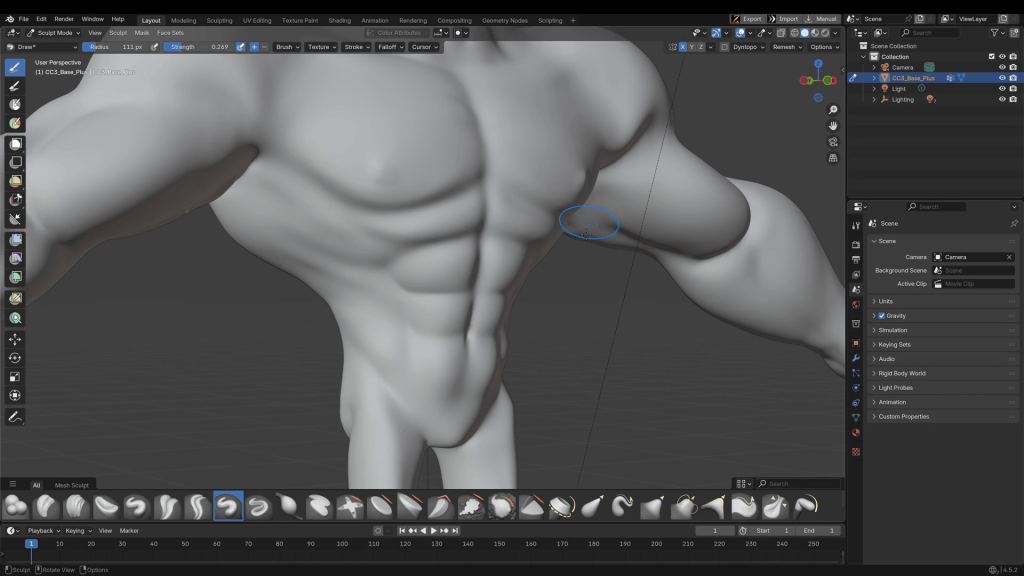
Initial Sculpting: After getting the hair in place, I enter Sculpting Mode to make adjustments to the face, mostly using the Grab brush. I find that adding detail to the face is easier after other features, like hair, are already present.
After some adjustments, light texturing around the face, and adding chest hair for that classic rugged look, I move on to his clothing.
Phase 3: Asset Creation and Texturing
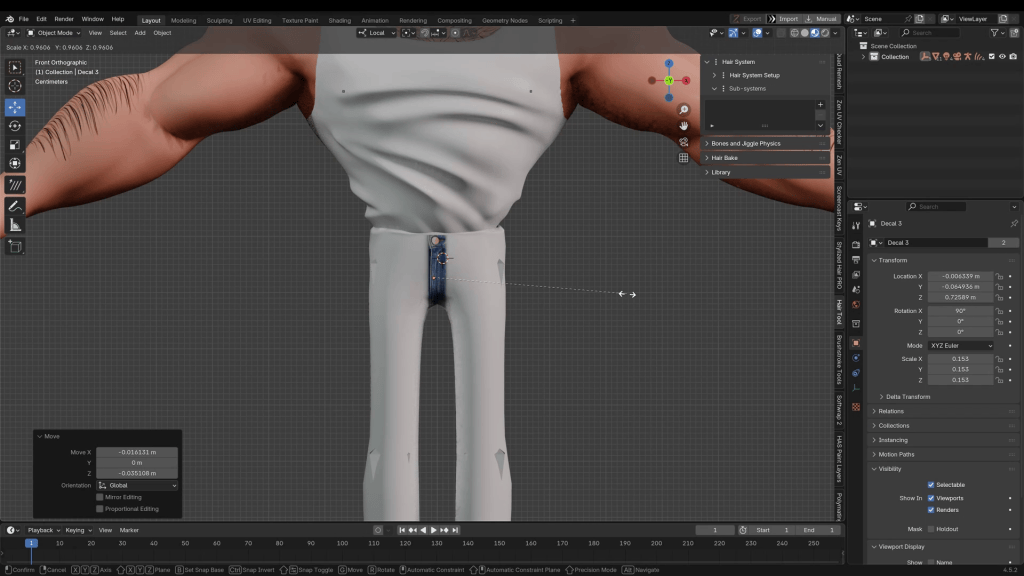
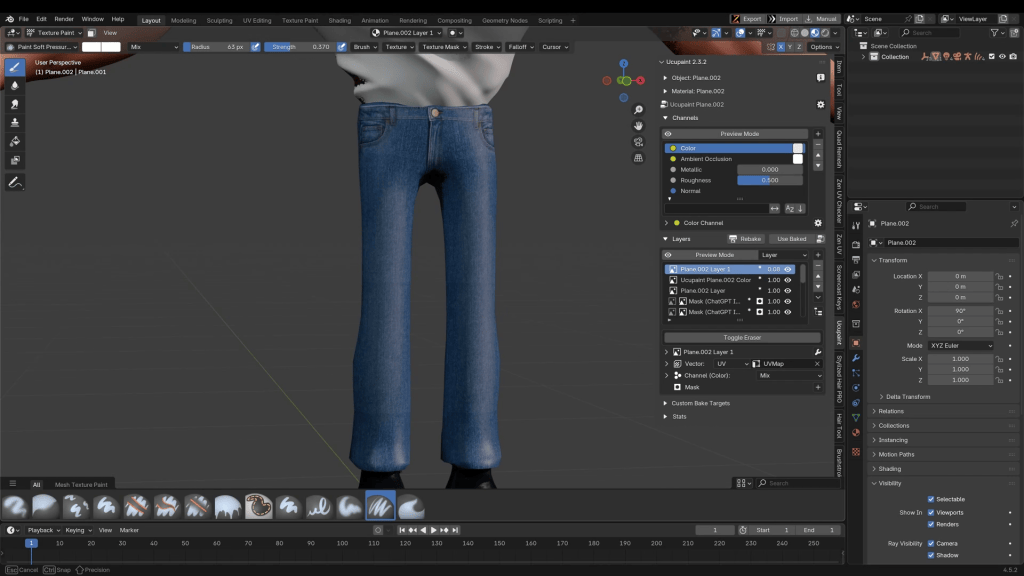
I’ll create the shirt and pants directly in Blender. While CC5 has presets, this method offers full control.
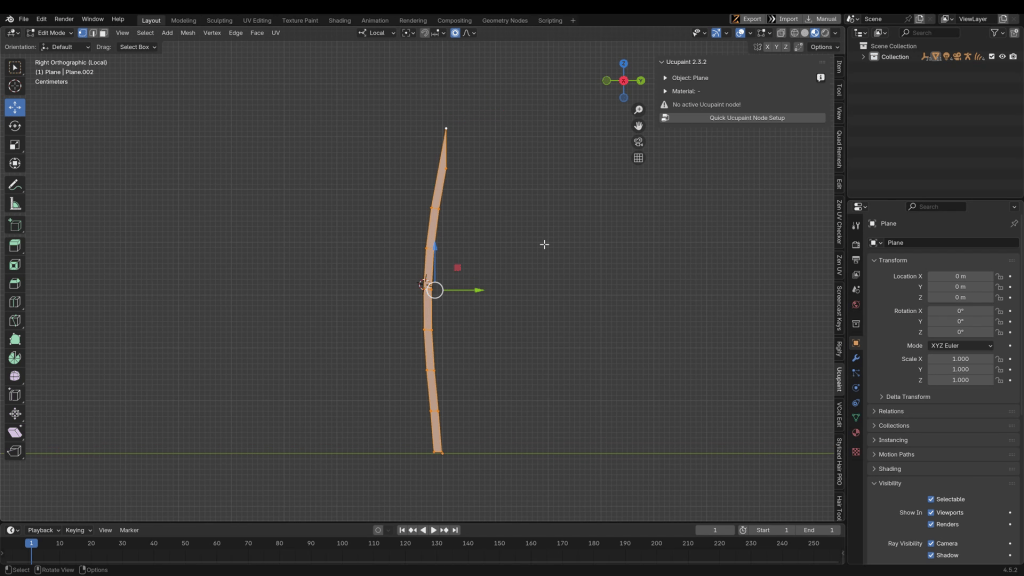
Modeling: Everything in 3D can be built from a single vertex or primitive. I start with a simple plane and begin extracting edges. Once I have enough geometry, I shape it around the character.
Pro Tip: You should not create double-sided cloth geometry. Instead, either cap off the holes or extrude the edges to create the illusion of thickness.
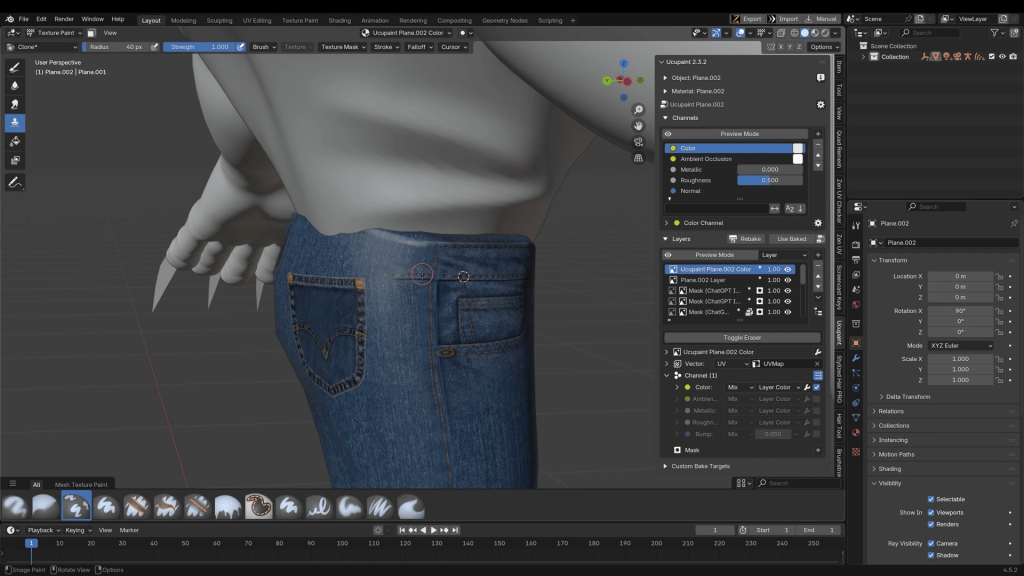
Texturing: To add texture details, I use a free add-on called UCUPaint. By importing images (like a belt buckle or fabric texture) and setting the Projection Coordinates to Decal, you can strategically place textures exactly where you want them on the mesh.
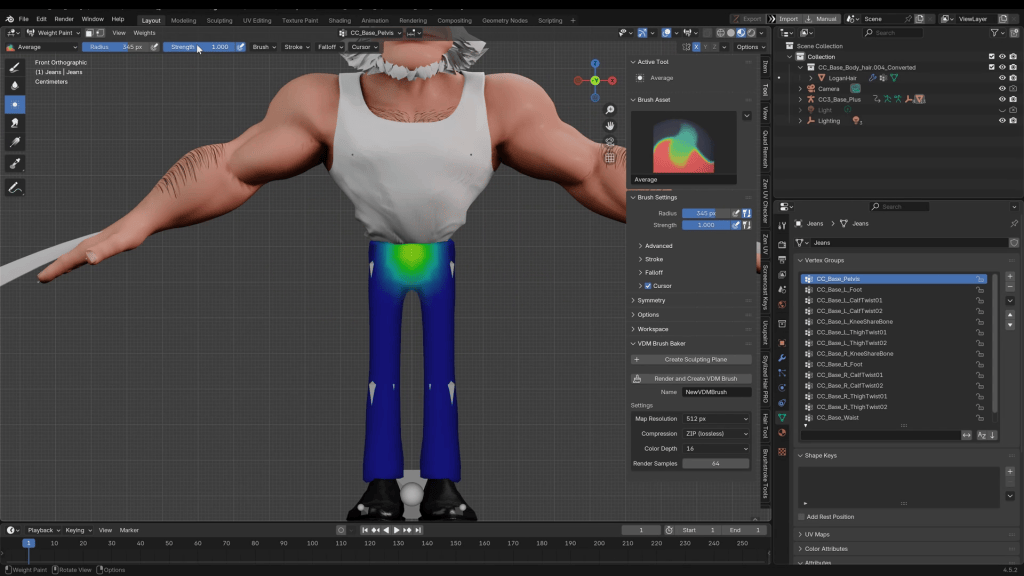
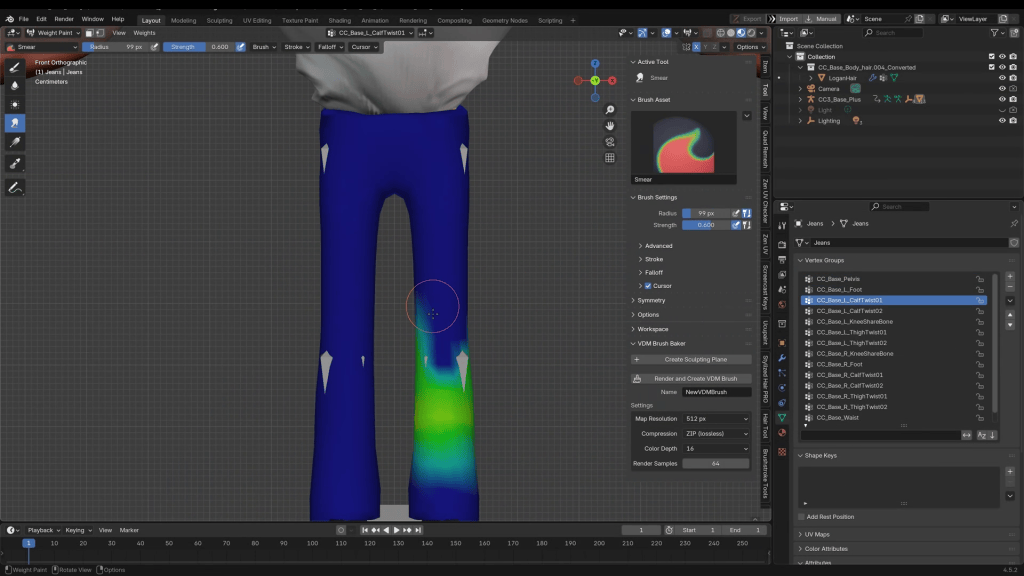
Rigging: Once your assets are created, you can rig them by selecting the asset, then the armature, and pressing Ctrl + P to parent the clothing. If you’re not familiar with this process in Blender, an alternative is to export the clothing as an FBX, import it into Character Creator, and use the Transfer Weights function. Both are viable solutions.
Phase 4: Round-Trip for Expressions & High-Res Detail
With the assets complete, I send the character back to CC5 using the Go CC button.
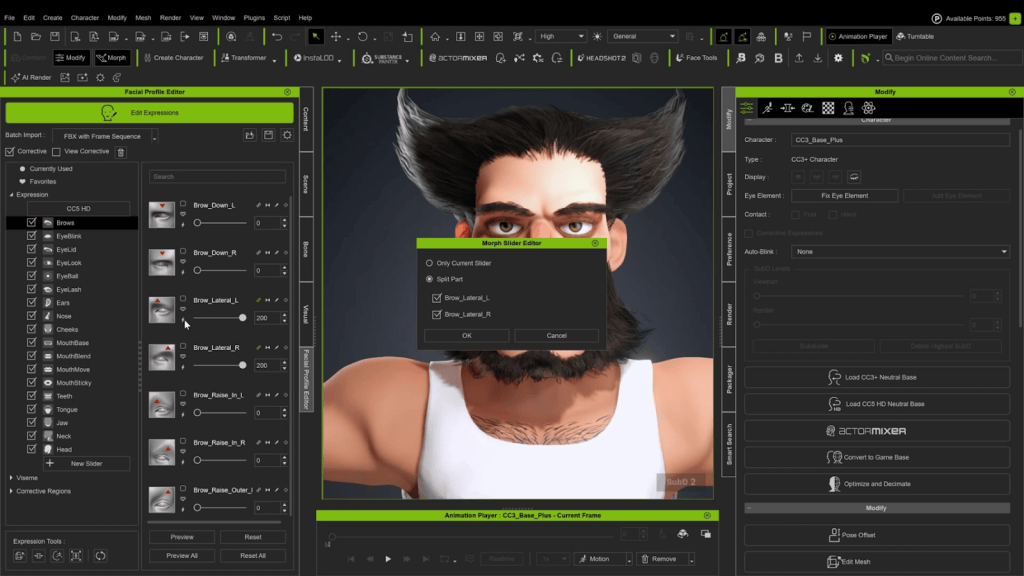
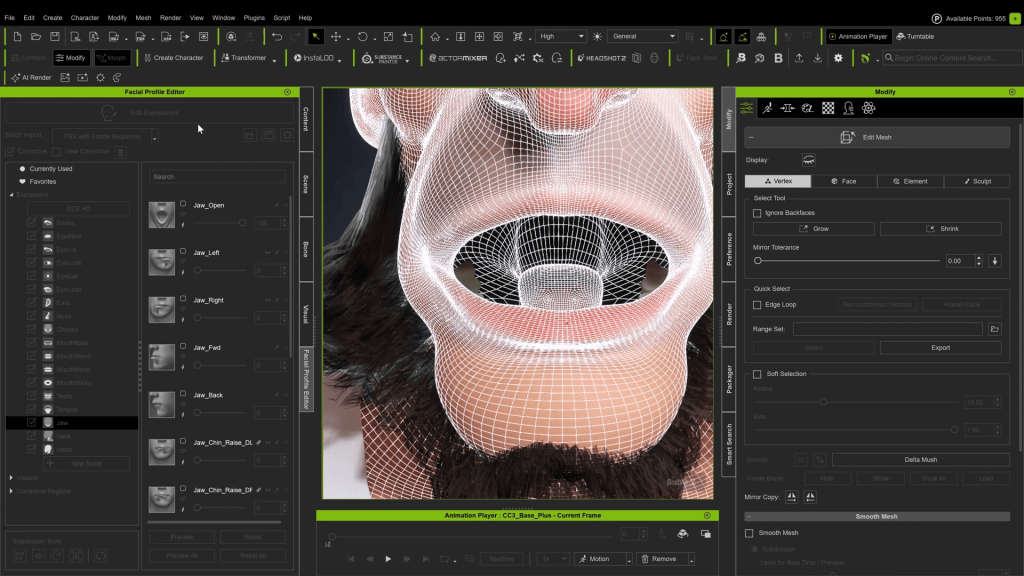
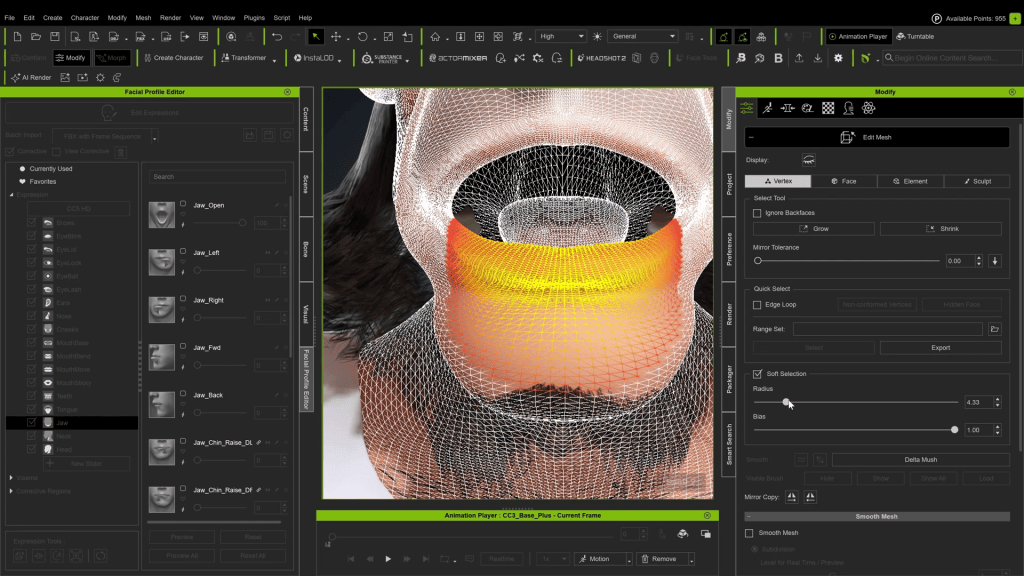
Facial Expressions: I’m ready to adjust his expressions in the Facial Profile Editor. For an exaggerated character, you can use Mesh Edit with Soft Selection to make adjustments. You can also dial an expression slider past 100 and bake it for a more extreme result.
Troubleshooting: I notice the tongue is too small for his mouth, so I exit the editor to scale it up.
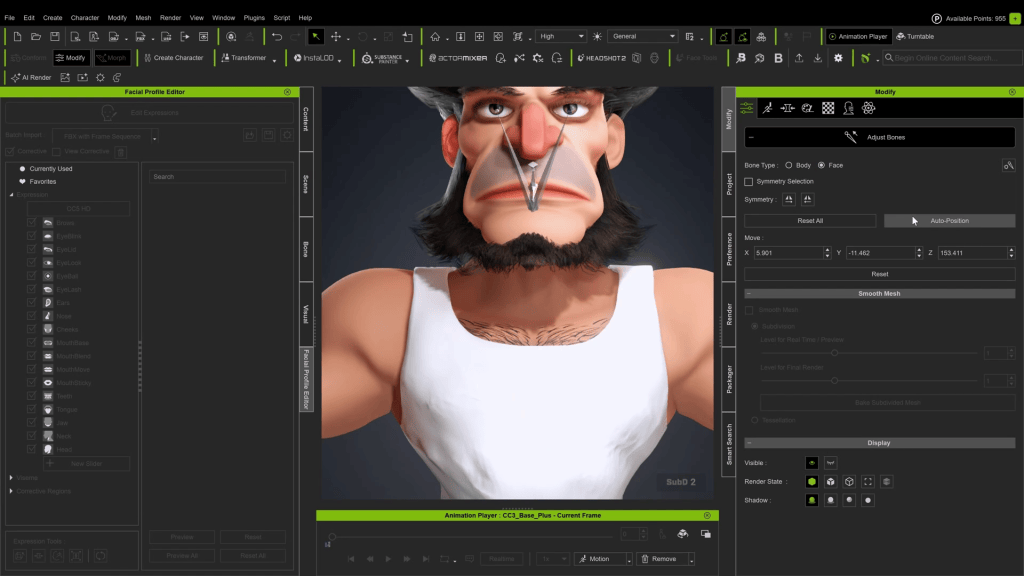
Important: After making a significant mesh change like this, you should always run Auto-Position bones in the Adjust Bones menu.
Polishing Expressions: Back in the Facial Profile Editor, I go down the list looking for issues like teeth poking through the mesh, and I use the sculpting tools to fix them.
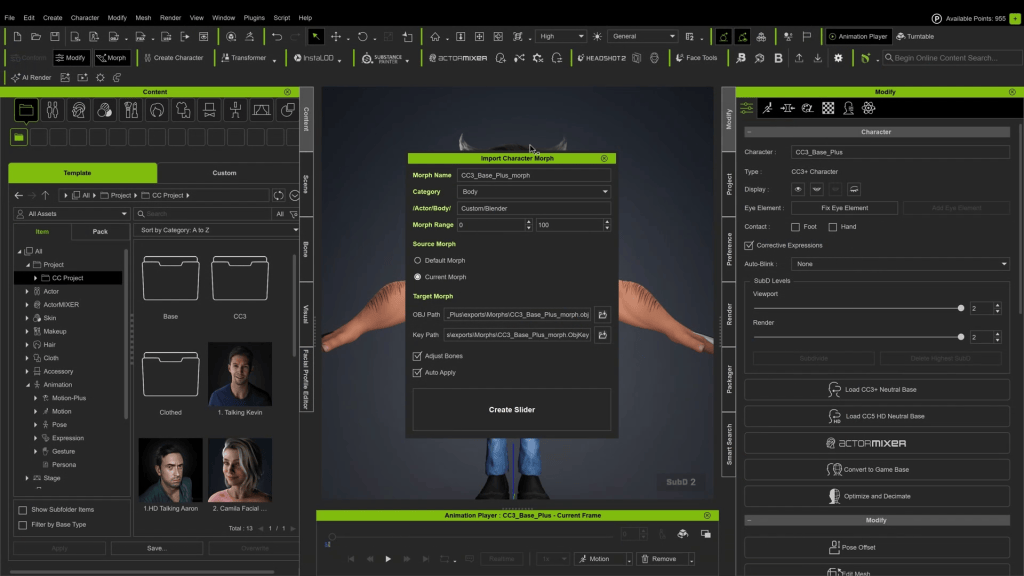
Now, for a final detail pass, I’ll send the character back to Blender one more time. This time, I use the Go Blender Morph feature, exporting at Subdivision Level 2. This provides a dense mesh with enough resolution to sculpt fine details like muscle striations directly into the model.
When complete, the pipeline sends these changes back to Character Creator not as a new base mesh, but as a morph slider. This is a powerful, non-destructive workflow that lets me dial in the high-frequency detail precisely within the CC interface.
Phase 5: The Finishing Touch – Retractable Claws
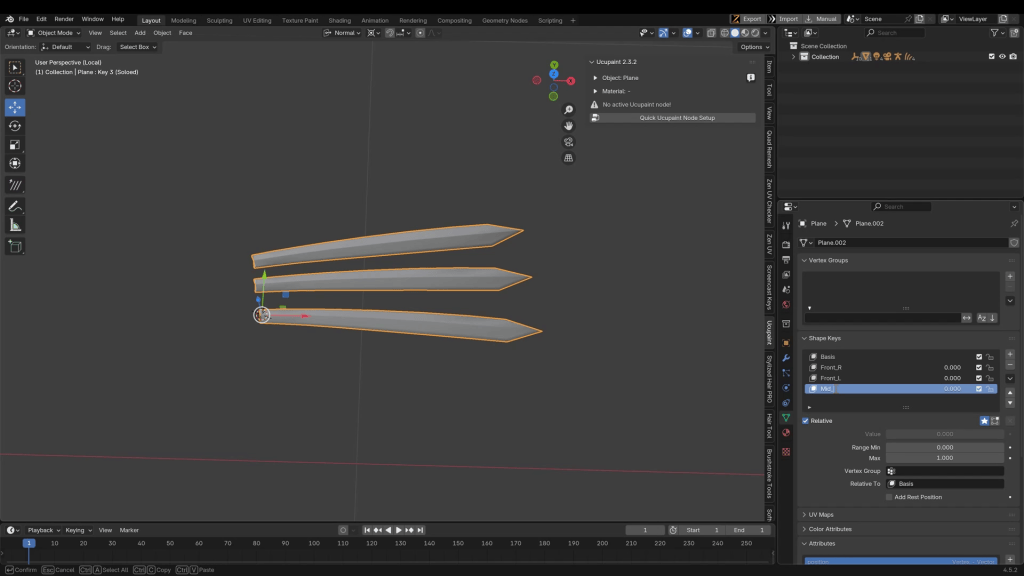
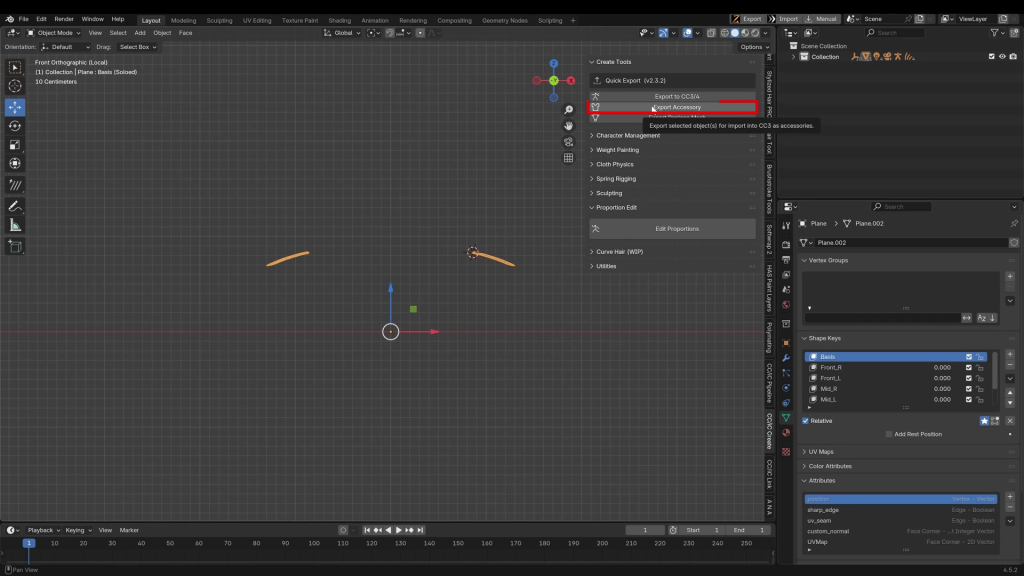
Finally, I’m going to create the claws and make them retractable using Shapekeys in Blender.
Create one claw in Blender and duplicate it.
Animate the retraction by scaling the claw.
Set the transform reference point by using an aligned cursor position and selecting ‘Normal’ as the transform direction.
Turn on Proportional Editing and set it to affect only the selected mesh.
Name the Shapekeys according to each claw’s position (e.g., L_Claw_1, L_Claw_2, etc.).
Export the final claw set as an FBX.
After importing, you can transfer the skin weights. You will also need to manually weight each individual claw at 1.0 (100%) intensity to its respective hand bone. Otherwise, the claws will deform incorrectly with the fingers.
This hybrid approach truly opens up a new world of possibilities, blending the speed and powerful rigging systems of Character Creator with the deep modeling and sculpting freedom of Blender. The result is a fully-featured, animation-ready character, complete with custom assets and expressions, all built with an efficient and flexible pipeline.