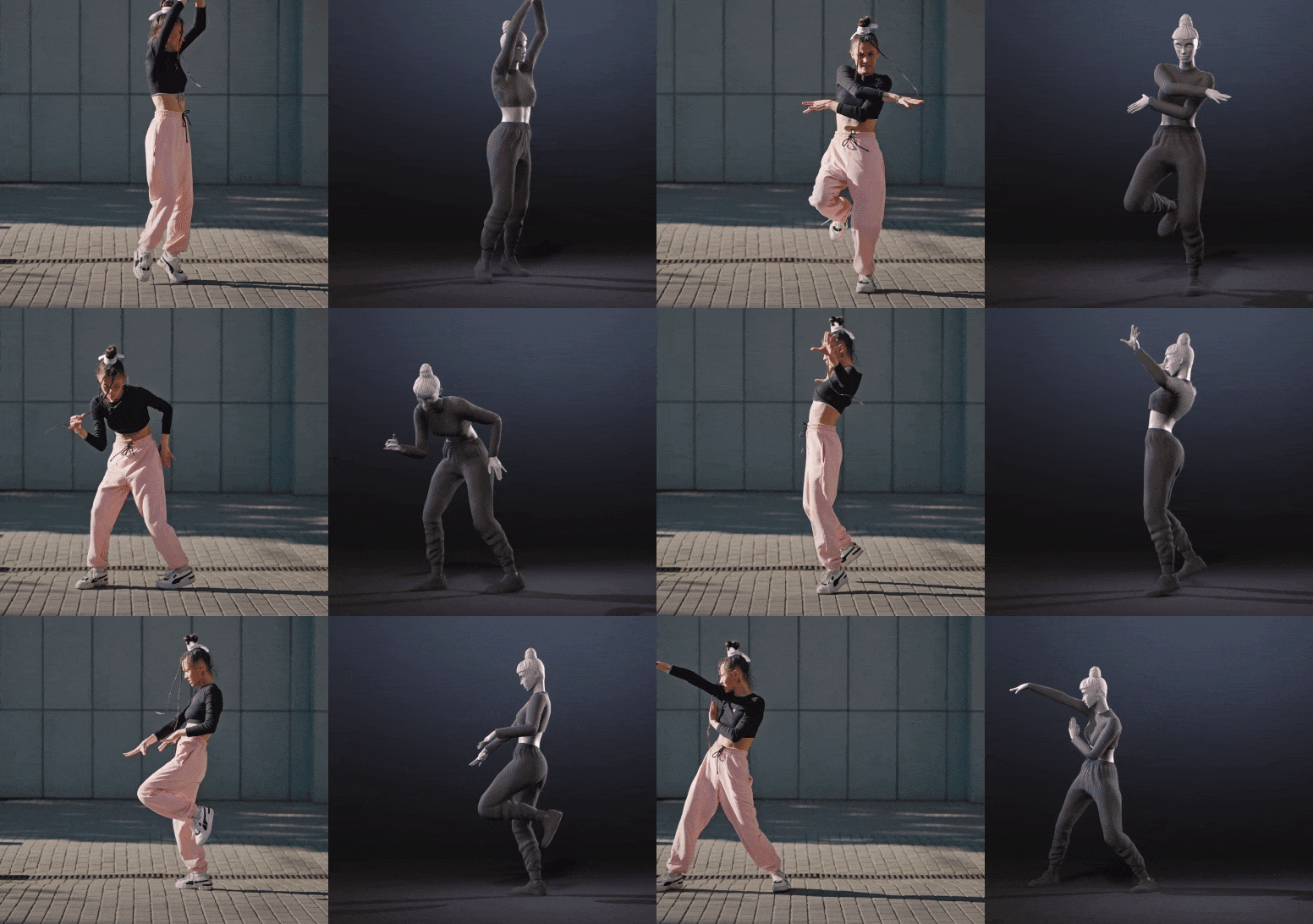
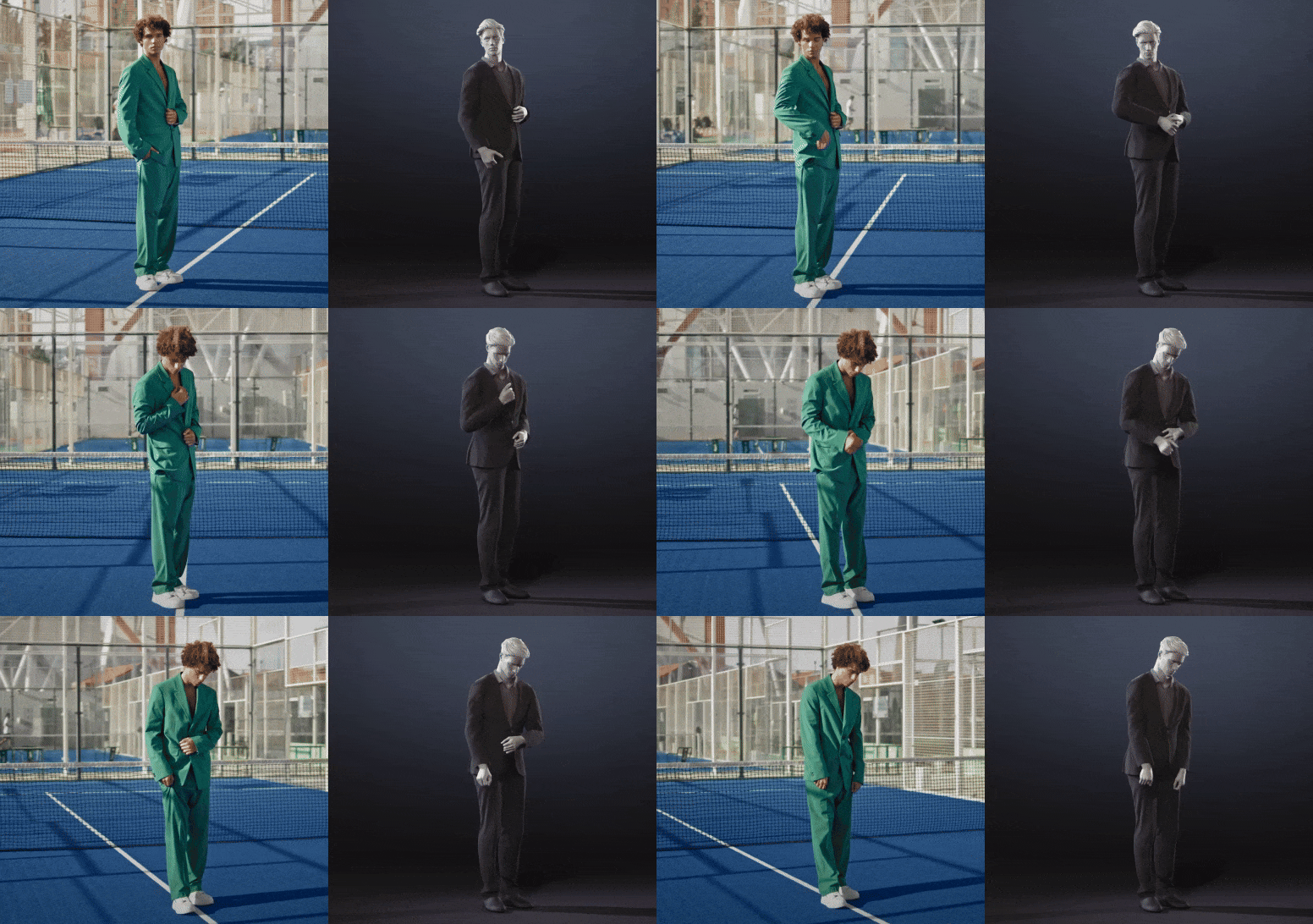
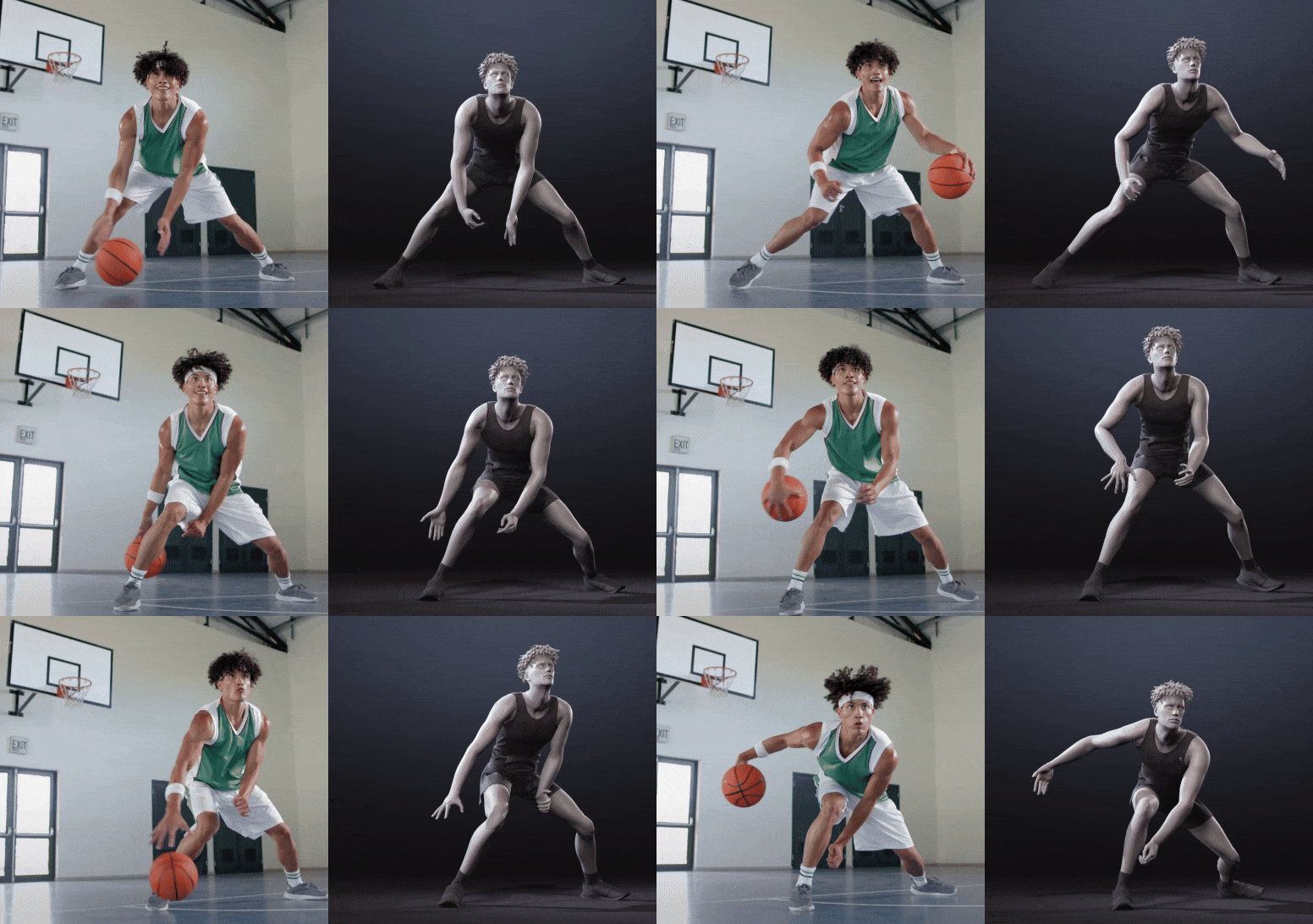
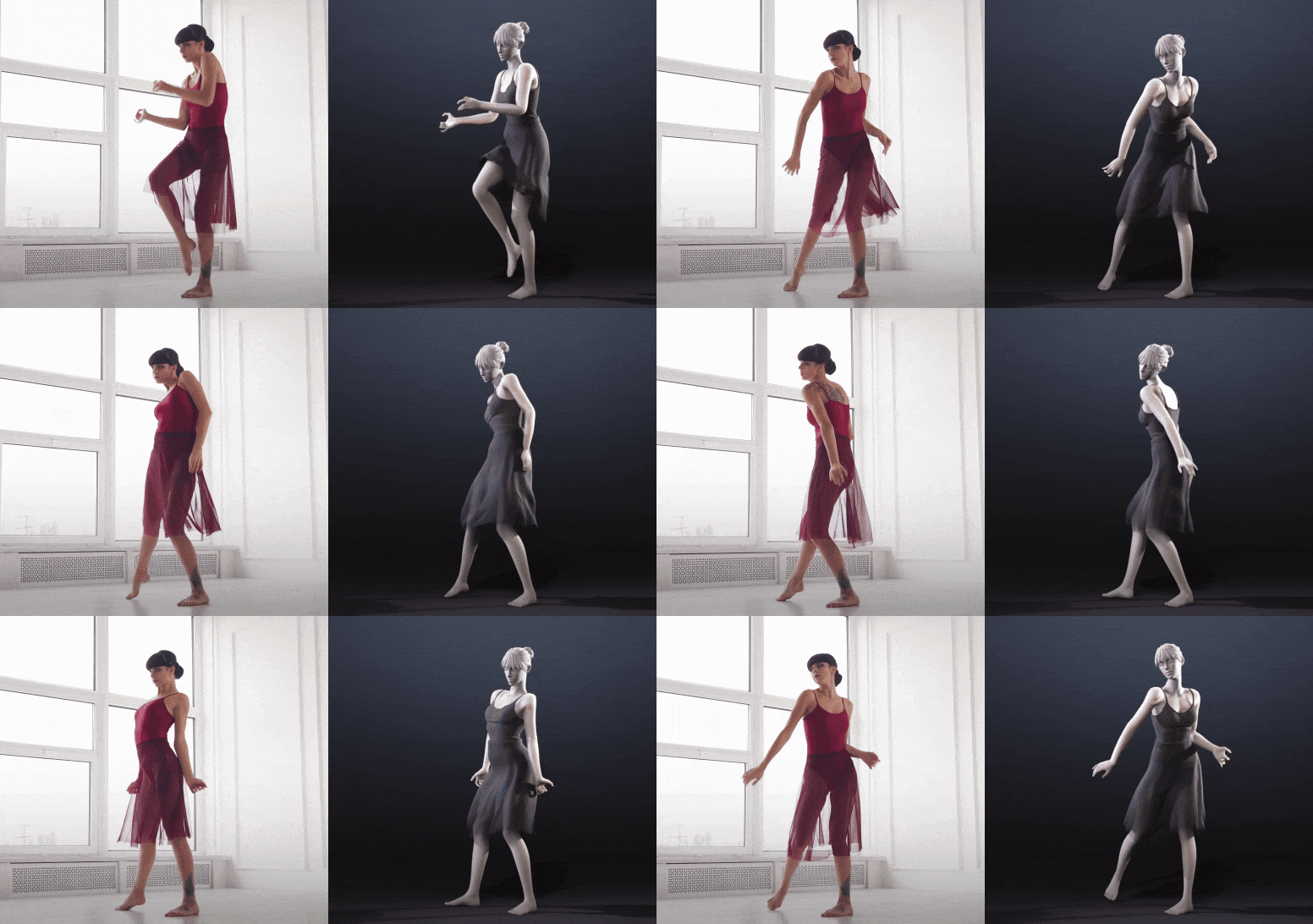
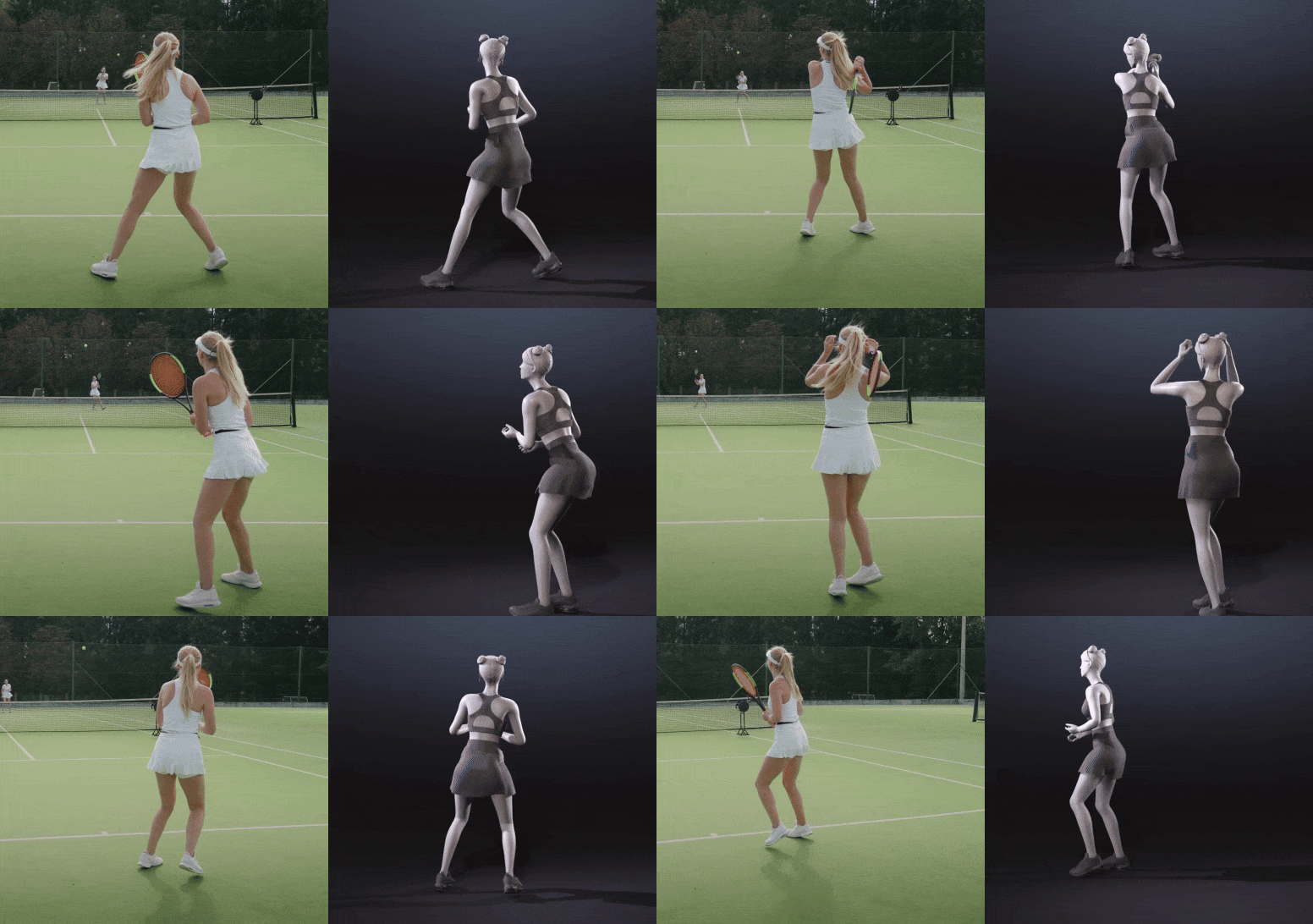
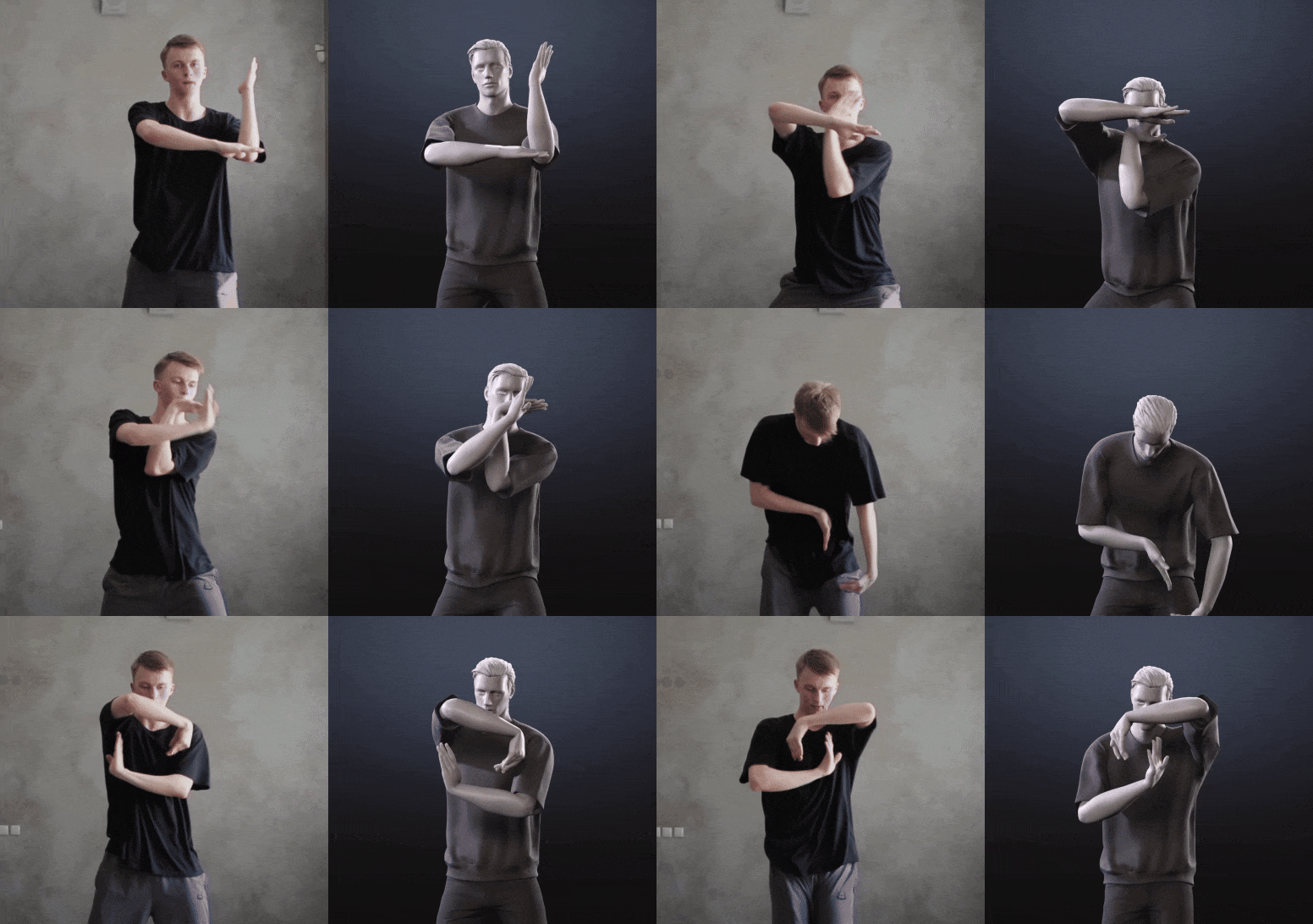
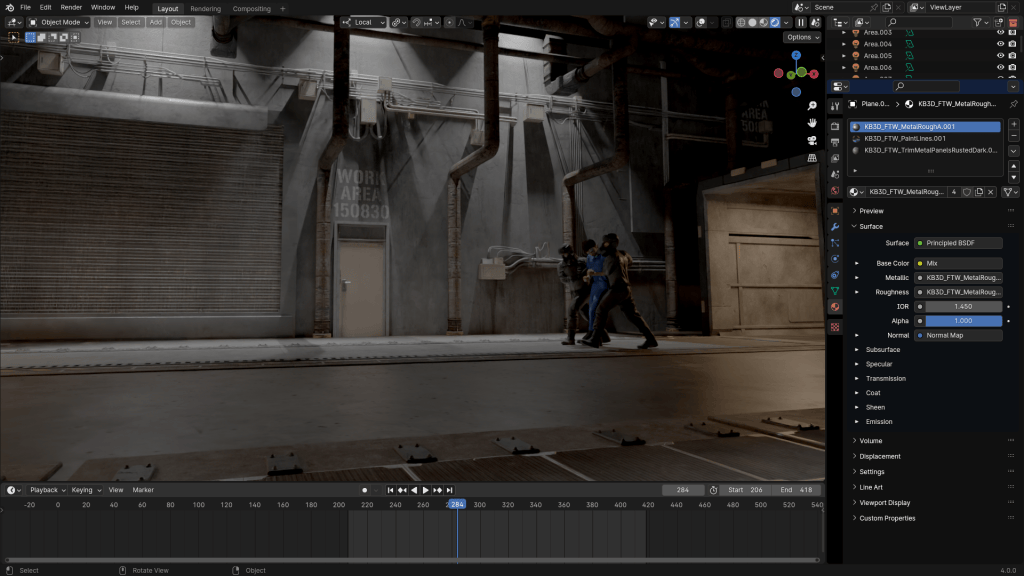
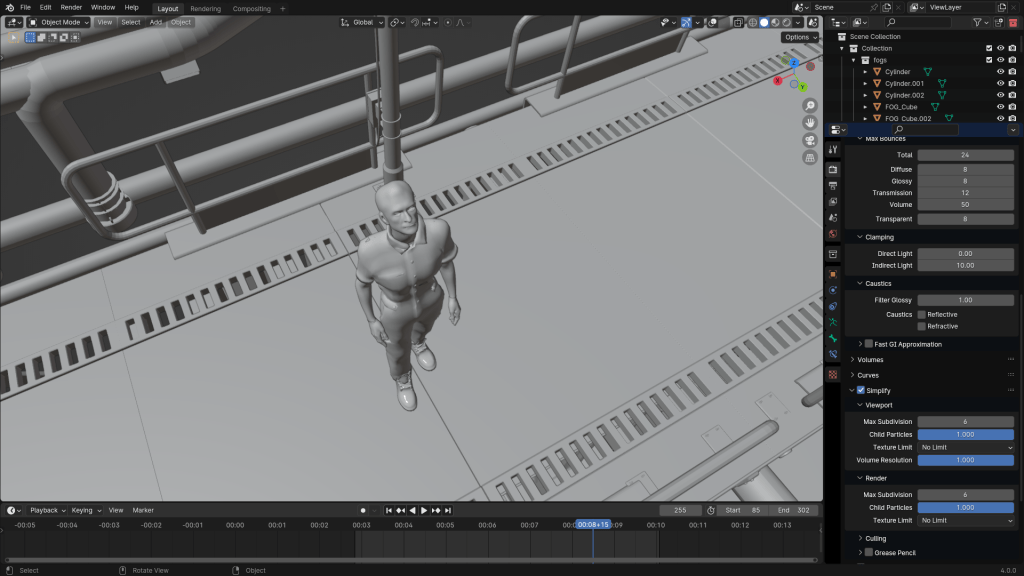
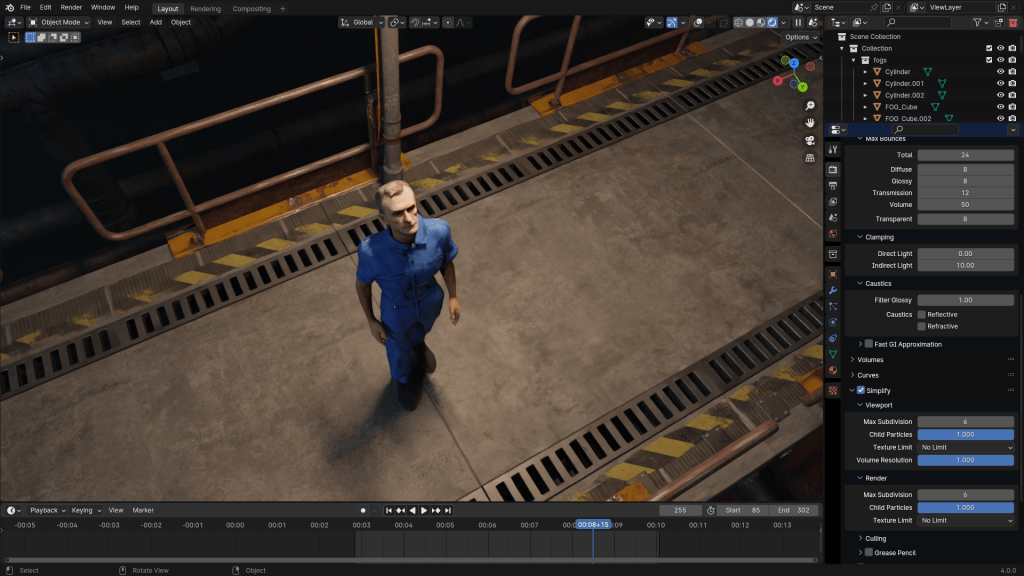
Reallusion introduces iClone Video Mocap, an AI motion capture service that turns ordinary videos into precise, editable 3D motions, right inside iClone. This new solution streamlines motion creation for filmmakers, game developers, and creators seeking natural, production-ready animation without the need for mocap hardware or costly subscriptions.
Precise AI Mocap from Any Video
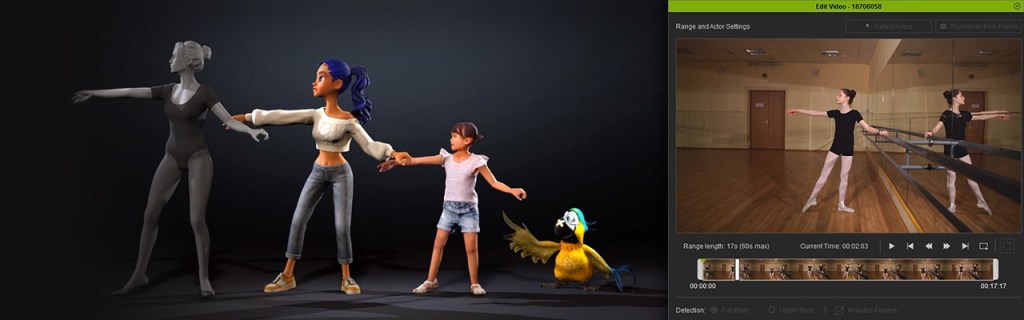
By partnering with QuickMagic, Reallusion brings one of the most accurate and widely adopted AI mocap solutions on the market. With iClone Video Mocap, creators can instantly convert any video — whether it’s a YouTube clip, a movie scene, or even a quick phone recording — into precise, editable 3D motion data that is ready to apply to any 3D character. This is all made possible with Quickmagic’s advanced AI engine, which analyzes 2D footage, reconstructs 3D motion to deliver stable, lifelike animations.
Recreate Group Actions to Talking Scenes
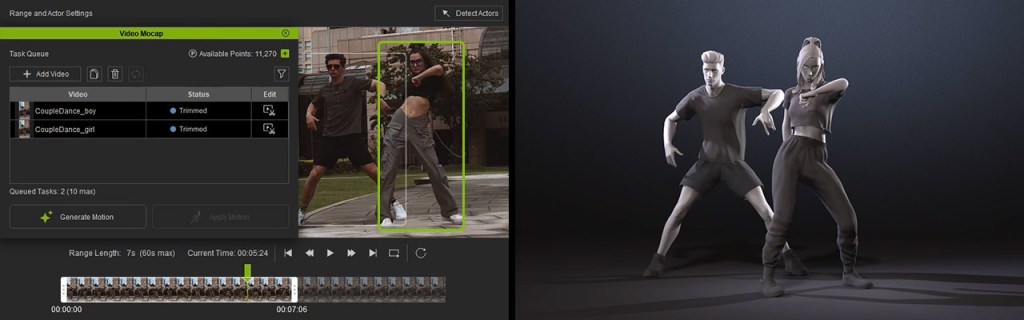
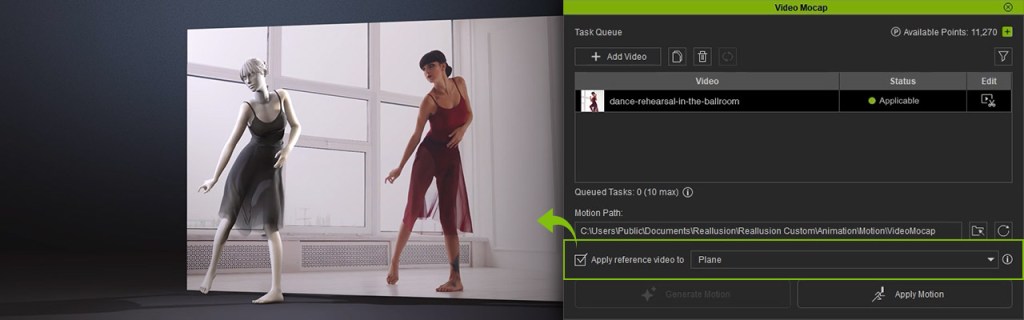
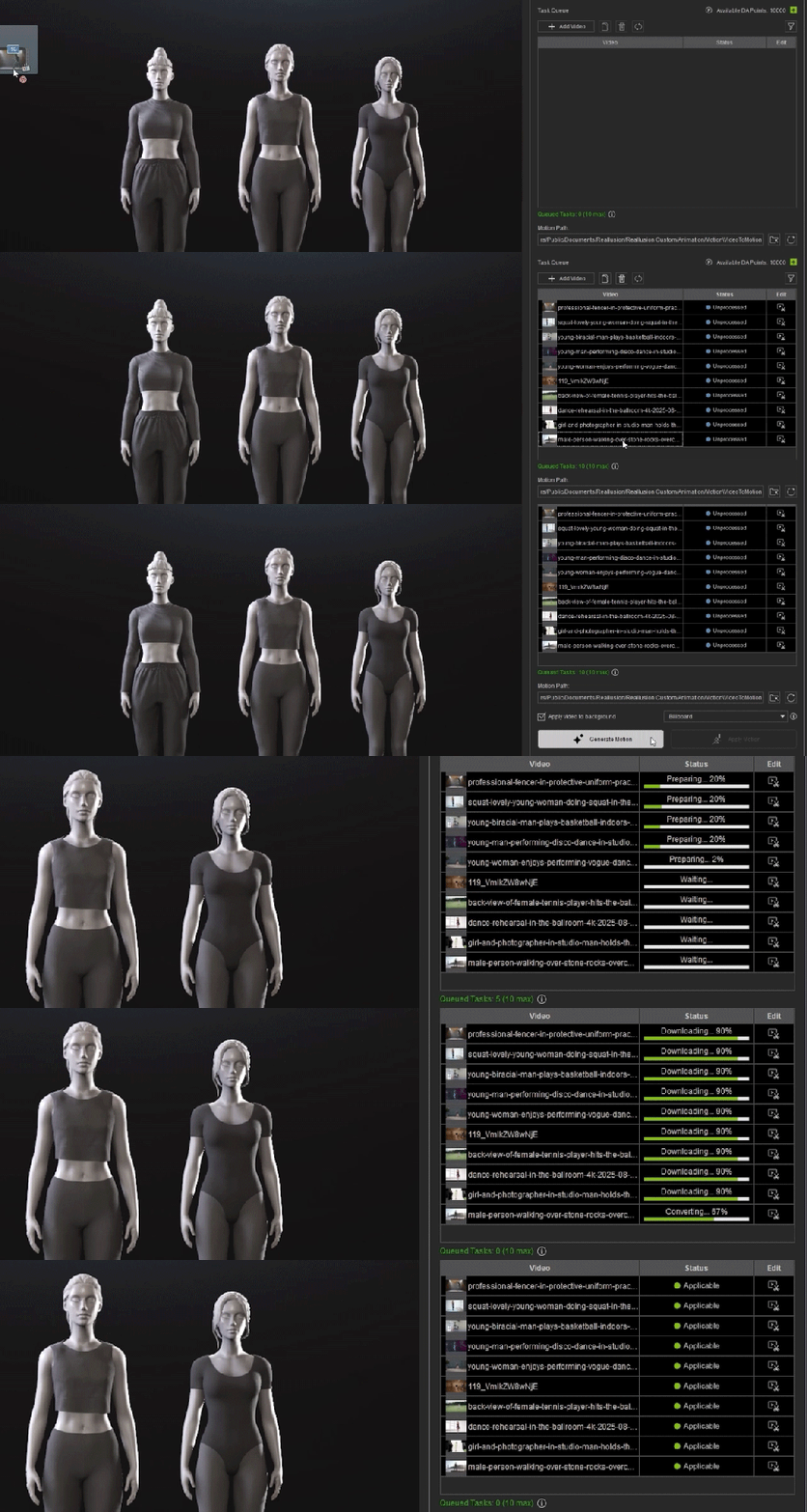
From high-energy choreography to intimate conversations, iClone Video Mocap gives users precise control over every capture. Visually trim clips and define the detection range to match the performance you need. For multi-actor footage, simply duplicate the task for each performer and separate the detections to ensure clean, accurate motion for every single character.
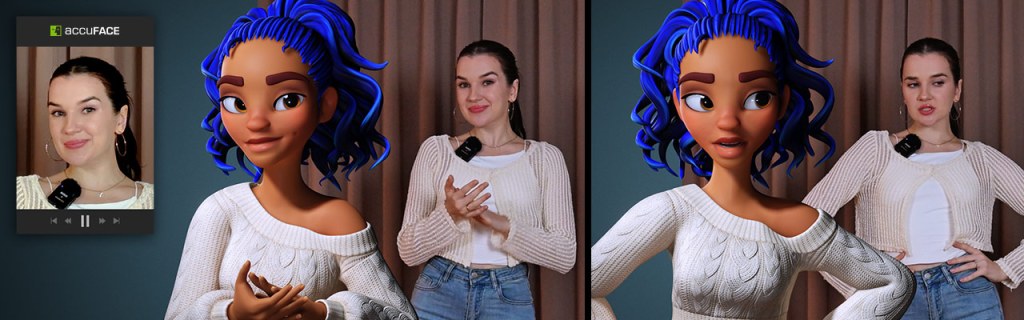
The system adapts to a variety of performance, from full-body movement to upper-body gestures with detailed finger tracking. Paired with iClone’s AccuFACE and LIVE FACE, it transforms any talking clip into a fully synchronized facial-and-body performance with lifelike realism.
Motion Editing Adds Core Support
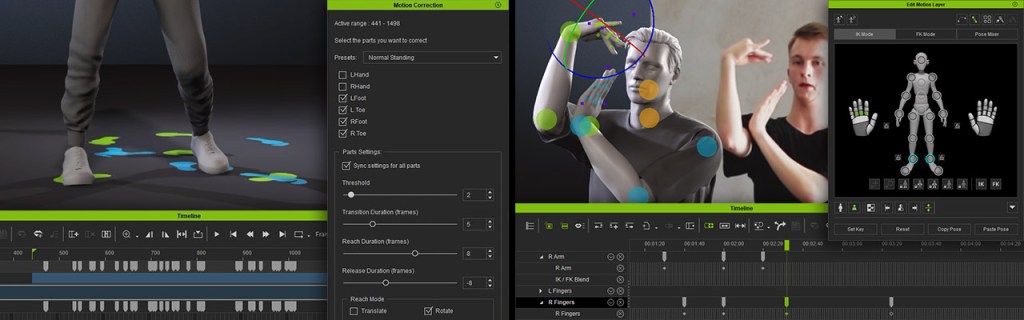
While AI mocap can capture realistic movement, it also introduces common issues like foot sliding, depth misalignment, or unnatural twists. Most tools require exporting the data to another 3D editor for cleanup, adding extra steps to the process. With iClone Video Mocap, all fixes can be done directly inside iClone. Animators can correct motion offsets, smooth out jitters, and fine-tune details right in the timeline using tools like Foot Contact, Auto Motion Alignment, Curve Editor, and Reach Target.
Once a motion is generated, the reference video automatically loads in the viewport as a 2D background, letting you compare their animation with the original footage in real time.
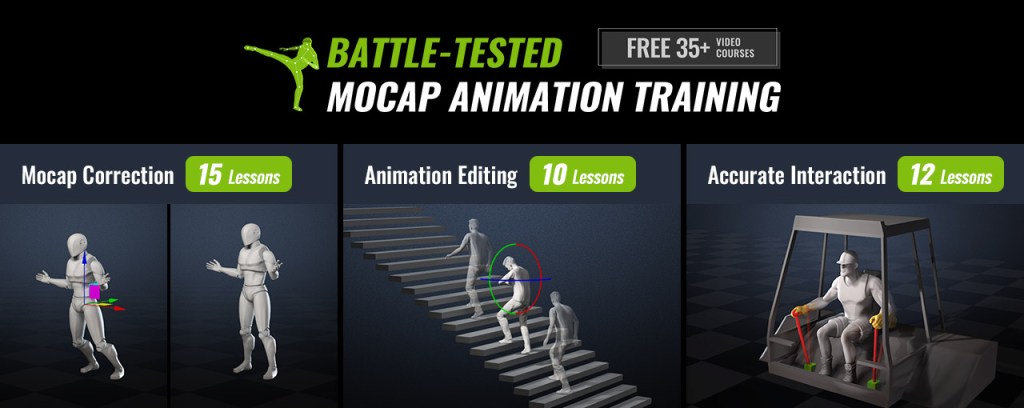
Reallusion also providesover 35professional mocap tutorials, helping users quickly master motion refinement and achieve production-quality results — all without leaving iClone.
Custom Motion for Any Character
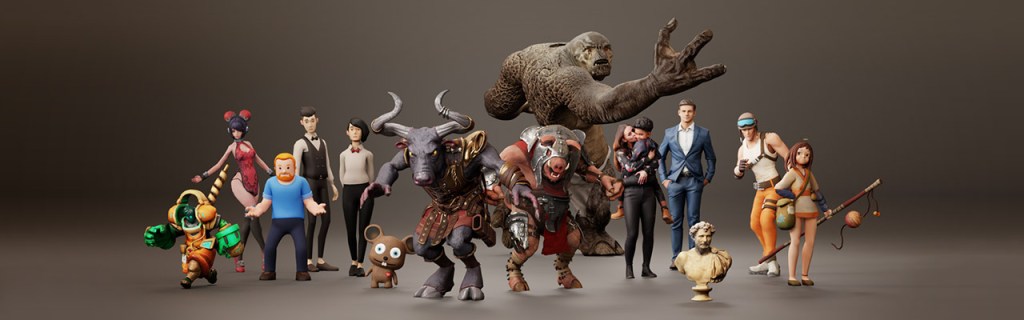
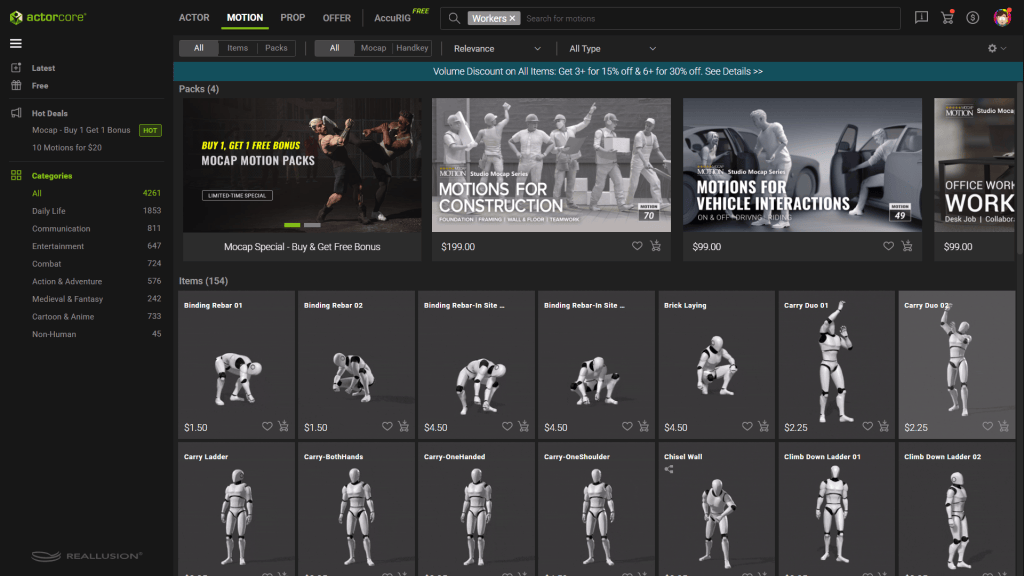
iClone Video Mocap expands the creative reach of Reallusion’s character ecosystem. For AccuRIG, it offers a quick way to animate freshly rigged characters with personalized motions. For ActorCore users, it’s the perfect add-on, enabling unique performances that complement existing motion packs.
With Auto Retargeting, generated motions can be instantly adapted to characters of different body types with precise fitting, ensuring consistency and accuracy across diverse models.
Production-Level Mocap for Everyone
iClone Video Mocap is built to fit the needs of both indie creators and professional studios, offering a flexible, cost-efficient, and production-level approach to motion capture. For indie creators, it removes the need for expensive mocap suits or studio rentals — just record with your phone and start animating right away. For production houses, it supports a hybrid workflow for quick shots or background actions while reserving traditional mocap for large, complex scenes. The precise motion data makes it easy to integrate with existing pipelines, boosting efficiency without sacrificing quality. From solo artists to full teams, iClone Video Mocap adapts to any workflow with ease.
Pay-Per-Use for Maximum Flexibility
Unlike most AI mocap services that lock users into monthly subscriptions, iClone Video Mocap adopts a pay-per-use model. This gives creators full control over their costs. Spend just 250 DA Points (~$2.50) per motion generation, with no ongoing fees or usage limits.
Each upload can be up to 60 seconds long, and you can process up to 10 videos simultaneously, making it a fast, scalable solution for both individual artists and production teams. This on-demand model is both affordable and flexible.
iClone Video Mocap marks a new chapter in Reallusion’s AI production ecosystem that combines intuitive AI automation with iClone’s precision motion tools. Creators can now generate, refine, and apply realistic motion entirely within one platform, redefining how animation is made.
Up to 100 free AI mocap generations — Limited-Time Video Mocap Access. Learn more
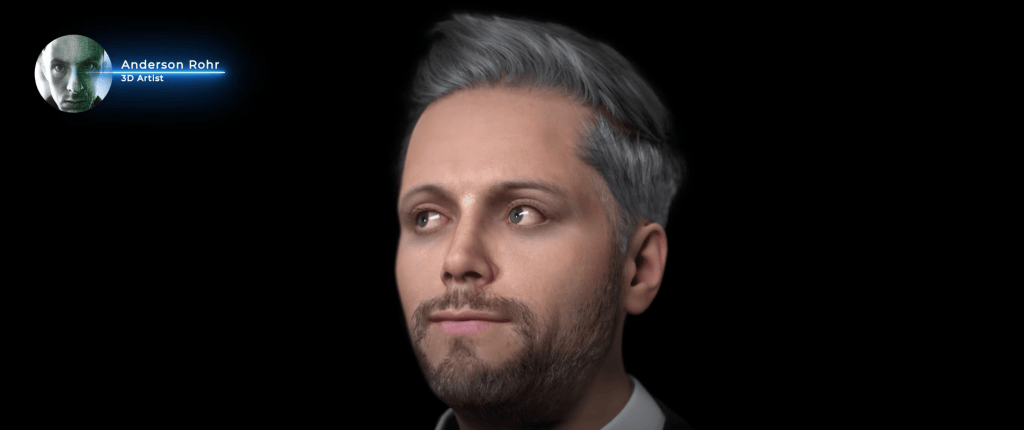
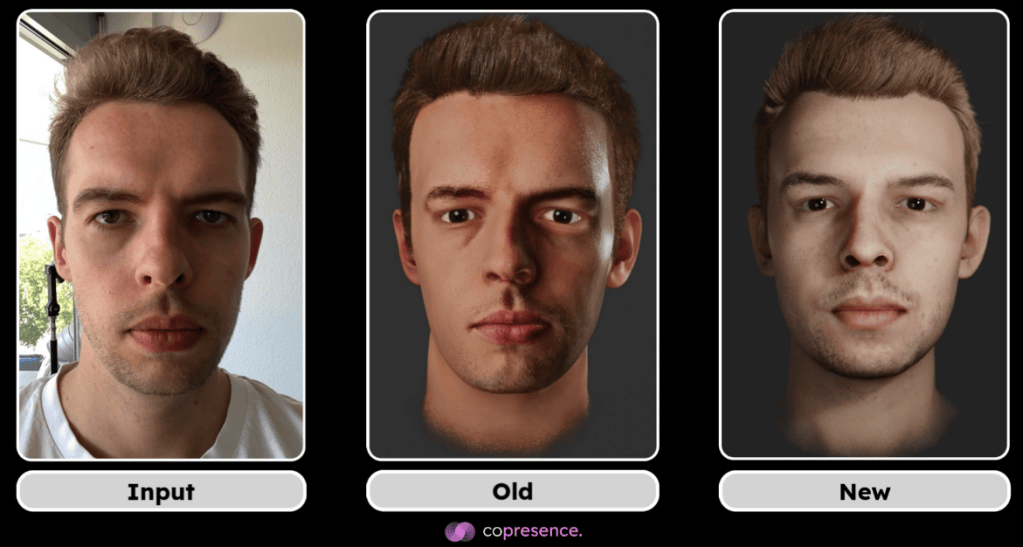
Copresence, a Switzerland-based deep tech company, is transforming how we interact in digital spaces. By combining AI-driven deep learning models with robust capture technology, Copresence enables anyone to generate photorealistic 3D avatars in just minutes. Their platform supports industries spanning gaming, VR/AR, telepresence, and digital communication, giving creators and businesses tools to build hyper-realistic avatars at scale.
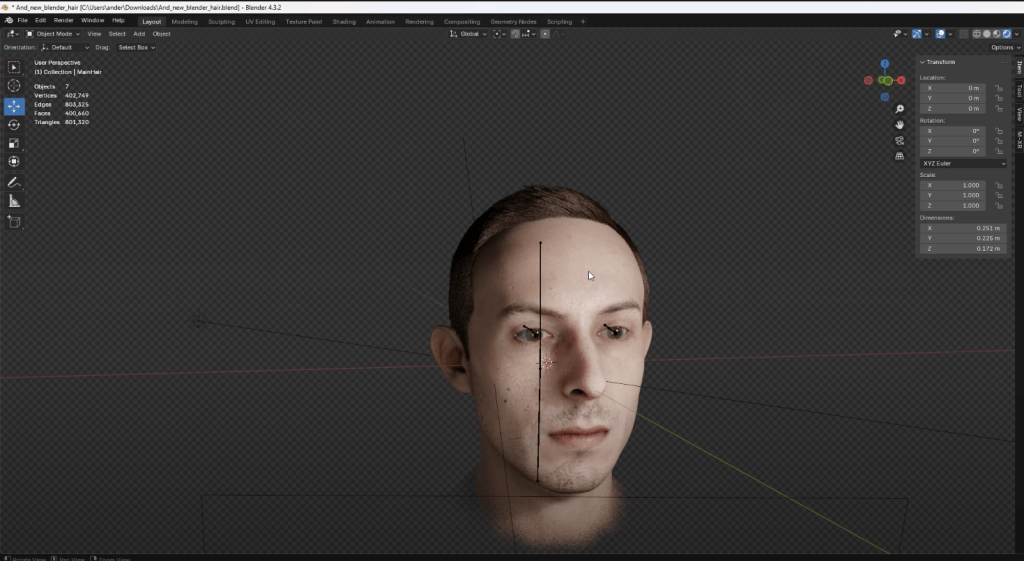
In this article, we’ll walk through a step-by-step workflow shared by Anderson Rohr, a 3D artist from Brazil, who demonstrates how to bring a Copresence face scan into Character Creator 5 (CC5). Whether you’re a 3D animator, content creator, or production studio, this guide shows how to unlock the full potential of Copresence + Reallusion for lifelike character creation.
Why Use Copresence for 3D Face Scans?
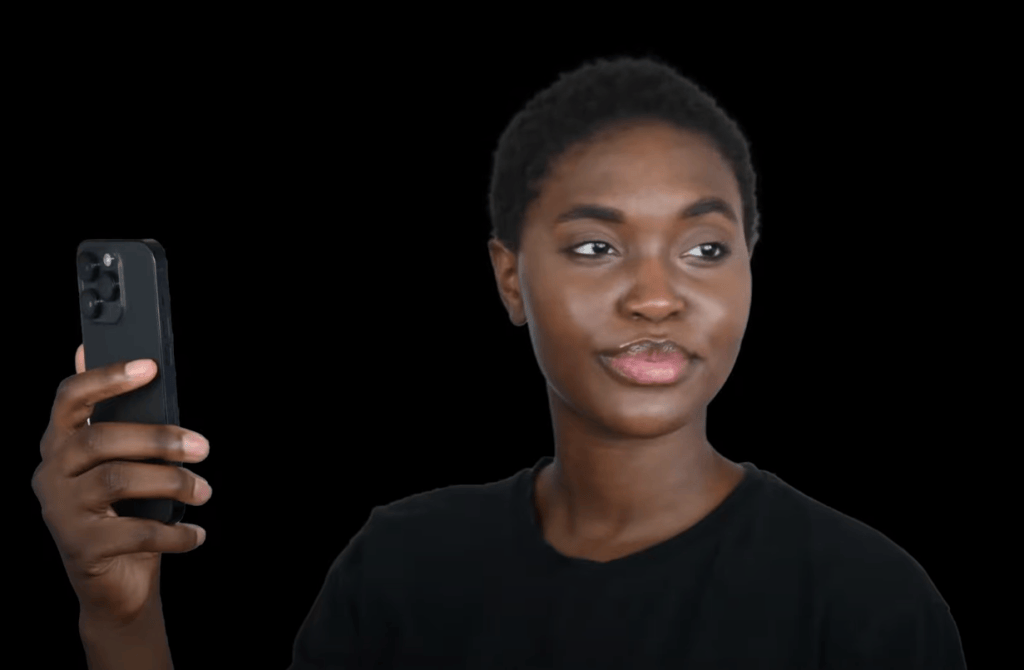
The value of Copresence lies in its accessibility and accuracy. Unlike traditional 3D scanning setups that require expensive hardware and studio environments, Copresence only requires your smartphone. Within minutes, you can create:
High-fidelity 3D geometry of your face
4K texture maps for photorealistic detail
Strand-based hair in Alembic format (currently in CC5 support)
This means creators no longer need to rely solely on manual modeling or limited avatar generators. Instead, they start from a true-to-life digital double, ready to be customized in Character Creator 5.
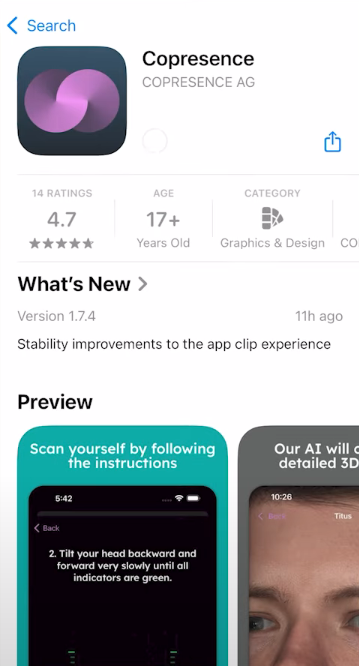
Step 1: Scanning with the Copresence App
Anderson begins the tutorial by introducing the Copresence mobile app, available in app stores. The process is straightforward:
From there, download the CC5-compatible export package.
Download the app and follow the built-in tutorial.
Capture your face scan using your smartphone camera.
Once complete, upload the scan to the Copresence web app.
This package includes:
avatar.fbx → the 3D mesh of your face
Texture maps (diffuse, normal, roughness, etc.)
Hair in Alembic format (not currently supported in CC5)
At this point, you’re ready to bring your scan into Character Creator 5.
Step 2: Importing into Character Creator 5
Once the scan is downloaded, the workflow moves into Character Creator 5, Reallusion’s powerful tool for designing customizable characters. Anderson breaks it down:
Unzip the Copresence download folder.
Open Character Creator 5.
Go to File → Import → Import.
Select your avatar.fbx file.
When prompted, choose:
Prop
Keep Original
Convert All
This imports the 3D scan as a base mesh.
Step 3: Using CC Headshot plugin for Head Generation
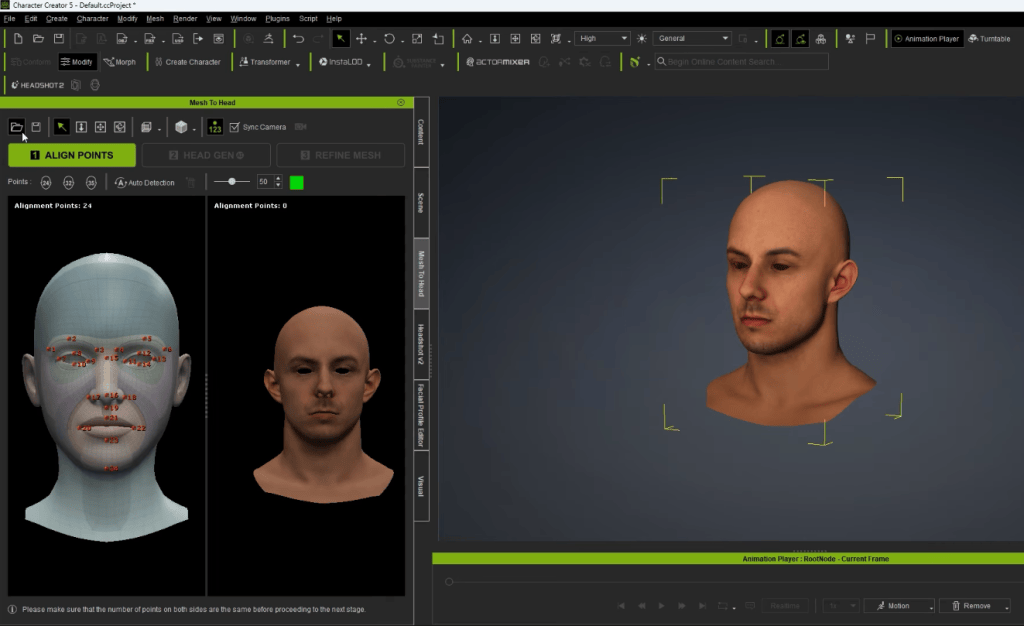
With the Copresence model imported, the next step is refinement using Character Creator’s Headshot 2 plugin.
Navigate to the Scene Tab.
Select the root node of your imported mesh.
Open Headshot 2.
Select Mesh as input and click Start Head Generation.
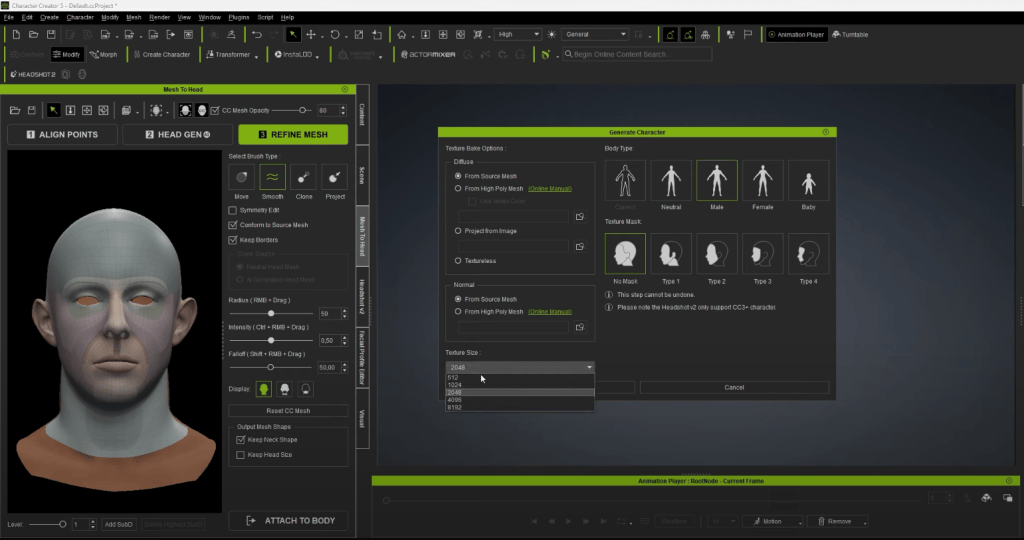
Headshot 2 analyzes the Copresence scan and regenerates it as a fully rigged CC5-compatible head, with improved topology optimized for animation and morphing.
This is where the scan truly comes alive—transitioning from a static 3D model into a character that can be animated.
Step 4: Refining Textures and Hair
Since CC4 previously didn’t support Alembic-based hair imports, Anderson chooses a preset hairstyle directly within Character Creator.
For textures, Copresence provides 4K maps that can be re-applied:
Base Color → for skin tone accuracy
Normal Map → for fine detail like pores and wrinkles
Roughness Map → for realistic lighting and skin reflection
The result is a character that looks remarkably close to the scanned subject—while retaining full CC5 editability.
Step 5: Full Customization in Character Creator 5
One of the advantages of CC5 is that the imported scan isn’t locked. Anderson demonstrates how you can still modify:
Facial features (nose, eyes, jawline, lips, etc.)
Skin tones and makeup
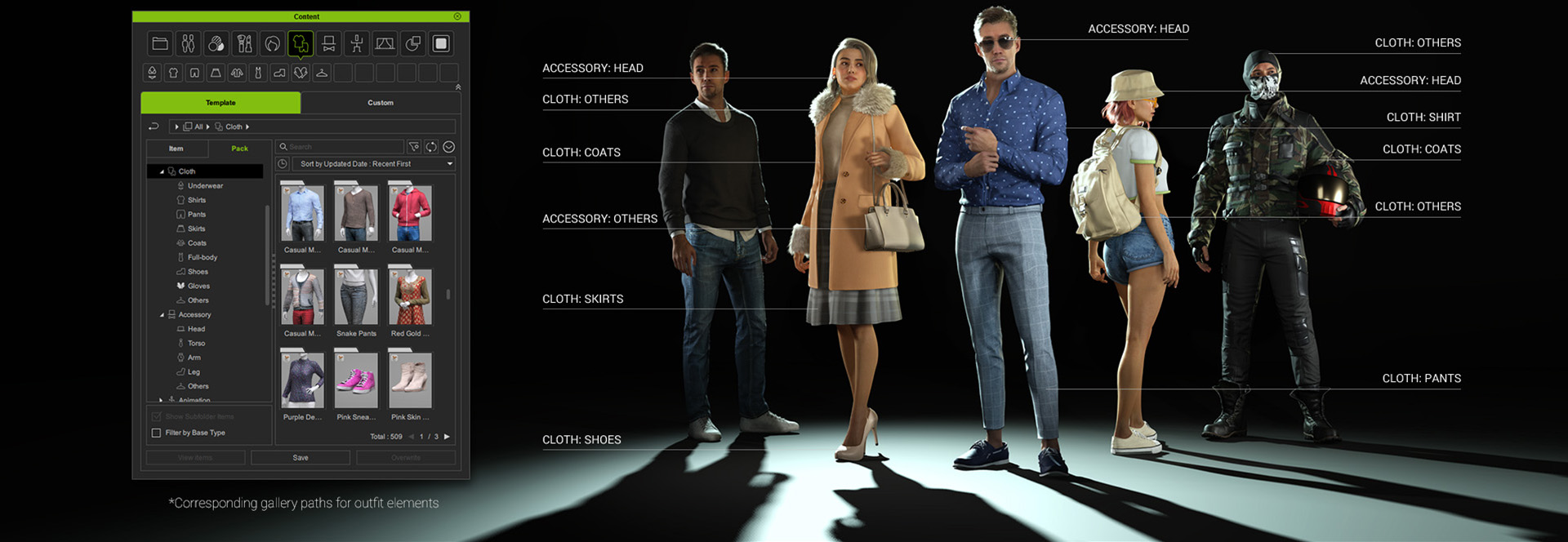
Clothing, accessories, and hairstyles
Expression profiles for animation
This flexibility makes CC5 a powerful extension of Copresence’s scan. The workflow combines realism from AI-driven capture with creative control in CC5.
Importing CC5 Characters into MetaHuman Animator
One of the most powerful aspects of Character Creator 5 is its flexibility to integrate with pipelines beyond iClone and Unreal Engine. For creators who want to leverage MetaHuman Animator (MHA) for advanced facial performance capture, CC5 provides a streamlined way to bridge assets into the workflow.
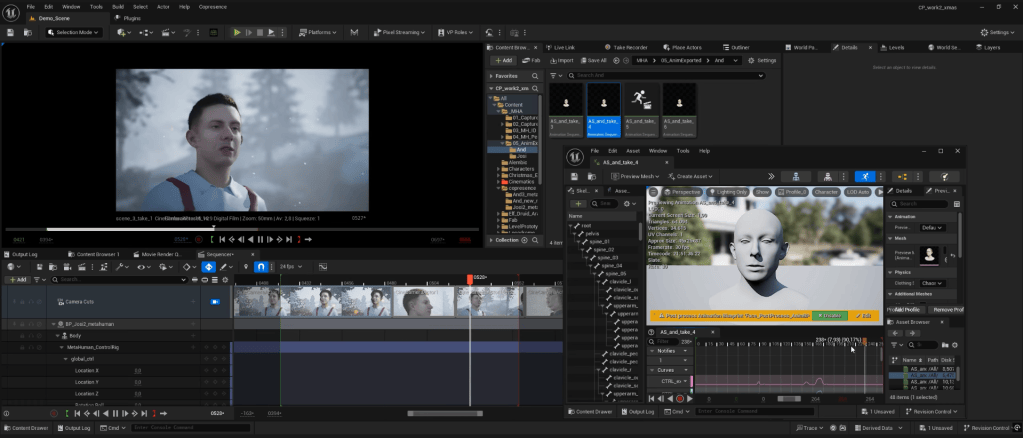
By exporting characters from CC5 in Unreal-ready formats (FBX or USD), users can bring their fully rigged and textured avatars directly into Unreal Engine. Once inside, these characters can be linked with the MetaHuman Animator system, enabling detailed facial animation through Epic Games’ powerful capture pipeline.
The benefits of this integration are significant:
Freedom in character design – While MetaHuman focuses on ultra-realistic humans, CC5 lets you design stylized, fantasy, or hybrid characters, which can still benefit from MHA’s facial fidelity.
Faster production workflow – You don’t need to build characters from scratch in Unreal. Instead, you can take advantage of CC5’s extensive morph sliders, clothing systems, and asset libraries before plugging into MHA.
Cross-pipeline compatibility – This means you can combine the best of both worlds: CC5 for creative freedom, MetaHuman Animator for performance capture realism, and Unreal Engine as the final rendering hub.
For filmmakers, indie studios, and animators, this compatibility opens doors to creating highly expressive performances without being locked into a single ecosystem.
Applications for Creators and Studios
The combination of Copresence and Reallusion tools opens new possibilities for:
Game Developers → Build lifelike avatars for NPCs or player characters.
Animation Studios → Reduce time spent on modeling and rigging digital doubles.
Content Creators → Clone yourself in 3D for YouTube, TikTok, or VR content.
Production Houses → Use real faces in pre-visualization and cinematic pipelines.
By eliminating the need for expensive 3D scanners or mocap setups, this workflow lowers the barrier for high-quality avatar creation.
Copresence and Reallusion’s Character Creator 5 together represent a new standard for digital human creation. With Copresence, anyone can create a realistic 3D scan in minutes. With CC5, that scan becomes a fully editable, animatable avatar ready for games, films, and immersive experiences.
For animators, studios, and creators, this workflow means less time modeling, more time creating. As Anderson Roar shows, the future of avatars is here—and it’s accessible to everyone.
FAQ
Do I need professional equipment for Copresence scans?
No. Copresence works with your smartphone camera and processes everything in the app.
Can I use Copresence hair in Character Creator 5?
Currently, CC5 doesn’t support Alembic hair files. You’ll need to use built-in hairstyles.
Is Headshot 2 required for this workflow?
Yes. Headshot 2 is necessary to convert the Copresence mesh into a fully rigged CC5-compatible head.
Can I animate the imported Copresence avatar in iClone?
Yes. Once processed in CC5, the character can be exported to iClone for full animation.
What industries benefit most from Copresence + CC5?
Gaming, film, VR/AR, and digital content creation all gain from faster, more realistic avatar production.
Óscar Fernández is a freelance digital sculptor from Spain, specializing in creating figures for 3D printing. With deep expertise in ZBrush, he is known for crafting highly expressive characters that capture both personality and motion. His work stands out through the meticulous attention to facial expression, muscle definition, and dynamic posing, giving each sculpt a strong sense of tension and storytelling power.
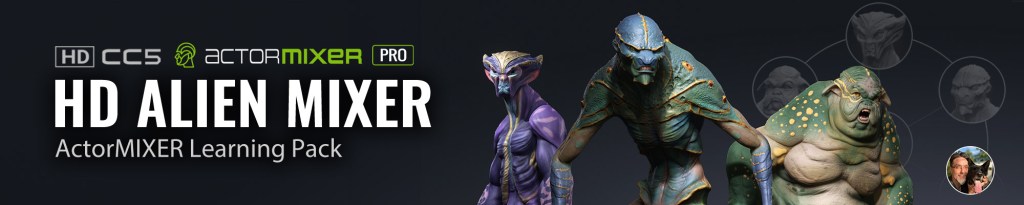
Oscar Fernandez’s HD Alien MIXER pack is available now!
Overview
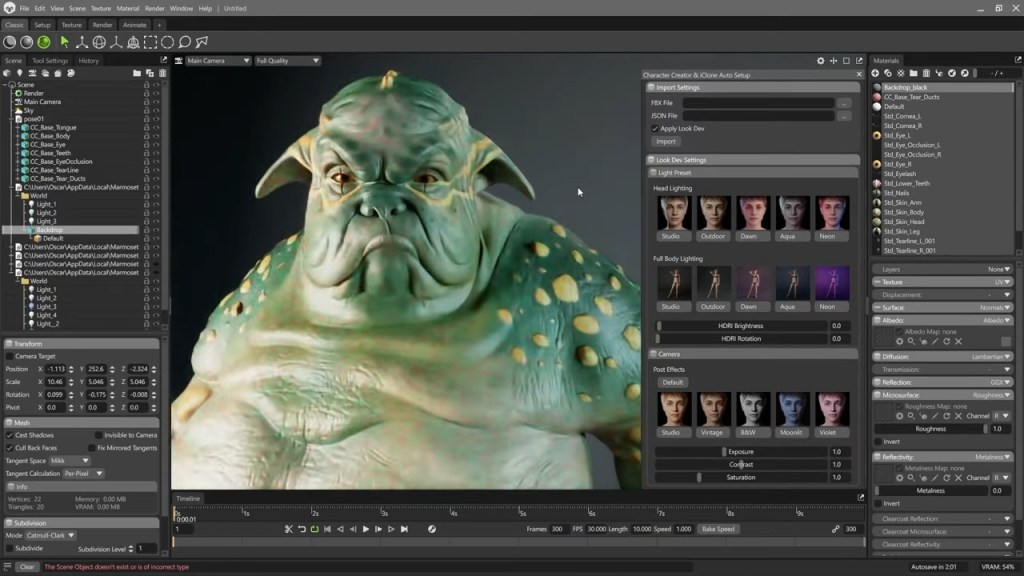
An exciting update inCharacter Creator 5 (CC5) is the addition of more free add-ons designed to streamline your workflow across leading industry tools. With the new UDIM integration in Marmoset Toolbag 5, it’s now possible to achieve a direct, hassle-free transition between CC5 and your rendering software using Auto Setup for Marmoset. We’ll start off with an existing project for a set of alien characters and finish with a high-quality final render.
Installation
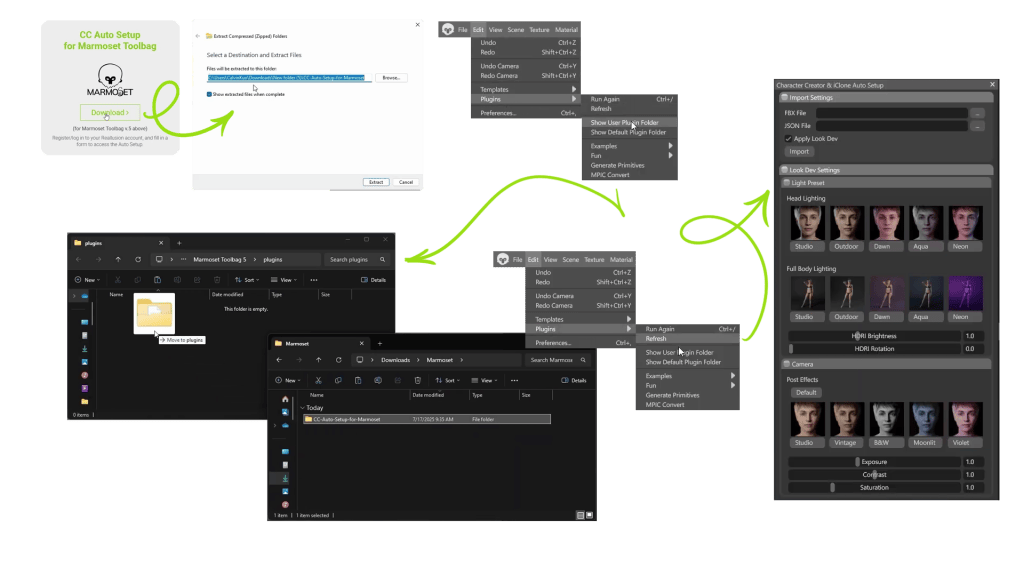
The installation is super easy: Download the Auto Setup plugin for Marmoset from the Reallusion website and extract the files. Open Marmoset and go to Edit > Plugin, then click Show User Plugin Folder. When the folder opens, simply drag in the Auto Setup files you just extracted. Go back to the Plugin menu and click Refresh to reload the plugin data. Once it’s installed correctly, CC Auto Setup for Marmoset will appear under the Plugin menu. Now you can click on it to open the Auto Setup panel — but before that, head over to CC5.
Character Export from CC5
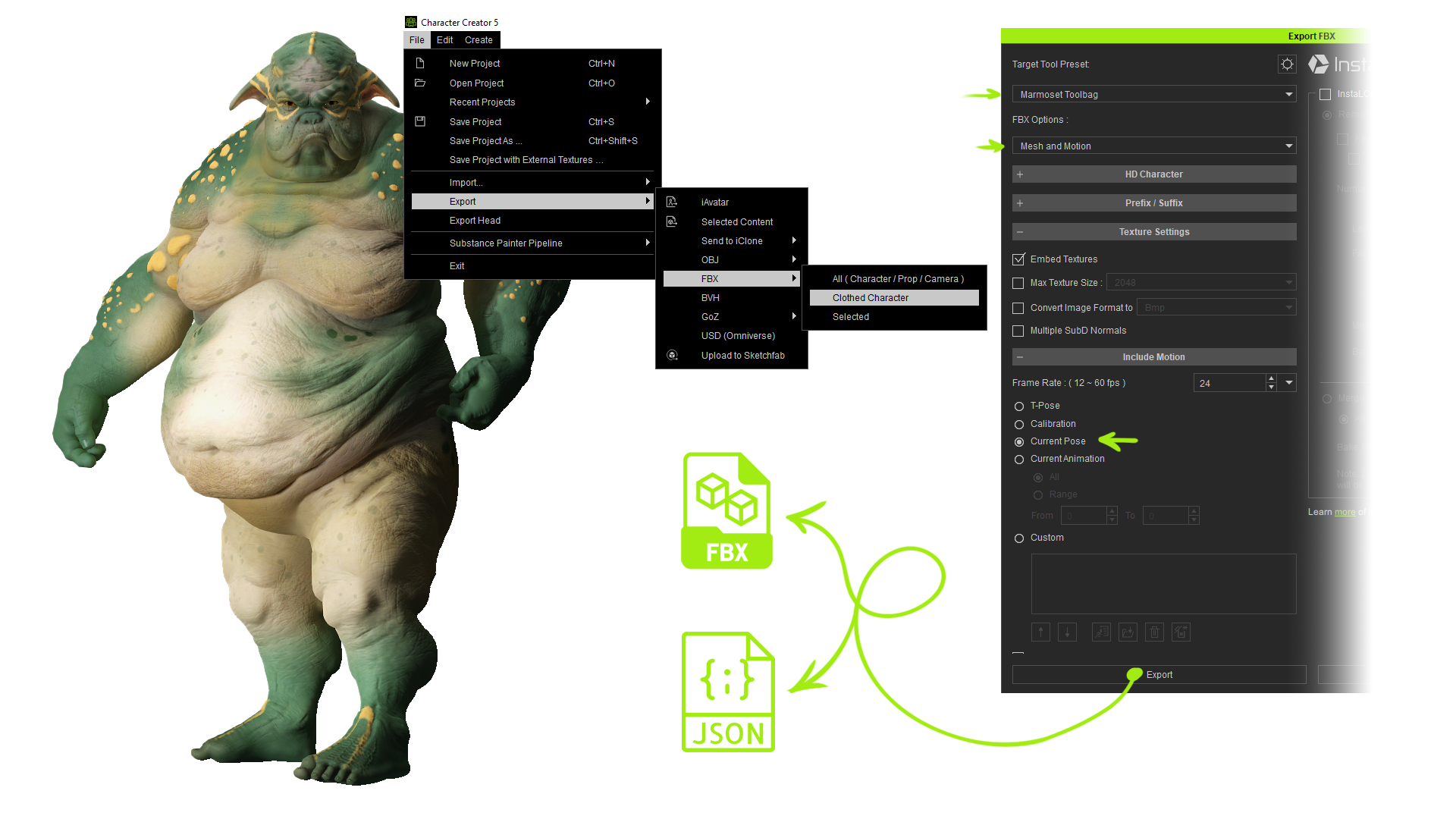
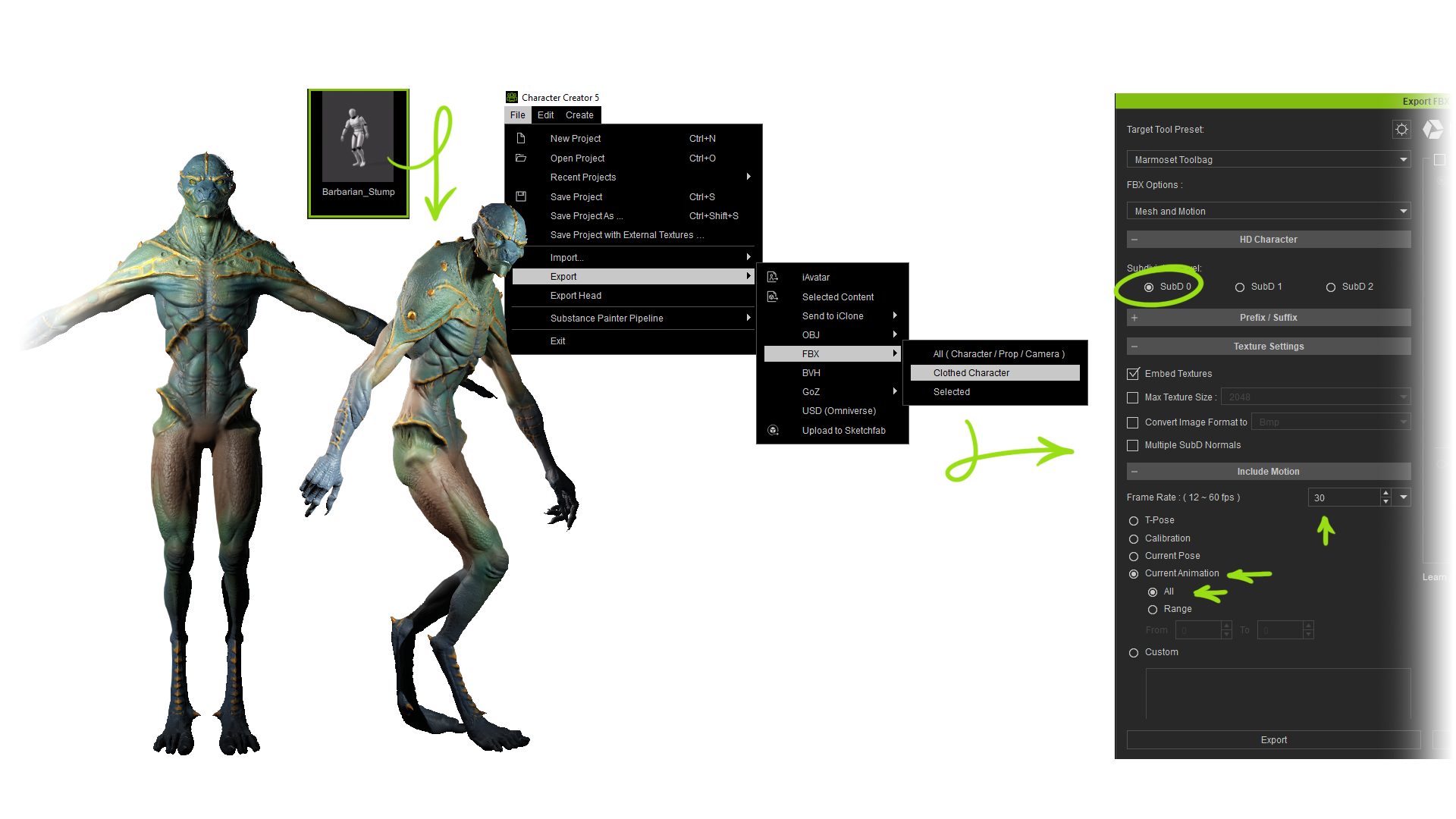
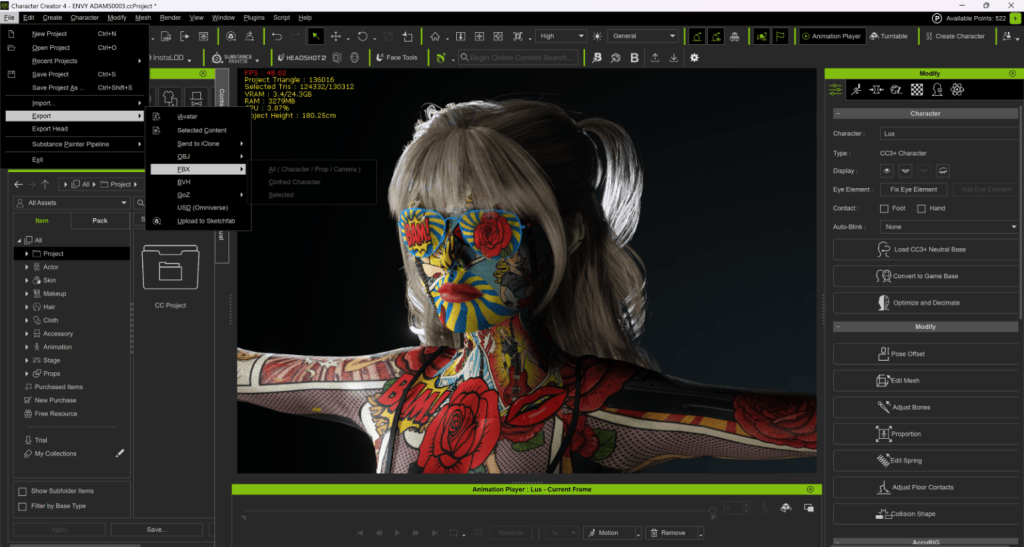
In our case, we don’t have any clothing or accessories, but we are going to apply a pose to our character before exporting. Adjust the body posture, and you can also add facial expressions if you want. Save the pose in case you want to use it later. Select the character, go to the File menu, choose Export, and select FBX. Pick the Clothed Character option — even though in this case our character isn’t wearing any clothes. Once the export window opens, you’ll see a bunch of presets depending on the target software, but in our case, we’ll choose Marmoset Toolbag to automatically set up compatibility with Marmoset.
Under FBX Options, make sure Mesh and Motion is enabled to include the character’s animation data. For Motion Settings, select Current Pose, leave the rest of the settings at their default values, and hit Export. Once the export is complete, you’ll find the FBX file along with its associated textures and a JSON file. This JSON file is very important because it links the textures to the model, defining which part of the mesh uses which texture.
Character import to Marmoset Toolbag
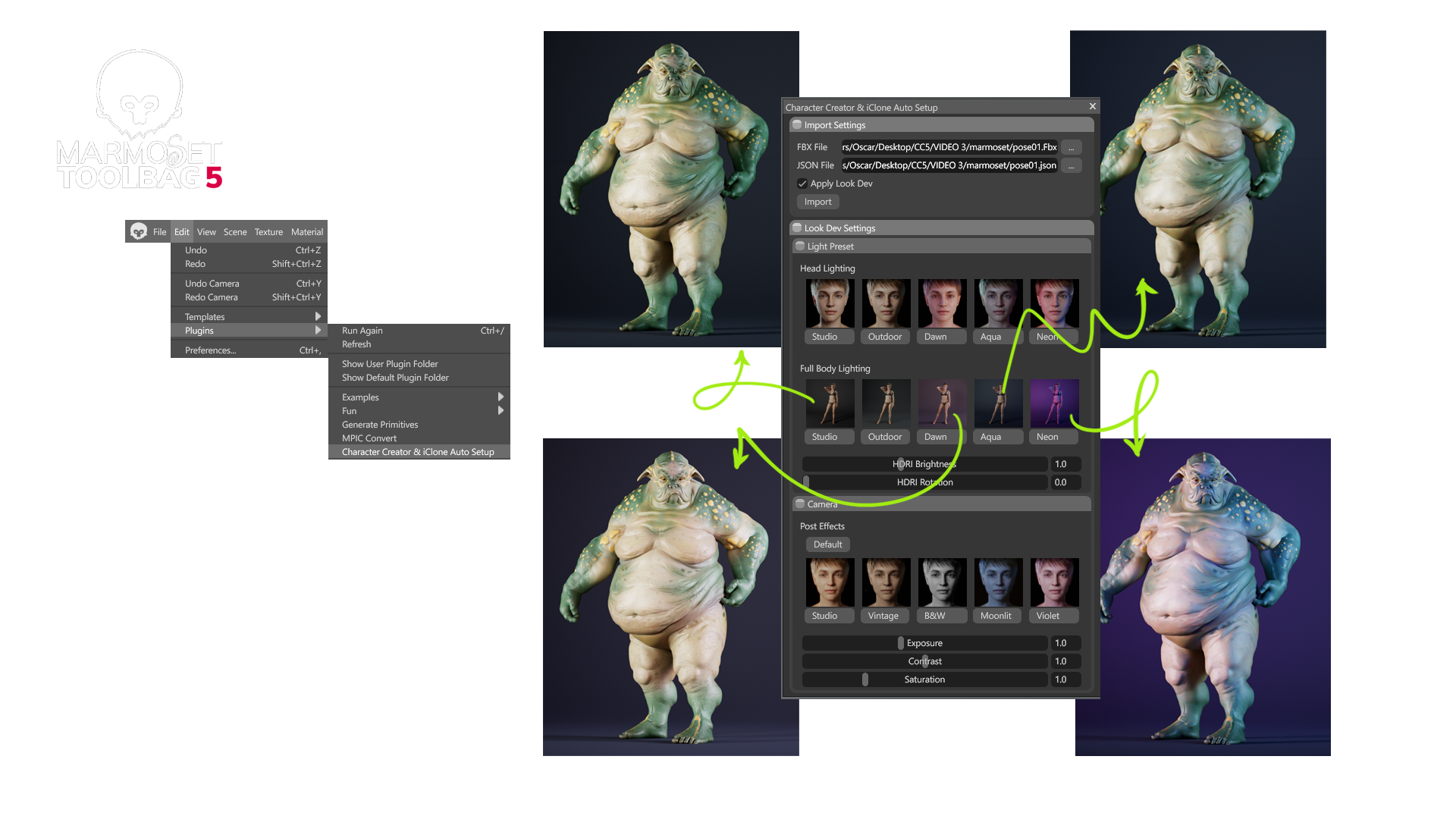
Now, in Marmoset, go to the Plugins menu as we did before and open Character Creator and iClone Auto Setup. The plugin couldn’t be easier to use:
Select the FBX file you just exported from CC5, and the JSON file will automatically link to it. Click Import and wait for the character to load. The loading process is usually quite fast, but it may take a bit longer if you selected Subdivision Level 2, since that makes the file larger. Once it’s loaded, you can examine the character from every angle before moving on.
Adjusting lighting and environment (Lookdev settings)
The plugin doesn’t just load the file and textures — it also provides a set of presets to light your scene. Any imported object or character will automatically be illuminated using the Full Body Light presets. When switching between presets, you’ll notice that a different HDRI image is also loaded in the Sky section, which helps create a more vibrant and coherent render. Similarly, if you want to focus on the face, you can choose one of the configurations included under Headlighting. This gives you a high-quality starting setup that you can easily tweak and play around with.
Directly from the plugin, you can adjust the HDRI brightness and rotation to preview how the lighting affects your model from different angles. Ray tracing is enabled by default for high-quality rendering with optimized preset settings, but of course, you can modify them if needed.
Once our character is imported, we can continue tweaking all the typical Marmoset settings to customize the scene to our liking — adjusting the camera settings, such as focal length, depth of field, adding post-processing effects, and more. As mentioned earlier, we can play around with the HDRI values. The lighting setup we get from the presets is also fully customizable — you can adjust the color, brightness, light softness, and of course, its position. With all these options, you can create a completely personalized scene and fine-tune it precisely to match your character and the mood or story you want to convey.
Materials preparation
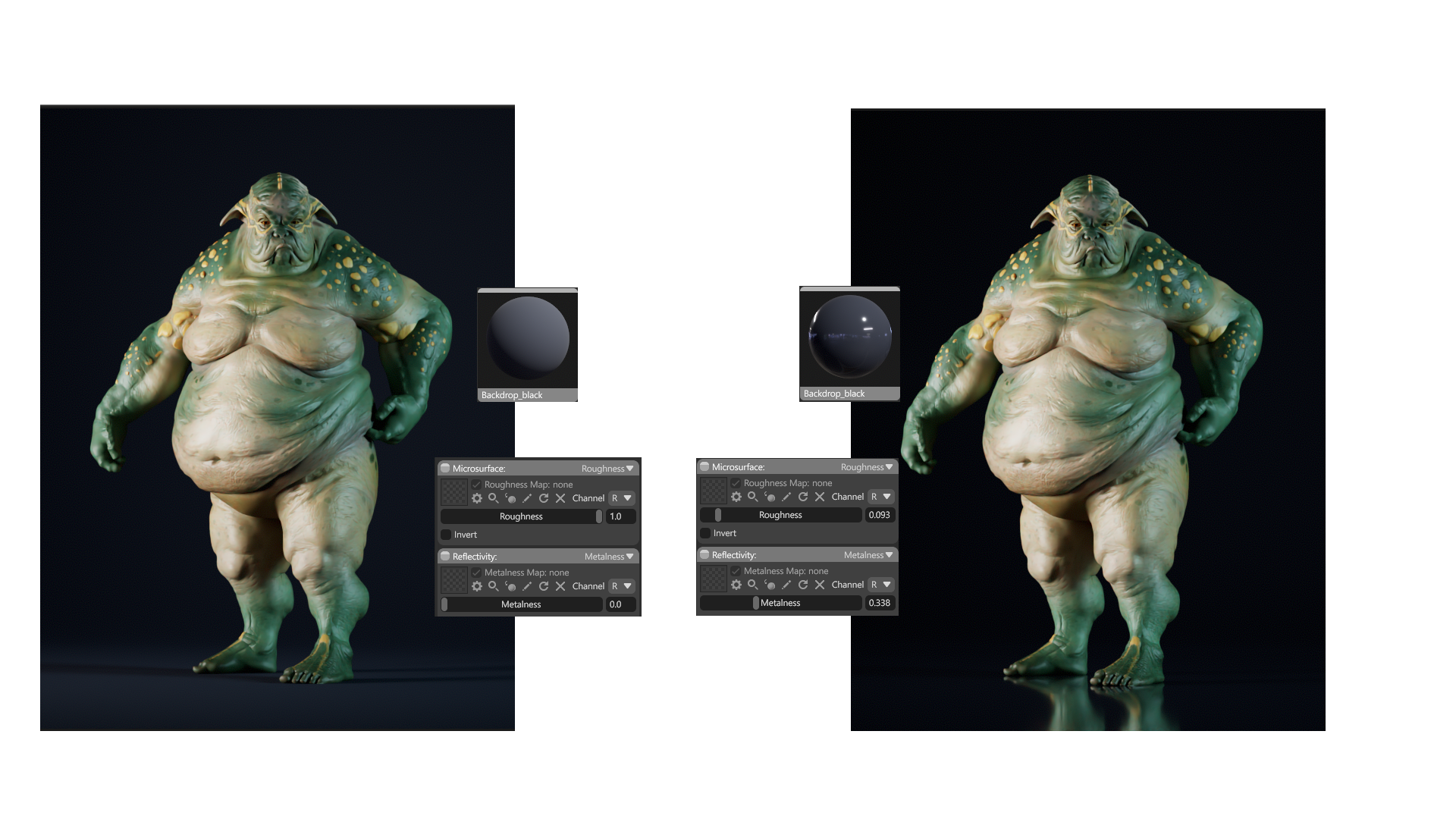
The first material we can experiment with is the background, adjusting parameters like color, roughness, or metalness to change the atmosphere of our scene. Thanks to the Auto Setup plugin, the Digital Human shader is applied automatically — meaning all the necessary parameters for each texture are transferred to Marmoset so that everything looks exactly as it did in CC5.
We won’t go into every material in detail, but for each one we can modify all the settings to fully customize it. For example, making the skin look wetter or more metallic, changing the eye color and all related parameters, adjusting the tiling of the normal map to control how skin details behave, tweaking skin transparency values, and more. We can fine-tune the details endlessly.
Animations
Another advantage of working with Marmoset is that we can also render animations, and the process is just as simple as what we saw for a static pose. In our case, we’ll choose a simple animation, such as a walking cycle, and enable position locking so the character walks in place. Then we go to the export settings as we did before. We select Subdivision Level 0 so the import into Marmoset is faster and the animation runs more smoothly. We also make sure to check Current Animation and All, so the full animation is exported. Additionally, we ensure the frame rate matches the project settings in Marmoset (in our case, 30 fps), and then we just export the FBX.
Now, we launch Marmoset and load our character through the plugin as we saw in the previous example, and then all we have to do is hit Play to run the animation. With Ray Tracingenabled, the animation may not look smooth in the viewport, but it will render perfectly. Next, we can slightly adjust the scene by changing the background color and some lighting parameters. I’m going to place the character walking on a simple base I created in ZBrush. I’ll adjust the size and position of the base, as well as the backdrop, so they align with the bottom of the character. Now the scene is ready. I’ll apply a metallic material to the base and tweak the material settings slightly so it doesn’t overshadow the character.
To keep the renders of our characters consistent with each other, I’m going to save this empty scene. So I delete the character but keep the lighting setup and the base. Then I delete all materials except for the backdrop and base materials, place them in a folder, and save the project. Now I can load another character using the Auto Setup plugin, but this time I’ll uncheck Apply Look Dev so the scene configuration is preserved. We can also uncheck this option if we want to apply our own lighting setup.
This animation was exported with Subdivision Level 2, and my PC struggles a bit to handle it, so I go to the body mesh and uncheck the Subdivide option… as we can see, there’s hardly any difference since all the shader information is still applied, but everything runs much more smoothly. Now we have everything ready for export, so let’s go for it.
Final render
Finally, let’s look at several cases that make Marmoset Toolbag an excellent choice for rendering. We’ll start with rendering a still image:
After posing our character, we import it and adjust the focal length and camera angle for the render. We tweak the lighting slightly to highlight the character’s details and adjust the depth of field to give it a more cinematic look. In the Render tab, we choose the final image dimensions and increase the samples to 512 for higher quality. We check the Safe Frame option to ensure the framing is correct and verify that the render pass we’re generating is the final composition. Now all that’s left is to press the Render button so the program produces the image.
We can also do basic post-processing directly in Marmoset by adjusting exposure, contrast, sharpening, etc., to achieve a more polished image — but I prefer to make these adjustments in Photoshop. For that, we can export additional render passes to aid in post-processing in Photoshop. Once in Photoshop, we play with the background texture, locally expose or overexpose certain areas, apply extra effects using Camera Raw, or add atmosphere with smoke, floating particles, or blurred elements to enhance depth in the composition. All these small touches make the final image feel much more organic and dramatic.
Turntable
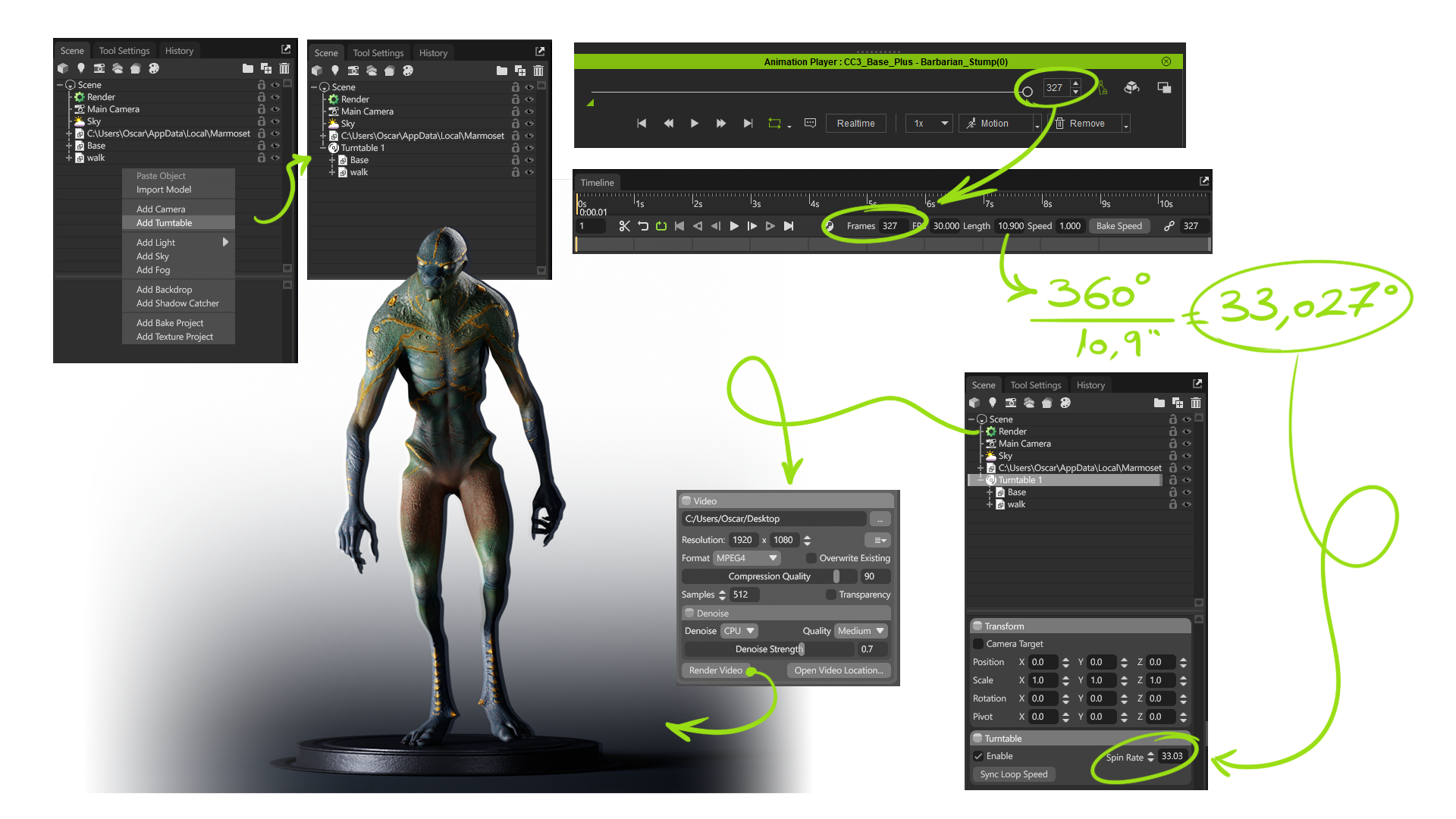
Another super useful option for showcasing our characters is turntable videos. We can create a 360° video of either a static pose or an animation. In our case, we’ll do it with our walking character, so we can also consider some extra points. Once the FBX is loaded, we simply create a turntable by right-clicking in the Scene panel. At first, it seems like nothing happens — our character keeps walking without turning… This is because the turntable works like a folder: everything inside it will rotate, while anything outside stays static.
In my case, I only want the character and the base to rotate, not the lights or backdrop, so I put just these two elements inside the folder. To ensure we get a seamless loop, I check in CC5 how many frames the animation lasts — in this case, 327 frames — and set that value as the number of frames in Marmoset’s timeline. This gives me the total time, which I can then use to calculate how many degrees it should rotate per second.
Using a calculator, I divide 360° (a full rotation) by 10.9 seconds (the length of the animation) and change the value accordingly. Now we can check that the first and last frames match perfectly. Once that’s sorted, we can export. Go to the Render tab, choose the video dimensions and sample count, make sure we’re exporting the final composition, and render. This gives us the final result.
Don’t miss the next tutorial, where we’ll explore some other very interesting examples of what Marmoset Toolbag and CC5 can do.
I’m Nick Shaheen, a radiologist by profession and a CG artist by passion. My journey into animation started in an unexpected place—medical illustration. Early in my career, I spent a fair bit of time creating motion graphics and anatomical visuals to help explain complex medical concepts. That experience taught me the power of visual storytelling and deepened my appreciation for animation as a way to communicate ideas dynamically.
Over time, my work expanded beyond medical visualization into character animation and motion design. I’m always looking for ways to refine my process and bring more life to my work, and discovering Reallusion’s tools opened up new creative possibilities that I hadn’t explored before.
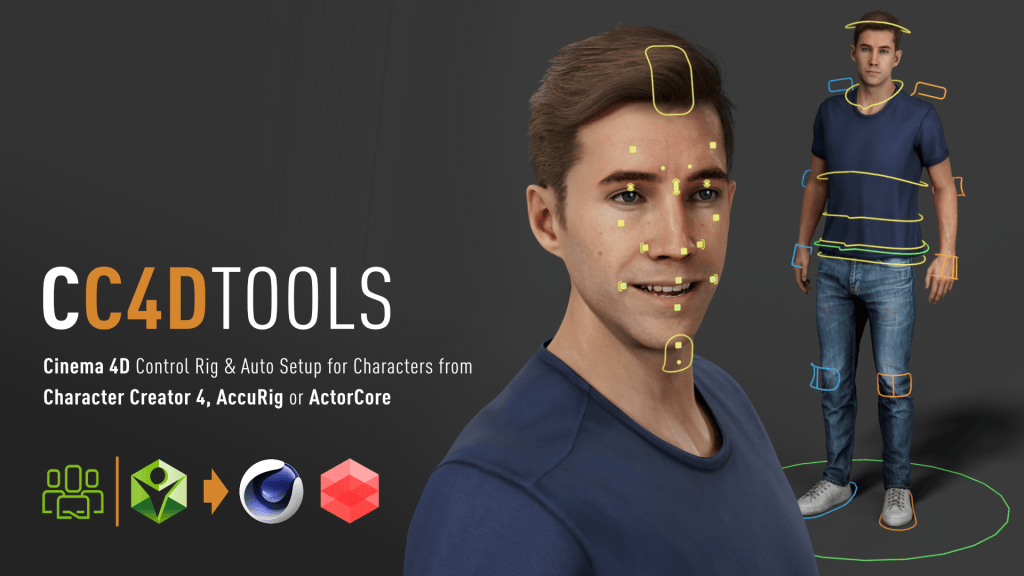
Art is all about experimentation and learning from failure. The faster you can move through that cycle, the more chances you have to refine your work. That’s why I’m excited about CC4D, a powerful plugin that bridges Character Creator and Cinema 4D with Redshift.
What is CC4D
Developed by Reallusion partner Benjamin Broschinski, CC4D extends Character Creator’s ecosystem into Cinema 4D through an extensive toolbox designed for seamless character import, material setup, and animation management. It’s the ultimate bridge for artists who love Cinema 4D’s creative environment but want to harness Character Creator’s digital human quality and rigging precision.
Why CC4D Matters
1. Instant Redshift Setup
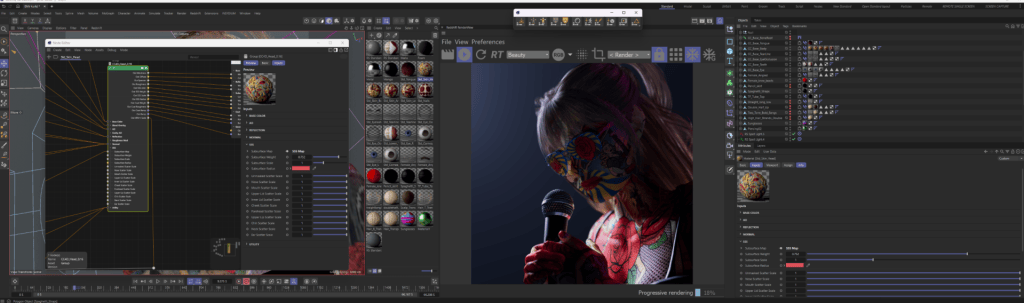
Bringing characters into Cinema 4D used to mean lots of time spent on manual node cleanup. CC4D automates that entire process in just a few clicks. Diffuse, roughness, subsurface scattering — all the essentials are correctly assigned without touching a single node.
2. More Time for Creativity
Instead of fighting technical bottlenecks, you can focus on stylizing characters, experimenting with lighting, and pushing the overall look of your scene.
3. Animation-Friendly Pipeline
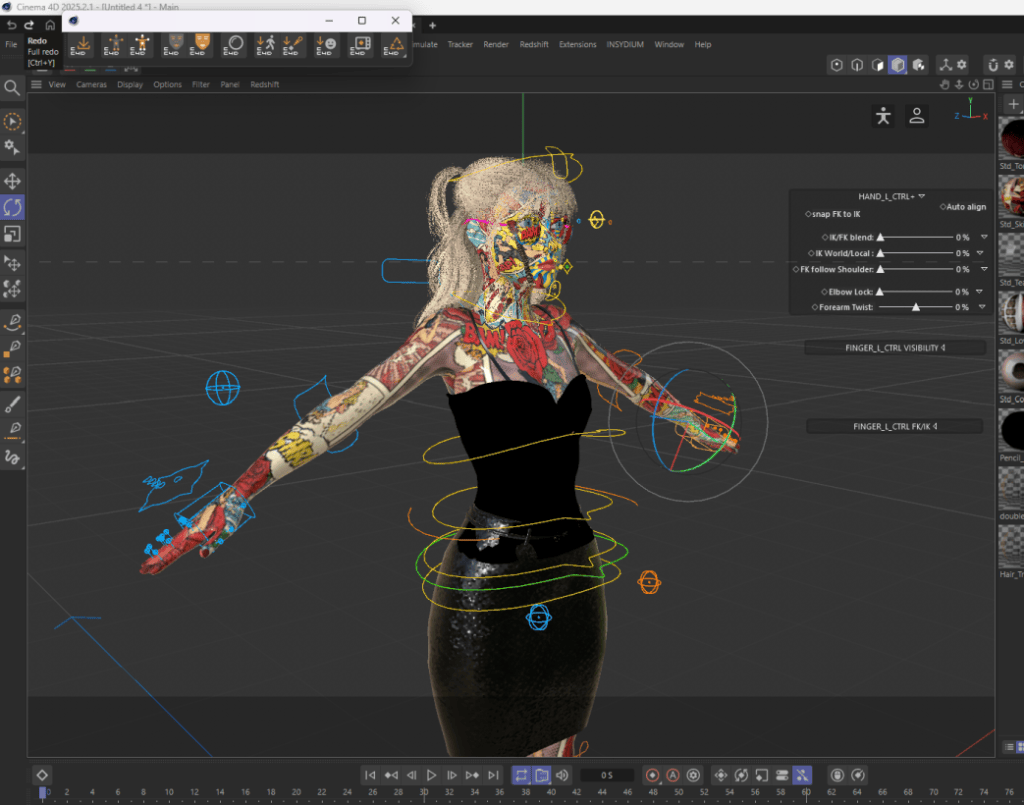
CC4D doesn’t stop at materials. It can also import face and body rigs, giving artists who prefer Cinema 4D’s character tools a clean way to handle animation from start to finish.
4. Iterate at Speed
Creative work is messy. You try things, fail, adjust, and try again. CC4D accelerates that loop, letting you experiment more often — and every extra cycle makes the final result stronger.
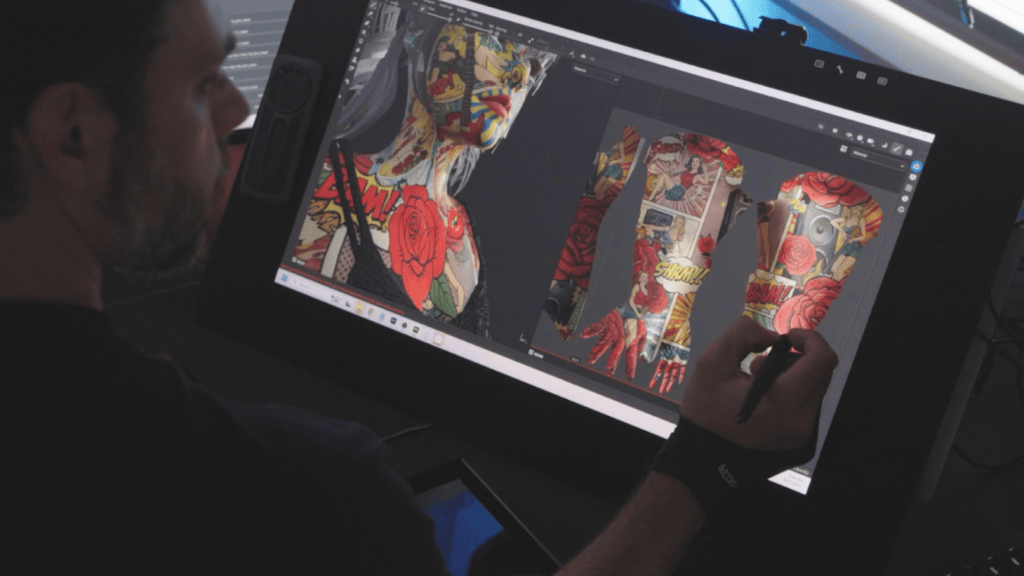
For my recent project Envy, CC4D made the difference between spending hours on technical prep versus spending those hours crafting mood, stylization, and storytelling.
Final Thoughts
Failure is part of every artist’s journey, but the right tools can help you fail forward — faster. With CC4D, you can skip technical roadblocks and spend more time where it matters most: crafting compelling stories, experimenting with style, and bringing your characters to life.
As a 3D artist, I often combine Blender, Unreal Engine, and iClone to tell stories and bring digital characters to life. I’m always searching for tools that make animation both faster and more expressive. I was genuinely intrigued by Laser Sword Pack’s potential, and after putting it to the test, I can confidently say: the paired motion system is an absolute game-changer.
Hailing from Chicago, Libertas developed a passion for filmmaking early on. His love for the AAA game Assassin’s Creed led him to create videos about the game, which can be found on his channel, Libertas Video. He also produces a series of Assassin’s Creed-inspired micro-short films, such as “Modern Assassin Training Session”.
Despite his shoestring budget, Libertas enjoys crafting characters and costumes, bringing them to life in his YouTube short films. During the day, he is the Director of 3D of a production house and runs Libertas Video as a solo 3D generalist by night. He enjoys spending his free time creating characters, costumes, and props for his digital actors.
In this article, Erik takes a moment out of his precious time to introduce the “Laser Sword Pack”.
Inside the Laser Sword Motion Pack
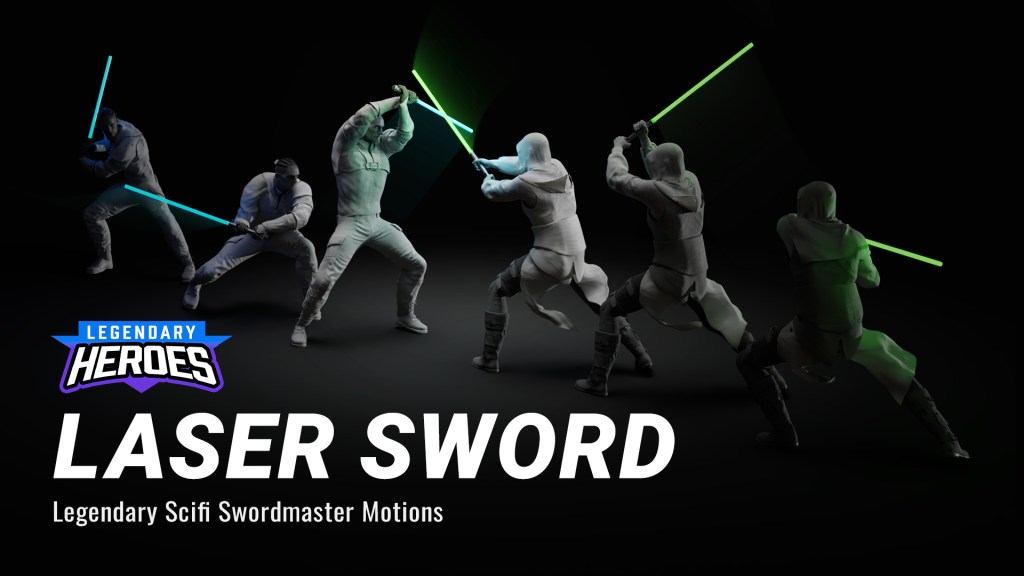
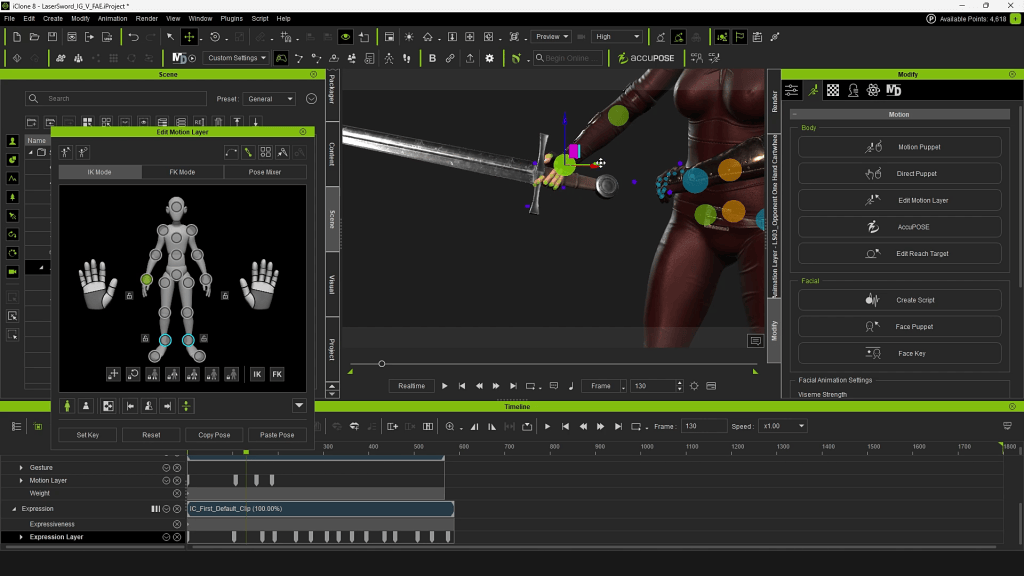
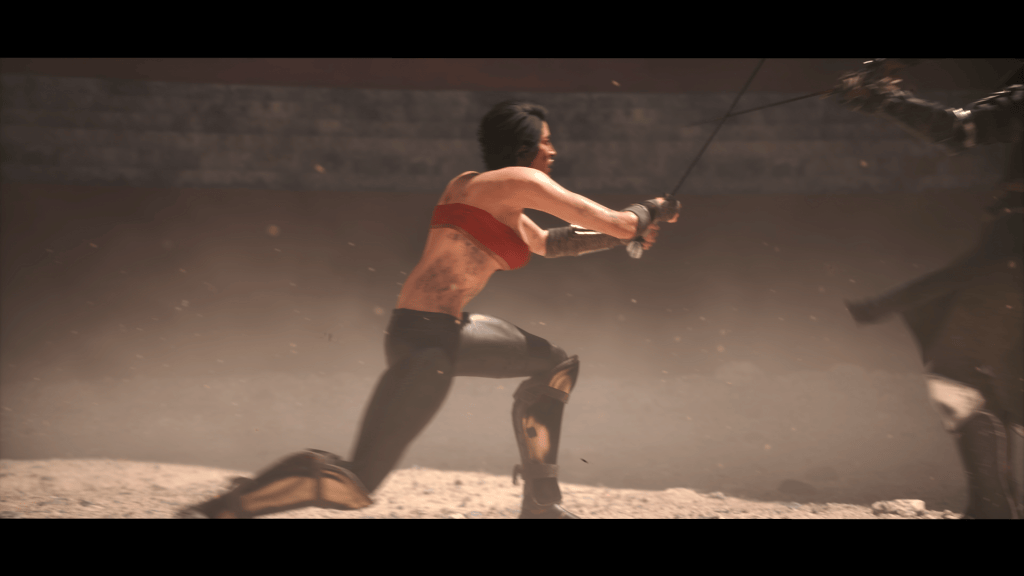
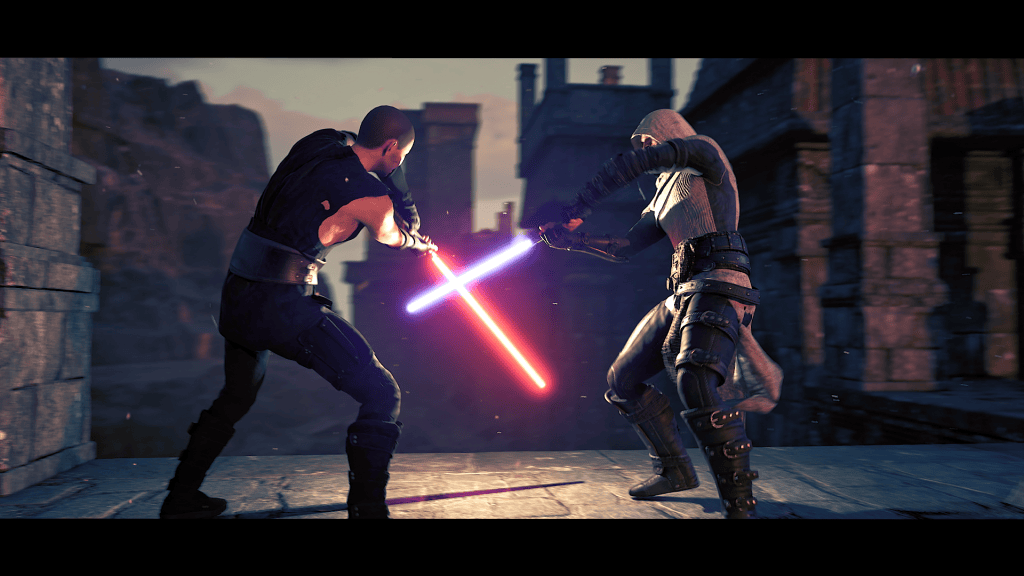
This Laser Sword Pack offers 41 animations across four categories: “Sword Duels”, “Win or Lose”, “2v1 Battles” and “Combat Stances”—the pack also comes with 2 types of Laser Sabers that support RGM customization for lighting adjustment. Made by Hollywood veterans, the Monkey Chow Animation Studios‘ professional stunt team is the people behind the motions, delivering unbeatable quality.
Matched Motions: True Choreography from the Pros
The pack comes with paired combat animations—each move precisely matched between two characters, one attacking and one defending. It’s similar in approach to Reallusion’s Hand-to-Hand Combat Pack, which I reviewed a few years back, but this time the focus is on weapon-based combat. The result feels cinematic, coordinated, and dynamic right out of the box.
How the Laser Sword Pack was Made by Monkey Chow Animation Studio: A Side-by-Side Comparison.
While I often use my Sony Mocopi Pro for solo motion capture, recording both sides of a duel can be slow and repetitive. This pack solves that problem completely. Every sequence comes from professional stunt performers, delivering real choreography with flips, spins, and reactive movement that’s difficult to capture solo.
Animated Props: The Secret Weapon
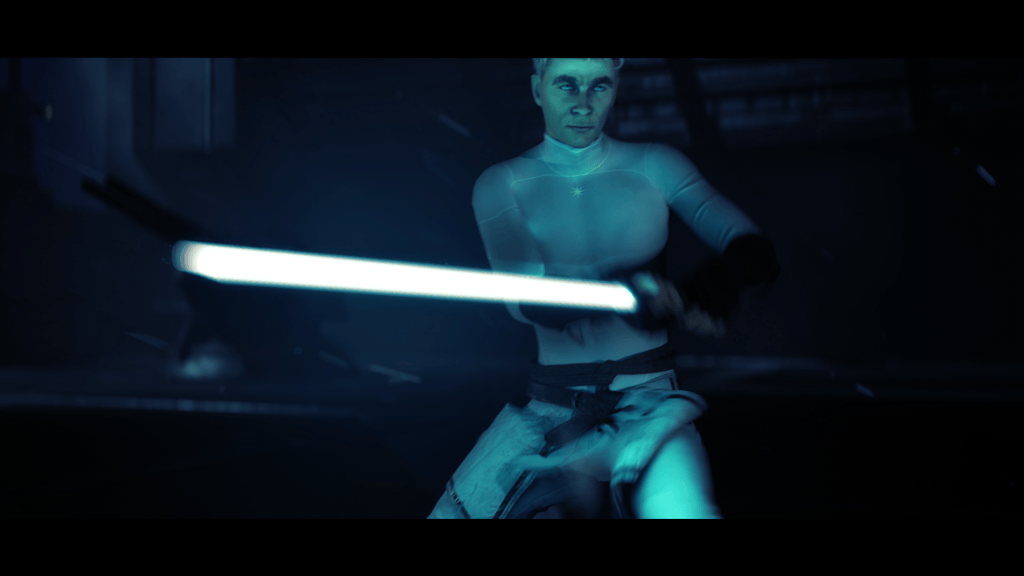
One feature that really surprised me was iClone’s animated props. I’ll admit—I hadn’t paid much attention to them before. But in this pack, they truly shine. Every time you apply a motion to a character, a corresponding laser sword is automatically added and animated in sync. That means the weapon stays perfectly aligned in the character’s hands during all those high-speed swings and clashes. Even better, it helps when aligning characters for impact points, ensuring that every strike connects visually and believably.
At first, I thought having “laser swords” might limit my options since I’m not creating Star Wars fan films. But it turns out, this feature is incredibly versatile. Simply line up your own weapon model with the laser sword, parent it to the prop, and then hide the original blade. The result? Your sword moves with the exact same fidelity—giving you dynamic, realistic motion in a fraction of the time.
Ideal for Cinematic Duels
Although these motions are stylized for laser sword duels, they’re easily adaptable for two-handed weapons—katanas, longswords, or even spears for the double-bladed sequences. With a few tweaks, the choreography can fit any fantasy or sci-fi project.
The Verdict
The Laser Sword Motion Pack is a must-have for anyone aiming to create fluid, cinematic fight scenes without spending weeks in mocap or manual animation. Just drop in your custom characters, apply the motions, fine-tune a few alignments, and render your sequence—it’s that simple.
If you liked the look of the characters in my demo, many of their outfits come from my own Libertas Armory packs, which you can find linked below. And if this pack caught your attention, I’ve reviewed several other Reallusion motion packs on my channel—definitely worth checking out if you’re building your own 3D action library.
The 2024 2D Animation at Work Contest left us with a collection of fascinating entries. This time, our star Cartoon Animator lecturer, Mark Diaz, hand-picked 9 award-winning animation techniques depicted from three contest winners:
Stephen Townsend, who won 1st place for Business & Commercial.
Sasapitt Rujirat, who won 2nd place for Comic & Art.
Weronika Posemkiewicz, with an honorable mention.
About Mark Diaz of 2DAnimation101
Enthusiastic about both animation and teaching, Mark Diaz is the CEO and Founder of 2DAnimation101. As a dedicated online instructor, he has guided over 52,000 students worldwide in developing their animation and drawing skills.
Mark is also a TED Talk speaker, presenting “Can Anyone Become a Genius?” Beyond teaching, his versatile talents extend to filmmaking, where he has worked as a Short Film Director and Editor for Autumn Leave Films.
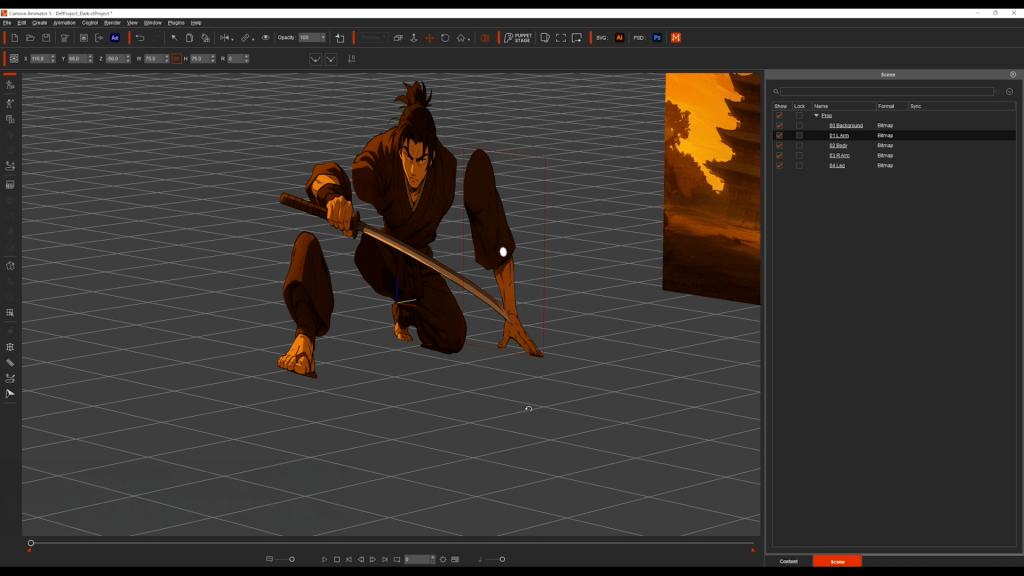
I start by generating a stylized samurai with ChatGPT. Then, break the image into parts: arms, legs, torso, and head. Each piece was cleaned and exported from Photoshop as individual PNGs. Inside Cartoon Animator, I imported the parts and placed them at different z-depths, so in the 3D view, you can see that all parts are positioned differently. But when looking at it through the correct angle, the elements merge into one cohesive picture.
After that, I’ll move on to animation. I used the transform tool for big movements, and the FFD (Free From Deformation) tool to simulate depth, making the samurai feel like he’s stepping toward the camera. In the end, what started as a flat image becomes a dynamic warrior in motion.
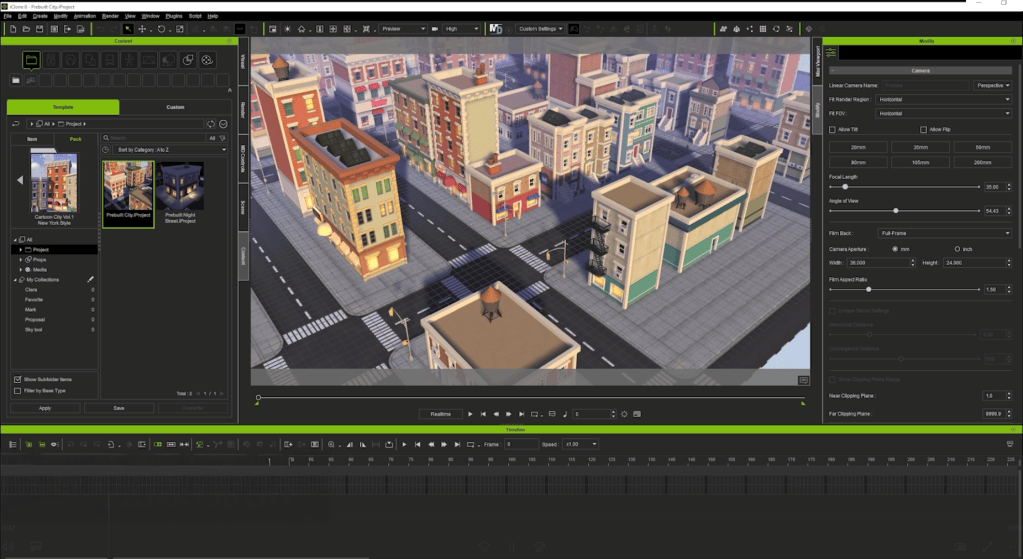
Technique 2: Instant 3D City
Stephen, the winner in the Reallusion contest, modeled a full city from scratch. Which is impressive, but time-consuming! Here’s my shortcut: I used iClone with pre-built 3D assets. Just drag and drop, and in less than 10 seconds, I’ve saved hours of modeling. Then I took a few screenshots at different angles — and just like that, I got a full city background.
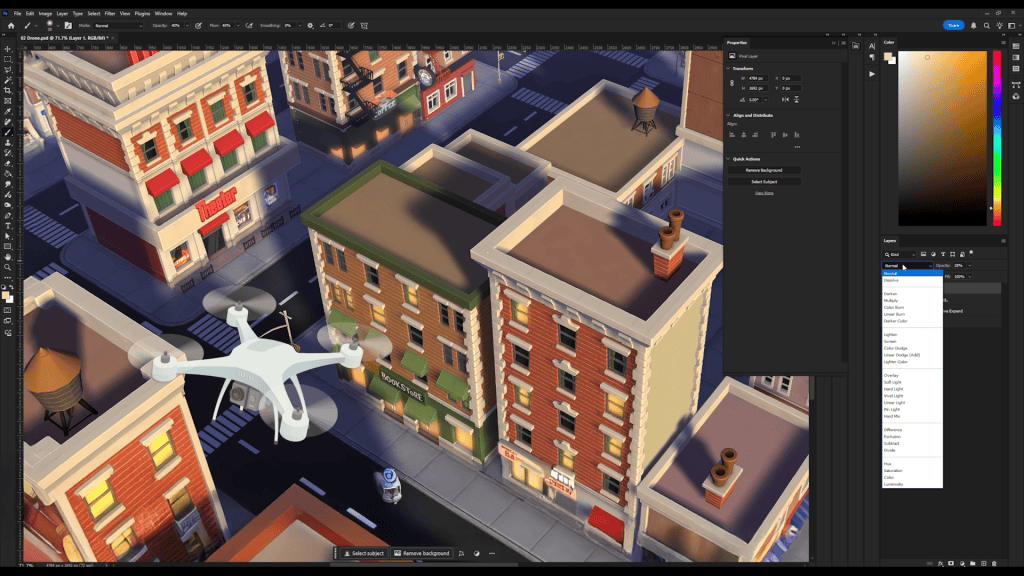
Technique 3: Motion Pilot for Drone Animation
I grabbed a drone image from Freepik, adjusted its perspective in Photoshop. To match the scene, I added a warm color tone on the drone, and I encourage you all to customize it when using this technique. In Cartoon Animator, I animated the background using a simple transform and flew the drone using Motion Pilot. I disabled the face cursor, boosted the Y-axis depth. Then simply hit the record button, move my mouse, and I have the animation ready. It instantly feels like a drone flying through a cinematic sky — no complex keyframes needed.
Technique 4: Paths for Car Traffic
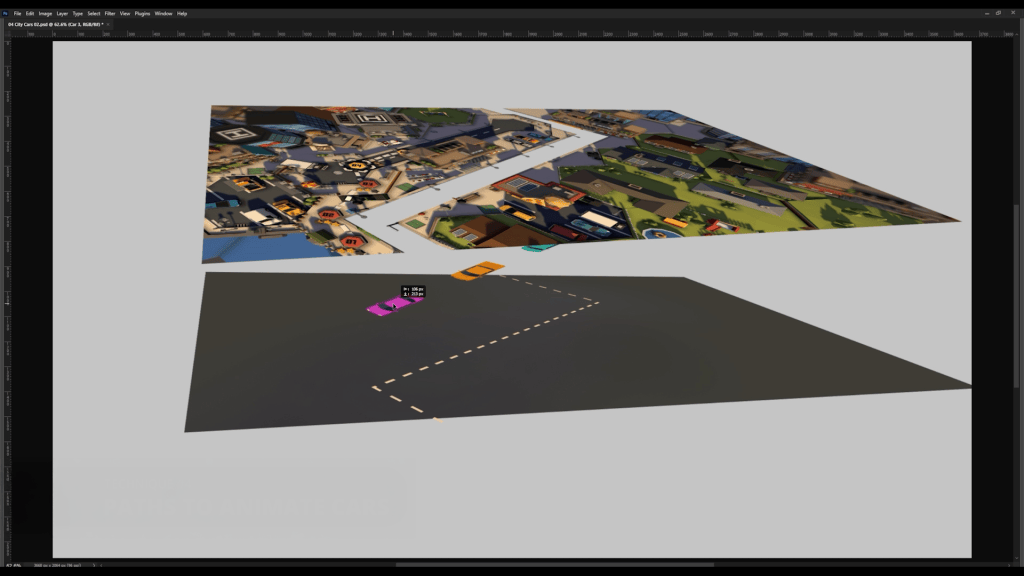
For this technique, I understand that a lot of people don’t have iClone or have time to learn Blender, so instead I went to Sketchfab, searched for a cartoony city, and took a screenshot. I layered the scene like a sandwich: road at the bottom, cars in the middle, and city buildings on top.
Between layers, I placed a shadow element and had the cars pass under it, adding to the realism of the environment. Then I animated one car with the path tool, duplicated it, staggered the timing, and created a flowing city scene full of moving traffic. Animating in Cartoon Animator is so easy that anyone can do it.
Technique 5: Motion Pilot for Flock Animation
To simulate movement in space, I started with a space background and drew a single star. In Cartoon Animator, I duplicated the star many times, activated the Motion Pilot flock mode, and set the delay to uniform.
After that, I simply moved my mouse — and all the stars followed in formation, creating a parallax-style flight effect. Then I brought in a spaceship and animated it using Motion Pilot with “Face Cursor” mode disabled. The result is a space chase that feels alive.
Technique 6: 360 Head Masking for Phone Scroll Animation
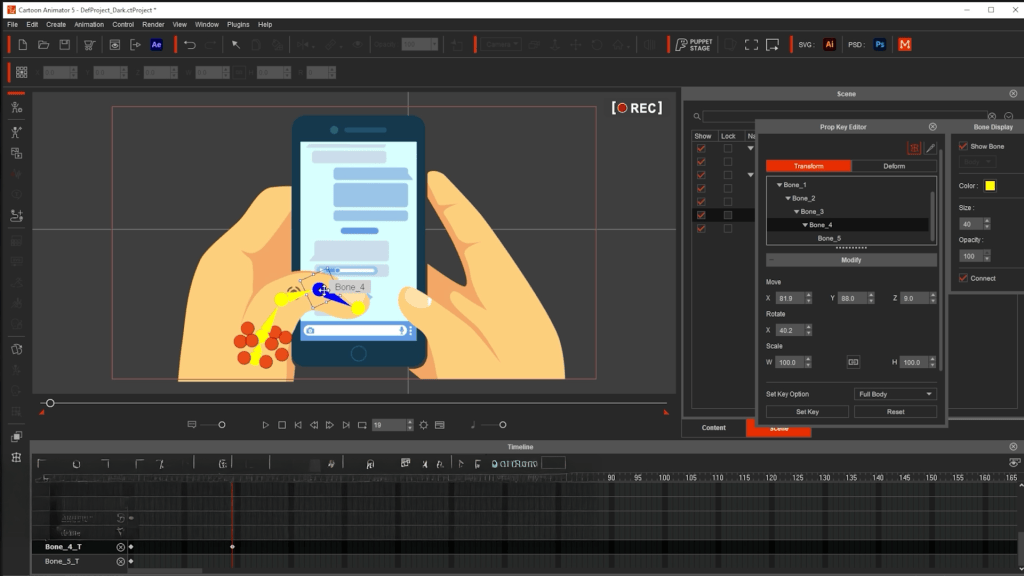
This is a clever technique demonstrated by Stephan’s entry. For this, I got an illustration of hands holding a phone and separated the thumb and screen layers. Inside Cartoon Animator, I used the masking feature normally meant for facial rigs to keep all face elements inside. Now, what if, instead of a mouth, I placed a long scrolling screen, and instead of the face, I put a screen? We get an animatable smartphone!
So I just animated the thumb flicking up and down and moved the content behind it. The outcome made the phone scroll realistically, powered by Cartoon Animator’s facial animation tools.
Technique 7: Masking for Classroom Scene
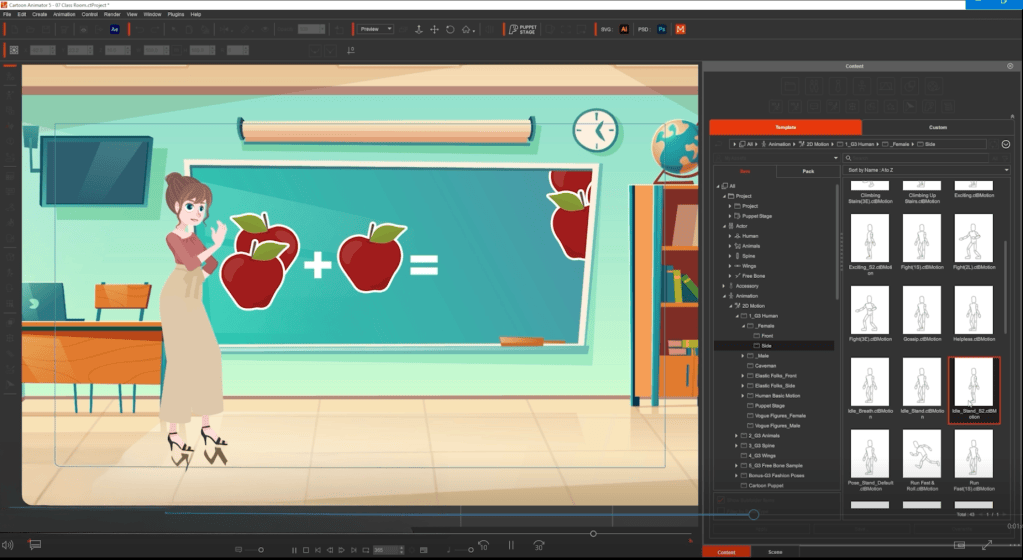
I split a flat classroom illustration into two layers: the chalkboard and the rest of the room. That turns the board into a window. Behind the board, I added animated content, like apples appearing for a math lesson. I used an AI-generated voice with 11 Labs, added lip sync in Cartoon Animator, and dragged in pre-made motion clips for the character. With just a few layers and smart masking, the scene feels like a live cartoon lesson.
Technique 8: Enforcing Background Consistency with 3D
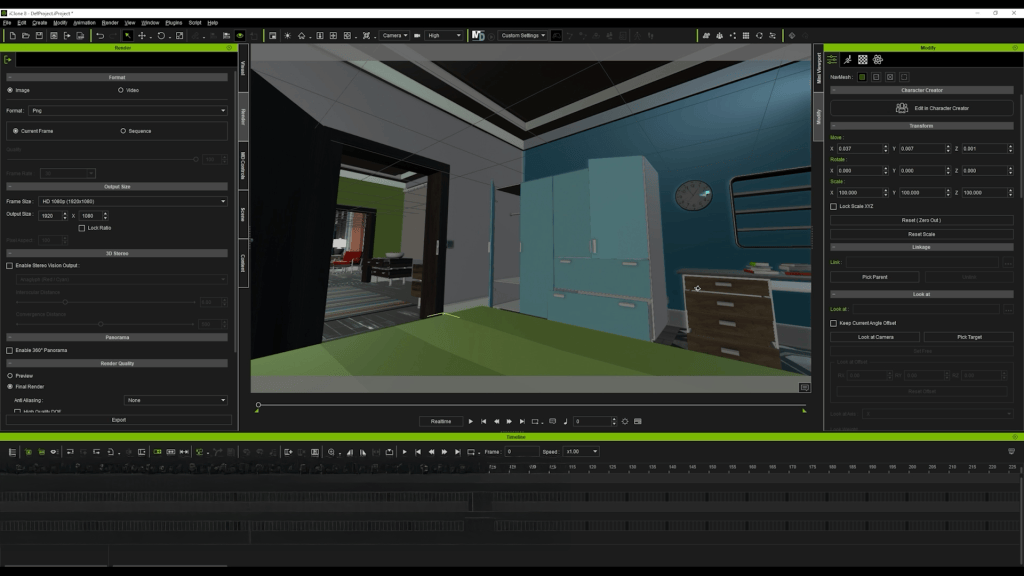
Want multiple camera angles in a consistent world? I could spend days learning Blender and building a 3D environment, but iClone serves as a nice alternative.
I picked a pre-built 3D set, positioned cameras from different angles, exported the images, and ran them through an AI tool to turn them into cartoon backgrounds. And now I have all the matching scenes with consistent style — all done in minutes, not days.
Technique 9: Creative Use of FFD
I found a gooey slime image and imagined a character interacting with it. After isolating the slime in layers, I drew a long slime trail and a thicker layer, then brought everything into Cartoon Animator.
Using Freeform Deformation (FFD), I animated the slime stretching and bouncing as the character moved across the scene. With just two layers and FFD, the illusion is complete, with the character pulling on a sticky, viscous substance.
Conclusion
So there you have it! Download the FREE Cartoon Animator trial in the link below and bring your first animation to life using these techniques. And if you want to go deeper, I hosted a full webinar where I break down each technique step by step. Check that video to start mastering your animation journey. Also, special thanks to Stephen Townsend, Sasapitt Rujira,t and Weronika Posemkiewicz. It’s their talented techniques and selfless sharing that contributed to this article. To support them, it would be nice if you like and share their articles with your friends and family!
Brian P. Dean – Visual Effects / Animator / Director
Brian P. Dean
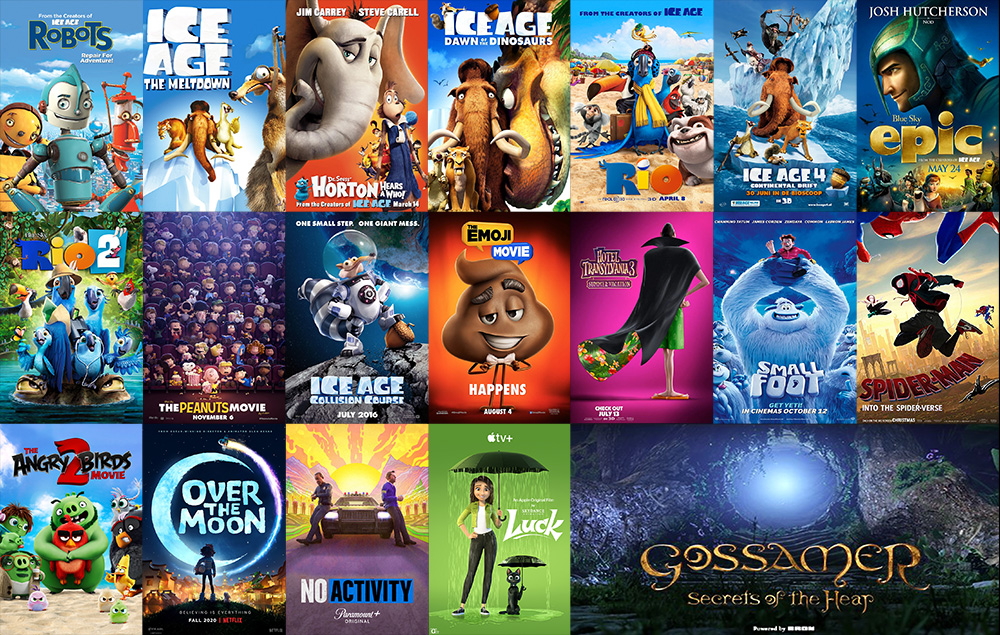
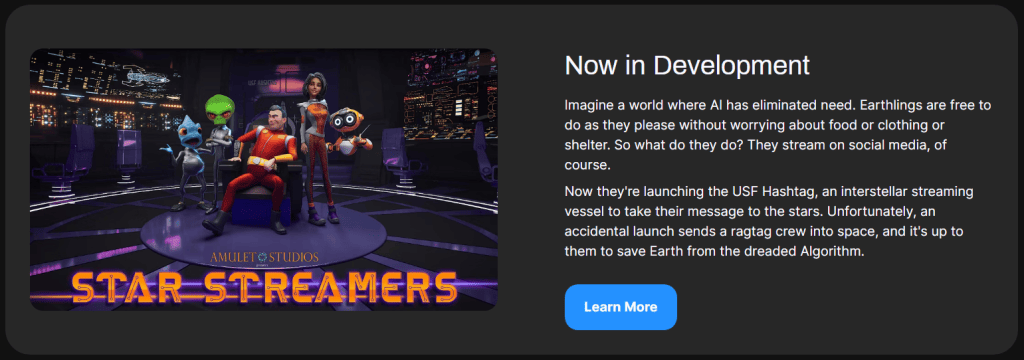
Brian P. Dean is a highly respected animator with over 20 years of experience at studios such as Blue Sky Studios and Sony Pictures Imageworks. His portfolio includes Robots, Ice Age, Spider-Man: Into the Spider-Verse, and Over the Moon. Today, Dean is co-founder of Amulet Studios, where he pioneers real-time workflows in Unreal Engine to develop original projects like Star Streamers.
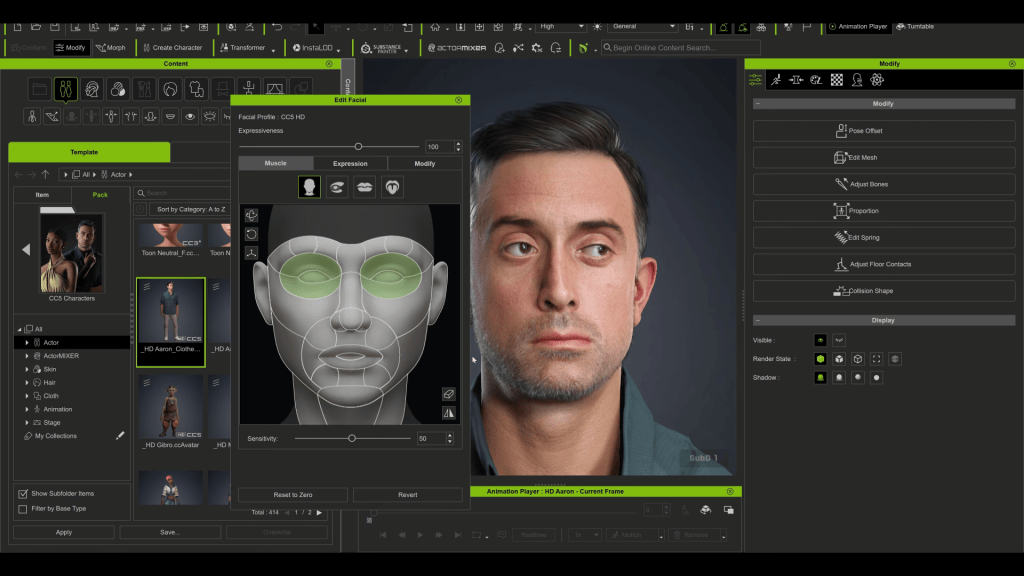
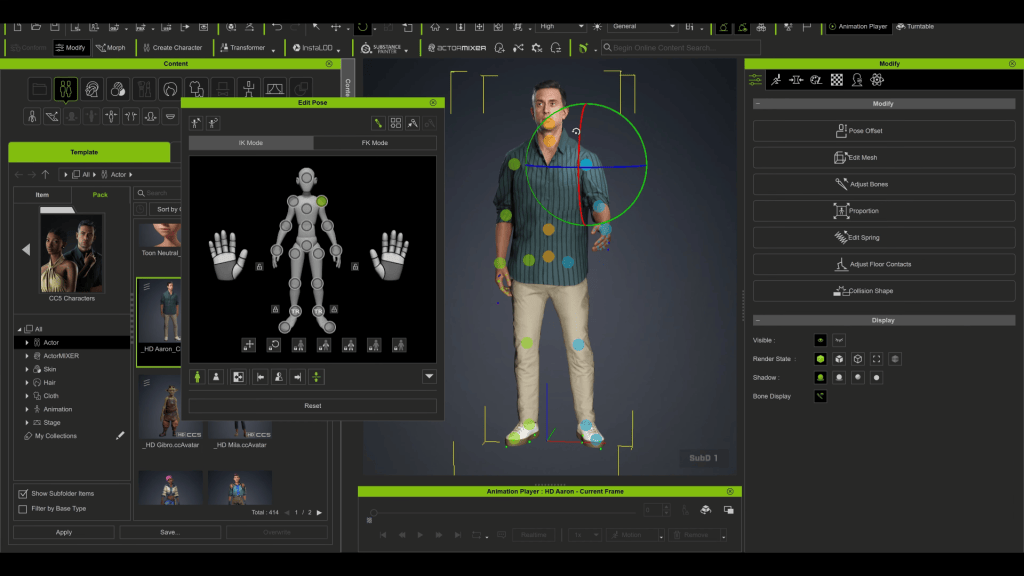
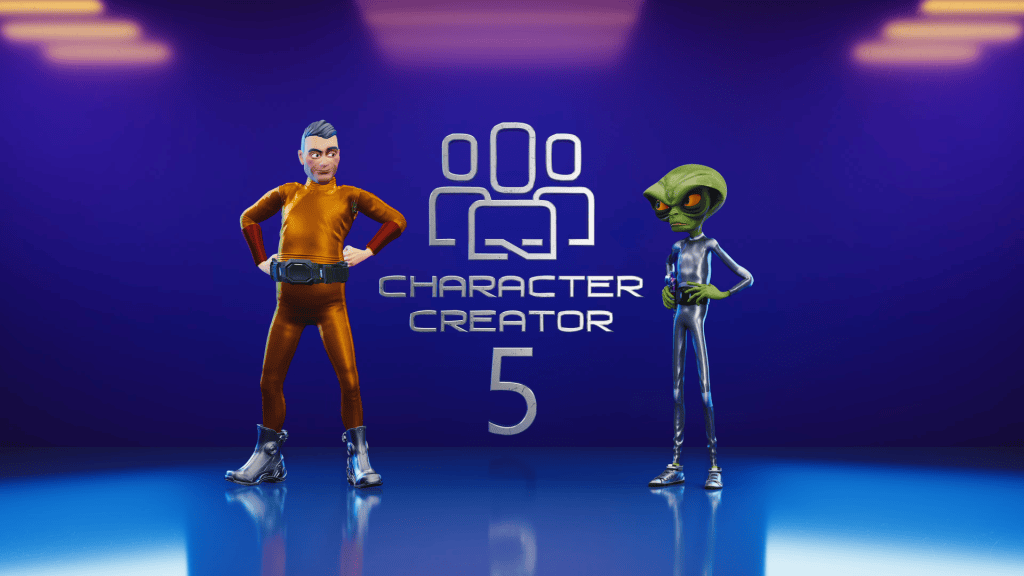
In his latest review video, Dean dives into Reallusion’s Character Creator 5 (CC5)—a powerful update for 3D character artists, animators, and studios looking to push realism, speed, and compatibility further than ever before
Character Creator 5 (CC) is Reallusion’s standalone tool for building fully rigged 3D characters. Artists can start from a base mesh or preset, then refine their design with morph sliders for face and body. Characters can be stylized, realistic, or fantasy-inspired, and are automatically prepared for animation with complete body and facial rigs.
ActorCore, a massive motion library for quick animation.
Export compatibility with Unreal, Unity, Blender, Maya, 3ds Max, and Marmoset via the free Auto-Setup tool.
These features already made CC a go-to for many creators in CC4.
So, what’s new in CC5?
The Big Upgrades in Character Creator 5
Higher Resolution & More Detail
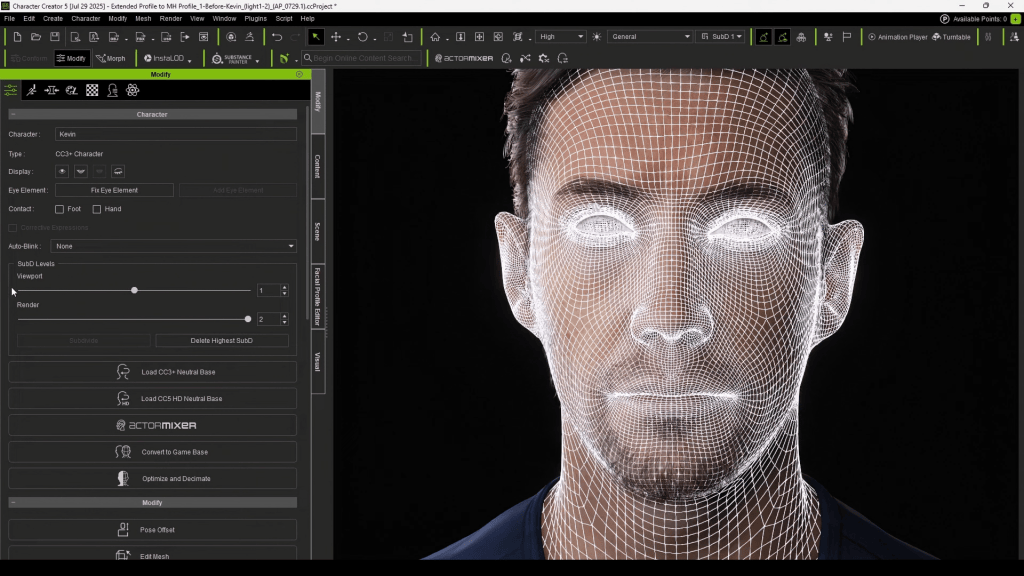
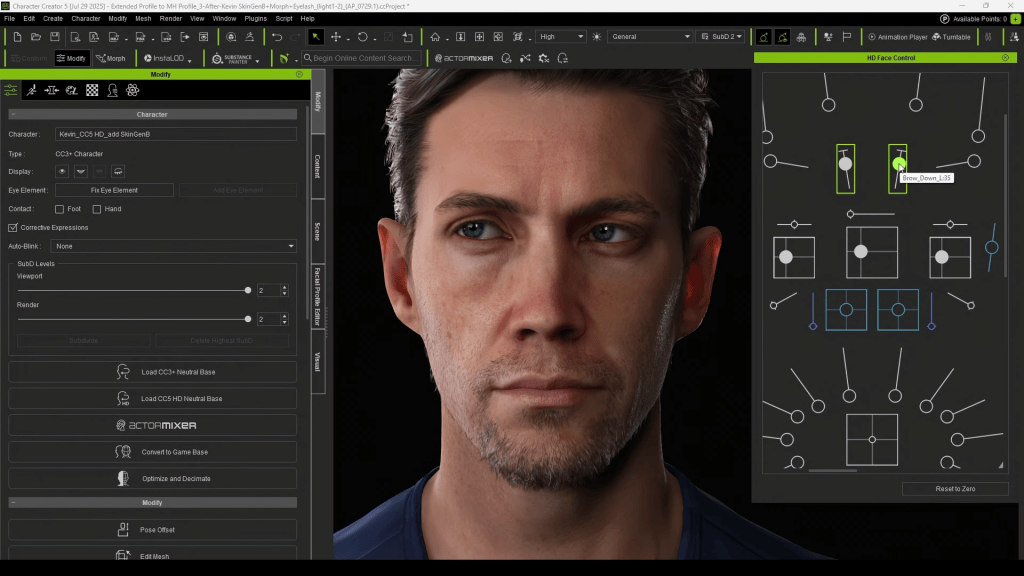
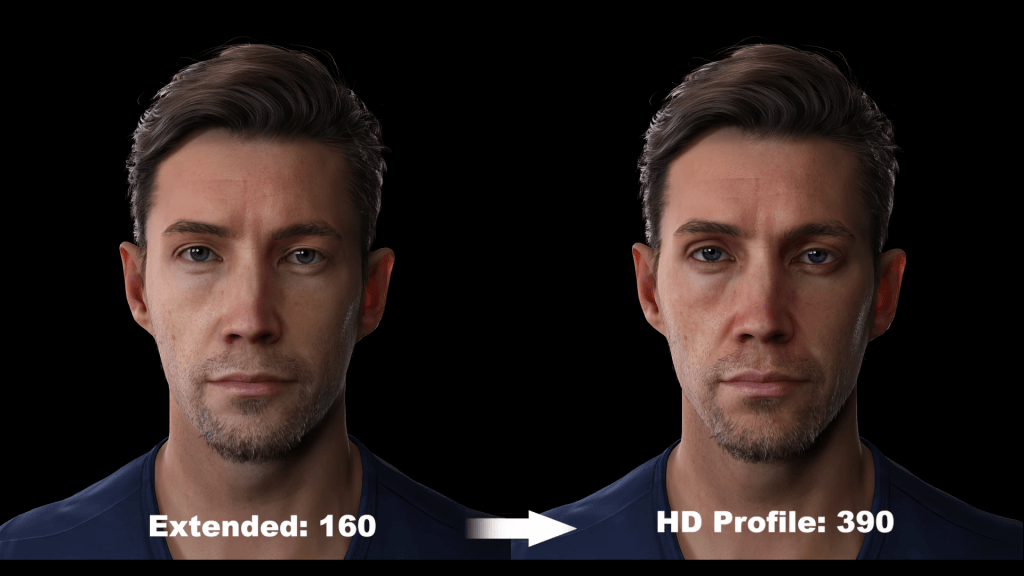
CC5 introduces a new character profile with higher mesh resolution. This unlocks more geometric detail—perfect for sculpted wrinkles, exaggerated stylized surfaces, and realism that previously relied only on normal maps.
With additional morph shapes, animators gain finer control over facial expressions and subtle body movements.
4K–16K Textures
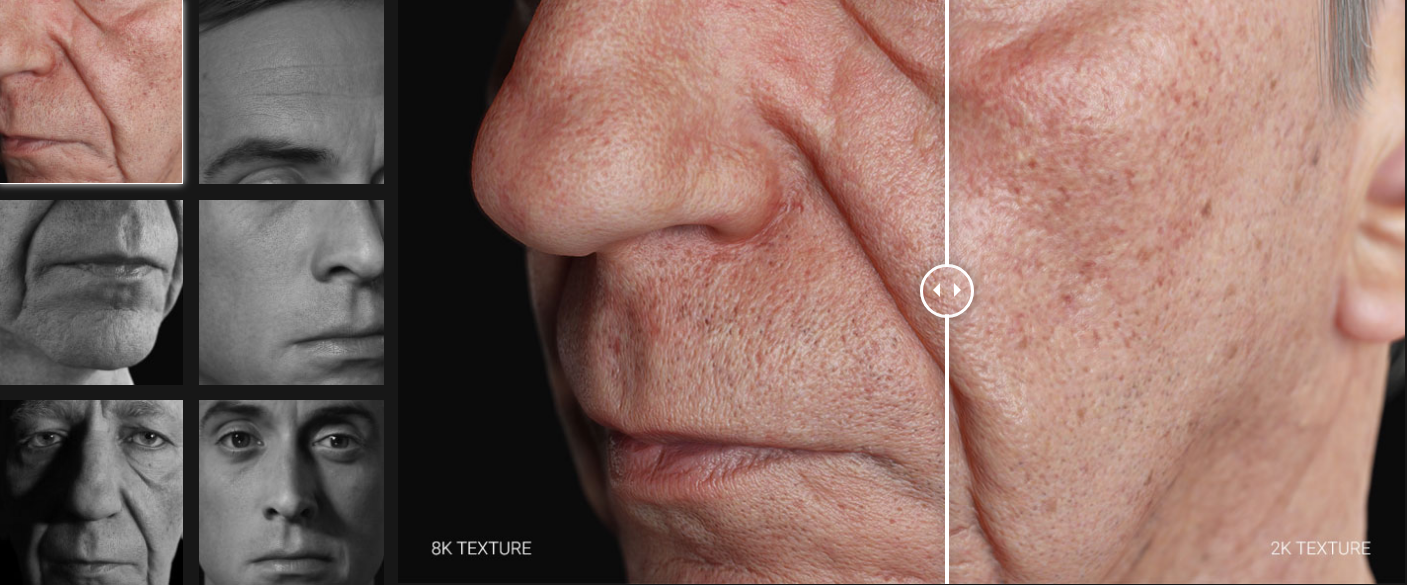
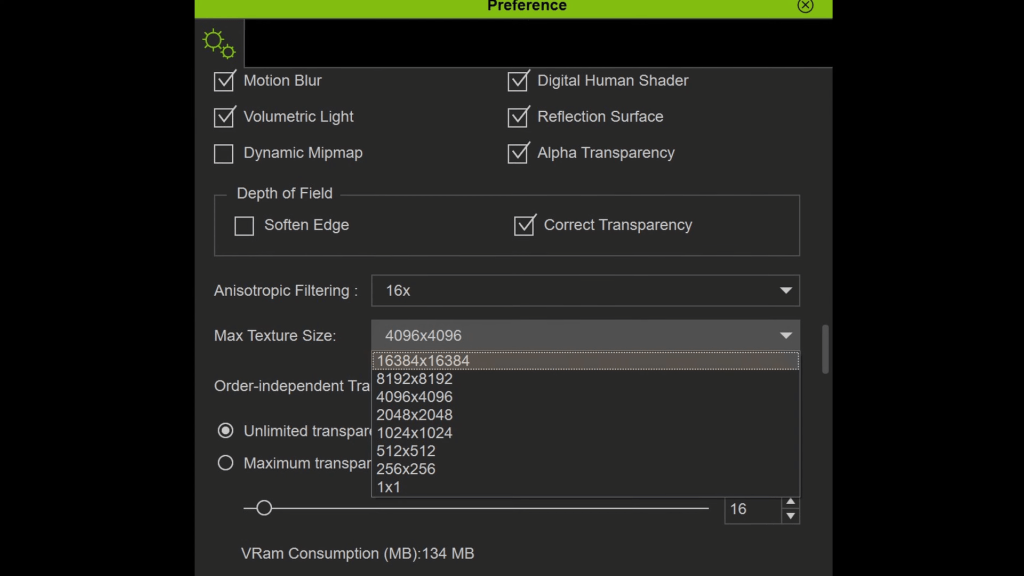
While 4K textures cover most needs, CC5 now supports 8K and even 16K texture editing for production teams pushing ultra-high fidelity. For stylized creators, this flexibility ensures artwork holds up across formats, from cinematic close-ups to VR.
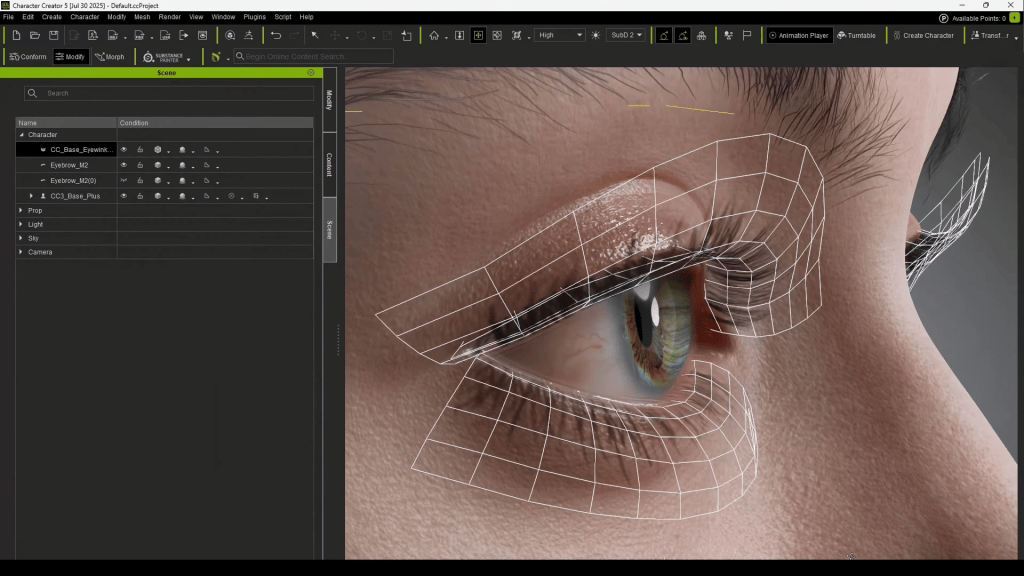
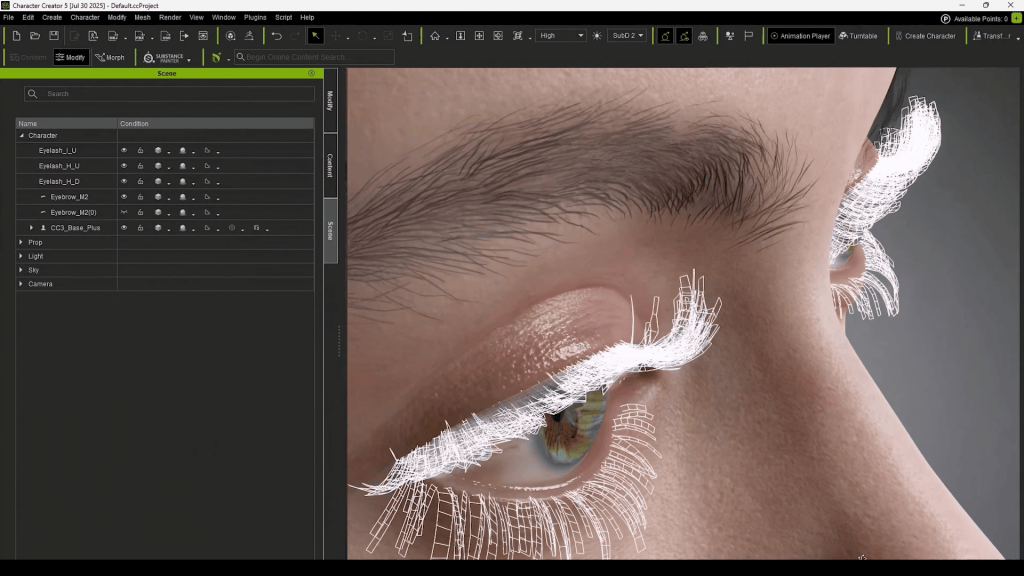
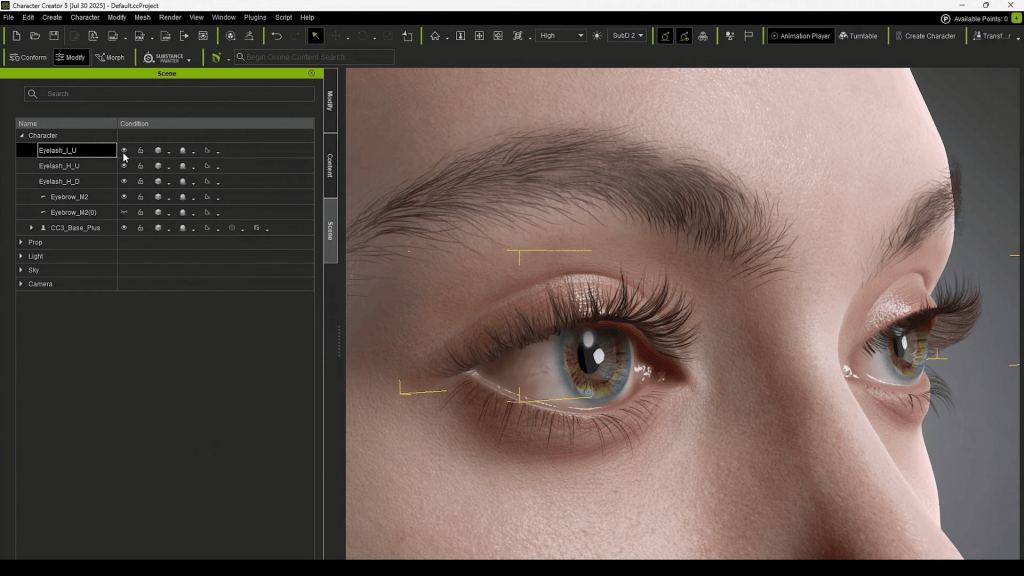
Revamped Eyelashes & HD Eyes
CC5 revamps character eyes and eyelashes:
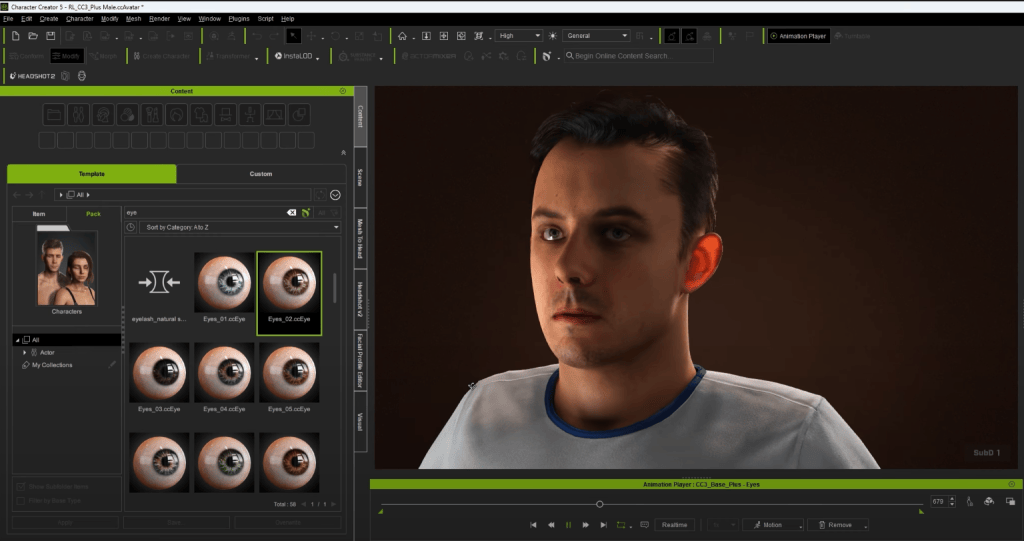
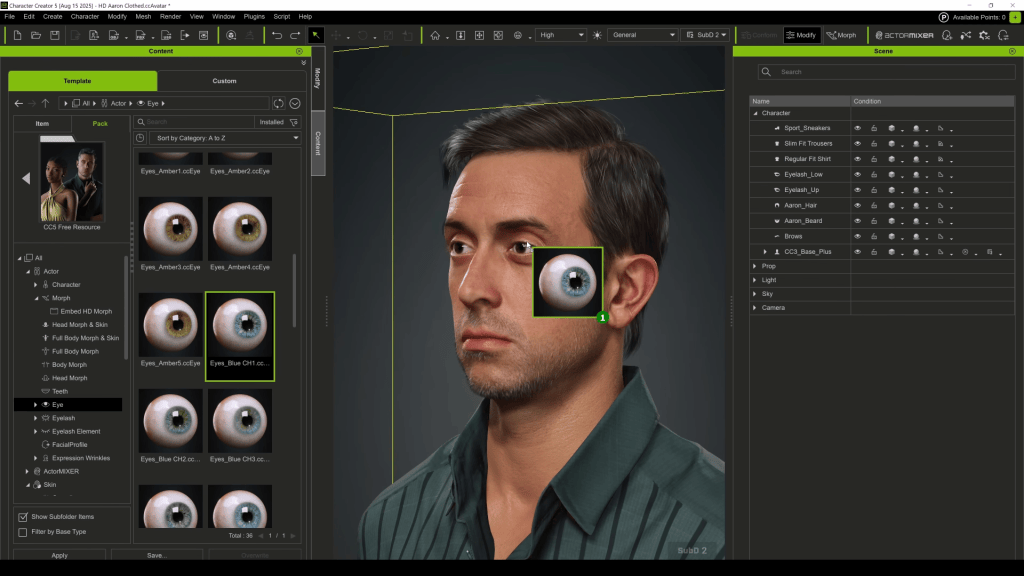
HD Eyes provide higher resolution textures, adjustable iris size, and detailed color customization for expressive, lifelike results.
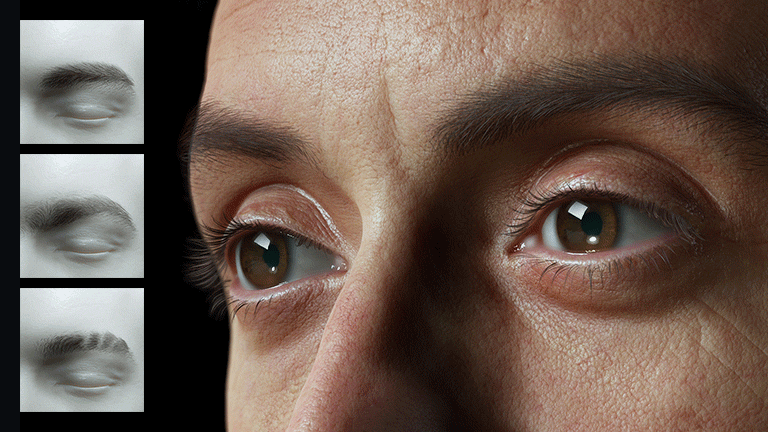
Eyelashes are now fully geometric rather than texture-based, giving natural volume and control over top/bottom lashes independently.
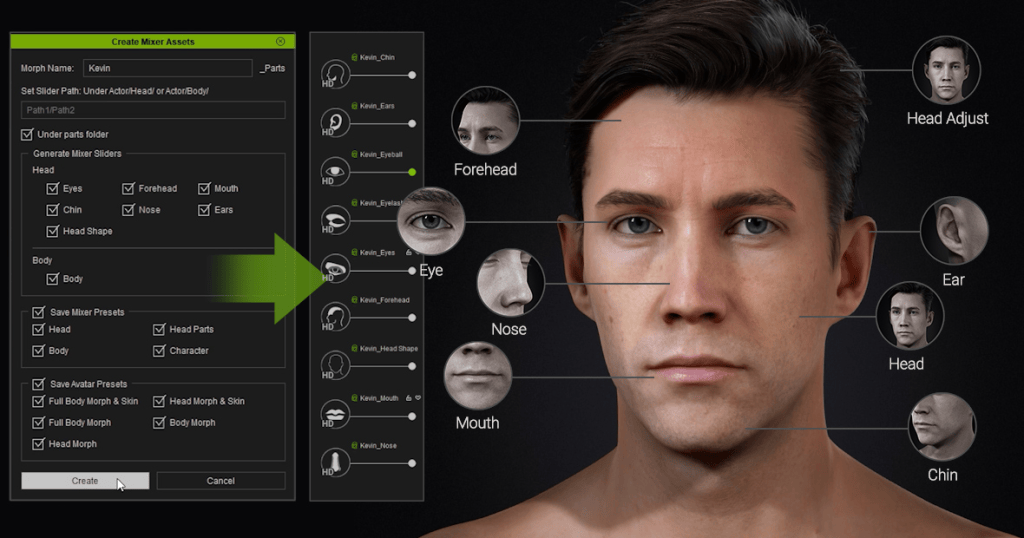
Actor Morphing System
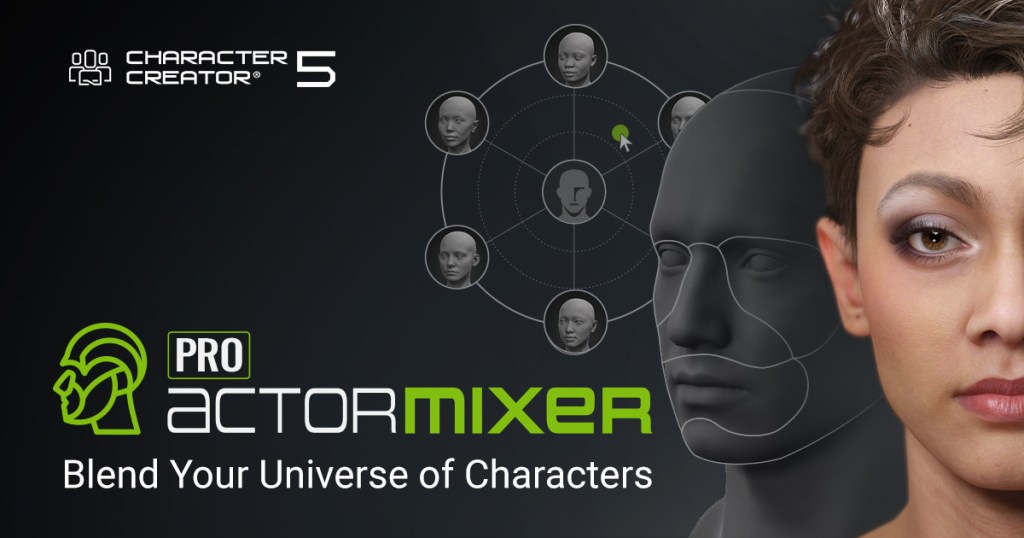
Character Creator 5 introduces ActorMixer, letting artists blend and combine features from multiple characters. Whether adjusting entire body presets or just tweaking a nose shape, this feature accelerates custom design workflows.
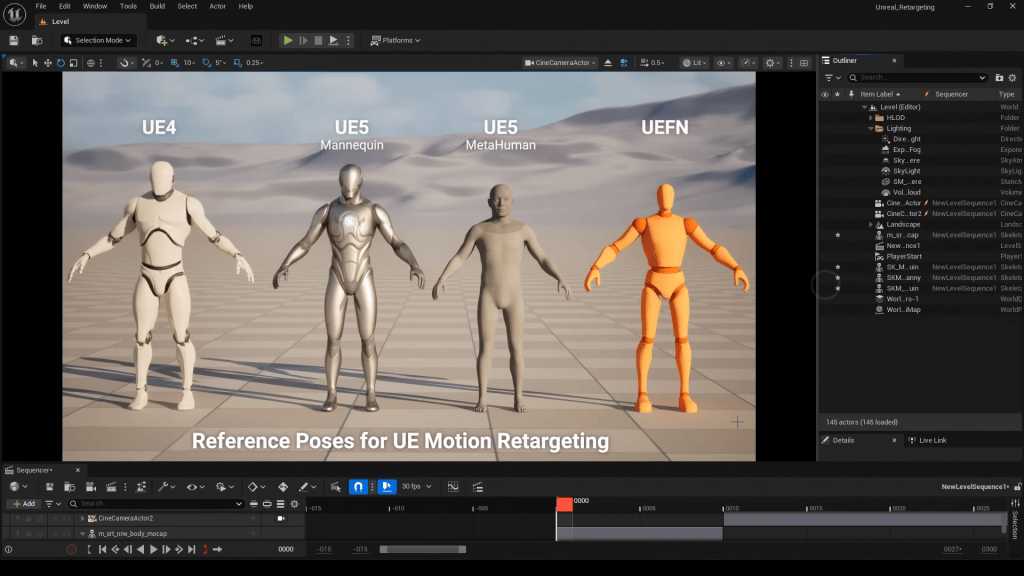
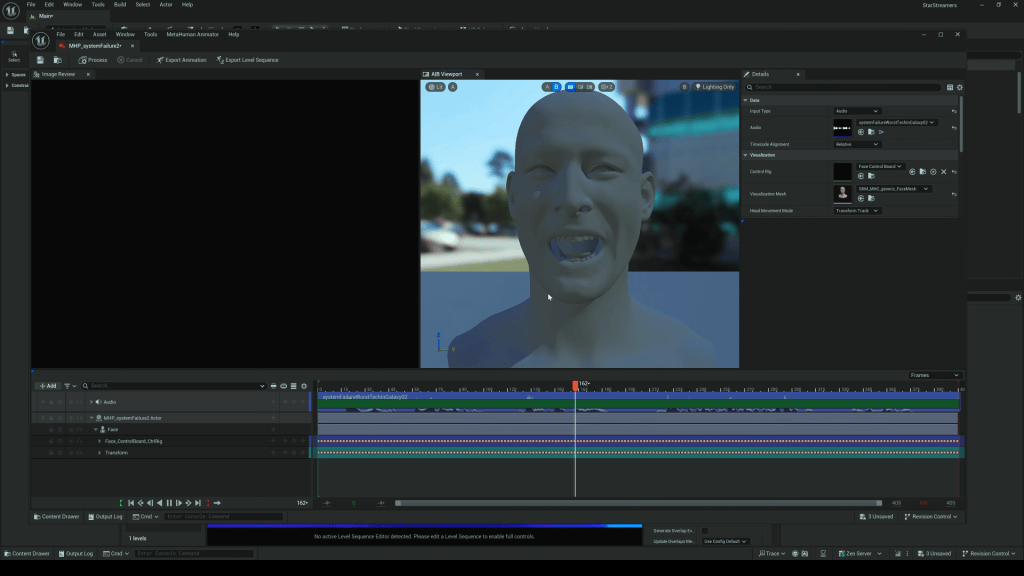
Perhaps the most impactful update: Character Creator 5 is now fully compatible with Metahuman and Unreal skeletons. This eliminates tedious conversion steps that Dean described as time-consuming in past workflows. Artists can import CC5 characters directly into Unreal Engine and take advantage of Metahuman tools such as audio-driven lip sync and the facial Control Rig for facial animation.
Dean highlights this as a massive time and cost saver:
No more third-party plugins.
No more rebuilding characters as Metahumans.
Direct access to Metahuman tools for CC5 characters.
Real-Time Animation in Action
In his video, Dean demonstrates the power of this compatibility:
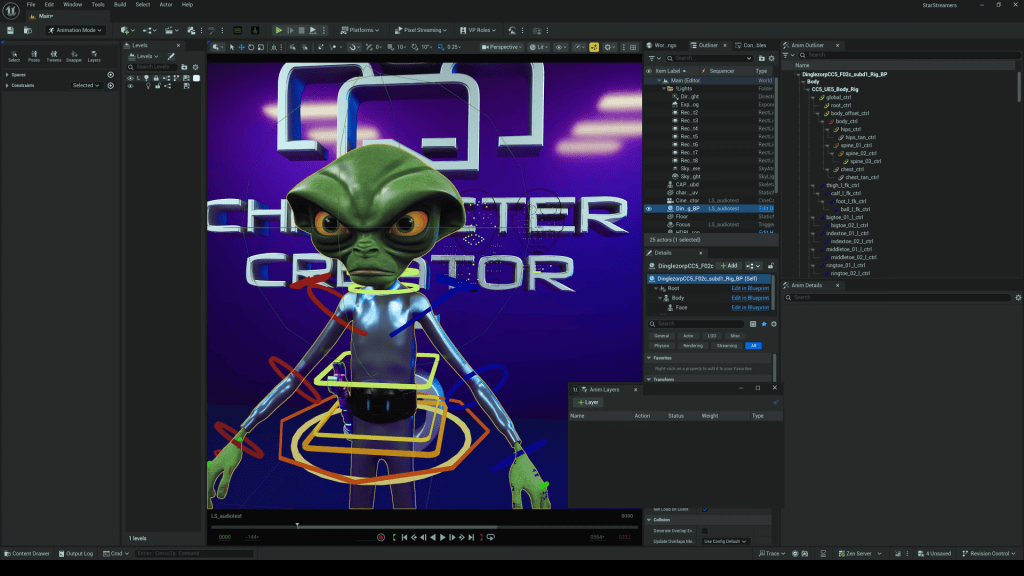
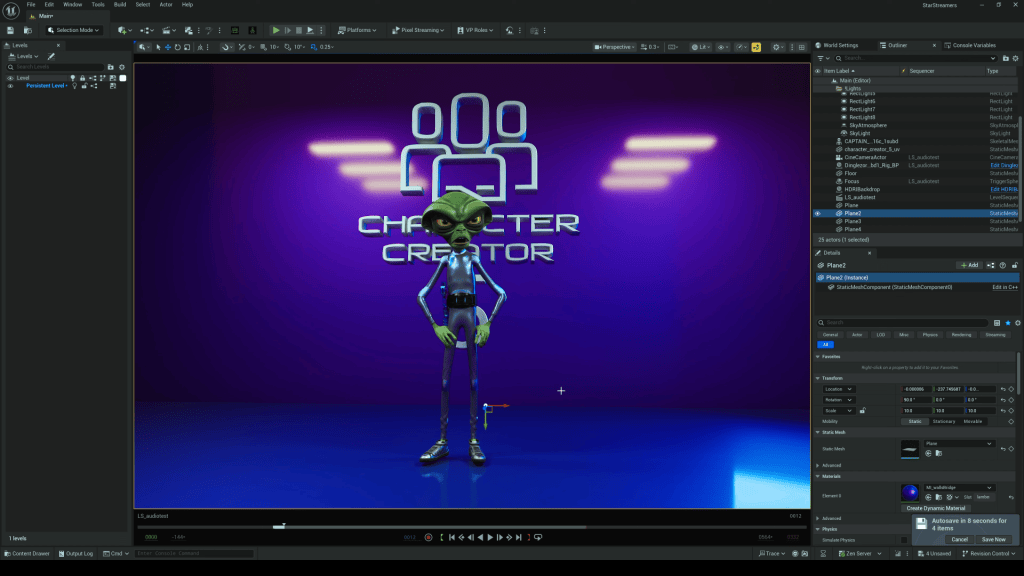
He imports a CC5 character, Dinglezorp, into Unreal Engine.
He applies Metahuman’s audio-based facial animation tool for instant lip sync.
He layers ActorCore body animations for full character performance.
The result: a seamless fusion of workflows that blends the best of CC5 and Unreal Metahuman technology.
Why CC5 Matters for Animators and Studios
Character Creator 5 isn’t just an incremental update—it’s a workflow revolution. Key benefits include:
Creative Freedom: Build stylized, realistic, or fantasy characters without being locked into one style.
Faster Production: Save time with direct Unreal/Metahuman compatibility.
Scalability: Suitable for indie creators and large studios alike.
Cost Efficiency: Fewer plugins, fewer conversion steps, and reusable characters from CC4 to CC5.
Future-Proofing: With 8K+ textures and real-time integration, CC5 is built for the next generation of animation pipelines.
Conclusion: Brian Dean’s Verdict
After testing CC5, Brian Dean concludes that the Metahuman compatibility and upgraded detail make this the strongest version yet. For anyone working in 3D animation—whether for games, film, or virtual production—Character Creator 5 delivers freedom, efficiency, and professional-grade results.
Yes. The base mesh remains the same, but CC5 allows more subdivisions and morph sliders. You can upgrade old characters without starting from scratch.
Does CC5 only work with Unreal Engine?
No. CC5 supports export to Unity, Blender, Maya, 3ds Max, and Marmoset. Unreal integration is a highlight, but not the only option.
Do I need Metahuman to use CC5?
No. CC5 is a standalone character creator. Metahuman compatibility is optional, designed to give users more flexibility in Unreal.
Is CC5 suitable for indie creators?
Absolutely. While production houses can scale CC5 for large projects, indie creators benefit from its one-stop solution for character design, rigging, and animation.
Onur Erdurak is a director, writer and 3D generalist from Turkey with a deep passion for storytelling and visual effects. He holds a bachelor’s degree in Cinema from Izmir University of Economics and expanded his cinematic knowledge through the Erasmus Student Exchange Program in Slovenia.
His early career was defined by Stranded, a no-budget short film that premiered at the Cannes Film Festival Short Film Corner in 2018. Since then, he has honed his VFX and CGI skills, developing a unique filmmaking style that blends practical storytelling with digital enhancements.
In 2025, Onur finalized his studies in MFA from Loyola Marymount University, where he continued to push the boundaries of storytelling. His creative project, Blendreams, shares his 3D renders and animations with a growing audience of over 140,000 followers on Instagram and YouTube.
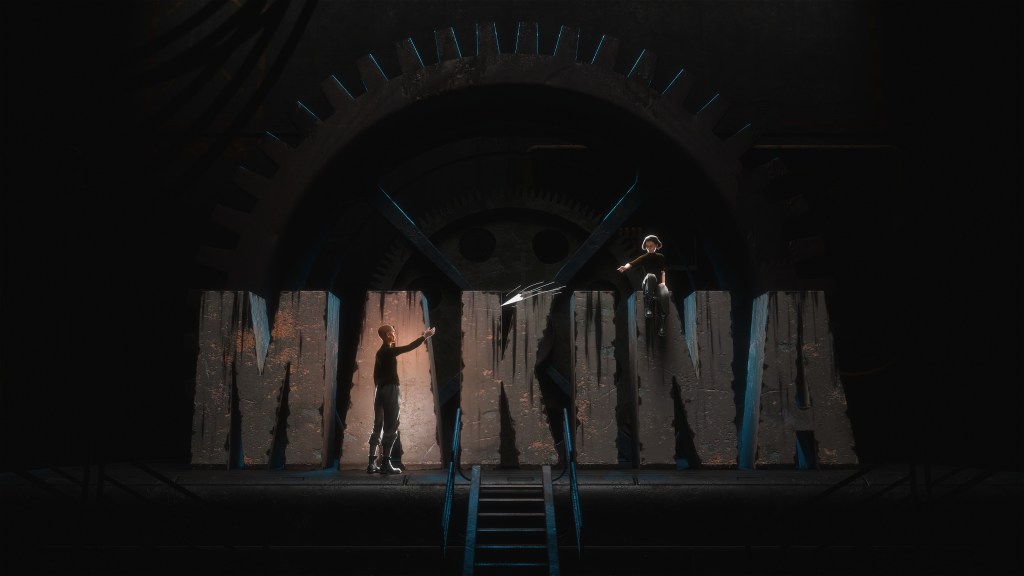
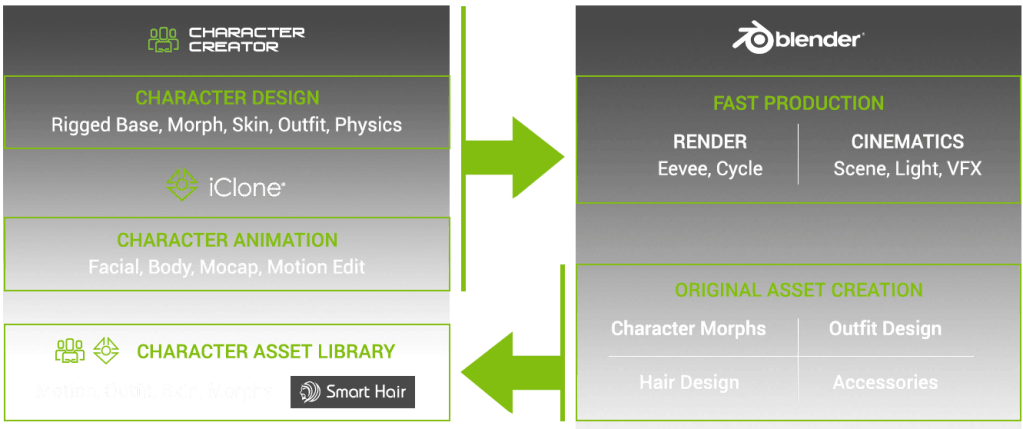
Onur Erdurak, is now bringing his dystopian vision Makina to life using Reallusion tools like Character Creator, iClone, and ActorCore. In this project he integrates Blender into his workflow, leveraging animation for previsualization and set extensions for this live action film. Discover how his innovative process bridges indie filmmaking and advanced 3D technology.
Unveiling Makina: A Dystopian Tale
Creativity is contraband deep underground; weary worker Tim complies, until Page’s rogue paper plane flutters past the Supervisor’s gaze, leaving Tim to decide whether to betray the girl or risk the madness the regime foretells.
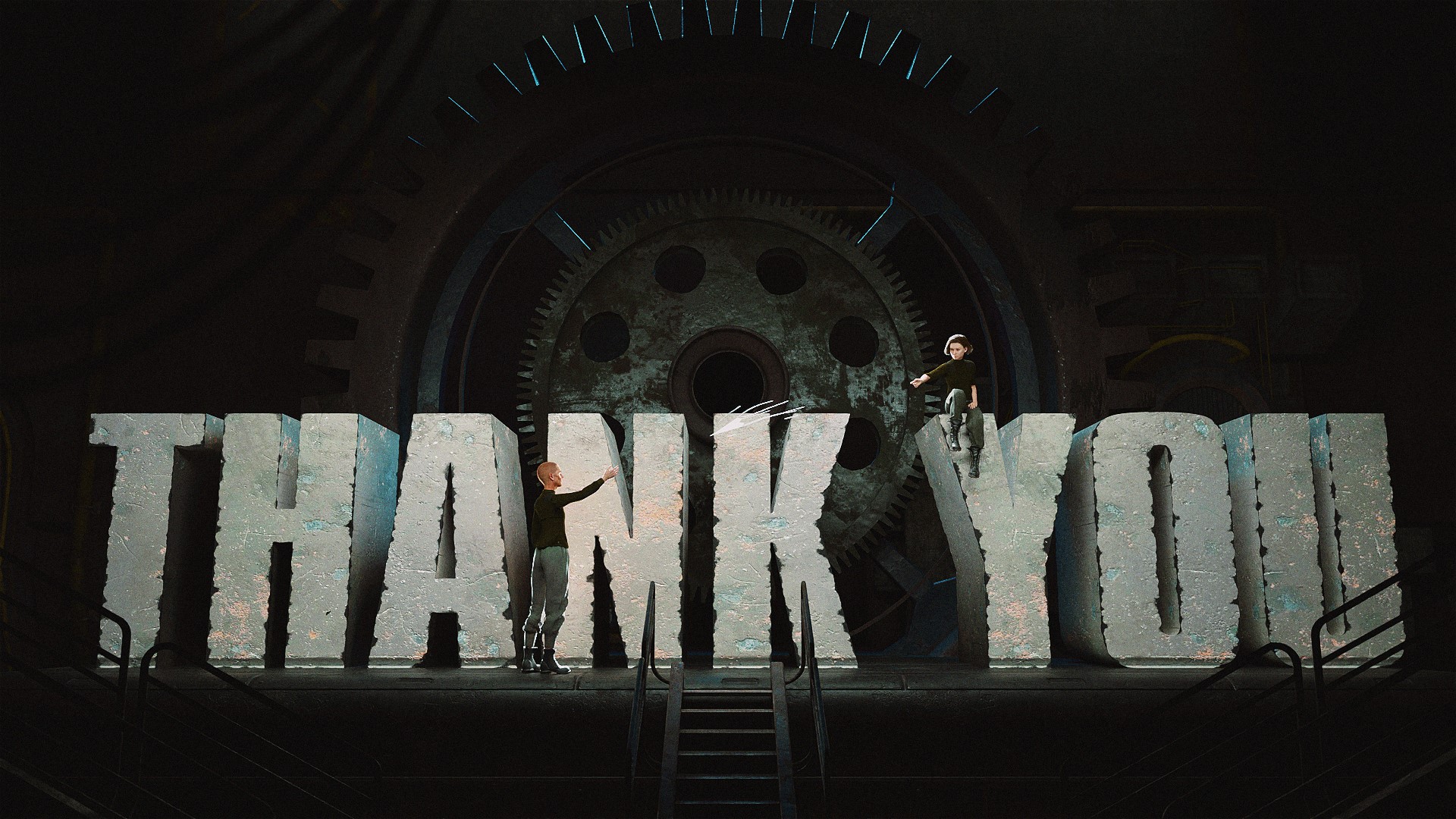
The teaser was created early in pre-production, way before the filming begun, as a tool to explore and communicate the film’s atmosphere, tone and creative vision. The final film is entirely live-action, complemented by select CG shots and VFX enhancements.
How Character Creator and Reallusion Tools Helped Character Development
Even though MAKINA is going to be live-action, Onur planned to incorporate ActorCorecharacters and animations in the final production. CG set extensions where used to convey the massive scale of this world, and ActorCore characters and animations, combined with iClone’s crowd simulation, would help populate these scenes to create realistic crowds.
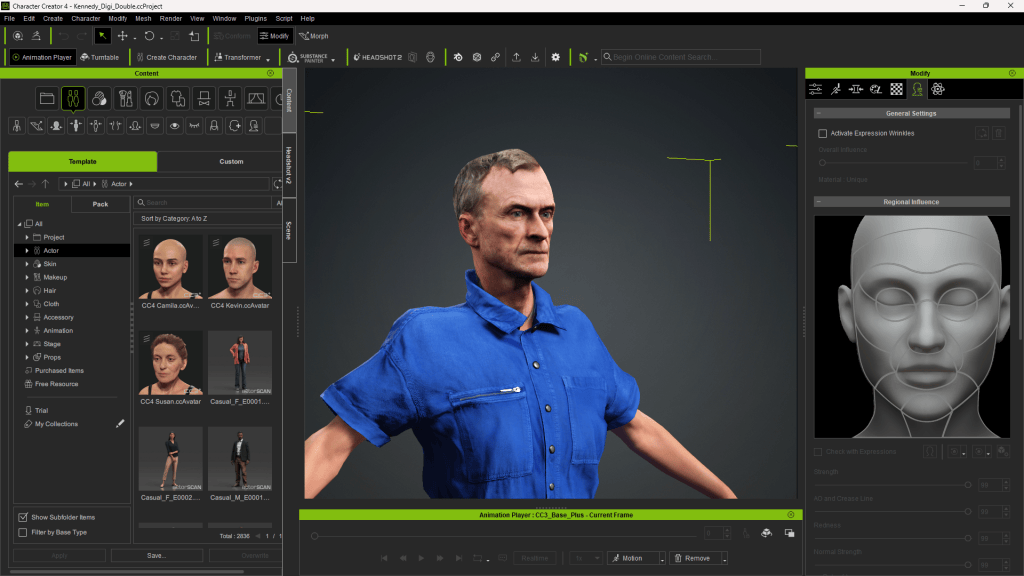
Before casting or filming began, Onur usedCharacter Creator 4 (CC4) to design his core characters. These weren’t placeholders—they were visual blueprints with emotion, tone, and style.
Erdurak sought to create distinctive characters beyond the default Metahuman appearances. He began by crafting characters in Character Creator 4 (CC4), then imported them into Unreal Engine 5. Utilizing the Mesh to Metahuman feature, he converted these models to leverage Metahuman Animator for facial performances. This process resulted in more unique and personalized characters.
“Character Creator is my go-to for designing the characters I envisioned for the script.”
Onur Erdurak – Director / Writer / 3D Generalist
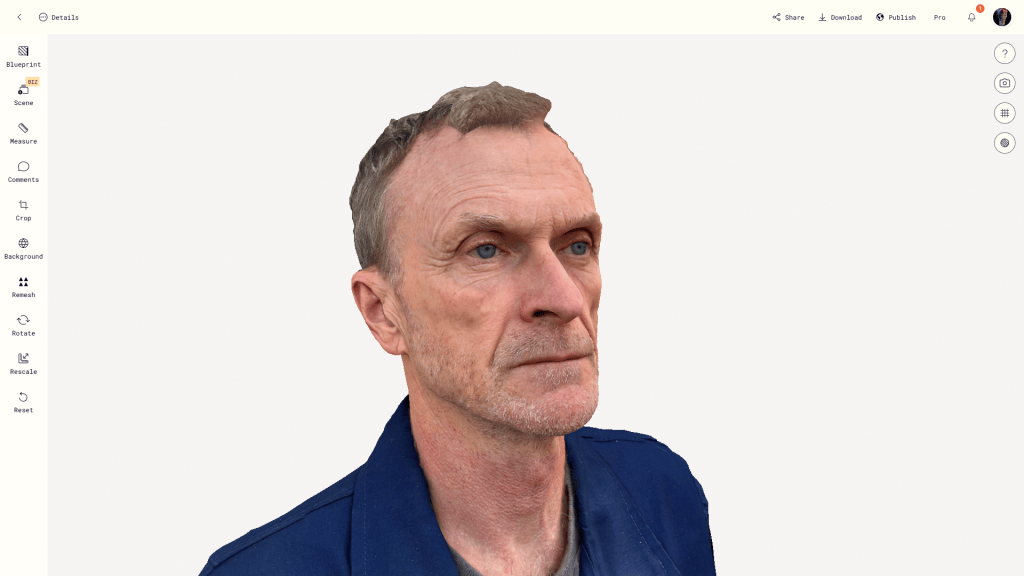
For specific scenes, Erdurak employed the free AccuRIG tool to rig characters from the BMS Post-Apocalypse Kit. He created this digital double using a head scan processed with the Headshot 2 plugin for Character Creator.
By customizing facial features, body types, clothing, and expressions, he was able to shape Tim’s tired resignation, Page’s youthful rebellion, and the Supervisor’s cold authority—all without hiring actors or building costumes. This gave the team a solid visual reference for casting and wardrobe decisions down the line.
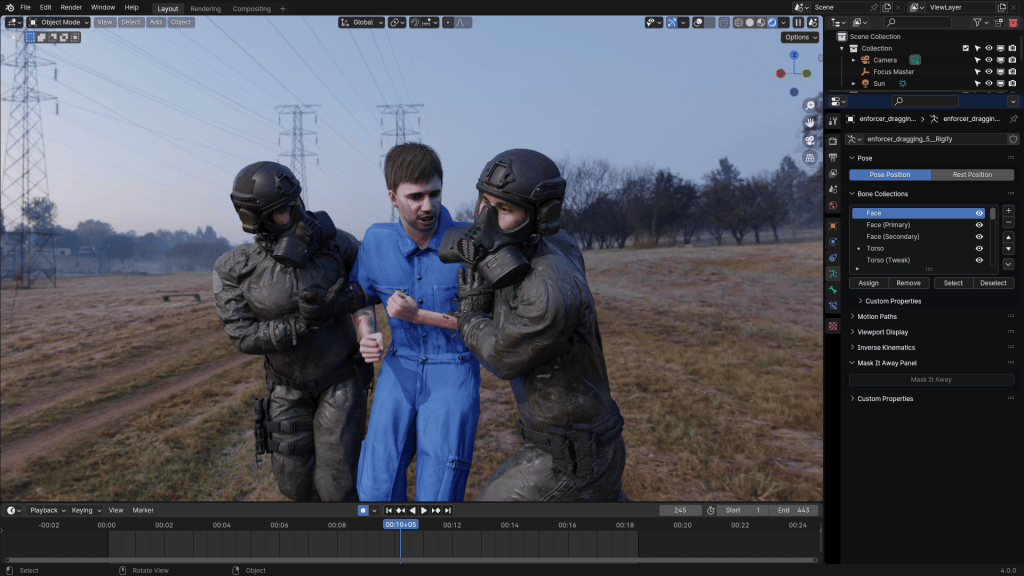
Notably, in a scene where two enforcers drag a worker, the enforcers were sourced from the BMS Kit, while the worker was a digital double of Erdurak himself.
“The performances were motion-captured by three people. I was the one acting for my digital double. The two others were Bryon Qiao who was the motion capture expert on set. And Melis Caner (Melniverse) she was also helping me with the pre-viz by acting as one of the characters, and she ended up acting as one of the characters in the final live-action film.”
Onur Erdurak – Director / Writer / 3D Generalist
Previsualization and Motion Capture Integration
To meticulously plan Makina, Erdurak utilized Unreal Engine for previsualization, employing Metahumans and LiDAR scans to create a 1:1 match with the actual filming location.
“I used Polycam to create LiDAR scans of the actual filming location, allowing for a 1:1 match between the Unreal Engine previs and the on-set shoot.”
Onur Erdurak – Director / Writer / 3D Generalist
Motion capture played a pivotal role in this process. The entire film was previsualized using ROKOKO motion capture tools: two headcams, one suit, and gloves. Using Rokoko’s Smart Suit Pro II, Erdurak captured performances to swiftly navigate the planning phase.
“We were able to go through the entire script, all the actions, all the blocking and movements. Motion capture allowed me to move through the planning phase incredibly quickly.”
Onur Erdurak – Director / Writer / 3D Generalist
This approach enabled comprehensive rehearsals of the script, actions, blocking, and movements, laying a solid foundation for the live-action shoot.
Using iClone and ActorCore for Lip Sync Animation and Previz
Erdurak relied on iClone to animate Makina’s concept scenes, helping him craft cinematic sequences before actual filming began. By using iClone’s real-time animation capabilities, he was able to quickly test different shots, camera angles, and character interactions.
Once the characters were designed, Onur brought them into iClone and ActorCoreto build animated sequences. These were more than storyboards—they were fully animated scenes with dialogue, lip sync animation, motion capture, and environmental lighting.
With ActorCore’s motion packs and iClone’s real-time engine, he was able to:
Block camera movements and lighting.
Animate facial expressions and dialogue.
Test emotional beats without expensive rehearsals.
To ensure the motion capture data aligned seamlessly with the film’s vision, Erdurak used iClone 8 for synchronization and cleanup. This step was crucial in refining the animations before integrating them into the final production.
“I used iClone 8 to sync and clean up the mocap data that made it into the final film.”
Onur Erdurak – Director / Writer / 3D Generalist
Here’s an example of the animated concept art scene he created for Makina: Watch it on Instagram
Blender Workflow and Crowd Simulations
Integrating Reallusion tools with Blender was a significant aspect of Erdurak’s workflow. He utilized the Blender Auto Setup plugin to streamline the process, facilitating smooth transitions between Character Creator, iClone, and Blender. Sharing his expertise, Erdurak produced tutorials to assist others in mastering this workflow:
A dystopian underground society isn’t complete without crowds of workers. Instead of casting dozens of extras, Onur used iClone’s crowd simulation tools. By pairing ActorCore characters with iClone’s real-time engine, he created realistic background characters—walking, working, and blending into the scenes.
These resources offer practical insights for both beginners and experienced artists aiming to enhance their skills and streamline their projects.
Why This Workflow Matters for Indie Filmmakers
Creating a short film—especially a sci-fi or dystopian one—used to require huge teams and budgets. Onur Erdurak’s approach to Makina exemplifies the harmonious integration of live-action and digital techniques. By leveraging advanced tools and motion capture technologies, he brings a unique dystopian world to life, challenging the boundaries of traditional filmmaking. His dedication to sharing knowledge further enriches the creative community, inspiring others to explore and innovate within their own projects.
By using tools designed for 3D animation, he was able to:
Design characters before filming.
Create previz scenes that improve on-set direction.
Use crowd simulation to add depth and scale.
Keep production agile, visual-first, and collaborative.
This is a blueprint for how indie filmmakers can embrace tech, without losing narrative focus.
FAQ
What software did Onur use to create characters for Makina?
He used Reallusion’s Character Creator 4 for modeling and iClone with ActorCore for animation and previz.
Is Makina a 3D animated film?
No, it’s a live-action short that uses 3D tools extensively for previsualization, character design, and crowd animation.
How does iClone help indie filmmakers?
iClone provides real-time 3D animation, lip sync, and camera blocking, helping filmmakers plan scenes efficiently.
Can I learn 3D filmmaking tools as a beginner?
Yes! Onur Erdurak shares free tutorials that walk through his process step by step.
What are the benefits of combining Reallusion and Blender?
Reallusion speeds up character creation and animation, while Blender offers detailed customization, lighting, and rendering.
Greetings, my name is Peter Alexander. I am a character designer and 3D generalist who works with Character Creator 5 (CC5) and related pipelines. The recent updates to the Blender Auto Setup have made me more excited about CC4 character design than ever. Thanks to the brilliant developers, character design in Blender using CC4 assets is very streamlined and is a viable solution for those who do not have access to ZBrush or other licensed software.
In this article, I’m going to explore some ofCharacter Creator 5‘s new features, focusing mostly on the HD pipeline. Character Creator now supports two subdivision levels, adding a vast amount of mesh definition, which can be enhanced further with normal maps. The extra geometry allows for more possibilities with how far the base mesh can be stretched. Whereas previously a design like this was only barely achievable, now the geometry rests comfortably in this shape, allowing for enhancements like a better facial expression profile.
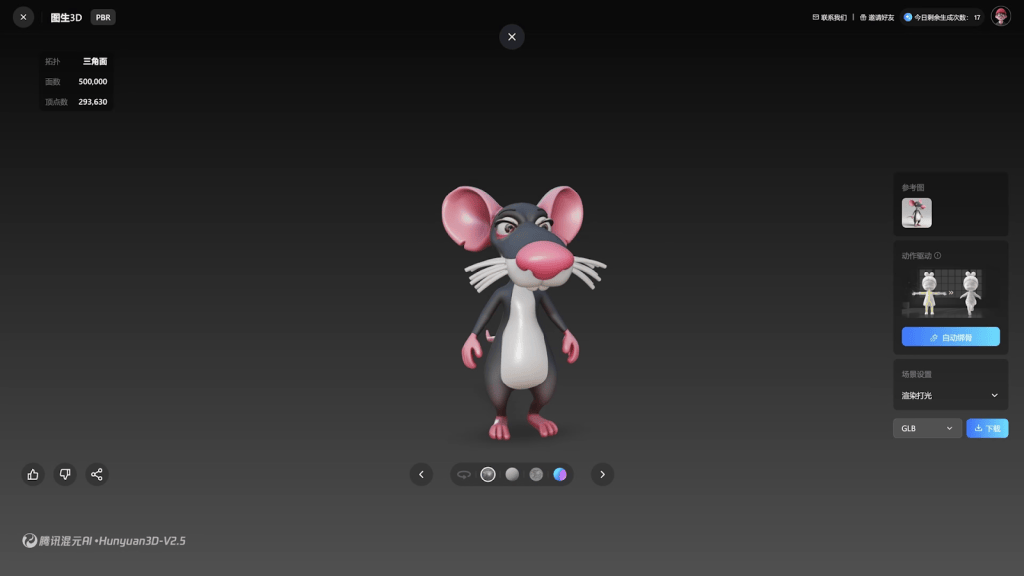
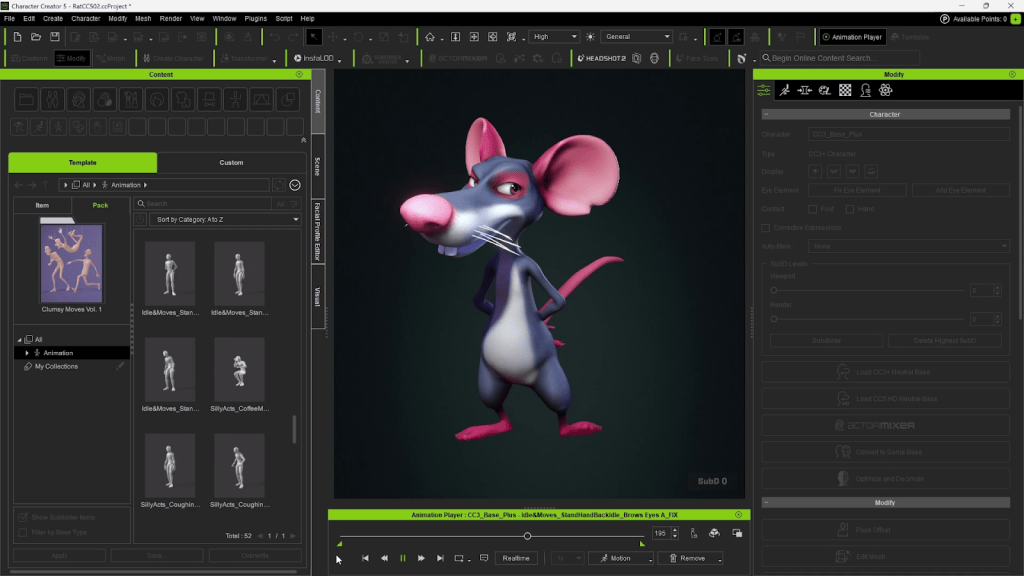
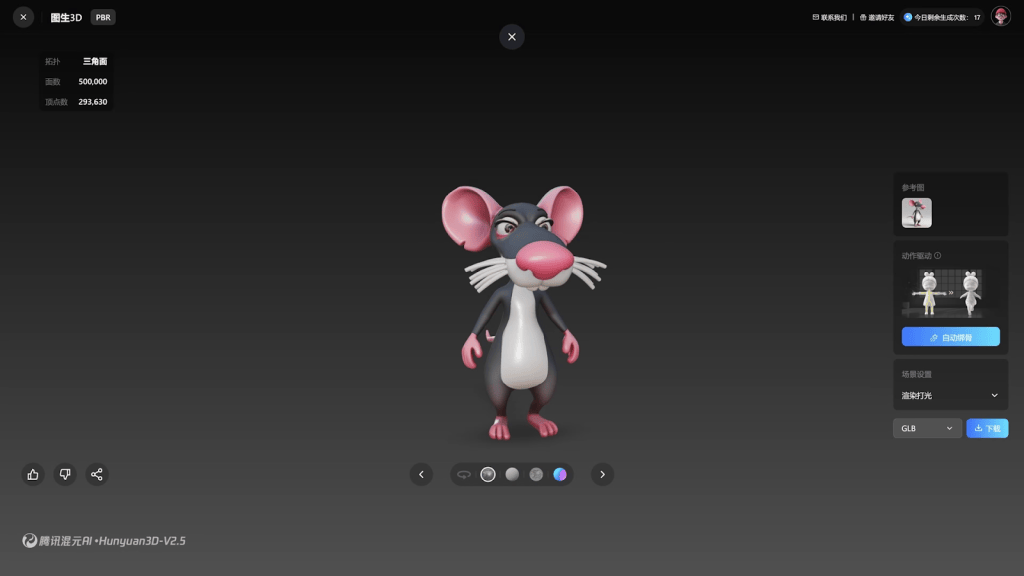
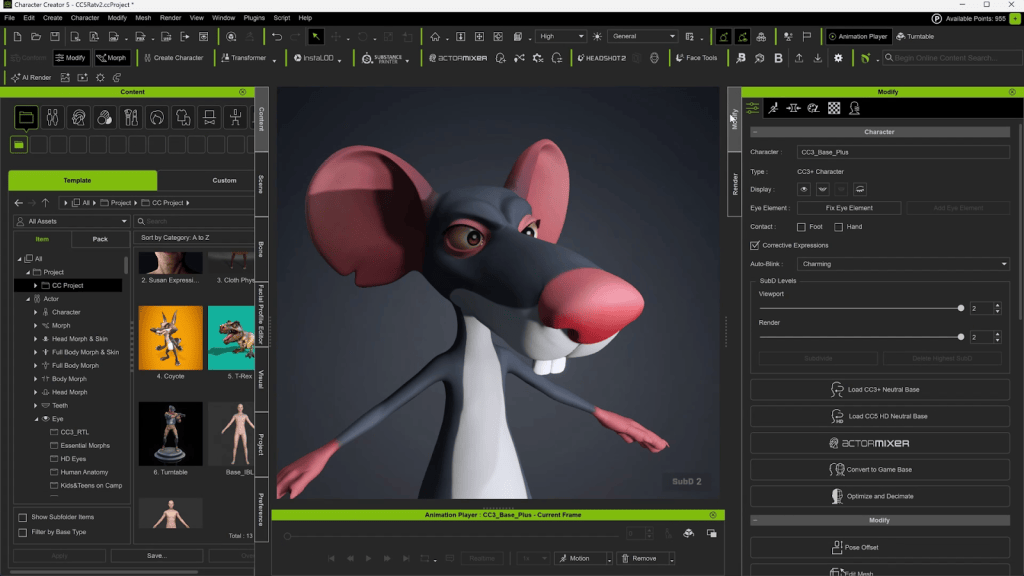
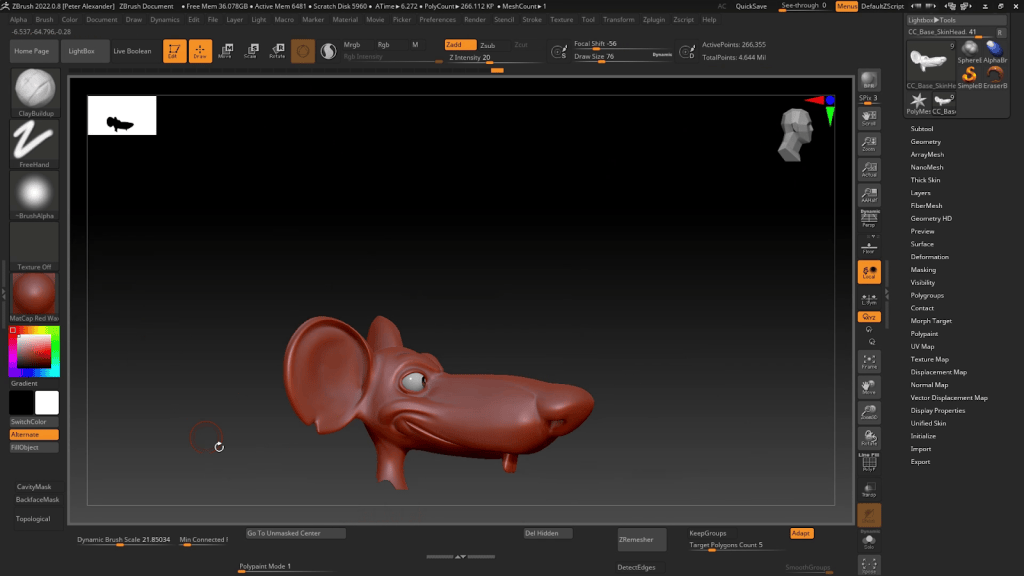
For this tutorial, I’m going to stretch the mesh over this AI-generated rat character. Once I clean up the mesh after wrapping, I’ll give it some basic polypaint and sculpted details, then send it back to Character Creator 5 at SubD 2. From there, I’ll clean up the mouth shape, add some expressions usingFace Tools, add a tail and whiskers, then send it to Unreal to take advantage of that pipeline’s features. Let’s dive in!
Prepping for the Wrap
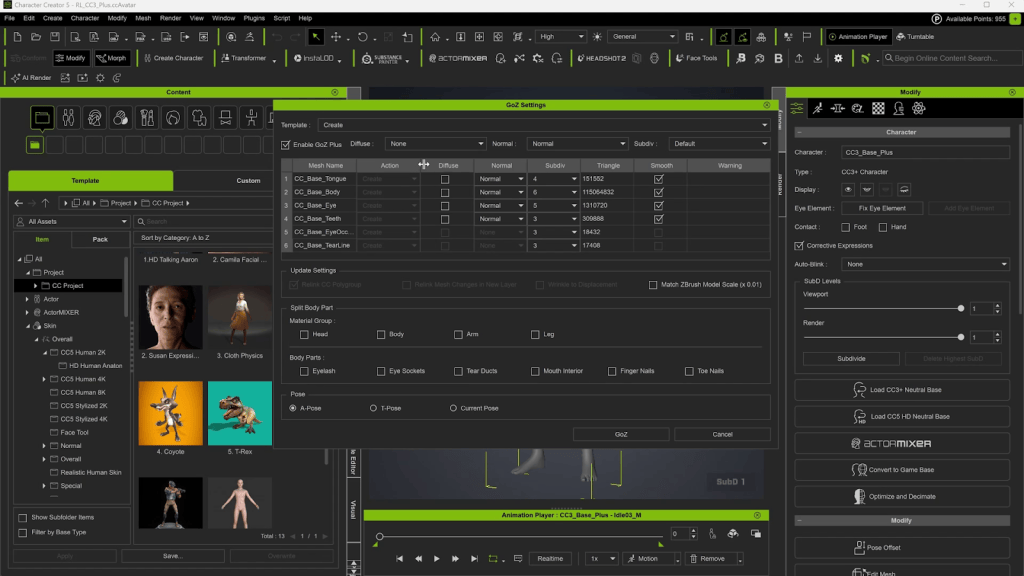
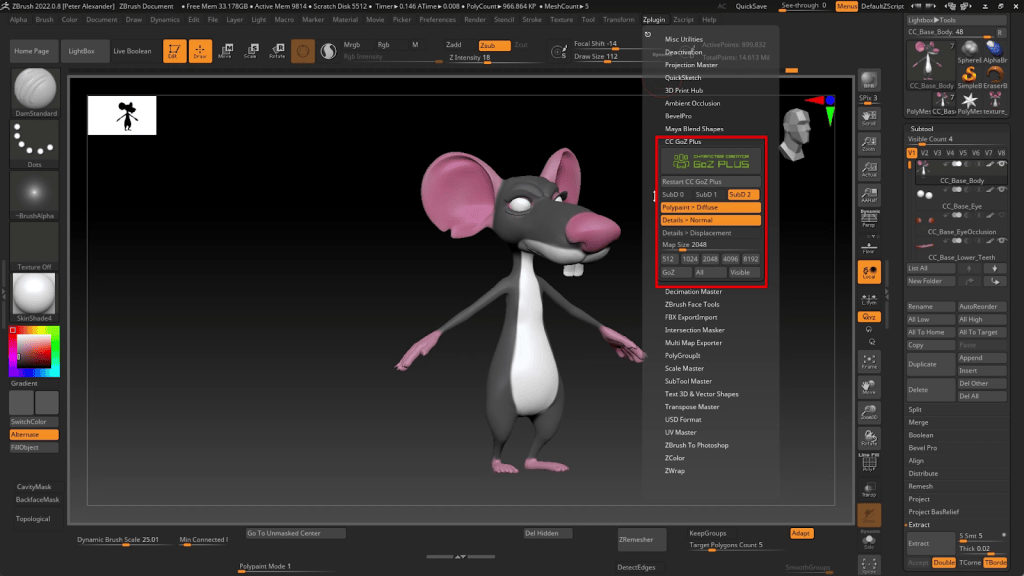
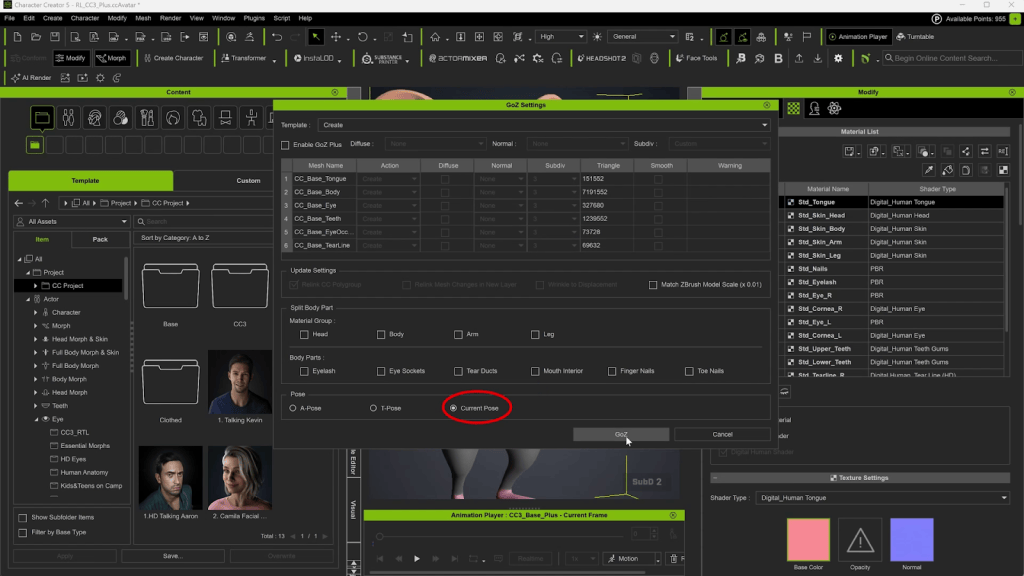
I’ll start by loading up the CC5 HD base mesh. Then I’ll send it over to ZBrush using the GoZ Plus. The HD Base loads with one Sub Division Level. You can add another subdivision if you want. Or you can add it later. GoZ Plus can send up to 7 Subdivision levels, though usually 5 or 6 is enough. Even though you’re generating extra subdivision levels in ZBrush, only 2 are supported on the CC5 side. The extra levels will be used to generate more detailed normal maps.
Generating an AI Mesh
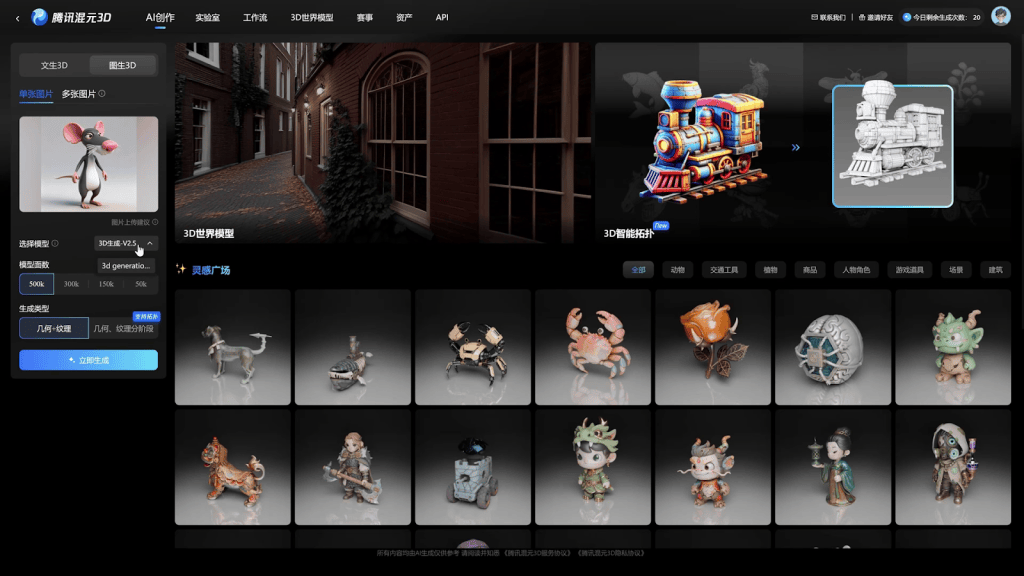
I’m using a free service called Tencent Hunyuan 2.5 to generate this mesh from an AI reference. I’ll export it as an FBX and then load it into ZBrush. Then I’ll insert that Subtool into the Ztool right under the “CC_Base_Body”.
Wrapping the Base Mesh
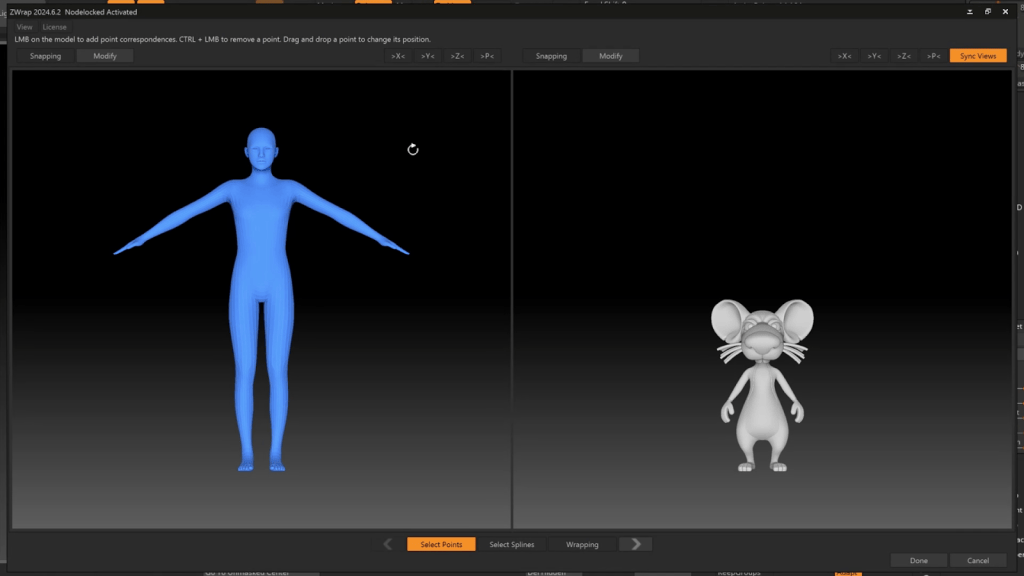
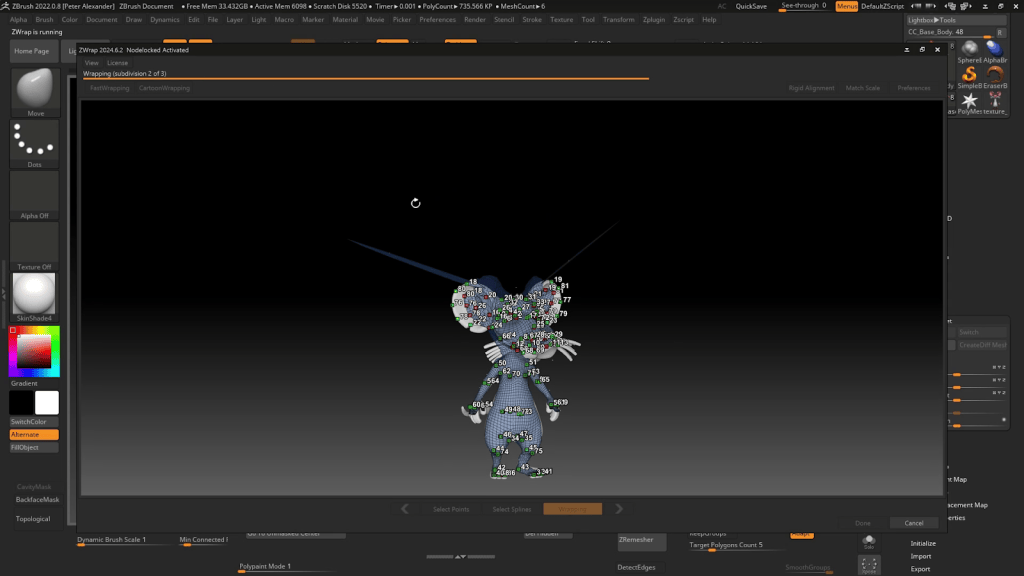
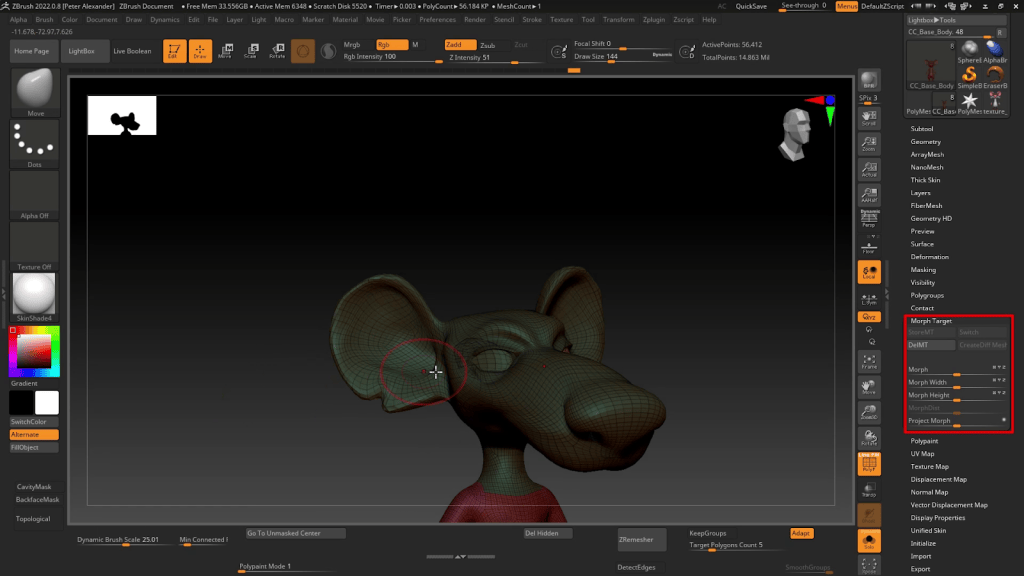
Next, I’ll use a paid add-on called Zwrap to wrap the base mesh around the reference mesh. Before you do that, you’ll want to create a Morph Target for the CC_Base_Body. This will allow you to more easily correct aspects of the mesh after wrapping.
Zwrap functions much like Headshot. You line up corresponding points on the two meshes and then initiate the wrapping process.
Fixing the Wrap
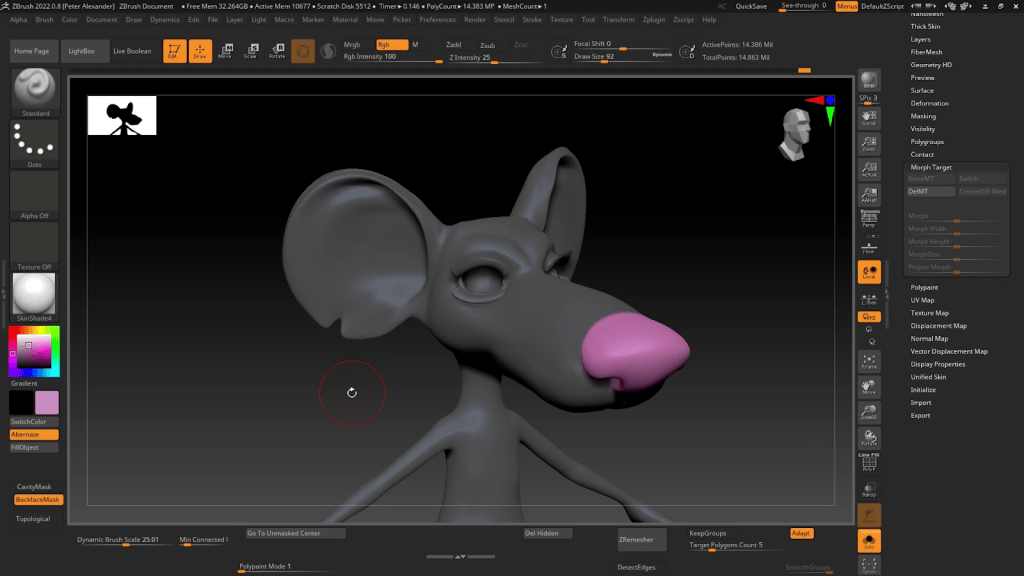
Once the wrapping is complete, areas of the mesh will have to be corrected, such as the eye sockets and inner mouth, as well as the tear ducts and eyelashes. If you mask everything except those areas, you can dial out the deformed areas and manually align the corrected areas to the current body shape. This can take a bit of practice to master, but you’ll get it if you stick with it. It basically involves a lot of masking, smoothing, and using the gizmo.
Having a morph target saved allows you to selectively fix areas of mesh that have been badly deformed or are incompatible with the reference mesh, such as the hands and feet.
Adding Color
Now that all my details are in place, I will add some basic polypaint so that I can easily generate textures using the GoZ Plus process. This character is very exaggerated, but almost basic in his colors, so I can just paint them by hand. You can transfer the colors from your reference mesh, but in this case, it’s about the same effort to just paint them.
Polypaint works based on mesh density, so more subdivisions allow for more polypaint details. However, these colors will be baked onto textures that do not depend on mesh resolution, and since these are basic colors, 2k should be enough resolution.
Using GoZ Plus HD
The character is now ready to send over to CC5. Go to the GoZ Plus panel and adjust your settings as needed. The GoZ Plus panel now includes the new Subdivision levels. For this project, I’m adjusting the settings to create data for SubD 2. If you select all SubD levels, it will create the normal map for each level, adding tothe file size. Since you can do this as needed in Character Creator, I will keep those options unchecked. In addition, the GoZ Plus panel now supports 8k resolution and Displacement Maps, which can add a new dimension of detail to the character when combined with SubD 2.
Initiating the HD Transfer
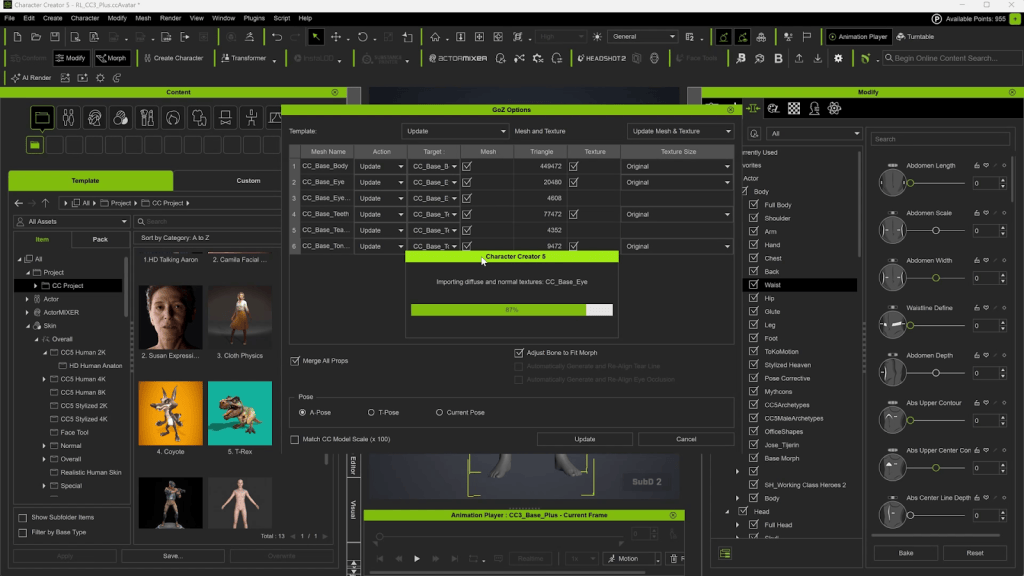
Make sure you choose a Subdivision Level; otherwise, the normals will be generated to accommodate no subdivisions, and no SubD data will be transferred. After you initiate the GoZ Plus Transfer, it will go through a script that will create the diffuse and normal maps if those options are checked. When the script finishes, it will send that data to CC5 and place the maps in the proper material slots, and will have transferred the SubD data.
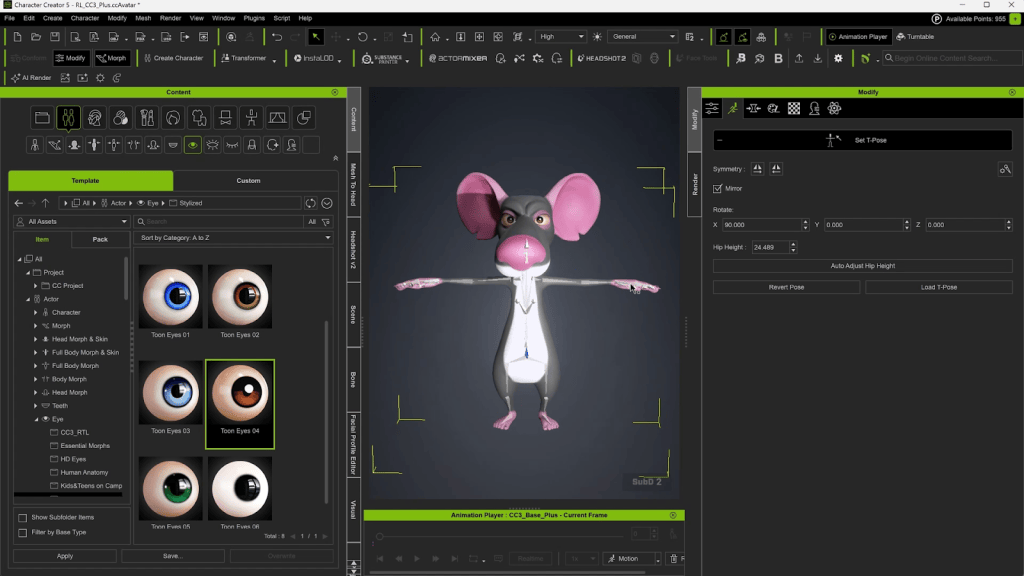
I did not create polypaint data for the eyes, teeth, or tongue, so I will fill in that data using the texture settings and by replacing the materials with those of prefab assets.
Set HIK T-Pose
If your reference mesh has a different pose, you can give your character a proper T-Pose using the “Set HIK T-Pose” function. This will ensure compatibility with all humanoid animations in iClone.
Eyelash Correction
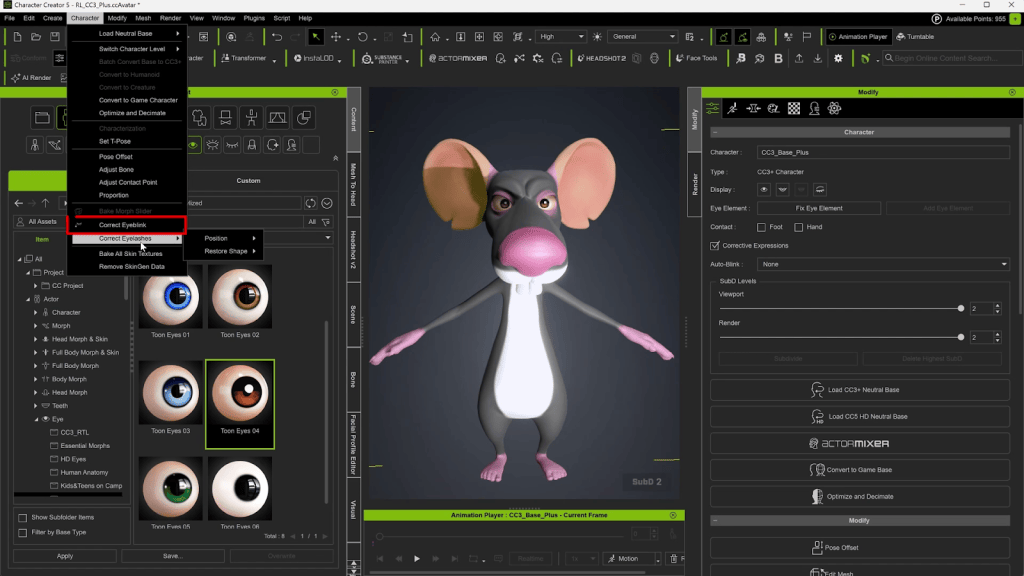
In addition to the “Correct Eyeblink” function, Reallusion has introduced a “Correct Eyelash” command, which saves a tremendous amount of time (as those who’ve created content for the Marketplace come to know).
Although this figure is more stretched than detailed, you can see the difference in stretching quality when you dial down the subdivision levels.
Mouth Correction
A common issue with wrapping meshes is that the mouth has deformation issues. In order to correct the mouth, go to the “Edit Facial” menu, and dial the “jaw open” slider. Then send the character to ZBrush using the “Current Pose” so that the mouth stays open.
In ZBrush, we’ll need to correct issues without changing the rest of the character too much. Any issues with the mouth being open involving the neck should be addressed in the Facial Profile Editor or Face Tools, not with this edit. When you’re finished, send the character back over to ZBrush and close the mouth.
Face Tools
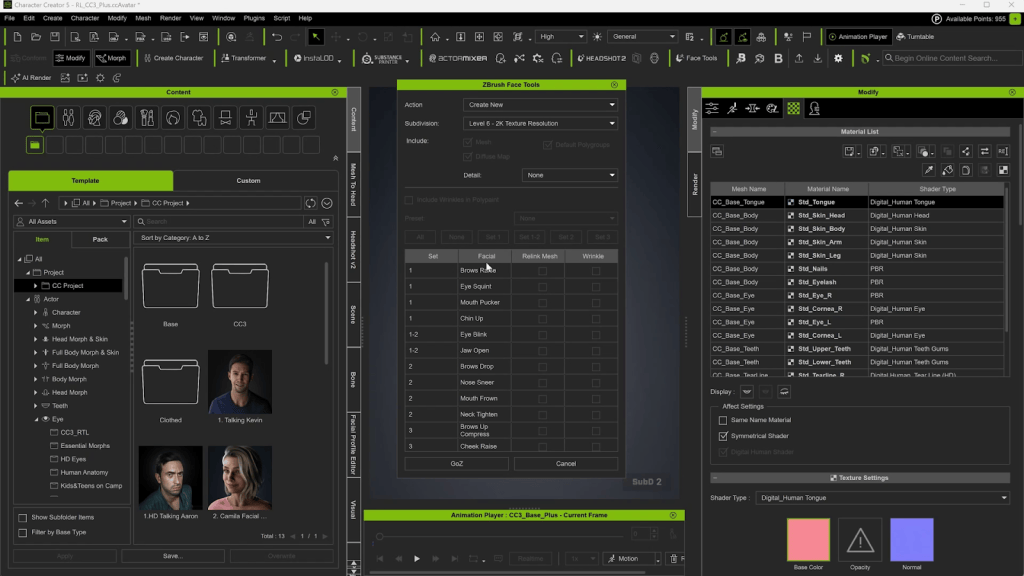
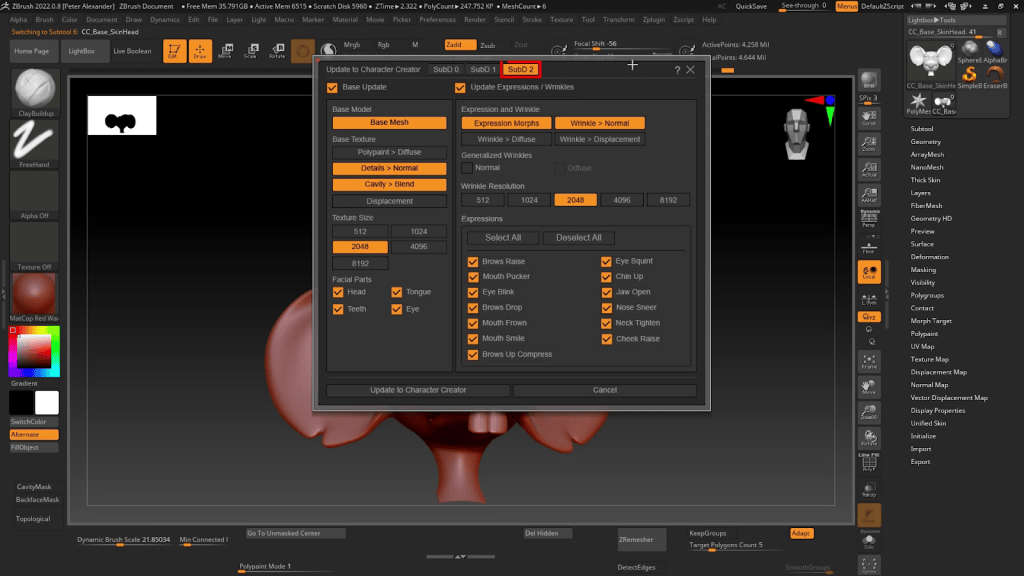
Now I’m going to edit the facial profile. This can be done using Face Tools or using the Facial Profile Editor. For this pipeline, both involve ZBrush. Face Tools allows you to do it in one sculpting session and create wrinkle maps, whereas the Facial Profile Editor allows for more complete editing. The best of both worlds is to start with Face Tools and then finish with more refined editing using the Facial Profile Editor.
Once the editing is done, initiate the transfer to CC5. This is another script, and it will prompt you with options for the process. Make sure you enable “SubD2” in the process if you’re working at that level.
Adding a Tail
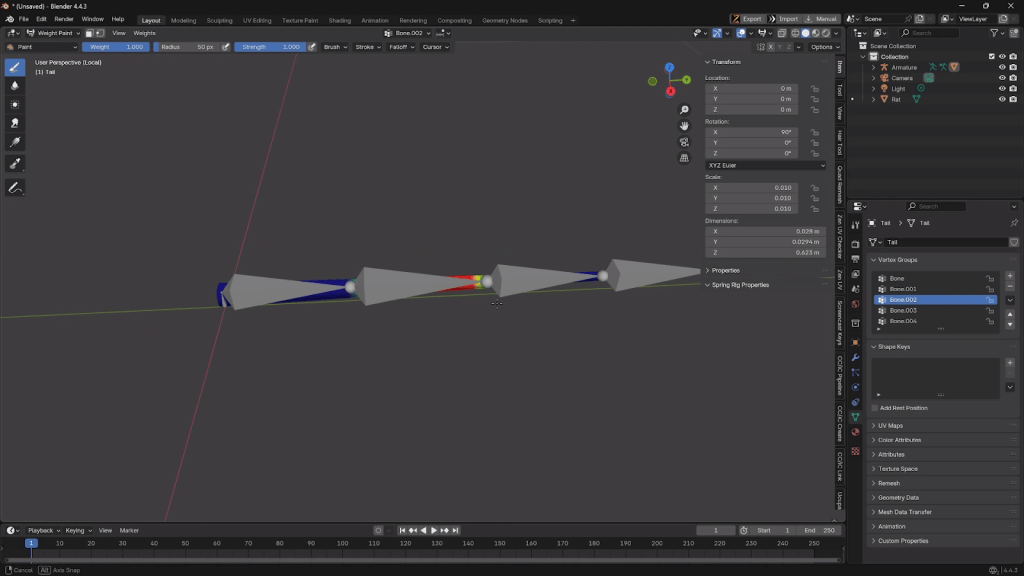
I created the tail very quickly by exporting the main body mesh to Blender and basically using it as a source for duplication and extrusion. The mesh can be sent using the OBJ or FBX export, or through the Blender Auto-Setup add-on. I rigged the tail with basic bones, painted the skin weights, then imported the Tail as an FBX using the Prop Import option. Rigged items must always be imported as a prop first, not an accessory.
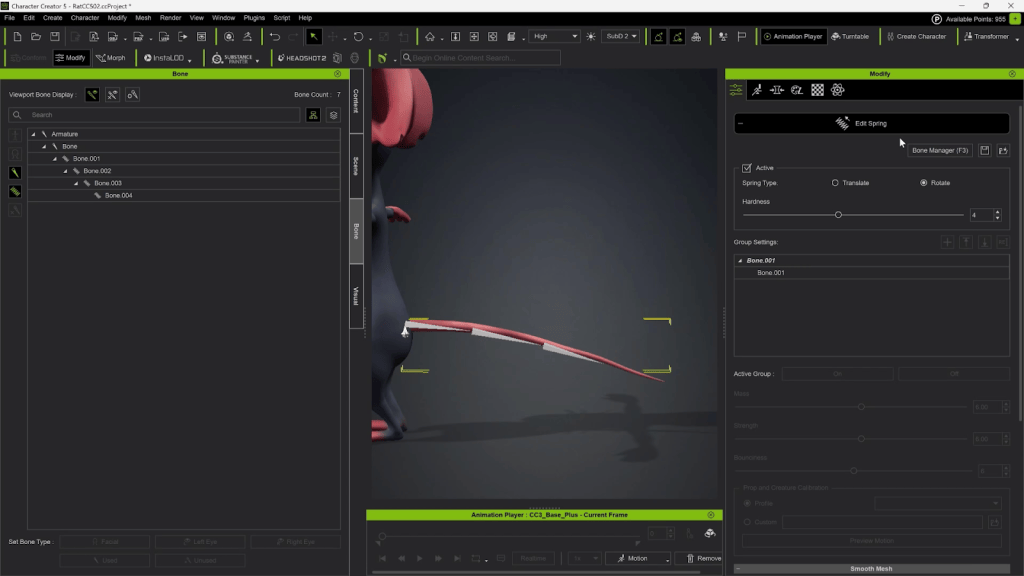
I attached the tail to the “Pelvis” bone, and then assigned the tail some spring bones to give it dynamic motion when he walks.
This rat is now ready for the Unreal Engine pipeline. And since it is compatible with Reallusion’s library of animations and iClone’s expression tools, I can give the character a unique personality, fitted to its design.
Unreal Export
I will start by exporting to Unreal Engine and selecting the UE5 Skeleton. Click the gear icon to load more options for export, choose “SubD 0” under “HD character”, and make sure “Smooth Mesh” is checked. Once imported into Unreal, you’ll have access to the Unreal Engine Control Rig, giving even more facial control within that pipeline. The UE facial rig provides an industry-standard solution to facial animation and refined control.
It’s a new day for Character Creator, and I’m excited to see how CC5 will be leveraged by large and small projects as the Reallusion suite of 3D tools embraces a new dimension of detail and integration. Thanks for reading this tutorial, and I look forward to seeing you apply these exciting techniques in your own creative journey.