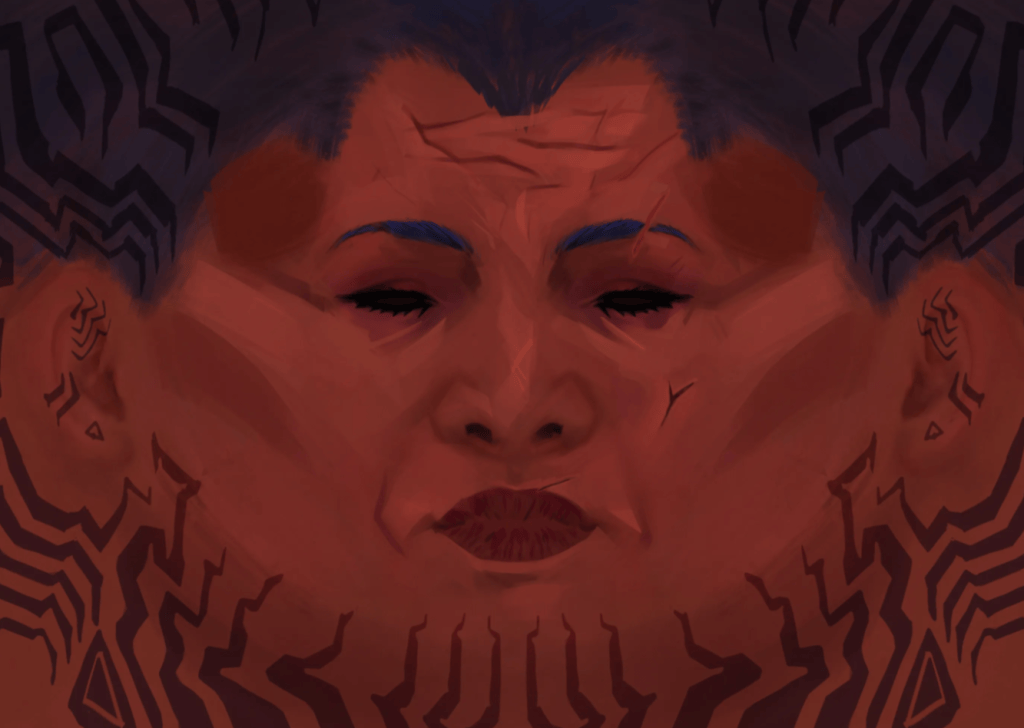
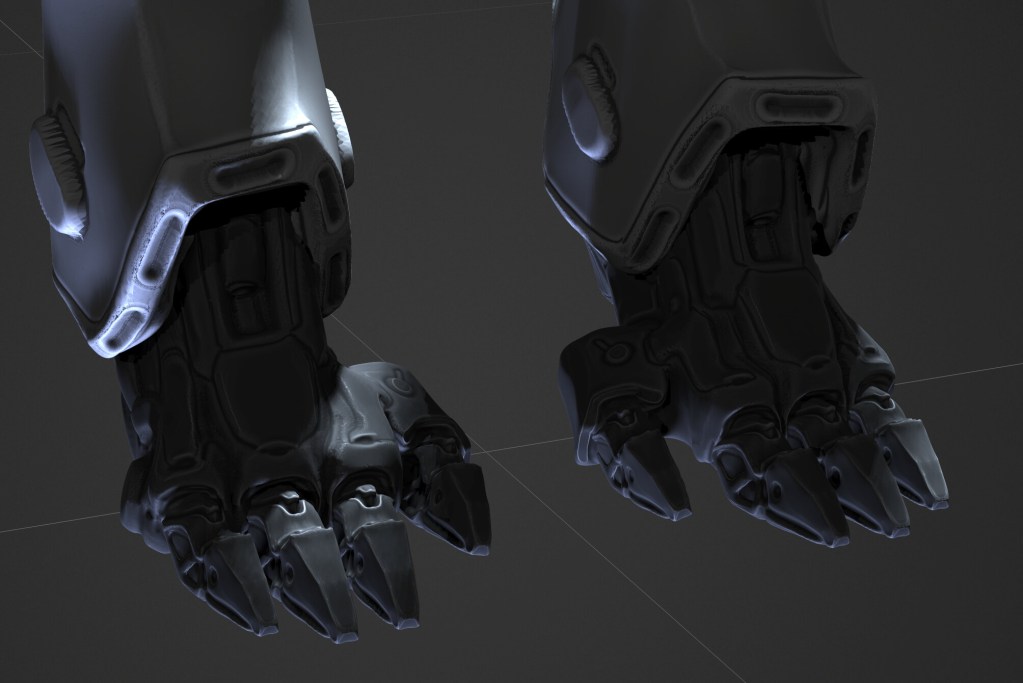
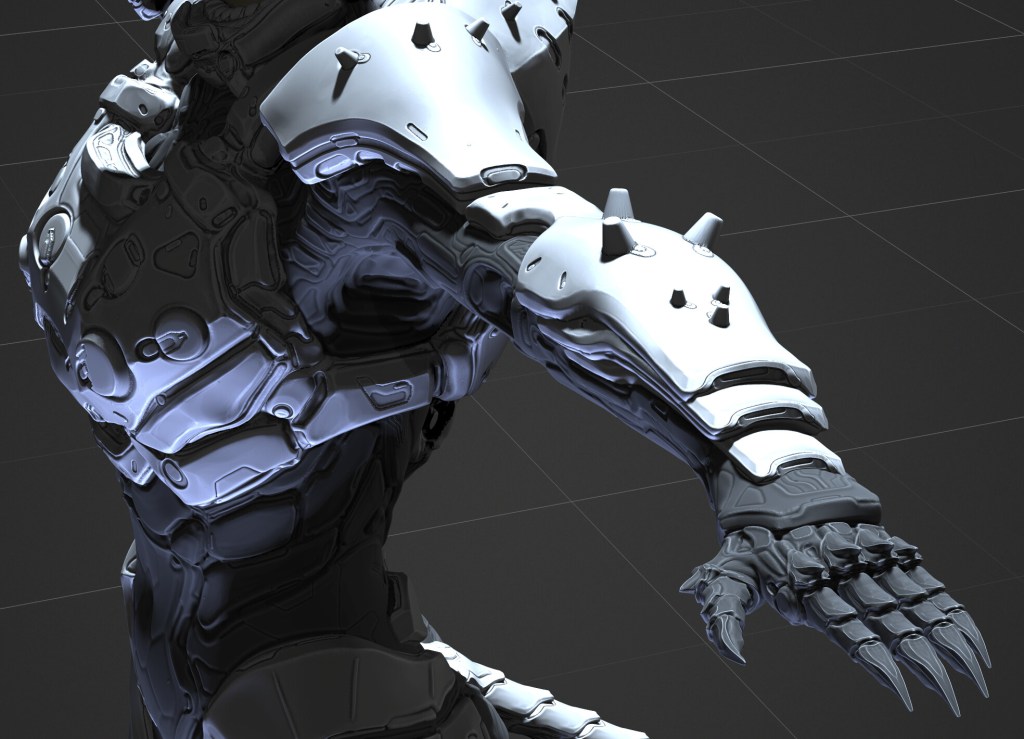
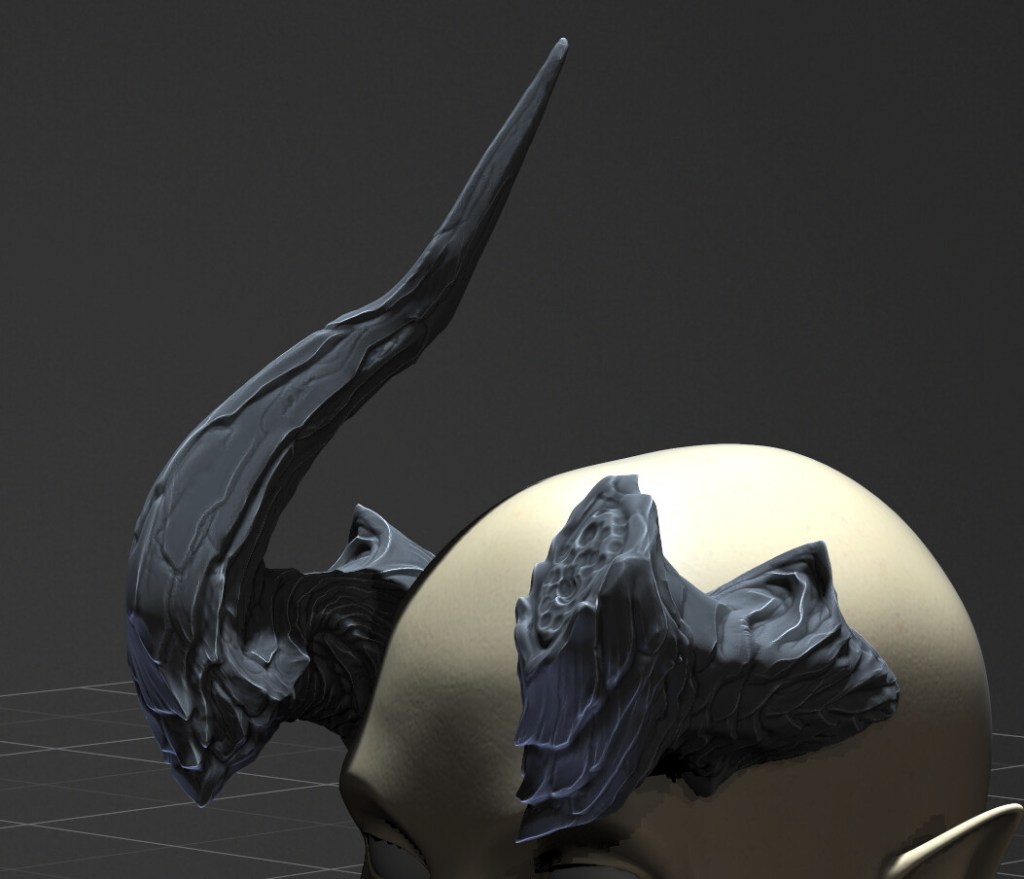
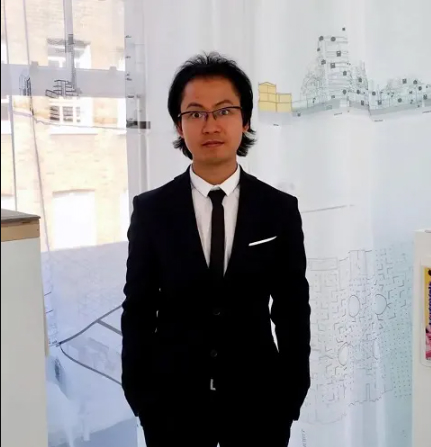
Hello, my name is Duai Sebastian, and I am a Character Artist and teacher at Libel Academy. Thanks to the partnership between Libel and Reallusion, I have learned to use very powerful tools that have become an important part of my workflow, both for my profession and my commitment as a teacher.
Duai is also Libel Academy’s newest Master Course. He is a distinguished Colombian character artist renowned for his expertise in Blender, ZBrush, Character Creator, and iClone. Duai’s masterful creation, the ZBrush + CC4 course, centered around his CyberMaya character, represents a pinnacle of digital artistry.
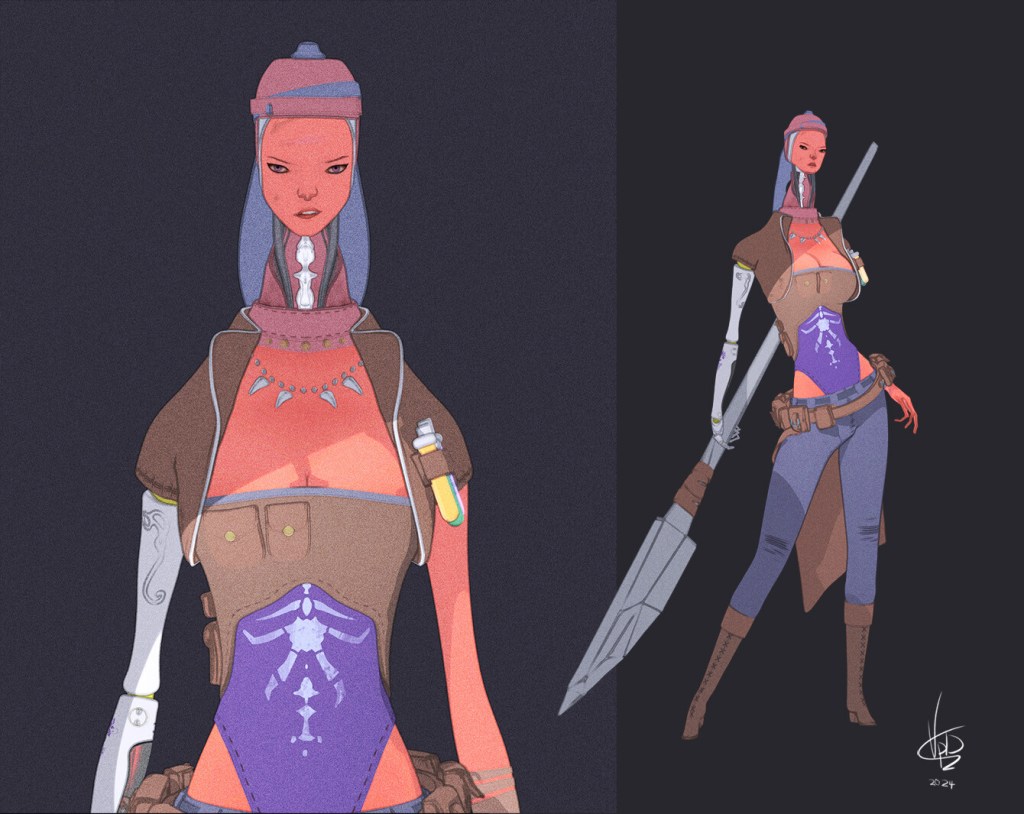
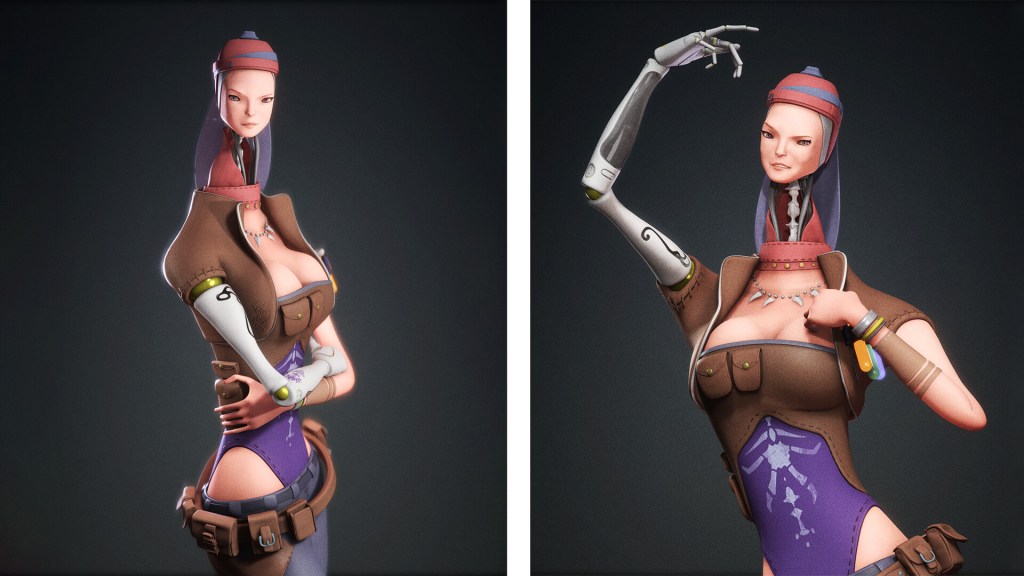
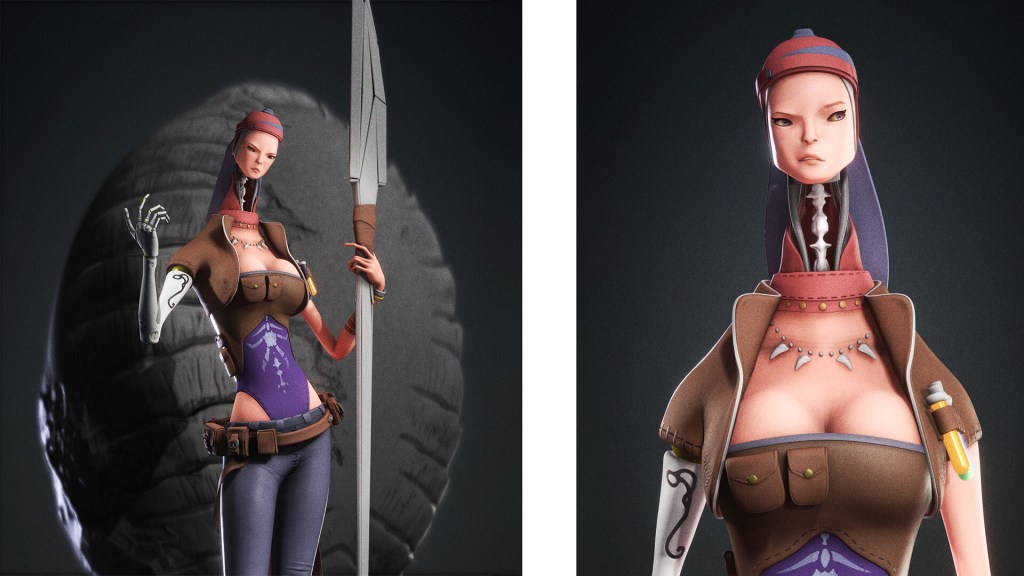
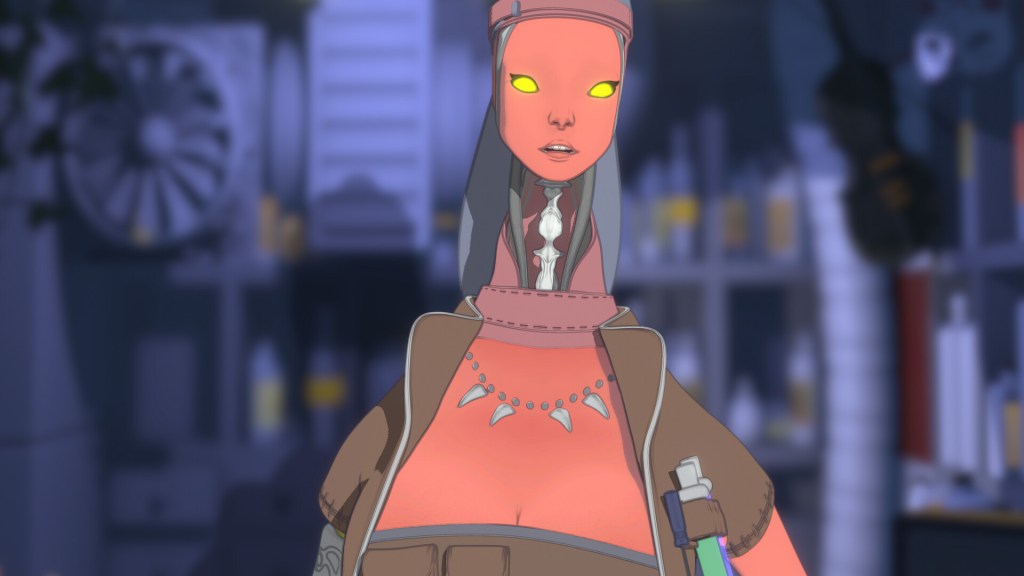
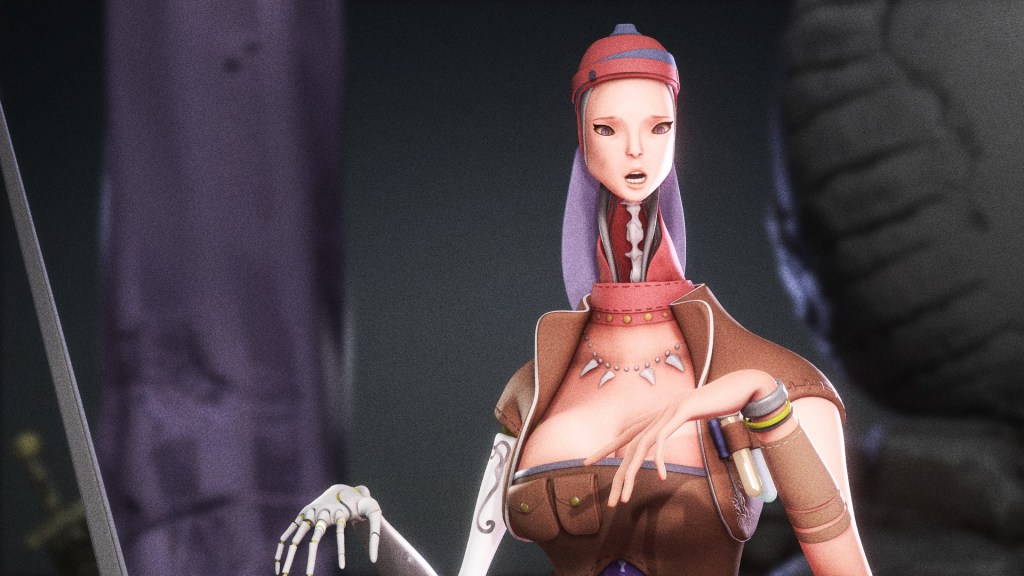
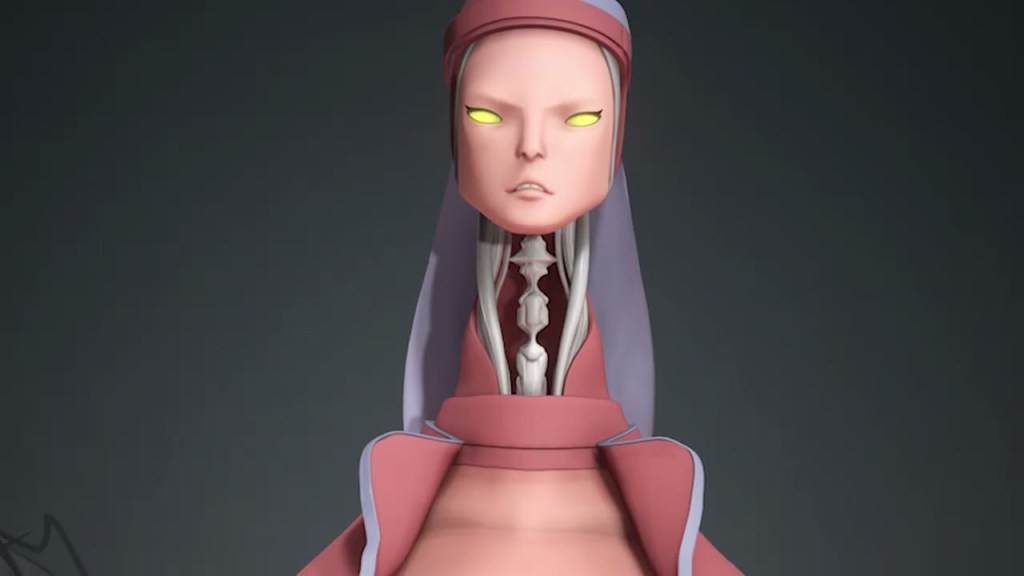
Meet Seeker – a charming little ninja whose design draws inspiration from ancient times, brought to life with a playful cartoon flair. I used AI to brainstorm different concepts for this character, who became the perfect showcase for Character Creator 4 and iClone 8’s capabilities. Seeker demonstrates how modern tools can help create polished, game-ready characters without getting bogged down in technical details. By streamlining tasks like rigging and animation, artists can spend more time on what matters most – bringing their creative vision to life.
My Personal 3D Workflow
The CC4 base meshes have been a game-changer for me, whether I’m using morphs or the new GoZPlus feature. What I love most is how they’ve made character animation accessible. Before, I’d often shy away from bringing my characters to life because the process was so time-consuming and complex. But now, I can focus on what I do best – character art – while still producing fully rigged, animation-ready characters. This workflow has really allowed me to specialize in my passion without getting bogged down in technical hurdles.
The use of morphs allowed me to find a shape close to what I needed for my character, both in terms of muscle structure and proportions. I loved the latest update ofGoZ Plus because of the distribution of the polygroups; this allowed me to modify many more details in the sculpting process much more quickly and efficiently.
Tips: When using morphs, I feel that the biggest piece of advice is to know how far you can enhance your character and where not to. The important aspect of using these sliders, in my opinion, is to get the general shapes close and then let the artistic work take place in ZBrush.
Progressive Detailing: ZBrush Face Tools & Marvelous Designer
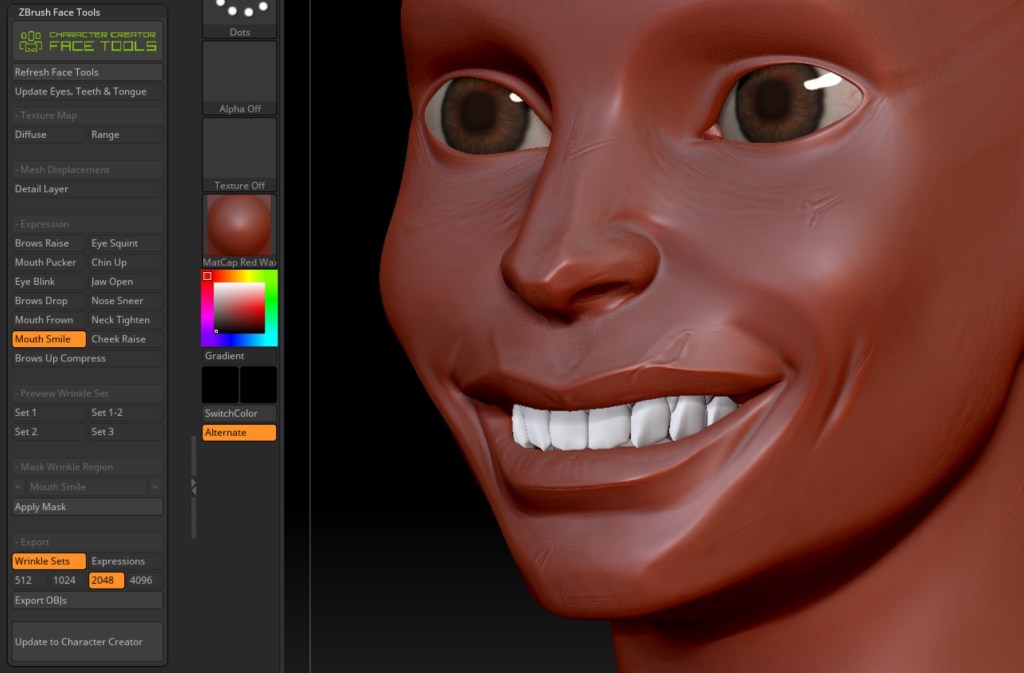
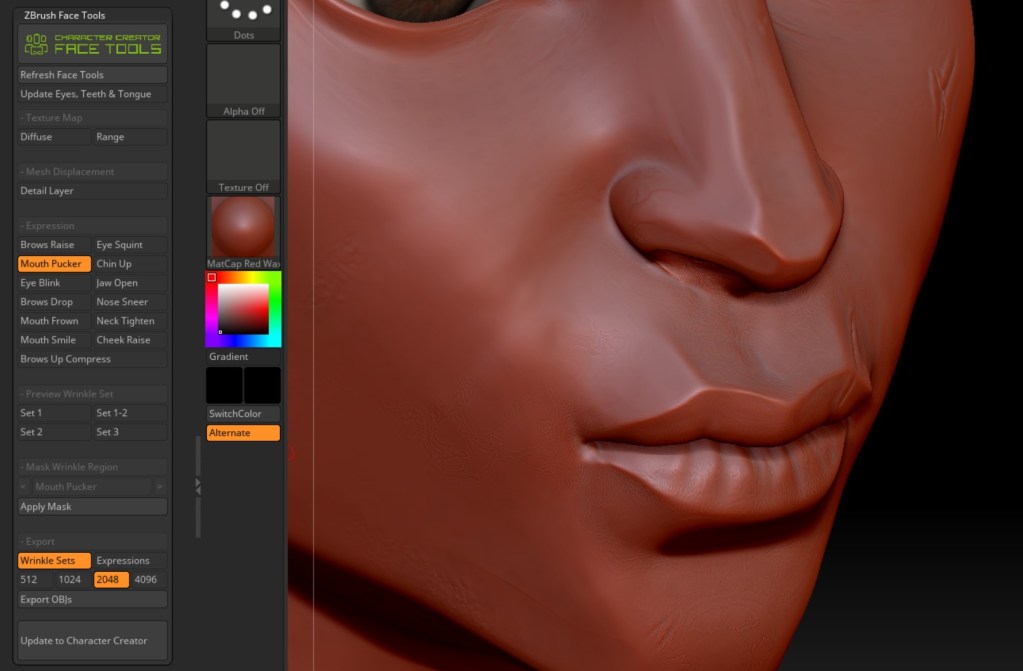
The use of Face Tools was mainly to modify the facial expressions of my character. In this particular case, I made the eyes a bit larger and the mouth a bit smaller. By using Face Tools, I was able to better control each facial animation of my character.
The connection between Character Creator and ZBrush is wonderful! So much so that these two pieces of software feel like one. For Seeker, I wanted to implement Marvelous Designer due to the dynamism and practicality of creating patterns, making seams, and allowing the clothing to interact with our character in a more natural way.
Leveraging CC Rigging Tools
I really liked the precision of the Transfer Skin Weighttool. Even though I had to correct a few weight issues, which were very minor, the “Layer Cloth” feature also helped me a lot by allowing me to specify which clothing goes underneath and which goes on top in CC4. In this part, I focused on maintaining good deformation, so I used weight paint as well as a weight map in the physics section of CC4, taking collisions into account to avoid intersections between the objects. I also used the “Layer Cloth” feature to keep everything more organized.
For the poses, I looked for various references in anime, searching for action poses and also aiming for the pose’s curve to be appealing, as well as the facial expression.
To improve the shapes that were slightly distorted due to the pose deformation, I used Pose Tools. To enhance facial expressions like blinking and other expressions, I used Face Tools. Since I wanted the course to be more comprehensive and demonstrate that Character Creator is compatible with most 3D production software, I utilized Auto Setup, and to create the cinematic, I used Unreal Live Link.
“Character Creator 4 is an incredible software; it helped me save 50% of the time in my character creation pipeline. Additionally, it allows me to pose characters quickly without needing complex rigging methods. Its integration with ZBrush is so seamless that they almost seem like a single program.”
Duai Sebastian Florez , 3D Artist and Instructor at Libel Academy
Thoughts on Character Creator
As someone who teaches, I’ve made it a priority to keep up with Reallusion’s latest tools, and Character Creator has been invaluable to my workflow. Creating game-ready characters used to be overwhelming – you had to master rigging, animation, and so many technical aspects. But Character Creator streamlined all of that for me. Now I can pour my energy into what I really love – character design – while still ending up with fully animated characters that feel alive and dynamic. It’s amazing how much time I save, and my students benefit from learning these efficient workflows too!
As I mentioned before, I come from a traditional workflow: starting with blocking, then high poly modeling, followed by clothing and accessories, and finishing with retopology and rigging. Not knowing how to rig a character made it difficult for me to create facial expressions. Character Creator changed that, providing everything I had been missing in my characters instantly. It allowed me to focus on creativity, making the process more fluid by trusting that the toughest part was already handled.
Advice to Others
I would advise newcomers to embrace this workflow now, as it is gradually gaining traction in the industry. Adopting it sooner will give us a competitive edge. Many major companies are already using this optimal approach. In an industry where time is money, leveraging Character Creator to streamline production will enable us to create spectacular games within a more efficient timeframe.
Stop overthinking it—just do it! This won’t hinder our artistic expression; in fact, it enhances it by integrating with ZBrush, preserving our creative vision. With facial and body rigging, Character Creator supports not only realistic characters but also stylized ones, like cartoons. It’s not limited to video games—it’s also perfect for film!
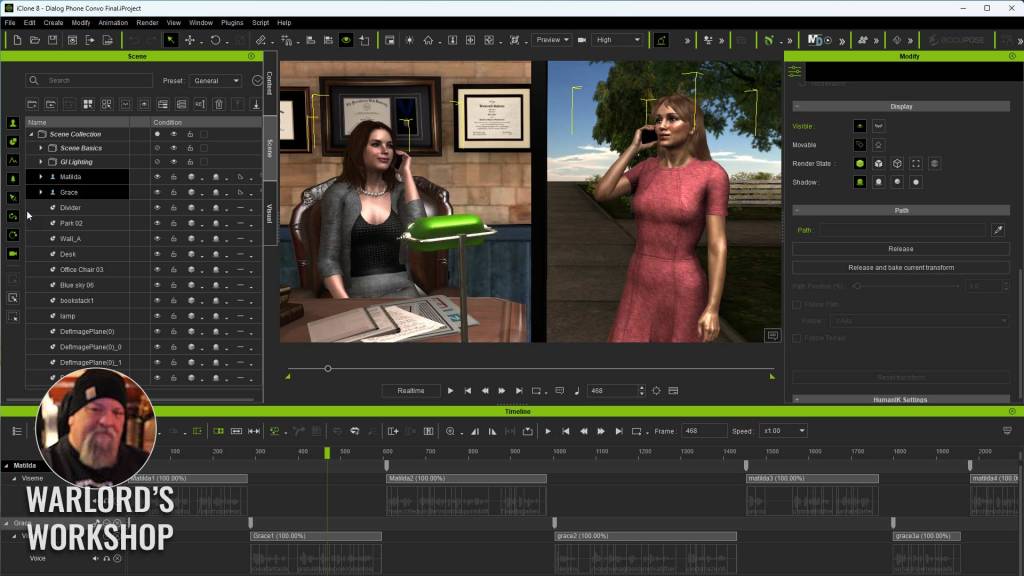
Sooner or later beginners have to tackle one of the most important parts of animation… dialog. And not just an offscreen narrator as that is something generally done in the video editor instead of iClone. While dialog often remains restricted to just a few or couple of characters, there are also scenes where dialog comes from several different directions, both cinematically and literally. Today we are going to keep it simple by focusing on two-person dialog so you can quickly grasp the basics.
At the end of this article, you will find a tutorial using a free account from ElevenLabs for dialog then into iClone to get the dialog associated with a character and lip synced. As a bonus I will show you how to use a single motion for a short dialog even when the motion is too short.
There is also an extensive list of items important to dialog broken down into a bullet list of Do’s and Don’ts. This reference will serve as a great jumping-off point for those new to dialog and animation. I’ll show you the technical aspects of how to use dialog in iClone, and the bullet list will help you improve what you’ve learned.
There are a lot of things that need to be learned over time about effective dialog, but we are going to focus today on the technical aspect of getting dialog into iClone synced to characters with lip sync, letting iClone do all the hard work.
NOTE: You can use a chatbot to write dialog if needed. We are animators but not all of us are script writers.
ElevenLabs
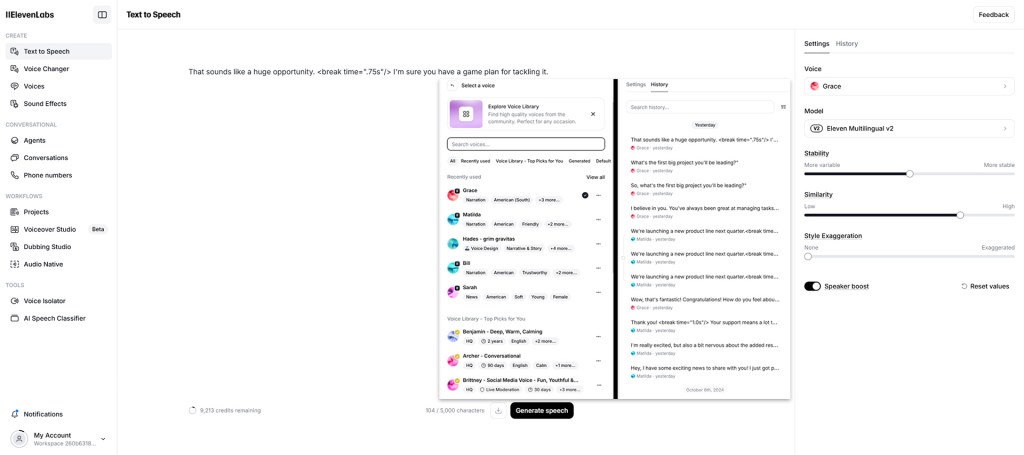
If you have never used ElevenLabs or any AI voice generator don’t be alarmed as they are very simple to use. It is basically a matter of typing or pasting the text dialog to the website app. It also appears that they have apps available for iOS and Android, but we’ll be using the web app which couldn’t be simpler.
The layout is easy on the eyes and navigate as it is a no-nonsense user interface with menu choices on the left, text input areas in the middle-, and a two-tab menu on the right for voice Settings or History. I won’t be covering the various voice settings in this article, but I do advise experimenting with the sliders and models. I never had to alter much dialog coming from ElevenLabs so I’m not all that versed on that aspect.
This dialog uses the default settings so you can get an idea of what type of dialog can be produced. Most of the dialog is just fine but there is one that is rather flat of emotion and I’m sure you spot that one.
I also show a basic command of <break time=”1.5s”/> for a pause of one and half seconds.
One thing to keep in mind with dialog is that you can always make it shorter or remove pauses during the edit phase. A longer pause than needed may be preferable in some instances where you aren’t sure of the length yet as this gives you the easier route of just editing the pause instead of inserting a pause.
A free account at ElevenLabs provides 10,000 characters per month and projects like this tutorial use less than 900 words.
$5 per month for 30K characters – Clone your voice with as little as 1 minute of audio
Projects to create long form content with multiple speakers, Access to the Dubbing Studio for more control over translation & timing
$11 per month for 100K character – Access to the Dubbing Studio for more control over translation & timing
$99 per month for 500K characters – Professional voice cloning to create the most realistic digital replica of your voice. Audio Native to add narration to your website and blogs, Higher quality audio – 192 kbps
$330 per month for 2M characters
$1,320 per month for 11M characters
Custom Pricing for Enterprise
We’re just focusing on the Text to Speech tool but there are many other great tools like the Voice Changer, Sound Effects and others.
The tutorial at the end of this article demonstrates how to use the fundamental tools opening with ElevenLabs Text to Speech basics tutorial then on to using the dialog in iClone
Audio Import
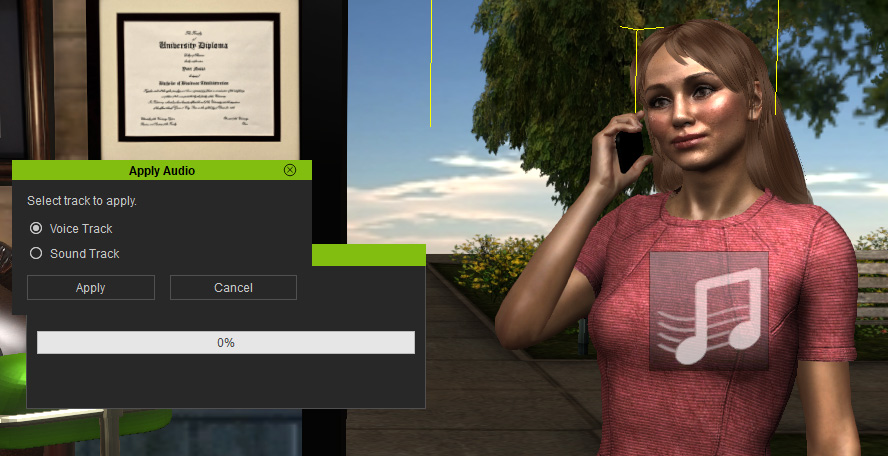
Audio import is straightforward, but you do have to follow a process otherwise it might just become a background sound instead of character dialog.
If you drag and drop accidentally to a prop, then it becomes a sound. If you drag and drop your audio onto the character you will be bypassing the AccuLips plugin which is one of the best lip sync tools out there and the legacy lip sync engine will kick in with no intervention on your part.
If you don’t have the AccuLips plugin then I highly recommend getting it. AccuLips has far more advanced AI-driven features than the legacy engine. If you don’t have AccuLips then just drag and drop on the character and the legacy engine will process the lip sync for you.
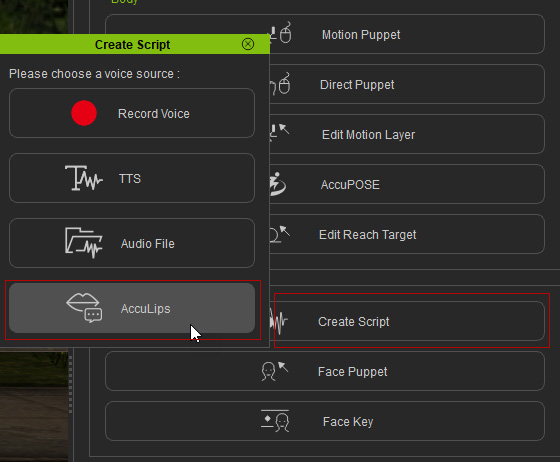
To get to AccuLips, as demonstrated in the tutorial, is to go to the Motion tab, select Create Script the choose AccuLips from the resulting popup menu. This will trigger the AccuLips plugin instead of processing through the legacy lip-sync engine.
Select Character go to Motion tab -> Create Script -> AccuLips if you have the plugin.
Lip Syncing
At one time lip syncing was a tedious task with lots of viseme edits and while we can still edit visemes AccuLips will assist in getting the right visemes in the right place. We can then edit the duration of the viseme or type but that is beyond the scope of this beginner’s article.
That being said, Viseme is a term you need to know so you understand when it is referenced even thought software like iClone does most of the viseme work for us. Below I asked CoPilot to explain Viseme as a dictionary entry and as an explanation.
Viseme (noun)
A specific facial and mouth movement or configuration associated with a particular sound in spoken language, especially in the context of lip-reading. The visual equivalent of a phoneme in the study of visual speech, important for recognizing and distinguishing speech sounds by sight. For example, the sounds represented by “p,” “b,” and “m” might share a similar viseme because they all involve the closing of the lips Let’s break it down in practical terms. Imagine you’re watching someone speak. A viseme is essentially what your eyes see when you look at the movements of their mouth and face. It’s the visual part of speech sounds. For instance, when someone says the sounds /p/, /b/, or /m/, their lips come together and then part. This mouth movement looks the same for these sounds, even though they produce different noises.
Reference – Copilot
Using AccuLips is a simple process, and you probably should have the dialog in text form readily available for those rare cases where the plugin may struggle with some words or audio. There may be times you’ll need to reference the text for corrections or even paste in the text if a lot of errors pop up. This is rare but poor quality of audio will lead to problems so try to keep it as clean as possible with text handy as reference or to copy and paste corrections.
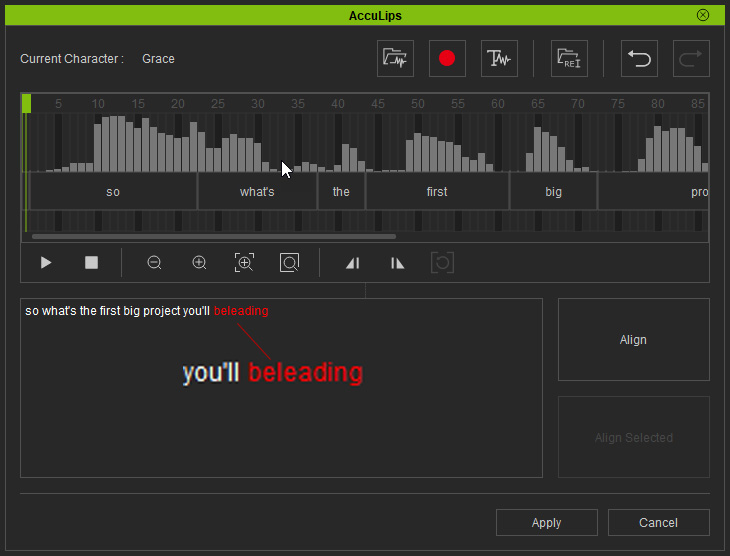
Correcting mistakes is a simple process as any words not recognized are highlighted in red for your correction and then you can press the Align button to realign the visemes.
You can see that two words have been strung together. Separate them then press Align to realign the Visemes
Just like the previous steps, this is all explained in the iClone portion of the video tutorial below after the ElevenLabs segment.
Pace and Timing
Pace and timing are critical whether it be drama or comedy, timing can make or break an animation. Just like poor animation, bad timing throws off the audience expectations or train of thought leading to viewers questioning the bad timing and losing focus on the story. Bad animation can sink a production while good animation can salvage a bad story in some cases and the same holds true for bad pacing and timing.
The sad part is that pace and timing are not things that can be taught so much as it is based on a “feeling” that you have. Most of us can spot bad timing right away, but what does it take to have good timing?
Experience… and I don’t mean production experience so much as I mean viewing experience.
We watch a lot of movies and weekly shows and therefore have been trained to what is good and bad in a movie. Pace and timing are foremost. It is true we are all critics, but it is true because of our viewing experience over our lifetimes to this point. We know what we like and don’t like so if you have a bad feeling about the timing and pace of a particular interaction it probably is BAD.
Listen to your hard-earned intuition and keep moving that dialog and those animations until the timing does “feel” right. If you don’t like it, you won’t be the only one so build off that feeling and keep going until you are comfortable with it.
We cannot brute force timing and pace nor can we ignore its effects. I can’t offer you any real solutions, but I can, at least, make you aware of its implications.
We need to be our own worst critic and NEVER assume it is a masterpiece just because we animated it. Always look at timing and pace with a critical eye.
Summary
The act of getting recorded dialog into iClone is not difficult by any means and may be one of the simplest animation tasks in a lot of projects. Using an AI service like ElevenLabs is almost the same as having a voice-over studio in your workspace. You have control over scripting, voice selection and fine tuning.
In the future we will take a look at other aspects of dialog including facial expressions which are almost as important as the dialog itself. Until then I will leave you with a list of Do’s and Don’ts after the tutorial that hopefully help shape your future projects or provide ideas for further research.
Camera Do’s and Don’ts
For this list I queried the various chatbots (ChatGPT, Gemini, Perplexity and Claude) for a bullet list of do’s and don’ts concerning use of the camera.
I then fed all of those bullet points into CoPilot and had it compile a reference list of what basically best camera practices.
Do’s:
Fluid and Smooth Movements: Use ease-in and ease-out curves for transitions to avoid jarring effects.
Experiment with Angles: Utilize various angles (low, high, Dutch tilt) to enhance visual storytelling.
Optimize Framing and Composition: Follow the rule of thirds, golden ratio, and ensure depth with foreground, midground, and background elements.
Plan with Storyboards: Outline key camera movements, positions, and shot compositions beforehand.
Consistent Lighting: Ensure balanced lighting without overexposed areas.
Consider Perspective and Emotion: Position the camera to reflect characters’ emotional states and provide impactful perspectives.
Strategic Use of Shots: Use a variety of wide and close shots to emphasize action or emotion.
Maintain Clarity: Keep the subject clear, avoiding clutter and distractions.
Incorporate Realistic Imperfections: Slight camera shakes, subtle focus adjustments for a more organic feel.
Don’ts:
Neglect Backgrounds: Ensure the background complements the scene and doesn’t detract from the focus.
Overcomplicated Movements: Avoid excessive pans, zooms, and rotations which can confuse viewers.
Abrupt or Jerky Movements: Prevent disorienting transitions and ensure smooth camera actions.
Static Shots for Long Periods: Keep the animation dynamic with occasional camera movements.
Excessive Cuts: Avoid overusing camera cuts to maintain narrative flow.
Neglect Scale and FOV: Ensure proper scaling of the camera and realistic field of view settings.
Predictable Movements: Introduce subtle variations to keep the viewer engaged.
Dialog Do’s and Don’ts
Once again, I queried the various chatbots (ChatGPT, Claude, Gemini and Perplexity) for bullet lists of do’s and don’ts. I then fed all of those bullet lists into CoPilot and asked for a summarized list for reference.
Some of you will consider these rules and yes, we all know rules are made to be broken so that is completely your call, but I provide it as future reference material, so you don’t have to waste time looking it up or cross examining and double checking multiple chatbots. These bullet points work for animation and live action.
Do’s
Use the 180-Degree Rule: Maintains spatial orientation and prevents audience confusion.
Capture Reactions: Enhances emotional depth by showing characters’ reactions.
Monitor Audio Levels: Clear audio is crucial for a professional scene.
Use a Variety of Shots: Incorporating different shot types (close-ups, medium shots, over-the-shoulder) adds visual interest.
Plan Your Shots: Storyboarding and planning help streamline the filming process.
Consider Lighting: Proper lighting sets the mood and enhances the visual quality of the scene.
Maintain Continuity: Ensures consistency in props, costumes, and actions across shots.
Utilize Over-the-Shoulder Shots: Establishes perspective and connection between characters.
Frame Your Shots Thoughtfully: Use composition techniques like the rule of thirds for visually appealing scenes.
Natural Movement and Blocking: Characters should move naturally to maintain realism.
Don’ts
Avoid Over-Directing: Allow actors some freedom for natural performances.
Avoid Crossing the 180-Degree Line: Keeps spatial orientation clear.
Avoid Distracting Backgrounds: Ensures the focus remains on the characters.
Don’t Ignore Audio Quality: Poor audio can distract from the scene.
Avoid Flat Lighting: Good lighting adds depth and dimension.
Don’t Overcomplicate Shots: Keep it simple to avoid unnecessary distractions.
Don’t Overuse Special Effects or Cutaways: These should be used sparingly to keep the focus on the dialogue.
Avoid Jump Cuts: Unless intentional, jump cuts can disrupt the flow.
Don’t Neglect Pacing: The scene should flow naturally without rushing or dragging.
MD McCallum – WarLord
Digital Artist MD “Mike” McCallum, aka WarLord, is a longtime iClone user. Having authored free tutorials for iClone in its early years and selected to write the iClone Beginners Guide from Packt Publishing in 2011, he was fortunate enough to meet and exchange tricks and tips with users from all over the world and loves to share this information with other users. He has authored hundreds of articles on iClone and digital art in general while reviewing some of the most popular software and hardware in the world. He has been published in many of the leading 3D online and print magazines while staying true to his biggest passion, 3D animation. For more information click here.
My name is Varuna Darensbourg. I got into 3D about 5-6 years back. I started exploring a few programs like Daz, and then I discovered iClone. I made some fun things by combining the two tools, but I always really wanted to create much more custom characters. I then started learning UE4 and started to scratch the surface of making custom characters for a game, using Character Creator.
It wasn’t until I saw the entries for the first Reallusion Contest in 2020 that I started to really push myself to learn sculpting and modeling tools. I try to always find time at night to learn something new and experiment. It’s a lot to learn UE, ZBrush, and Blender, but I’m very grateful for the time I have put into it thus far.
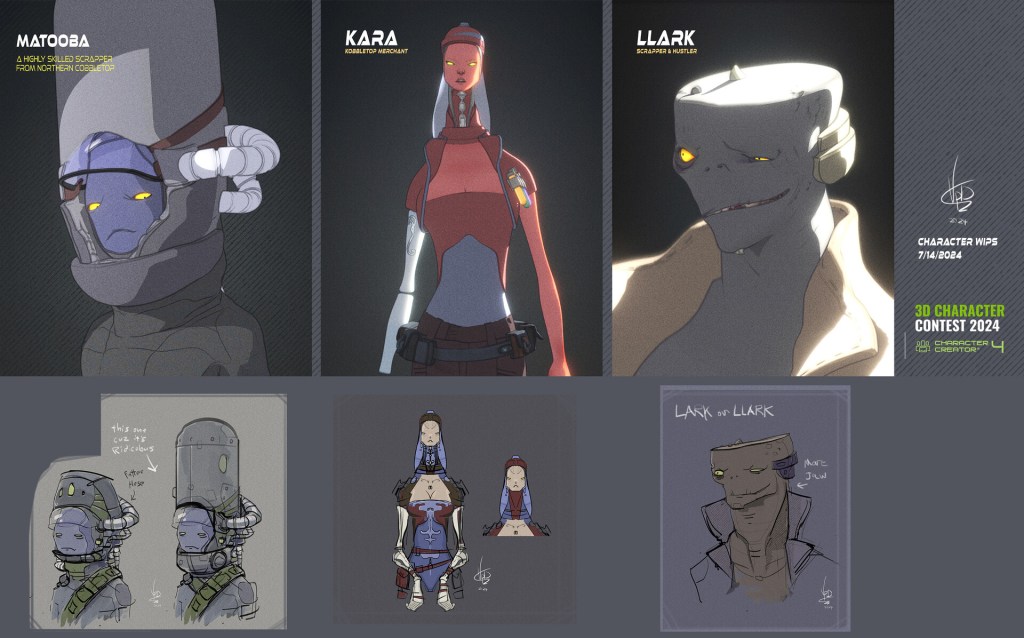
I started sketching in Photoshop with a few loose goals and design points in mind
Challenge myself technically & creatively
Implement unusual proportions
A Merchant lady with a military background & Mechanical aspects;
A little sci-fi, a little medieval, a little creepy, a little beautiful
I think reference is very important, but for me, I have to start out with sketching a basic idea and then gathering some references later, once I have a core concept roughed out. For Karra, I knew she was a merchant with some mechanical /prosthetic elements and some sort of military history. I turned on the mirror option in Photoshop to speed things up and just started focusing on interesting shapes, odd proportions, and a visual flow. Once I had something that I was motivated to tackle, I moved to Character Creator to block in the general character proportions. To help, I brought in the sketch by placing it on a plane and lowering the opacity a little.
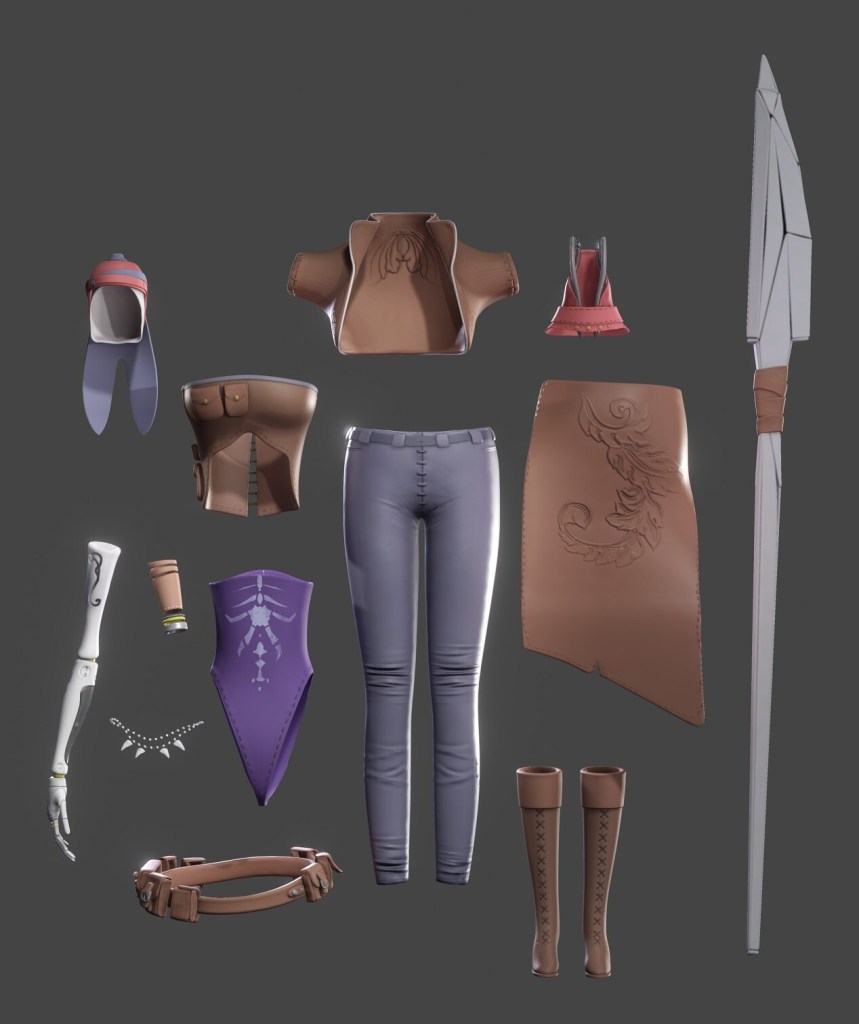
Once the proportions felt close enough, I used GoZ to sculpt the character’s face, clothing and gear. This is actually when I gathered a very small batch of references. Stuff to help inspire clothing details.
The GoZ+ Workflow is CC4’s super power. The whole character or just individual items can be sent to ZBrush, detailed and sent back and updated on the character. I was able to create all my character’s clothing by exporting the whole character and then using it as a template.
The beauty of GoZ+, is that you can subdivide your mesh, sculpt all your details and then use the GoZ+ menu to send the object’s base geo back to CC4 with all the details automatically baked into the Normal Map. One click and it does all the busy work. The same goes for poly-paint.
My tip would be to send stuff back to CC4 early, before you get into any detailing. The speed of the tool allows you to quickly test clothing and props out in the early stage, to see if it’s working. This is super important with clothing. You want to make sure it conforms and functions before you make it look cool. Send it back to CC4 and use a template animation to assess how things hold up. This tool helps you do that instantly.
ZBrush Sculpting & Face Tools
Largely, I use the common technique of extruding mask selections and then building off of the extruded geometry to make what I needed. A very important technique I learned from a tutorial by Nikolay Naydenov, is to extrude mesh without thickness, then at a super low poly stage, push and pull it like crazy into the shape you want and then use the Dynamic Subdivision tools to add thickness and subdivision as needed. If you add thickness or resolution too early, then it is very hard to push things around without distorting your clean edges. This really helped me make the jacket and many other things for Karra.
When I started the project, I dreamed a little too big and started making 3 characters. One of them was Larrk, a character that I envisioned having very extreme expressions. When I was working on him, I did several tests using ZBrush Face Tools to create custom expressions. I was super happy and excited about the possibilities, but I had to cut him from the project in the end. What I learned from those tests however, has me very excited to implement Face Tools in future projects.
Motion Capture: Body & Face
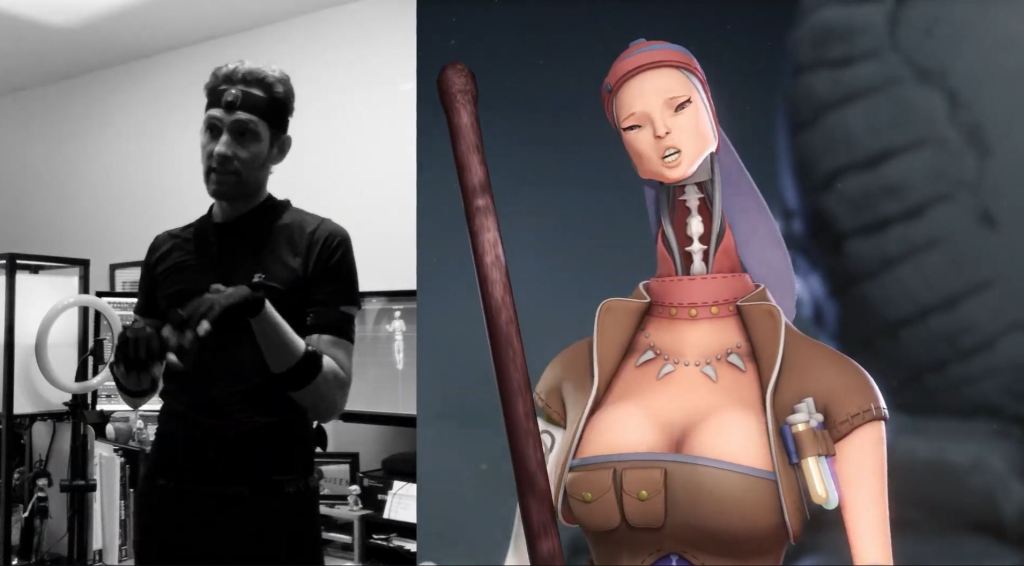
In addition to Accuface, I used the Perception Neuron Suit & Gloves for the character body motion. Nothing beats traditional key frame animation, but I think motion capture is very ideal if you are working solo and or have limited time. While mocap lends itself to realistic motion, you can go back in and enhance the motions in iClone or UE5 by adding in motion overlay layers and keyframing something to give it more impact or a desired exaggeration that can be lost in mocap.
Accuface is superb. I had my wife do the voice acting for the character, so I had her record a video of her face while she did it. I used the video in AccuFACE to capture her expressions, lip sync and audio all at once. While I intended to go back and enhance some of the expressions manually, I didn’t, and it held up surprisingly well.
3D Props & Accessories
All the props were made by sending primitive shapes into ZBrush, detailing them slightly and sending them back. The pillar and the Dragon Egg were made very quickly this way.
I’m often guilty of trying to make everything myself, but I have learned to choose my battles. Don’t be shy to use pre-made props to save time. The pillar and the Dragon egg are basic examples. The pillar was a primitive shape I found in the base iClone & CC4 library. I sent it to ZBrush with GoZ+, detailed it, sent it back, and then duplicated it to make it taller. Boom, done. Same deal with the Egg; It was a free primitive shape with no detail. I downloaded it and ran it through the same process.
The same goes for character clothing and props. While I pushed myself on this project to learn how to make as much as possible from scratch, I think It’s smart to use base meshes to build off of. If you have a unique vision, you can still use any of the Reallusion library items to get your idea started. Glasses not quite as crazy as you want? Send them to ZBrush or Blender and make them into something new. Delete the textures on a jacket or dress and paint on the base mesh to turn it into something that matches your project.
Final Render and Composition
NPR rendering had a very important role in this project, even though my final presentation didn’t use it. I started the project with the intention of developing an NPR workflow. A long way in, I ran into some issues that I needed extra time to solve, so I leaned into a traditional render in the end.
What I got out of starting with the NPR line art style however was an interesting workflow for quickly iterating ideas. If I got any ideas that were not in the original concept sketch, I could render out an NPR still frame and paint on top of it quickly.
For the final, I focused on a streamlined workflow and set everything up to render out of iClonein one pass. I actually took too much time initially setting up a whole scene that looked like the aftermath of a battle. In the end I decided to stick with a single camera view and relied on the lighting and camera defocus to produce the look I wanted for the final render.
Thoughts on the Contest
My advice to anybody joining or considering joining future Reallusion 3d contests, would be to go into it with a mindset of pushing yourself to learn and grow. Having a solid workflow is very important, but there is nothing wrong with using the challenge to help develop a workflow. Put time into something outside of your comfort zone. Many of the elements in my design were born from me stumbling about and trying to solve something that I had not tackled before. Whether all those elements were Successful or not, I came out of it with a much more refined workflow that allows me to bring my ideas to life with far less struggle.
Character Creator is a powerhouse. You can adapt it into your workflow as you see fit. Alone it’s capable of producing incredible characters, but if you combine it with any modeling or sculpting program, it’s a total dream.
For me, CC4 serves many uses. One of those is the library system. Anything I create can be saved to the library and used on future characters; clothes, props, skin textures and body morphs, etc. Everything can be quickly accessed and applied to other characters.
Varuna Darensbourg, Stereo Compositing Supervisor at SDFX Studios
Additionally, you can instantly test animations on your characters right inside CC4 to see if things are working before exporting them to other apps or sending them to iClone. Simply fantastic!
Elevate visual realism through synchronized human movements and animated props.
For much of 3D animation history, artists faced the painstaking challenge of syncing character movements with the props they interacted with. This meticulous process demanded countless hours—sometimes days—of trial and error to achieve seamless results. Enter Reallusion Motion+, a game-changer that redefines this legacy workflow. By automatically pairing character motions with prop deployment, Motion+ introduces the fundamental technology behind character-prop animation synchronization that actually works.
Building on this innovation, the acclaimed Motion Capture Orlando (MCO) debuted the “Skateboard – Flatground Skate Tricks” motion pack, earning widespread praise. Now, MCO raises the bar once more with “BMX,” a 3D mocap animation package that flawlessly combines rider and bike movements. The result? Smooth, cohesive animations that bring dynamic action to life like never before.
Catch the behind-the-scenes video on MCO’s incredible process:
Capturing the Adrenaline of BMX
“BMX” began as an ambitious vision to digitize the dynamic trick motions of bicycle motocross. To bring this idea to life, MCO collaborated with Rob Nolli’s BMX Trickstars, a premier traveling stunt show founded by the X-Games medalist himself. This partnership evolved into multiple proof-of-concept phases, capturing real-life BMX riders performing tricks across a range of difficulty levels.
To tackle the challenge of recording the bike’s complex movements—such as those of the frame, wheels, handlebars, cranks, and pedals—MCO’s technical lead, Kaszmere, had to get creative. This led to her placing mocap markers on strategic parts of the bike, and reverse-engineering a custom motion capture rig to synchronize fluid motion of the bike with its rider.
Digitizing BMX Maneuvers
To bring a wide range of BMX tricks to life—including high-flying jumps and technical flatland maneuvers—MCO staged the motion capture on a large platform equipped with a competition-grade ramp. The entire TrickStars team joined the shoot, ensuring authentic performances for every trick. The result is a meticulously crafted collection of stunt animations, seamlessly pairing virtual riders and bikes, along with perfectly synchronization of the riders and their bikes.
iClone’s X Factor
Capturing over 50 paired mocap shots of both the bike and the performer posed a significant data-cleaning and processing challenge for MCO. To overcome this, they turned to iClone, leveraging its powerful tools such as reach constraints and dummy objects for target endpoints. By placing virtual dummy objects on key contact points like the handlebars and pedals, the rider’s hands and feet could automatically align with those positions. This allowed MCO animators to fine-tune the motions with precision, ensuring the character’s movements seamlessly matched the placement and orientation of the bike. This setup was also instrumental in preventing over-extended or disjointed limb positioning.
When we first started working with Reallusion, I thought it would be a good idea to learn to edit all our mocap data in iClone, and I’m really glad I did because it is simple to learn and the tools are surprisingly powerful, so powerful that I have yet to use MotionBuilder or Maya in any of our mocap packs.
Jeff Scheetz, Motion Capture Orlando
Creating Steerable Bike Animations
Another standout feature of iClone is its ability to quickly generate large crowds. Using Motion Director, users can steer characters through an environment with a game controller, or create AI-driven animations along predefined pathways.
To make the bike steerable, MCO captured all the bike animations for different turning angles, acceleration, deceleration, and stops. A well-planned dance card was laid out for the performer to use as a moving reference.
With more motion sequences recorded to train the system, Motion+ has enhanced Motion Director, enabling users to dynamically guide bikes, skateboards, and even wheelchairs within scenes. This exciting feature will be available soon for all iClone users.
One-of-a-Kind Motion Pack
Featuring 44 expertly crafted movements that range from basic riding to flatland and vert tricks, “BMX” is a must-have addition to any mocap collection. Its seamless motion transitions make fluid animation sequences possible, from mounting the bike and riding forward to performing stunts and dismounting. This pack also includes matching BMX bikes with adjustable height, six material variations, and a 1:1 ramp model for breathtaking high-flying jumps.
In my almost twenty years of using iClone and other Reallusion products, I have seen the software move from a market niche to a complete animation package supporting most industry tools and developing a cost-effective method of producing animation. The same holds true for Cartoon Animator, its 2D cousin, which is a major player in its own right.
To demonstrate this ability to deploy animations in an afternoon or evening I tackled a short Christmas themed, toy shop animation with lots of animated characters including some “wooden” toys without arms and legs but they still danced to the Suno generated Christmas song, A Season in our Hearts as the driving force of the animation.
Below is the short holiday video:
Gathering the Assets
One of my first tasks was jumping over into Daz Studio which I use as an in and out tool for my older Daz assets. I converted the Christmas Carol toy store to an FBX file and dumped it into the iClone workspace. I dropped the whole store complete with toys, trees and other Christmas objects and let iClone separate all the meshes into individual pieces after it asked if I wanted to do so.
The Assets Used in the Project
This feature alone saves a lot of time as it provides a store full of toys and other assets as separate items that I can then manipulate to my needs, including skinning some of the toys for animation using drag and drop motions.
Generating and Rigging the Main Characters
Before I went to Meshy.ai I stopped by Midjourney and used the prompt:
A full-body, forward facing 3D Toon Santa in a T-Pose with arms stretched out to the sides set against a solid white background.
I used the same prompt for the elves after substituting the words Male Elf or Female Elf for Santa. This provides some continuity of poses for AccuRIG to work with.
Midjourney Images used for Mesh Generation at Meshy AI
For some reason I cannot seem to get any consistency at Midjourney to get the hands palms-down for better rigging. It only happens ever so often and as you can see from the final mesh the female elf was fine except for some weirdness in the cap; Santa had an extra finger on top of the hand while the male elf didn’t need any alterations.
GoZ to the Rescue
I used ZBrush to remove the extra fingers and smooth out some of the strange lines on the female elf cap taking just a few minutes. The built-in GoZ feature made the transfers from Character Creator 4 to ZBrush and back effortless. No need for exporting and importing as integration with ZBrush runs deep.
The “Generated from Image” Main Characters
The images provided a great starting point for Meshy to create the above meshes in as close to a T-Pose as I could get. You can also use A-Poses in the prompts. AccuRIG quickly turned the meshes into animatable characters.
If I have problems with deformed hands, I usually just rig a 2 fingered hand if regular motion is not required. This hand rig will still open and close the entire hand but is not for use in closeups. If I’m on a tight time constraint I rarely take time to rig all the fingers unless necessary.
This gets the main characters and most of the toy shop out of the way. Now I only have some odds and ends to gather up as I work. For an example I added a cat curled up on a cushion near the “other” Santa at the very end of the production along with a wood burning stove. These were last-minute additions that were not planned but added for atmosphere.
Suburbs In Winter
I needed a street scene outside the toy shop windows for filler. Proving that Reallusion assets stand the test of time, this pack is an oldie but a goodie loaded with winter-based assets. What I was after was the Shopping Street prop that is one side of a snow-covered store filled street with glow-based lighting on certain decorations. Being a single prop, this immediately gave the scene the filler it needed.
Shopping Street Prop from Suburbs in Winter Pack
Now that it’s no longer a black void outside the toy shop windows we need activity. Not a lot as the camera won’t show the street in great detail, but enough to give us a little movement.
Crowd Generator – Winter Crowd Set
This is where the Crowd Generator really saves production time as it makes quick work of filling the other side of the street with animated people. The Winter Crowd set was a perfect fit for the task and after locating some idle motions I had a 20-person crowd created and animated in less than a few minutes.
Crowd Pack used for Quick Winter Crowd Generation
You won’t see much of the crowd in the final shot, but it is there in case I change my mind and want to use the crowd for more detail. Making a 5-person crowd versus a 20 crowd takes about the same time and I had the computational overhead to handle an even larger crowd, why not?
The basics of the scene are coming together quickly and I’m ready to add the music and start animating.
The Other Santa
For this character I used my own Santa from the marketplace without the cap and big coat sitting on a very nice rocking chair generated by Meshy. This character will be seen indirectly, lounging by the fire, as the camera moves around the toy shop interior. The inference will be that it is Santa.
The Soundtrack – A Season in our Hearts
I was very lucky with Suno AI as it generated a great original Christmas song on its first try and was in fact the first song generated out of the initial pair. Sometimes I’ll drag and drop the song onto a prop, but I have to remember which prop, and this is going to be a somewhat busy scene.
I dragged in a box and set it as a dummy in the modify panel as the song container. A simple drag and drop associated the song with the dummy. All I had to do was look for the dummy in the scene manager to see if I wanted to change something about it.
Now I could have some fun… animate the characters!
Dancing Santa and Elves
That’s right… this is a music video, a genre that defined iClone in its early years and is an easy way to make a holiday video for family, friends and the internet. A music video is a fun, quick and easy vehicle for new animators to get some experience.
Another reason music videos are great for beginners is the fact that the script can be loose or no script at all and still end up with a great end product. We don’t have to adhere to a certain kind of dance or movement. We just need dancing. It couldn’t get much simpler.
I choose sequential routines from the Street Dancing Popping pack for Santa and two different routines from the Girl Dance pack for the male and female elves so they could groove alongside Santa without stealing the show. I looped these motions to the end of the timeline.
Work or Preview Cameras
In the end we will only be using a single animated camera run but that doesn’t mean that it is the only camera in the scene. I relied heavily on the Preview camera, and we can add any number of cameras we need to be able to view the scene properly for animating from different angles. This is entirely up to you as to how many work cameras you use.
Animate Everything
Need to animate something with no arms or legs? Use AccuRIG for the skinning with its bone masking feature to mask out the bones for missing arms and legs so they won’t look strange when dumping a motion on them.
When I say “animate everything” that is close to what happened. I dropped the motions on the main characters and timed it to the music. It was easy and went smoothly. Then I noticed the toy shop had some rows of wooden soldiers on the shelves in the camera shot. Wouldn’t it be nice if they danced too? In unison, of course, to make it even easier. Unison means animate one character then copy and paste however many characters you need.
To make them dance I had to rig them, and it was so easy in Character Creator 4 AccuRIG that it should be illegal. The Prop Puppet would have worked too but I just wanted to drag and drop motions to save time.
Wooden Toy Soldiers, Teddy Bears and Trees
I sent the toy soldier over to Character Creator 4 and AccuRIG took care of the hard work while I masked out the missing arm and leg bones so the motion wouldn’t have too much deformation on playback. Again… quick and easy in and out. A matter of minutes.
The Simple Rigging using AccuRIG. Notice the black bones, they are masked out and will not move to limit deformation.
This was starting to come together when I noticed the lifeless Teddy Bears! Now those have to be animated so into CC4 they went. I again masked out the arms and legs and then sent it back into the scene with no importing or exporting… just clicking a mouse.
Teddy Bear Rigged with AccuRIG with Arms and Legs Masked Out So Only the Torso and Head Move
Before you know it, I was linking animated Teddy Bears to rockers, then twirling drums and spinning Christmas trees. None of them were difficult. Now we have action in the scene. Once the main characters start doing their thing all of the other toys join the party, and they rock on to the music.
The Other Santa… Again
I’m ready to sit the Other Santa in the rocking chair, link it to the chair then start the chair rocking back and forth between a couple of keyframes. I can copy and past those keyframes all the way to the end of the timeline. Since Santa is linked to the chair and is only seen on passing, we don’t have to animate him. That much is usually implied in the viewers mind regardless of whether it actually animated or not.
The “other Santa” that is placed near the end of the room for the camera to show last.
Animating a Single Camera
While making the camera run, I have to admit that I didn’t have much planned on what the camera track would be, so I did what I usually do when there is no tight script… I winged it. I knew what I wanted to highlight so that was the major decision maker on where the camera moved to.
Also, with a single cam you can use transition curves such as “ease in – ease out” to smooth the movement or change speeds going in and out. The camera switch with multiple cameras would certainly work here too but it doesn’t have the curve transitions.
Time Frame to Completion
About 6 hours in one late afternoon to evening. No, that is not a mistake or a misprint. Not 600 hours, not even 60 hours but around 6 hours including gathering up all the assets and motions needed. Including AI-generated assets, standard assets and the Suno generated song which conveniently avoids copyright issues.
One Scene – One Project
Another thing about this video is that it is all in one project file. One scene. Generally, this would’ve been chopped up into several projects and pieced together in a video editor but iClone handled all of it, including the sound. Now this doesn’t mean you won’t want to drop the final render into your favorite editor for post work and tweaking, but it does show what iClone can do without an external editor.
Snags
None! I didn’t have to backtrack or alter course because something didn’t work. I’m having a hard time believing it was this easy. While this was a simple video in concept there were no hiccups that made me waste time or get frustrated. Nothing made me alter my plans for the final product. In fact, it all went so well I was able to add a few things and make a few tweaks.
Summary
So, what is my point here? Demonstrating how easy, fast and cost-effective Reallusion products like iClone, Character Creator 4 and Cartoon Animator are. From big productions to mom-and-pop operations or even one person with a passion that few understand, Reallusion products are cost-effective, powerful, easy to use.
Another reason this was a quick project is due to the use of beginner’s level animation that anyone can do. No edited or cut up motions just dragged and dropped or motion puppet.
It wasn’t that long ago that the reality of going from an “idea” to “video” in one afternoon or evening would have gotten you laughed out the door. Now we just get iClone, CC4 or Cartoon Animator and start animating.
The turnaround time for a previz or simple animation has been significantly reduced and with more polish that previz can turn into production footage. The bottom has fallen out of the cost per second of animation when using tools like iClone, Character Creator 4 and Cartoon Animator.
Get your free trial today!
MD McCallum – WarLord
Digital Artist MD “Mike” McCallum, aka WarLord, is a longtime iClone user. Having authored free tutorials for iClone in its early years and selected to write the iClone Beginners Guide from Packt Publishing in 2011, he was fortunate enough to meet and exchange tricks and tips with users from all over the world and loves to share this information with other users. He has authored hundreds of articles on iClone and digital art in general while reviewing some of the most popular software and hardware in the world. He has been published in many of the leading 3D online and print magazines while staying true to his biggest passion, 3D animation. For more information click here.
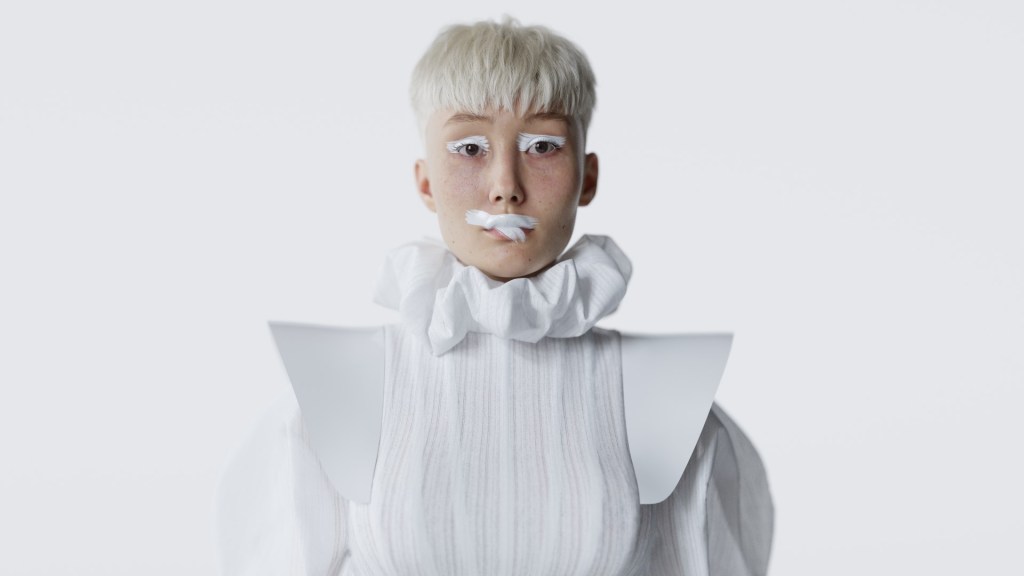
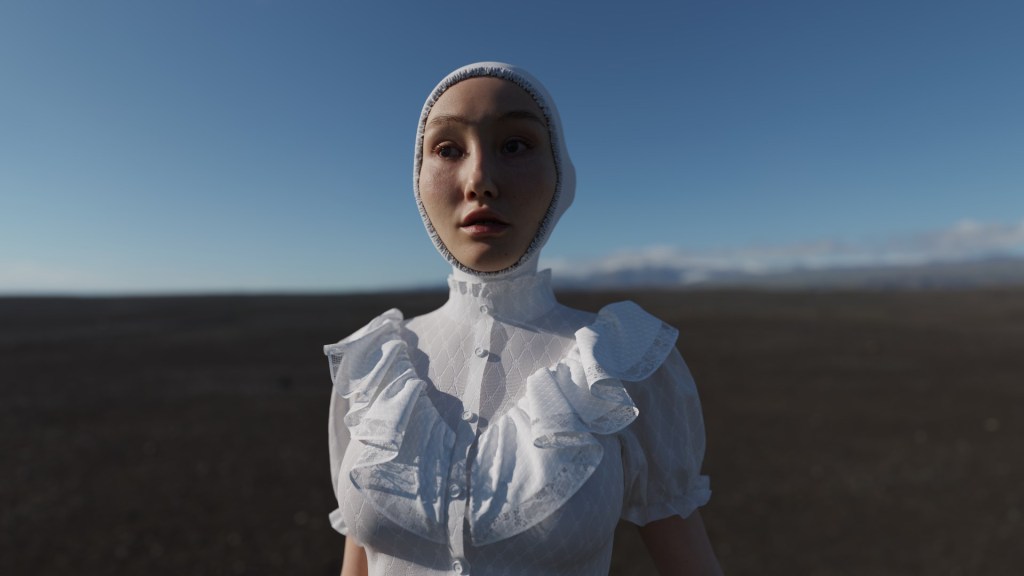
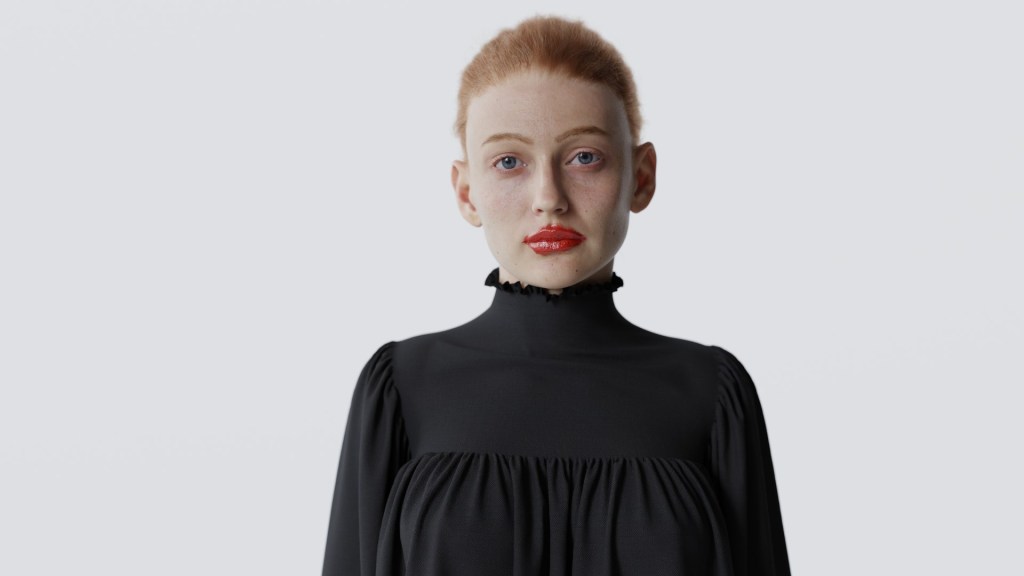
Robert Lundqvist, a self-taught 3D hobbyist, has secured first place in the “Best Animation – Realistic” category of the 2024 Reallusion 3D Character Contest. His success can be attributed to his expert use of Character Creator to design photo-realistic characters, paired with captivating animations in iClone and lifelike renders produced in Blender. As Robert explains, “If you don’t want to wait for some magic AI tool to do all the work for you or spend time pushing 2,048 buttons in Unreal Engine, I believe using the Reallusion suite and Blender is the easiest and fastest way to create characters today.”
Robert Lundqvist
While working full-time as a sales assistant, Robert spends much of his free time mastering 3D software like Blender, 3ds Max, and Maya. Despite having 15 years of digital art experience, his introduction to Reallusion tools came just a few years ago. Their user-friendly design quickly streamlined his workflow and opened a world of creative possibilities.
Robert’s creative process for Lisa & Fia was inspired by music. He began by searching for an audio track that would set the right tone for his project. After hours of listening, he discovered a French song that perfectly captured the mood he was after. “When I heard that song, I immediately knew it was the one,” he recalls. With the music in place, he crafted the visual narrative and atmosphere to complement it.
Starting Out with Headshot
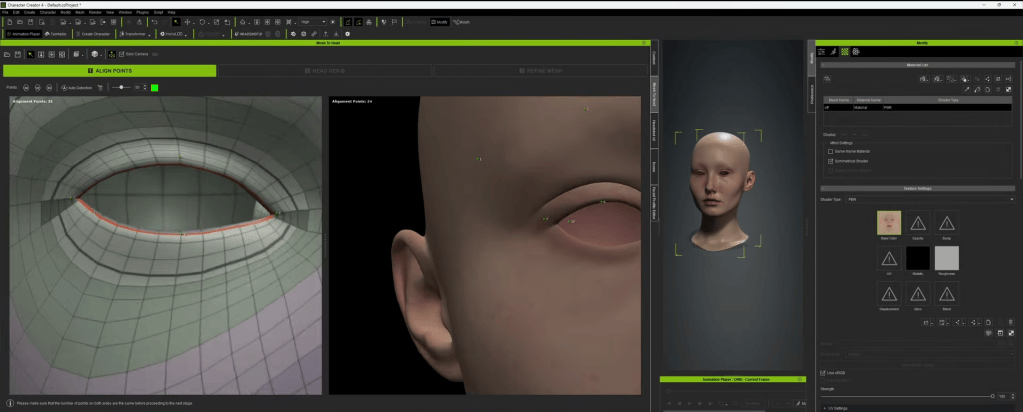
Robert used Headshot 2.0in Character Creator to transform a raw scan model into a functional base mesh. He applied Texturing XYZ V-Face textures to wrap both the albedo and normal maps onto the model.
Use Headshot 2.0
To maintain uniformity, he skipped the refinement step during wrapping, opting to sculpt finer details later in Blender. This seamless integration of tools enabled him to create a clean and realistic foundation for his characters.
Refine details in Blender
Benefits of iClone & Character Creator
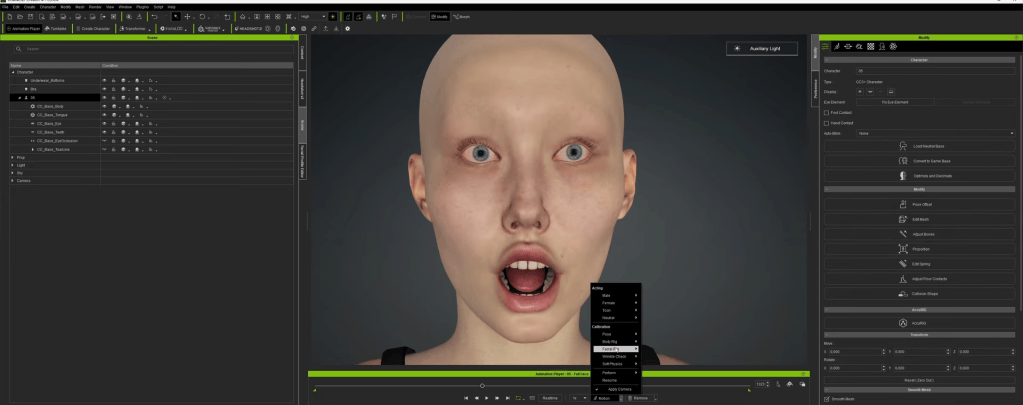
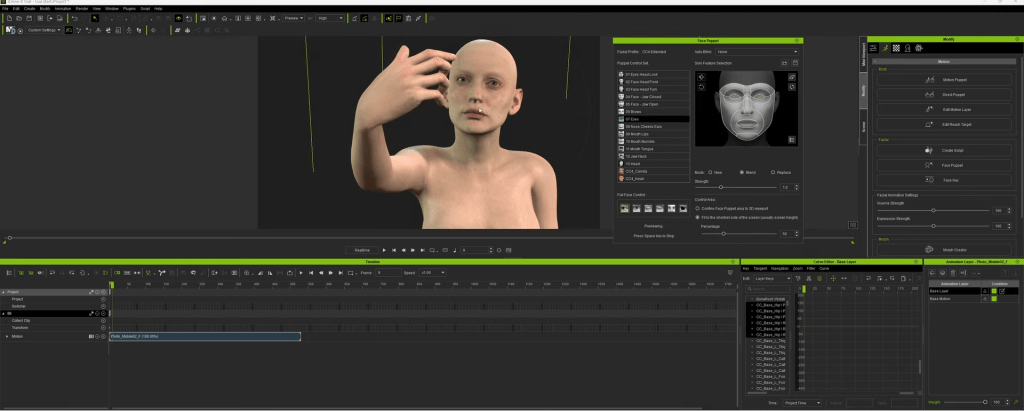
Robert crafted facial expressions in Character Creator and polished the animations in iClone. Leveraging the ActorCore mocap library, he streamlined the animation process, avoiding the need to start from scratch. iClone’s tools further enabled him to refine movements, resolving issues like hand clipping and ensuring smooth cloth simulations.
Robert crafted facial expressions in Character Creator
“The animation library and real-time editing features were transformative”, Robert explains. The blend of mocap and CC’s facial puppet tools allowed him to achieve expressive, natural performances with ease.
Cloth Creation with Marvelous Designer
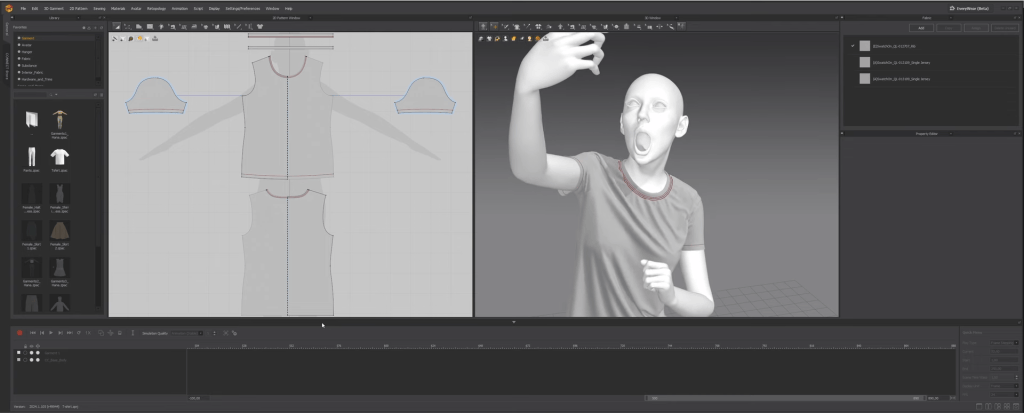
For the clothing, Robert used Marvelous Designer to fit garments onto an exported OBJ mesh of his character. By setting the particle distance between 3 and 5, he was able to achieve realistic wrinkles and fabric folds. Having run several simulations with triangulated meshes and ensured proper UV layouts, Robert then exported the final garments as Alembic files for smooth integration into Blender.
Cycles Render in Blender
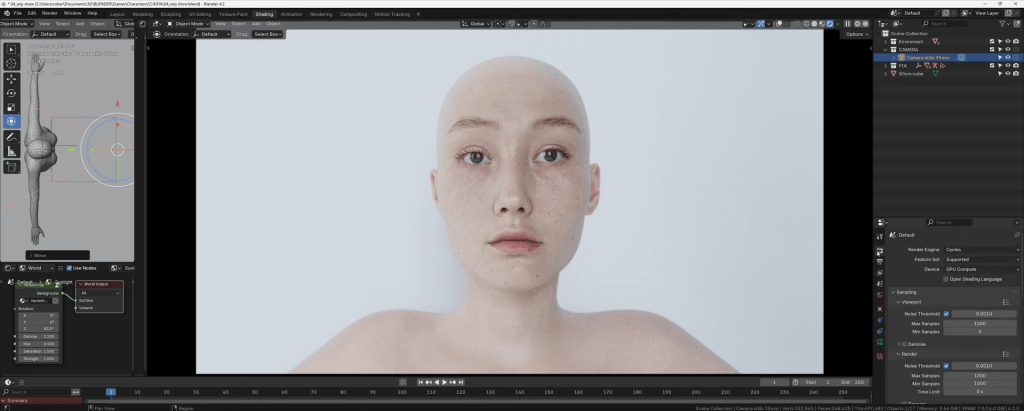
The final steps of Lisa & Fia took shape in Blender, where Robert utilized the Cycles render engine. He chose a 35mm lens positioned 50cm from the characters’ faces, creating a cinematic depth that accentuated their intricate details.
Despite facing hardware limitations and occasional Blender crashes, Robert persevered, ultimately delivering a breathtaking photo-realistic final render that showcased both his resilience and technical mastery.
Final Thoughts
Robert’s meticulous approach to Lisa & Fia demonstrates how the seamless integration of tools like Character Creator, iClone, Marvelous Designer, and Blender can elevate 3D character creation and animation. His skill in combining multiple platforms and adapting to challenges underscores the importance of planning and persistence in achieving artistic mastery.
For aspiring artists, Robert’s workflow provides invaluable insights into crafting hyper-realistic animations without sacrificing efficiency. His success comes from the synergy of a well-planned creative vision and practical application of advanced tools.
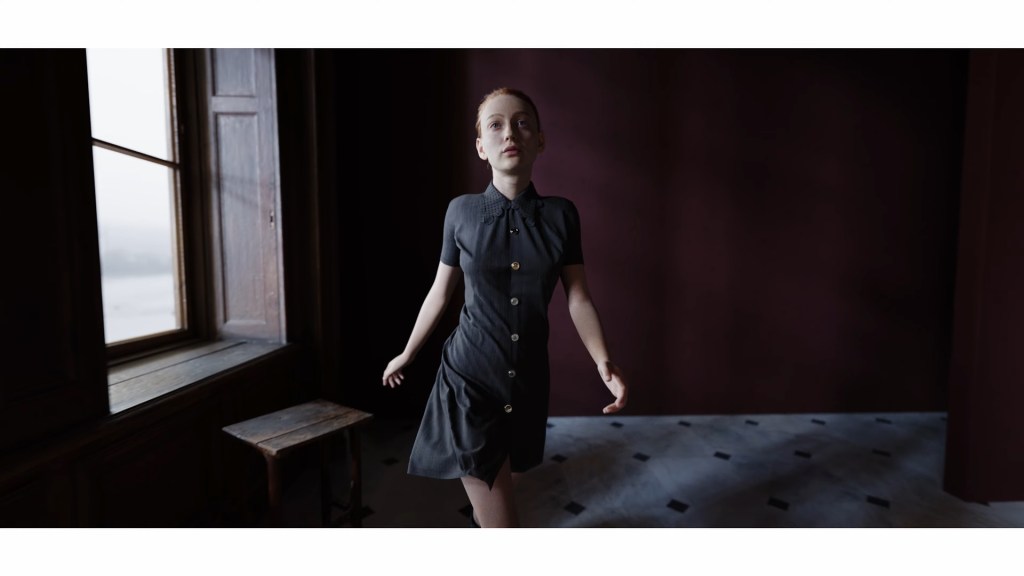
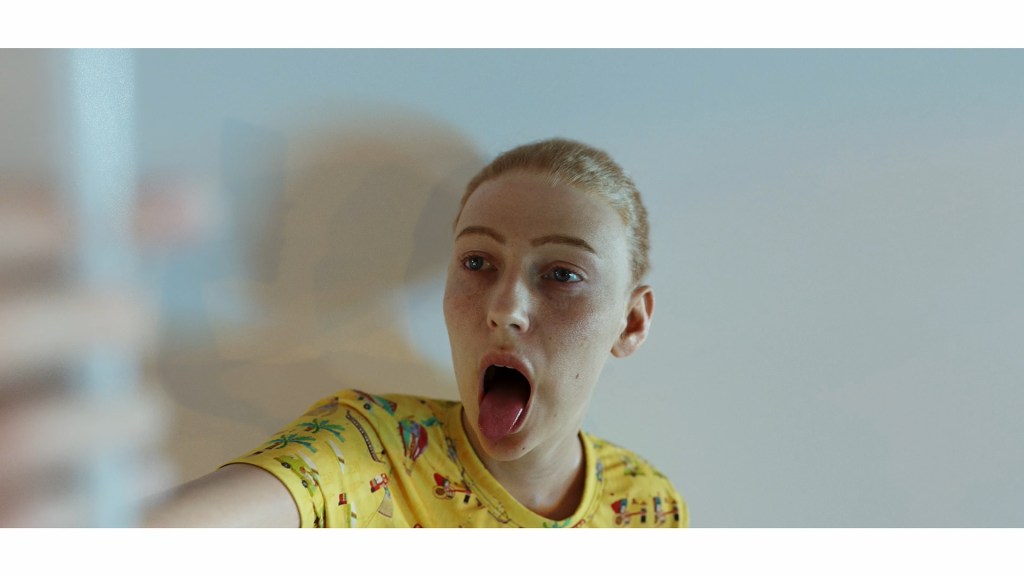
Hi, I’m Loïc Bramoullé, an art & film director from France. I’ve been working in game and animation studios in Paris since completing our graduation film at Melies School in 2010. Since 2015 I’ve been working mostly remotely as a freelancer, and in the last 3 years, I’ve been specializing in indie motion capture game cinematics with Blender.
Since I first tested iPhone facial mocap with CC3-based characters. My latest freelance cinematic gig was for the upcoming Mars Attracts game , which was nearly the most viewed trailer at Gamescom on IGN’s channel.
I used AccuRIG for the two first custom characters, CC4 and iClone to mocap the astronaut’s scream with my iPad.
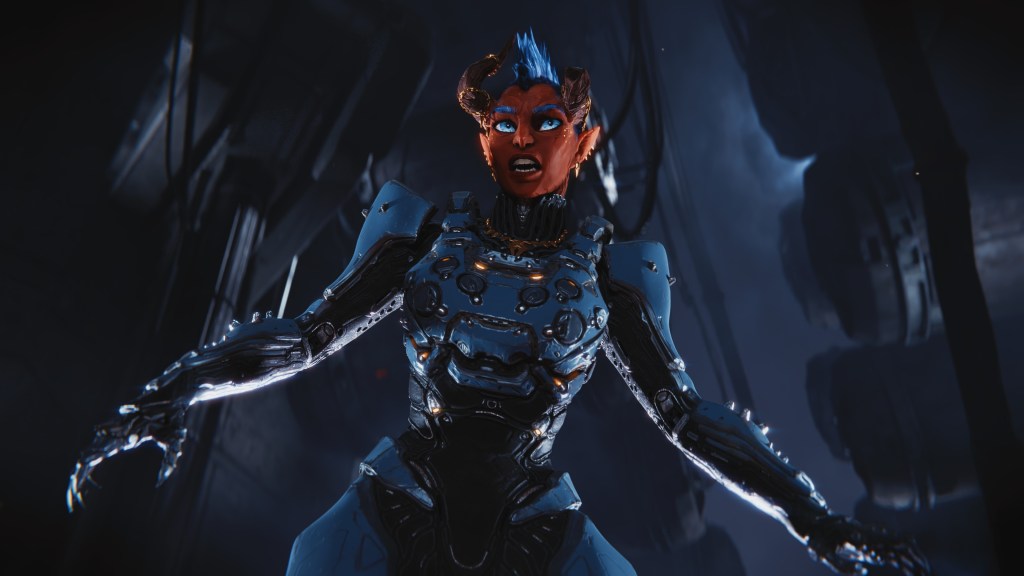
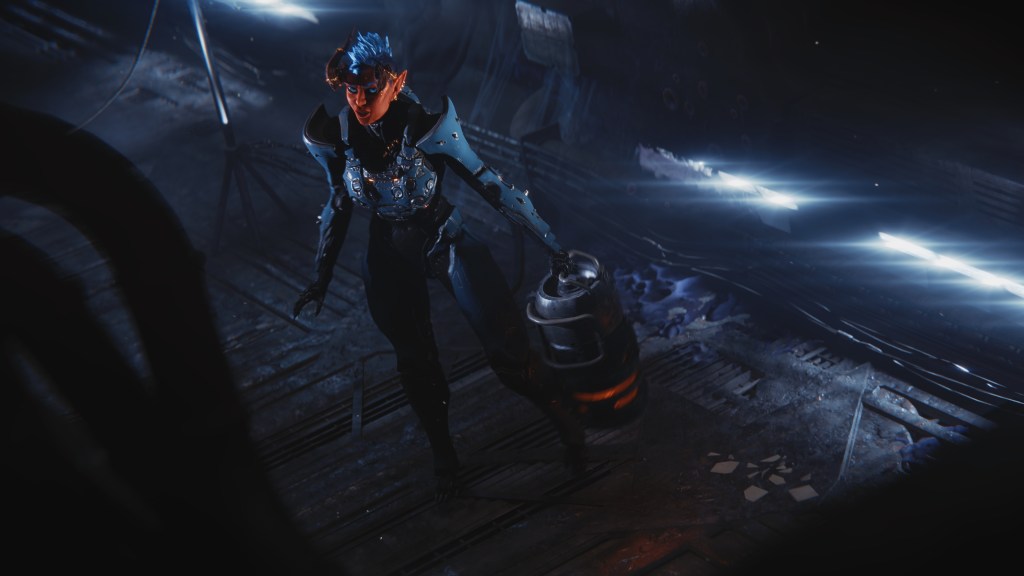
Project HellGal
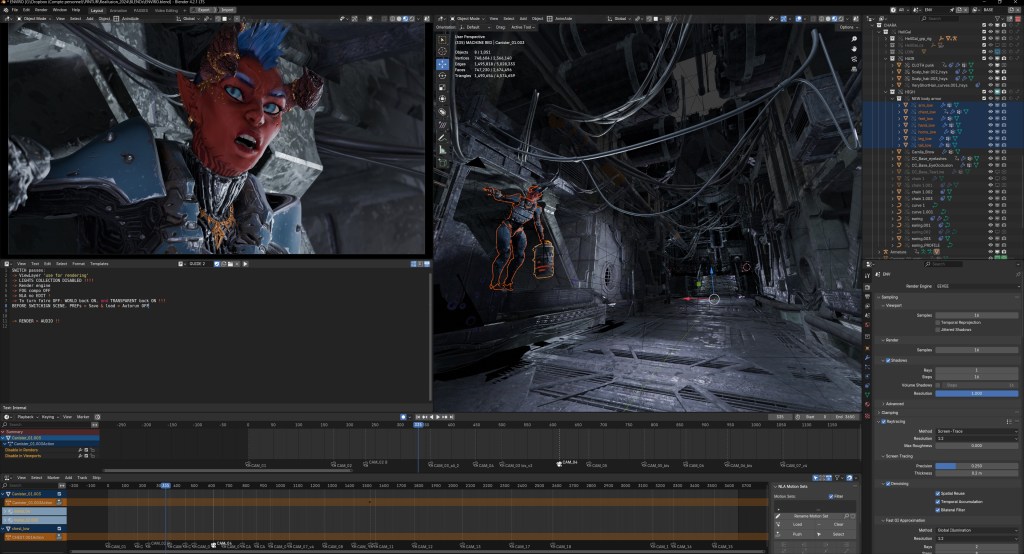
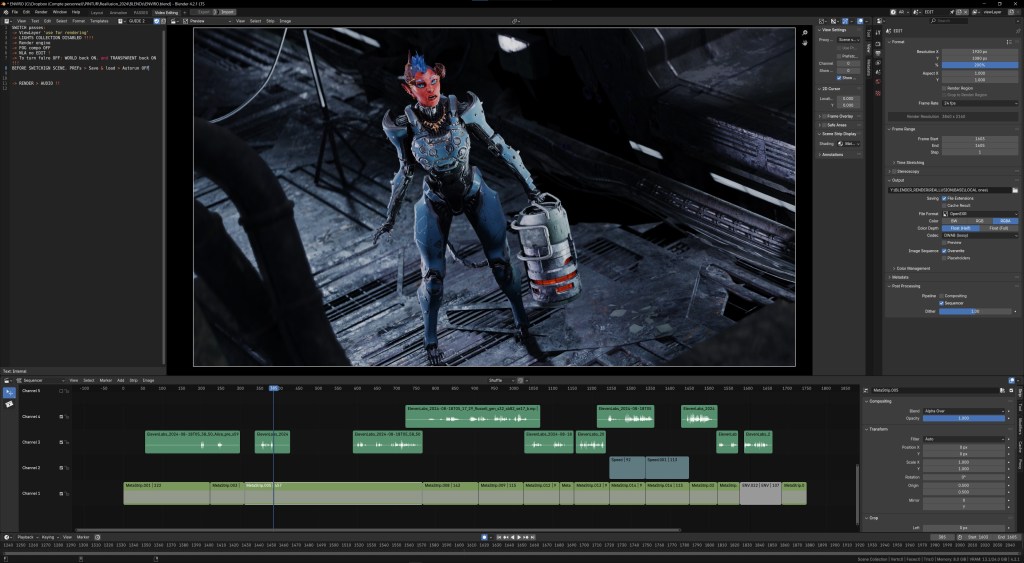
With HellGal I wanted to see how I could push my mocap cinematic pipeline to be as seamless as possible. Essentially merging mocap recording and film editing, to avoid all the time lost rendering individual shots and only seeing the final film at the last moment. The main thing I used for that is the under-exploited Scene Strips in Blender, allowing you to do non-destructive video editing on 3d scene(s), meaning you can select and time your animations to create shots, without actually cutting your animations.
All my mocap clips were imported on a big 5000 frames timeline, and just like in a video editor I edited my final cut from that, in 3d, without rendering these 5000 frames in any way. The big advantage is that when rendering, only my ~1000 final cut frames were considered, versus having to render a huge amount of frames and discarding them in post-edit.
Character Design – Inspiration and Concepting
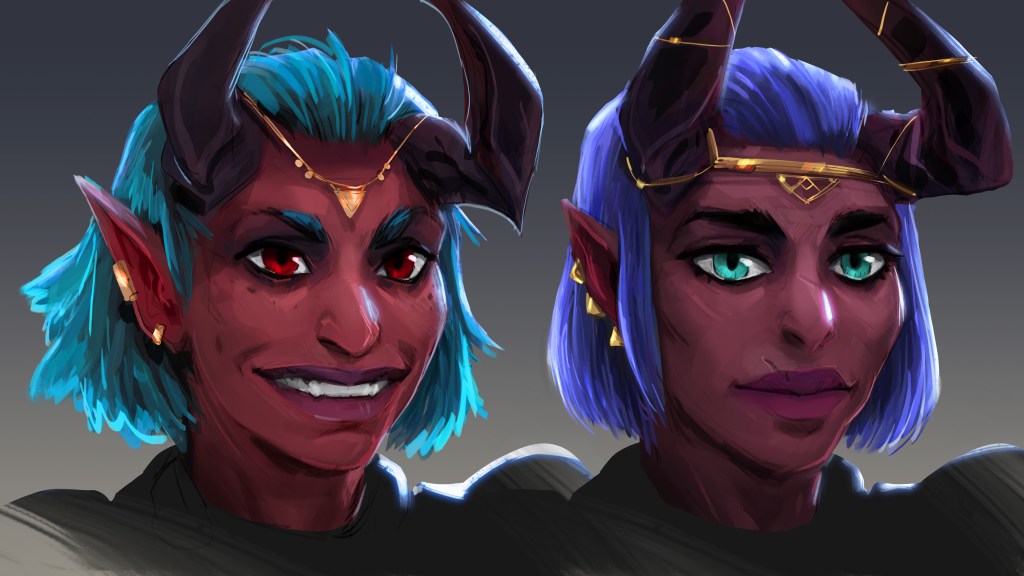
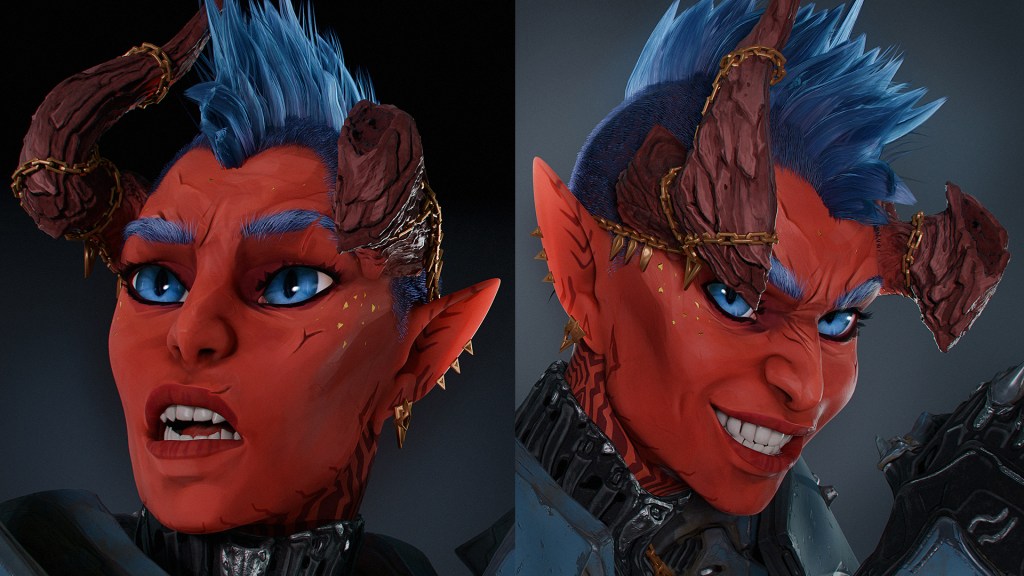
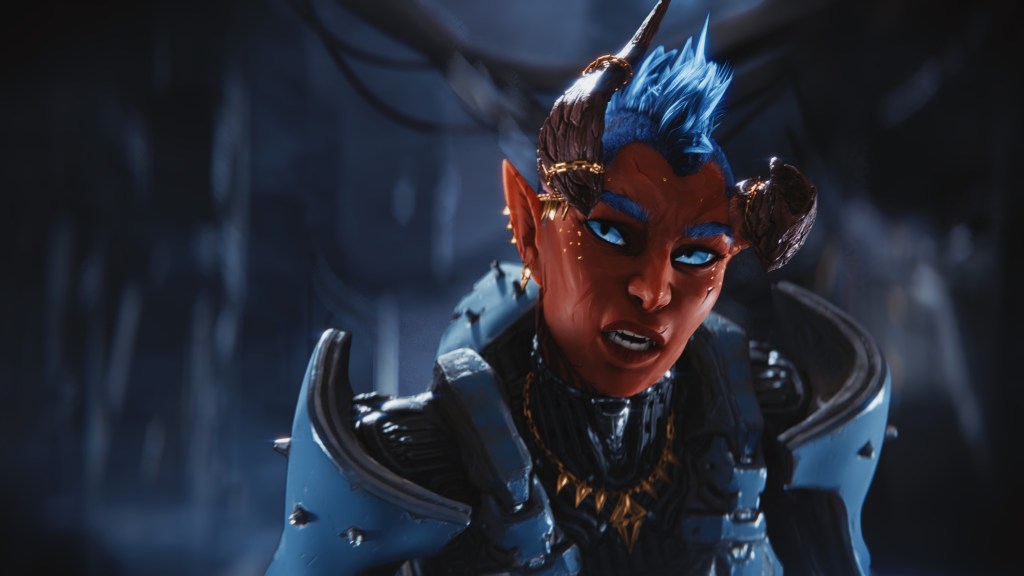
Creatively, my goal was to design a female mashup of the DOOM Guy and Hellboy, set against the backdrop of a BLAME!-inspired ancient structure. This concept had been on my mind for years, and this contest provided the perfect excuse to dedicate as much time as I could. For HellGal’s design, I gathered references on Pinterest and began sketching, focusing on close-ups of her face to refine her character. For the environment, I opted for a rapid workflow, imagining it on the spot and kitbashing directly in Blender while iterating on the shots and animation as I went along.
Starting with Character Creator (CC)
I usually start with Kevin or Camilla to already have everything setup, realistic features, and wrinkles, but I just have to symmetrize the mesh in CC4. As they are scanned, it’s not ideal to sculpt an entirely new design with these slight symmetry differences. CC4 mesh editing makes it easy to symmetrize the face, then all design sculpt layers in ZBrush or Blender can be perfectly clean, and asymmetry can still be controlled independently with another sculpt layer.
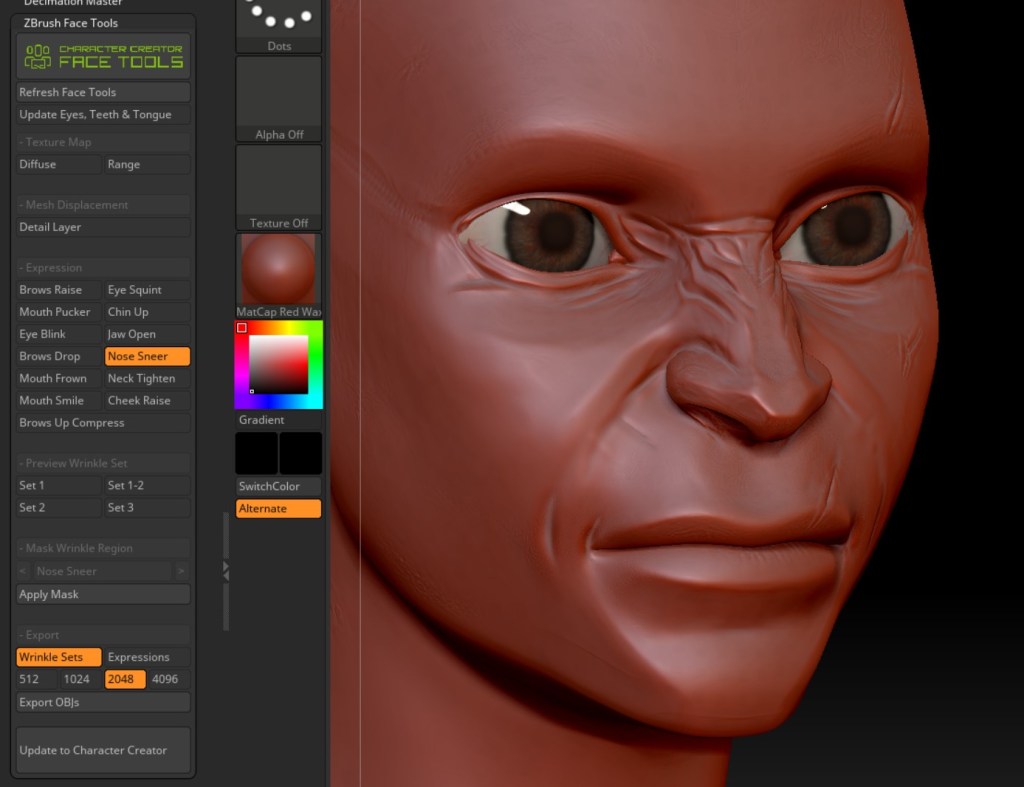
ZBrush Face Tools for Character Creator is really the go to solution to design not only a character’s face, but its expressions and even wrinkles along with it. And that’s key for convincing facial animation, it’s not just about the motion data and design, but the actual custom expressions that really enhance the performance’s believability, instead of being generic and making the character feel more flat.
I worked on the design in a very iterative way, meaning I started with CC4 morphs to start customizing Camilla, then did most of it via FaceTools. Which allowed me to seamlessly preview her design and facial expressivity back in CC4. But I’ve also kept doing slight design variations in Blender while I rendered the various iterations of the full animation. So I could still polish her design while seeing her in the final shots, with the final lighting and cameras.
Wrinkle editing in Character Creator (CC)
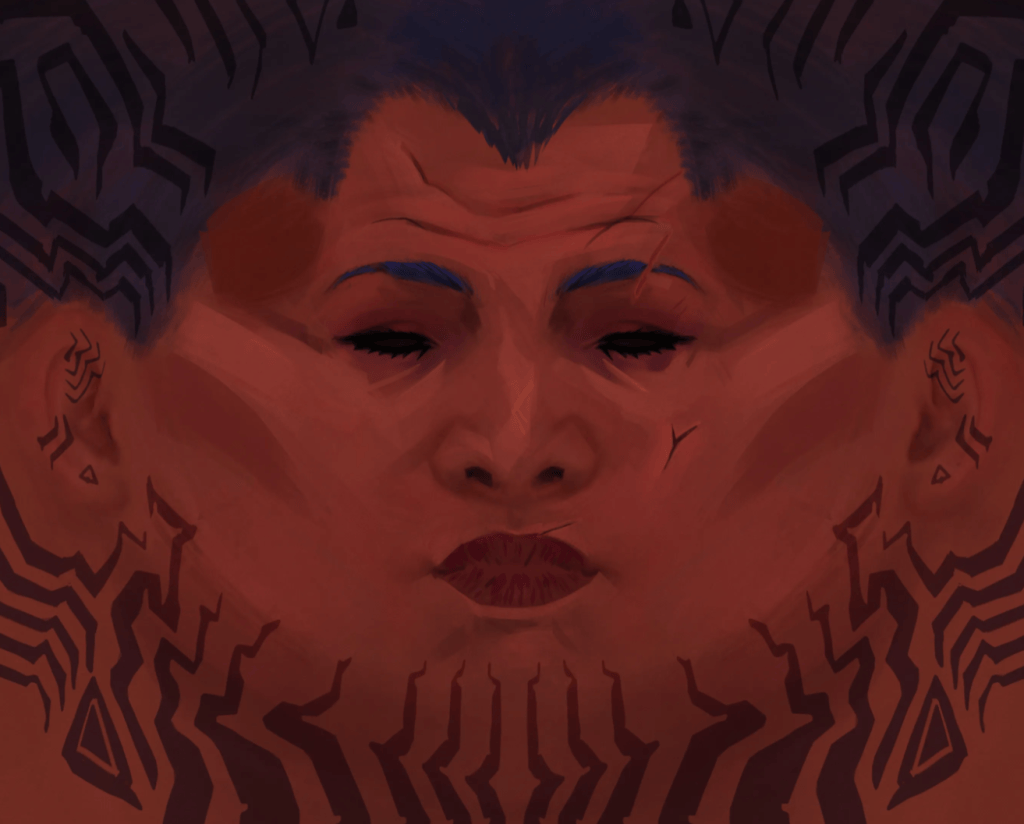
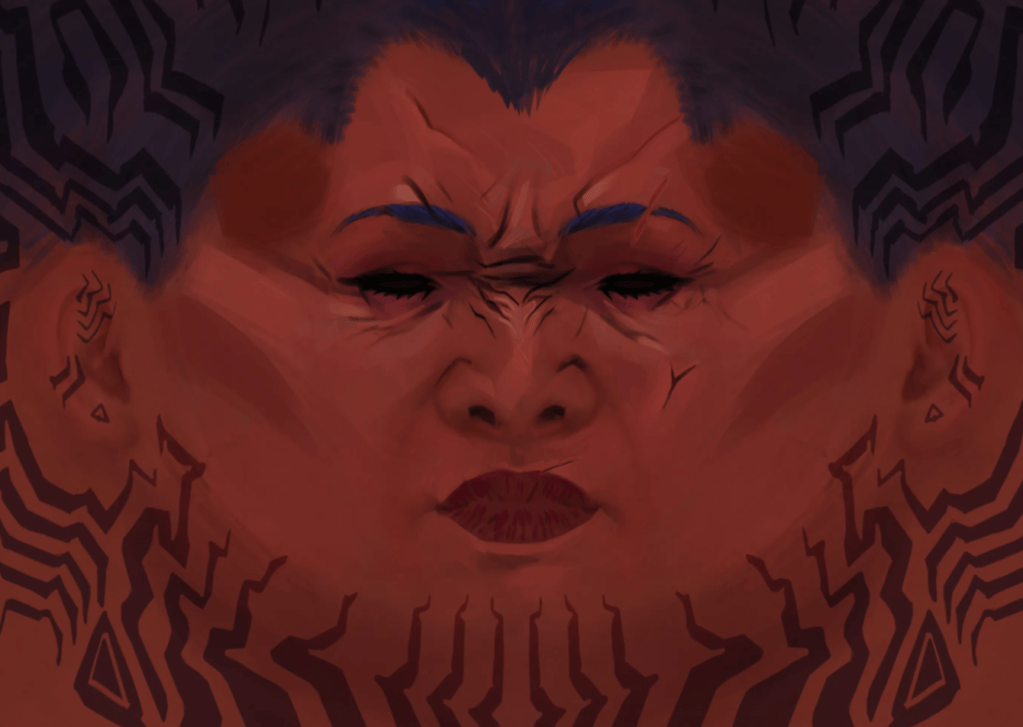
The default Wrinkles packed in CC4 are already perfect in many cases, but I did want to stylize and paint them myself, to match the handcrafted style I was after. So after customizing a bit the sculpt of the wrinkles via FaceTools, and once HellGal was imported in Blender via the pipeline addon, I created a PSD file where I had the 4 albedo texture: the base face color, and the 3 wrinkles color textures.
Painting texturesPainting face
Each time I painted over the face, I could update and refine the wrinkles simultaneously. By using Photoshop’s “File > Generate > Assets” feature, I enabled real-time saving for any layer ending with an extension (e.g., Layer_01.jpg). This meant I didn’t need to manually save textures—just open the PSD, paint, and let them auto-reload in Blender using the Auto-Reload addon. So I can essentially watch the final film, while seamlessly painting textures, her face and wrinkles for example.
Adding wrinkles
3DCoat for Body Sculpt
I love 3DCoat for its ease of use compared to ZBrush, offering an intuitive workflow that feels almost as natural as working in virtual reality. Starting with voxels allows you to shape designs without constant remeshing, and the space mouse navigation is flawlessly implemented. Adjusting brush size and intensity is seamless, unlike ZBrush, where you need to open menus for similar tasks. While 3DCoat may not match ZBrush in terms of professional, production-level refinement, it excels as a creative tool, akin to a “3D Photoshop”. It also provides full asset production capabilities, including retopology, UV mapping, baking, and surfacing tools. Performance-wise, it holds its own, enabling real-time sculpting on models with tens of millions of polygons.
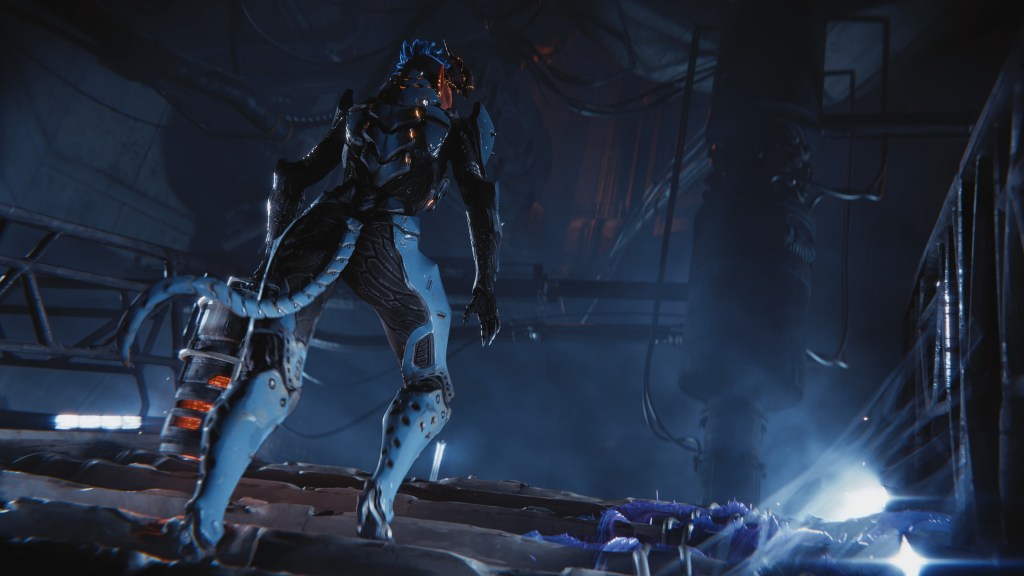
I essentially just used basic tools to sculpt the whole body and horns, move, clay, a few alphas, and had a “sketchy” approach, where I just made the armor like if I was drawing it on paper, or in clay. Professional character artists use extremely more complex methods in Zbursh, relying on an array of tools, blocking out forms, retopologizing, sculpting with carefully picked alphas. Here I just wanted to be expressive and design all the details directly by sculpting, in one single step pretty much. For the surfacing I decided to use Substance Painter instead of staying in 3DCoat, to get higher details and more pre-made materials, also as a challenge to use UDIMs to have very high fidelity while still dealing with only one single material and texture set.
Animation: VR with Mocap Fusion & iClone
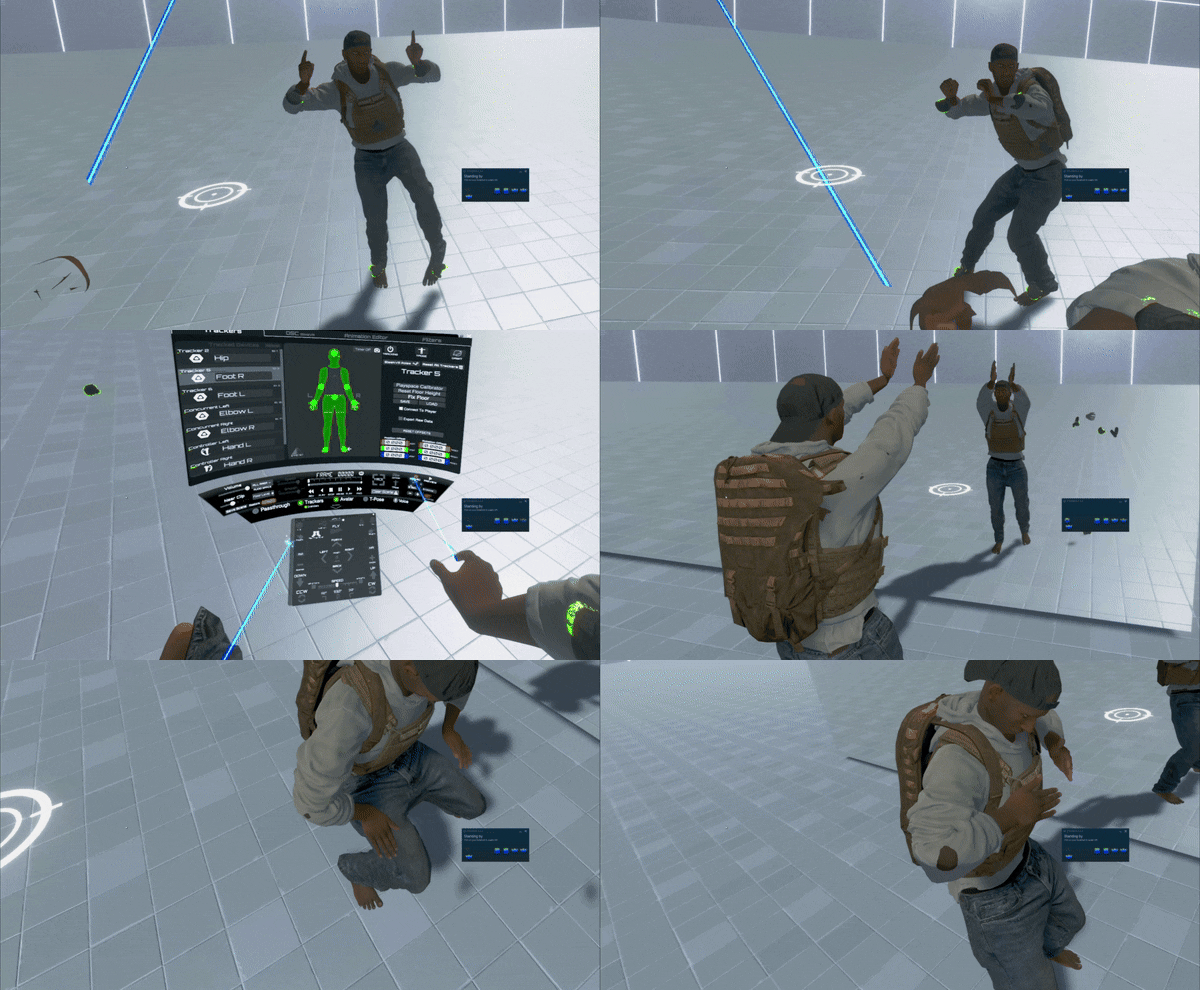
After extensive research into the pros and cons of various motion capture solutions, VR mocap stood out as the most intriguing option. It’s an underexplored approach, not tied to a single product but a mix of potential setups—some outdated, others entirely untested. Despite its complexity, the appeal lies in its optical tracking capability, offering millimeter-accurate motion rather than the approximations of inertial suits. For instance, when properly configured, raw foot motion can be flawless, keeping feet grounded even on uneven surfaces. In contrast, inertial suits rely heavily on post-processing to generate such data since accelerometers lack positional awareness in 3D space.
Another significant advantage is its cost-effectiveness. For under $1,000, a setup with three Vive trackers and a Quest 2 can provide full-body tracking, including basic finger tracking. The system can then be expanded with additional trackers for elbows, knees, and other joints. Mocap Fusion (available on Steam) further enhances this setup by interpolating shoulder and elbow motion effectively, minimizing the typical IK snapping seen in character animations.
After months of research, I settled on a setup using Mocap Fusion with three Vive Tracker 3.0 units (for feet and hips), two Vive Base Station 2.0 units, and a Meta Quest Pro with controllers for hand tracking. To bring my virtual environment into the process, I imported a blockout of my 3D scene into Mocap Fusion, complete with collision data. This allowed me to act out scenes in my living room while interacting with the actual 3D geometry from my Blender environment. Best of all, I could embody HellGal’s character in real-time, seeing the final results at full scale as soon as the recording ended.
I exported the mocap takes as FBX files and imported them into iClone, where I had also loaded my environment blockout. This allowed me to select specific takes, refine their placement within the scene, and perform initial mocap cleanup using the Edit Motion Layer tool. The eye mocap, recorded along with the body in Mocap Fusion, was complemented by facial animation and dialogue captured in iClone using Live Face.
To finalize the workflow, I combined everything in Blender. This approach let me independently adjust the timing of body motion, facial animation, and audio while simultaneously refining the edit. By working this way, I could fine-tune shots, dialogue, and actions independently, ensuring they aligned seamlessly during the editing process.
Here are some iClone features I found particularly useful. Motion Direction Control helped accurately position mocap clips in space, while Motion Correction proved invaluable for fixing sliding feet and refining the character’s pose during foot contacts. This ensured a more polished and grounded animation.
One standout feature I utilized more extensively this time was AccuLips. It generates phoneme-based animations directly from dialogue audio and script, storing them in dedicated phoneme morphs or shapekeys. After fine-tuning these settings in iClone for a natural look, the entire AccuLips layer can be exported and edited further in Blender. In Blender’s graph editor, these phoneme animations remain separate from facial mocap shapekeys, allowing adjustments like smoothing or amplifying specific phonemes. This separation was especially helpful for achieving a more natural lip sync, particularly with tricky sounds like “B” and “P,” which iPhone-based mocap doesn’t always handle perfectly.
I added all my animation exports from Mocap Fusion and iClone as strips in the NLA Editor, both for body and facial animations. This setup allowed me to edit each take individually and choose the best segments when actions were repeated during mocap. To refine shot composition and camera animation, I used camera markers, iterating directly within the scene. Between shots, I left ample empty space on the timeline and imported the 3D scene as a clip in the Video Sequence Editor (VSE) within a second scene in the same Blender file.
This approach enabled me to cut the timeline and retain only the portions of each shot I wanted, while simultaneously playing back the final cut. It also allowed iterative refinement across all aspects of the project—animation, cinematography, lighting, and editing—within a single file.
By integrating the entire pipeline into one workspace, I streamlined the process, avoiding the fragmentation and inefficiencies of traditional workflows. Instead of producing individual shots and combining them later based on a storyboard or animatic, this method felt more cohesive, like polishing a single, unified object. From character creation in CC4, mocap editing in iClone 8, to crafting cinematography and the final edit in Blender, the process became far more fluid and efficient. Here some really powerful addons I have tested for this project:
HairTool: Easy to learn, with a robust library to kickstart any hairy or furry needs. Fully compatible with CC4.
Wobbly Wiggler: Perfect for adding physics-based dynamics. Unlike most tools, it allows simulation not just for tails or ears but also for body bones like the spine, arms, and even fingers—enabling simultaneous animation and simulation.
Octa Render: Soon out of beta, Octa Render has been a lifesaver for several projects. With rendering costs reduced by 60x compared to traditional methods, it makes high-quality animation both affordable and competitive with Unreal. Its simplicity is unmatched—a true one-click solution.
My Experience with Blender AutoSetup
The new AutoSetupsignificantly streamlines the process of sending characters and their animations into a Blender file with a single click. Compared to version 1, which required updates from GitHub, the new dedicated panel and button make the workflow far more intuitive and efficient. I plan to explore further how this setup supports seamless back-and-forth adjustments between CC4 and Blender, allowing for sculpting and customization of character proportions using Blender’s modeling and sculpting tools. This offers a strong alternative to relying solely on ZBrush with GoZ for detailed character modifications.
Here is a really good tutorial on using Blender as an alternative to Zbrush for customizing a character’s design and expression, and one-click synching back to CC4 with GoZ: https://www.youtube.com/watch?v=mgUTZ4GeItQ
The foundation of the character is built entirely in CC4, including the full facial expression set, the wrinkle system, body proportions, and even the Rigify auto-rig for final adjustments in the camera view. CC4 handles all the heavy technical work, allowing me to concentrate purely on artistic customization to align the character with my design vision.
My Thoughts and Suggestions
CC4 truly excels when users not only master its automated features to create characters that closely match their vision but also add a final layer of personal, handcrafted design. This could involve sculpting details in ZBrush or Blender and authoring textures in Photoshop or Substance, giving the character a unique and traditional touch. By developing a custom pipeline that integrates Reallusion tools into your workflow, you can fully own the creative process.
The seamless one-click integration of CC4/iC8 with industry-standard rendering apps like Unreal Engine, Unity, Blender, and Cinema 4D elevates it as a serious production tool. It eliminates countless tedious production steps, offering artists a significant technical advantage and streamlining the workflow.
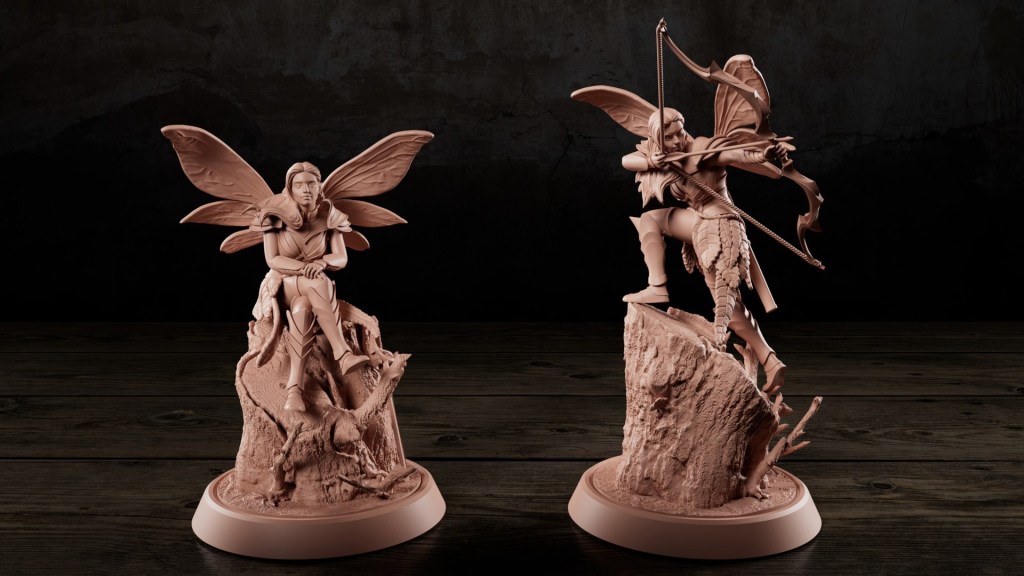
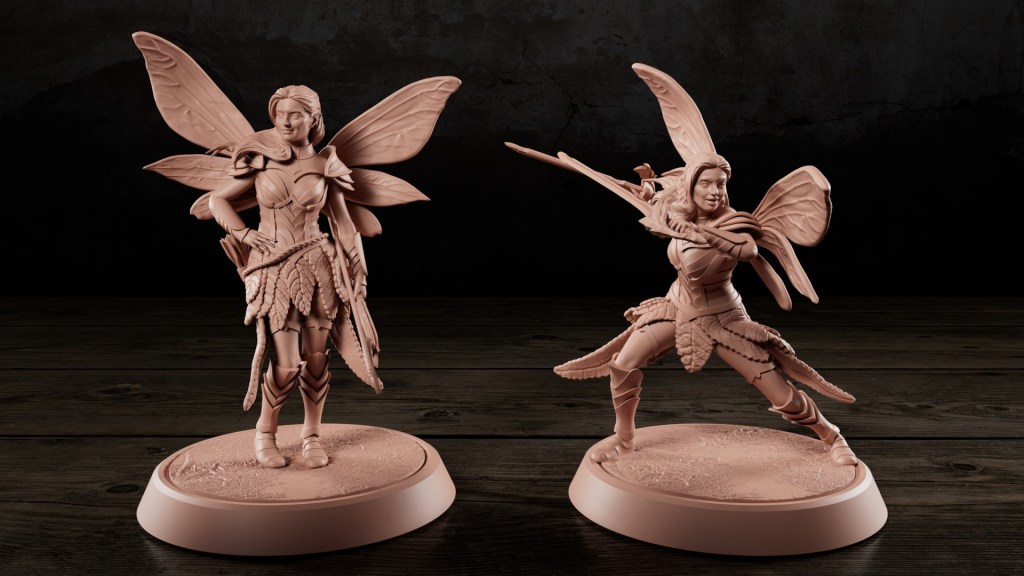
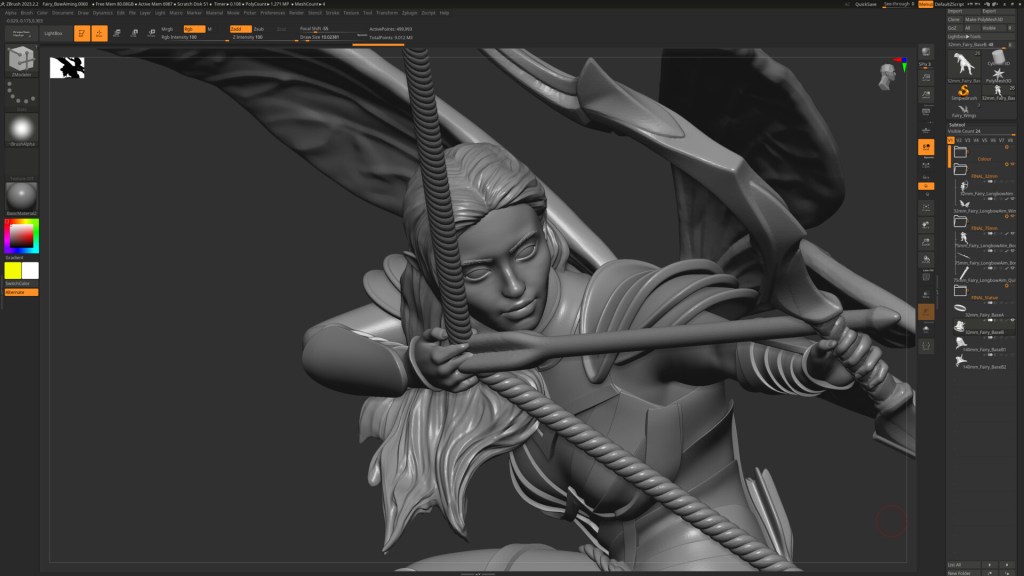
As a seasoned miniature model maker, David specializes in crafting intricate characters for tabletop games like Dungeons & Dragons. His submission, “Fairy Ranger”, earned him recognition in the 2024 Reallusion 3D Contest for Best AccuRIG Characters. By combining meticulous detail with the innovative use of Reallusion’s tools AccuRIG, David creates dynamic, poseable models that captivate a loyal following of wargamers and miniature collectors.
Miniature Model Creator – David (Atlanticus)
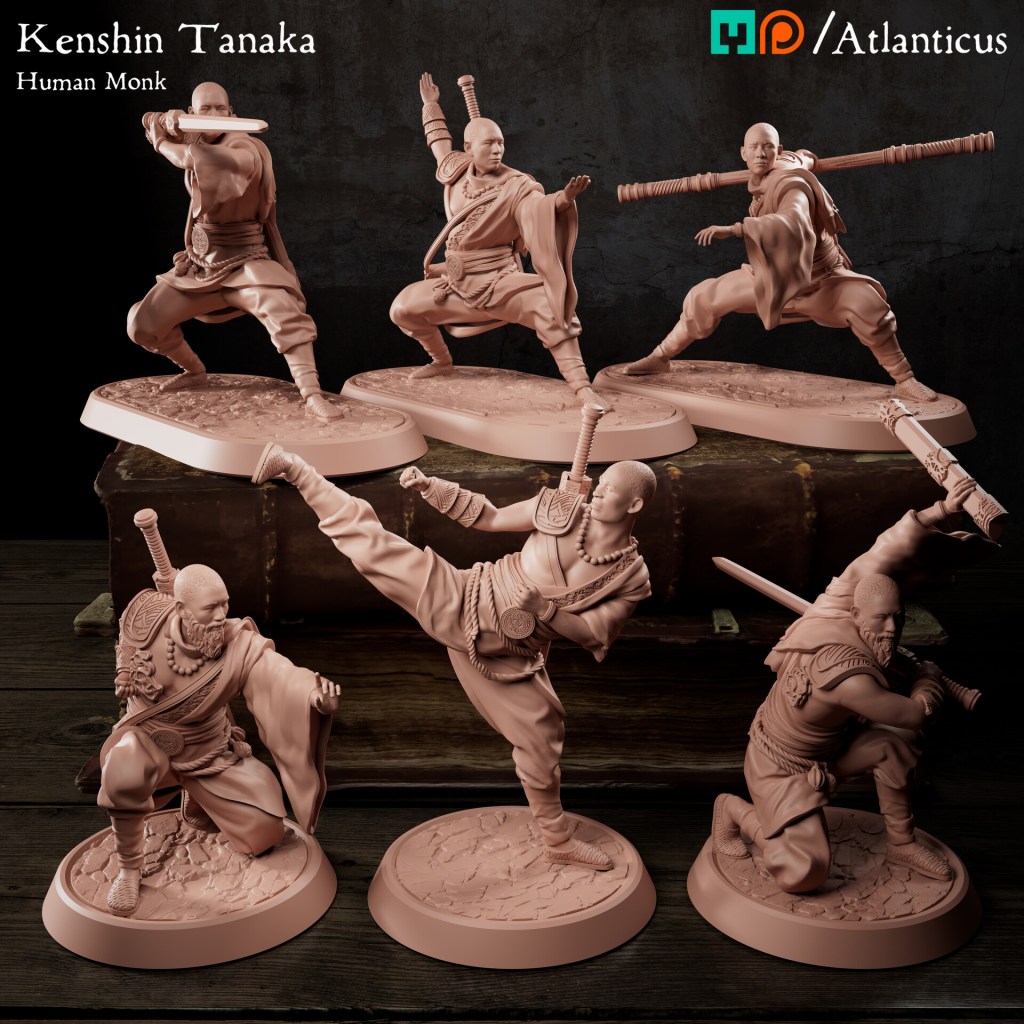
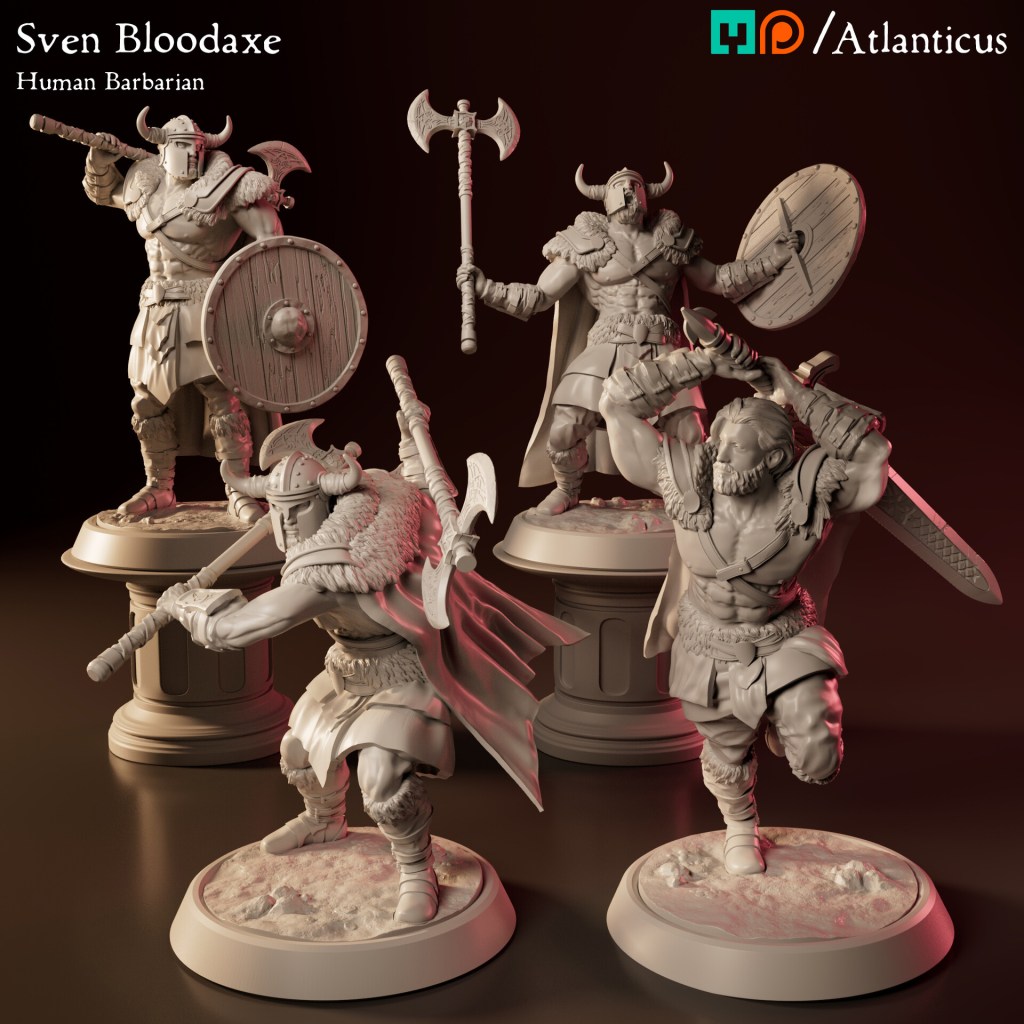
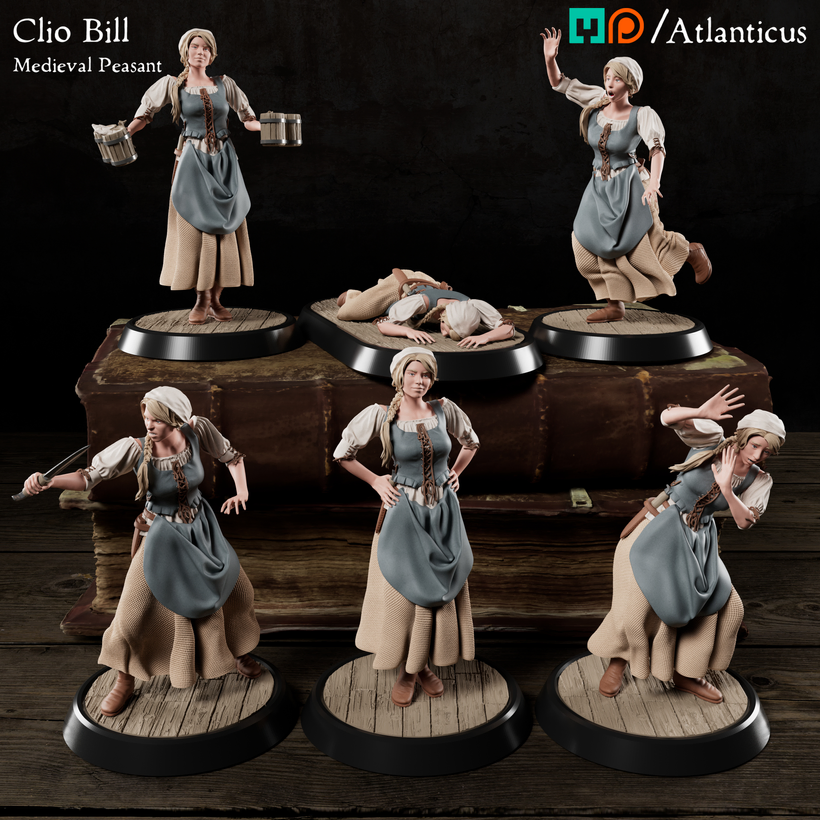
David’s journey into 3D artistry began after years of working in visual effects for film and TV. Inspired by his passion for tabletop gaming, he transitioned to designing 3D printable miniatures, blending his fine art background with digital sculpting techniques. “I create characters for board games and painters, with sizes ranging from 32mm to 75mm, focusing on dynamic poses and intricate details”, he shares.
The introduction of Reallusion’s tools, particularly Character Creator AccuRIG and ActorCore, transformed David’s workflow. This efficiency has enabled him to produce a new character every month for his growing subscriber base.
“Previously, posing in ZBrush would take hours, tweaking every joint and finger manually. With AccuRig, I can rig a character in just 5–10 minutes, load animations, and create multiple poses in under an hour.”
David (Atlanticus) – Model Creator
David learned about the 3D contest through Reallusion’s newsletter and saw it as an opportunity to push his skills. “The contest requirements aligned perfectly with what I was doing—creating dynamic poses and expressions”, he remarks.
Leveraging Reallusion’s tools, he brought Fairy Ranger to life with expressive facial animations and four unique poses.
The Business of Miniatures
David runs a subscription-based business on Patreon where enthusiasts can access his monthly character packs for as little as $5. Each pack includes five poses and weapon options, catering to both gamers and collectors. Despite the competitive nature of the miniature market, David’s unique designs and efficient workflow make him stand out.
Looking Ahead
David plans to expand his repertoire by exploring creature creation, a challenge he finds both exciting and rewarding. He continues to refine his techniques through professional courses and the integration of Reallusion tools, aiming to scale his business by collaborating with freelance artists to produce even more intricate models.
David’s innovative approach to miniature creation demonstrates how Reallusion’s tools can empower artists to achieve professional results with remarkable efficiency. His journey serves as an inspiration for creators looking to blend traditional artistry with empowering technology in their workflows.
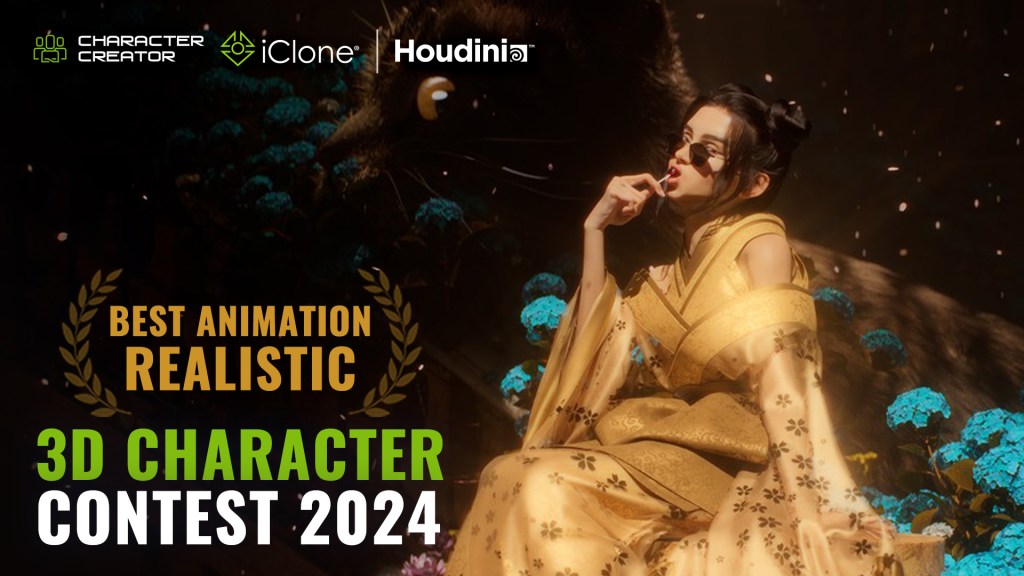
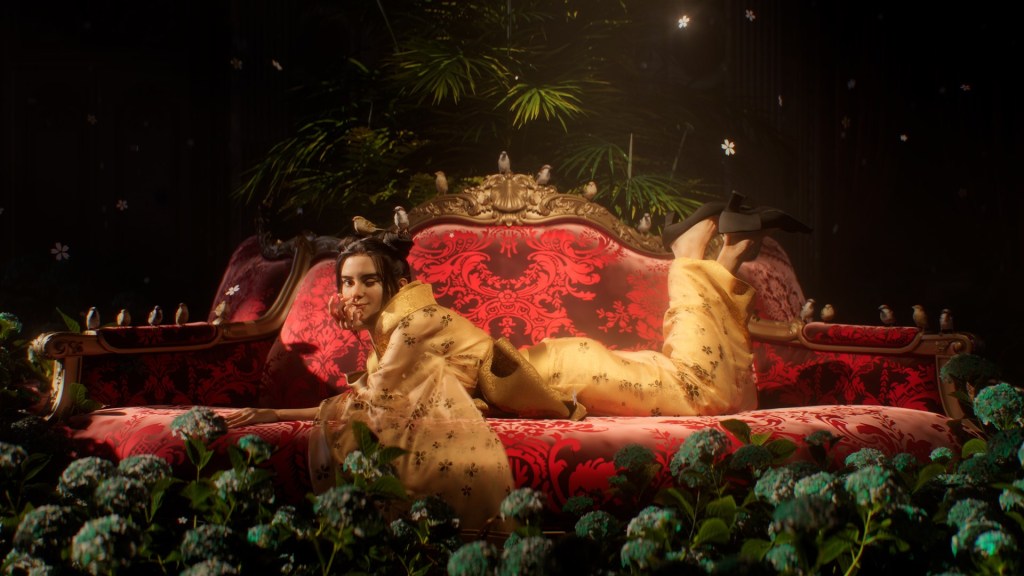
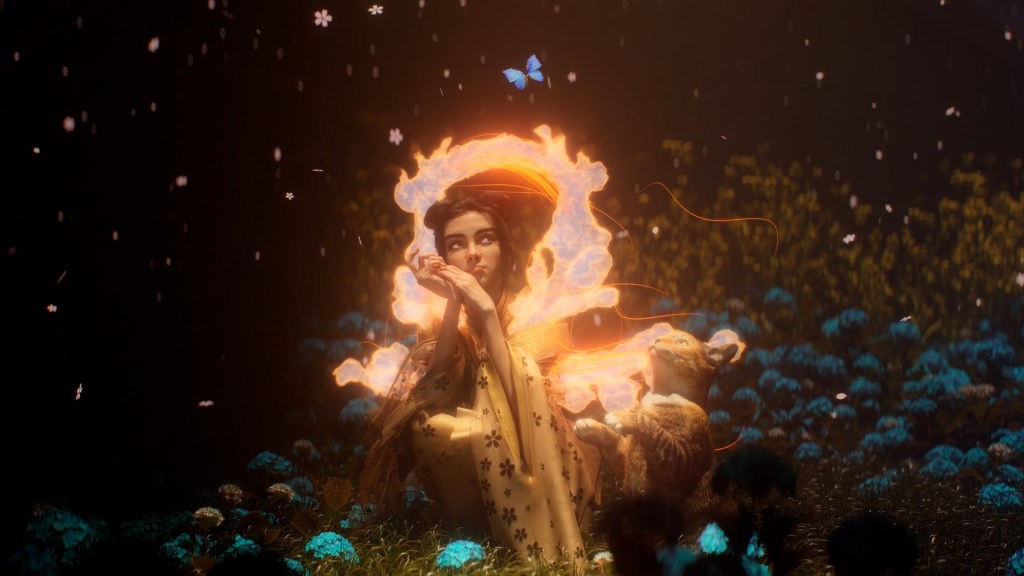
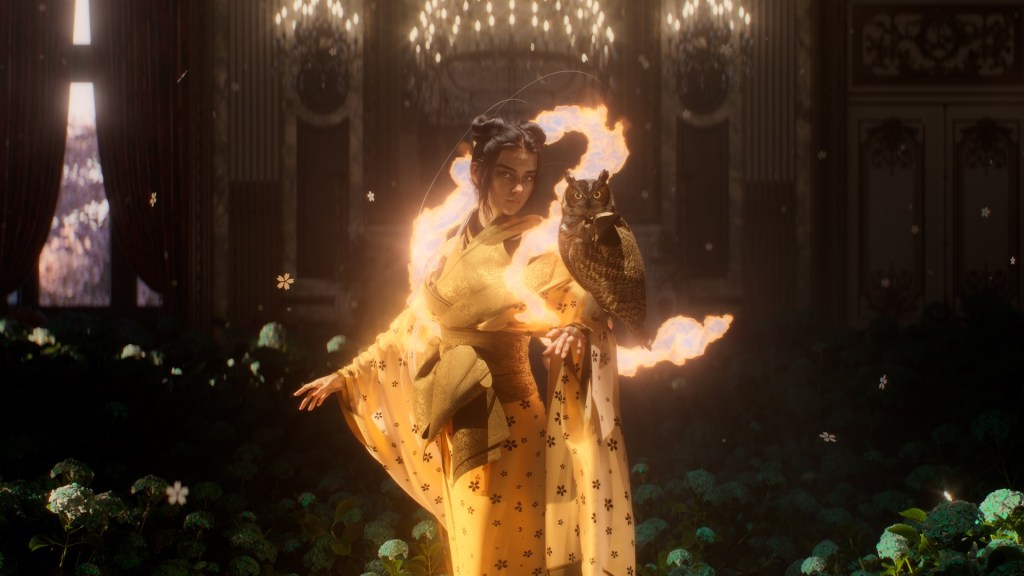
I have long dreamed of creating an animated personal project based on a Japanese deity. As I am deeply inspired by Japanese culture, particularly its traditional attire and mythological lore. Inari Okami, beyond being the deity of prosperity and agriculture, is wrapped in numerous legends and mysteries. This rich variety of lore makes her personality, behavior, and appearance particularly open to artistic interpretation and design.
Three years ago, when I first began learning Character Creator 3, I attempted to create a version of Inari Okami. At that time, my skills and knowledge were limited, preventing me from fully realizing my vision. I took this contest as an opportunity to revisit the character from scratch. This allows me to gauge how far I have progressed in CG character creation.
The entire project spanned approximately two months, with the customization of the CC base character taking only a day. It’s a relatively quick process compared to the project’s overall timeline, made possible by Character Creator 4’s morph sliders.
A valuable tip I discovered is that you can input values that exceed the morph slider’s default range. This revelation effectively removed many limitations I had previously encountered in the creation process!
Character Creation: Inari Okami
Traditional Japanese attire follows precise rules governing design, wearing methods, and hairstyles, which would have required extensive research to recreate. Therefore, I chose to create a modern interpretation of the deity (kimono, 3d hairstyle and movements) while preserving key traditional Japanese elements (kimono fabric pattern).
I designed her hairstyle, eye contact, and expressions to convey a playful personality, offering a contemporary twist on the traditional deity’s representation.
Lookdev
Animation Posing in iClone
I began by selecting an appropriate rhythm featuring Taiko drums. Then, I chose complementary ActorCore motionsthat fit with both the beat of the music and the deity’s personality. To achieve the aesthetic of a filmed dance performance, I established a fixed camera position early in the process. I also focused my editing efforts solely on elements visible within this frame.
Character animation editing in iClone
Additionally, I utilized iClone’s “Look At Camera” function to maintain consistent eye contact between the deity and the audience. This creates a more engaging experience. I primarily used the “Edit Motion Layer” function, manually creating keyframes to seamlessly blend one movement into the next. So I can transition between multiple Actorcore Motions.
Clothing in Marvelous Designer & Houdini
The final aesthetic required approximately 3-4 weeks of iterative refinement. In my experience and workflow, I have found that garments that look decent in the Marvelous Designer viewport do not always translate to final renders, particularly when animating complex garments like kimonos. To address this challenge, I developed a mini “pipeline” connecting Marvelous Designer, iClone, and Houdini.
Garments exported from Marvelous Designer would automatically conform to four different character poses in Houdini. I then rendered these variations using Redshift to evaluate multiple aspects of the design: its fit on the character, behavior under various lighting conditions, and material properties. This procedural approach enabled me to comprehensively assess each design iteration before committing to a final design for cloth simulation.
Marvelous Designer: making the kimono
Although it can be tempting to use low particle distances to high fidelity garments in Marvelous Designer, I recommend maintaining a higher particle distance to optimize performance. The priority should be establishing a strong silhouette while keeping the garment’s mesh as lightweight as possible. When working with cloth simulation specifically, efficiency is best achieved by perfecting the base simulation before adding realistic details such as cloth thickness, buttons, and stitches. This approach streamlines the workflow and allows for better control over the final result (I personally recommend cloth simulations in Houdini as it is a lot more controllable; MD can be unpredictable and frustrating when it comes to cloth simulation).
I converted all garments to quad meshes and maintained a particle distance of 10 or higher before exporting them to Houdini for Vellum cloth simulation. The simulation took over 40 iterations before achieving satisfactory results. Many of my early attempts failed due to fabric catching in the character’s armpits or fingers. This led to an iterative workflow where I would export the problematic simulated cloth as Alembic files into iClone, using them as reference points to edit the character animation and resolve these collision issues.
Testing the cloth
Render Composition in Houdini
One of the primary yet subtle effects throughout the animation was the ground-level fog, which emulated the atmospheric haze commonly used in stage productions to enhance drama and mystique. I created this effect in Embergen, importing the character animations as Alembic files to serve as collision objects interacting with the fog. This added both depth and a layer of secondary movement that complemented the character animations.
VFX fog in Houdini
Another primary effect appears towards the end of the animation: a shockwave + fire spread on the Kimono created by combining an Embergen simulation with cloth PyroFX simulated in Houdini. While Houdini excels at complex object interactions and offers unparalleled iteration efficiency, Embergen is much quicker for simulating effects that do not require detailed external object interactions.
I simulated the shockwave independently in Embergen, then exported it as both VDBs and particles (Alembic) into Houdini. The cloth PyroFX involved a hybrid approach using both SOP solver and Axiom solver. I used an SOP solver to isolate specific point groups from the kimono sleeves and direct their upward spread. These transitional point groups were then fed into the Axiom Solver to generate the final pyro simulation.
VFX shockwave in Houdini
To optimize rendering efficiency within deadline, I exported each animation frame as Redshift Proxies once the animations were finalized. This significantly reduced iterative and final rendering time while preserving the flexibility to refine materials and lighting. I used Fox Renderfarm to render more than half of the final frames. This further expedite final rendering times and reduces strain on my local workstation.
Working with Character Creator
Although the primary judging criteria was animation, I dedicated half of the project time to character design. During this phase, I concentrated on creating still renders to establish my character’s personality and background before even considering the animation. I believe that investing time in refining the character is ultimately more productive, as it helps inform the movements and expressions needed to create a compelling final animation.
I encourage anyone interested in Character Creator to jump right in. Unlike many other programs (such as Houdini or Blender), which require a certain level of familiarity with the interface before you can start using them effectively, Character Creator is highly artist-friendly and requires minimal learning to use well—especially for those with any prior 3D experience.